Tools and skills
Your view
Skills teach the agent how your team tests, such as how to write a bug report or test a form. Tools are what it can act with: the browser, phones, files, your bug tracker. Each project has its own set.
1. Open Tools & skills
Section titled “1. Open Tools & skills”In the sidebar, open Workspace › Skills & Tools. Tools & skills is the first tab.
Open Settings (the gear at the bottom of the sidebar). Under the project’s name, choose Tools & skills.
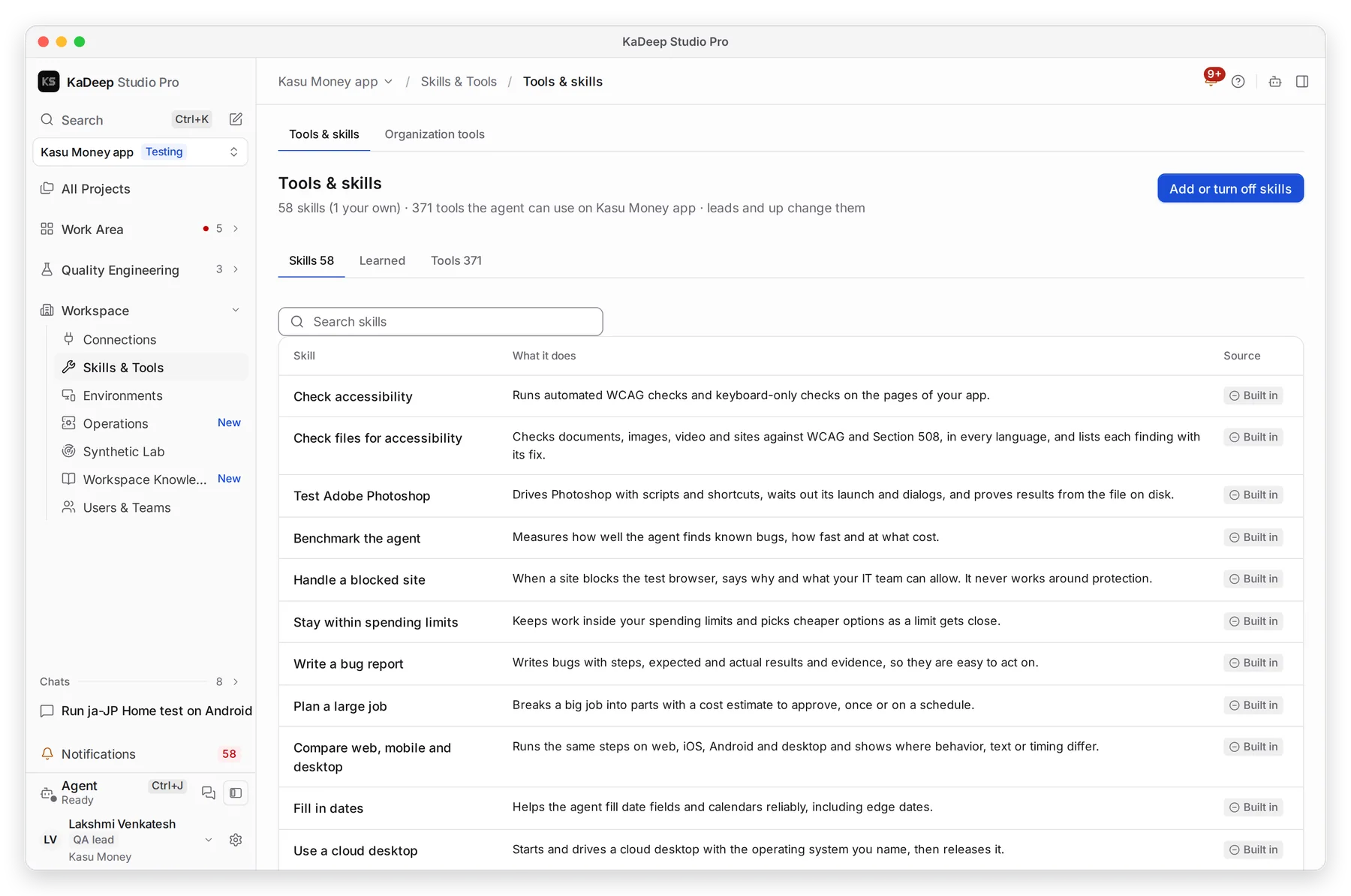
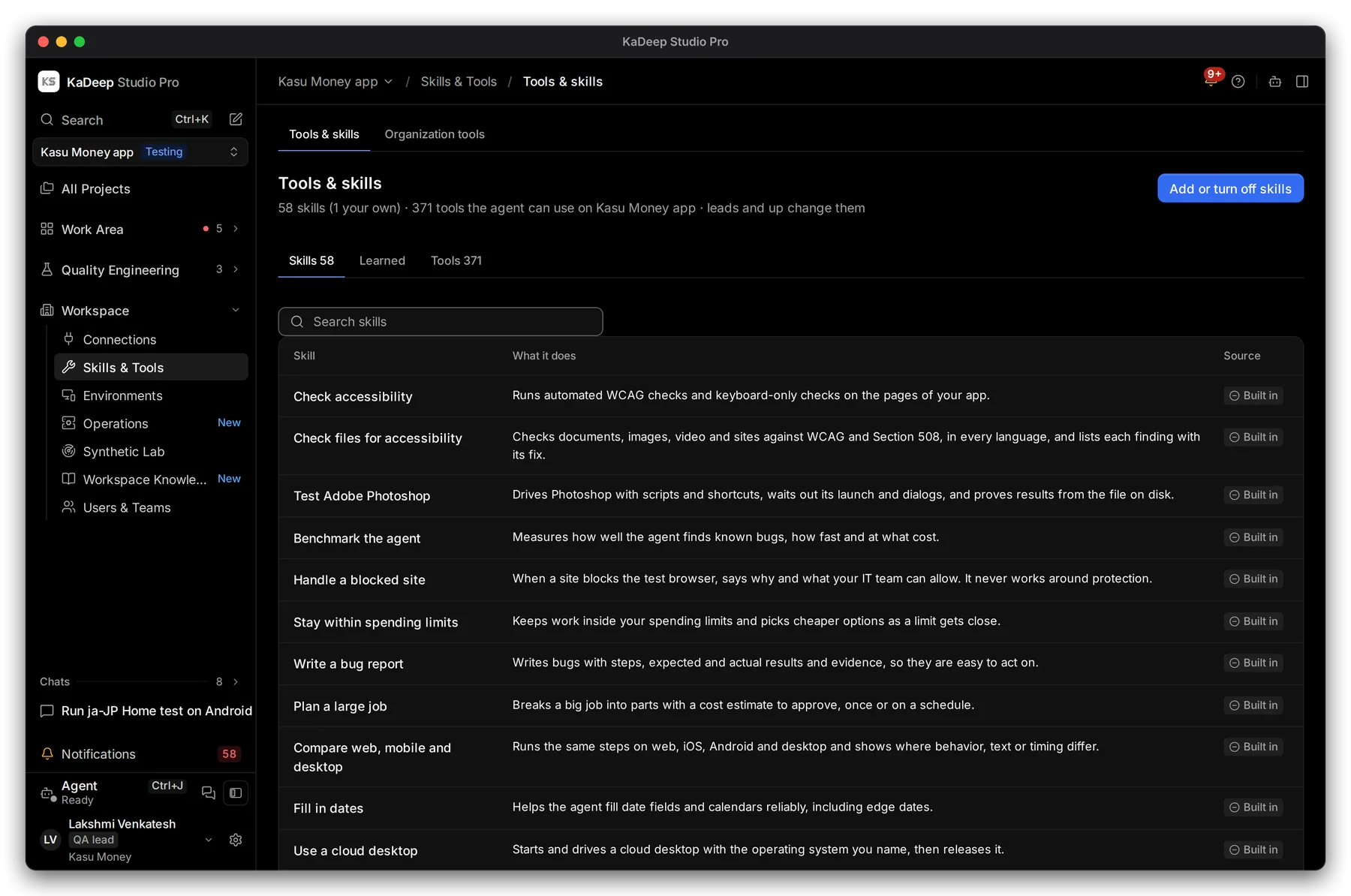
Manage view
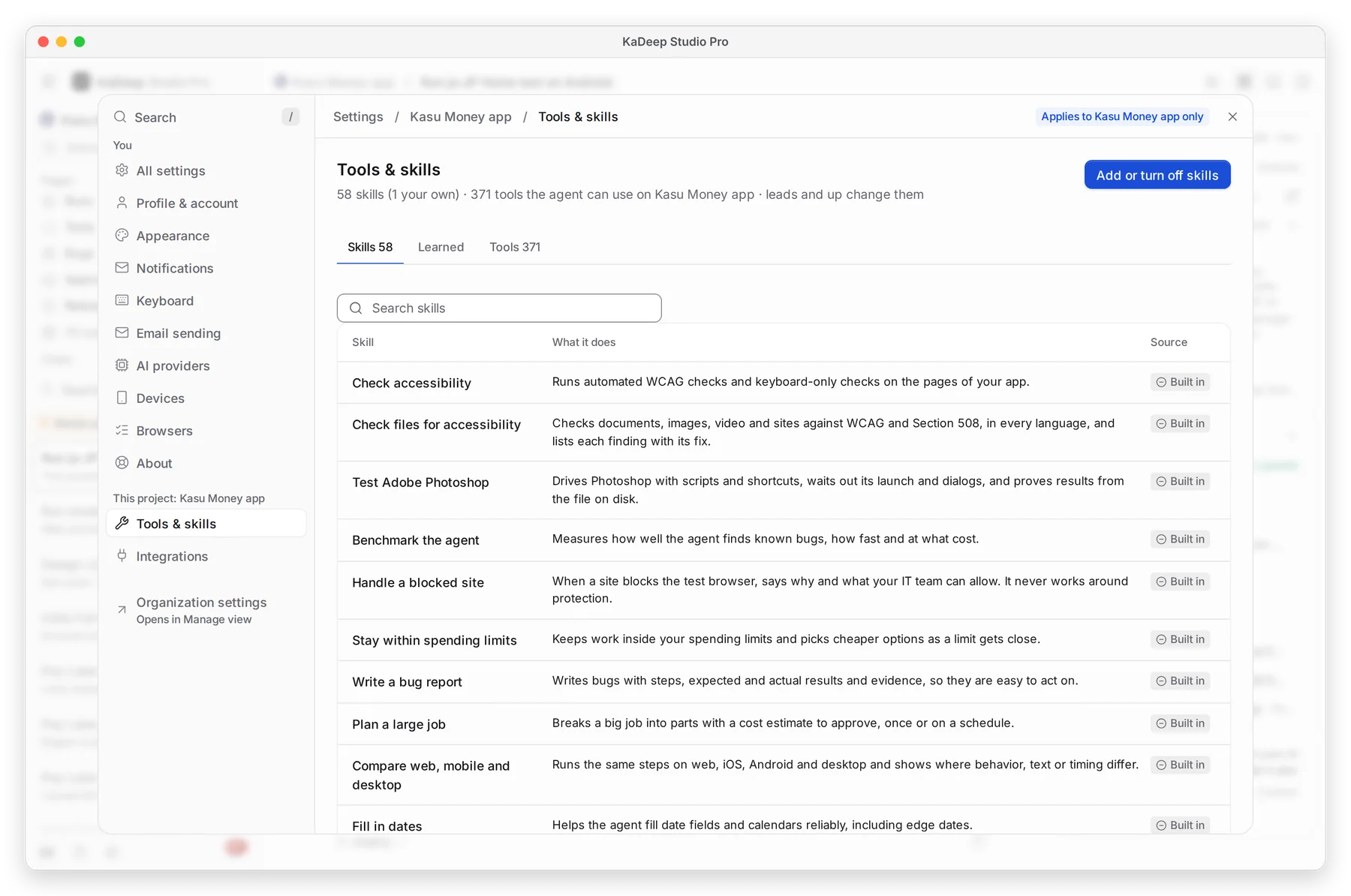
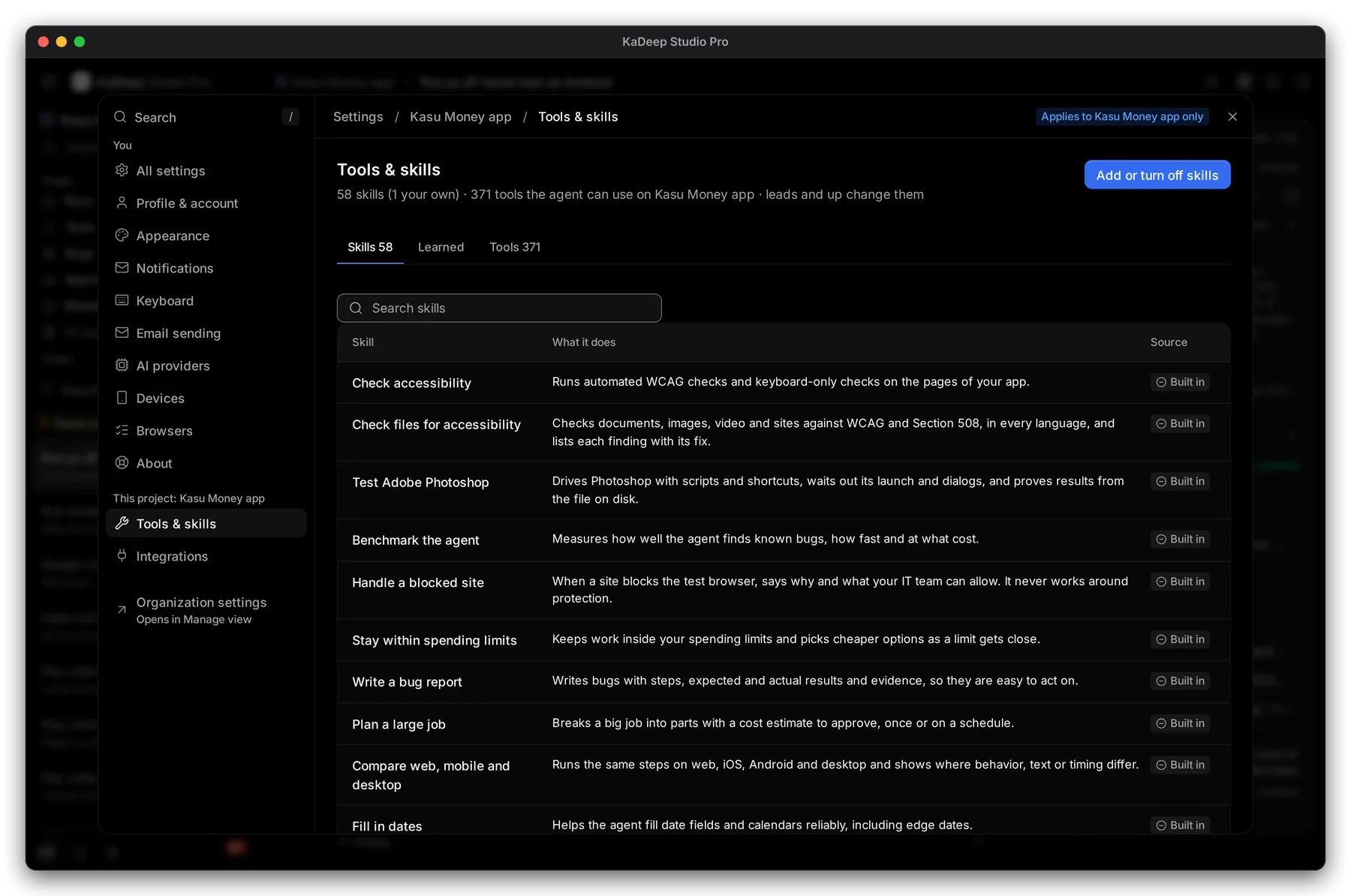
Hands-on view
- 1 How many skills and tools the agent can use in this project. Leads and up can change them.
- 2 Skills, Learned and Tools.
- 3 Add or turn off skills.
- 4 Each skill, what it does, and where it comes from: Built in or your own.
2. Turn tools and skills on or off
Section titled “2. Turn tools and skills on or off”- Choose Add or turn off skills.
- Choose Tools or Skills.
- Search, or open a group. Turn single items on or off, or choose All on or All off for the whole group.
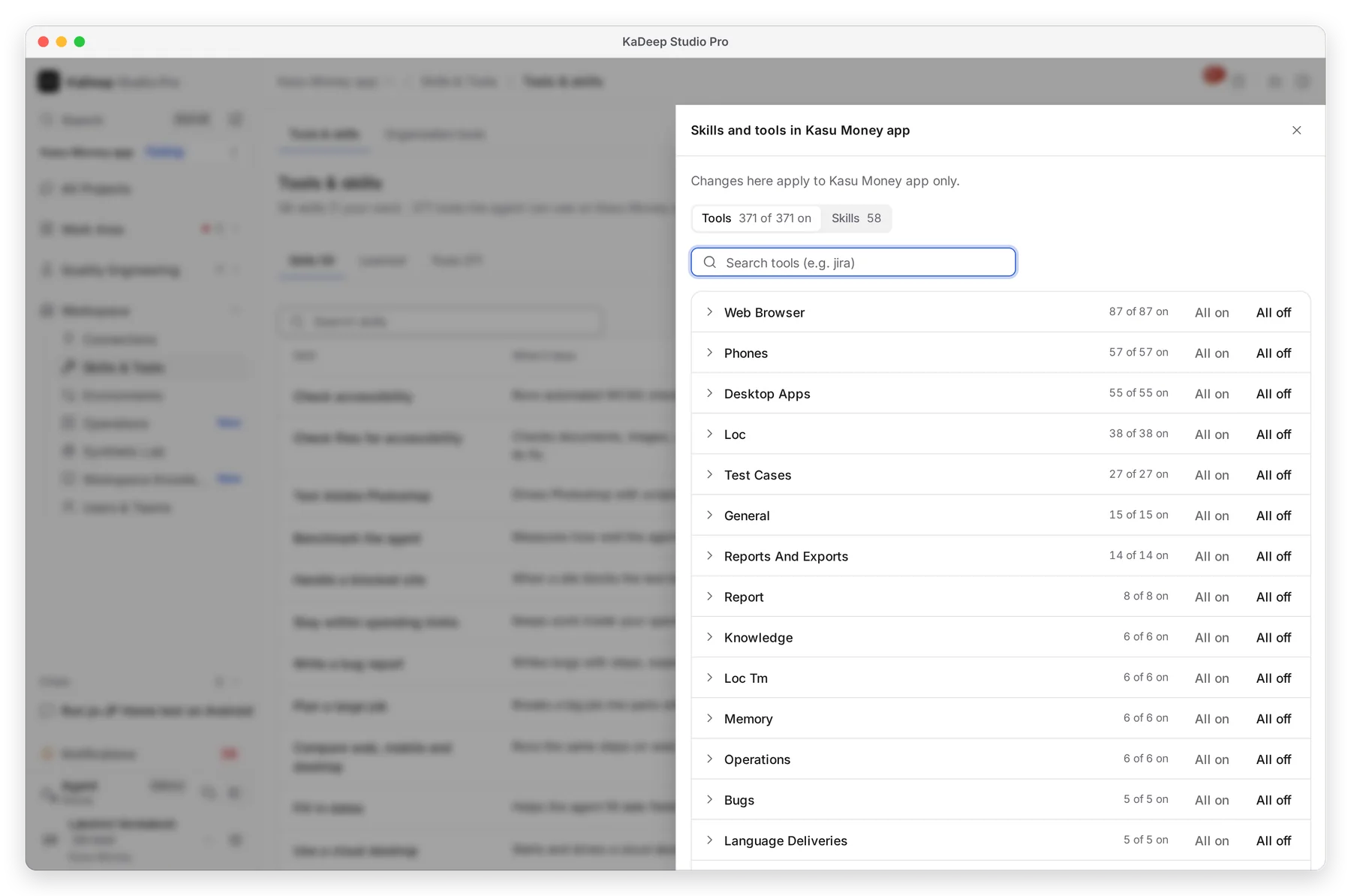
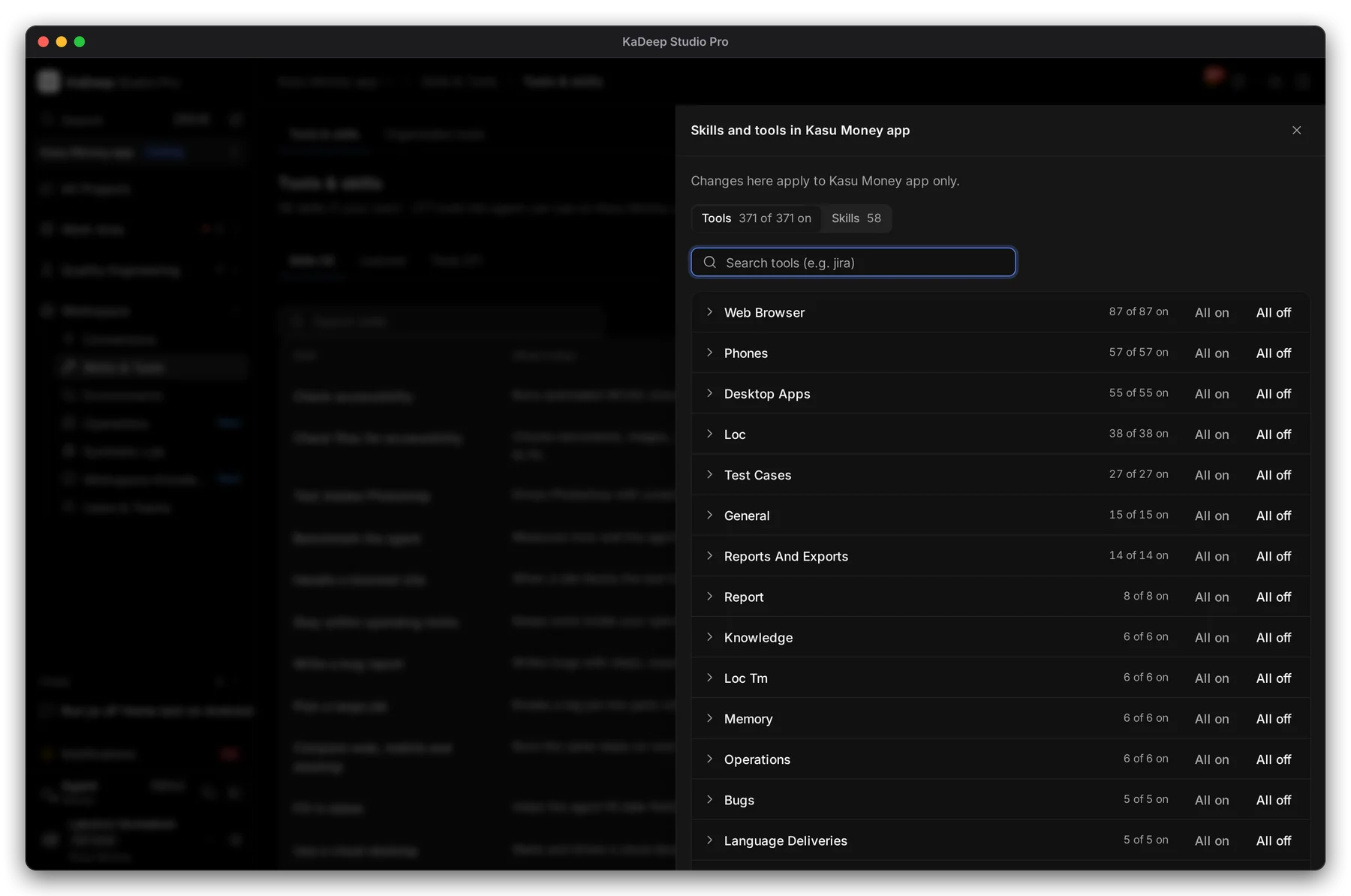
Manage view
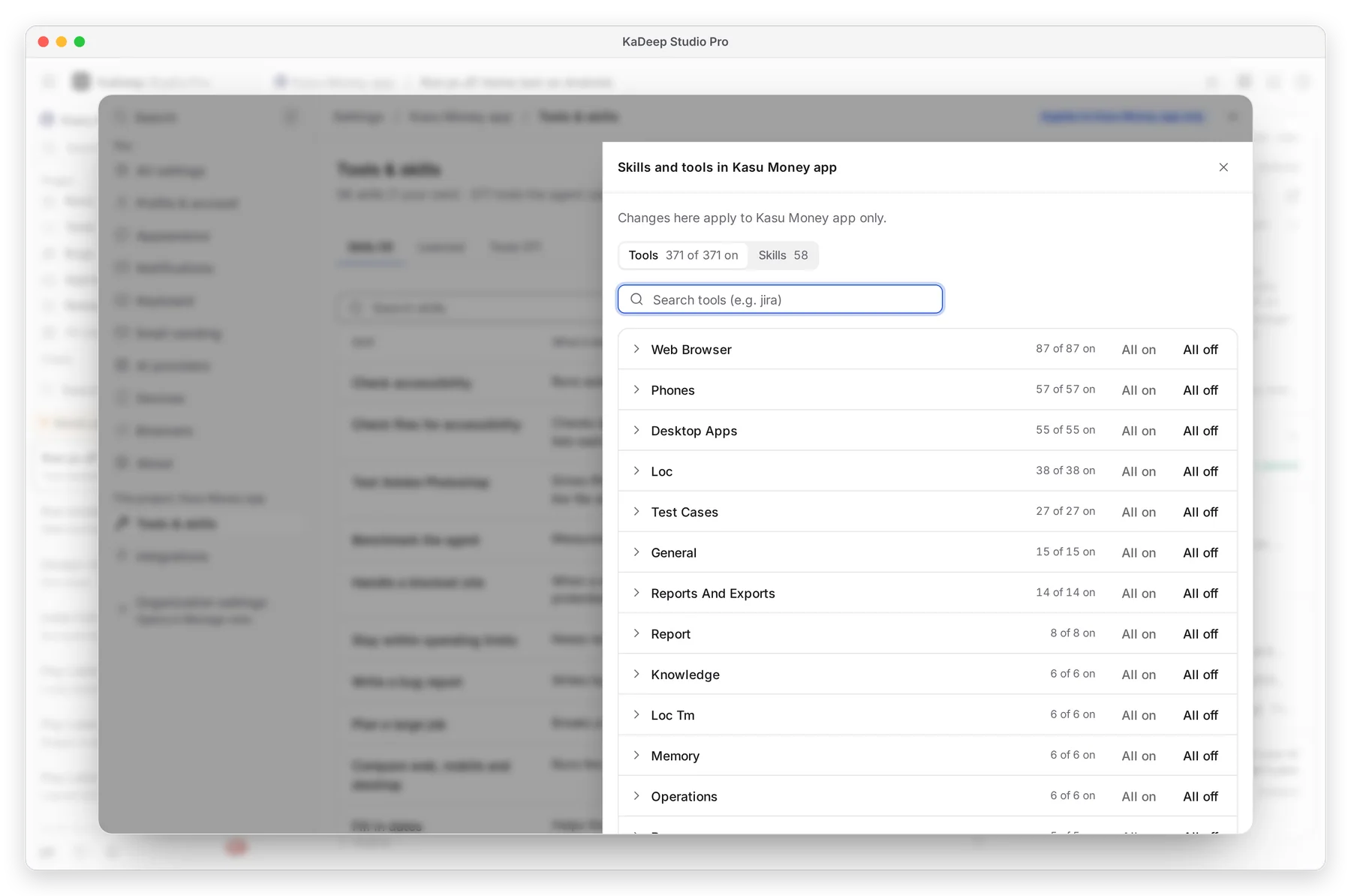
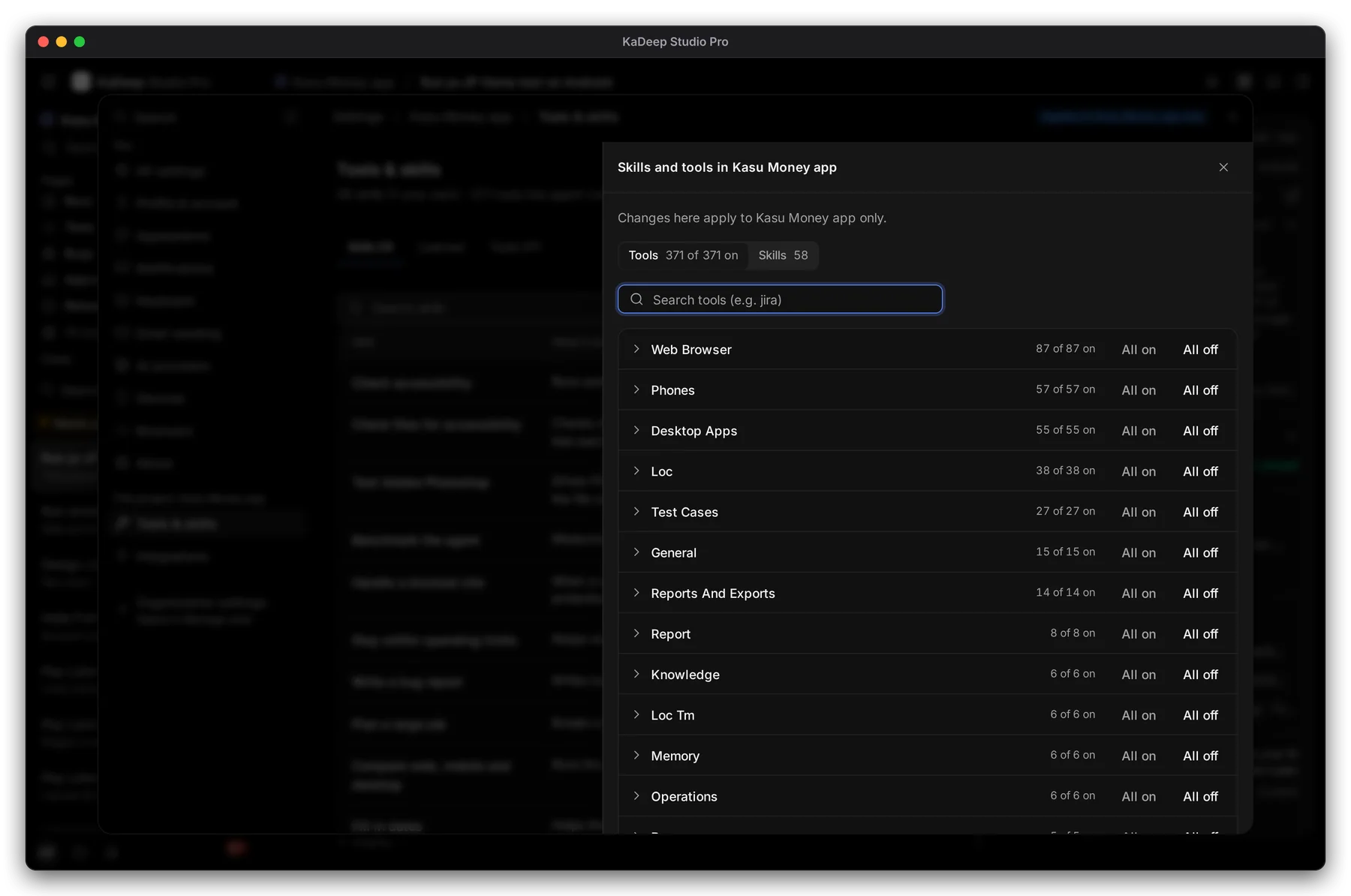
Hands-on view
- 1 Tools and Skills, with how many are on.
- 2 Search tools, for example “jira”.
- 3 All off turns a whole group off, such as Phones for a web-only app.
Changes here apply to this project only.
3. Review what the agent learned
Section titled “3. Review what the agent learned”The Learned tab lists what the agent worked out on its own, for example which field to type into on a sign-up page. Each one shows its status, how often it was used and how often it worked.
| Status | What it means |
|---|---|
| On trial | New. The agent tries it and keeps score. |
| Off (failed 3 times in a row) | It stopped working, so the agent stopped using it. |
Choose Edit to correct one, or Remove to delete it.
What’s next
Section titled “What’s next”Agents, memory and notesWhat each agent knows and remembers.
IntegrationsConnect Jira, GitHub and Slack.
Project setup and rulesThe rules the agent follows.