Approve runs and spending
Your view
Some work needs a person’s OK before the agent starts it: a run that costs more than the project allows, or tests that change or delete data. The request waits on Approvals until the right people sign.
Who signs
Section titled “Who signs”Each request walks a chain of signatures. The amount decides how many steps it has.
| Step | Signs | When |
|---|---|---|
| 1 | Lead | Always |
| 2 | Manager | Over $100, or when the work changes or deletes data |
| 3 | Admin | Over $1,000 |
These are the default amounts. Your admin can change the chain for your organization. See Spending limit and approvals.
- One person signs one step. If you signed step 1, someone else signs step 2.
- If a step gets no answer within 4 hours, the request is escalated: the next step is asked too.
- If nobody decides within 48 hours, the request expires. Work that was within budget still runs; the rest is left out.
1. Open Approvals
Section titled “1. Open Approvals”- In the sidebar, open All Projects, then the Approvals tab. On Home, Review approvals goes there too. In the sidebar, under Pages, choose Approvals.
- Waiting shows open requests. Decided shows the ones that are finished.
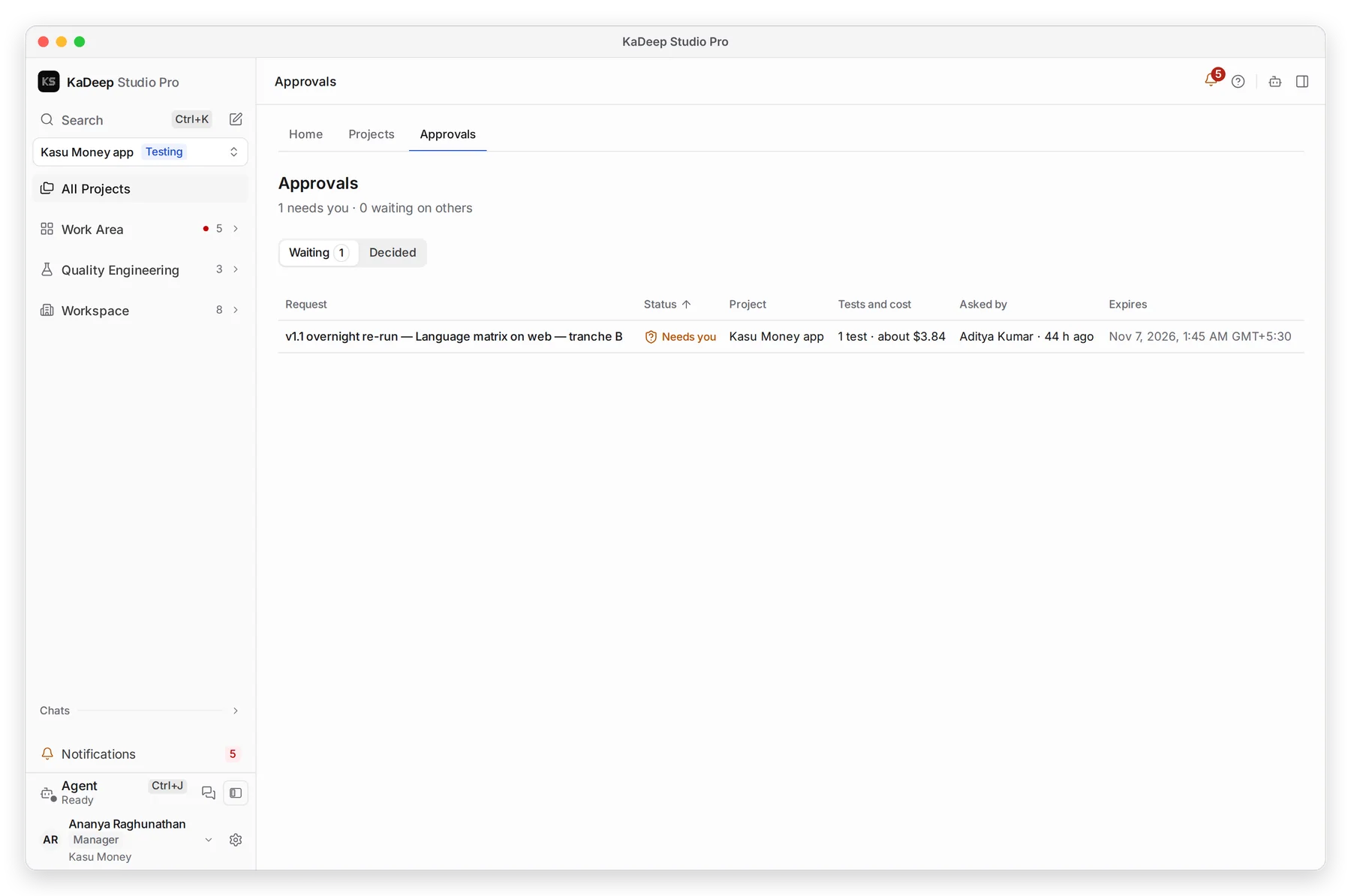
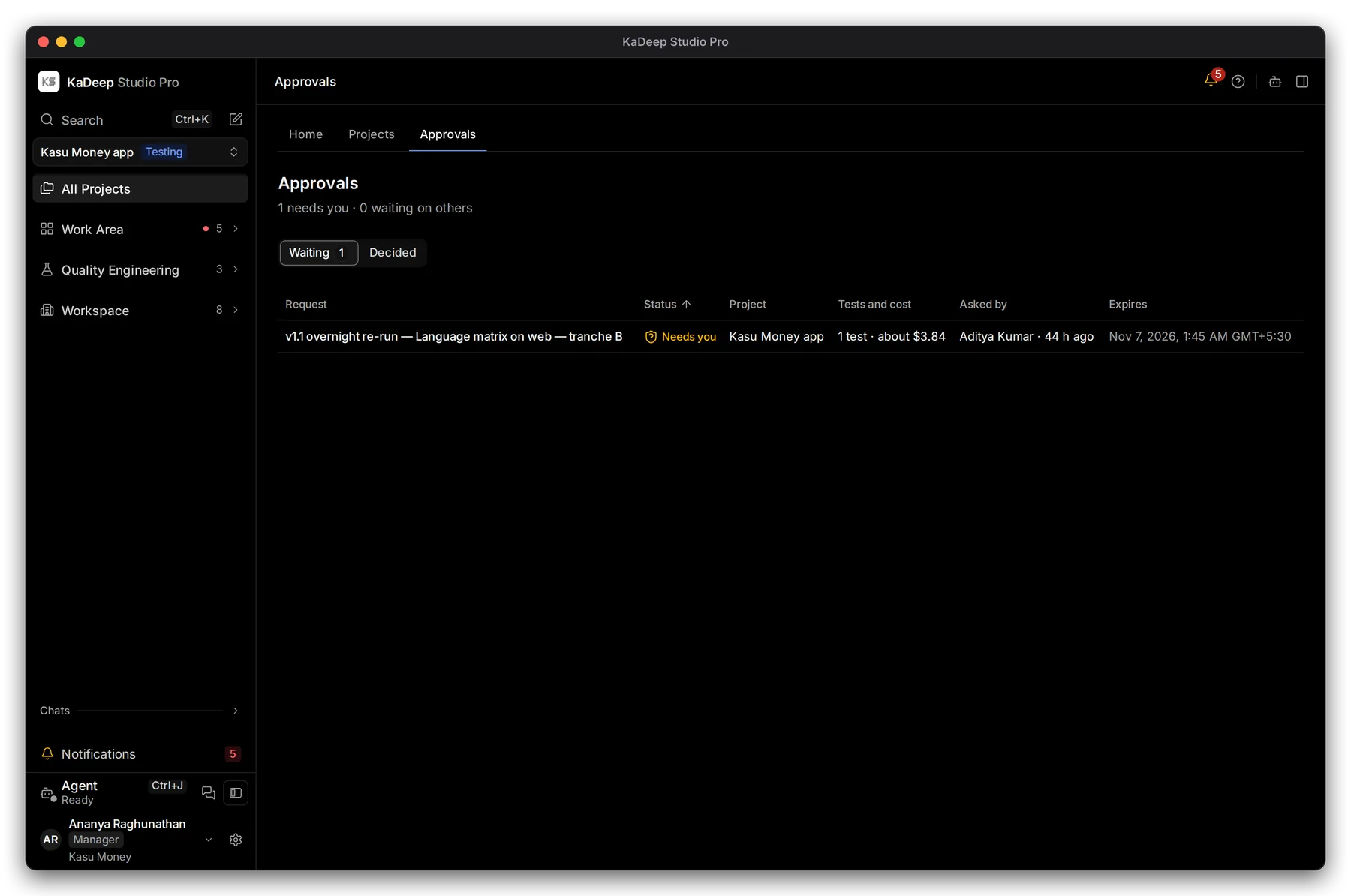
Manage view
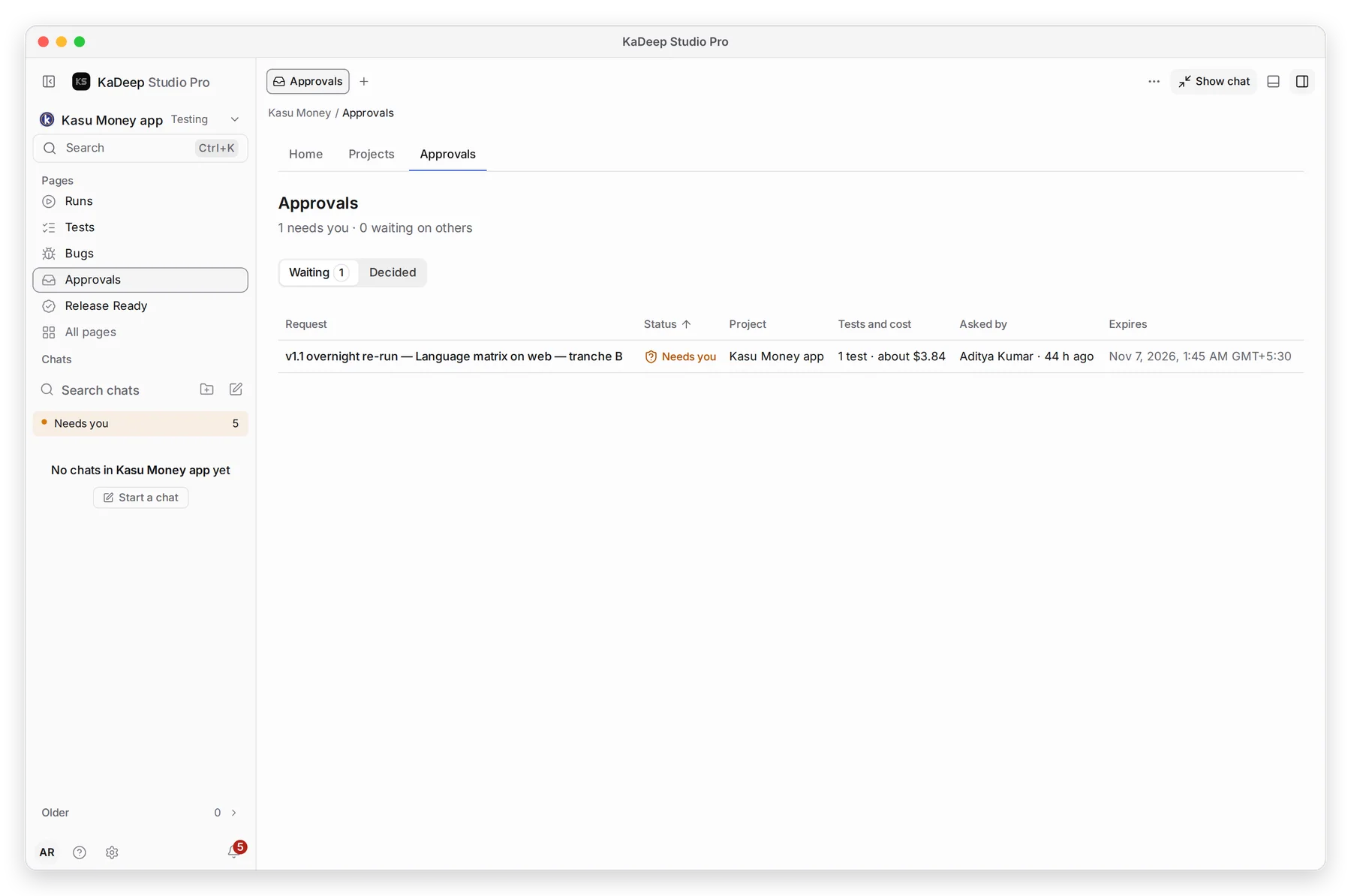
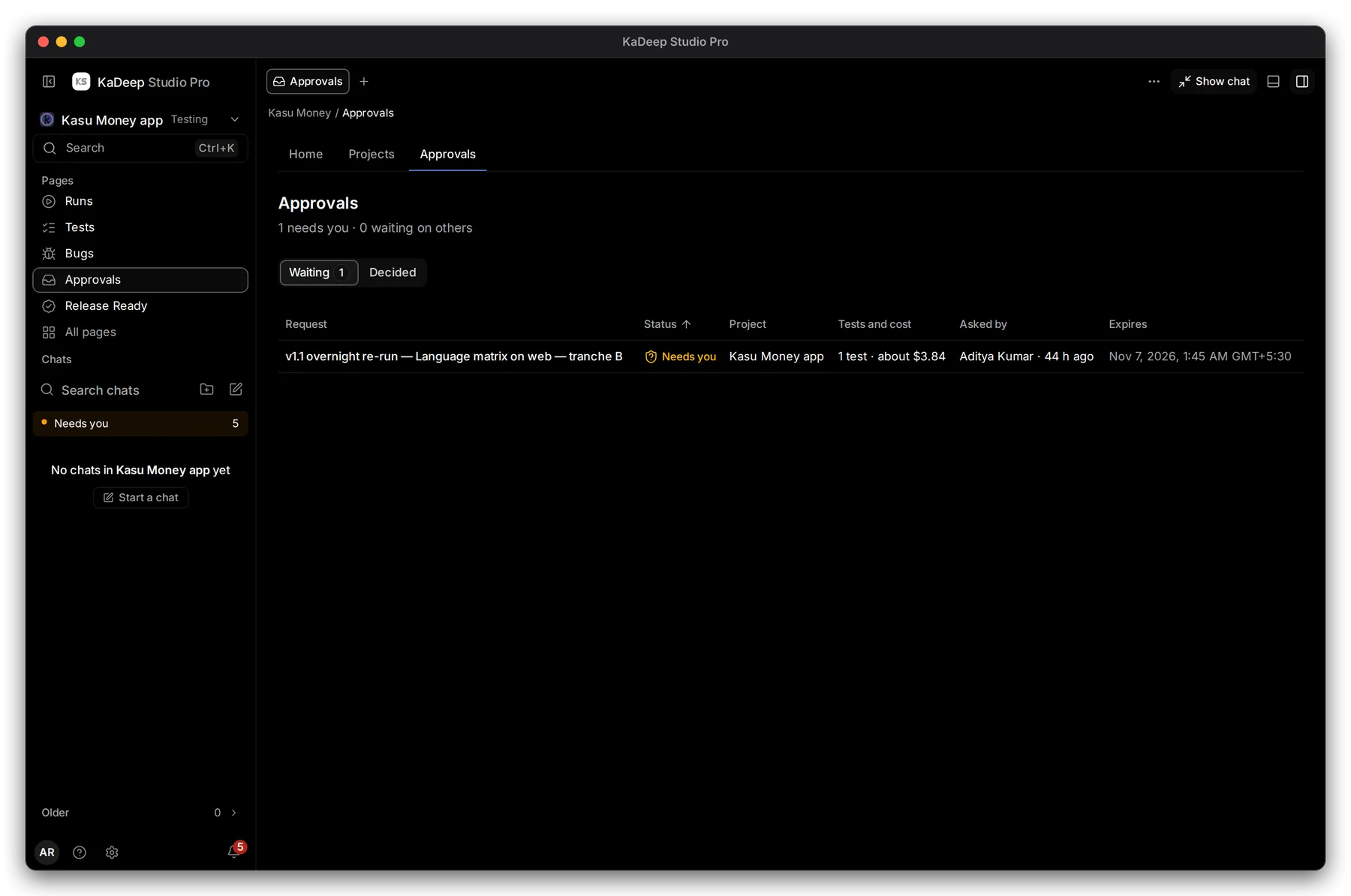
Hands-on view
- 1 How many requests wait on you, and how many wait on others.
- 2 Waiting or Decided.
- 3 Click a request to review it.
- 4 Tests and cost: how much it runs and the estimate.
2. Review the request
Section titled “2. Review the request”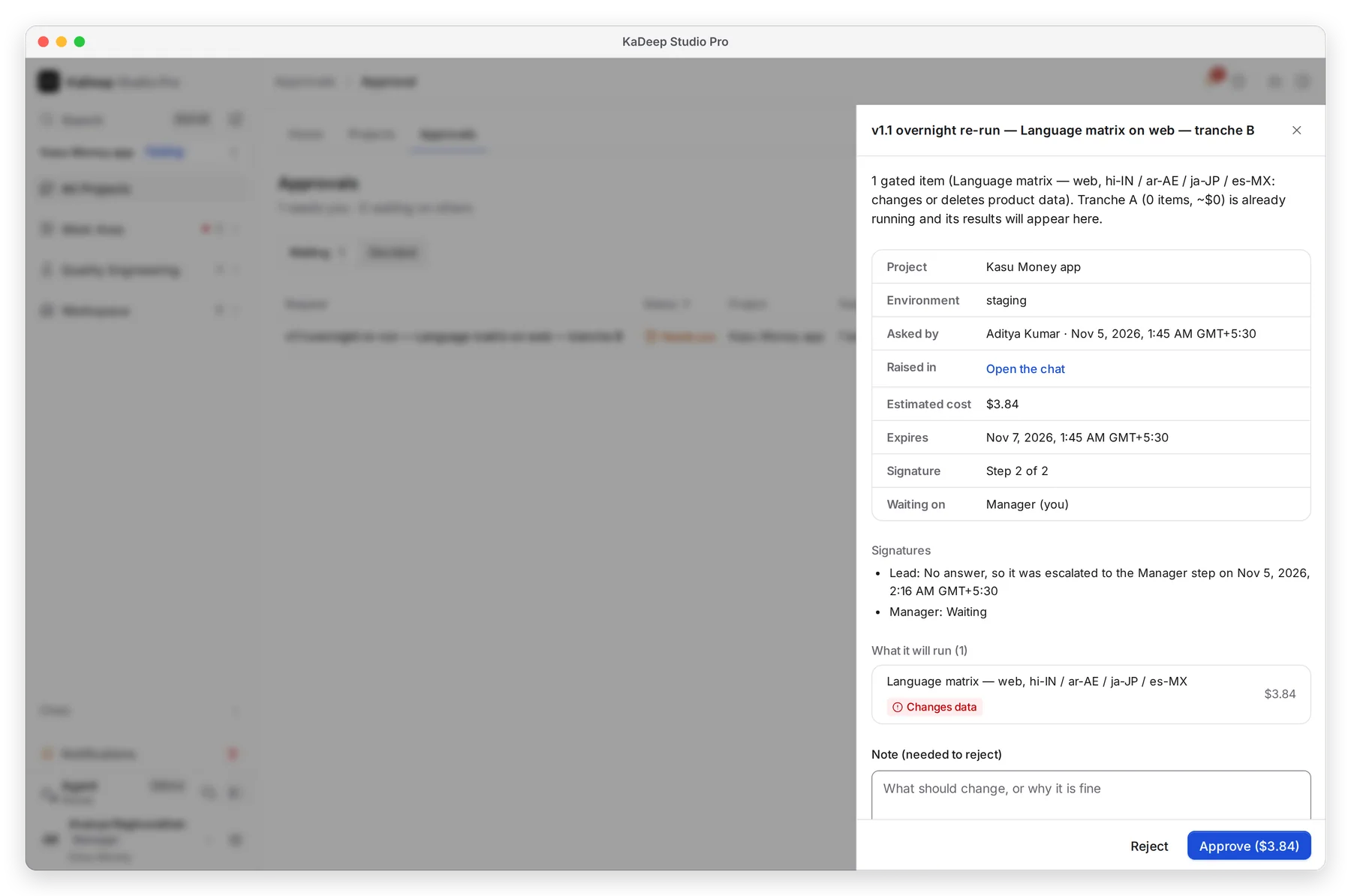
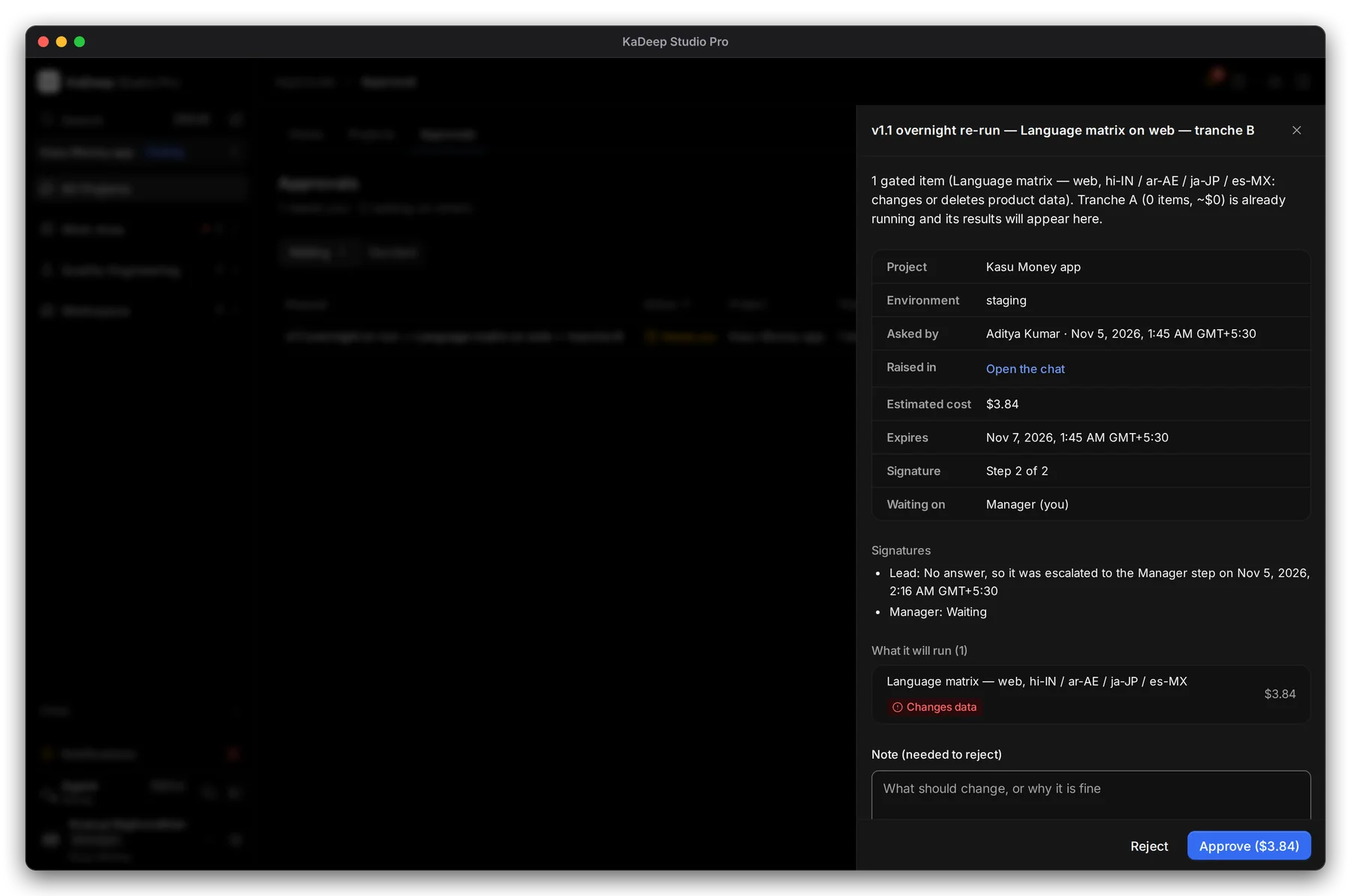
Manage view
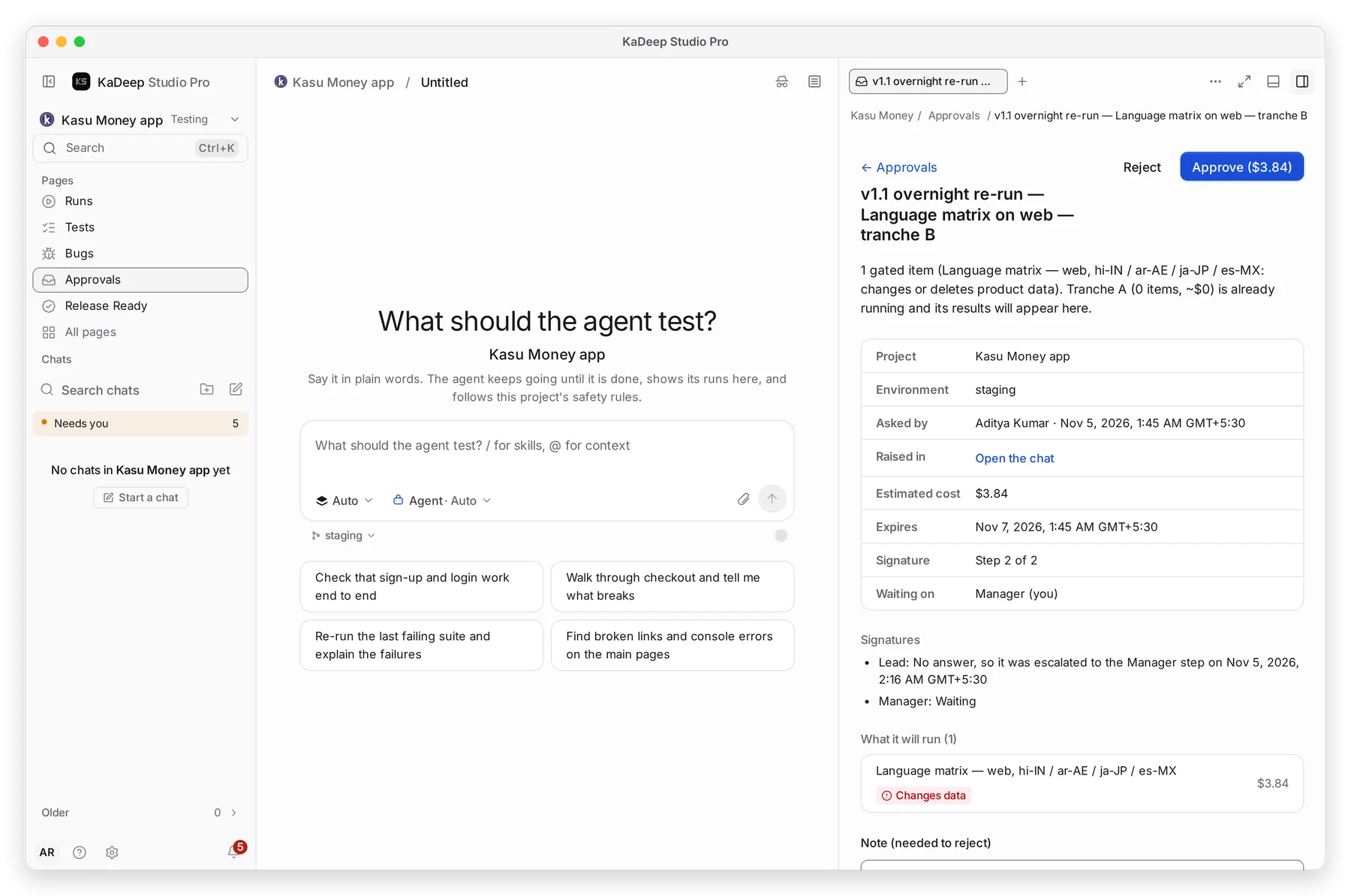
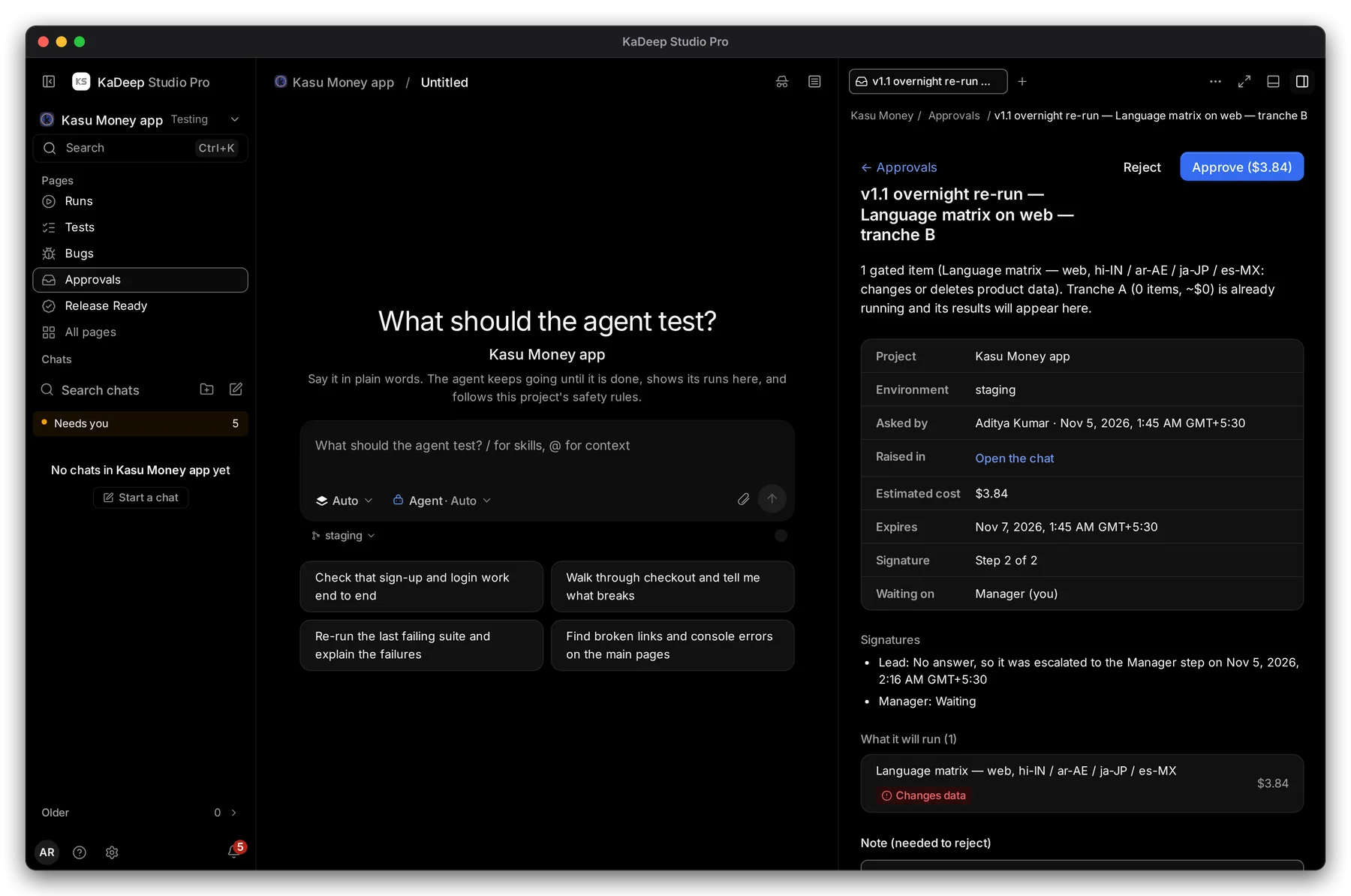
Hands-on view
- 1 Estimated cost, and Expires: when it lapses if nobody decides.
- 2 Signature: which step this is, such as Step 2 of 2. Waiting on says whose turn it is.
- 3 Signatures: who signed so far, or that a step was escalated.
- 4 What it will run. Changes data marks tests that change or delete product data.
- 5 Approve shows the amount on the button.
Raised in › Open the chat shows the conversation where the request came from.
3. Decide
Section titled “3. Decide”- To approve, choose Approve. If more steps follow, the request moves to the next approver. When the last step signs, the work starts.
- To reject, type why in Note (needed to reject), then choose Reject. The requester sees your note.
Every decision is recorded in the audit log with who signed and when.
What’s next
Section titled “What’s next”Needs youApprovals and everything else waiting on you.
Approve the agent's planRead what the agent will do, then approve it.
Spending limit and approvalsSet the chain and the monthly limit (admins).
CostWhat runs cost, by project and by person.