Performance and other non-functional tests
Your view
Functional tests ask “does it work?”. Non-functional tests ask “does it hold up?”: speed, load, security, and how it looks across browsers and devices.
1. Open Non-Functional Testing
Section titled “1. Open Non-Functional Testing”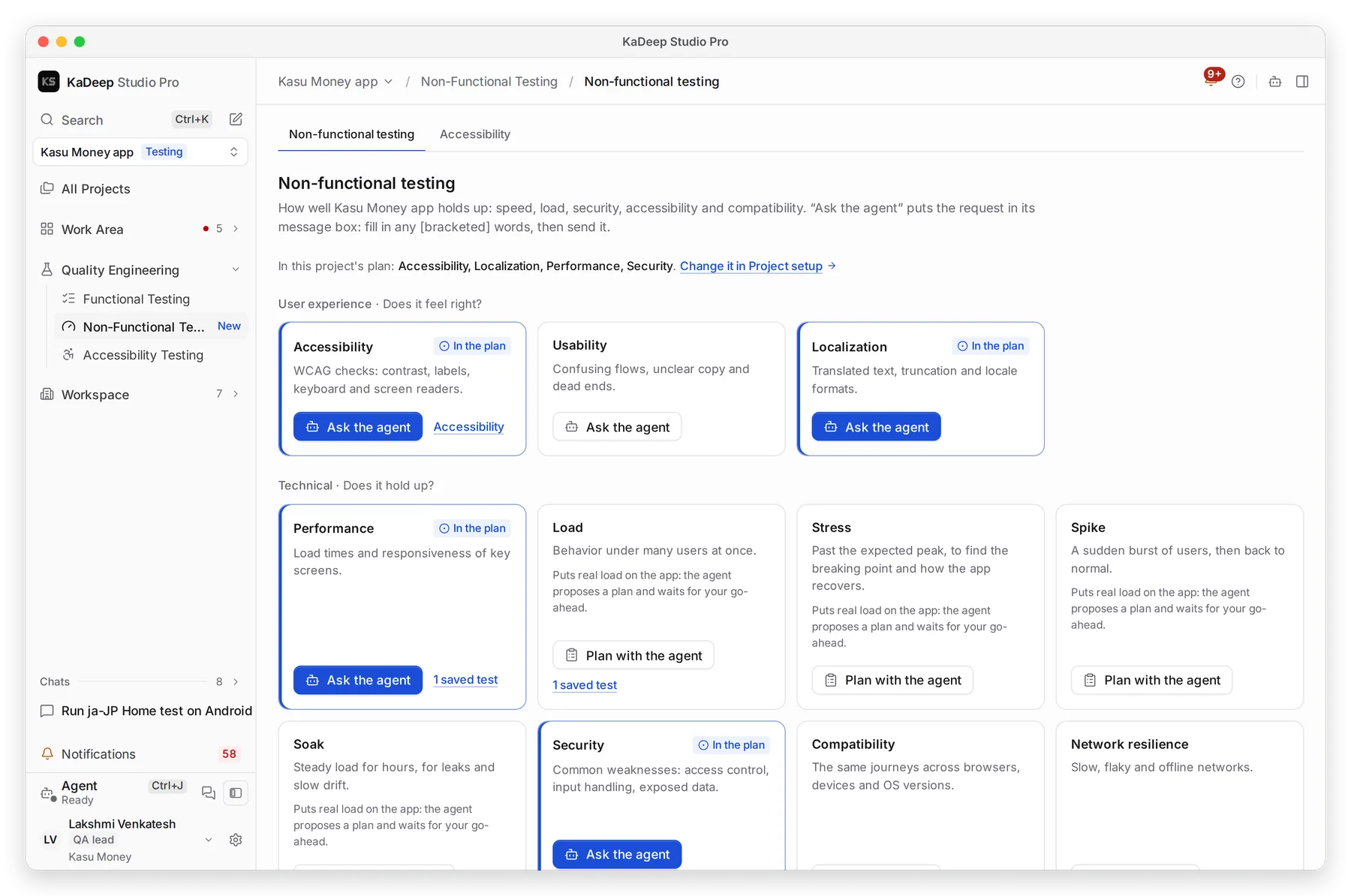
Manage view
Hands-on view
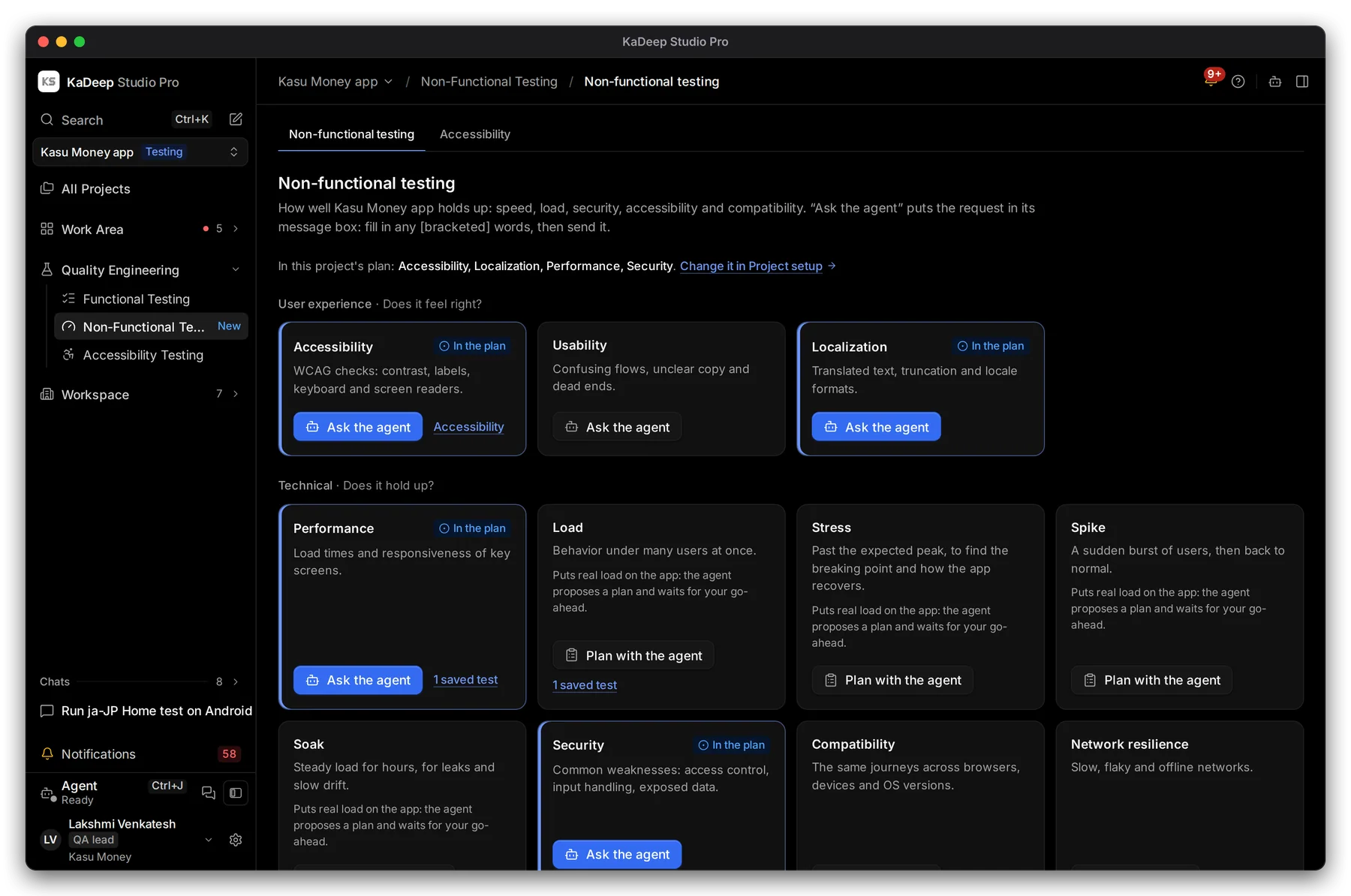
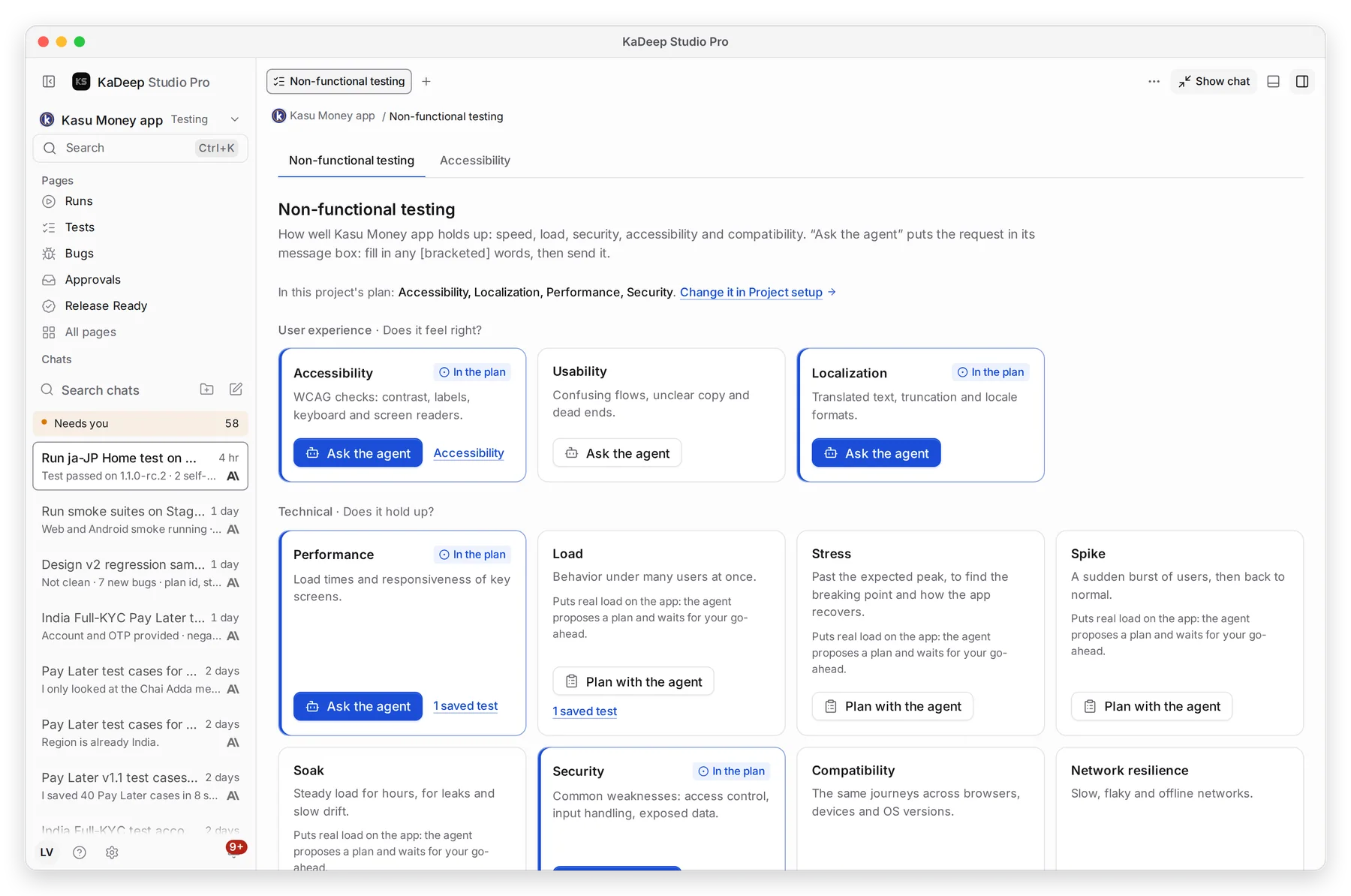
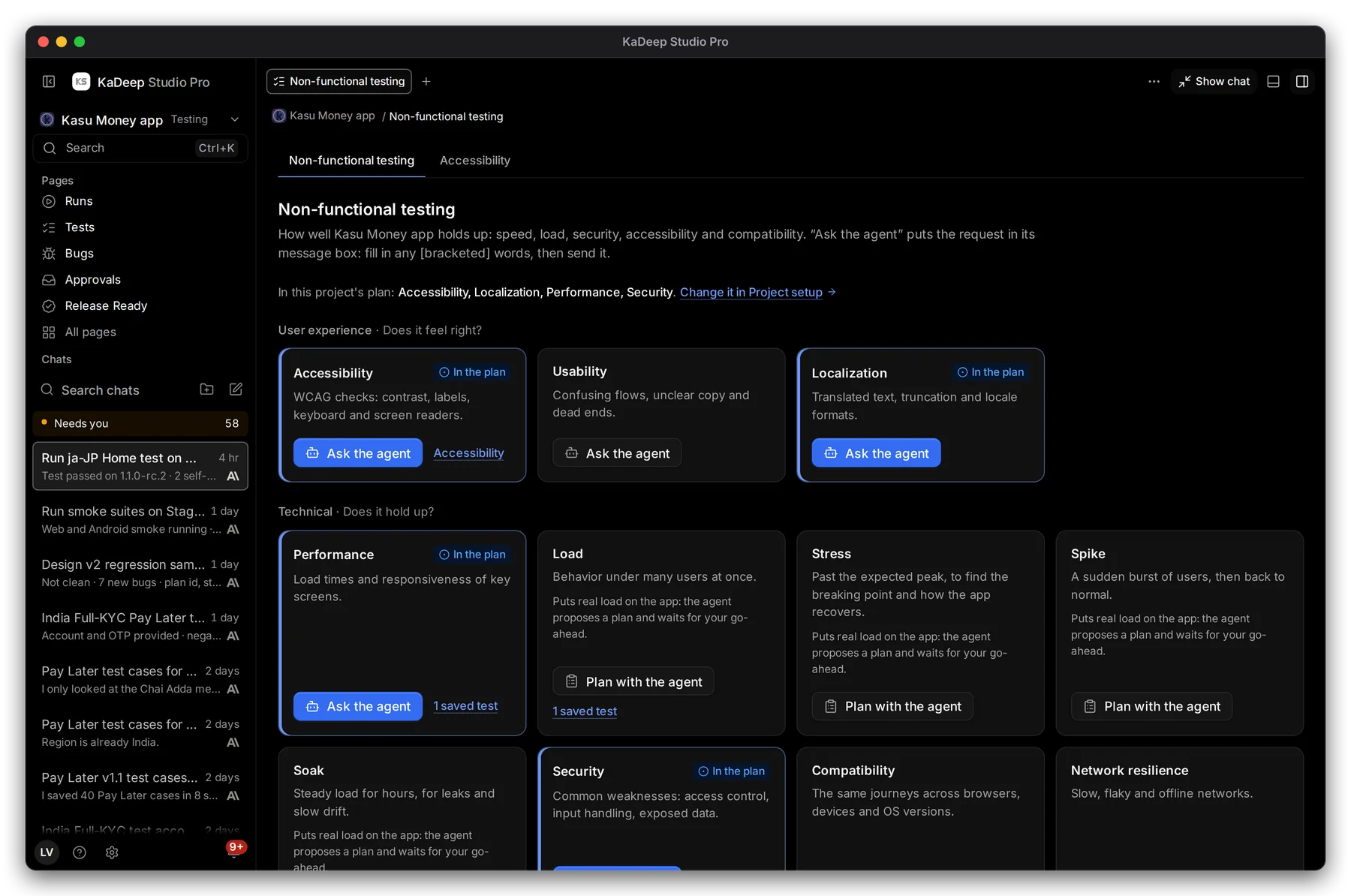
- 1 The kinds in this project’s plan. To change them, choose Change it in Project setup.
- 2 Each card says what the test looks for. In the plan marks the ones you chose.
- 3 Load, stress, spike and soak tests put real load on your app, so you Plan with the agent first.
- 4 1 saved test opens the tests you kept for that kind.
2. Ask the agent
Section titled “2. Ask the agent”- On a card, choose Ask the agent or Plan with the agent.
- The request appears in the agent’s message box. Fill in any [bracketed] words, such as the page or the number of users.
- Send it. For a load test, the agent proposes a plan and waits for your go-ahead.
| Kind | What it checks |
|---|---|
| Performance | Load times and responsiveness of key screens |
| Load, stress, spike, soak | Many users at once, past the peak, a sudden burst, or hours of steady use |
| Security | Access control, input handling, exposed data |
| Compatibility | The same journeys across browsers, devices and screen sizes |
| Usability | Confusing flows, unclear copy and dead ends |
| Network resilience, offline | Slow, flaky or no network |
| Mobile performance, mobile security | Start-up time, memory, battery; secrets in storage and logs |
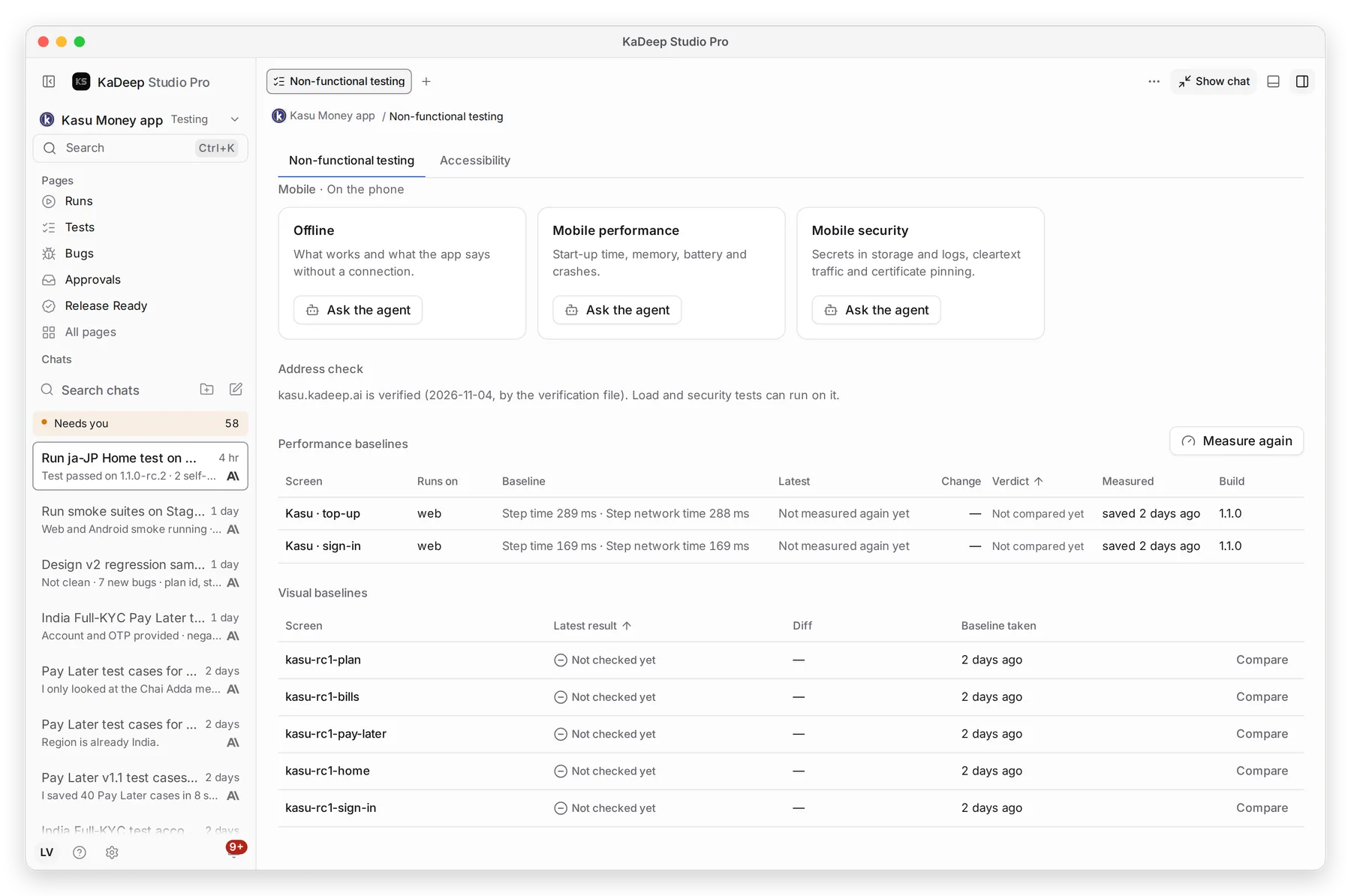
3. Compare against a baseline
Section titled “3. Compare against a baseline”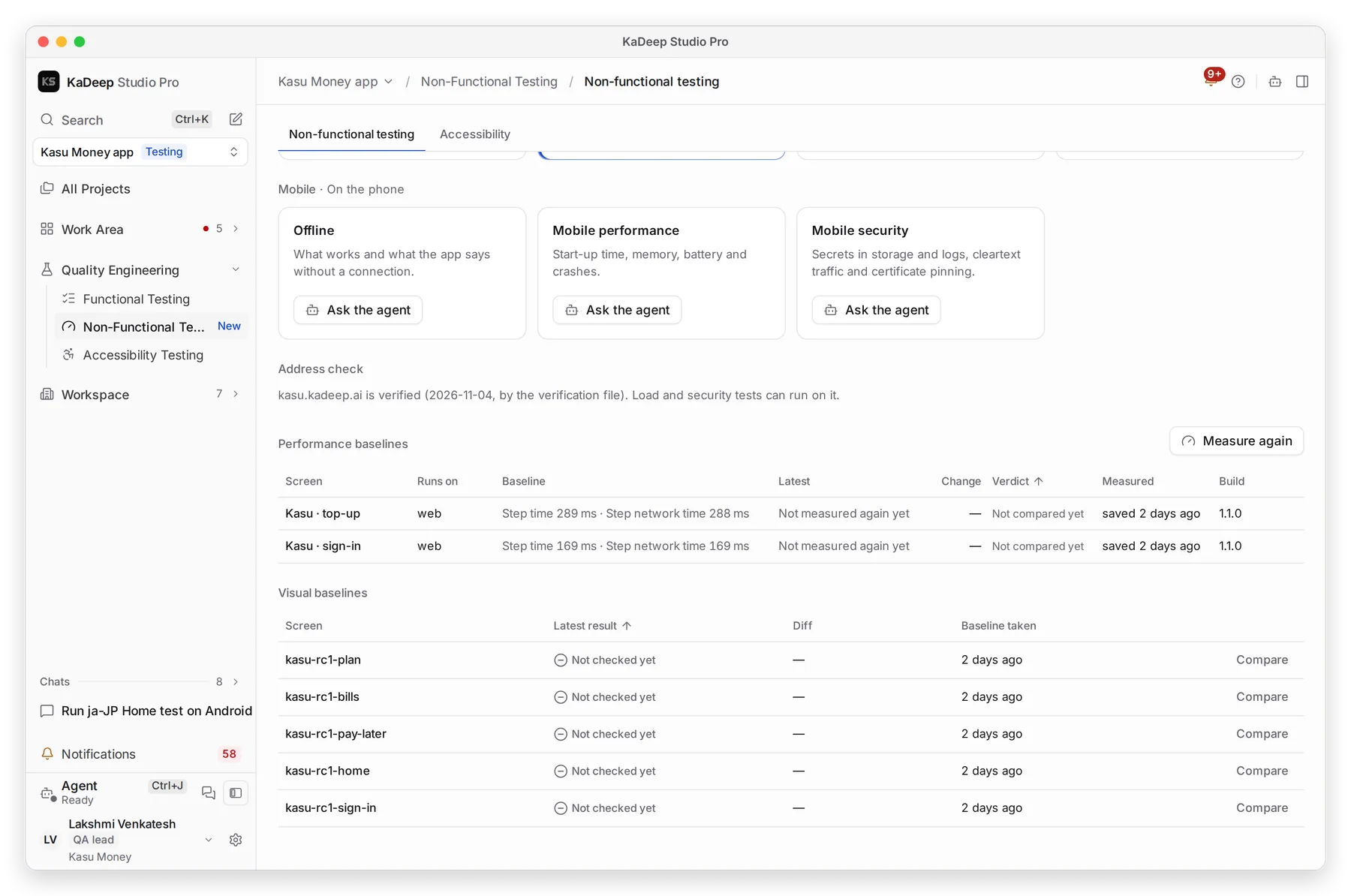
Manage view
Hands-on view
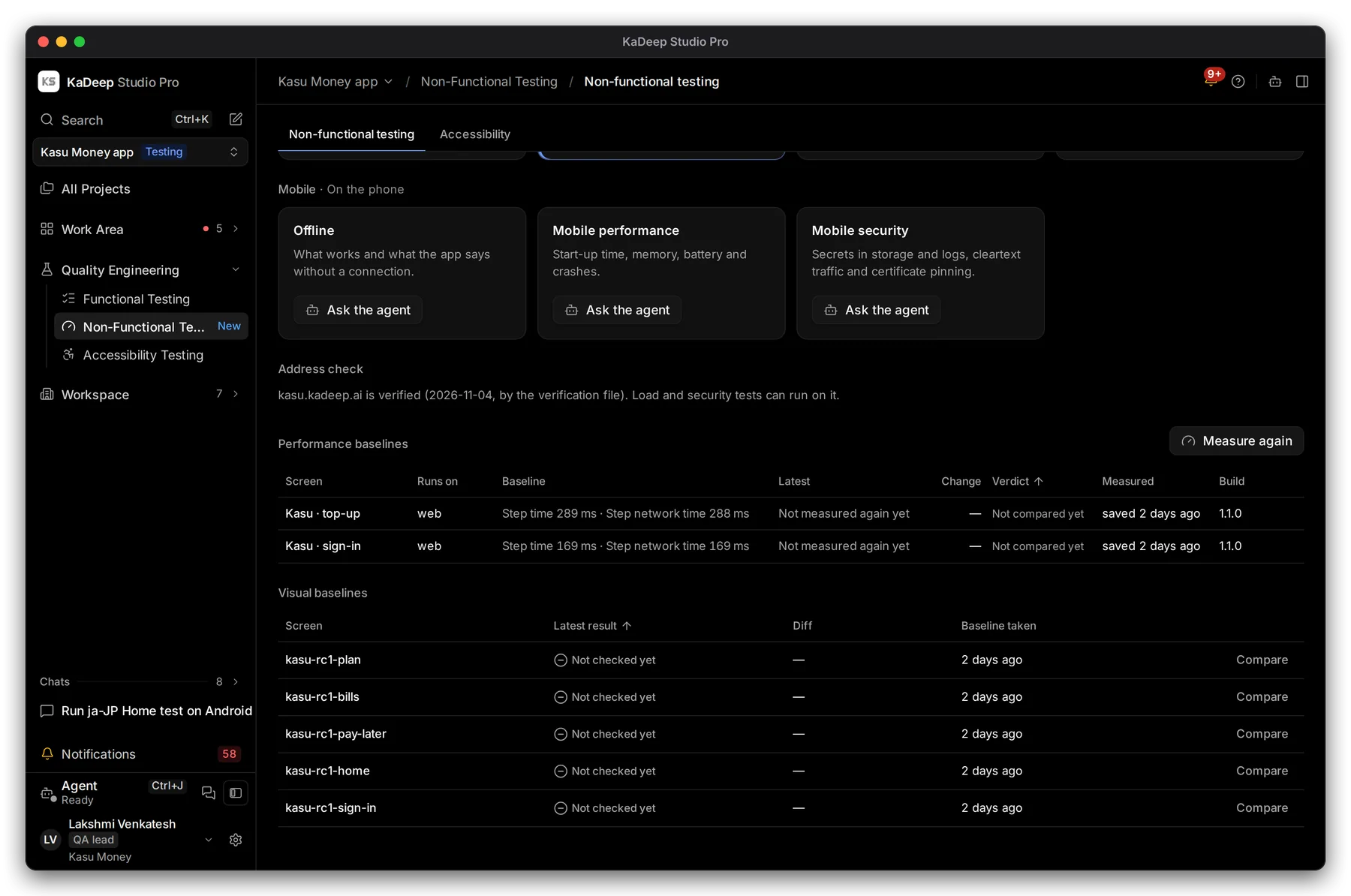
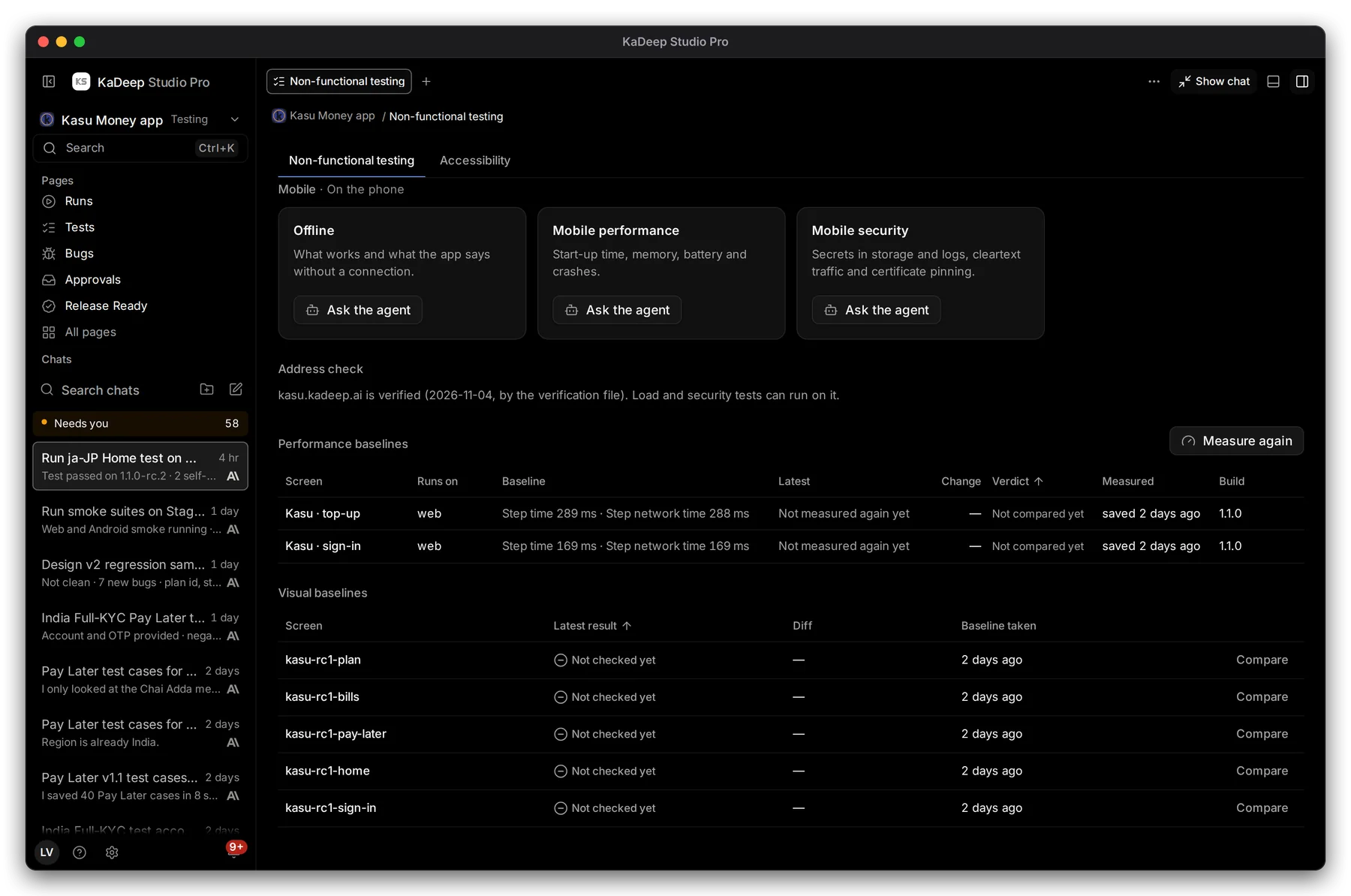
- 1 Address check: the site is verified, so load and security tests can run on it.
- 2 Performance baselines: how long each key screen took when the baseline was saved, and the change since.
- 3 Visual baselines: a saved picture of each key screen, and how the latest run differs.
- 4 Compare shows the baseline and the latest screen side by side, with the changes marked.
What’s next
Section titled “What’s next”Accessibility testingWCAG checks and ACR/VPAT reports.
Approve the agent's planRead and approve a load test plan.
Project setup and rulesChoose the kinds of testing in your plan.