Analytics
Your view
Analytics shows the numbers behind a project’s verdict, and how they move over time. This is also where you choose who signs off a release.
1. Open Analytics
Section titled “1. Open Analytics”Open Work Area › Overview, then choose the Analytics tab.Open the Project dashboard, then choose the Analytics tab. Analytics is per project, so choose the project first.
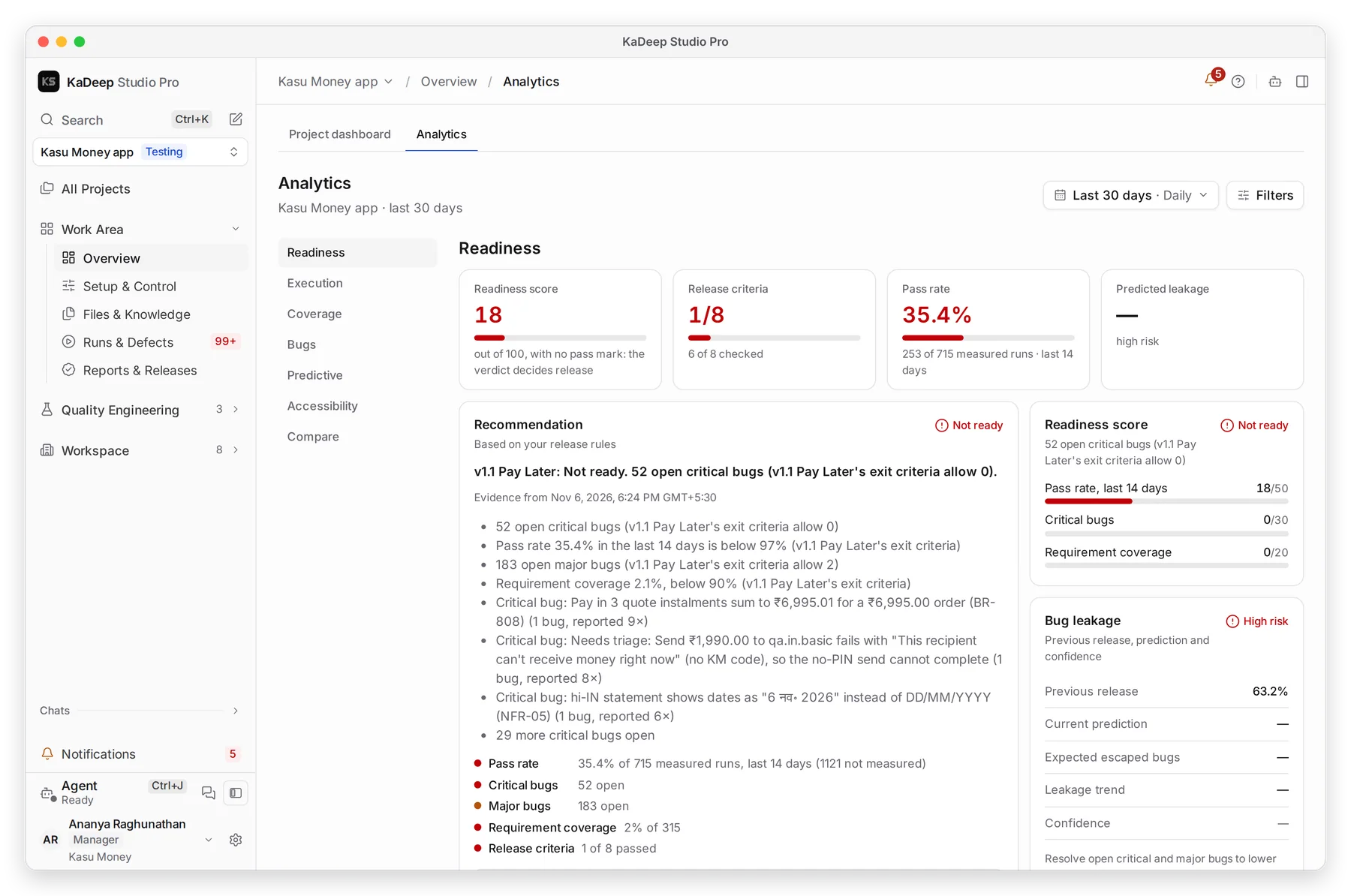
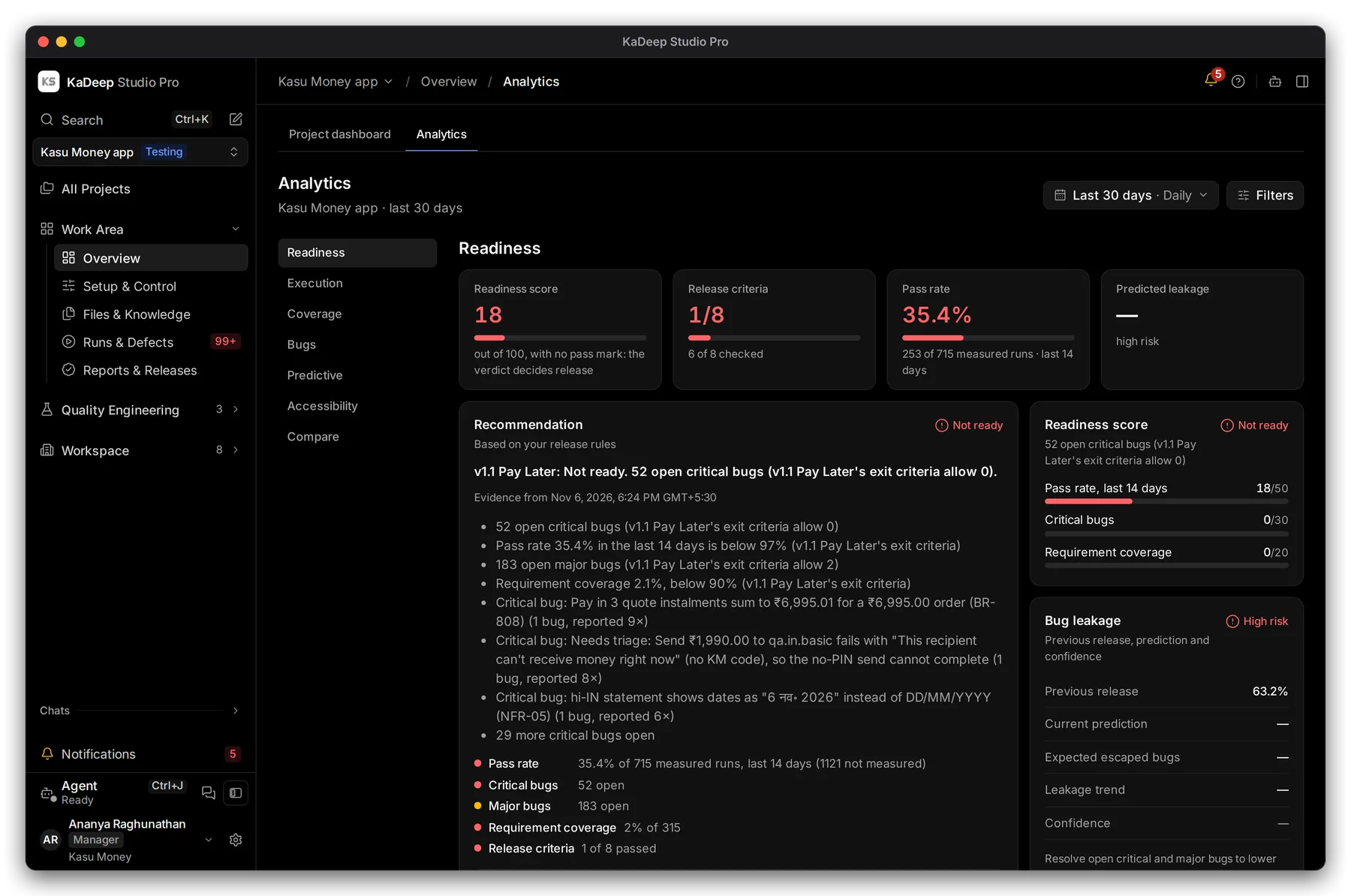
Manage view
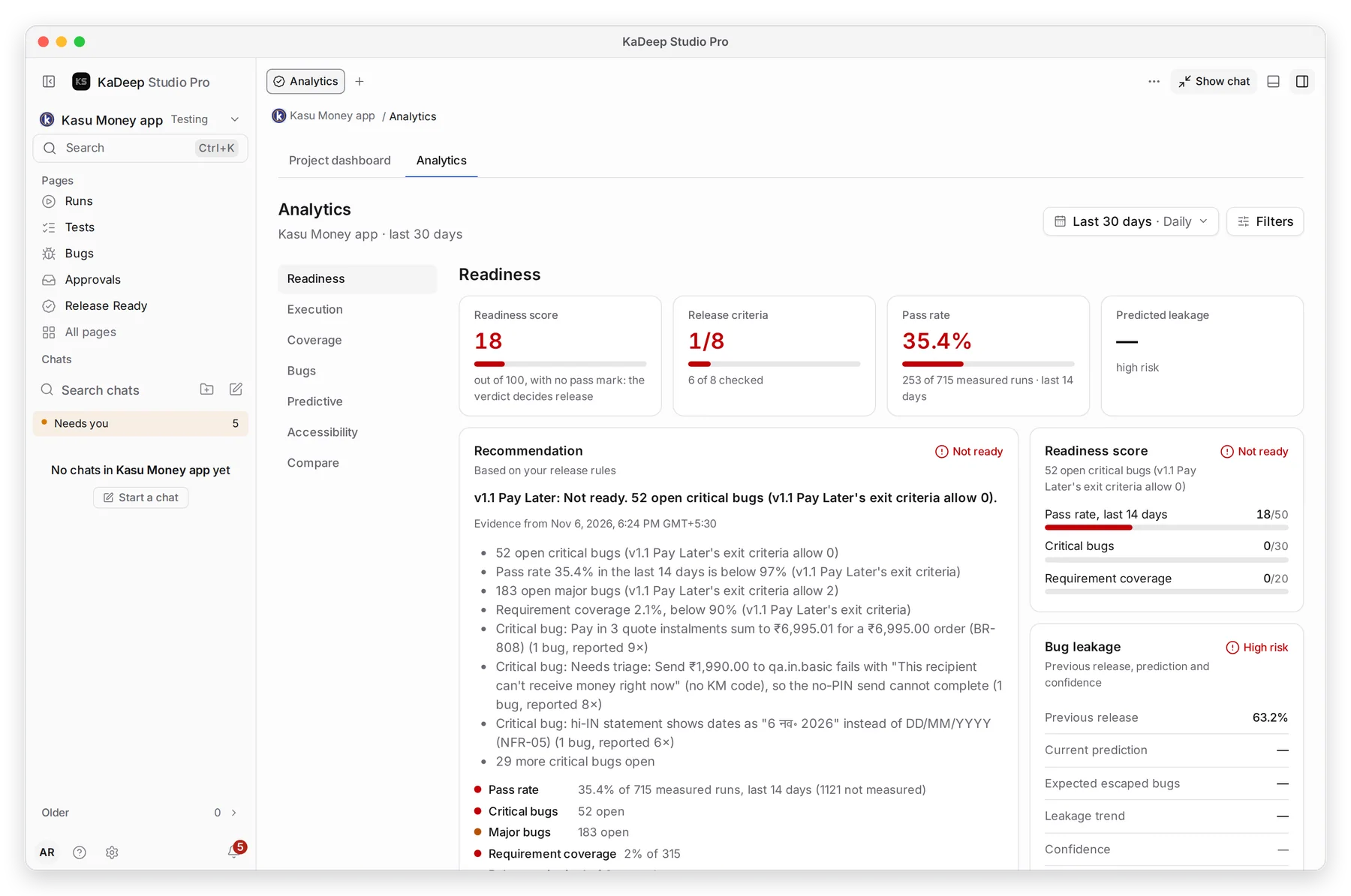
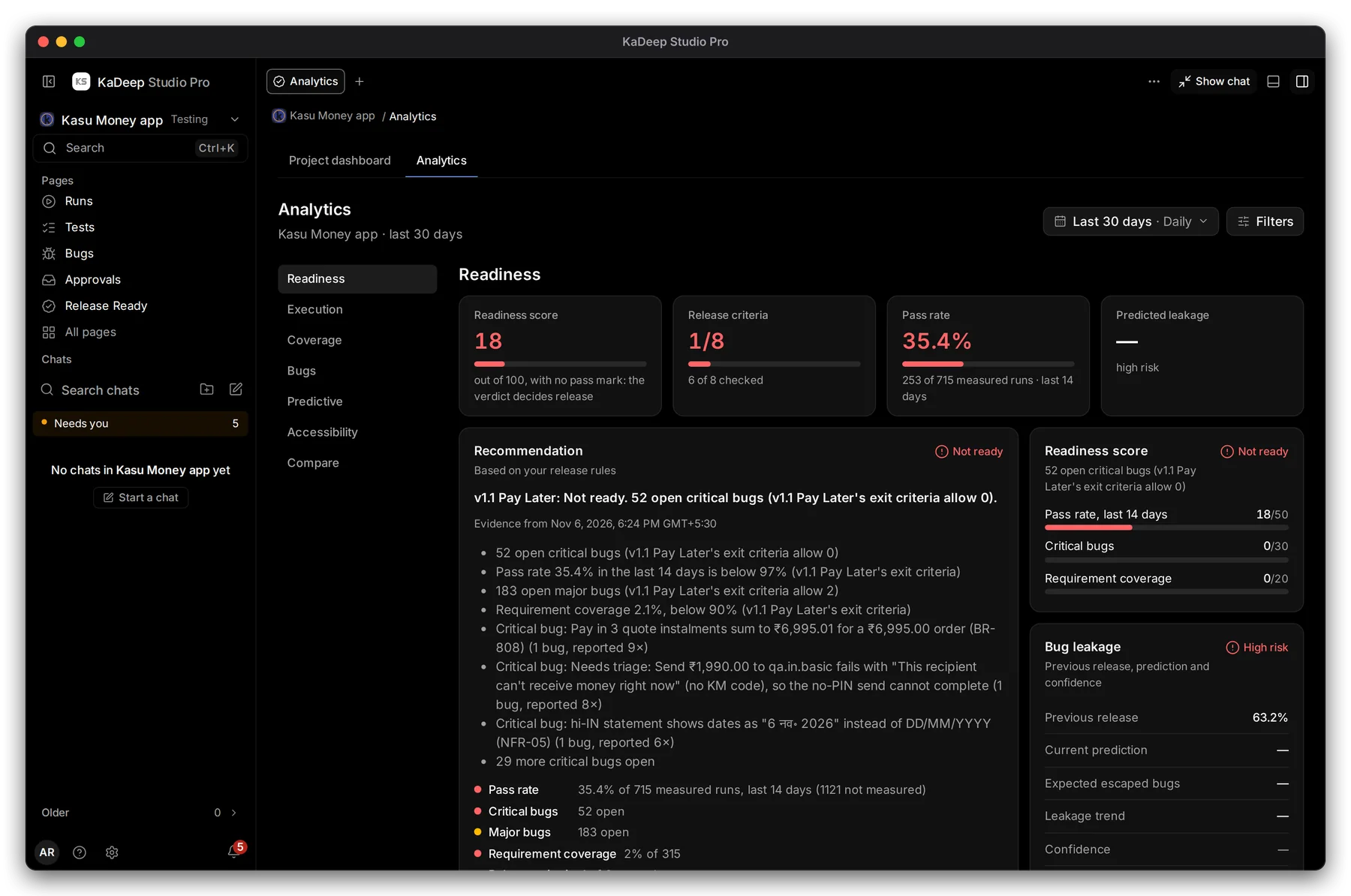
Hands-on view
- 1 The sections. Click one to jump to it.
- 2 The dates for the charts: last 7, 14, 30 or 90 days, or your own. Filters narrows the charts.
- 3 Readiness score, Release criteria passed, Pass rate and Predicted leakage.
- 4 Recommendation: what your release rules suggest, with every reason. No AI model writes it.
| Section | What it shows |
|---|---|
| Readiness | Score, criteria, risk matrix, release trends, sign-offs |
| Execution | Pass rate and run outcomes over time, and who ran the most |
| Coverage | Requirement and module coverage, and a heatmap by test type |
| Bugs | Open bugs, how old they are, and bugs created against resolved |
| Predictive | Success estimate, bug escape risk and schedule risk |
| Accessibility | Accessibility score, and conformance per law |
| Compare | The same numbers side by side for several projects |
2. Check the release criteria
Section titled “2. Check the release criteria”The Release criteria table lists each criterion with its detail and status: passed, warning, failed, pending or not checked. To change a criterion, choose Edit them on the test plan. See Plans.
3. Choose who signs off
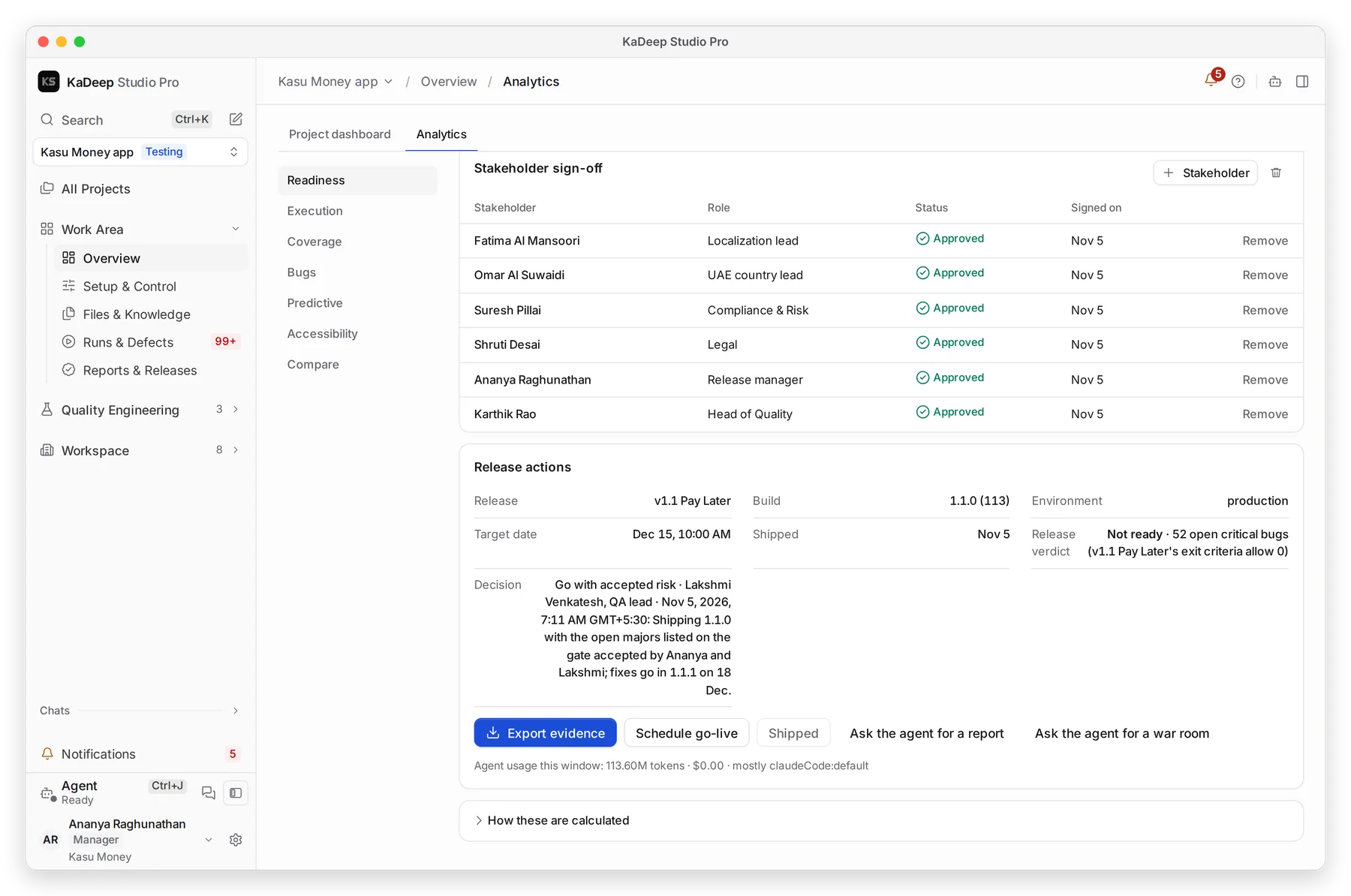
Section titled “3. Choose who signs off”Scroll to Stakeholder sign-off.
Manage view
Hands-on view
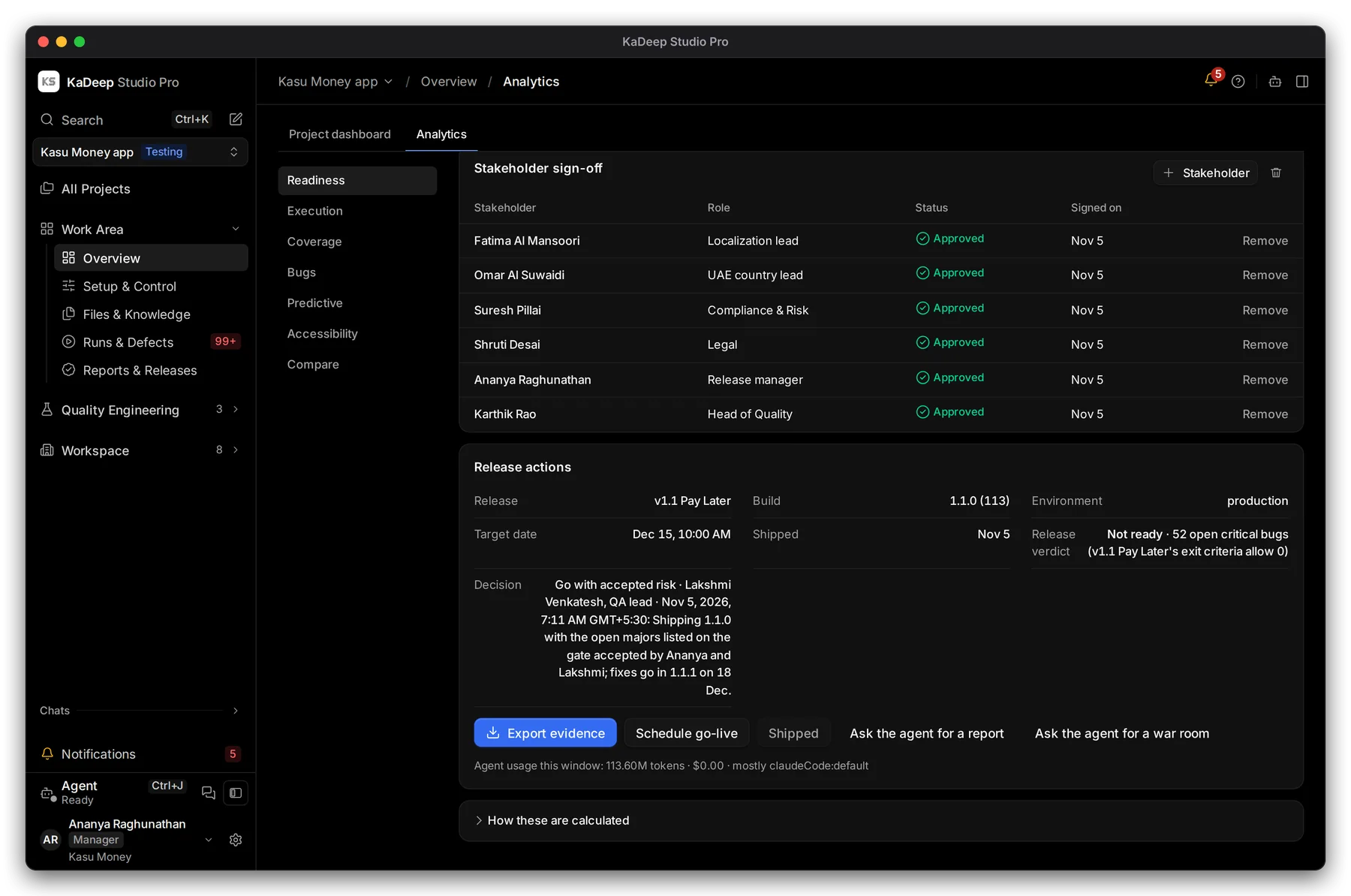
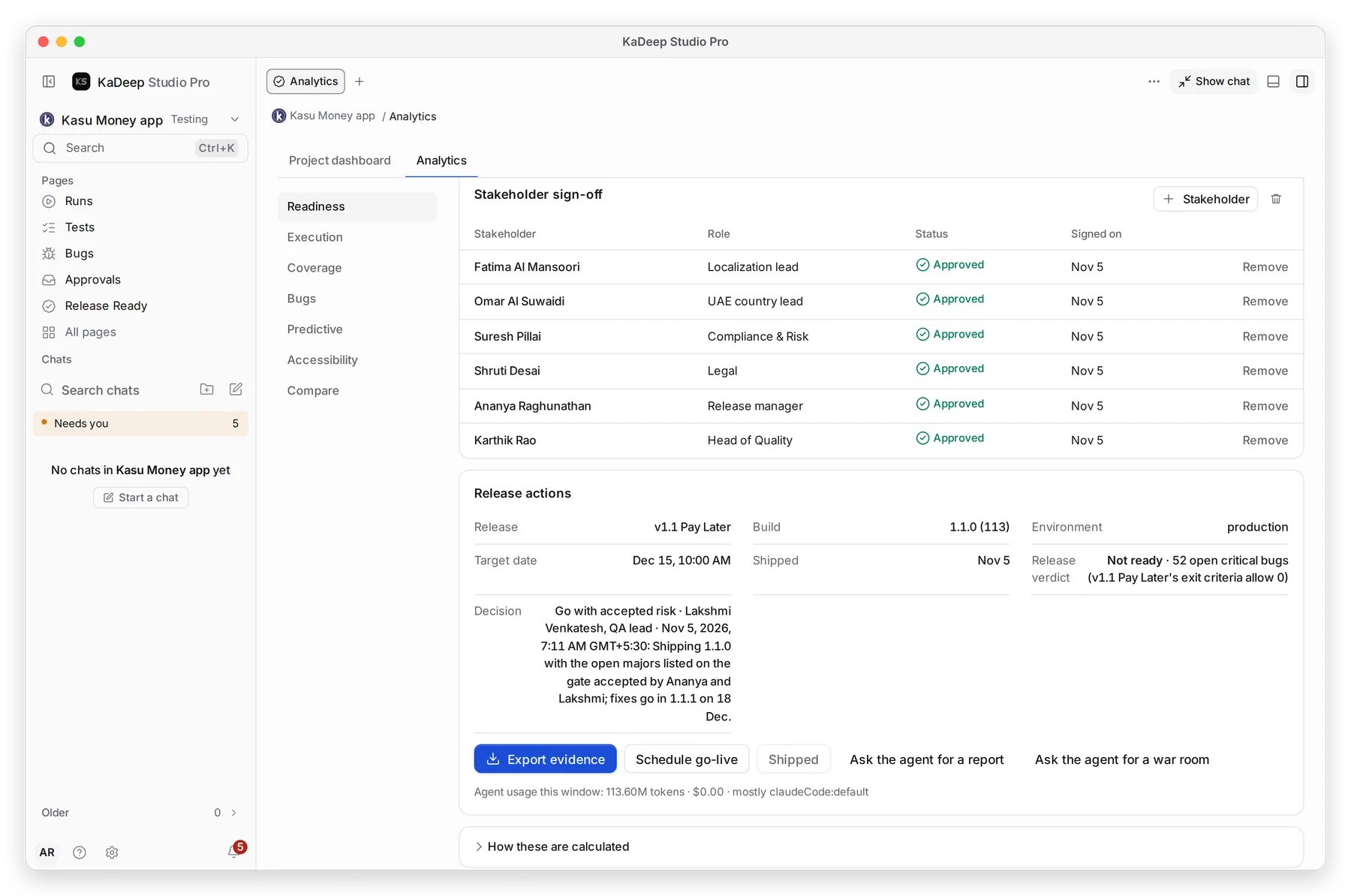
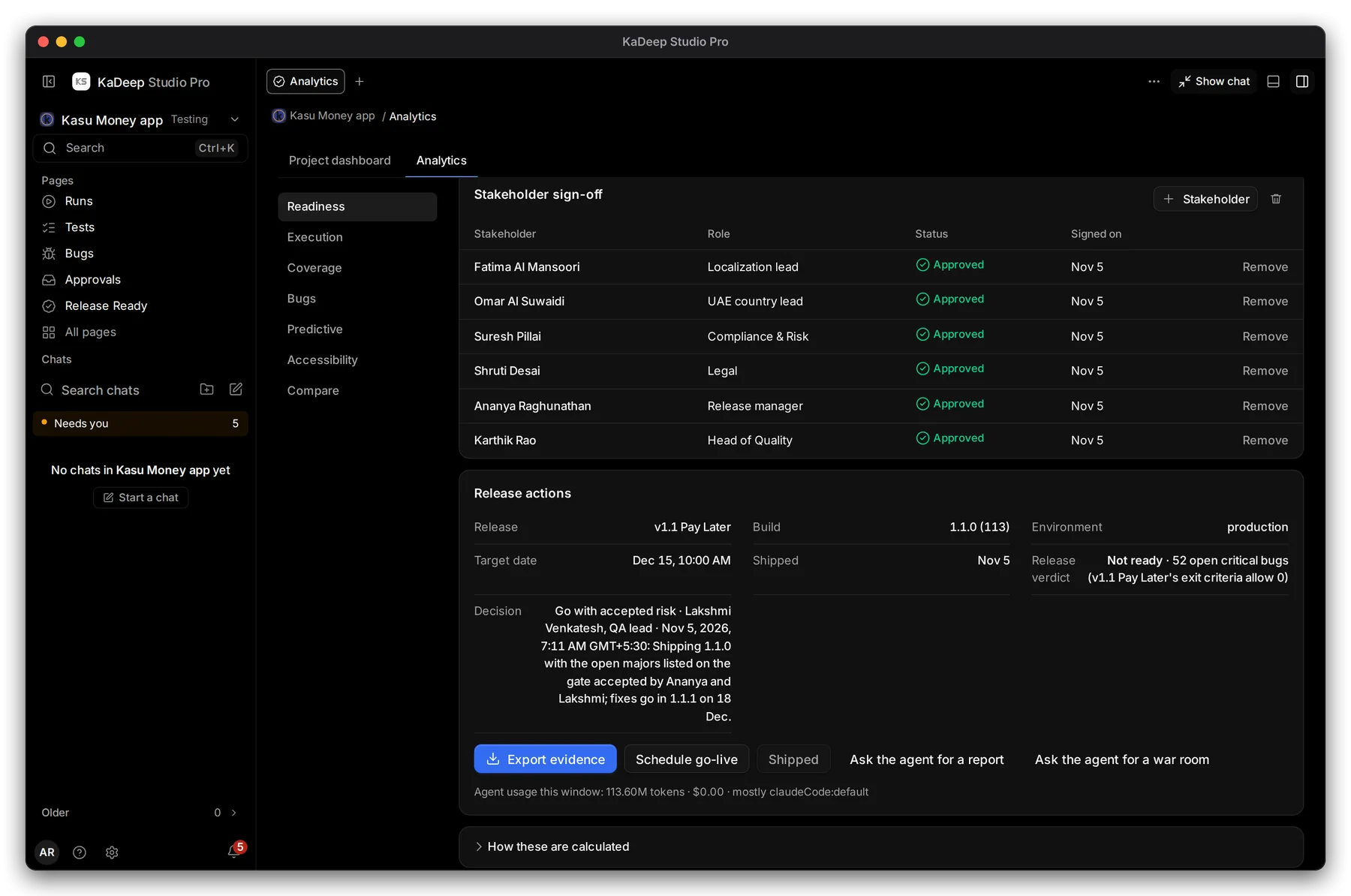
- 1 Each stakeholder, their role, their answer and the date they signed. Remove takes someone off.
- 2 Stakeholder adds a person, such as legal or a country lead. They get a Sign-off row in their Needs you list.
- 3 Release actions: the release, build, environment, target date, verdict and decision. From here you can Export evidence, Schedule go-live, or Ask the agent for a report.
If the project’s rules require sign-off, the release can’t ship until every stakeholder approves. To hold or ship, see Release Ready.
What’s next
Section titled “What’s next”Release ReadyHold, lift, or ship with a reason.
Project dashboardThe project on one page.
Requirements and coverageLink tests to requirements to raise coverage.
ReportsReports to download and forward.