Reports to download and forward
Someone asks “send me the report”. This page shows which report to send and where to find it. Every report comes from a run, so whoever reads it can trace it back to the evidence.
| You need | Send | Where |
|---|---|---|
| The release decision and its proof | The evidence pack, or a read-only link | Reports › Export evidence |
| What one test did, step by step | A run report, as PDF | Reports › Run reports |
| Accessibility conformance | ACR/VPAT | Accessibility testing |
| Any file the agent made or read | The file | Files & reports |
1. Open Reports
Section titled “1. Open Reports”Open Work Area › Reports & Releases, then choose the Reports tab.Under Pages, choose Release Ready, then the Reports tab. Reports belong to one project, so choose the project first.
The top of the page is the project’s verdict, its reasons and its decision record. See Release Ready.
2. Find a run report
Section titled “2. Find a run report”Scroll down to Run reports.
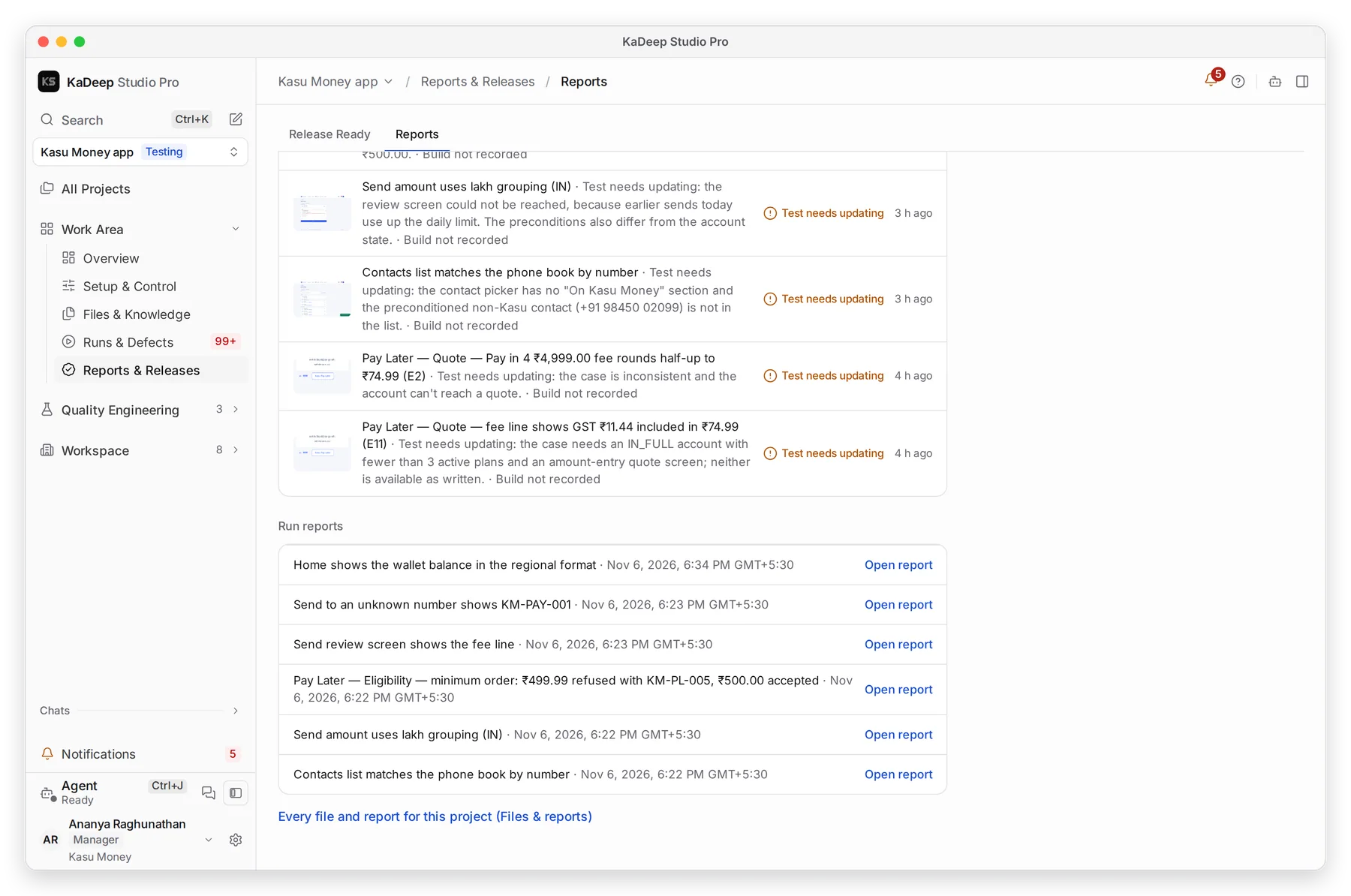
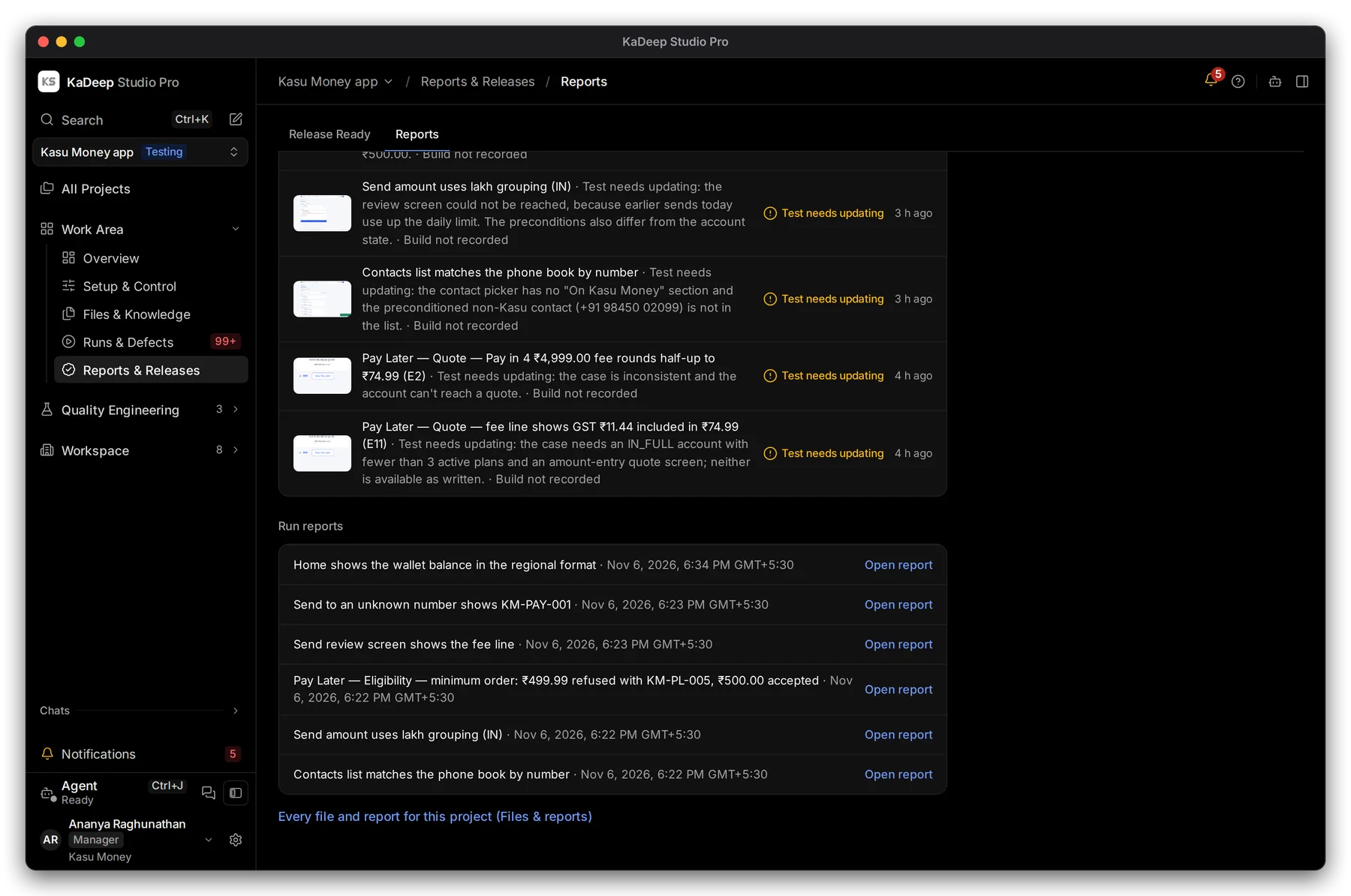
Manage view
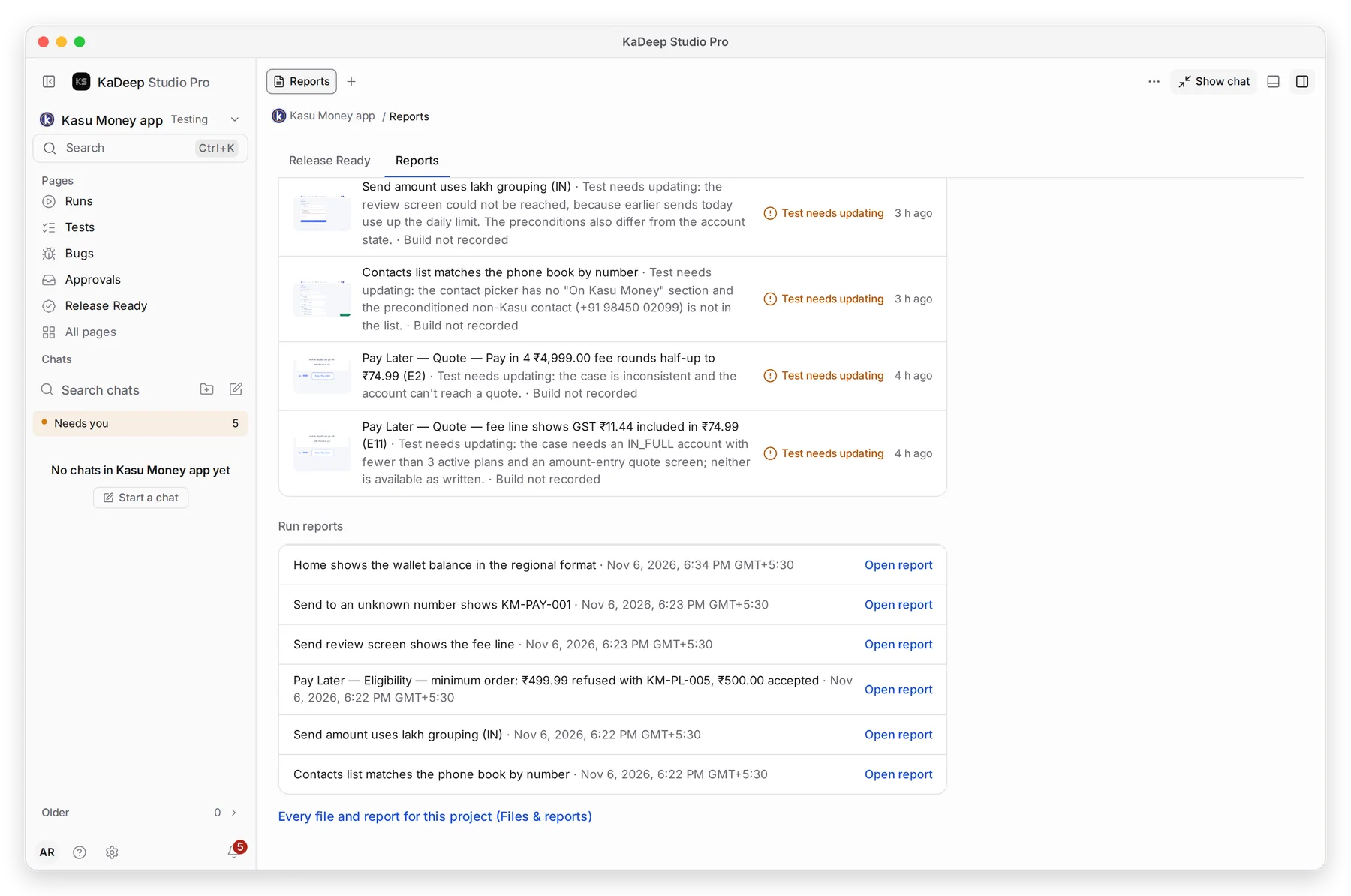
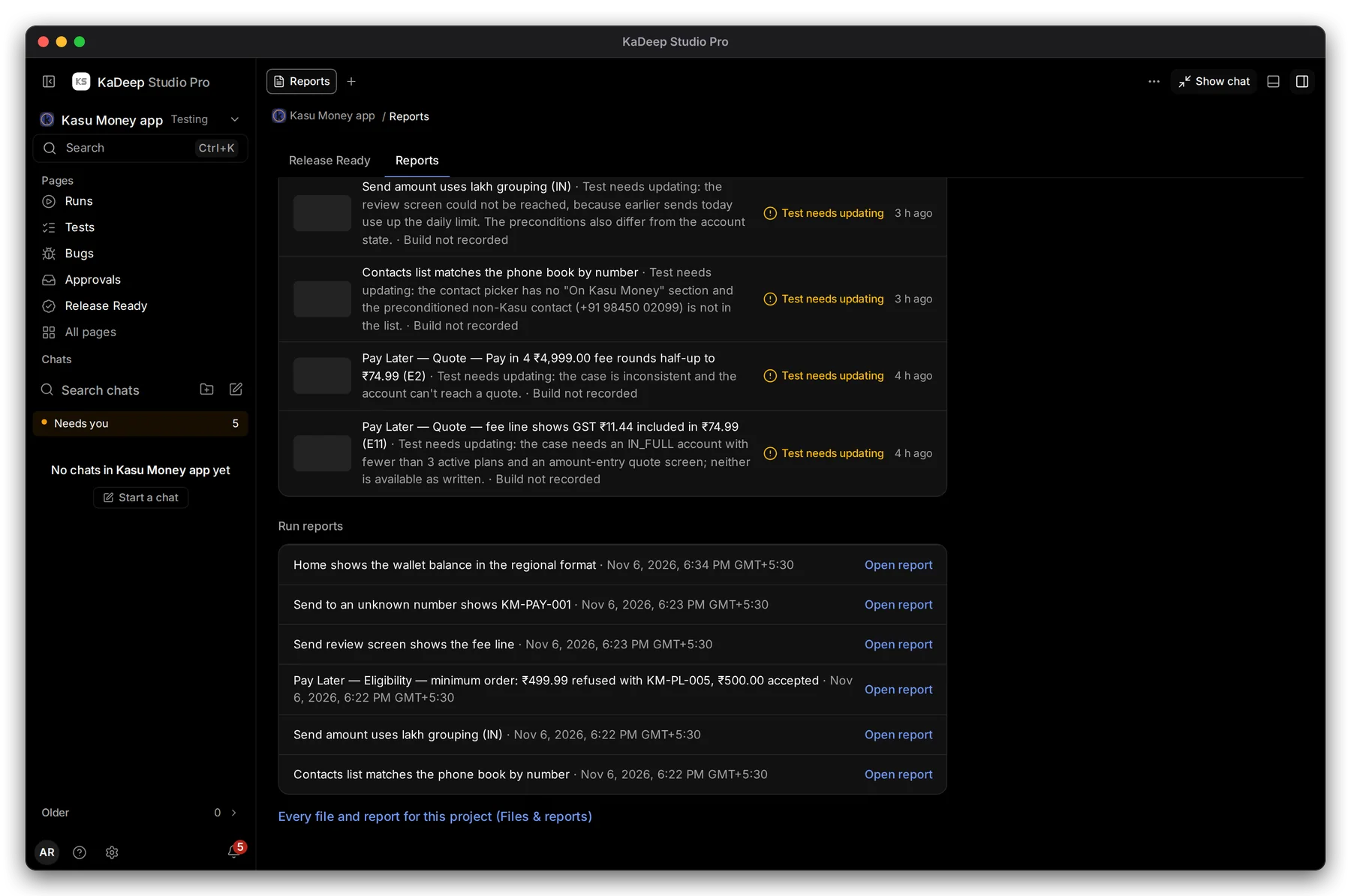
Hands-on view
- 1 Run reports: the latest runs, newest first, with the date and time.
- 2 Open report opens the run’s written report.
- 3 Every file and report for this project opens Files & reports. See Files and reports.
3. Save it as PDF
Section titled “3. Save it as PDF”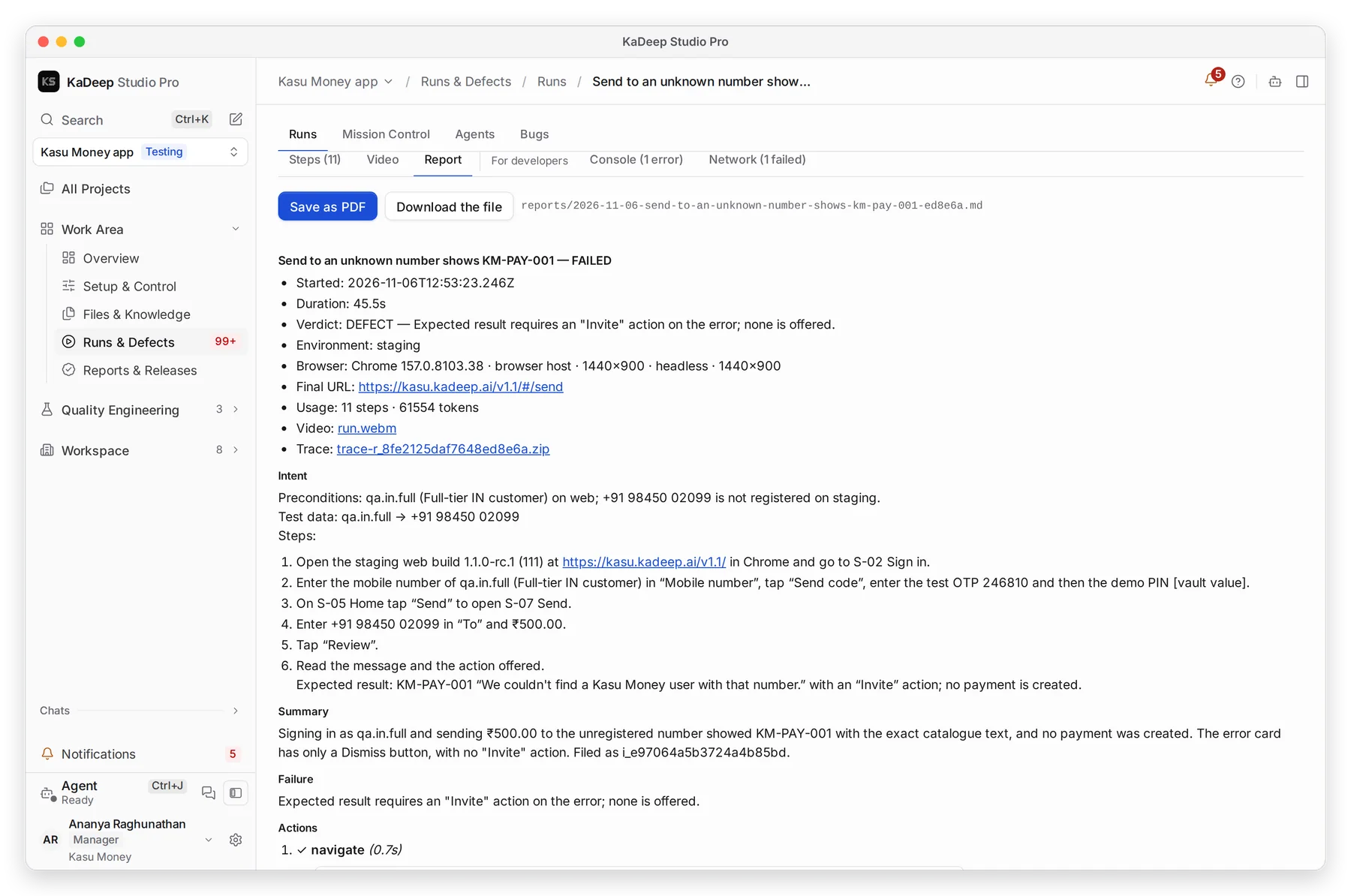
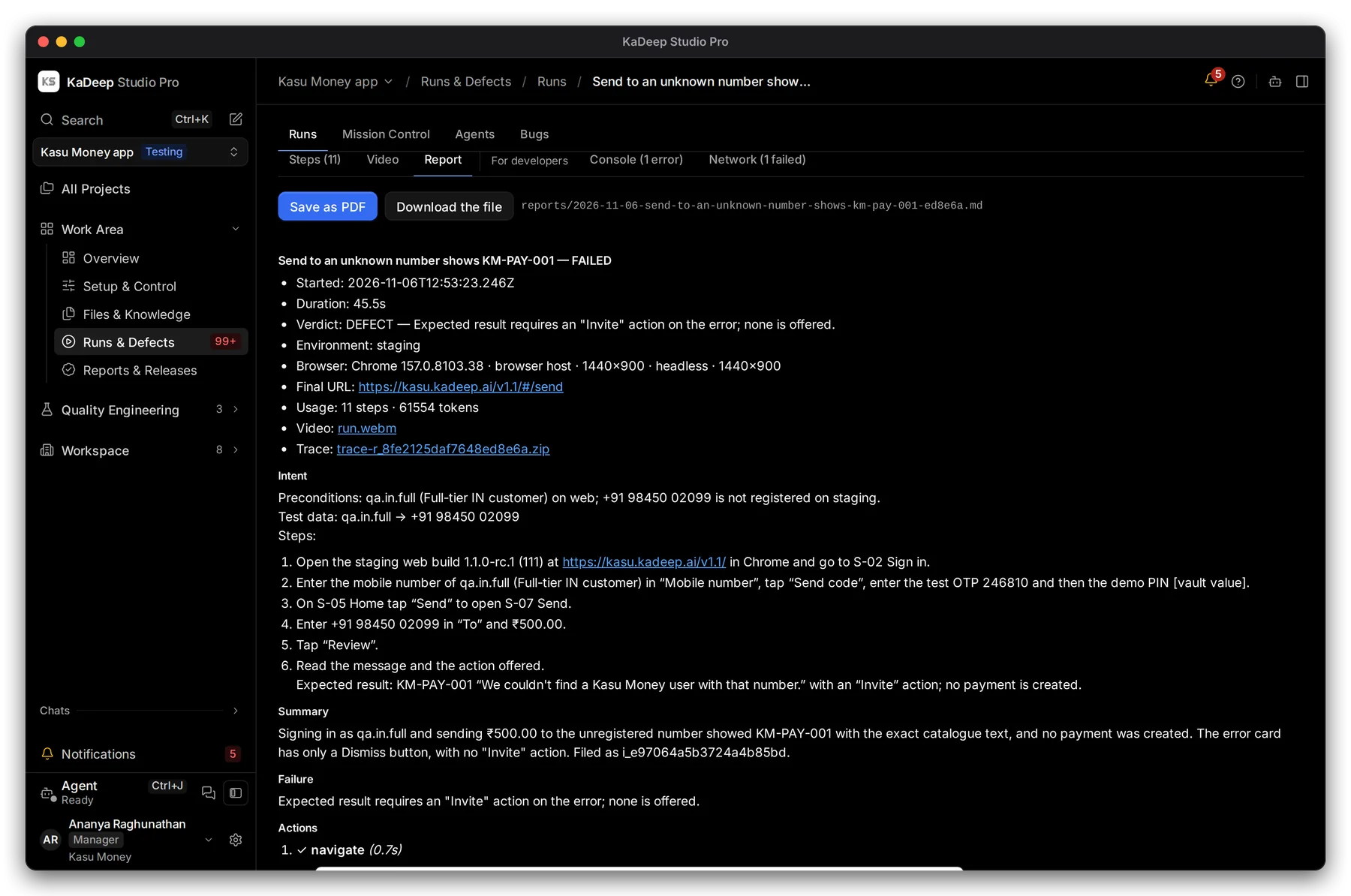
Manage view
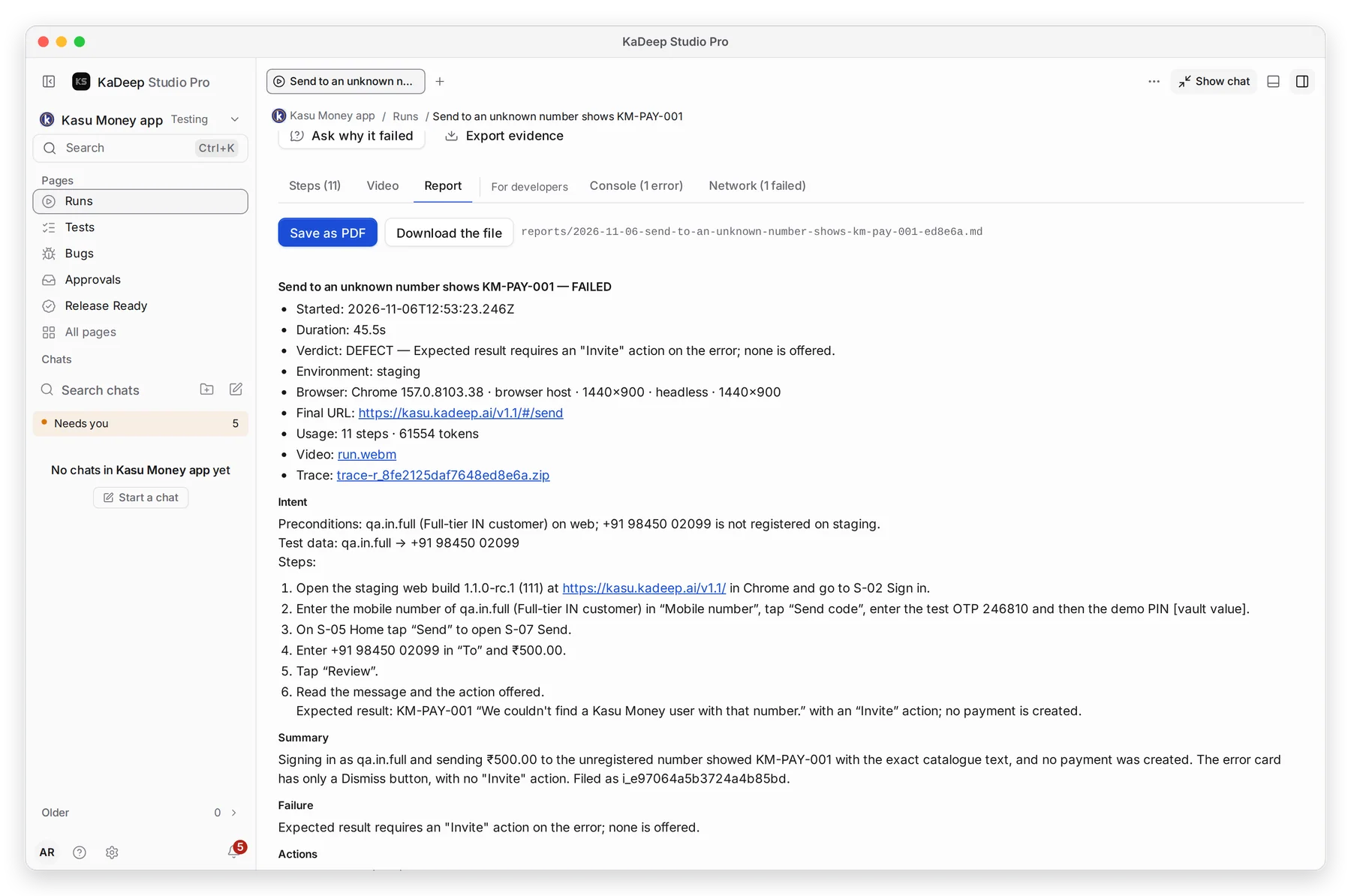
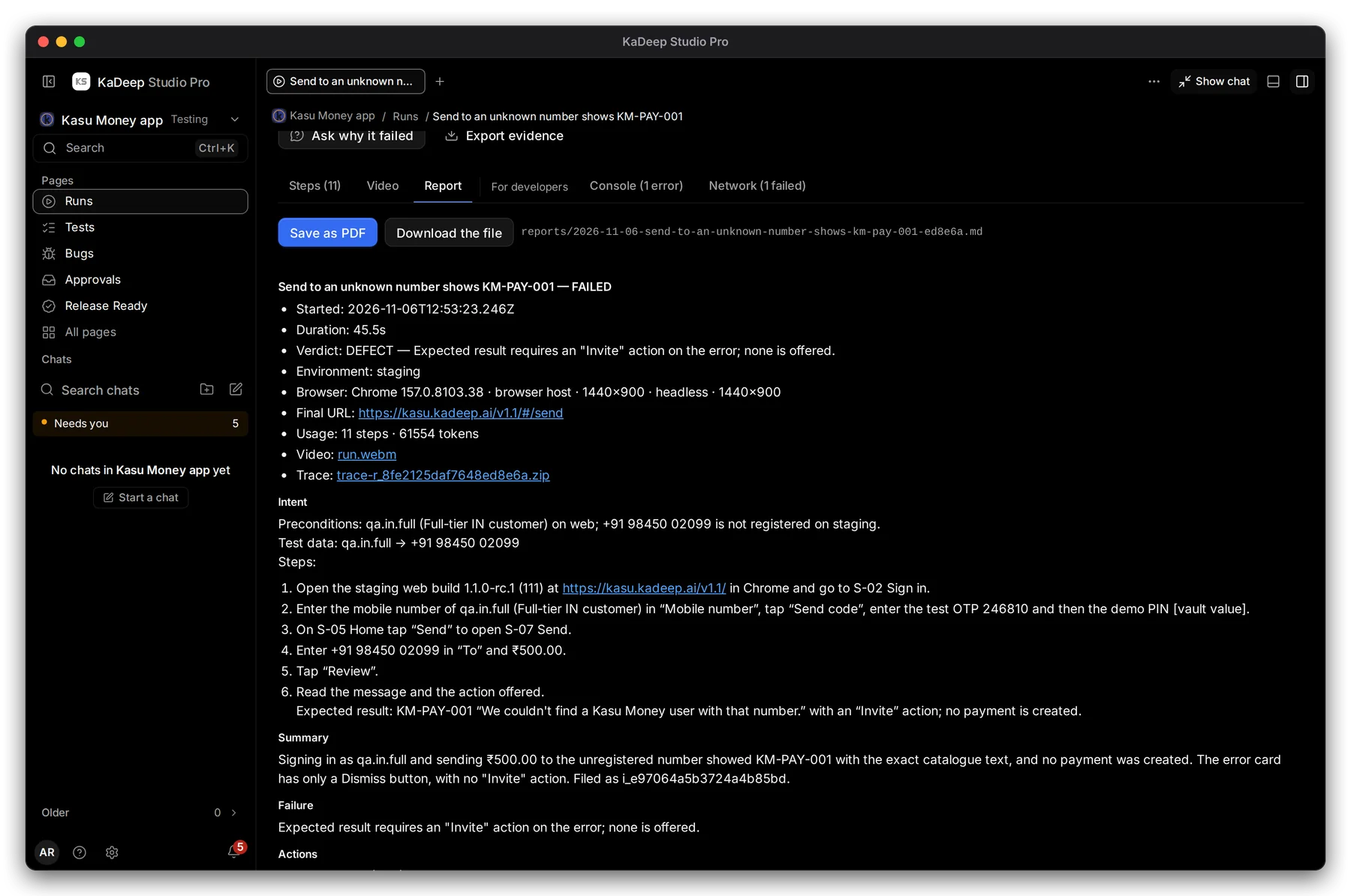
Hands-on view
- 1 The Report tab, beside Steps and Video.
- 2 Save as PDF makes a PDF you can attach to an email or a ticket.
- 3 Download the file saves the report as written.
The report says what the test intended, the steps, what the agent saw and the verdict, with the environment and browser.
4. Send the evidence pack
Section titled “4. Send the evidence pack”For a release decision, send the evidence pack rather than single reports. It holds the report as PDF and HTML, the decision and who made it, the runs and bugs, and a hash for every file.
- At the top of Reports, choose Export evidence.
- Choose the release and the period, then Download evidence pack.
- Or choose Create read-only link to share it with someone who has no account.