Translate in the Workbench
Your view
The Workbench is where you translate. Each row is one string: the source on the left, your language beside it, with the glossary and memory on the right. Confirm a string and the next one opens.
Before you start: open a task from My work, or choose Next translation on Home.
1. The Workbench
Section titled “1. The Workbench”Open Quality Engineering › Linguistic Testing › Workbench.
Under Pages, choose Workbench. It opens in the panel beside the chat; maximize the panel for more room.
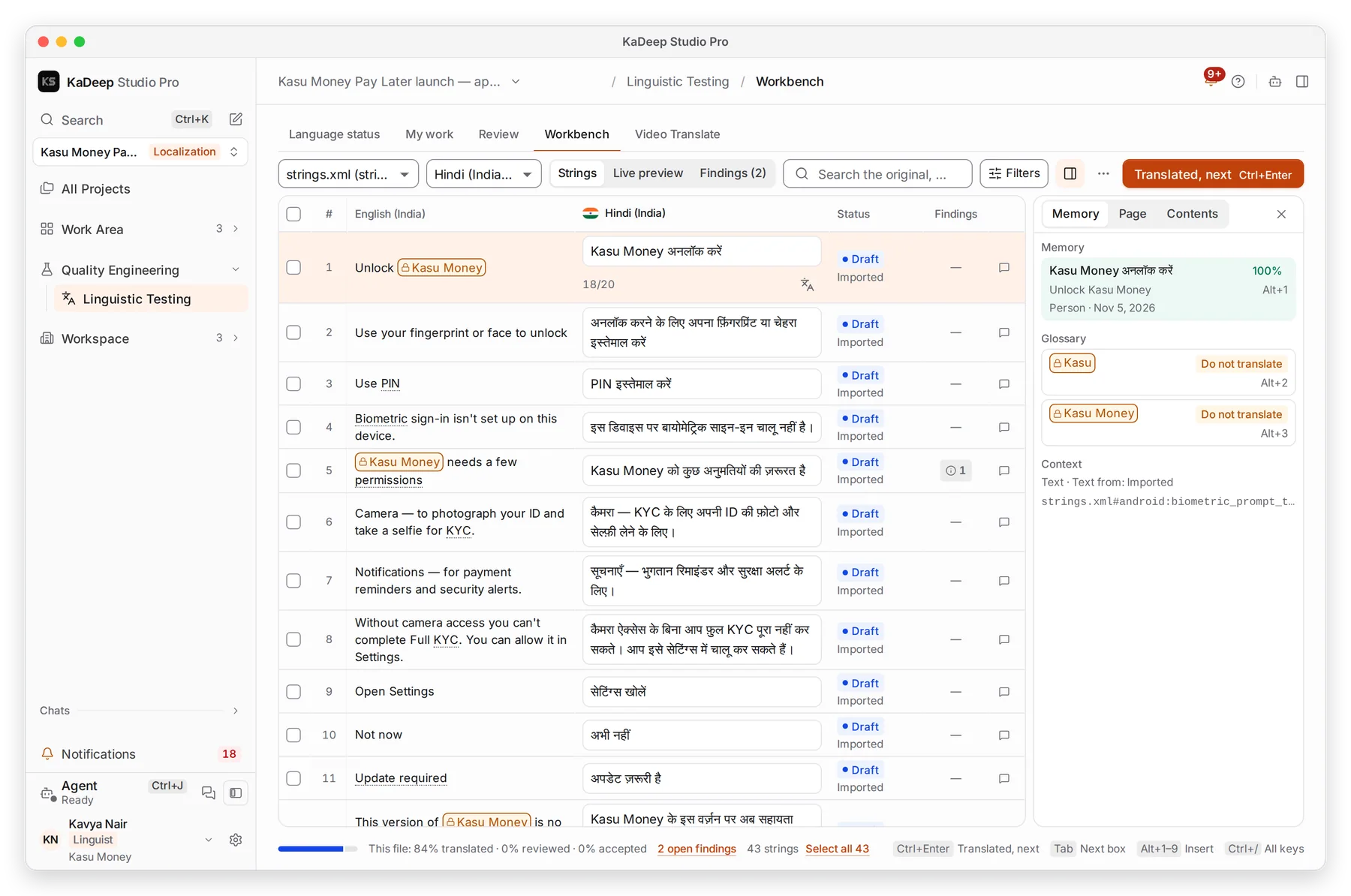
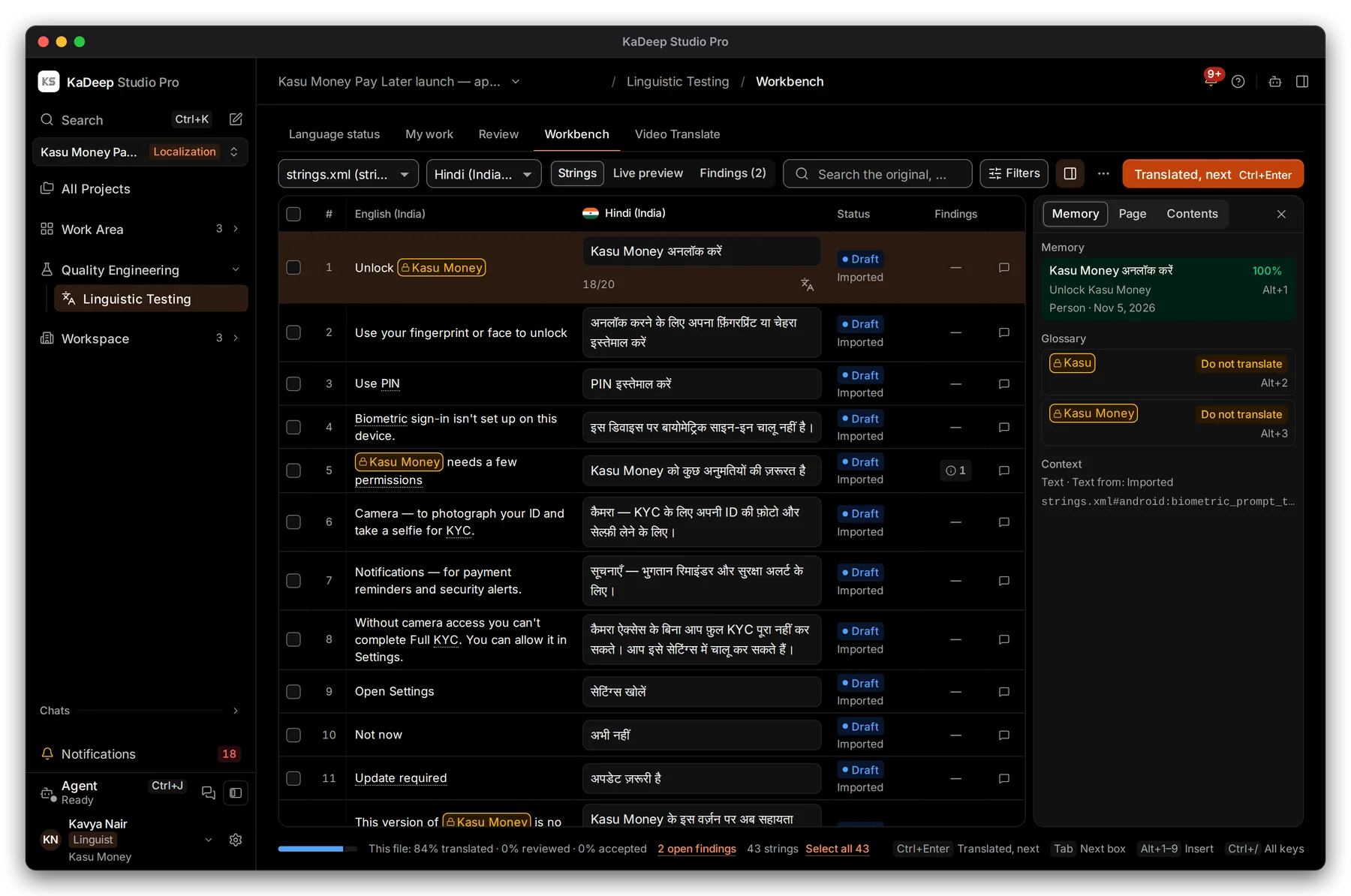
Manage view
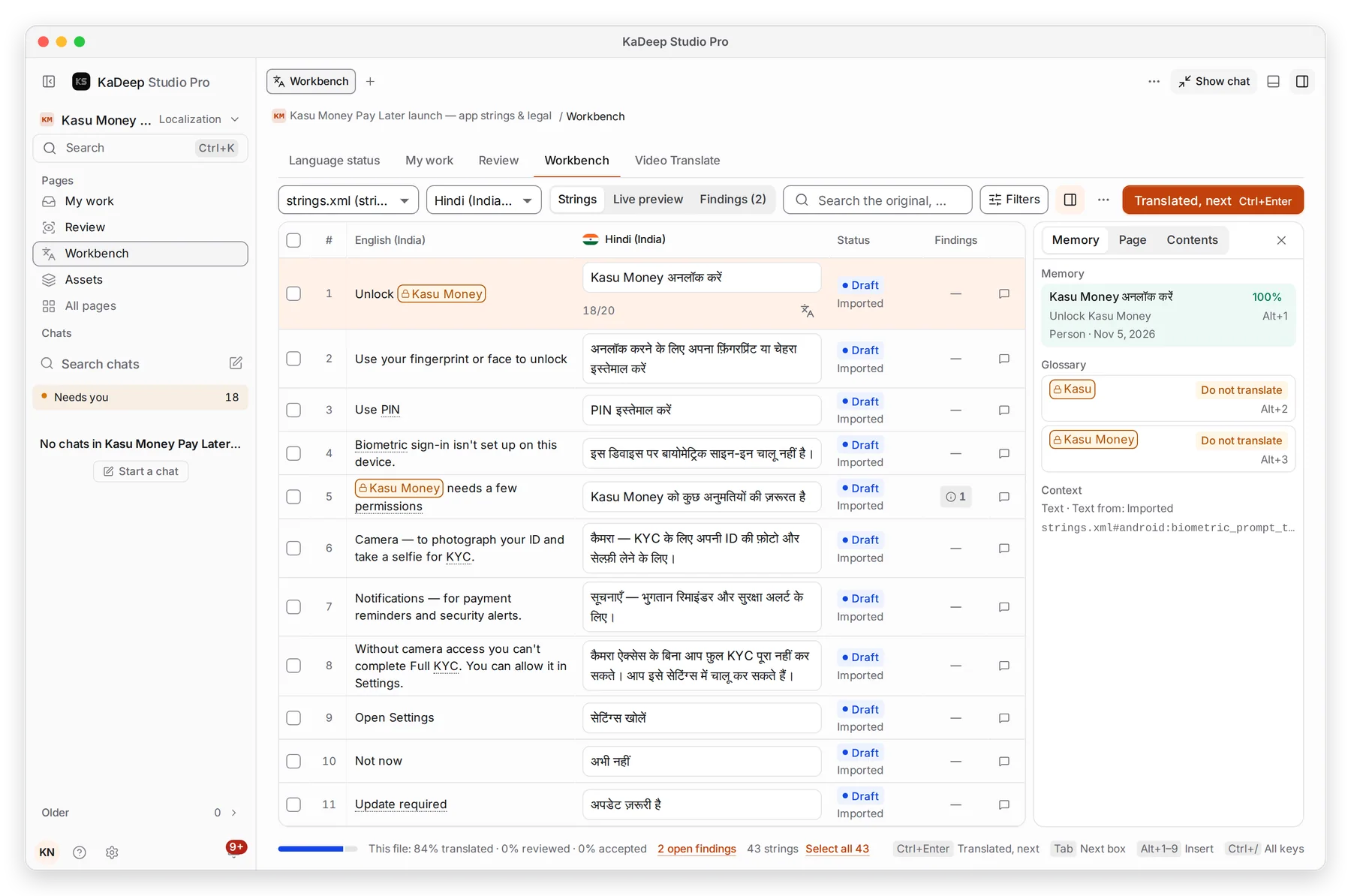
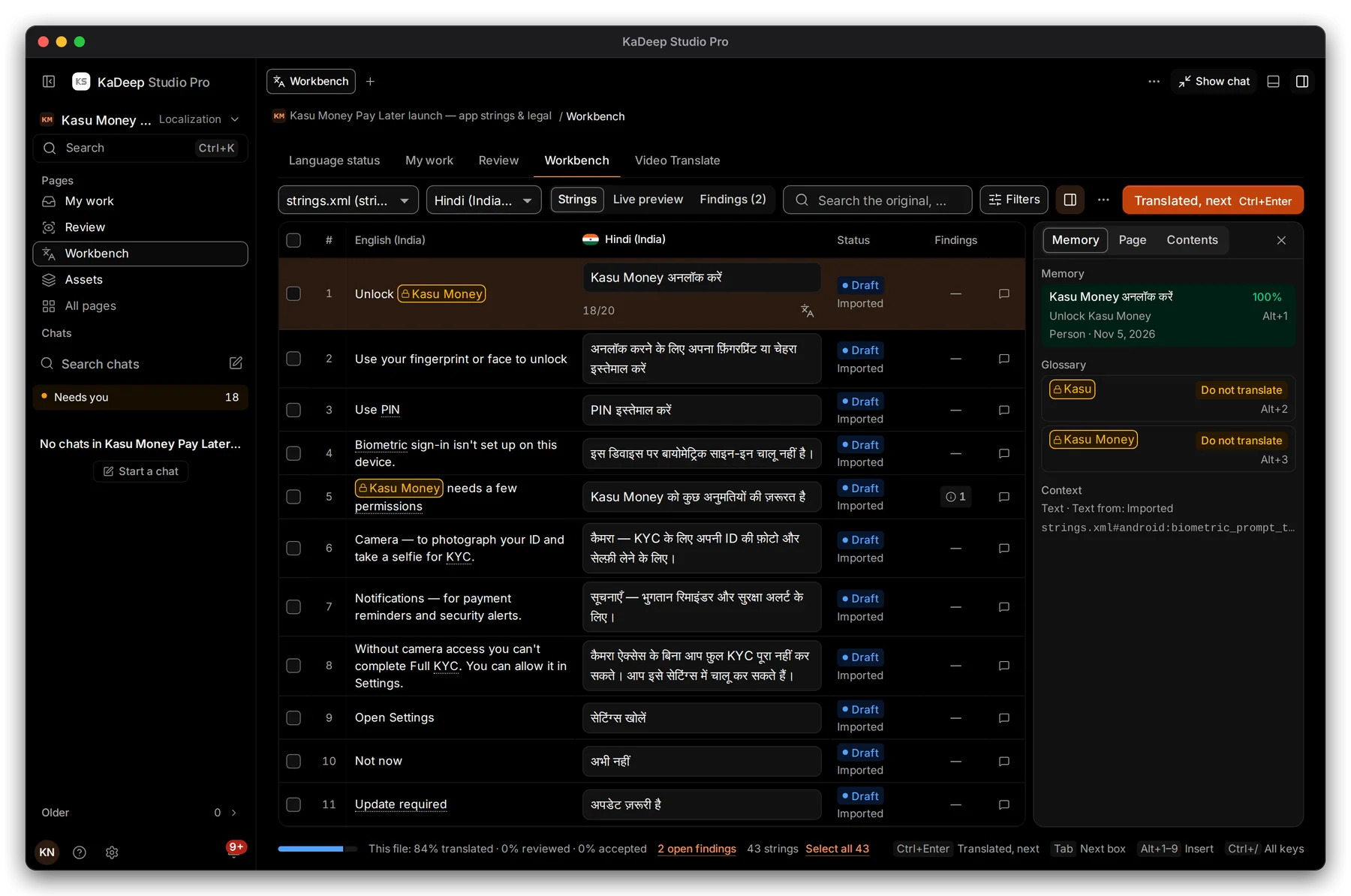
Hands-on view
- 1 File and language. Your languages say (yours).
- 2 Strings, Live preview and Findings.
- 3 One string: number, source, your translation, status and findings.
- 4 Memory and Glossary for the string you are on. Page and Contents show where it sits.
- 5 Translated, next: confirm this string and move on.
2. Translate a string
Section titled “2. Translate a string”

Manage view

Hands-on view
- 1 Glossary term. A lock means Do not translate: keep it exactly as written.
- 2 Your translation. The counter shows its length against the source.
- 3 Translate: the agent drafts this string, following the glossary and memory.
- 4 Status: Draft means nobody confirmed it yet; Imported or Machine says where it came from.
- 5 Comments: ask the lead a question about this string, or read an answer.
- Read the source and its glossary terms.
- Type or edit your translation. No text yet? Choose Translate for a draft.
- Or press Alt 1…Alt 9 to insert a memory match or a term from the panel.
- Press Ctrl Enter (Windows) or ⌘ Enter (Mac). The string is Translated and the next one opens.
3. Fix findings
Section titled “3. Fix findings”The Findings column and tab list what the checks flagged. Fix each one before you hand in.
| Finding | What to do |
|---|---|
A placeholder such as {amount} is missing or changed |
Copy it exactly from the source |
| Do not translate term changed | Put the term back as written |
| Plural forms missing | Fill every form your language needs |
| Forbidden word | Use the approved term from the glossary |
| Too long | Shorten it; see Allow text to grow by in the language settings |
4. Right-to-left languages
Section titled “4. Right-to-left languages”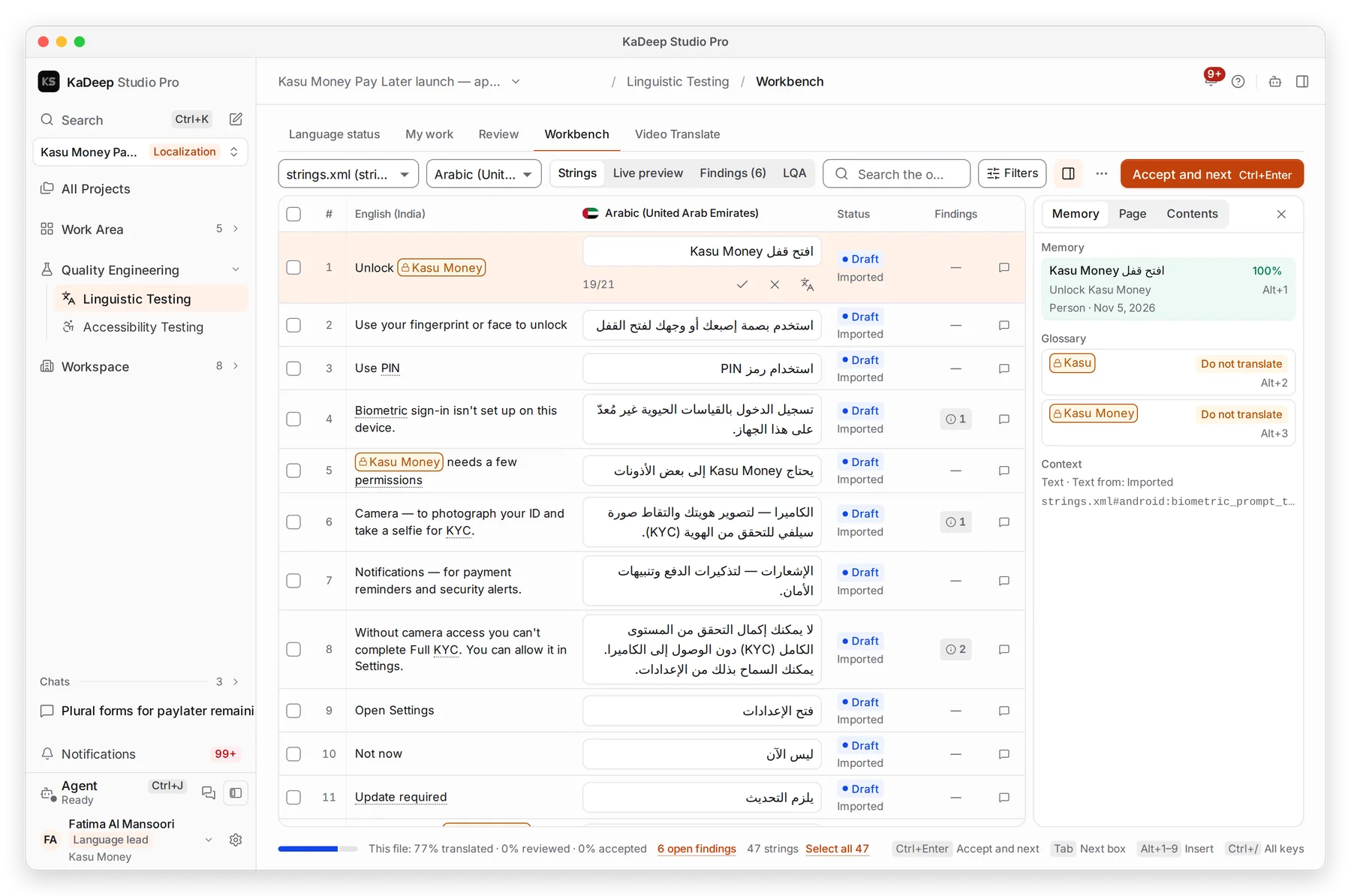
Manage view
Hands-on view
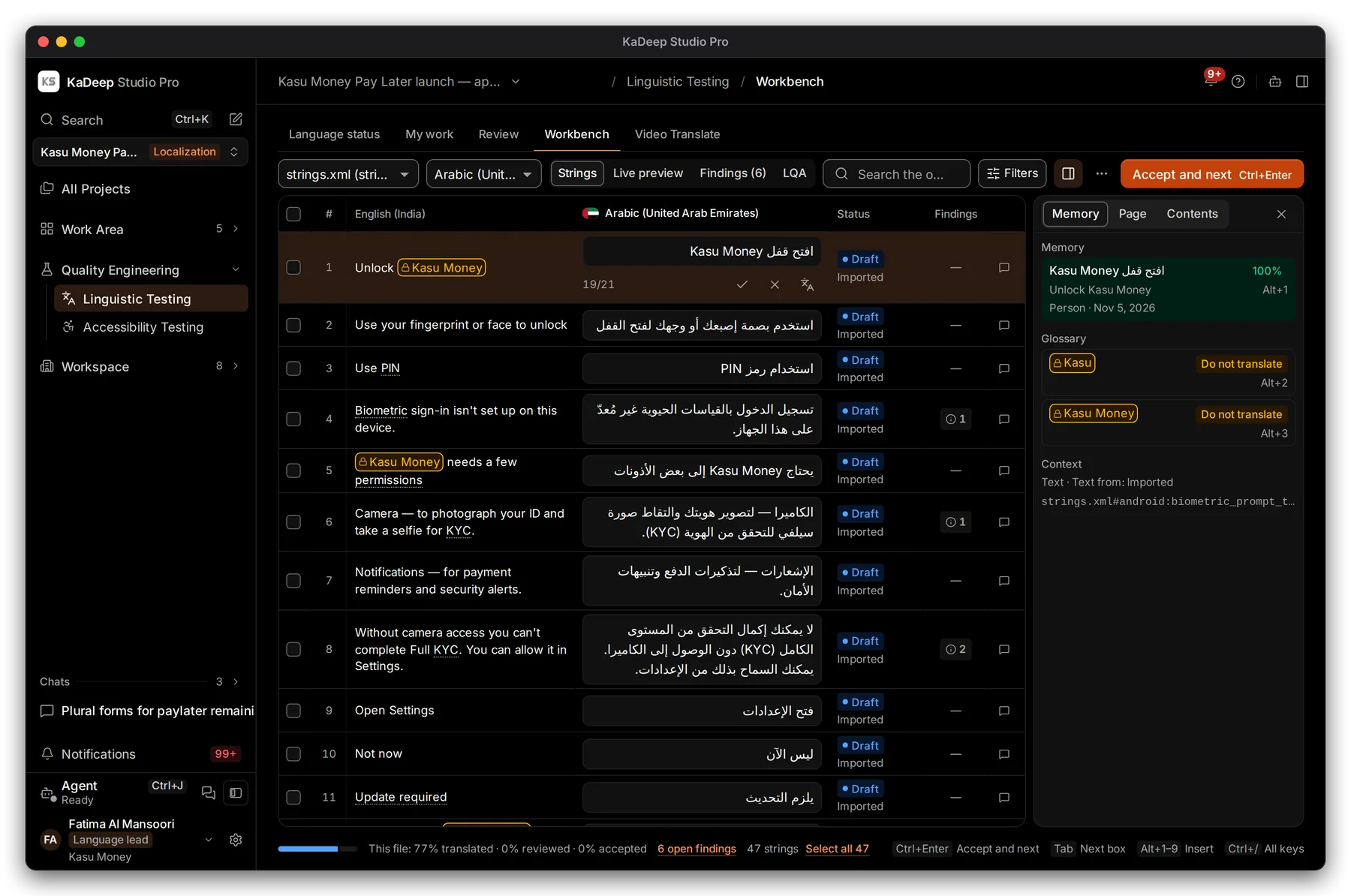
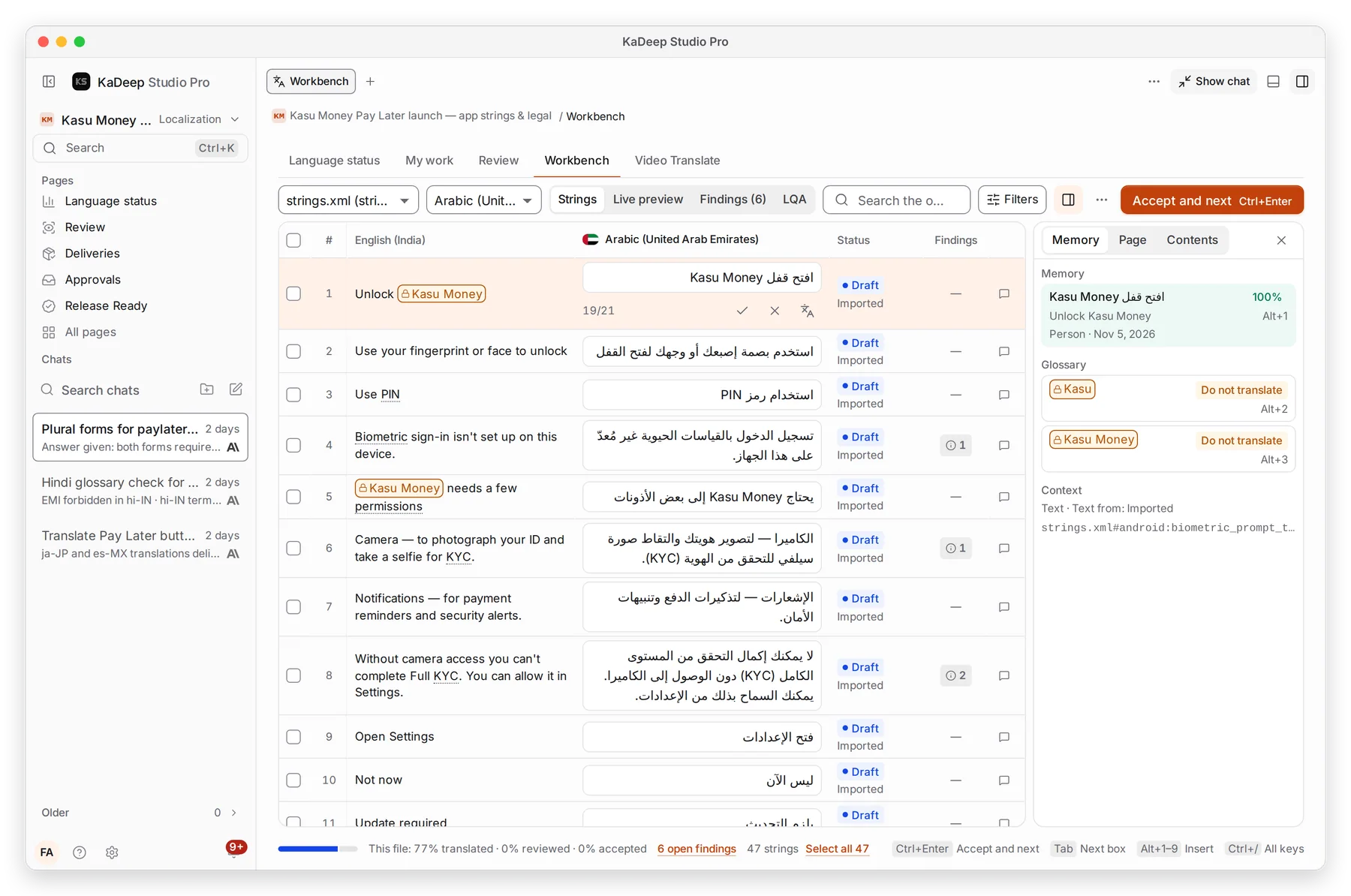
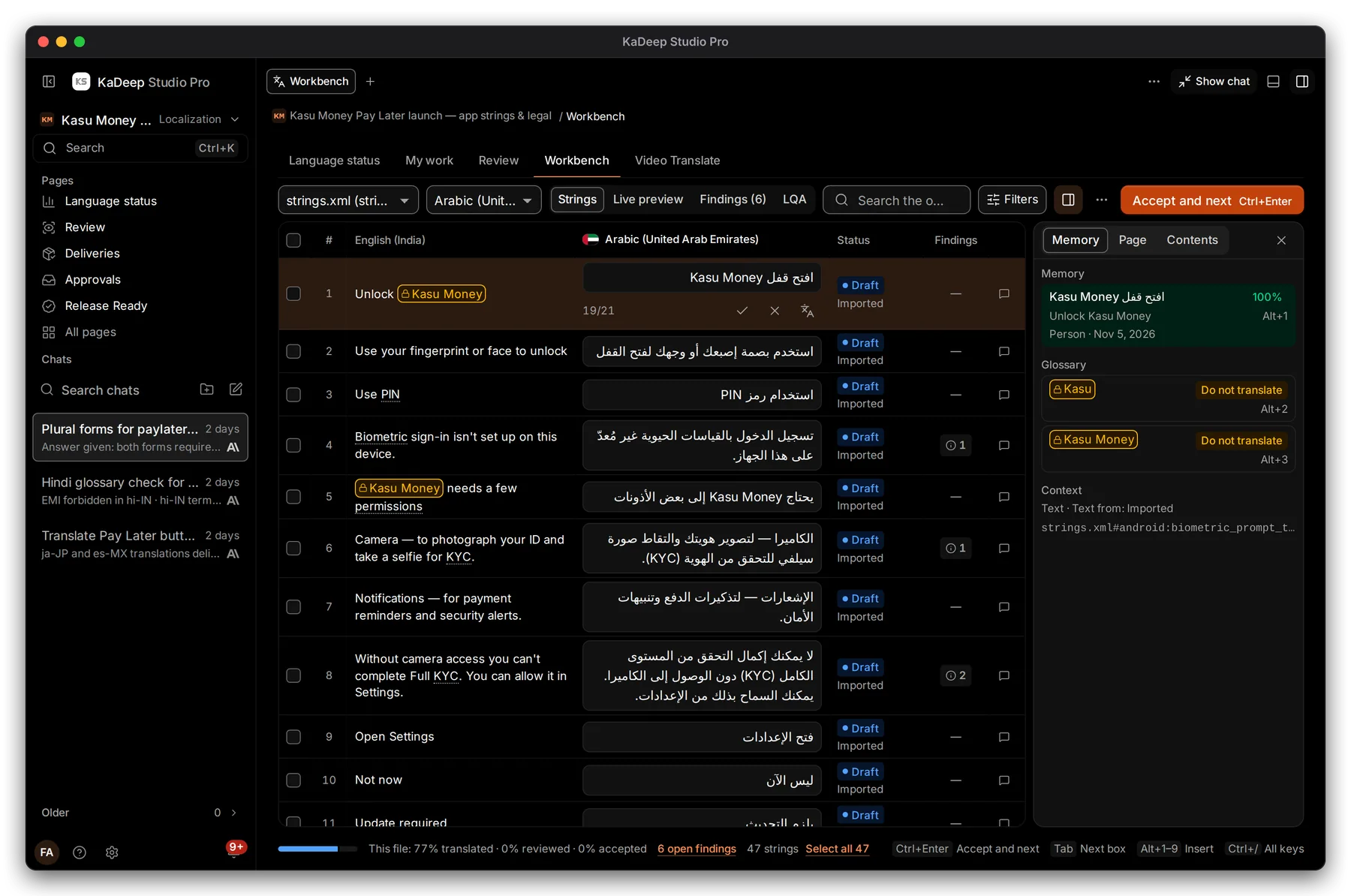
Arabic and other right-to-left languages show right to left.
- 1 The Arabic text runs right to left. Brand names and codes stay left to right inside the line.
- 2 A lead or reviewer can accept or reject each string.
- 3 Open findings lists what still needs fixing.
- 4 Do not translate terms show in the panel.
- 5 Accept and next confirms the string as accepted.
5. Check it in context and hand in
Section titled “5. Check it in context and hand in”

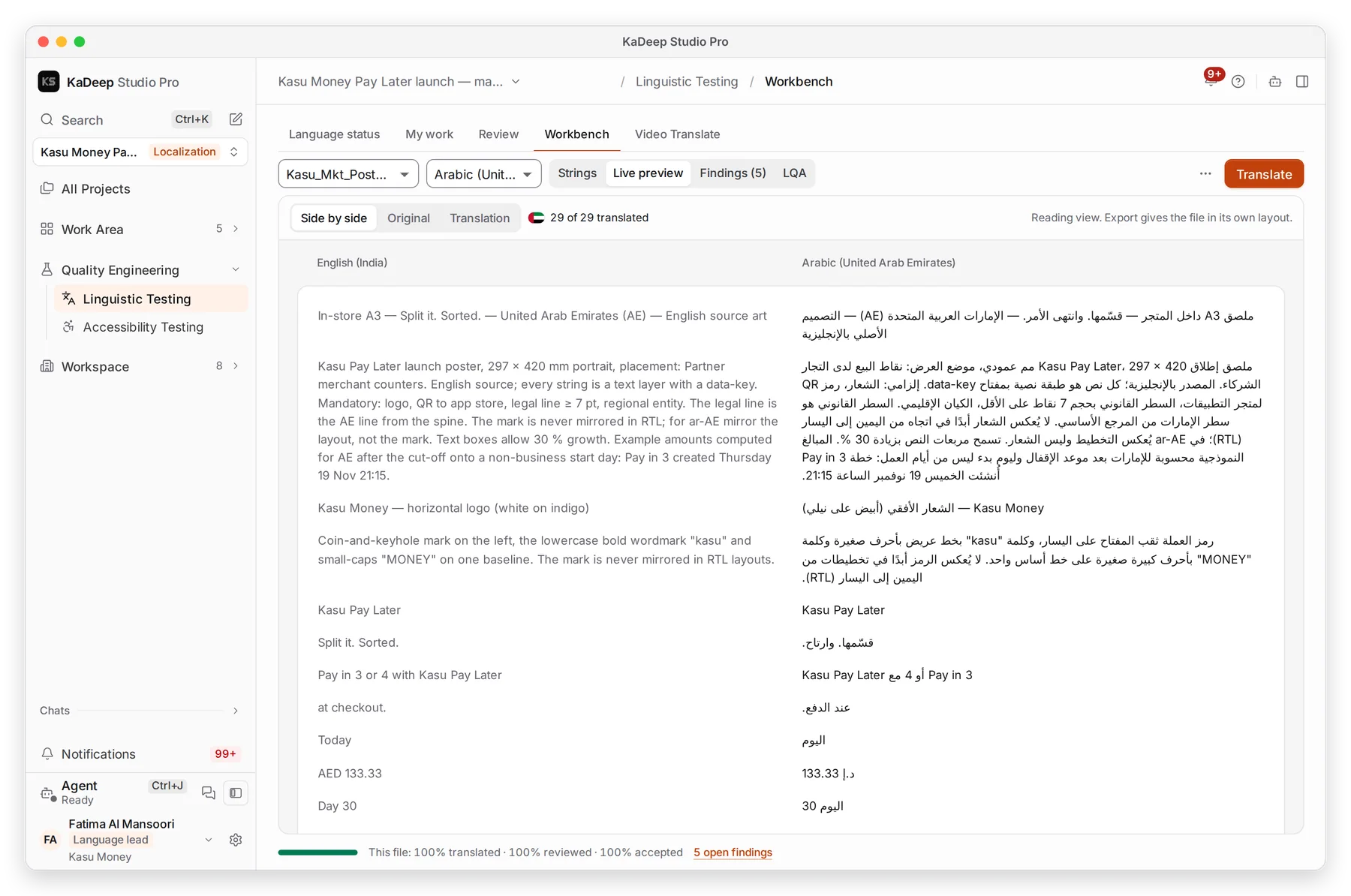
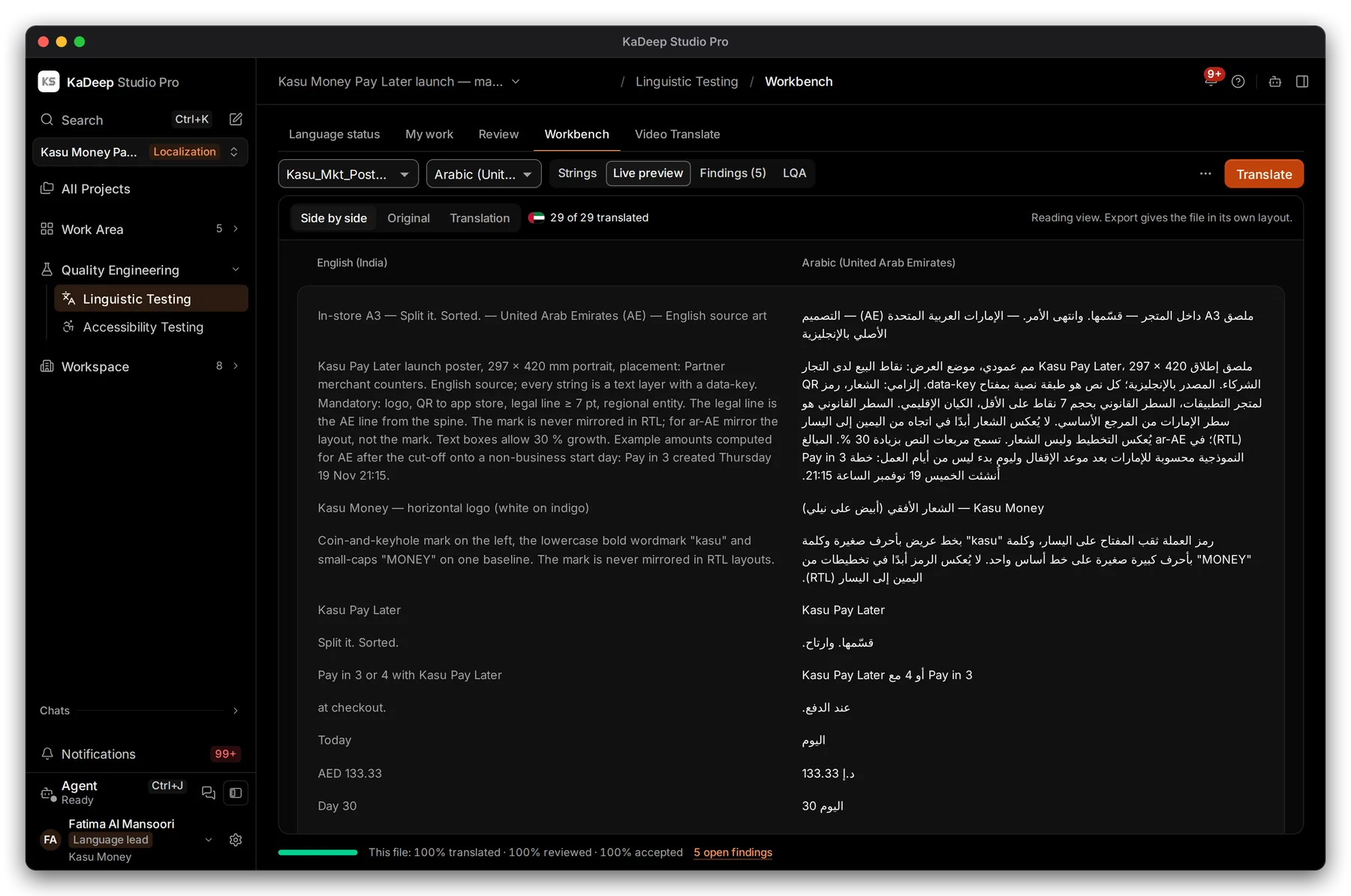
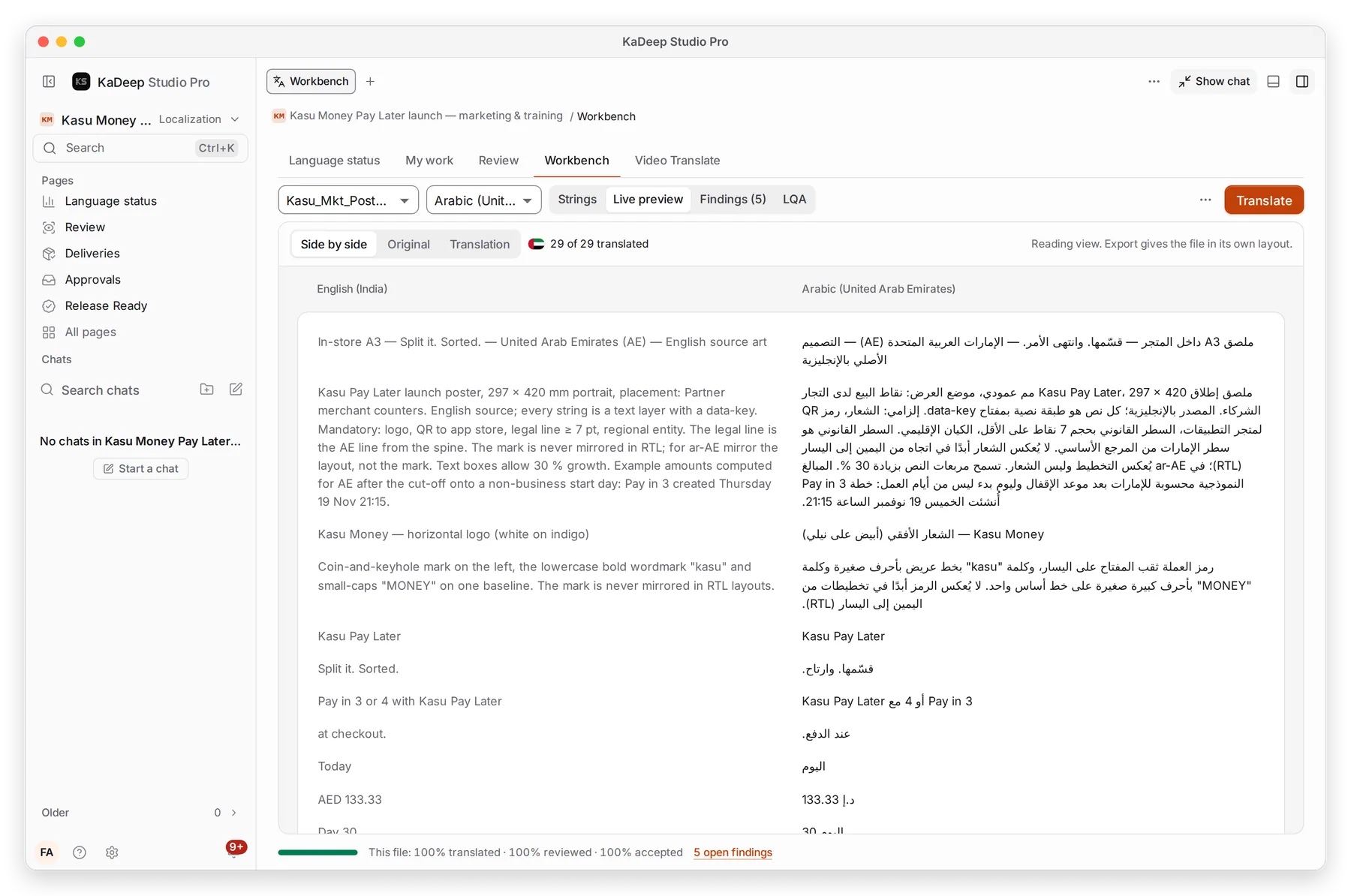
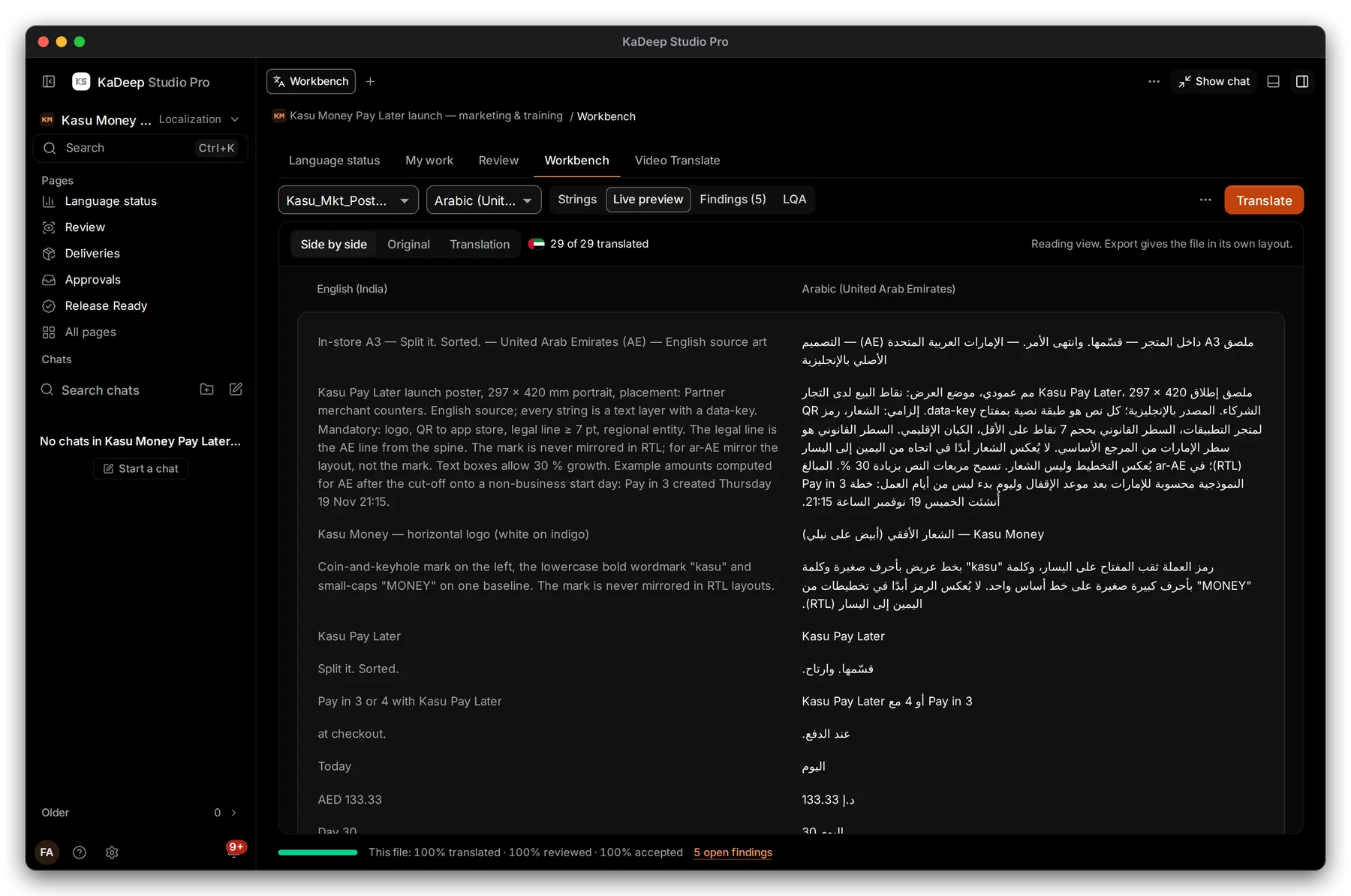
- 1 This file: how much is translated, reviewed and accepted.
- 2 Open findings: click to see them.
- 3 The keys: Tab next box, Ctrl / or ⌘ / all keys.
Choose Live preview to see pictures, posters and documents with your text in place.
Manage view
Hands-on view
When the file is done, go back to the task in My work and choose Hand in.
What’s next
Section titled “What’s next”Review and LQAWhat happens after you hand in.
Glossary and translation memoryPropose a term.
Your language queueHand in and pick the next task.