The in-app browser
Your view
By default the agent tests in a cloud browser. The desktop app also has a real Chromium browser inside it. Use it when your app runs on your own computer or behind your VPN, or when you want to watch every click and take over.
Before you start: pair this computer with the project.
1. Choose the browser in the desktop app
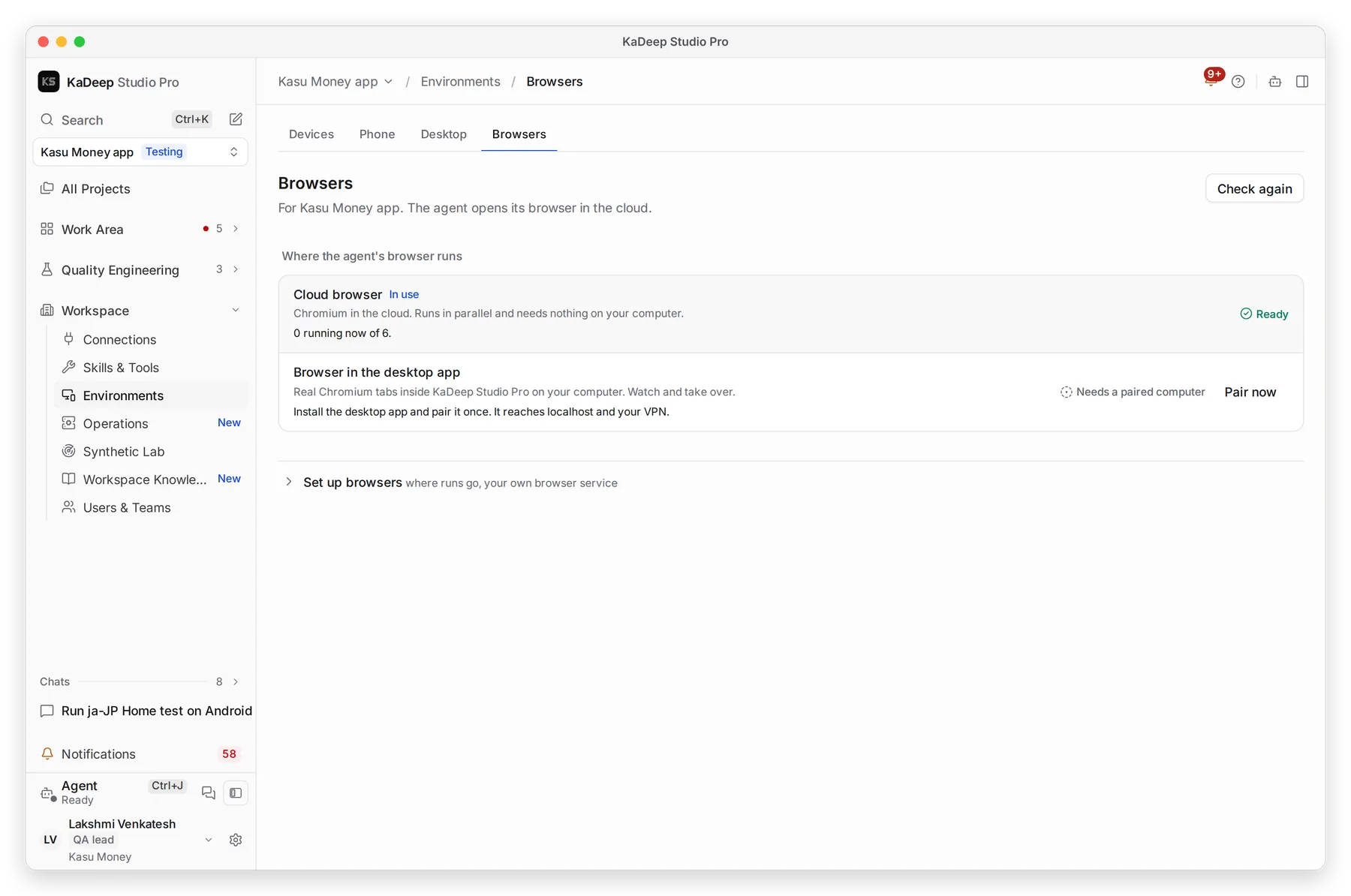
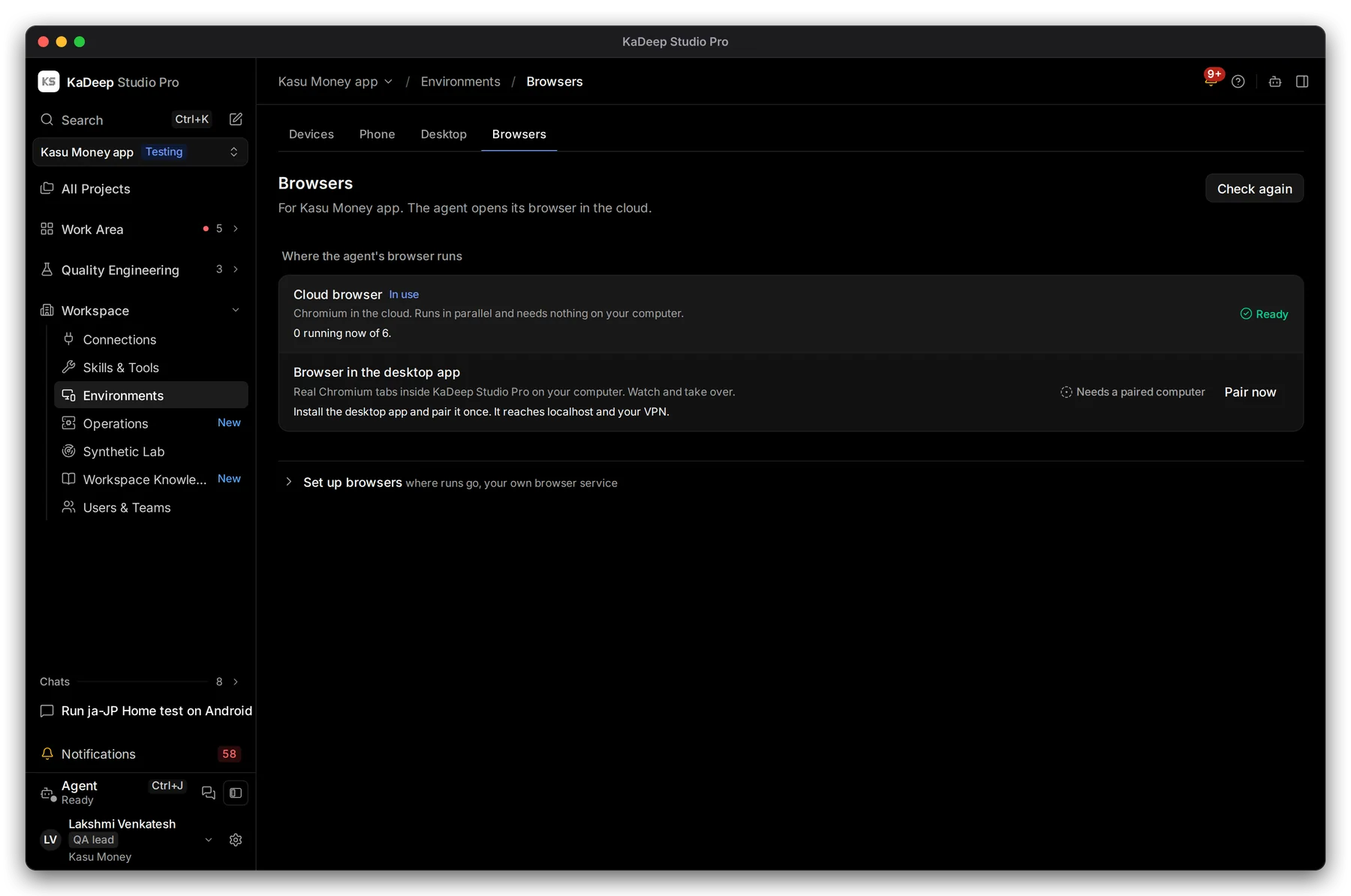
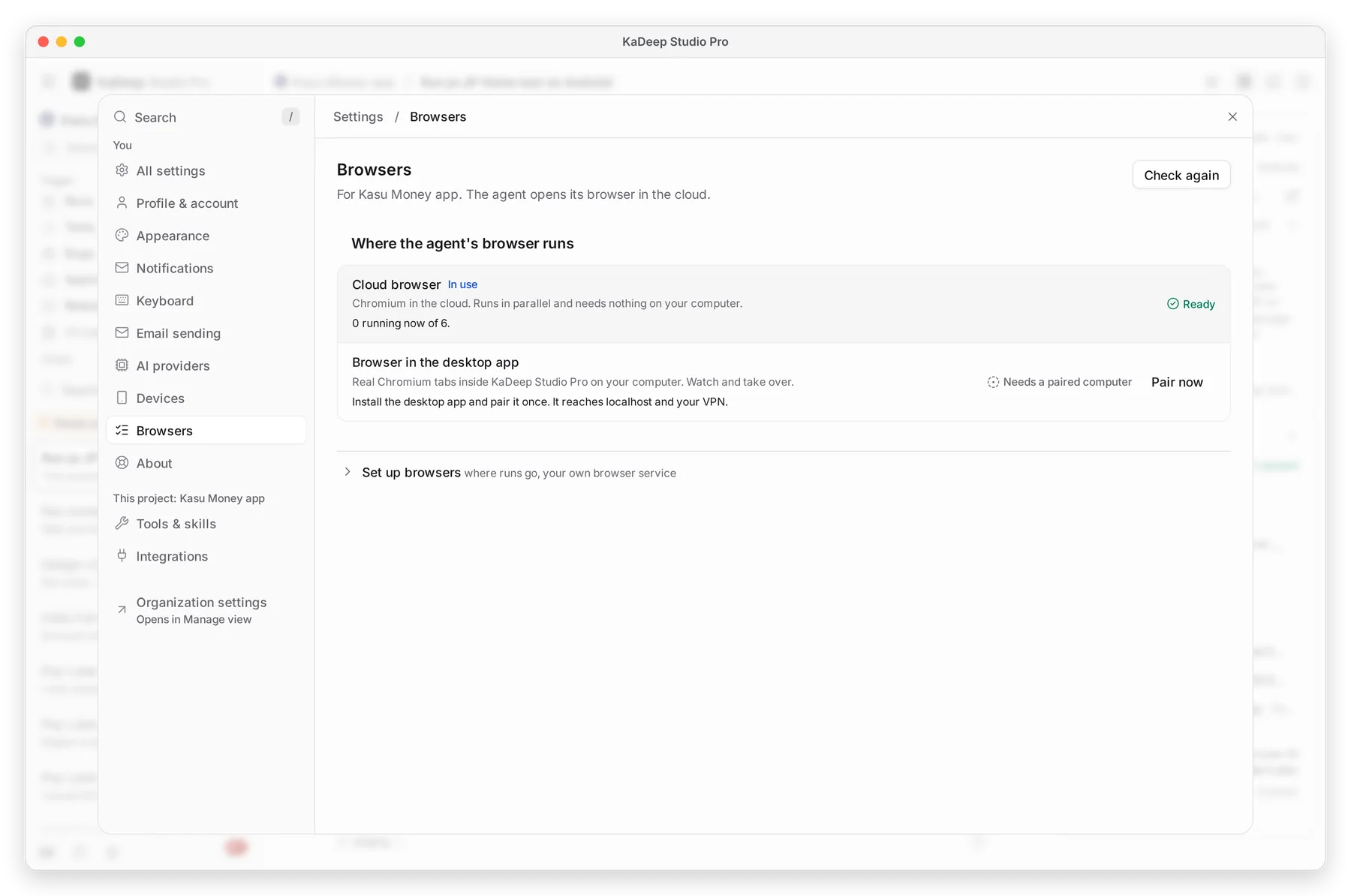
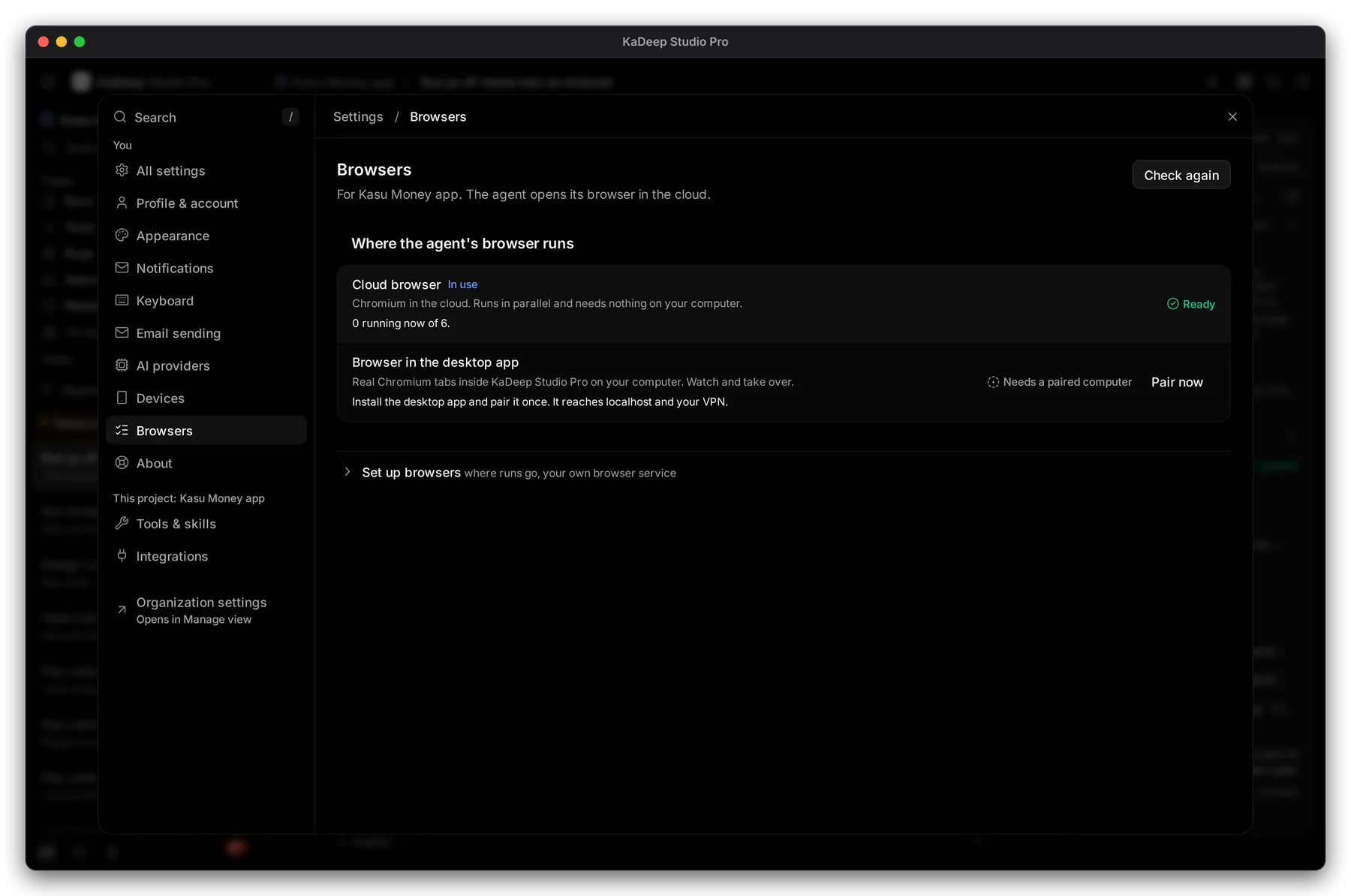
Section titled “1. Choose the browser in the desktop app”- Open Workspace › Environments, then the Browsers tab. Choose the settings icon at the bottom of the sidebar, then Browsers.
- Under Where the agent’s browser runs, choose 2 Browser in the desktop app.
Manage view
Hands-on view
| Browser | Use it when | |
|---|---|---|
| 1 | Cloud browser | Your app is on the internet. Runs go in parallel; nothing runs on your computer. |
| 2 | Browser in the desktop app | Your app is on localhost, a test server or your VPN. You can watch and take over. |
2. Use it
Section titled “2. Use it”The browser opens as tabs in the KaDeep window, and the agent drives the same tabs you see.
- Type an address in Search or enter URL, or pick a server running on this computer. KaDeep lists the local servers it finds, such as your dev server.
- Use Back, Forward, New tab and Zoom like any browser.
- Tabs the agent opened are marked Agent.
3. Choose a profile
Section titled “3. Choose a profile”Under Profile for new tabs, choose:
| Profile | What it keeps |
|---|---|
| Default | Logins and cookies, between sessions. Sign in once and the agent stays signed in. |
| Incognito | Nothing. Every session starts signed out. |
To start fresh, open the Browser menu and clear the profile’s cookies or cache.
What’s next
Section titled “What’s next”Test loginsStore the accounts your tests use.
Watch agents liveMission Control: every agent's screen.
Devices and browsersFor admins: the organization's choices.