Connect AI providers
Your view
The agent thinks with an AI provider, such as Claude Code or Codex. Connect at least one before anyone runs a test.
1. Open AI providers
Section titled “1. Open AI providers”In the sidebar, open Workspace › Connections. The AI providers tab opens.
Choose the settings icon at the bottom of the sidebar, then AI providers.
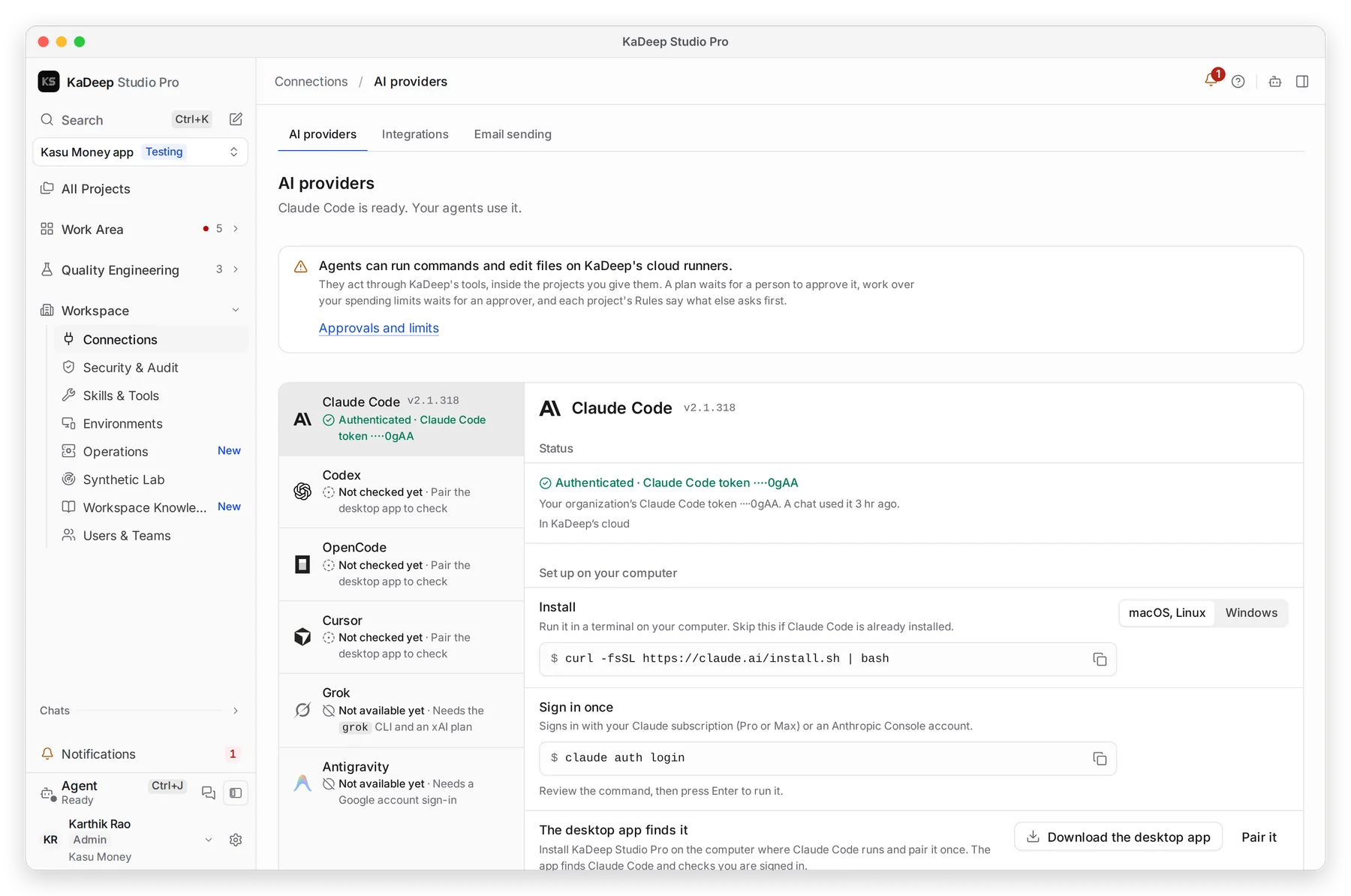
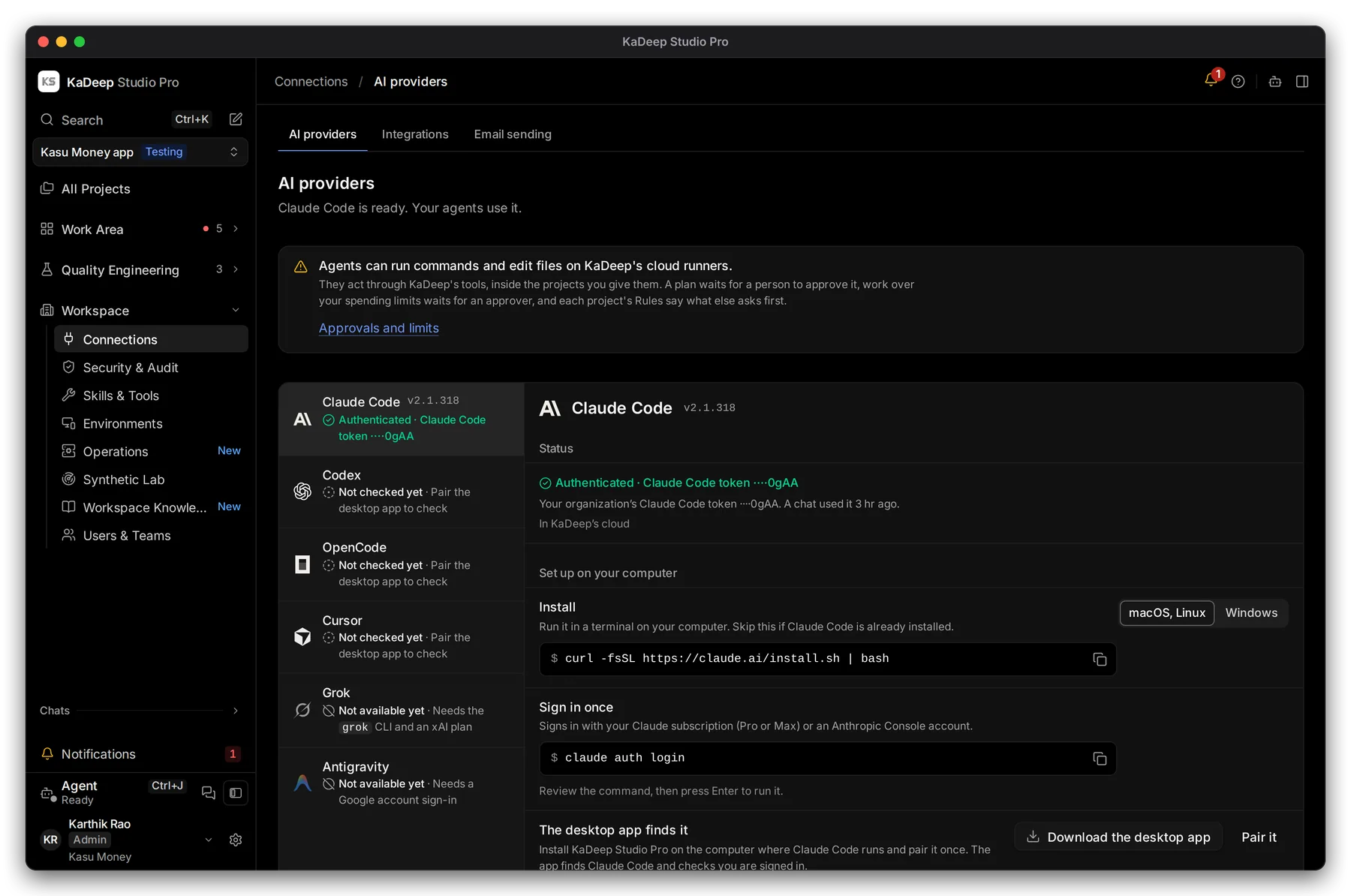
Manage view
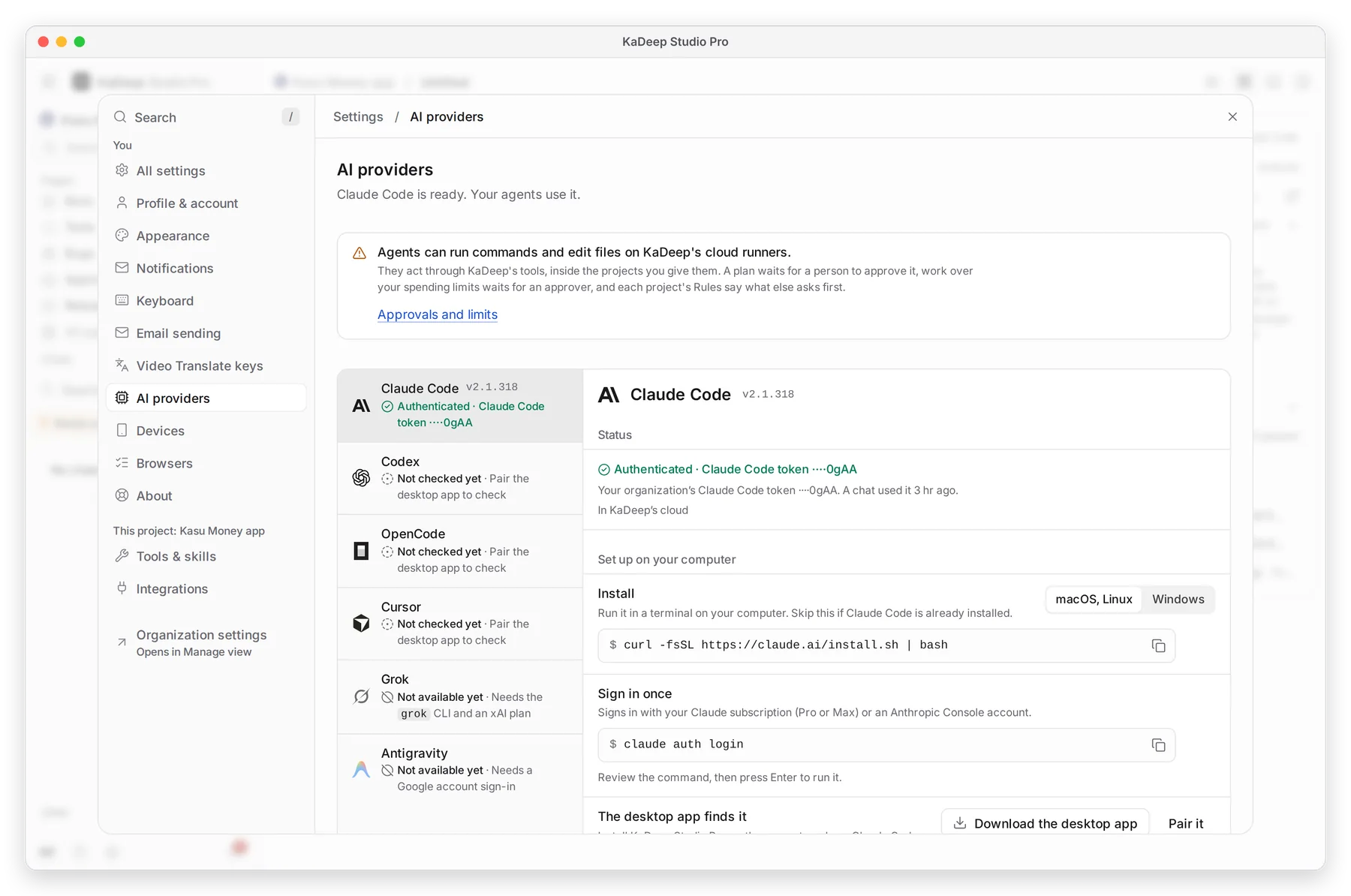
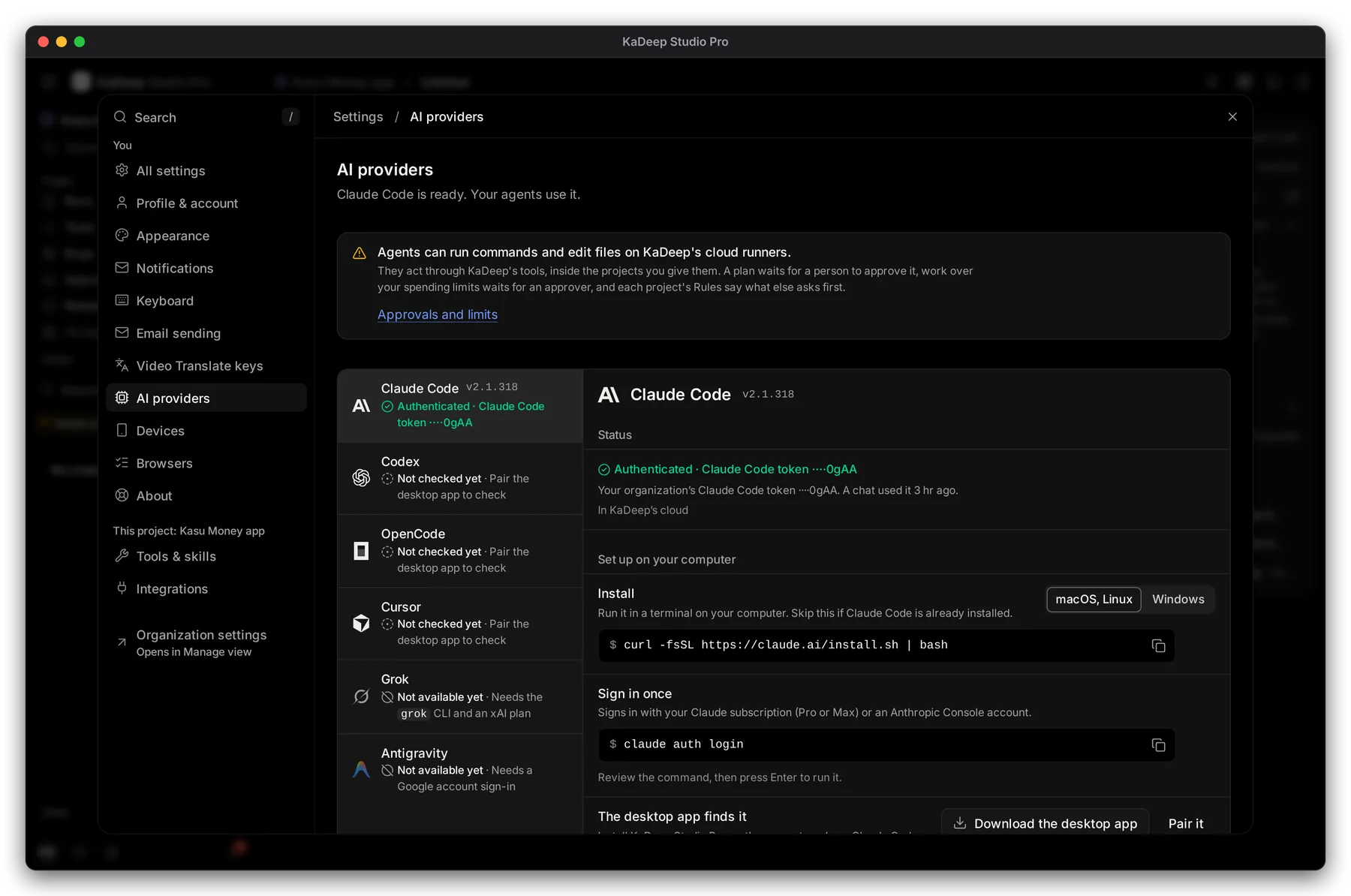
Hands-on view
The list on the left shows each provider and its state. 1 A connected provider shows Authenticated. 2 Not checked yet means nobody has paired a computer that has it.
| Provider | Where it runs |
|---|---|
| Claude Code, Codex, OpenCode, Cursor | In KaDeep’s cloud with the organization’s key, or on a paired computer |
| Grok, Antigravity | On a paired computer. Each needs its own account. |
2. Run it in KaDeep’s cloud
Section titled “2. Run it in KaDeep’s cloud”This is the simplest choice. Every cloud chat in every project uses the organization’s key.
Scroll to Or run it in KaDeep’s cloud, or open Organization settings, and connect the key there.
3. Or run it on your own computer
Section titled “3. Or run it on your own computer”Use this when your company already pays for a provider’s plan, or the agent must reach apps on your network.
- Choose a provider on the left.
- 3 Install: copy the command for macOS, Linux or Windows and run it in a terminal.
- 4 Sign in once: run the sign-in command and follow the prompts.
- 5 The desktop app finds it: install KaDeep Studio Pro on that computer and pair it. Choose Pair it.
What’s next
Section titled “What’s next”Pair this computerLet agents use a Mac or PC.
Spending limit and approvalsCap what the agents can spend.
Set up checklistBack to the list.