What the desktop app adds
Your view
KaDeep Studio Pro is a desktop app. Everyone gets the full product in it. Pair your computer with a project, and the agent can also use what is on that computer.
Before you start: install the desktop app for Windows or Mac.
What a paired computer adds
Section titled “What a paired computer adds”| With a paired computer, the agent can | Why it matters |
|---|---|
| Test desktop apps on Windows or macOS | It clicks, types and reads the app like a person. See Test desktop apps. |
| Use emulators, simulators and USB phones | Test Android and iPhone builds on your own devices, at no per-minute cost. See Local devices. |
| Open your app in a browser on your computer | It reaches localhost, test servers and anything behind your VPN. See The in-app browser. |
| Run your AI provider on your computer | Use your company’s Claude Code, Codex or Cursor plan. See Connect AI providers. |
| Let you watch and take over | See every click live, and stop all sessions with one shortcut. See Worker mode and the tray menu. |
Without pairing, the agent uses KaDeep’s cloud browsers, cloud phones and cloud computers.
Where pairing lives
Section titled “Where pairing lives”In each project, Environments › Desktop shows the computers that can run its work.
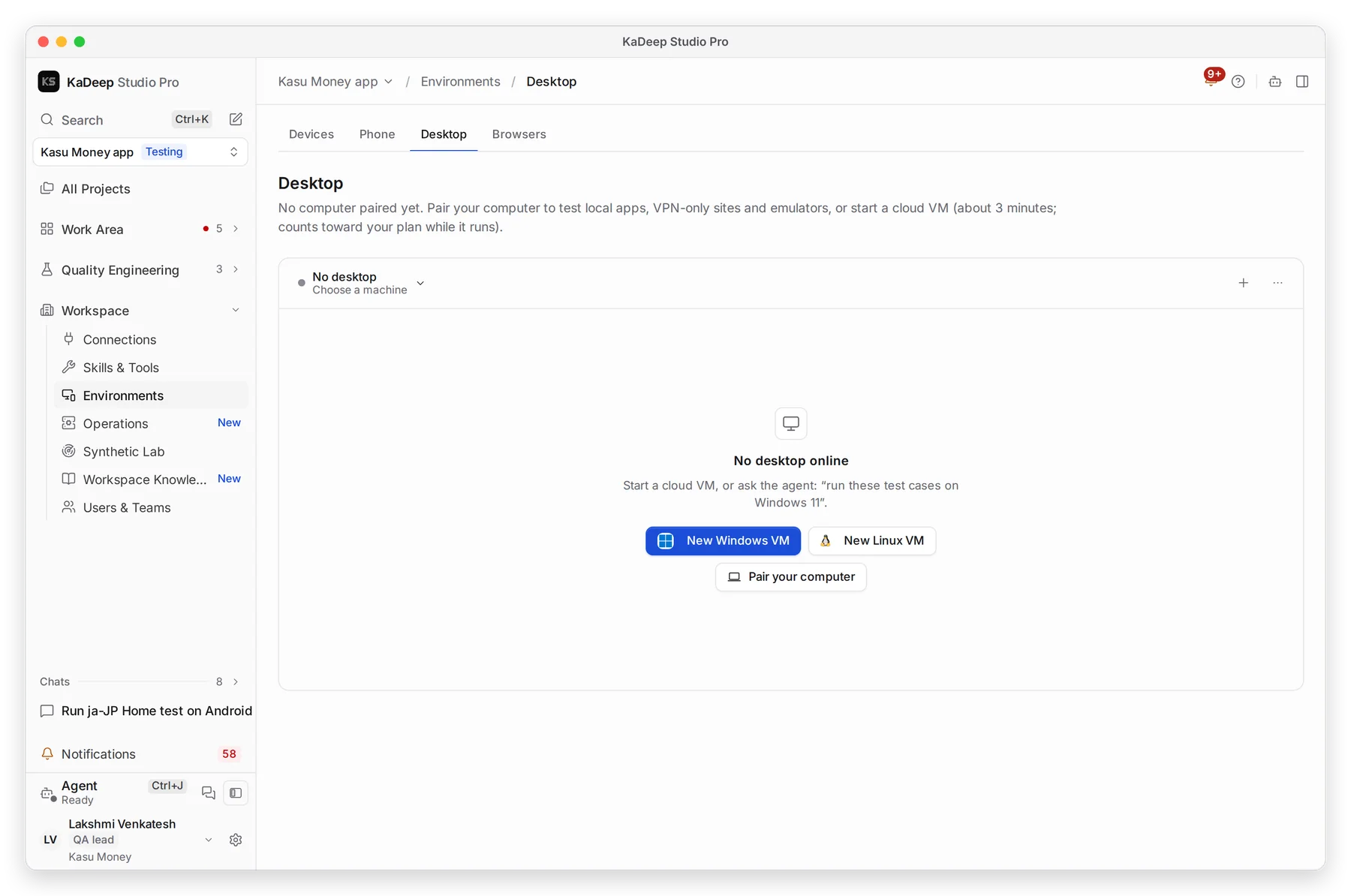
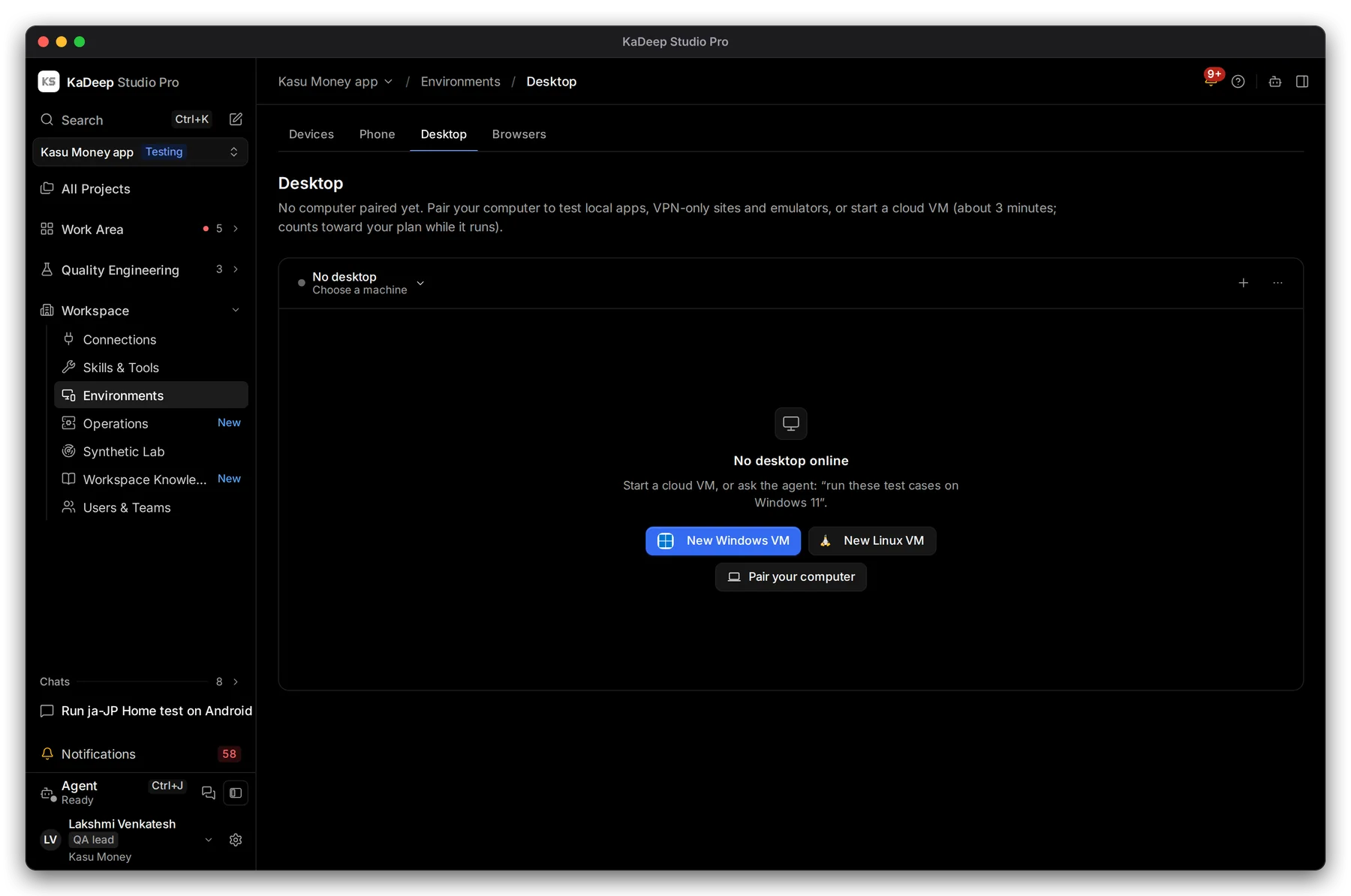
Manage view
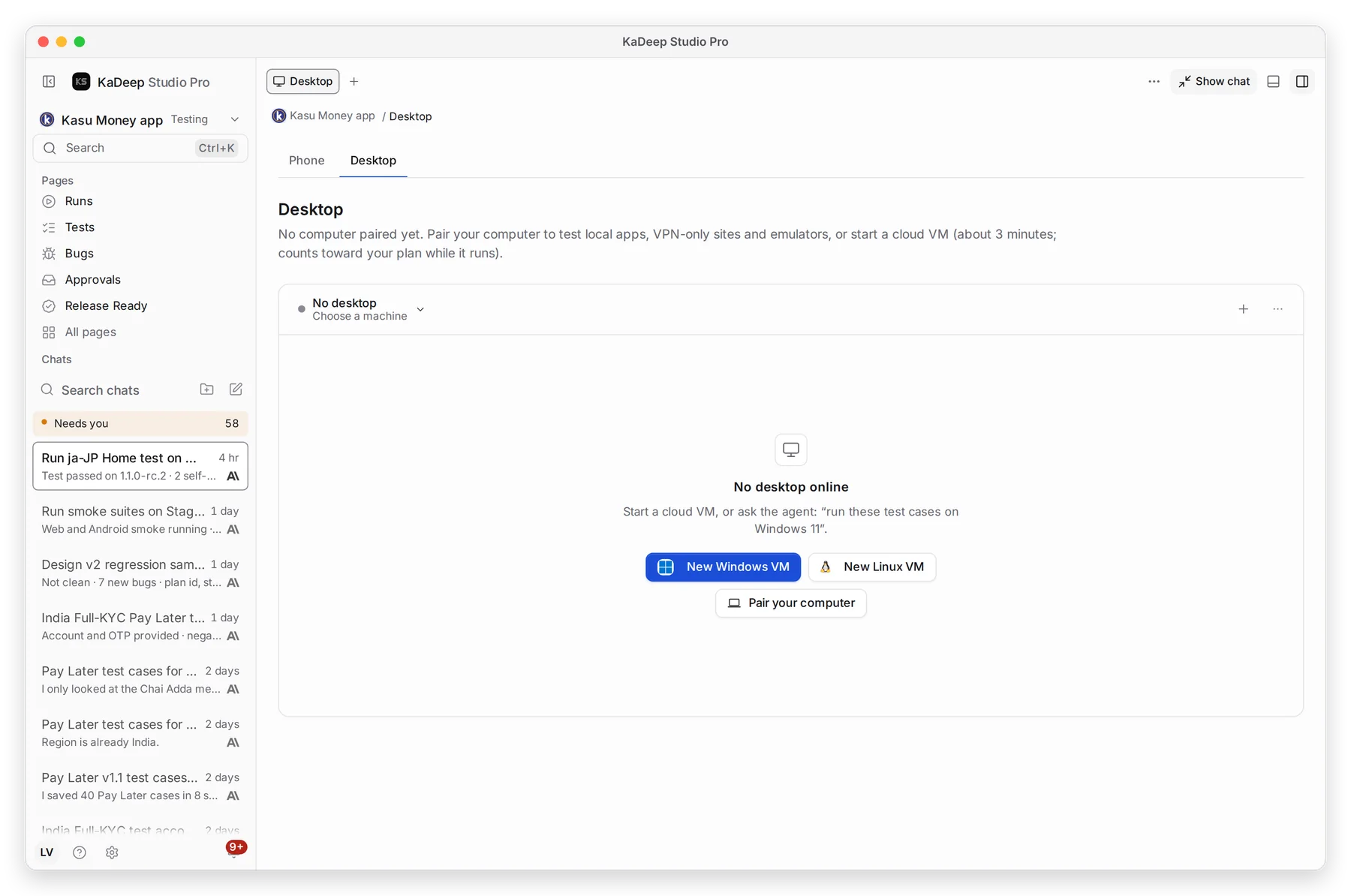
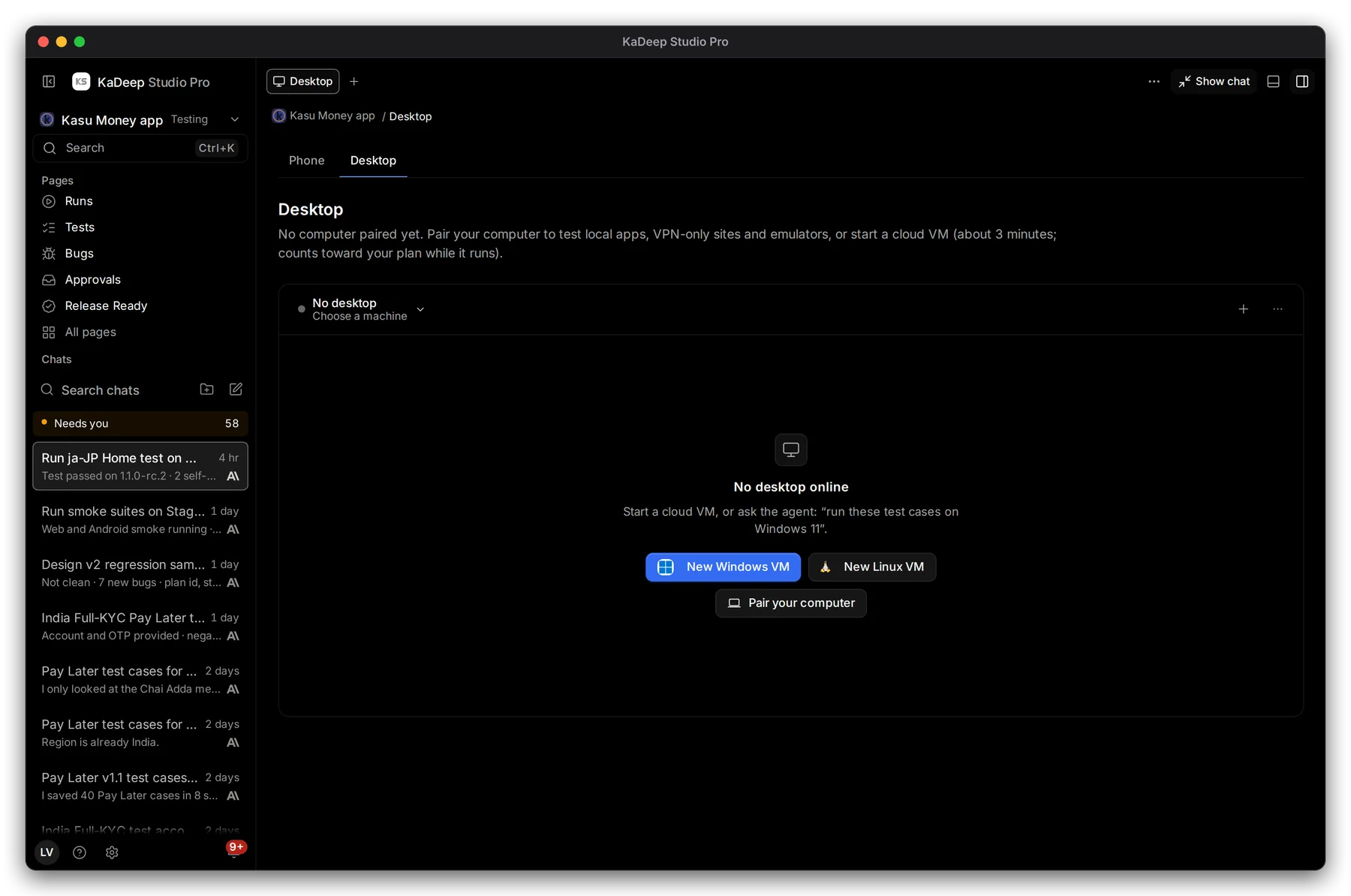
Hands-on view
1 Choose a machine, 2 pair your own computer, or 3 start a cloud computer instead.
The pieces
Section titled “The pieces”| Piece | What it is |
|---|---|
| The window | The full KaDeep Studio Pro, in Manage or Hands-on view |
| The tray icon | The desktop worker: pause, resume, stop sessions, pairing |
| Desktop worker setup | The window where you allow permissions and paste a pairing code |
| Updates | Checked while the app is open; you choose when to restart |
What’s next
Section titled “What’s next”Pair this computerConnect it to a project in a minute.
Allow permissions on macOSAccessibility and Screen Recording.
Install the desktop appWindows or Mac.