Tests
Your view
A test is one thing your app must do, written as steps and an expected result. The agent can write tests from your requirements, import the ones you already have, and keep them up to date when the app changes.
1. Open Tests
Section titled “1. Open Tests”In the sidebar, open Quality Engineering › Functional Testing, then the Tests tab.
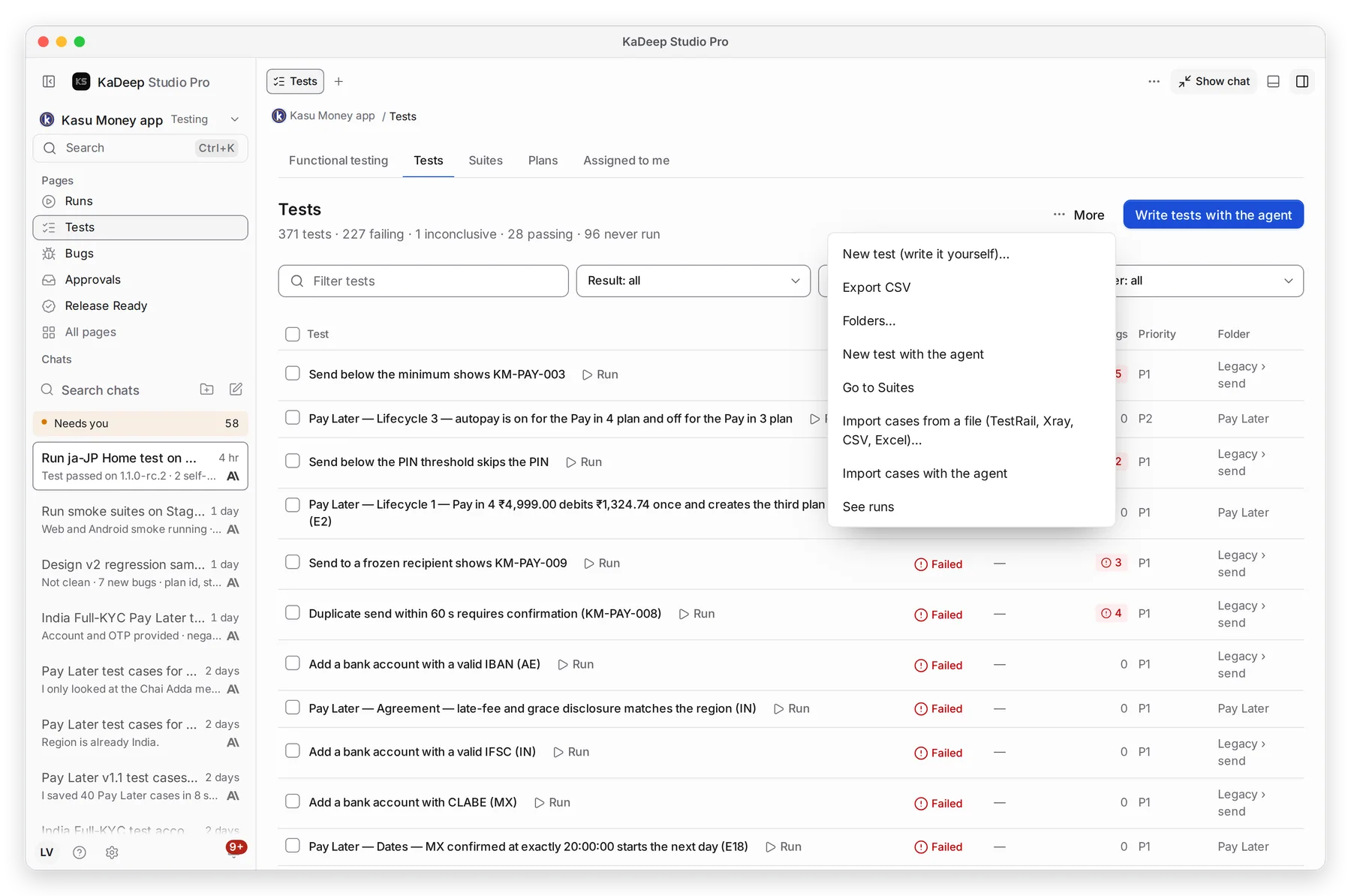
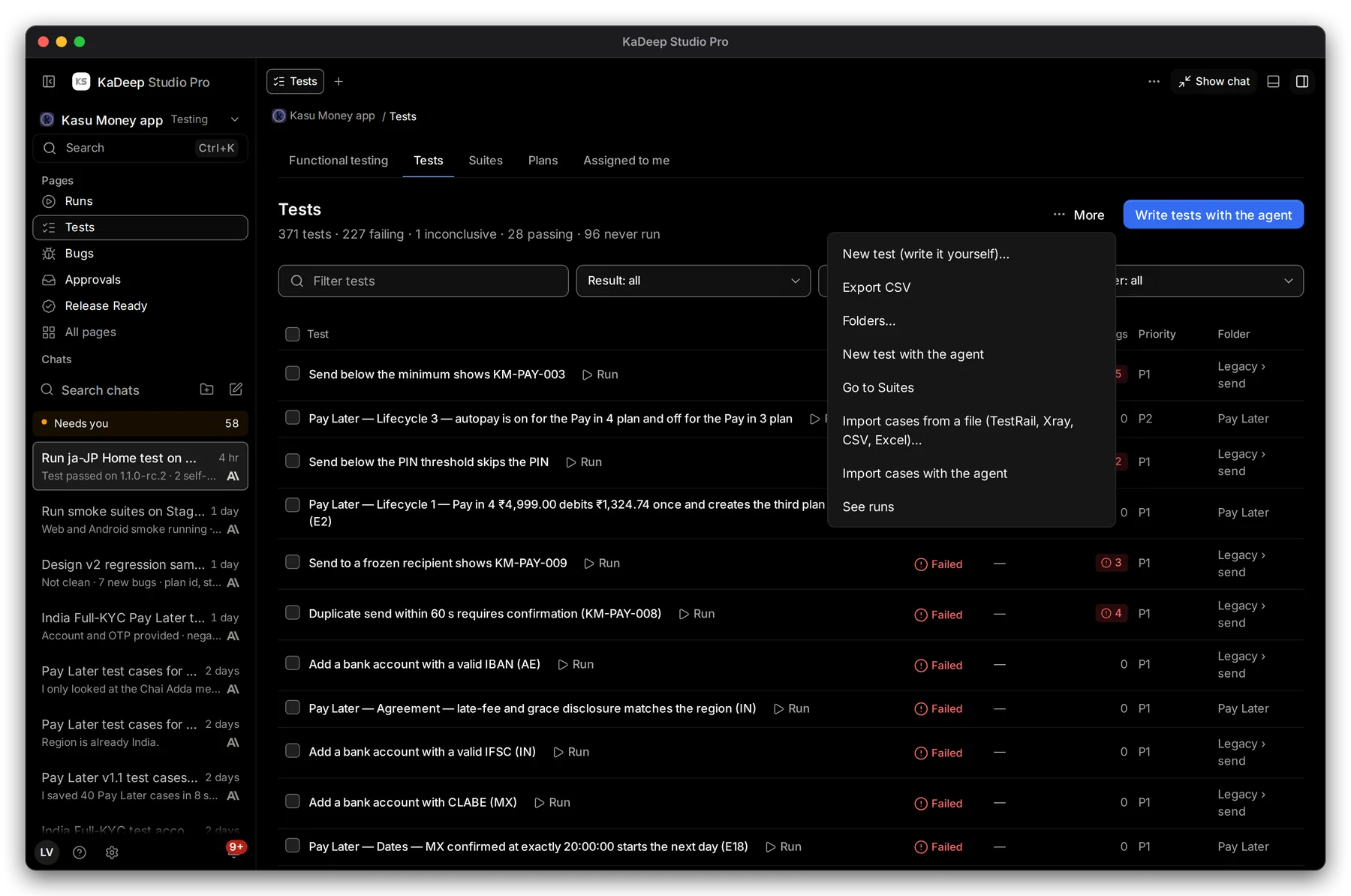
Under Pages, choose Tests.
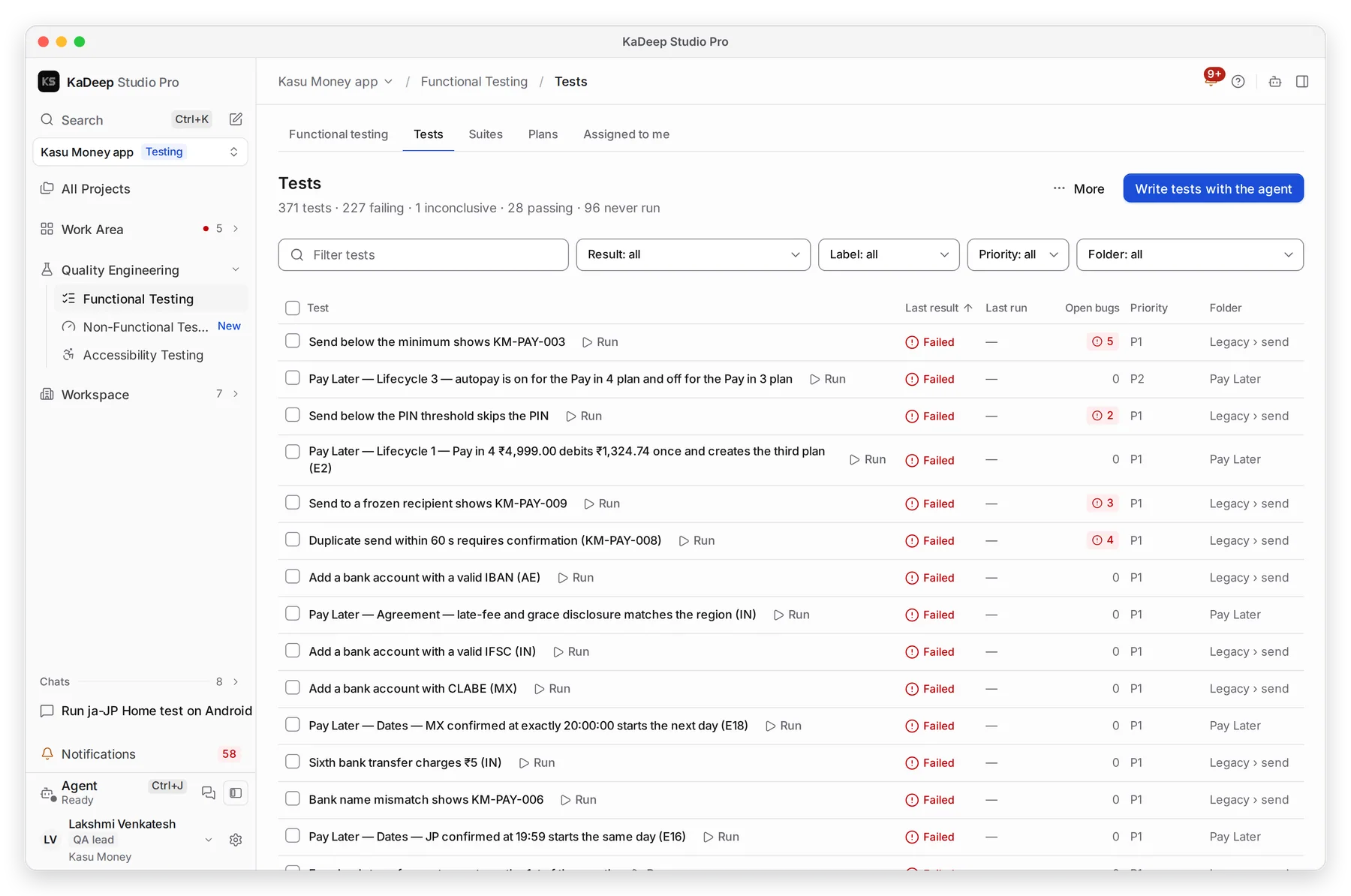
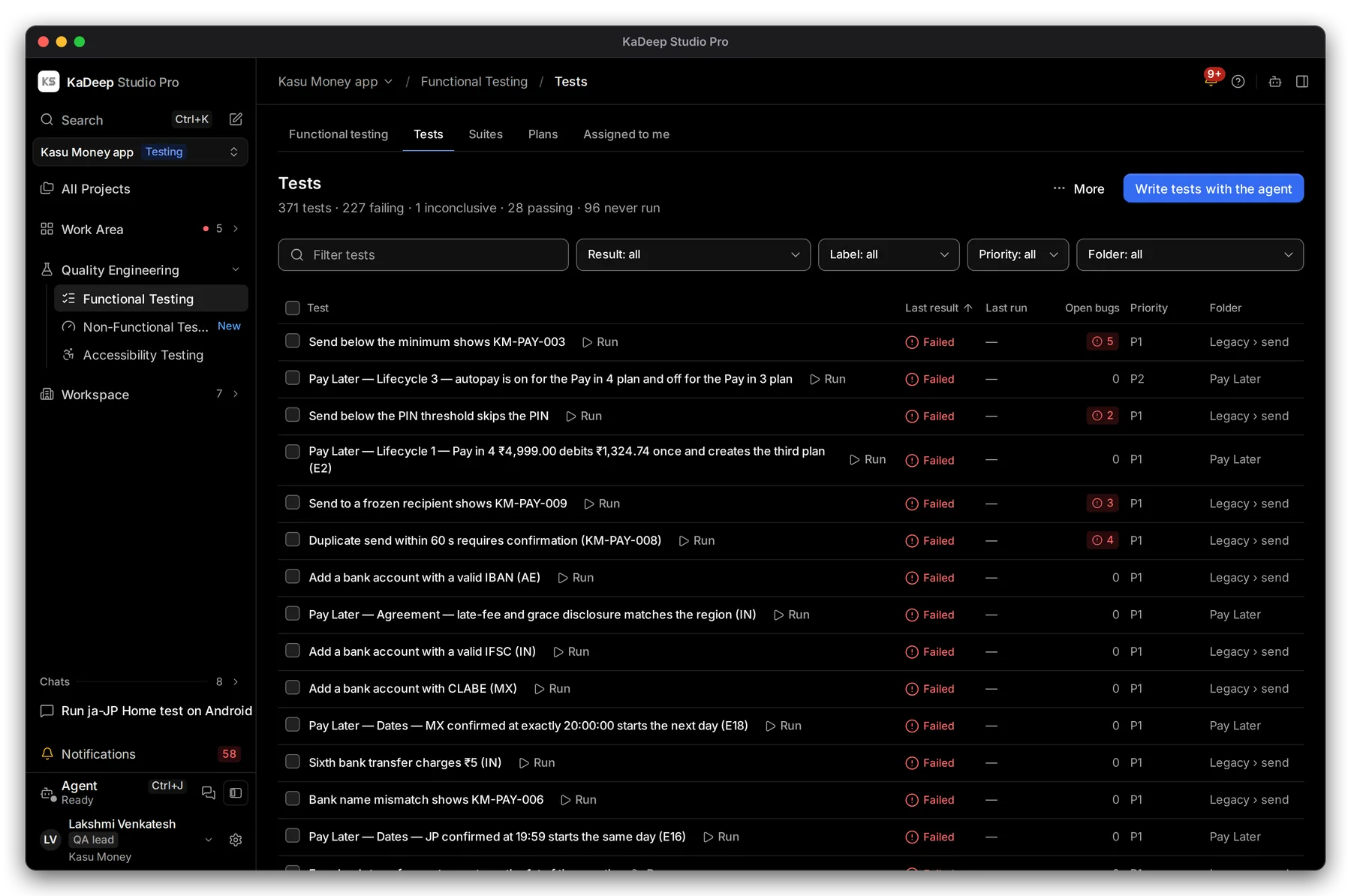
Manage view
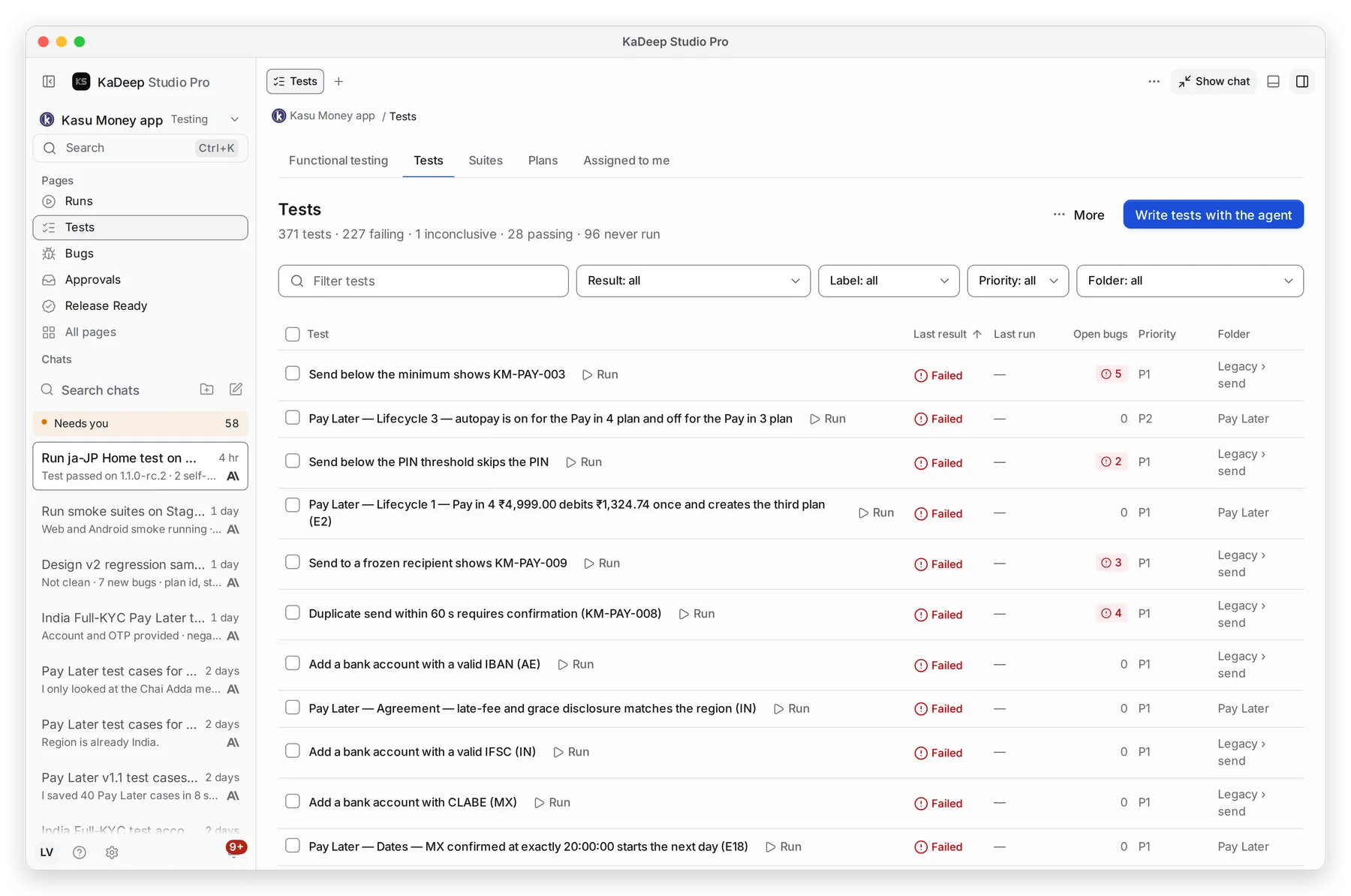
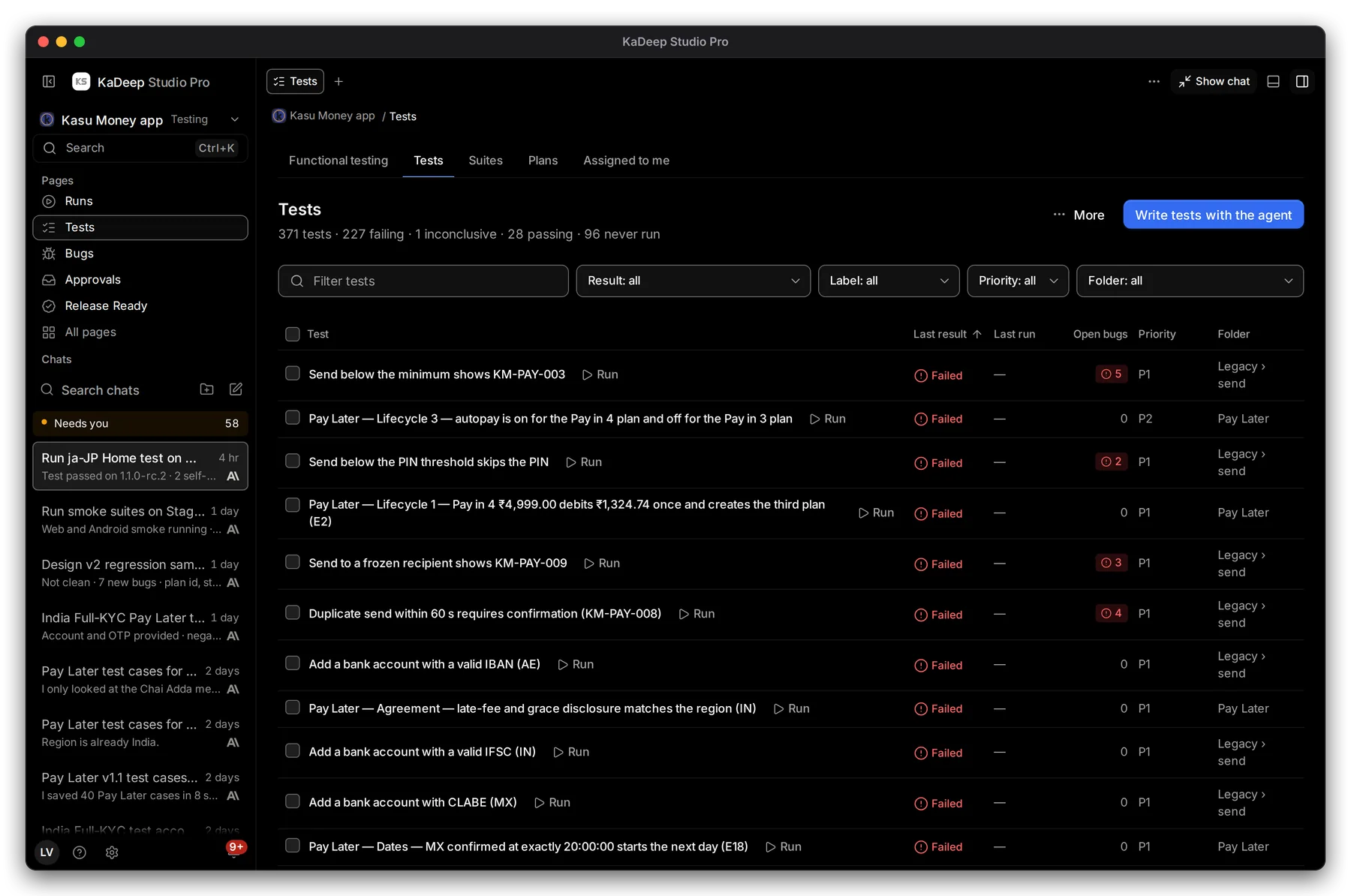
Hands-on view
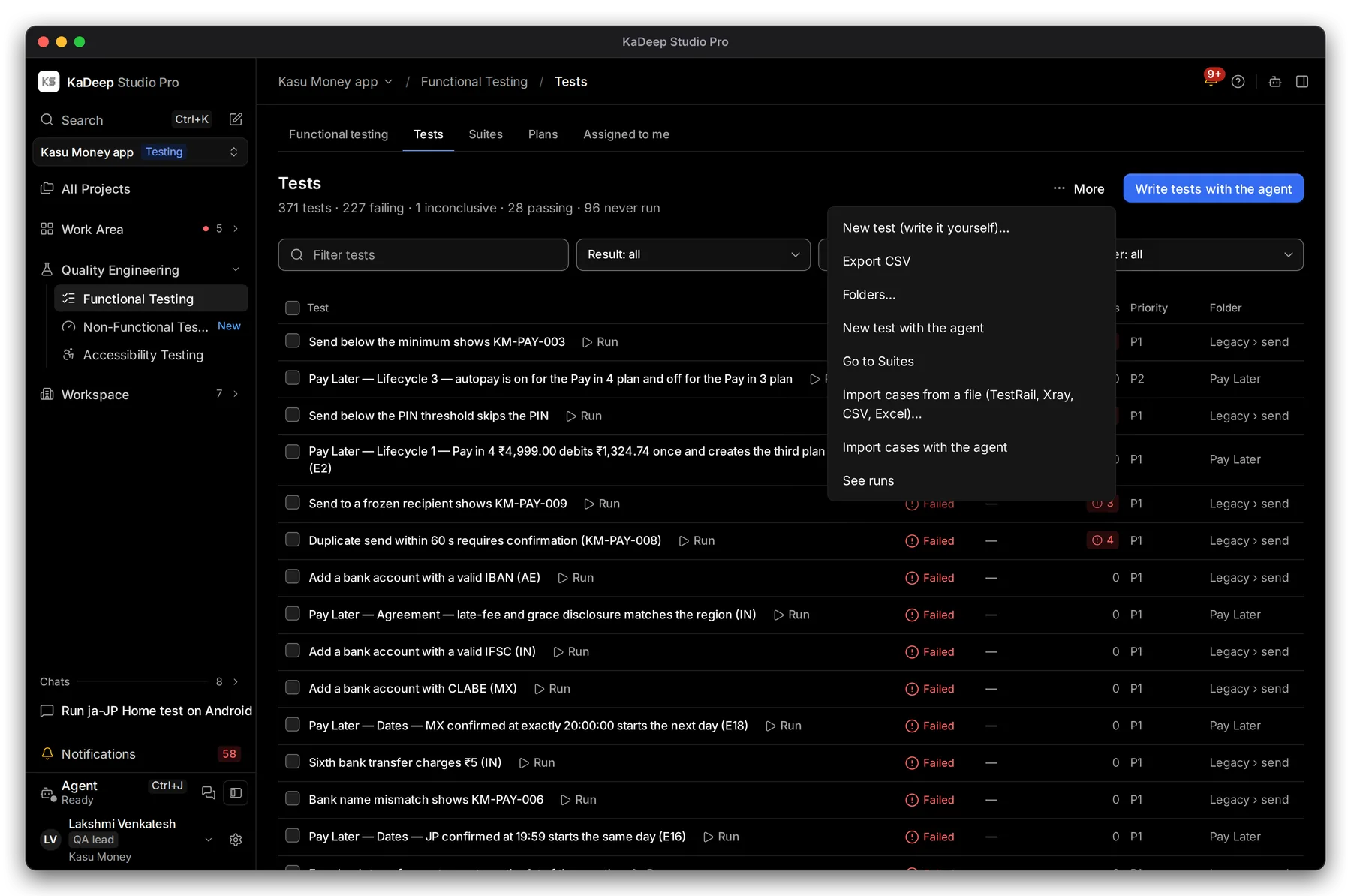
- 1 Write tests with the agent: describe what to cover, or point it at a requirements file.
- 2 More: write a test yourself, import, export and folders.
- 3 Find tests by name, or filter by Result, Label, Priority and Folder.
- 4 Each test shows its last result, open bugs, priority and folder. Run runs that one test.
The header counts every test: how many fail, pass, are inconclusive or have never run.
2. Add tests
Section titled “2. Add tests”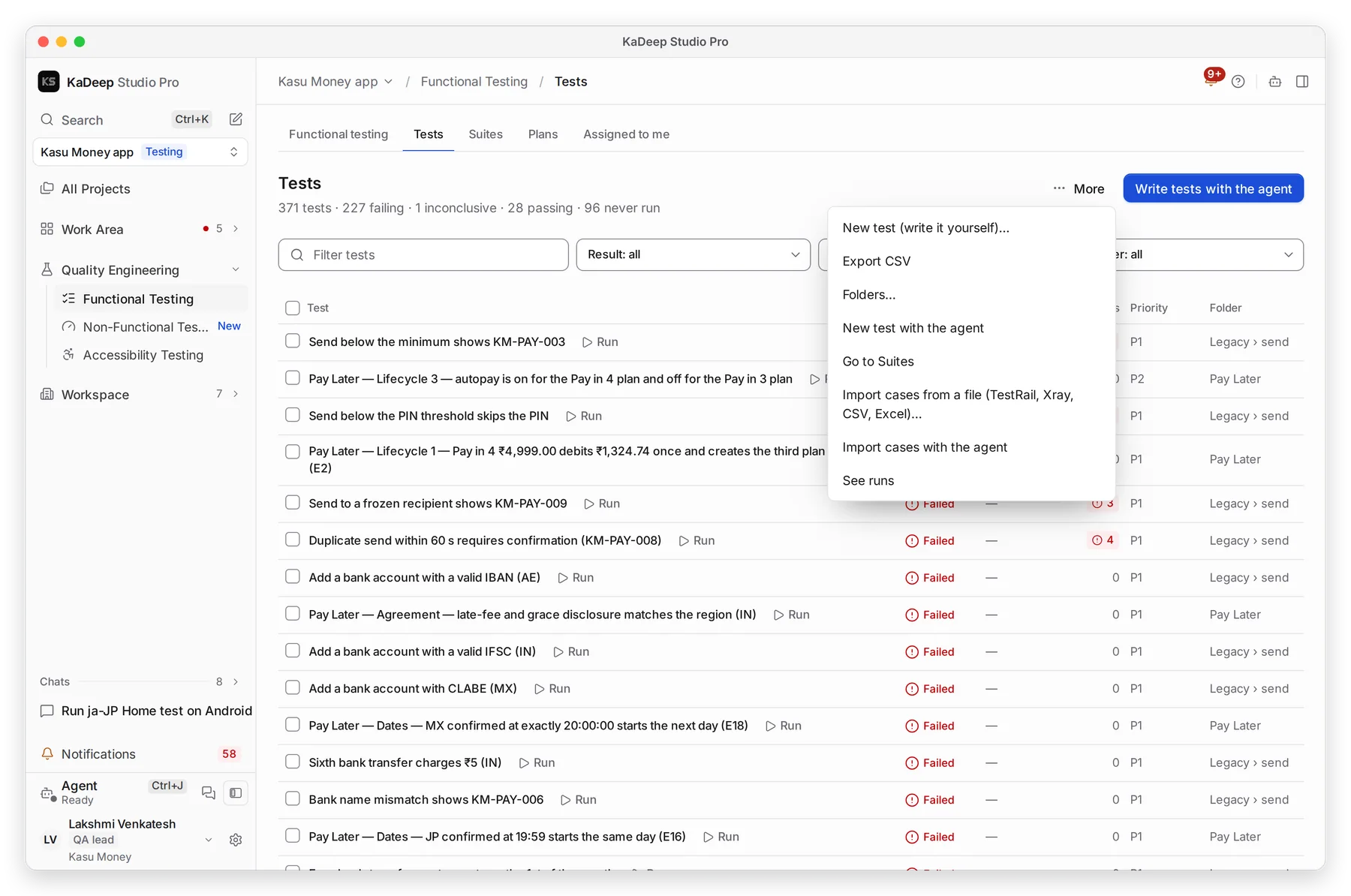
Manage view
Hands-on view
| Choose | When | |
|---|---|---|
| 1 | New test (write it yourself)… | You know the steps. |
| 2 | New test with the agent | You describe the goal; the agent writes the steps. |
| 3 | Import cases from a file (TestRail, Xray, CSV, Excel)… | You already have test cases. |
| 4 | Import cases with the agent | Your cases are in a document or an odd format. The agent reads it and turns it into tests. |
Export CSV downloads every test. Folders… organizes them.
3. Read a test
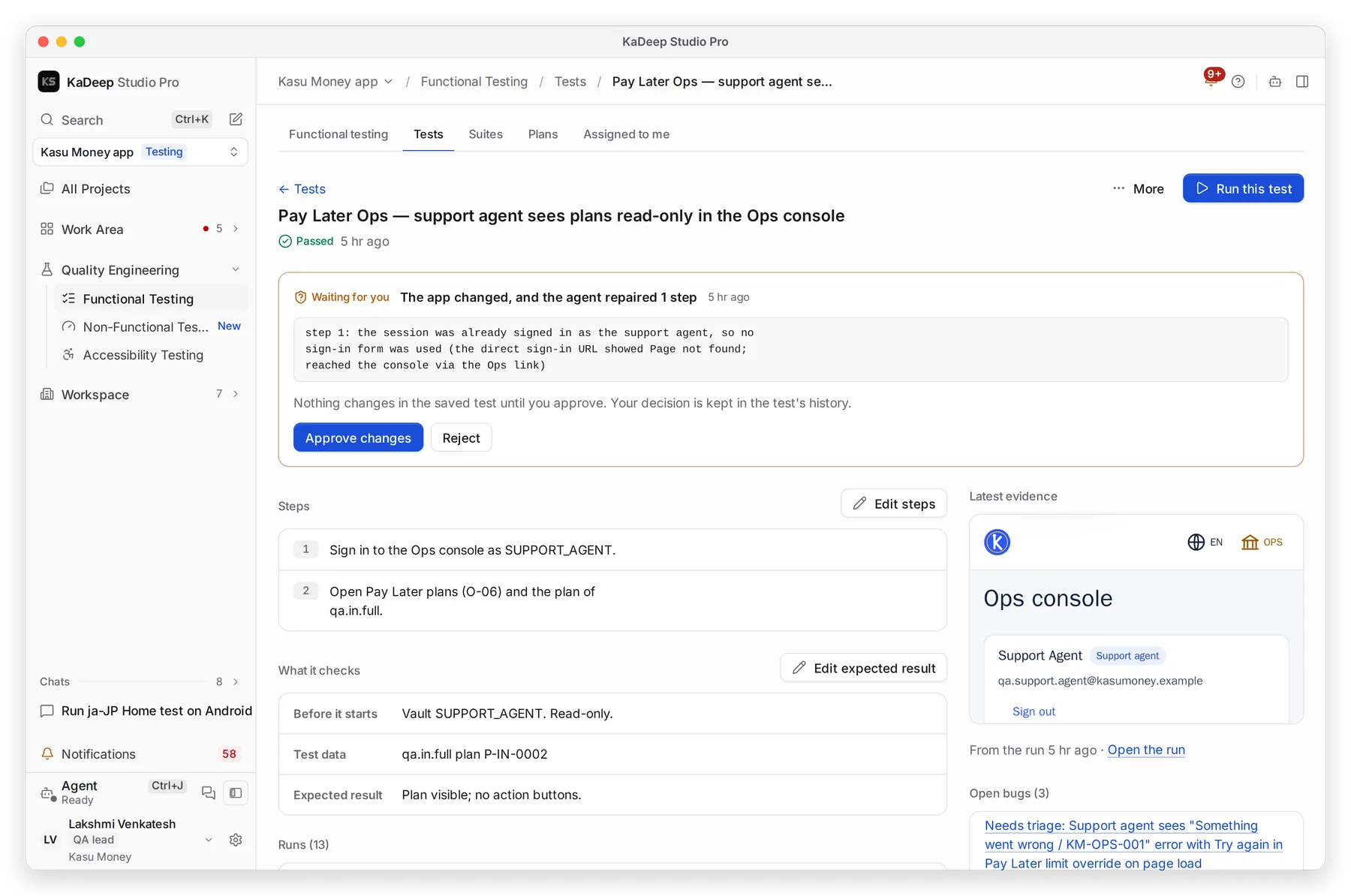
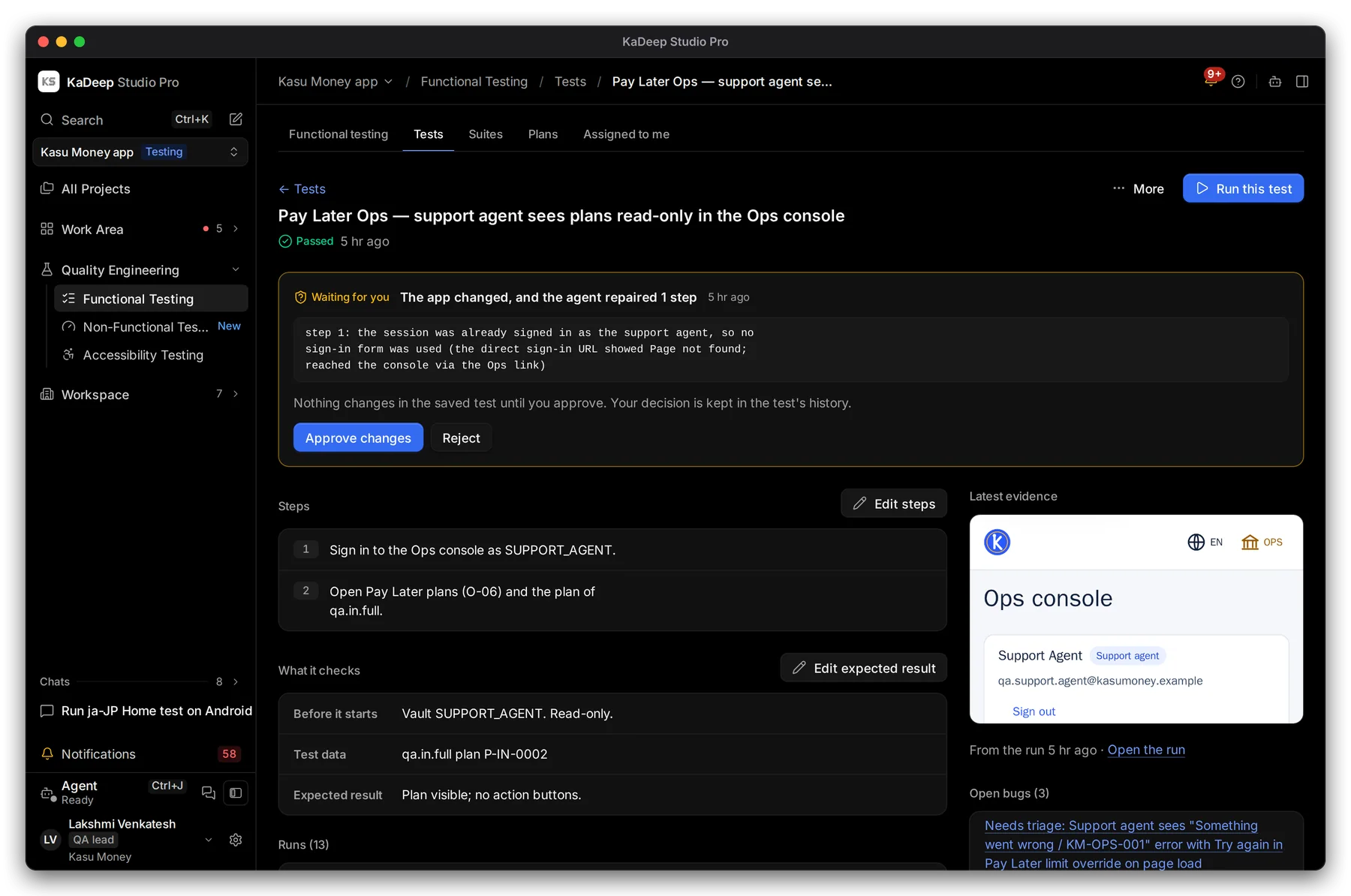
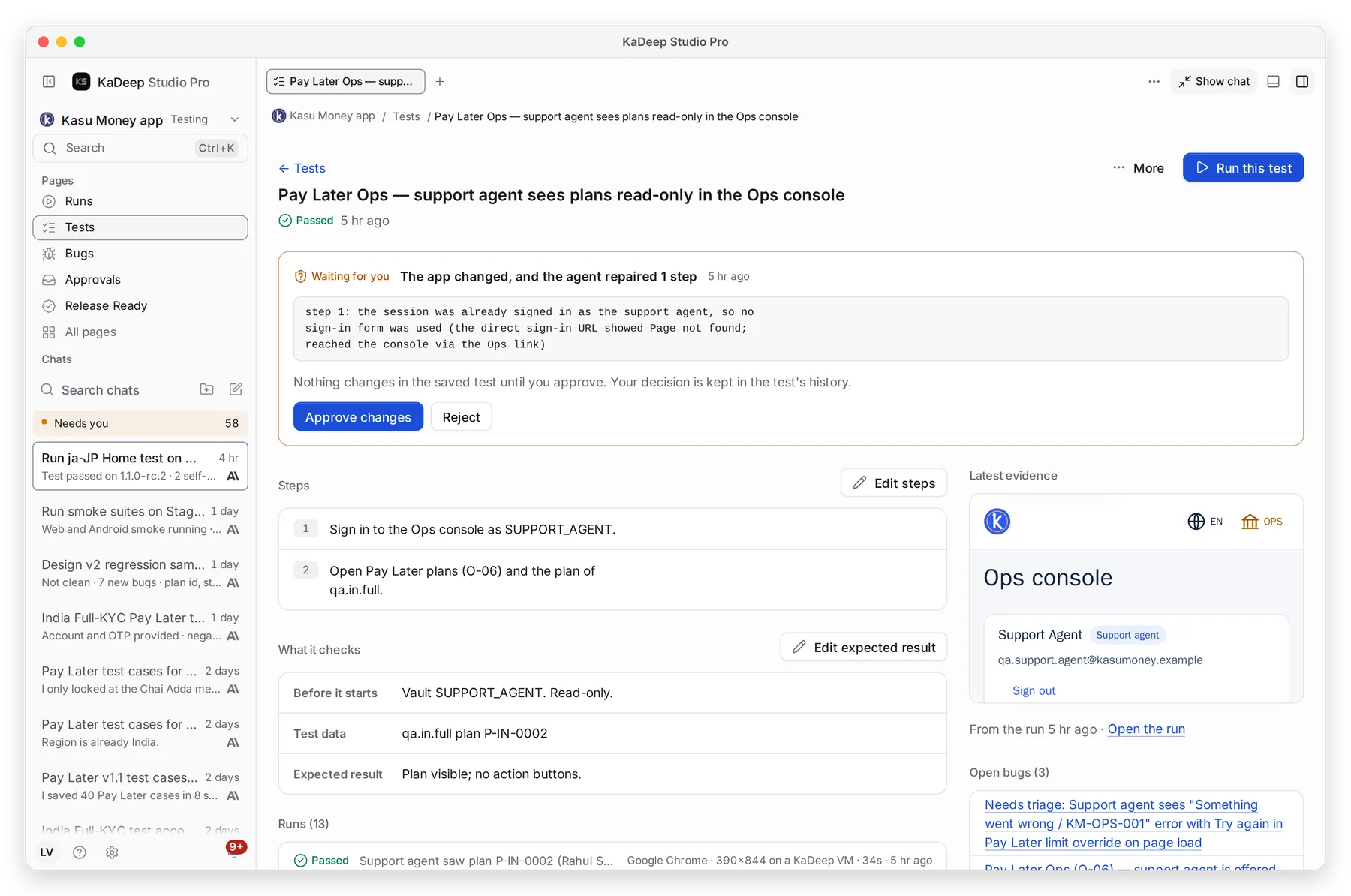
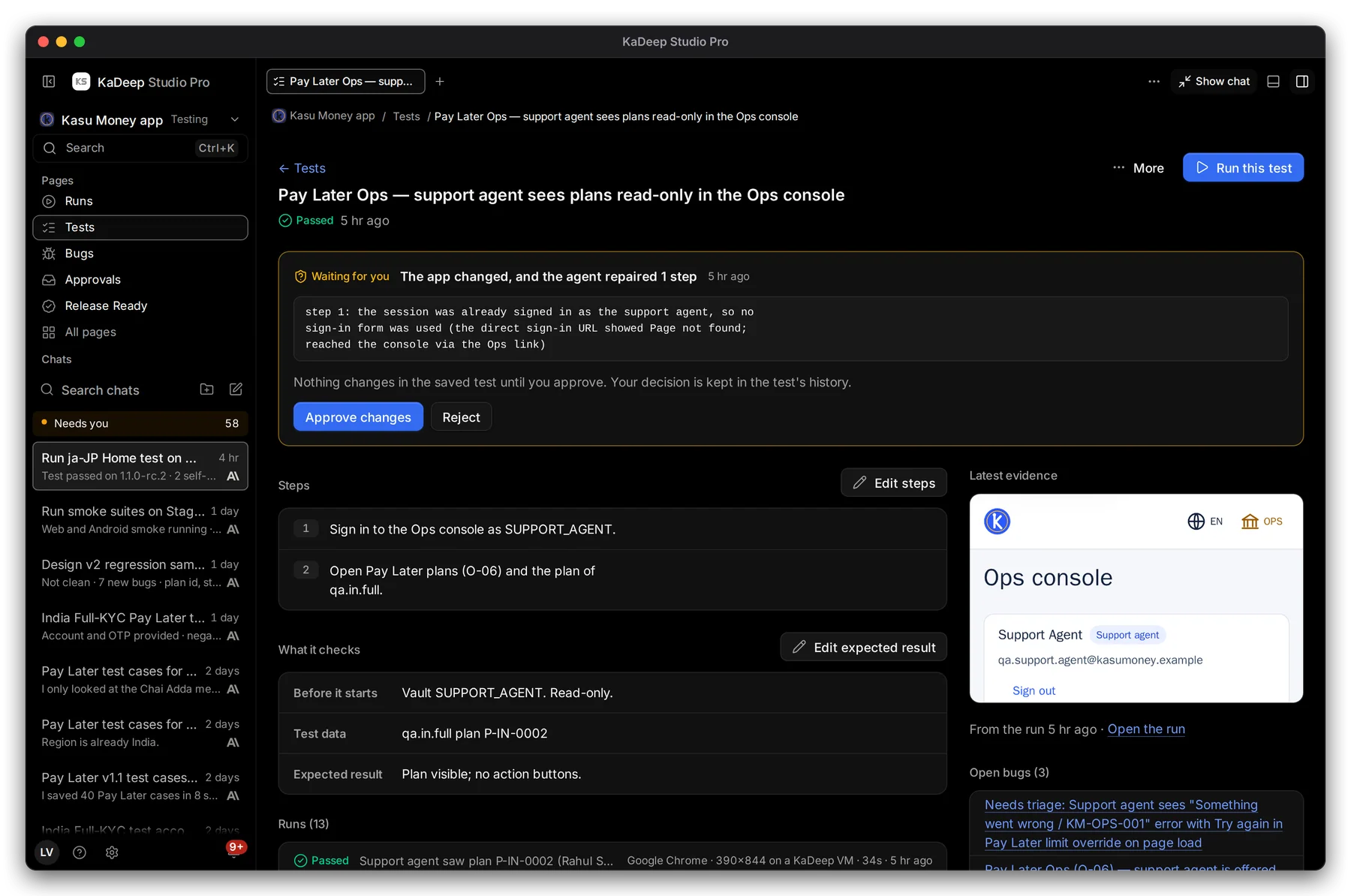
Section titled “3. Read a test”Click a test to open it.
Manage view
Hands-on view
- 1 Run this test runs it once, now.
- 2 When the app changes, the agent repairs the steps and asks you. Choose Approve changes or Reject. Nothing changes in the saved test until you decide.
- 3 Steps, in order. Edit steps to change them.
- 4 What it checks: what must be true before it starts, the test data, and the expected result.
- 5 Latest evidence, Open bugs, and every run of this test below.
On the right, set the test’s priority, platform, folder and labels, and Link a requirement.
What’s next
Section titled “What’s next”SuitesGroup tests you run together.
Requirements and coverageSee which requirements your tests cover.
Run a test suite and read the resultsRun tests and read the evidence.