Add people to a project
Your view
People see only the projects they belong to. Add them to each project they work on, and give them a role for that project if it differs from their usual one.
Before you start: the project must exist. See Create a testing project or Create a localization project.
1. Open the project’s people
Section titled “1. Open the project’s people”- Choose the project in the project switcher at the top of the sidebar.
- Open Workspace › Users & Teams, then the Project people tab. Press Ctrl K (Windows) or ⌘ K (Mac), type Project people and press Enter.
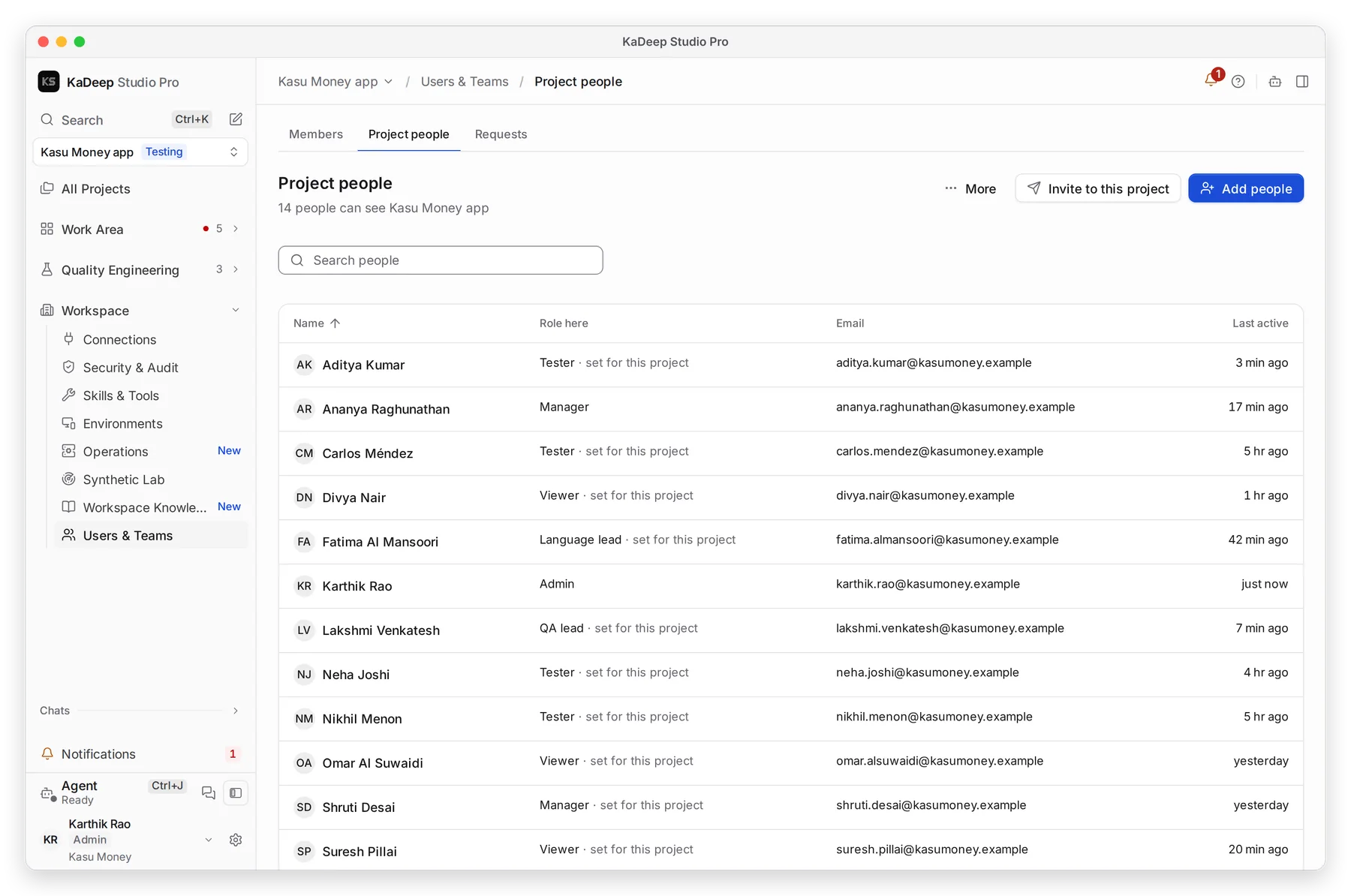
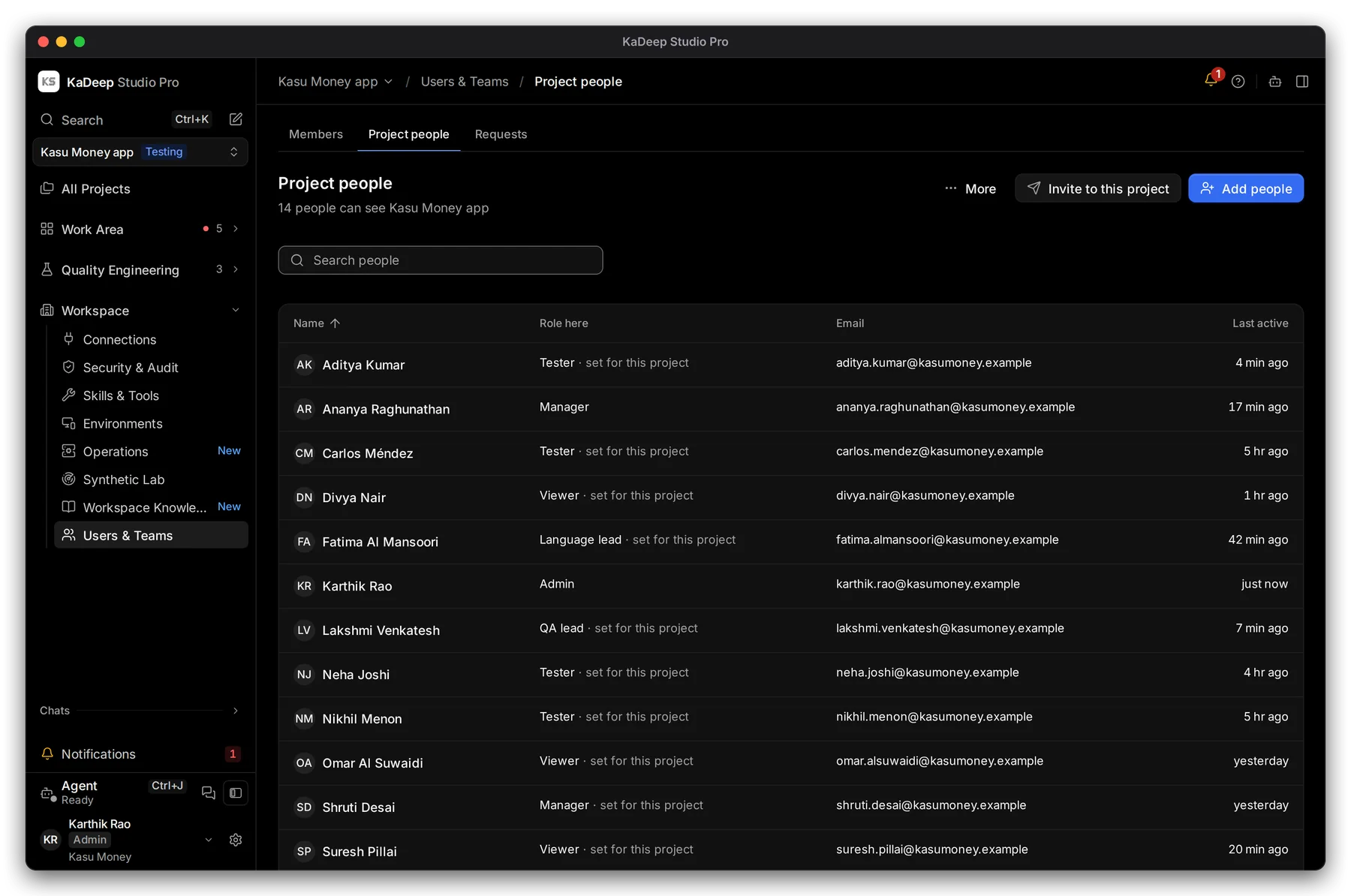
Manage view
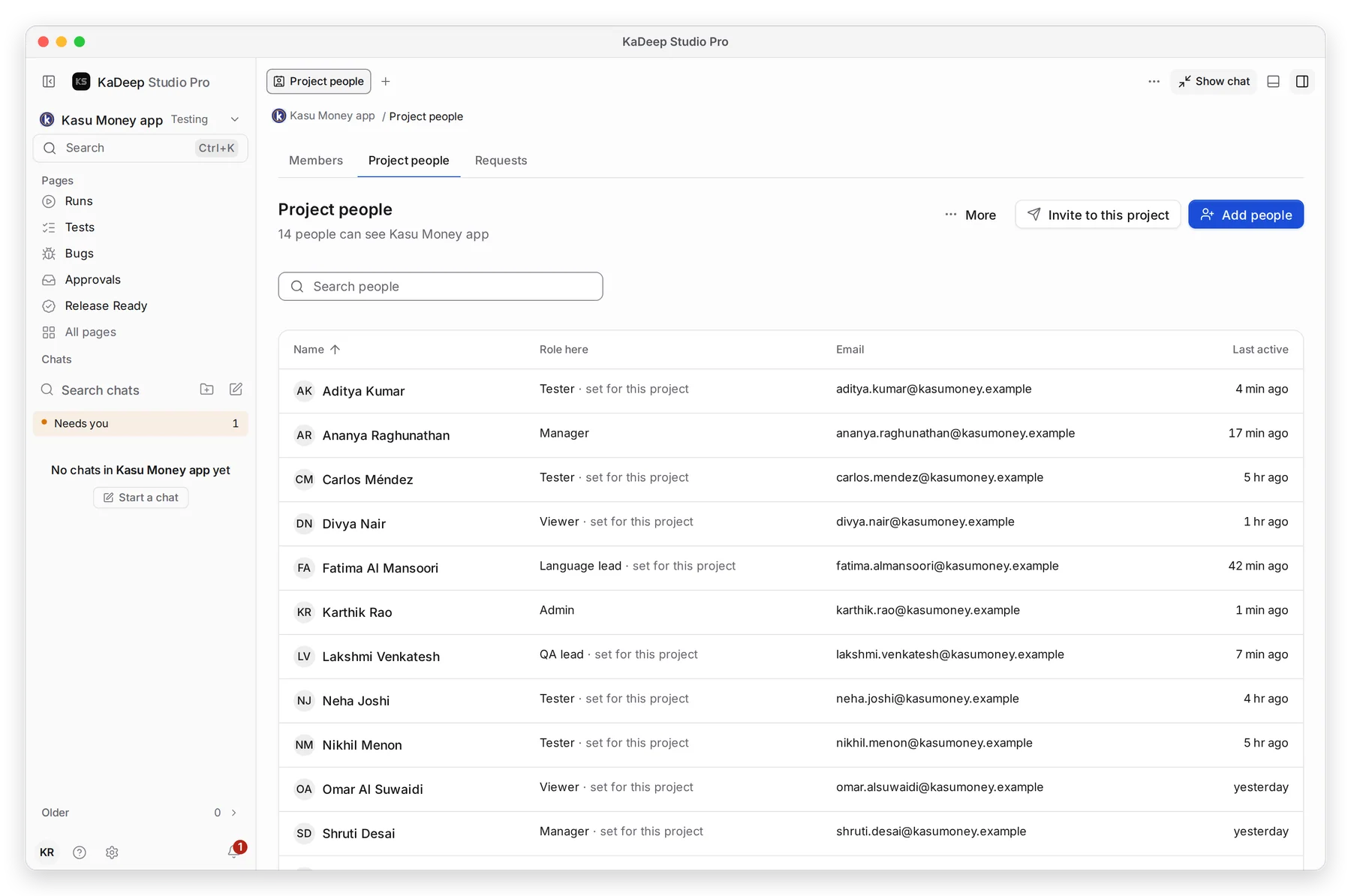
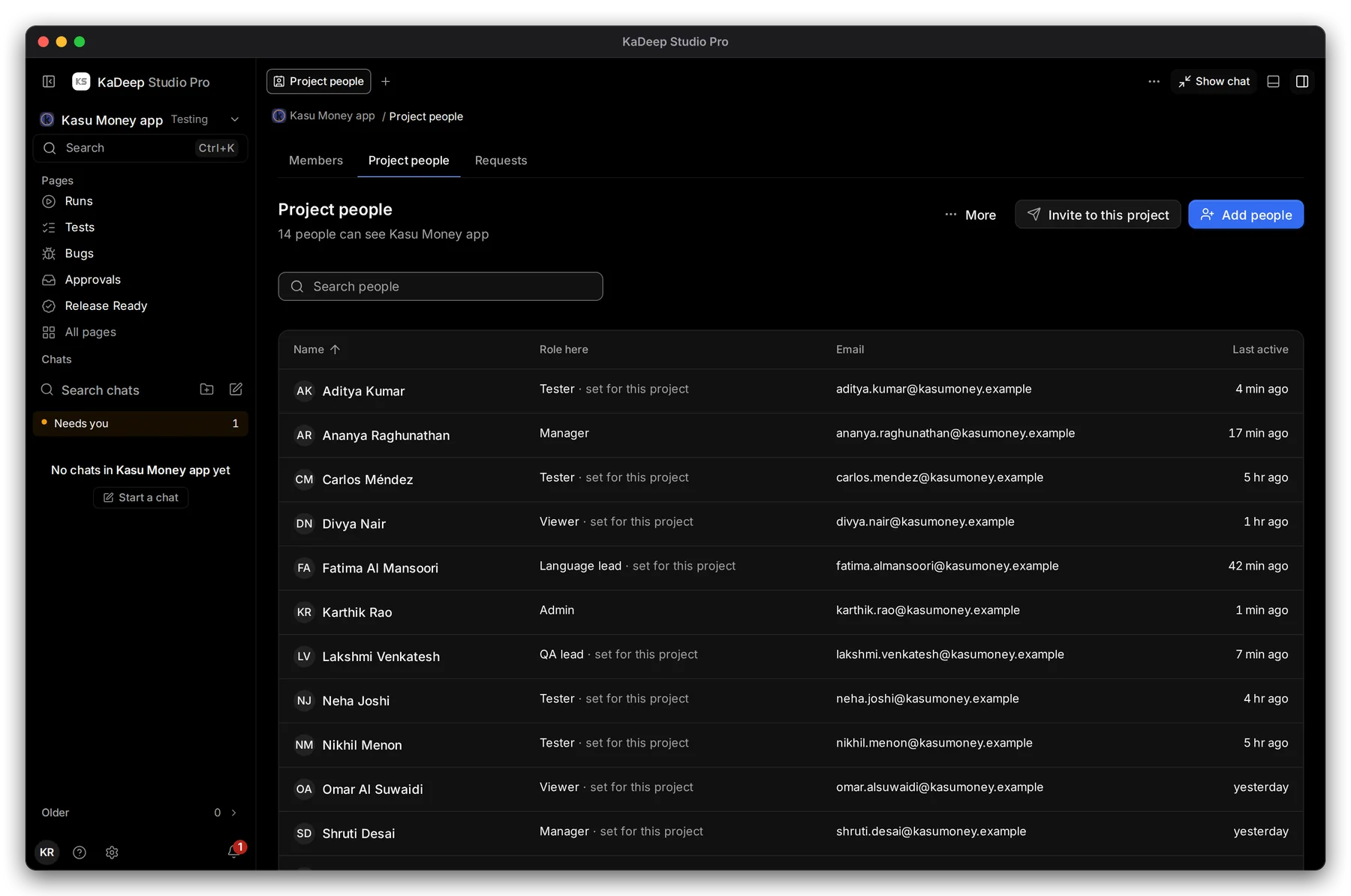
Hands-on view
The page lists everyone who can see this project. 3 Role here is their role in this project. 4 “set for this project” means it differs from their organization role.
2. Add someone who is already a member
Section titled “2. Add someone who is already a member”- Choose 1 Add people.
- Pick one or more members.
- Choose their role in this project, then add them.
3. Invite someone new to this project
Section titled “3. Invite someone new to this project”Choose 2 Invite to this project. The invitation works like Invite people, with this project already ticked.
4. Change or remove
Section titled “4. Change or remove”Choose a person to change their Role here, or to remove them from the project. Removing them from a project does not remove them from the organization.
| Common setup | Role here |
|---|---|
| A tester who leads one release | QA lead in that project, Tester elsewhere |
| A manager who only watches a project | Viewer in that project |
| A language lead who also tests | Tester in the testing project |
What’s next
Section titled “What’s next”Roles and what they can doWhat each role allows.
Sign-in and securitySingle sign-on and two-step sign-in.
Set up checklistBack to the list.