Create a testing project
Your view
A testing project holds everything about one app: where it runs, what to test, the agent’s rules, and every run and bug. The wizard takes about ten minutes, and each page saves as you go.
Before you start: have the app’s address ready. To use the agent right away, your admin should have connected an AI provider.
1. Start a new project
Section titled “1. Start a new project”- In the sidebar, open All Projects, then the Projects tab, and choose New project. In the sidebar, choose New project, the folder button beside Search chats.
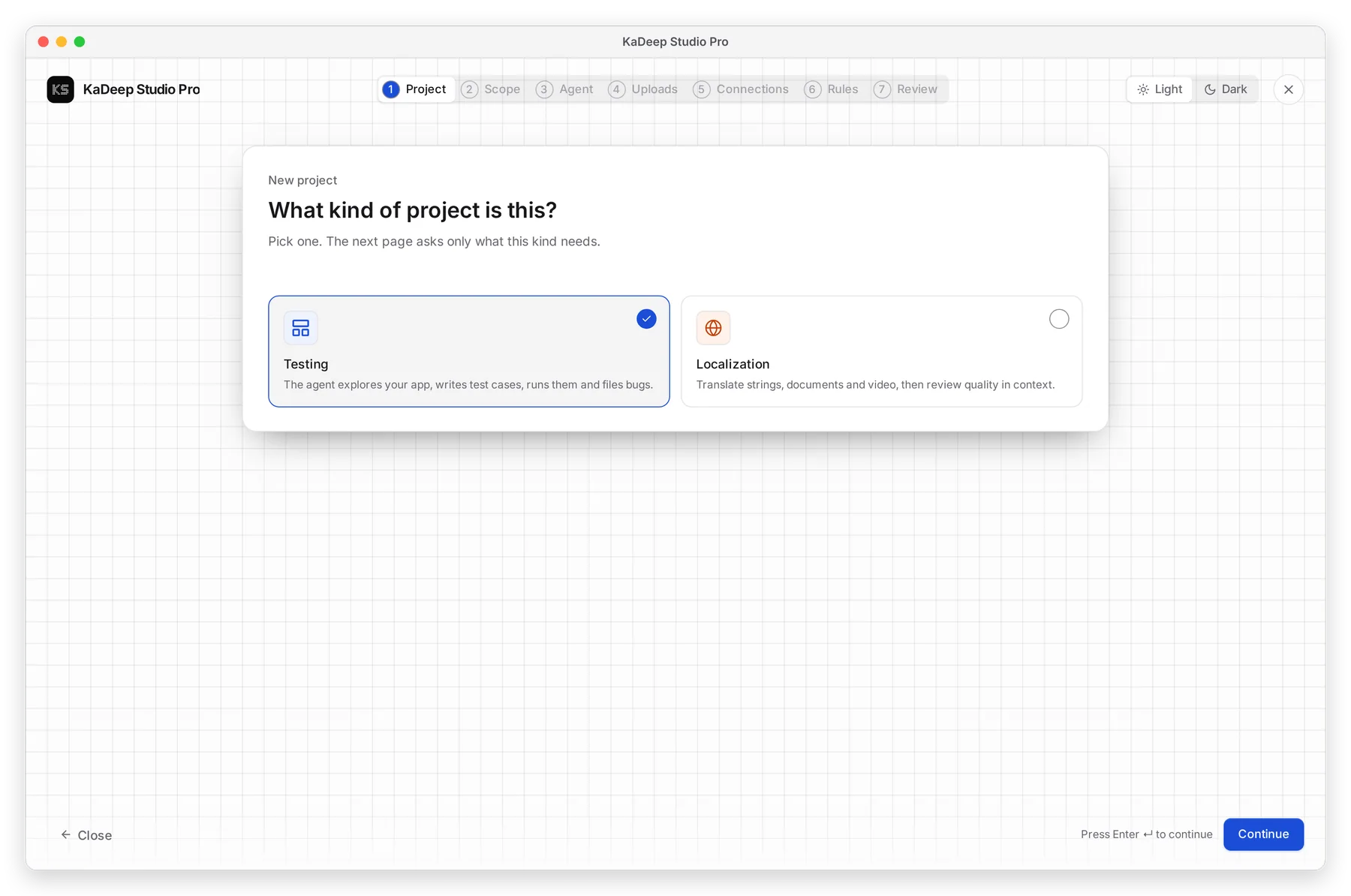
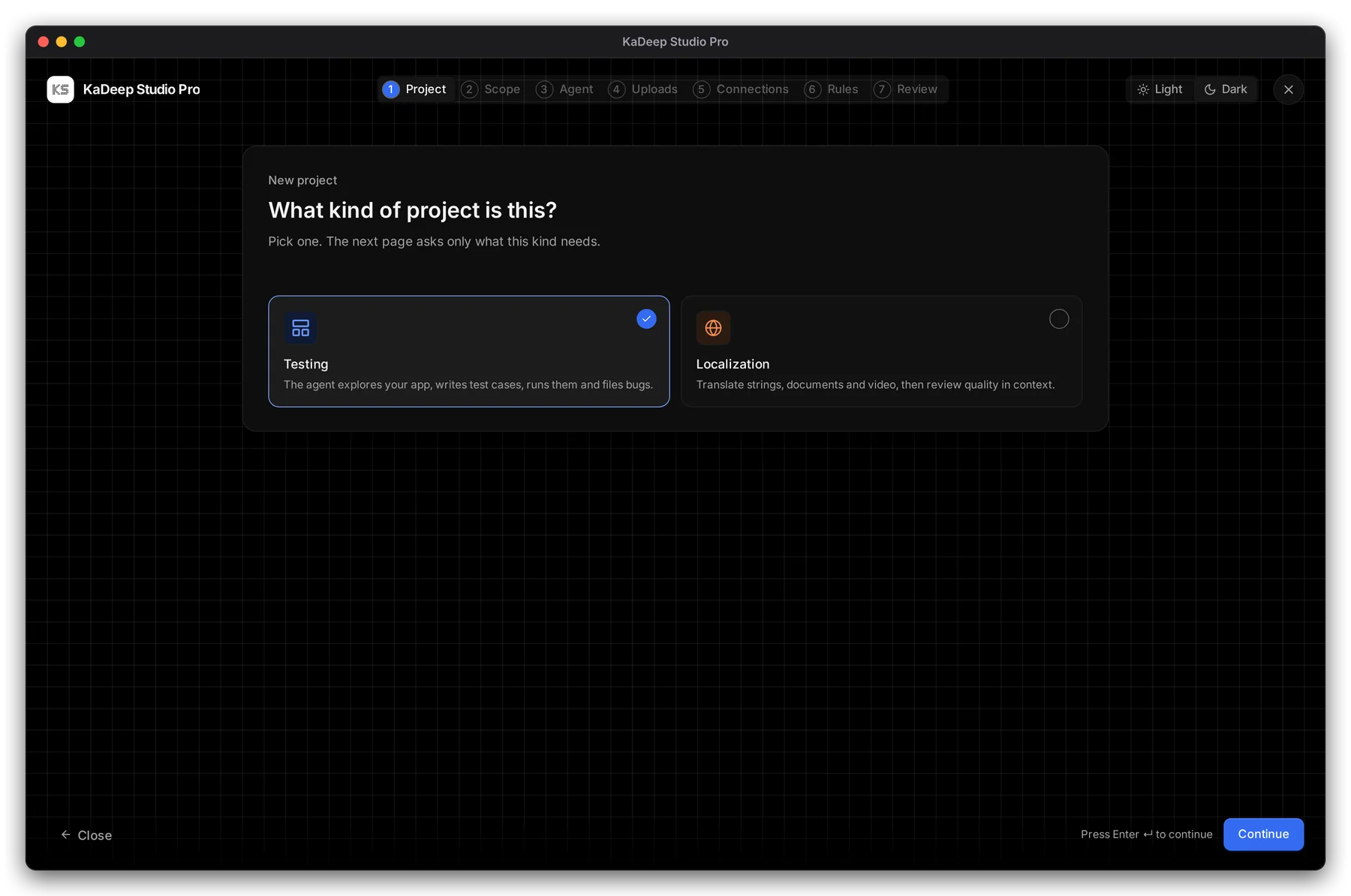
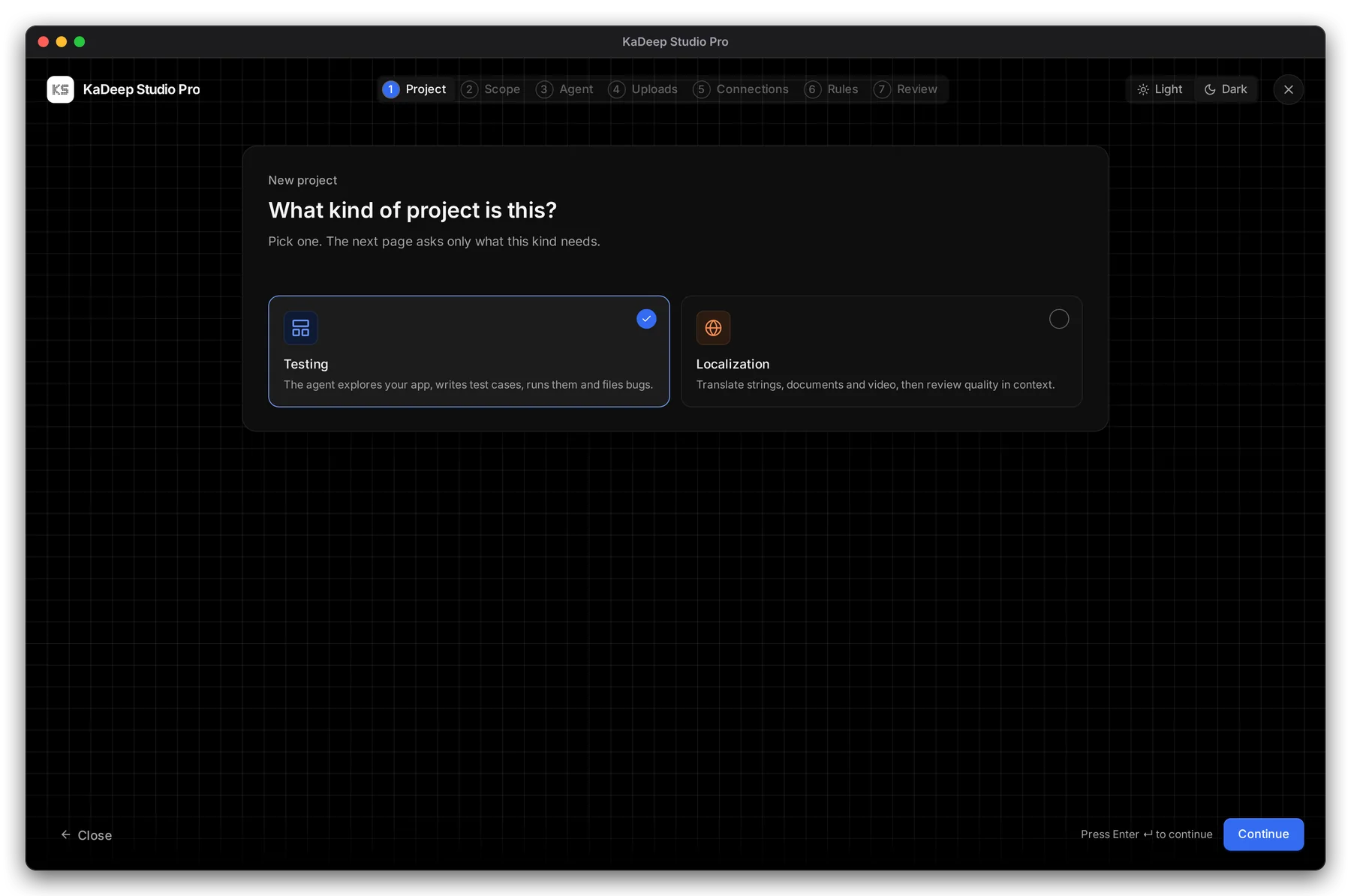
- Choose Testing, then Continue.
Manage view
Hands-on view
- 1 The seven steps. You can go back to any step you have done.
- 2 Testing: the agent explores your app, writes test cases, runs them and files bugs.
- 3 Continue. Press Enter to do the same.
- 4 Close keeps your draft. You can also press Esc.
2. Name the project and point to the app
Section titled “2. Name the project and point to the app”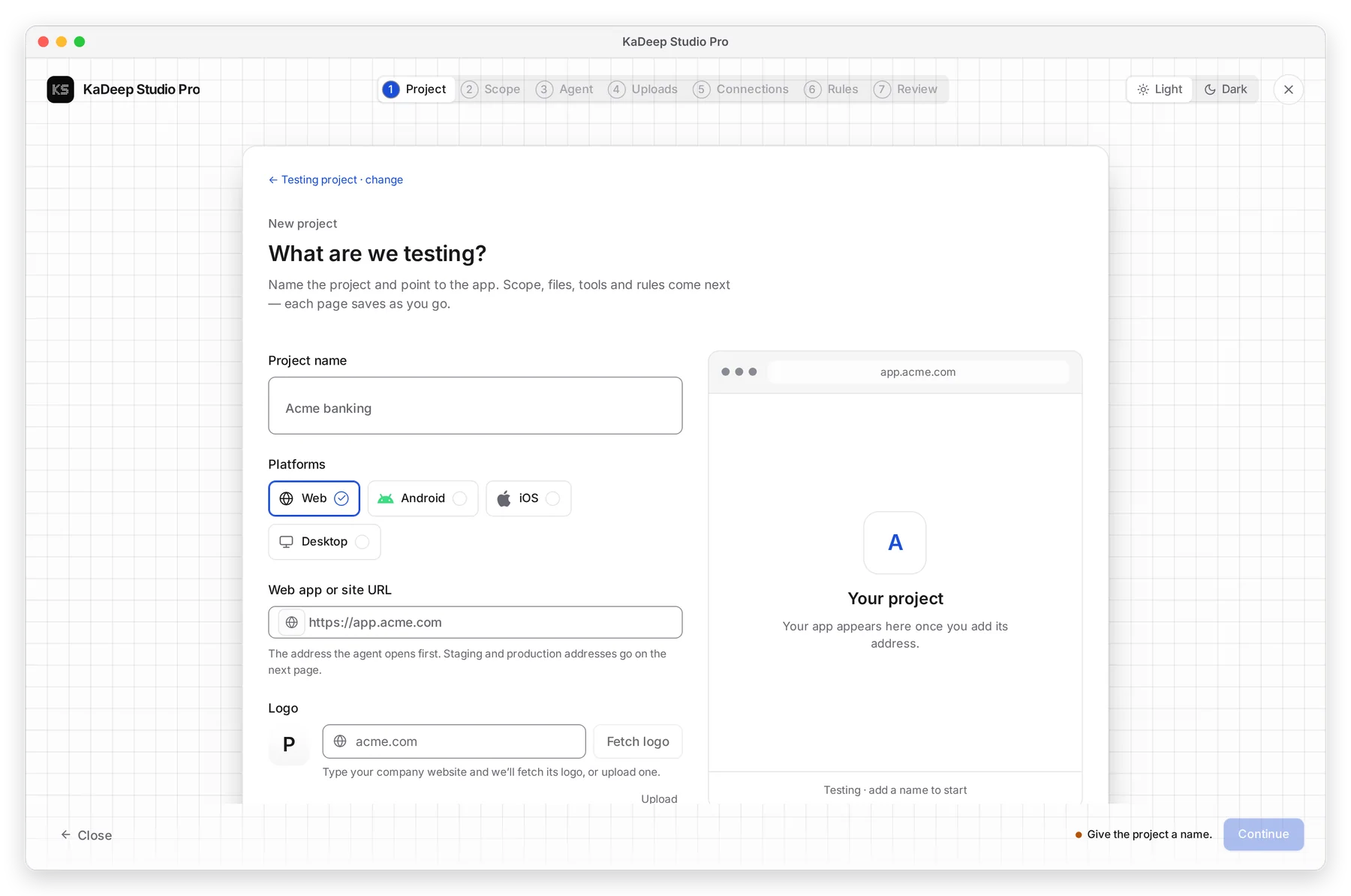
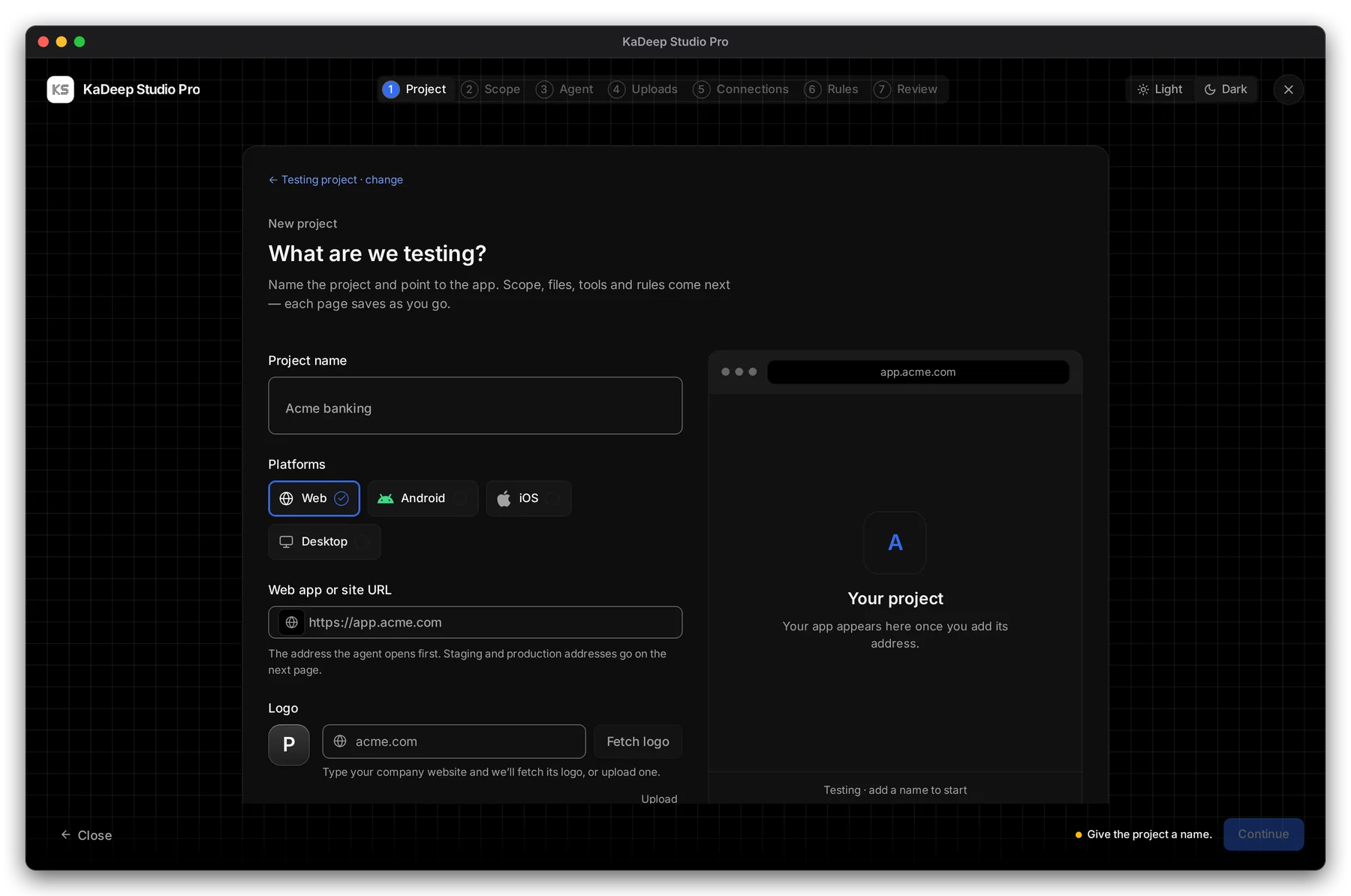
Manage view
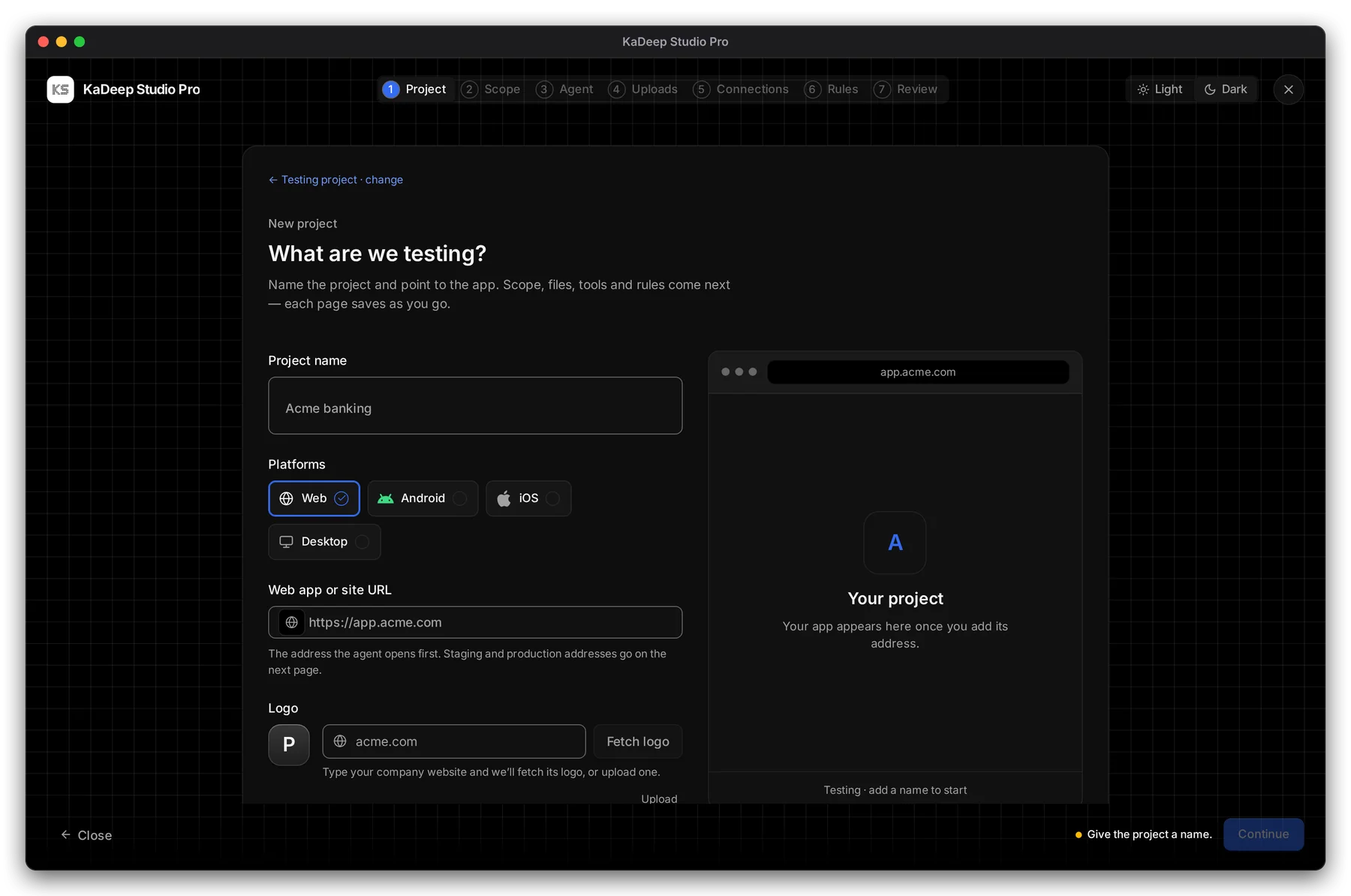
Hands-on view
- 1 Project name, for example the app’s name.
- 2 Platforms: Web, Android, iOS or Desktop. Pick at least one.
- 3 Web app or site URL: the address the agent opens first. Use a full address that starts with
https://. - 4 A preview of your app appears as you type.
3. Work through the other steps
Section titled “3. Work through the other steps”| Step | The page asks | You can skip it? |
|---|---|---|
| Scope | “Where, and on what?” Environments, platforms and devices, the kinds of testing, and the journeys that matter. | No |
| Agent | “What powers the agent?” Choose an AI provider, or Pair this computer. | Yes: Continue without an agent |
| Uploads | Requirements, old test cases, API contracts, designs and builds. The agent reads each file as it arrives. | Yes: Skip for now |
| Connections | Jira, Azure DevOps, Slack and other tools. Each key is tested as soon as you paste it. | Yes: Skip for now |
| Rules | “How should the agent work?” Guardrails, and what your team knows about the product. | Answer what you can |
| Review | “Here’s your project charter.” Check it, change anything with Edit. | No |
On Review, choose Create project. The project opens, and the agent is ready for its first request.
What’s next
Section titled “What’s next”Test loginsStore the accounts your tests sign in with.
TestsWrite tests, or let the agent write them.
Add people to a projectWho works on the project, and as what.