Requirements and coverage
Your view
Requirements are what the app must do, from your specs, user stories or business rules. Link each one to tests, and KaDeep tells you how much of the release is proven by passing tests.
1. Open Requirements
Section titled “1. Open Requirements”In the sidebar, open Work Area › Setup & Control, then the Requirements tab.
Choose All pages, then Setup & Control, then the Requirements tab.
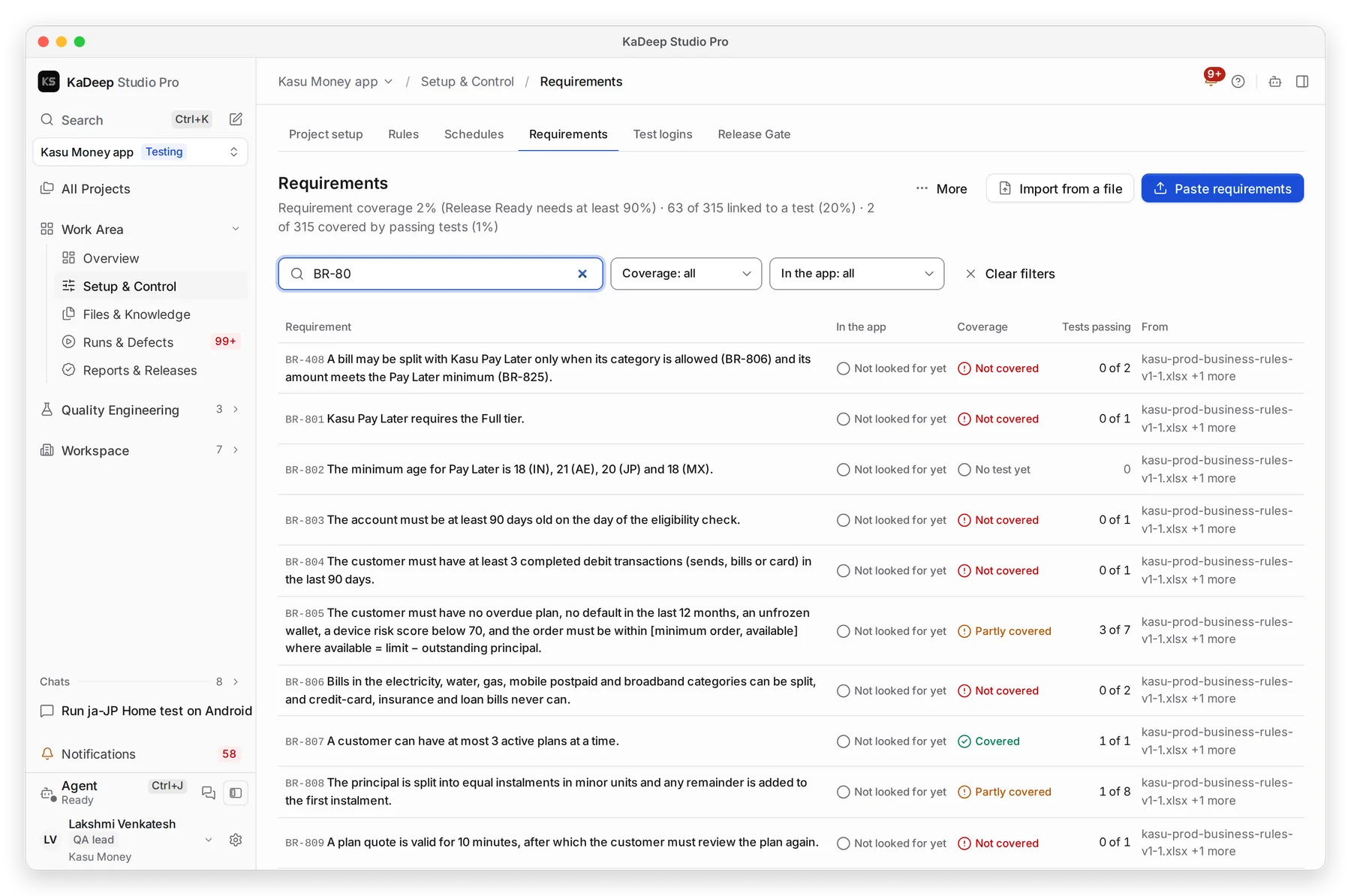
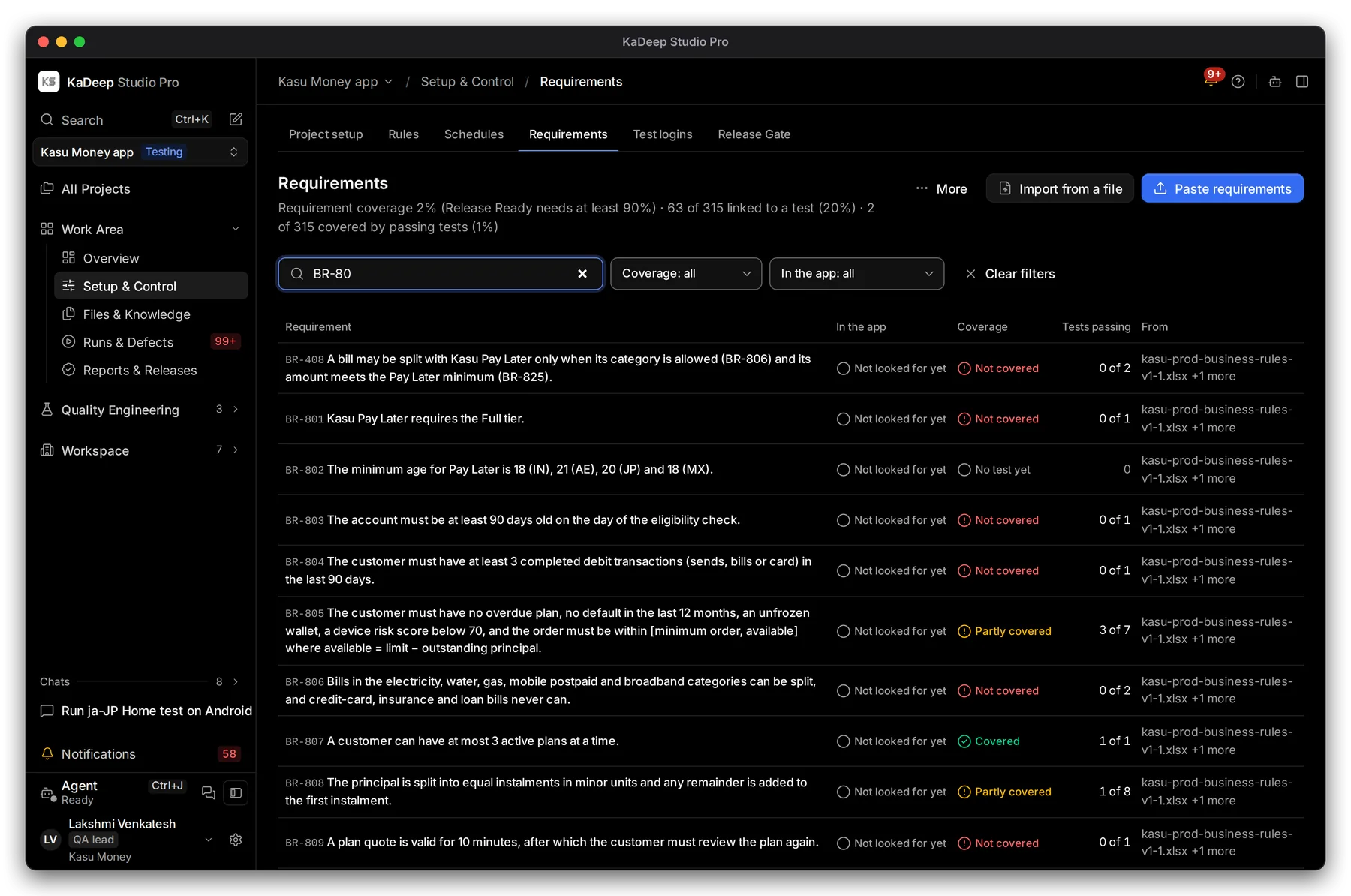
Manage view
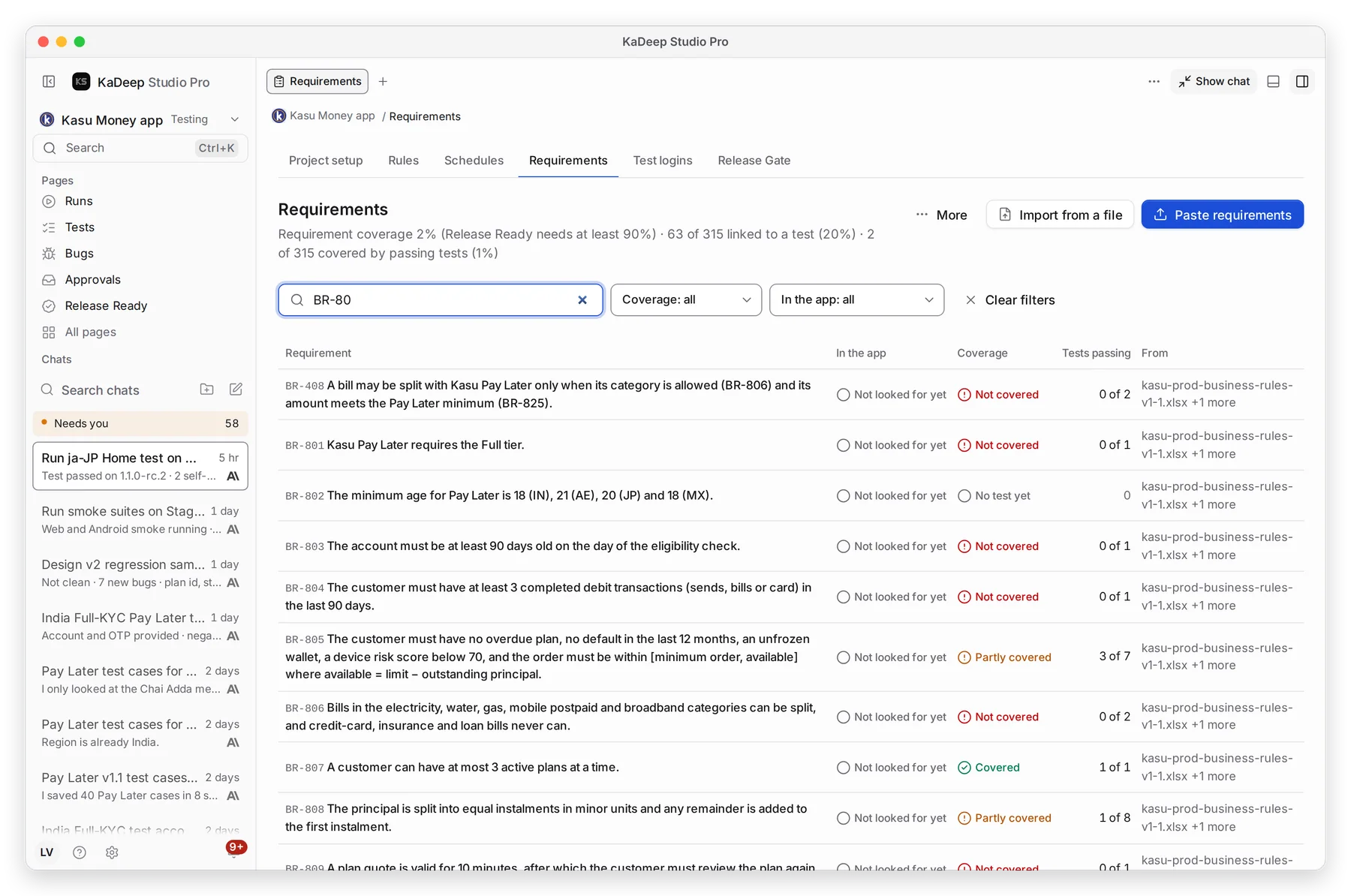
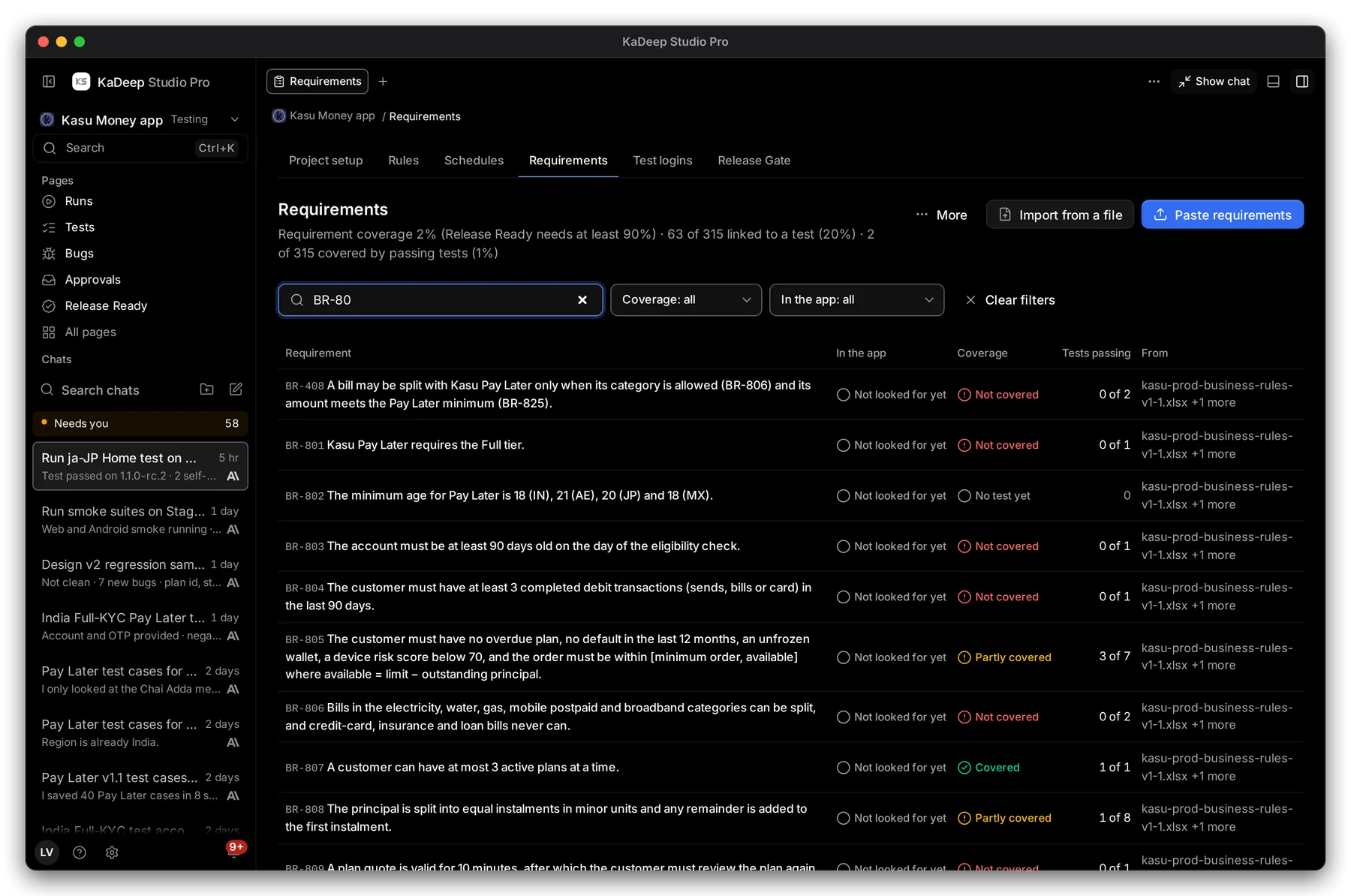
Hands-on view
- 1 Requirement coverage, next to what Release Ready needs, then how many requirements have a test and how many have a passing one.
- 2 Import from a file: a BRD, user stories, a spreadsheet or a Postman collection.
- 3 Paste requirements, one per line.
- 4 Each requirement’s coverage, and how many of its tests pass.
2. Add requirements
Section titled “2. Add requirements”- Choose Paste requirements.
- Type or paste Requirements, one per line. Start a line with its own id, such as
REQ-12orPROJ-123, to keep that id. - Fill in Where they come from, for example “BRD v3”, if you like. Then save.
To bring in a whole document, choose Import from a file instead. The agent reads it and lists each requirement.
3. Link tests and close the gaps
Section titled “3. Link tests and close the gaps”Click a requirement to open it. You see every linked test and its last result.
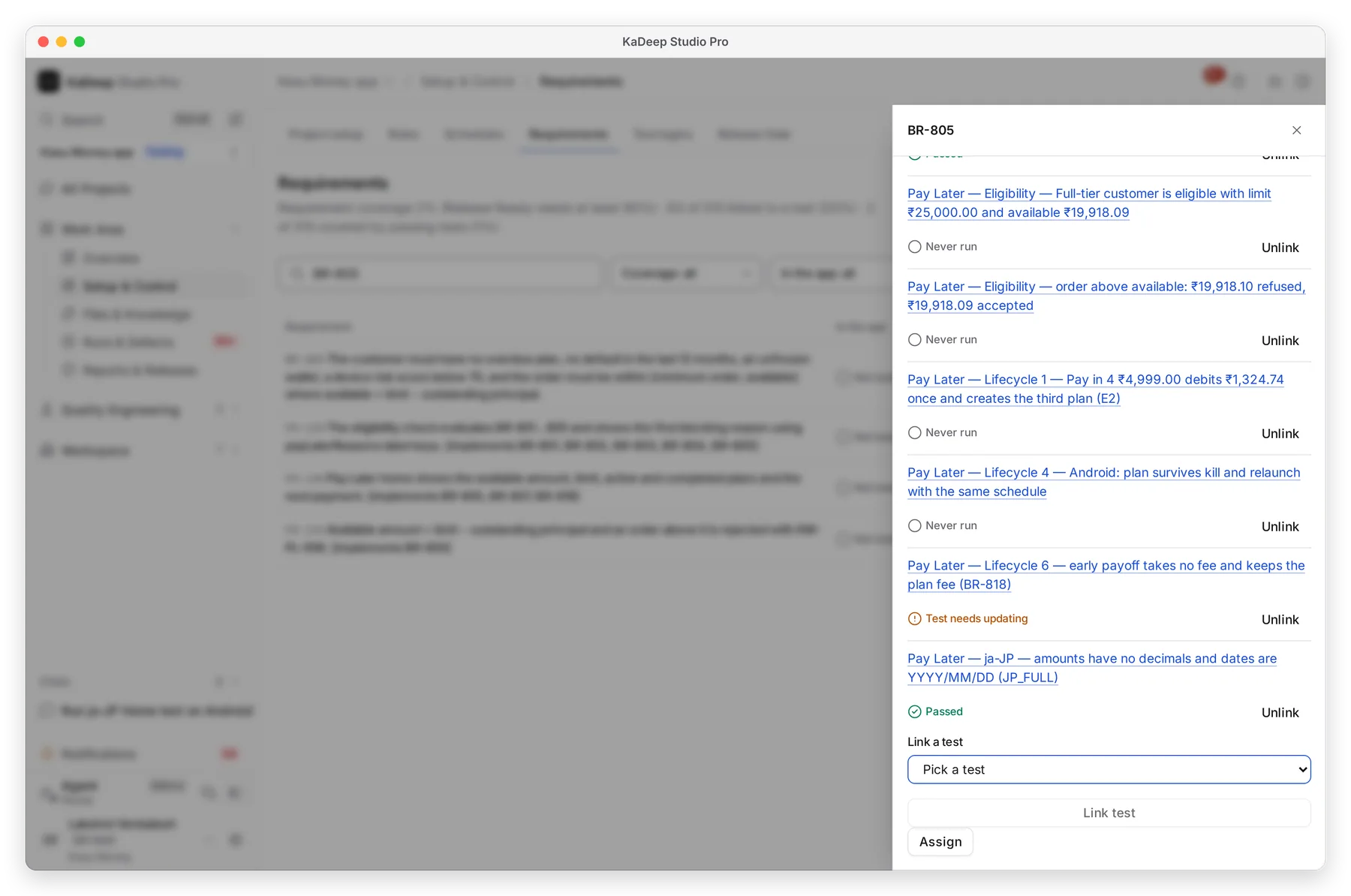
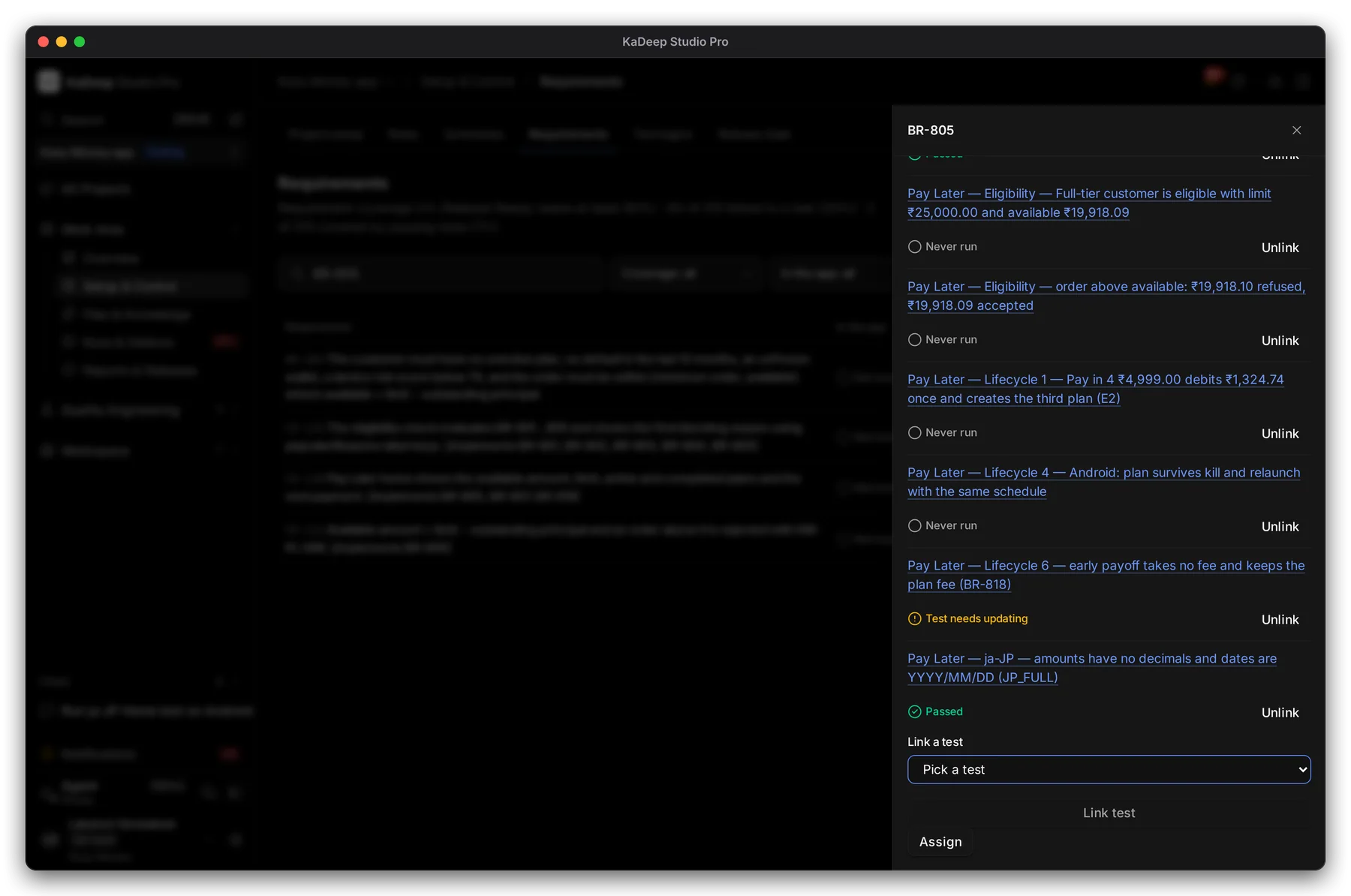
Manage view
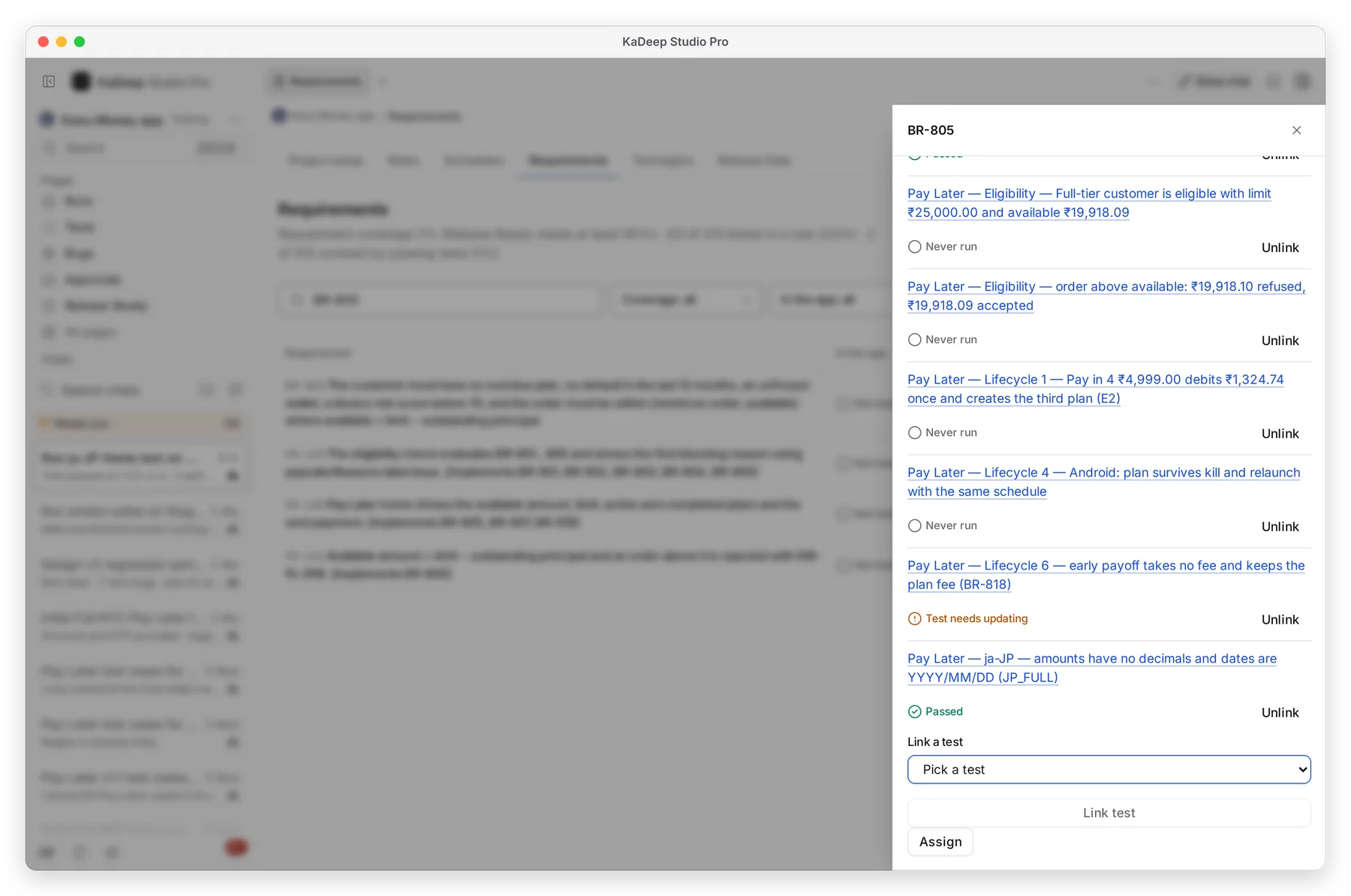
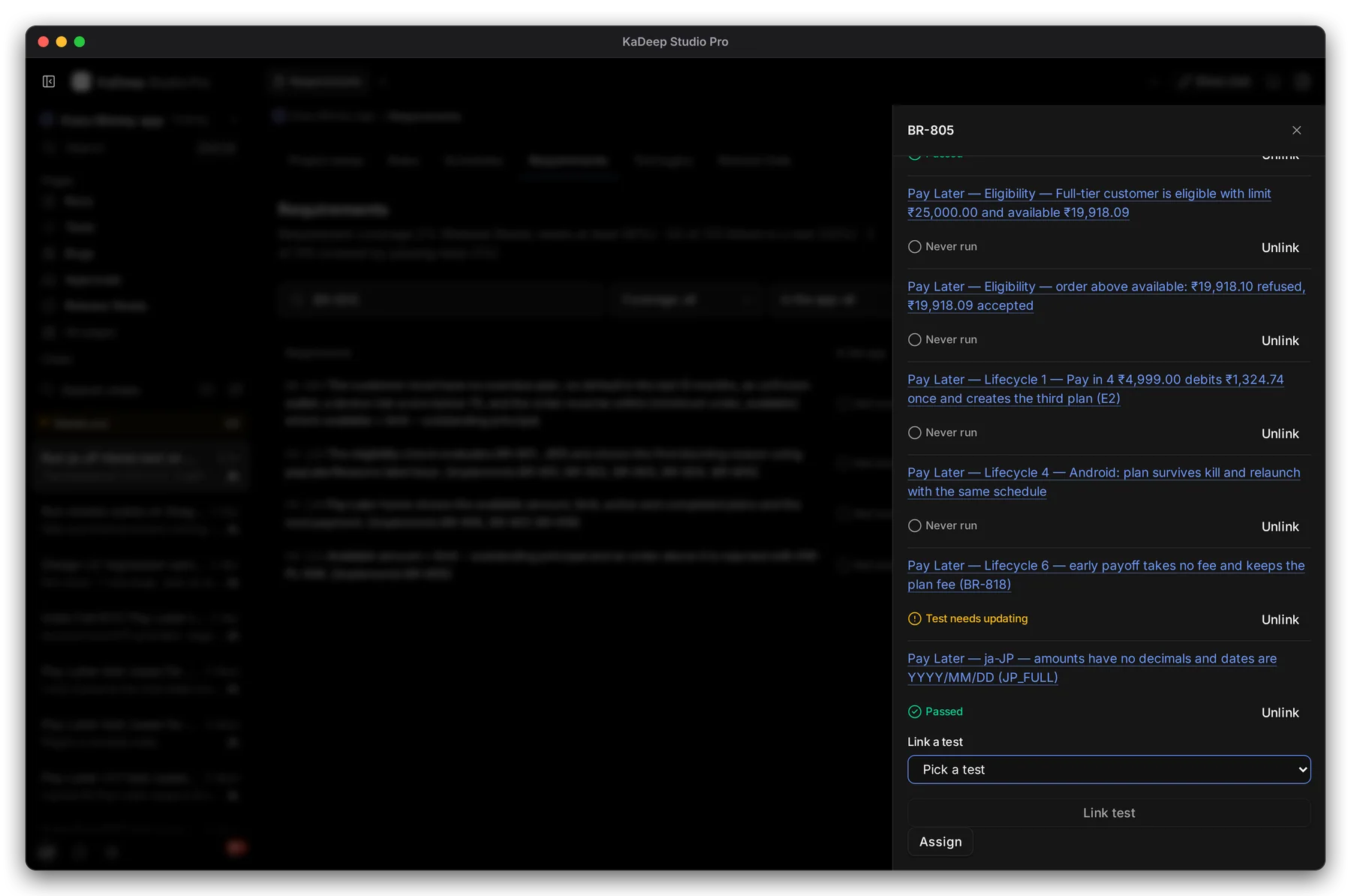
Hands-on view
- Under Link a test, choose the test that proves it, then Link test. Unlink removes a test.
- For several gaps at once, choose More › Ask the agent to write tests for uncovered requirements.
| Coverage | What it means |
|---|---|
| Covered | Every linked test passes. |
| Partly covered | Some linked tests pass, some do not. |
| Not covered | It has tests, but none passes yet. |
| No test yet | No test is linked. |
In the app says whether the agent found the feature in the app when it explored: Found in app, Partly found, Not found in app or Not looked for yet.
What’s next
Section titled “What’s next”TestsWrite the tests that cover a requirement.
PlansSet the coverage a release needs.
Release Ready: can we ship?Where coverage counts.