Read and export the audit log
Your view
The audit log is the record of who did what, and when. It is kept for as long as your organization exists, and nobody can edit it.
1. Open the audit log
Section titled “1. Open the audit log”Open Workspace › Security & Audit › Audit log.
Under Pages, choose Audit log.
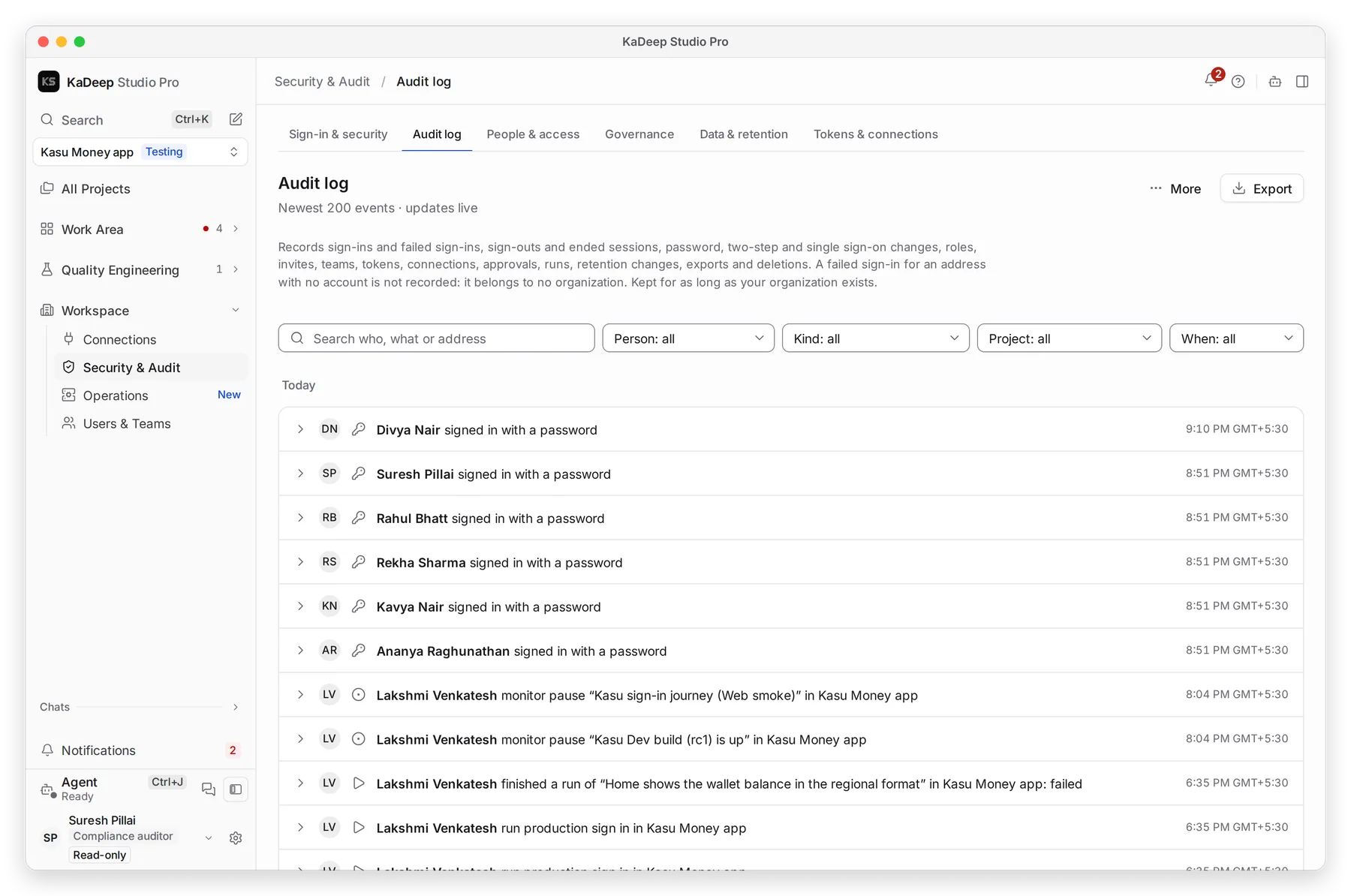
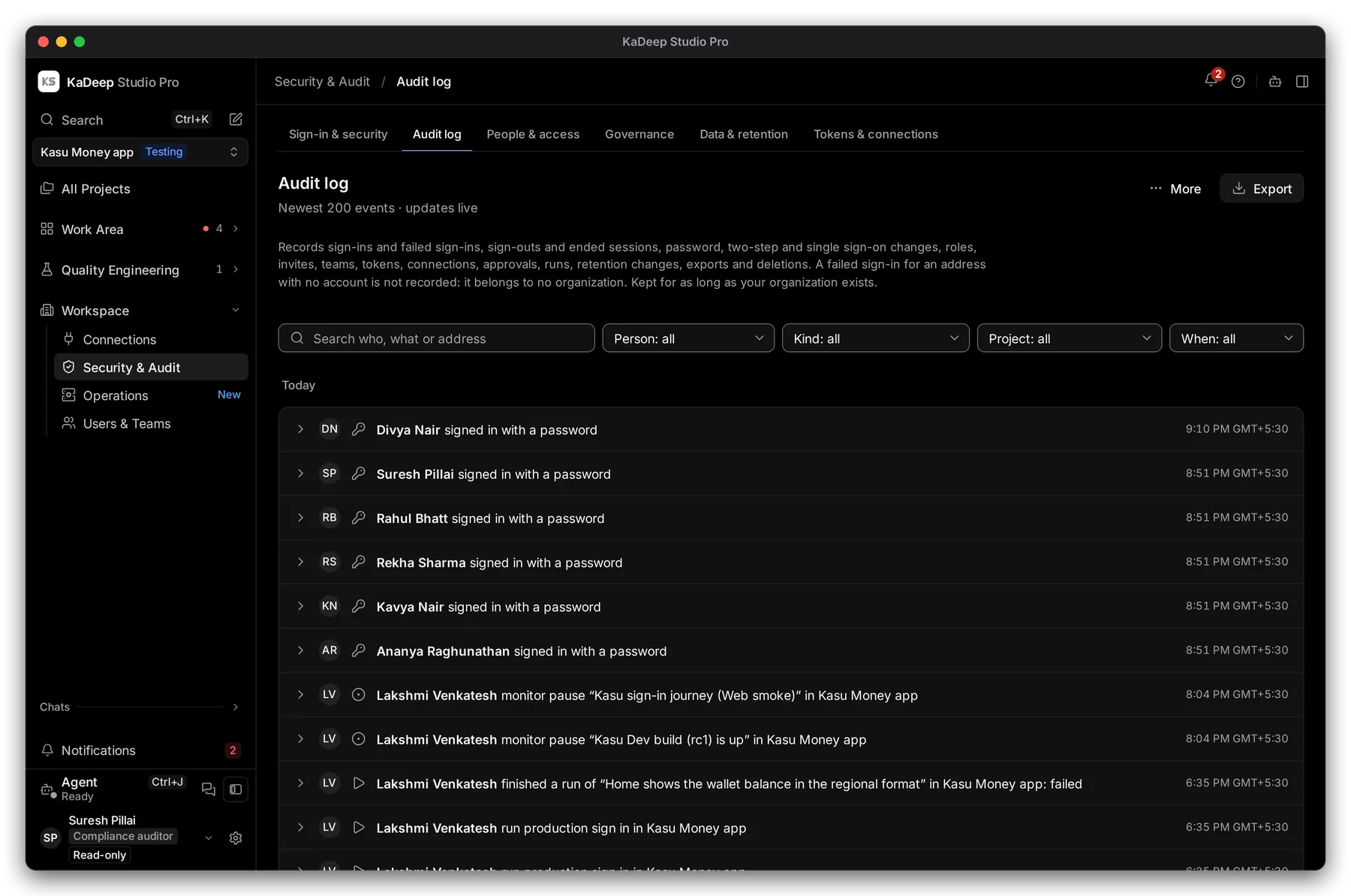
Manage view
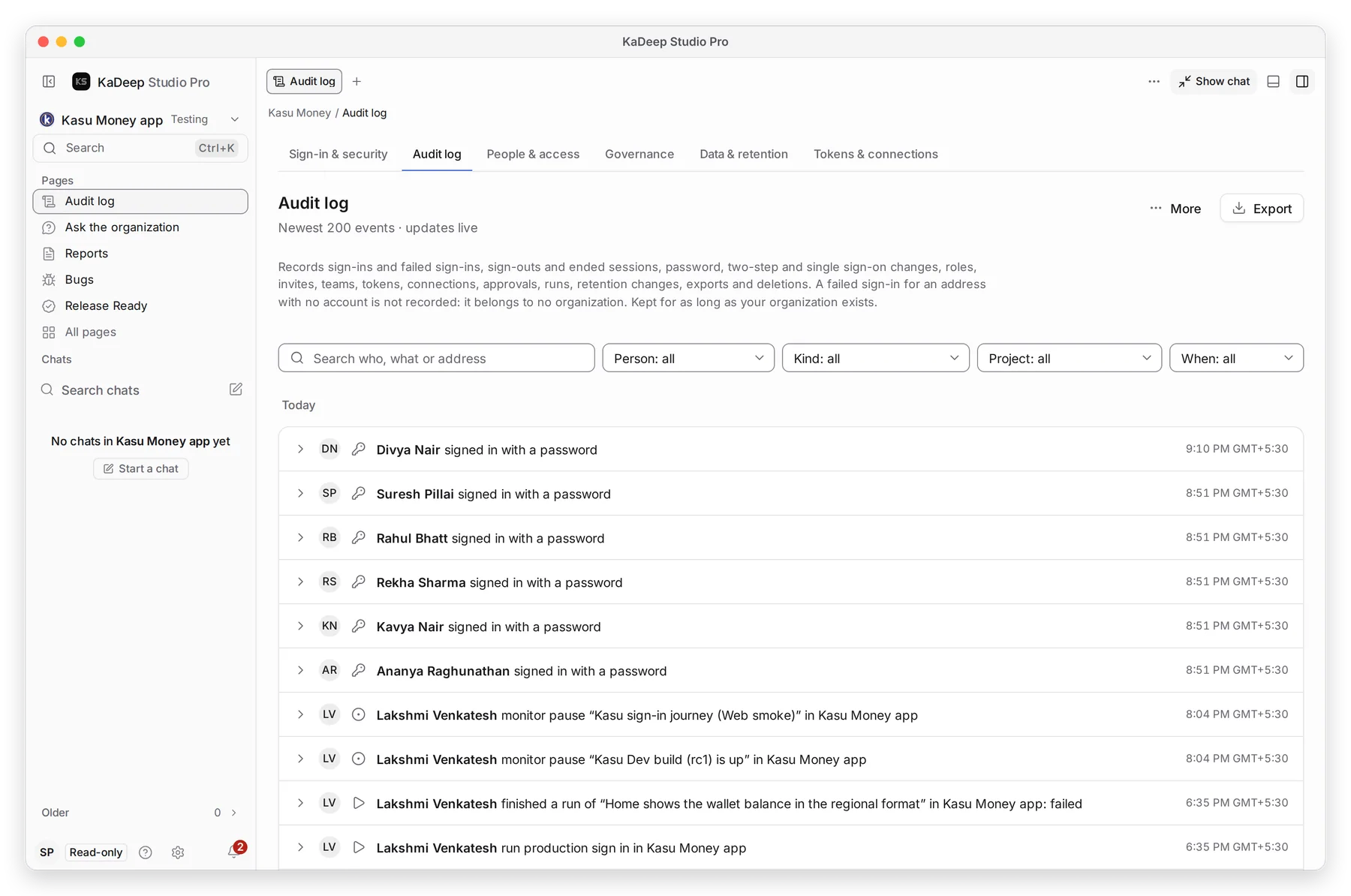
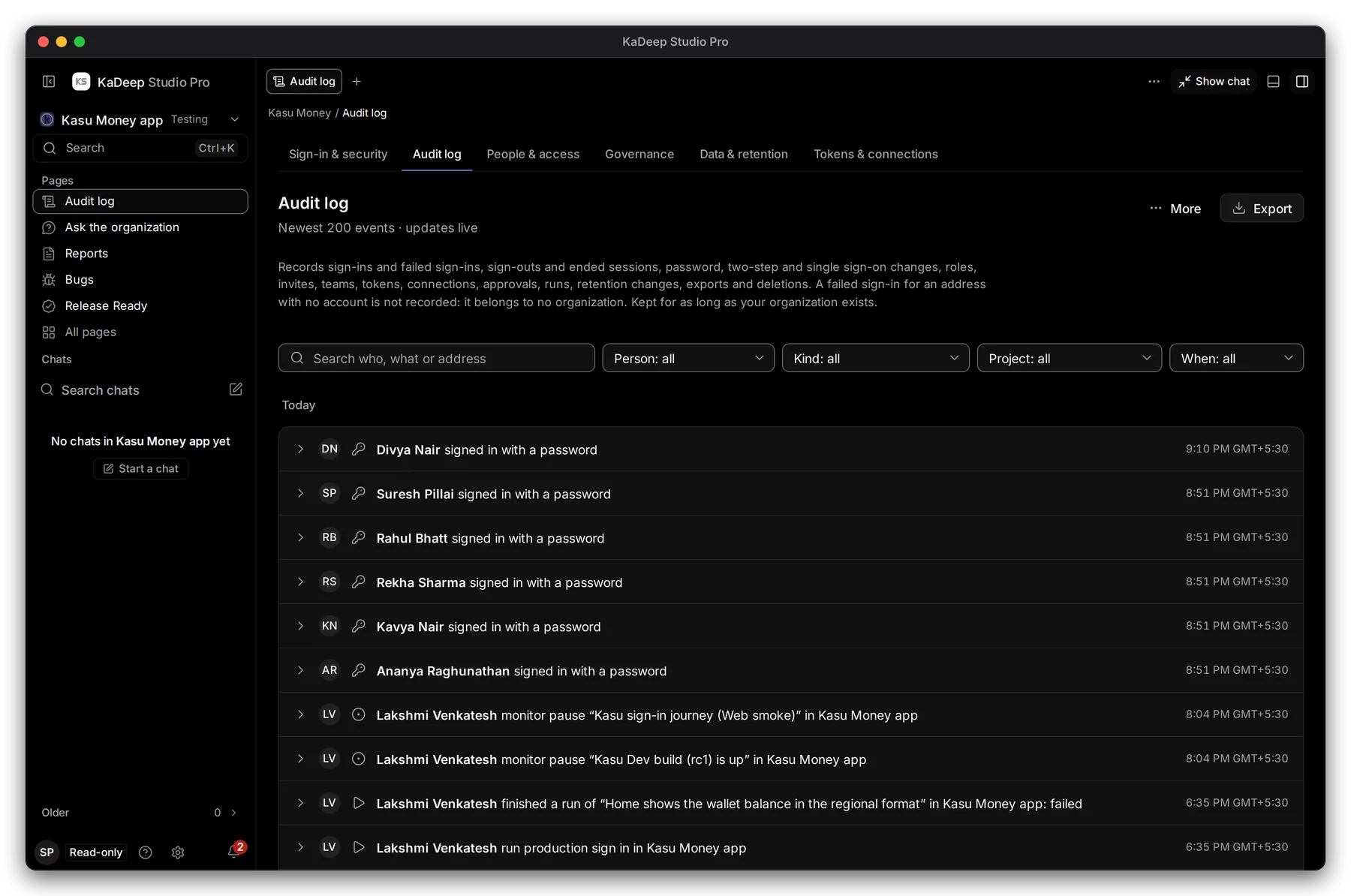
Hands-on view
- 1 Search who, what or an address.
- 2 Filters: Person, Kind, Project and When.
- 3 One event: who, what they did, where and when. Click the arrow to see every detail.
- 4 Export the events you filtered.
The list shows the newest 200 events and updates live. Show older loads more.
2. Find what you need
Section titled “2. Find what you need”- Choose a Kind, for example People and roles.
- Choose When, for example Last 30 days, or Choose dates.
- Narrow it to one Person or Project if you need to.
- Open an event to read its details, such as the old and new role.
| Kind | What it covers |
|---|---|
| Sign-in and access | Sign-ins, failed sign-ins, sign-outs, ended sessions, two-step and single sign-on changes |
| People and roles | Invites, role changes, teams |
| Connections and tokens | Tokens, AI providers, integrations |
| Spending limits and Approvals | Limit changes, requests, who signed |
| Runs | Runs started, finished and stopped |
| Project setup, Skills and tools | Charters, rules, tools turned on or off |
| Languages | Deliveries moved, glossary and rule changes |
| Data and exports | Retention changes, exports and deletions |
3. Export it
Section titled “3. Export it”- Filter to the events the auditor asked for.
- Choose Export. The file holds exactly what the filters show.
- The export itself is recorded in the audit log.
What’s next
Section titled “What’s next”People and accessSign-ins and risky permissions as charts.
GovernanceRefused actions and approval speed.
Export evidenceThe audit trail with runs and reports, in one pack.