Plans
Your view
A plan says what the agent will test, in what order, and what it needs from you. Nothing runs until someone approves it. The exit criteria on the same page decide when a release is ready.
1. Open Plans
Section titled “1. Open Plans”In the sidebar, open Quality Engineering › Functional Testing, then the Plans tab.
Under Pages, choose Tests, then the Plans tab.
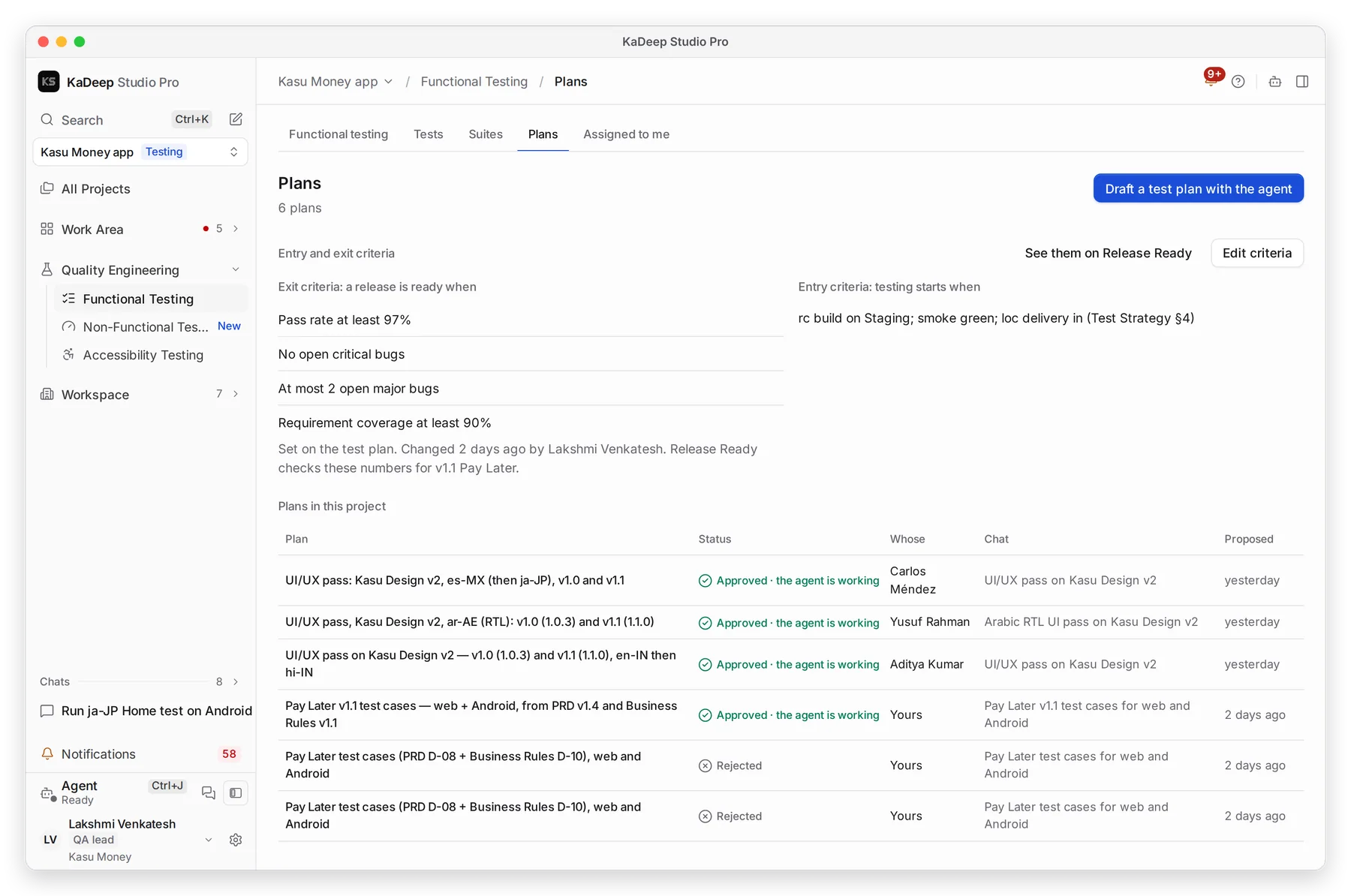
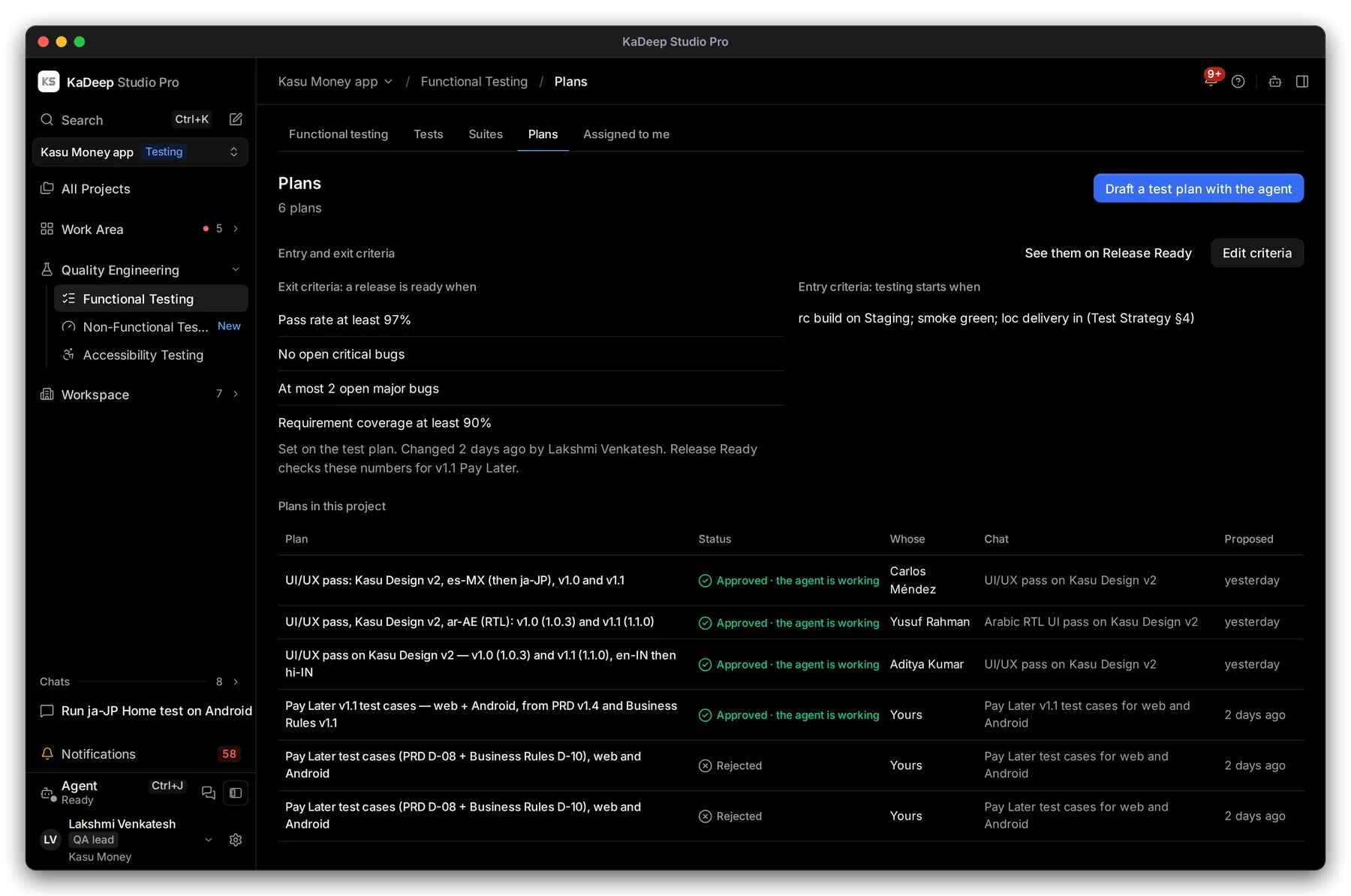
Manage view
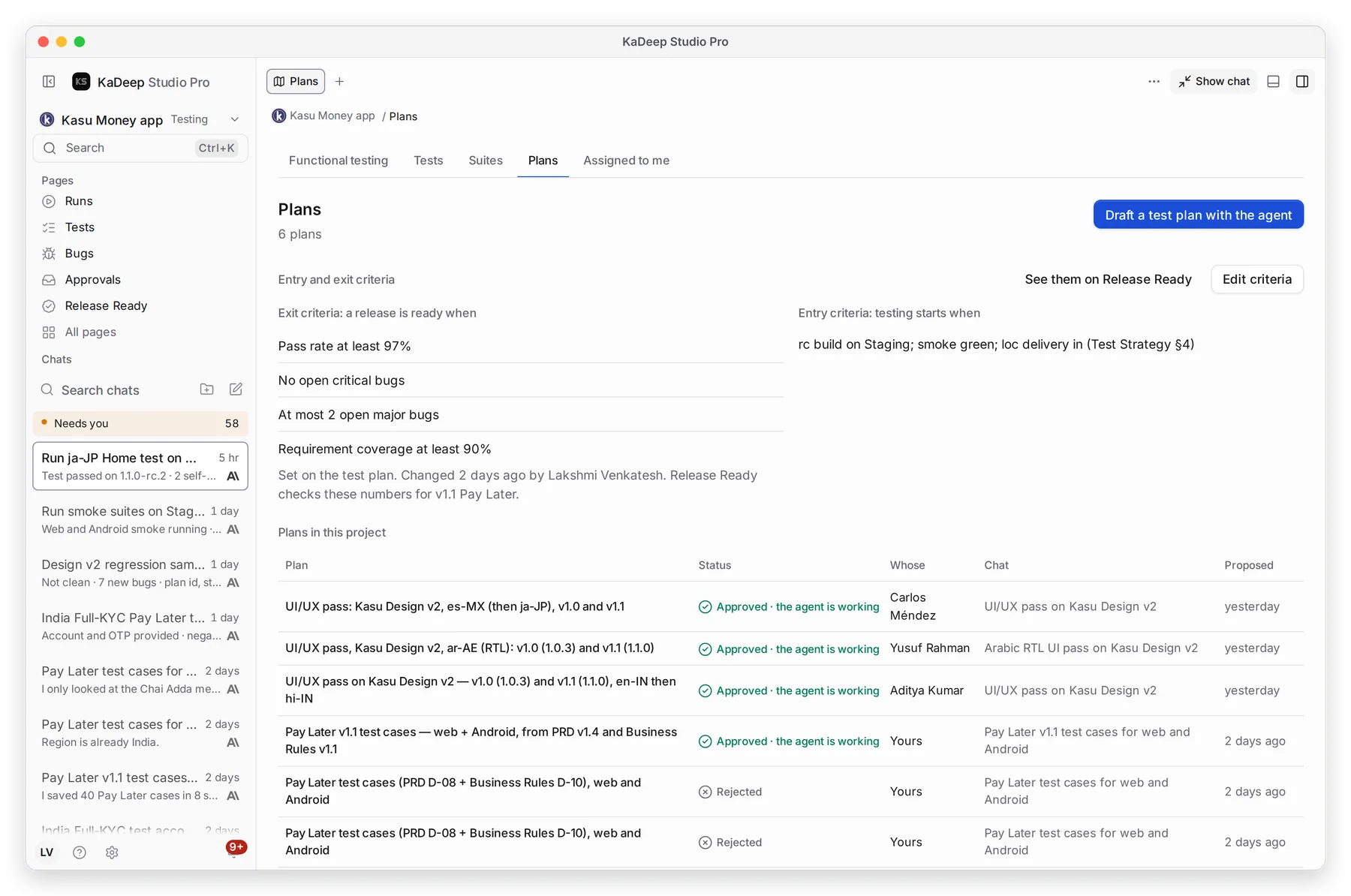
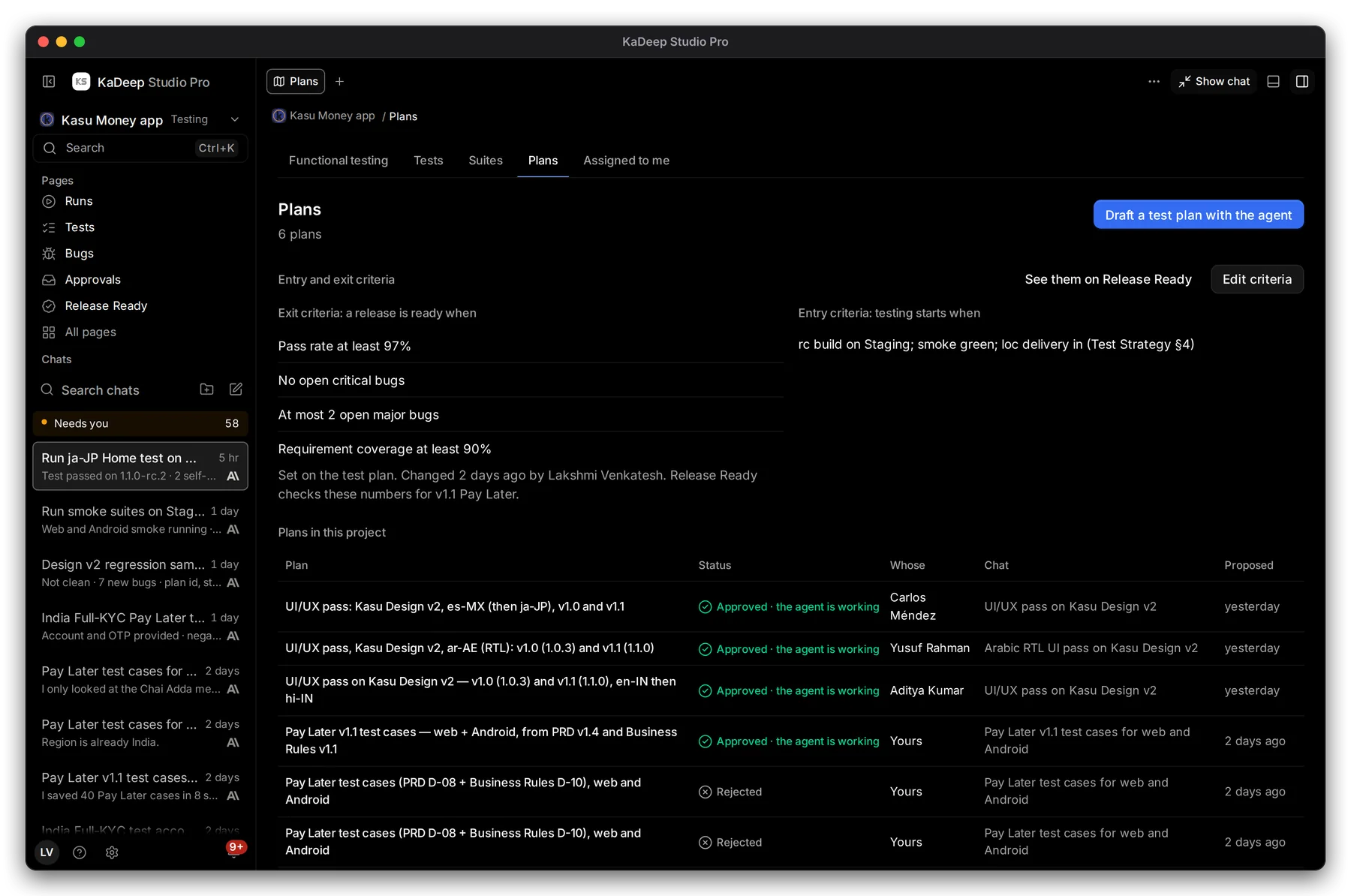
Hands-on view
- 1 Draft a test plan with the agent.
- 2 Exit criteria: the numbers a release must meet. Entry criteria, beside them, say when testing may start.
- 3 Edit criteria. See them on Release Ready shows how the release measures up today.
- 4 Every plan in the project, whose it is, the chat it came from, and its status.
2. Set the exit criteria
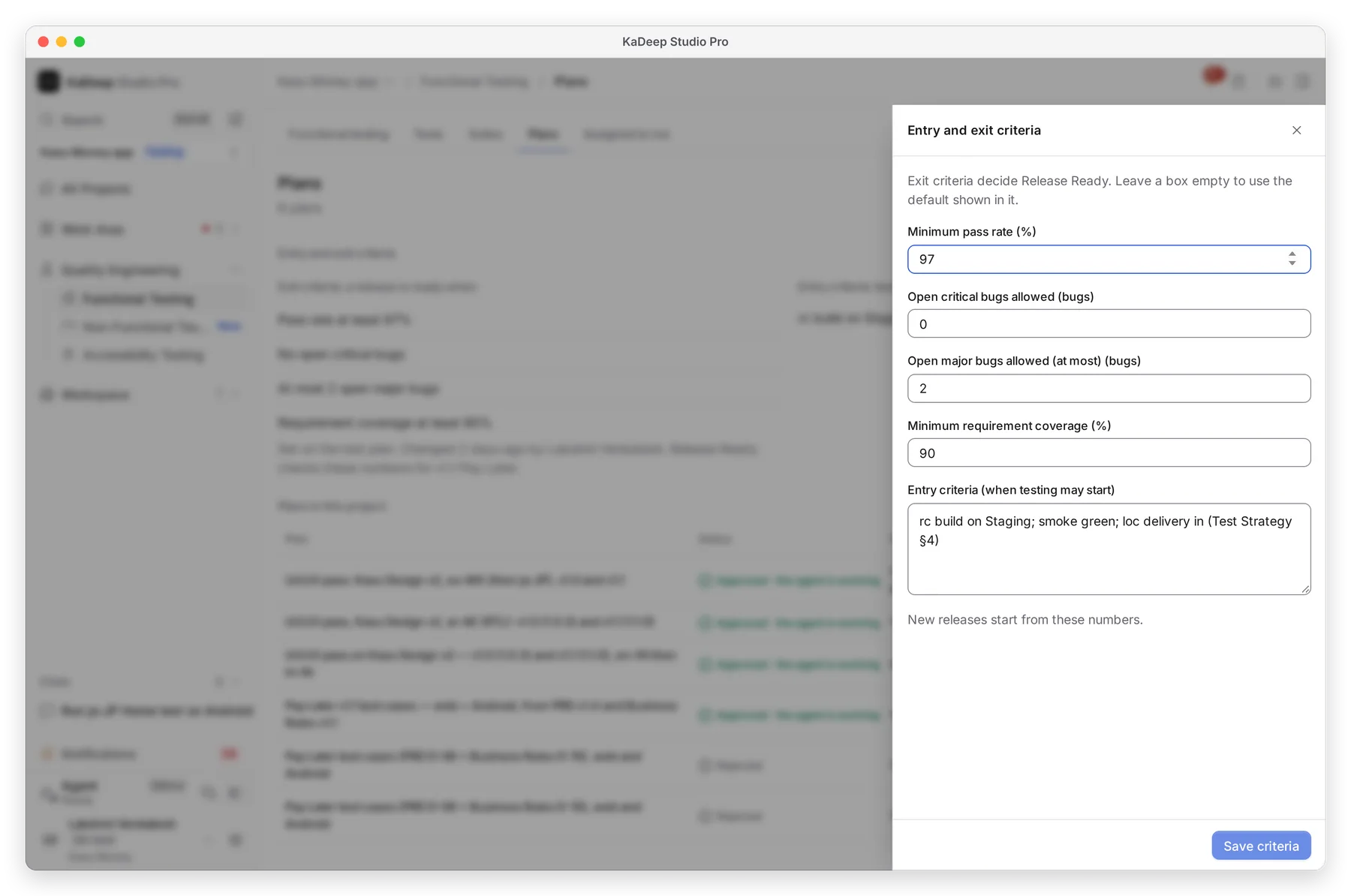
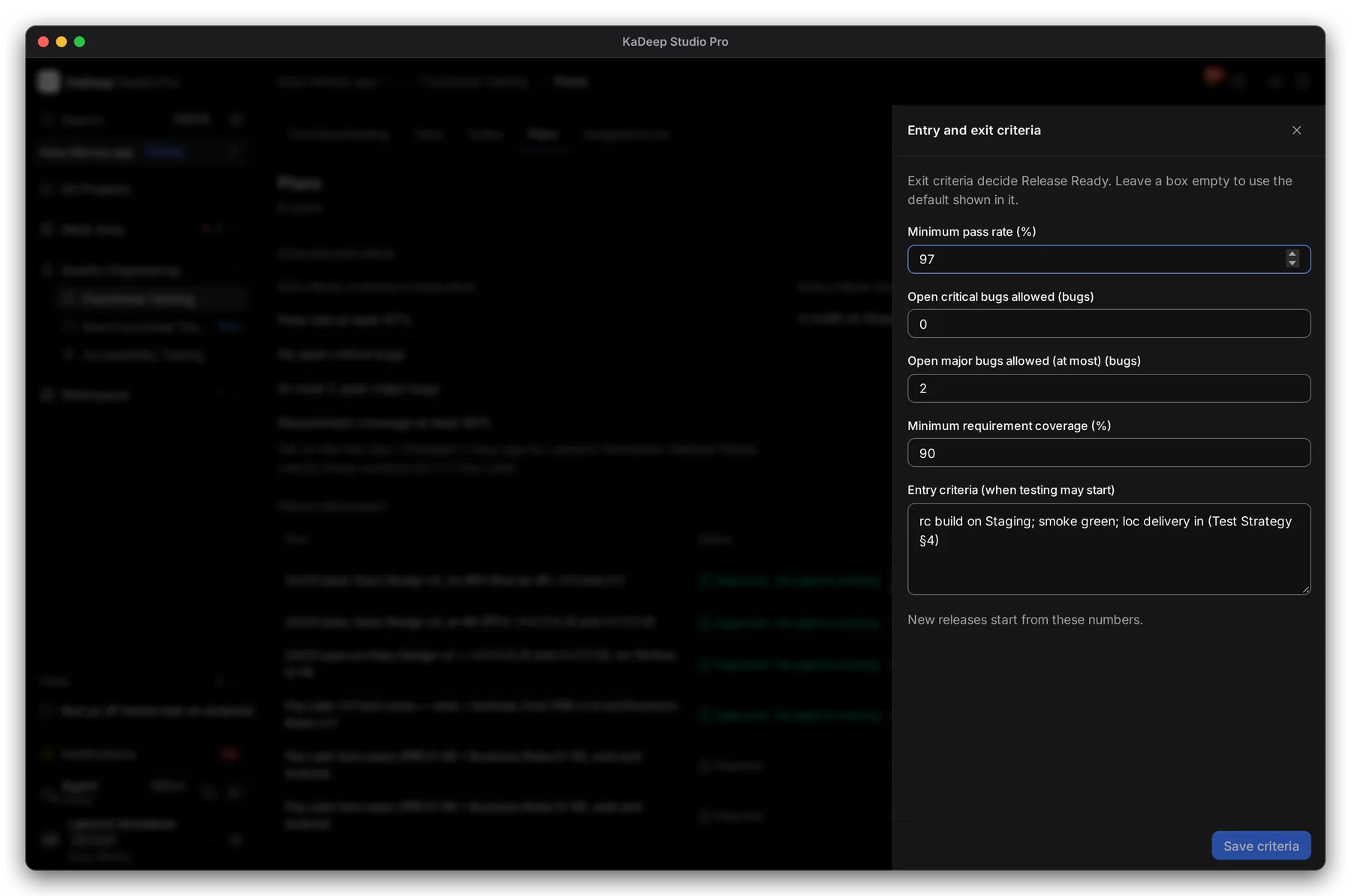
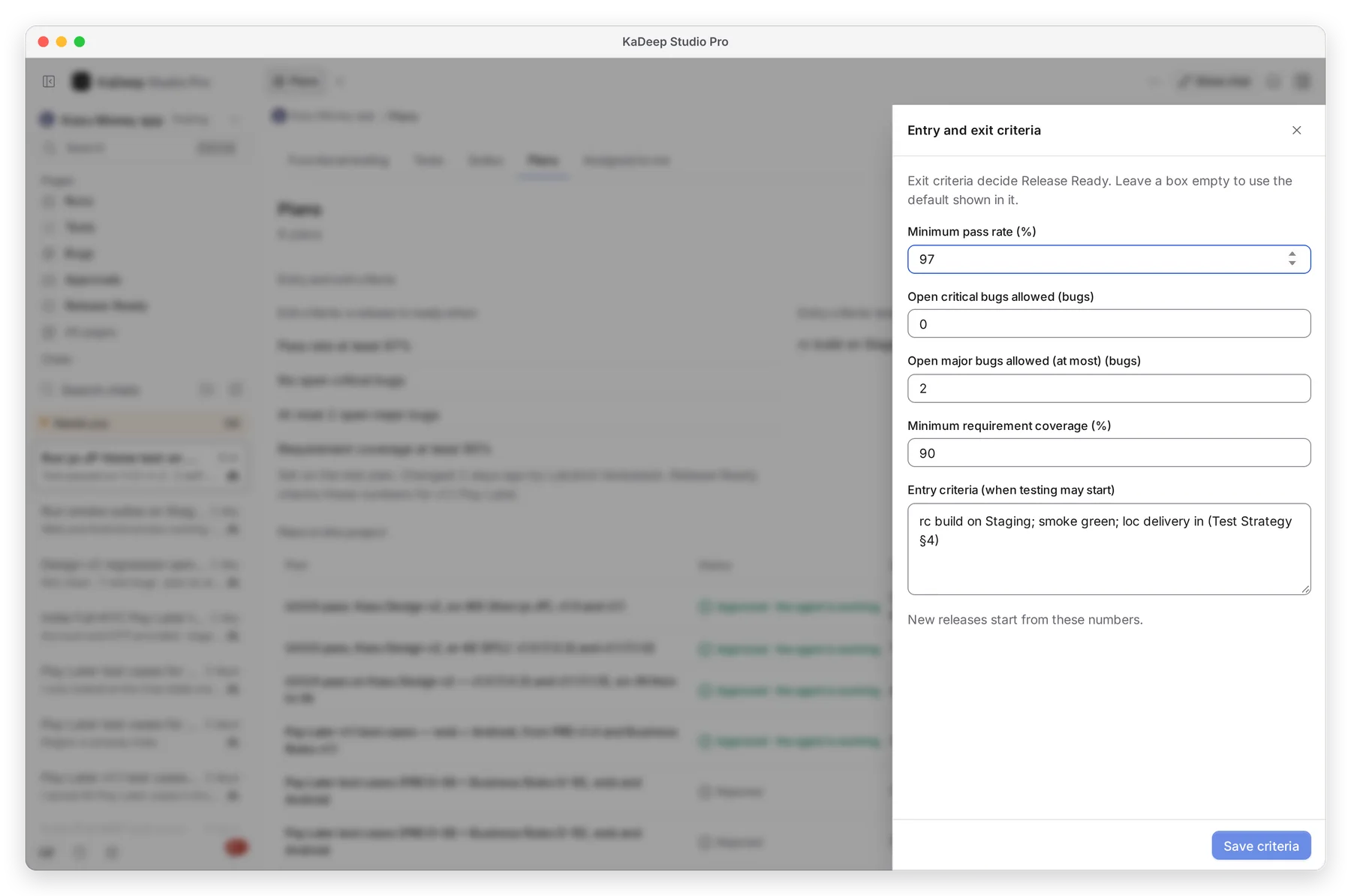
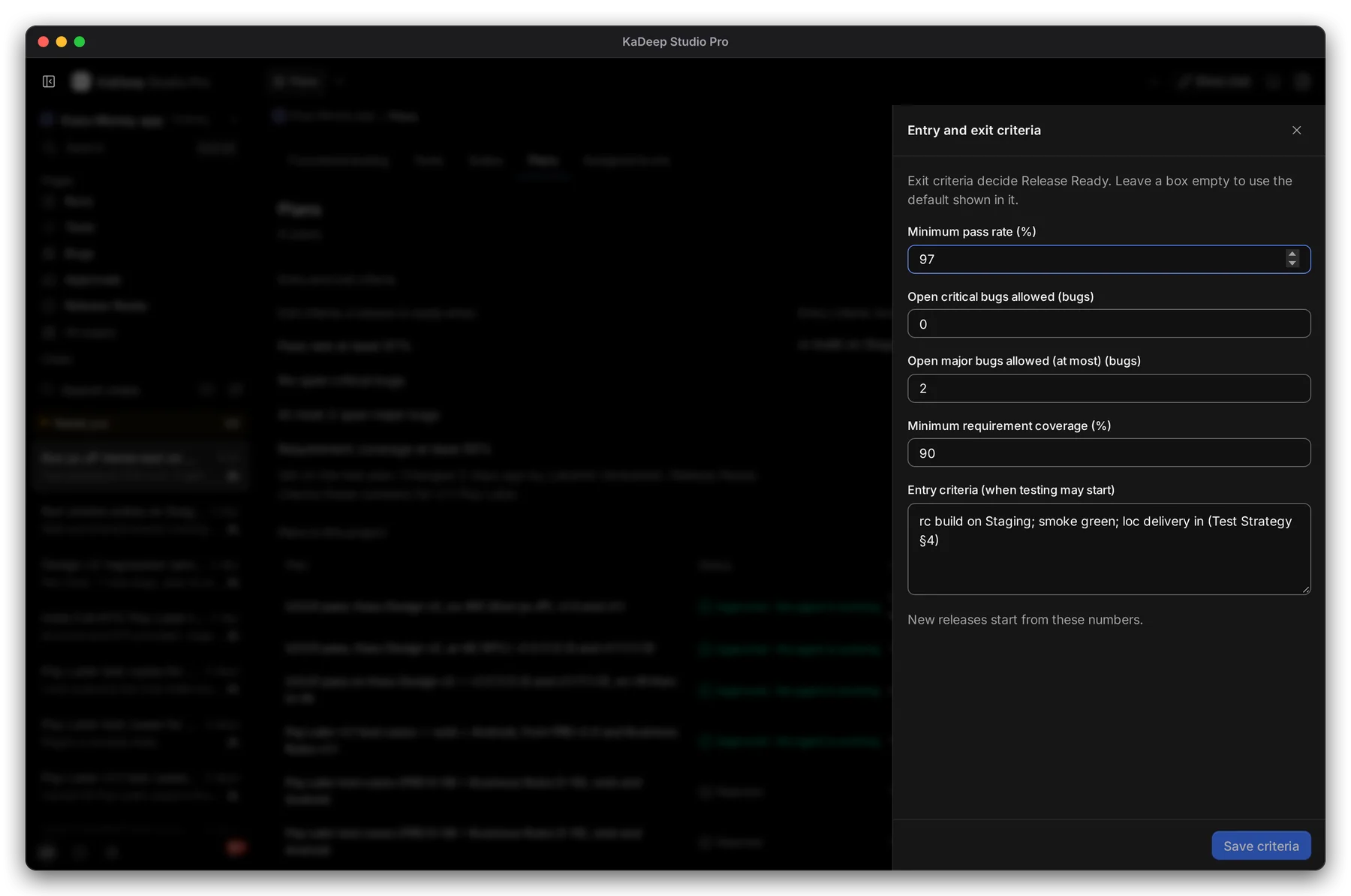
Section titled “2. Set the exit criteria”- Choose Edit criteria.
- Fill in what you need. Leave a box empty to use the default shown in it.
- Choose Save criteria. Release Ready checks the new numbers at once.
Manage view
Hands-on view
| Criterion | Example | |
|---|---|---|
| 1 | Minimum pass rate | 97% |
| 2 | Open critical bugs allowed | 0 |
| Open major bugs allowed (at most) | 2 | |
| 3 | Minimum requirement coverage | 90% |
3. Draft a plan with the agent
Section titled “3. Draft a plan with the agent”- Choose Draft a test plan with the agent. A chat opens.
- Say what the release changes and what matters, for example “Pay Later on web and Android, from the PRD”.
- The agent proposes a plan. Read it, then approve, change or reject it. See Approve the agent’s plan.
| Status | What it means |
|---|---|
| Waiting for your approval | The plan is ready for you to read and decide. |
| Approved · the agent is working | The agent is doing the work. |
| Done | Finished. Its suites and tests are saved. |
| Rejected | Someone said no. Nothing ran. |
Click a plan to read it.
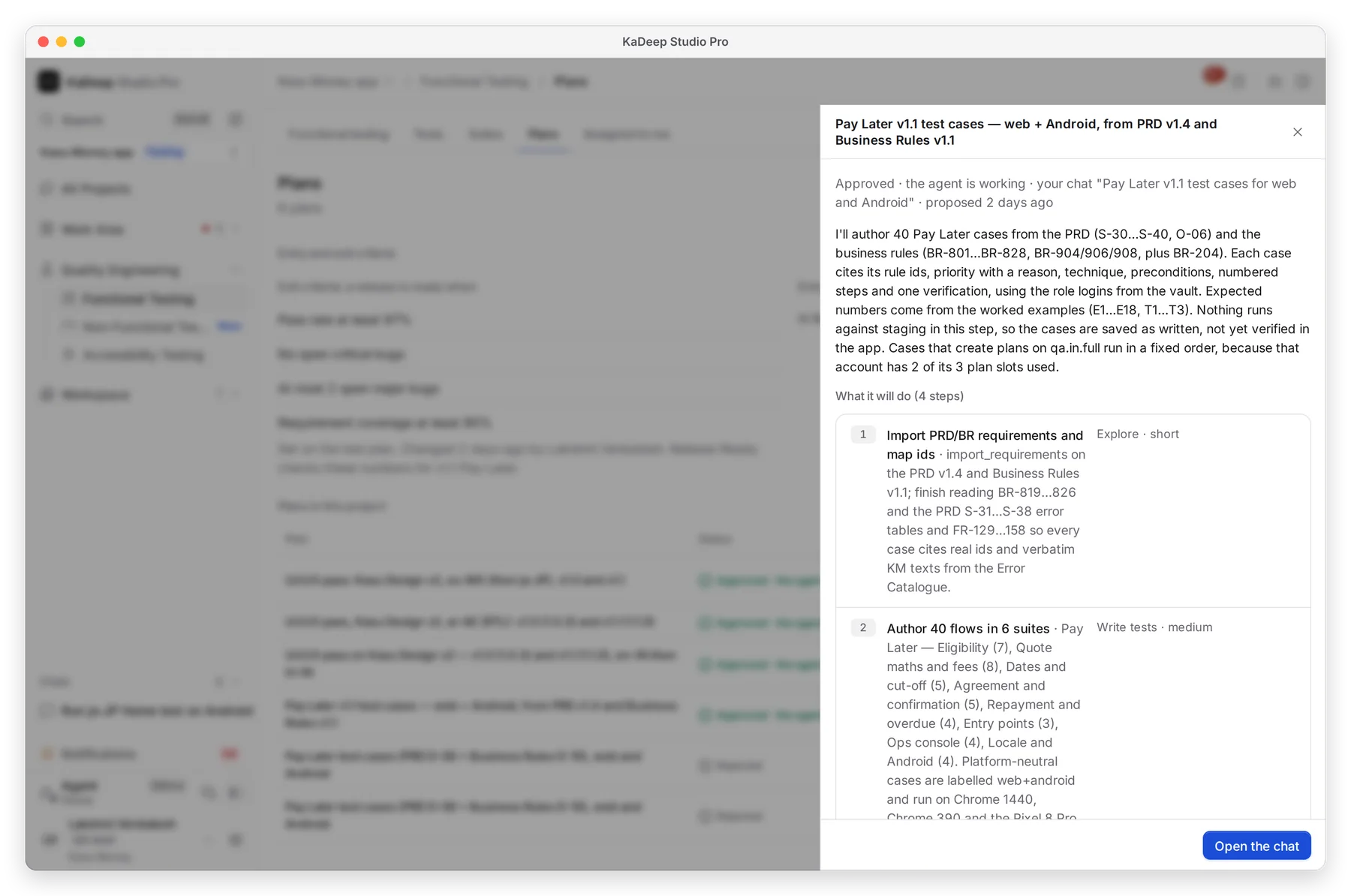
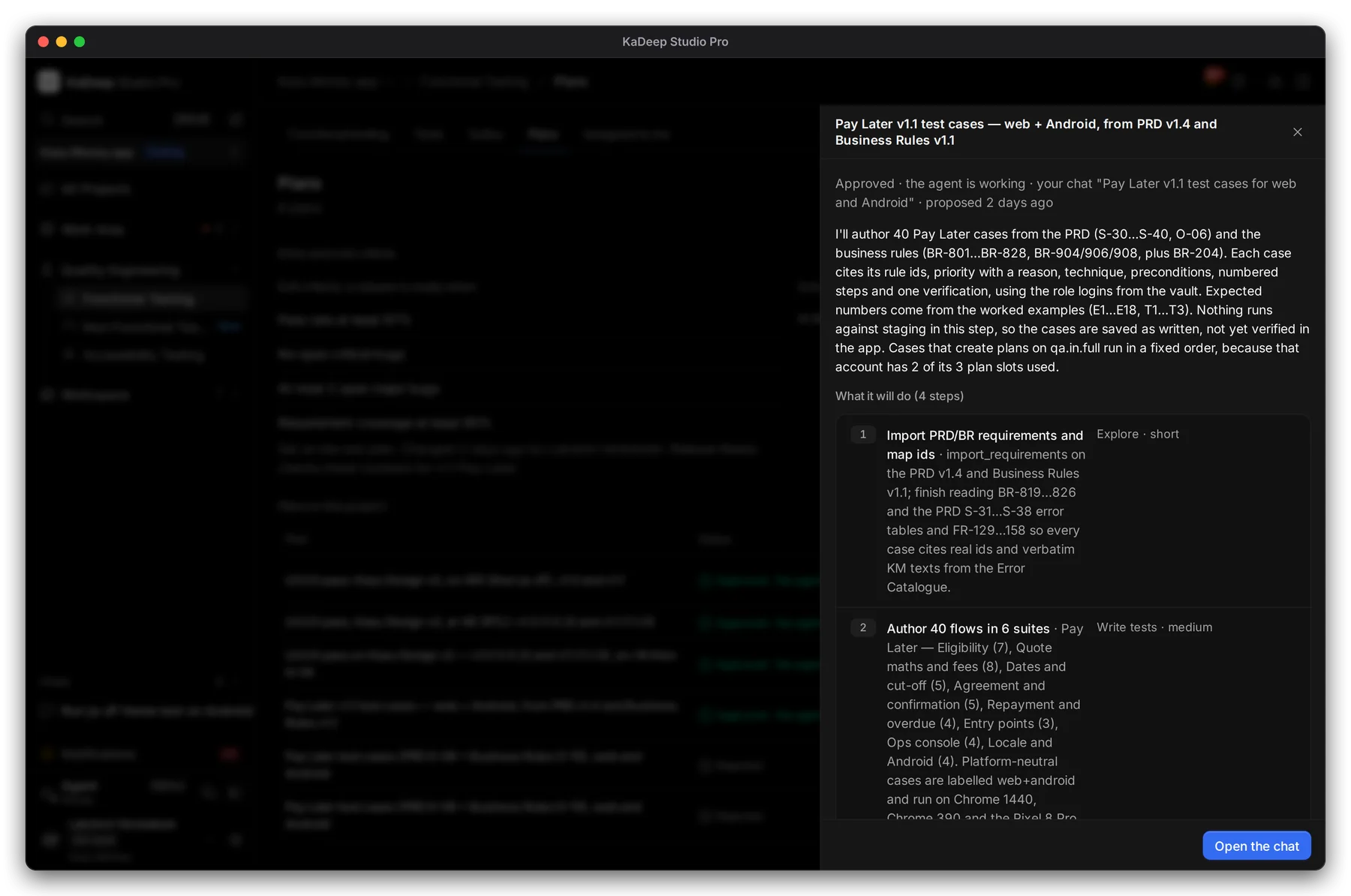
Manage view
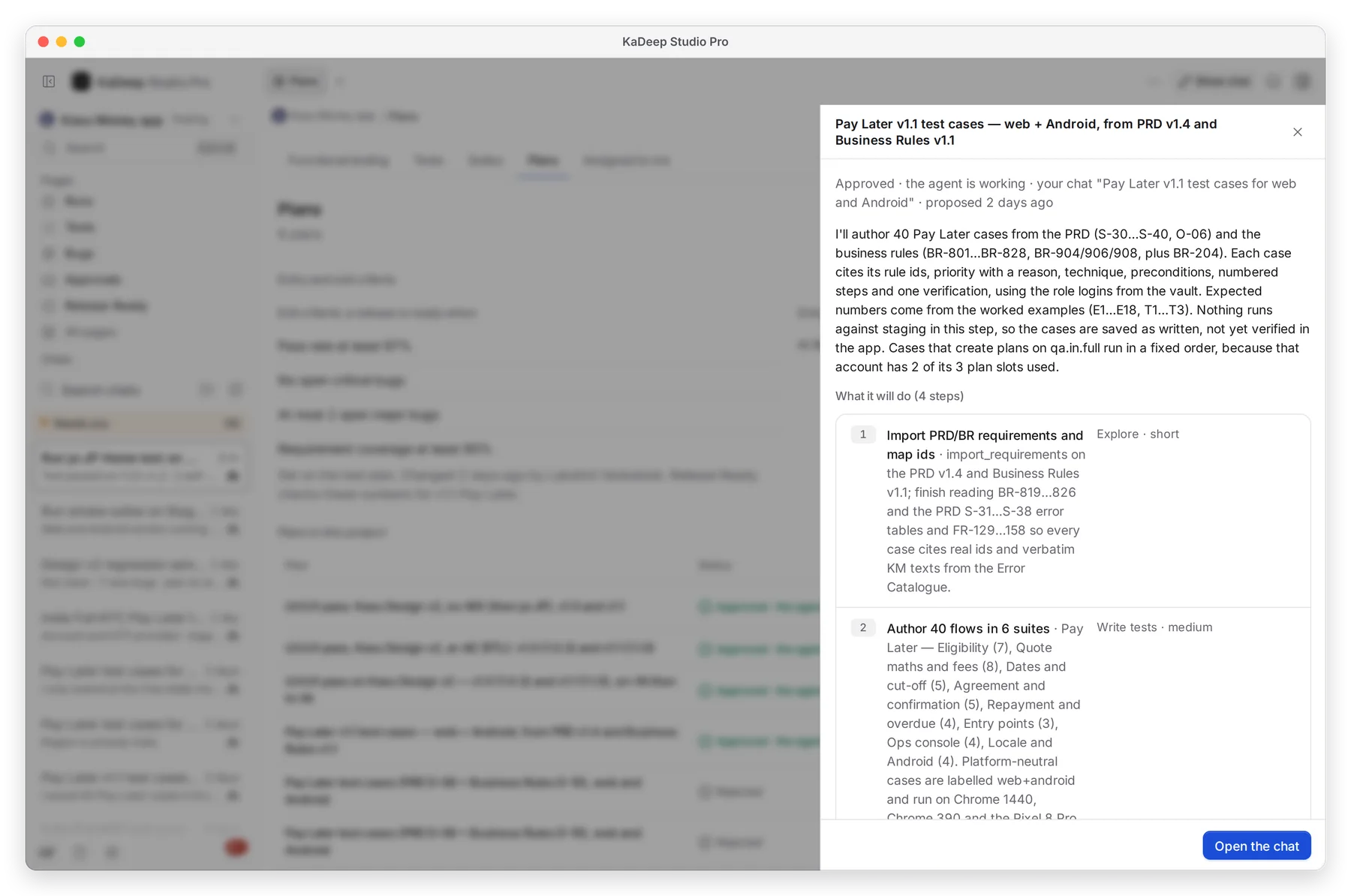
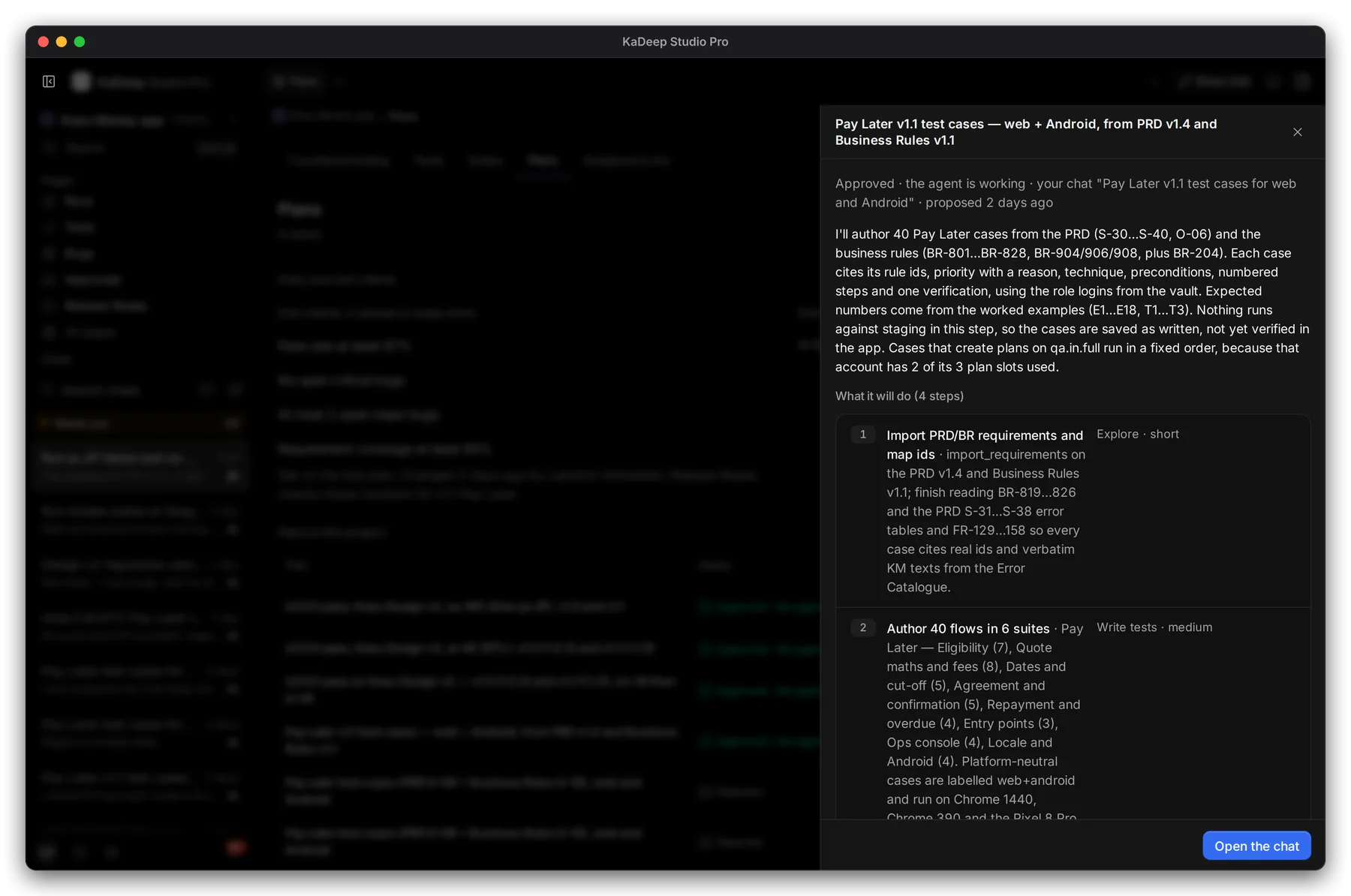
Hands-on view
What’s next
Section titled “What’s next”Approve the agent's planRead what it will do, then decide.
Release Ready: can we ship?Where the exit criteria are checked.
Requirements and coverageWhat the coverage number counts.