Read the spending limit and approvals
Your view
An admin sets a monthly limit for agent spend, and the chain of people who sign larger requests. As Finance, you can read both, so you always know how close the month is to its cap.
1. Open Spending approvals
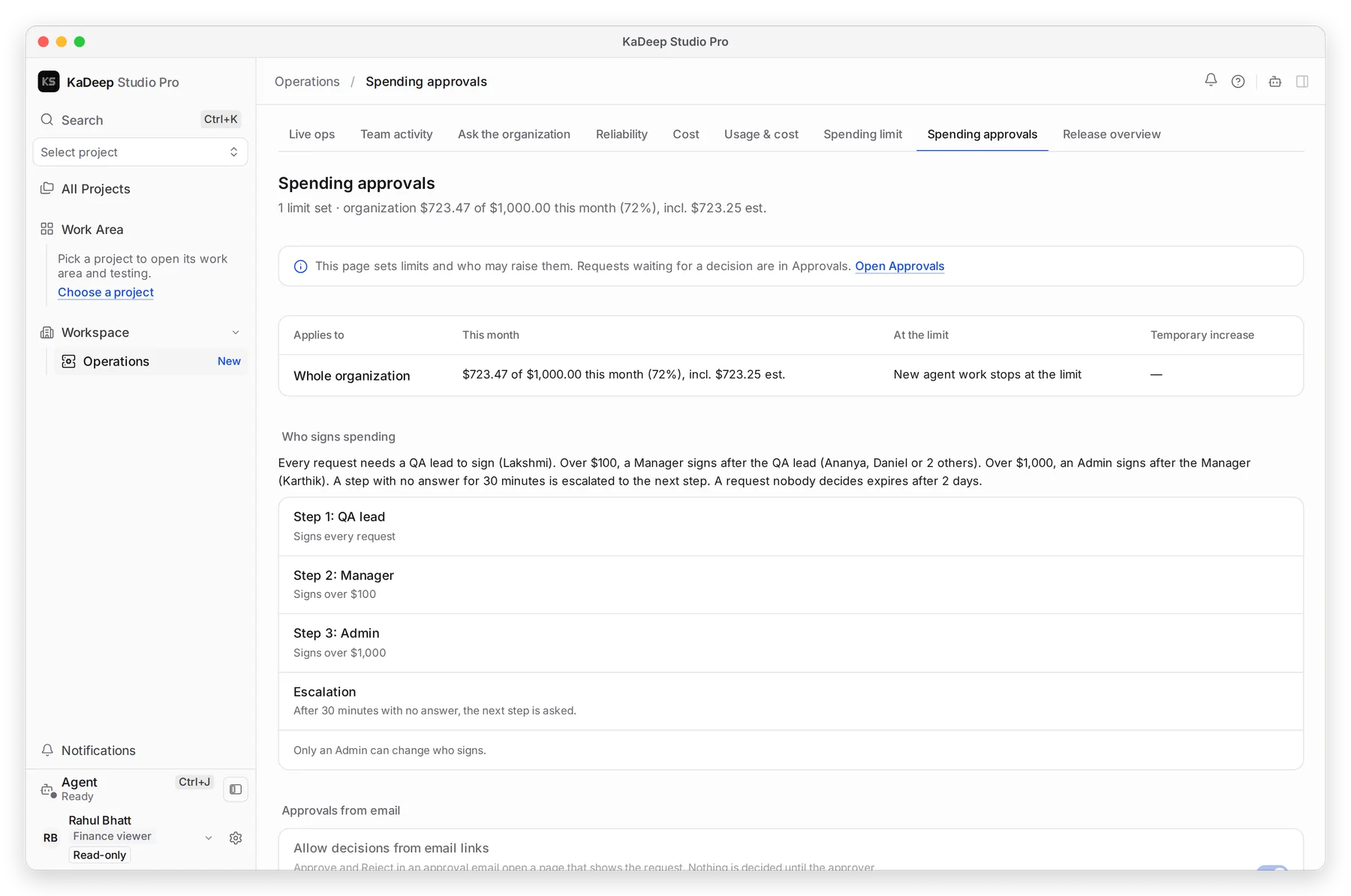
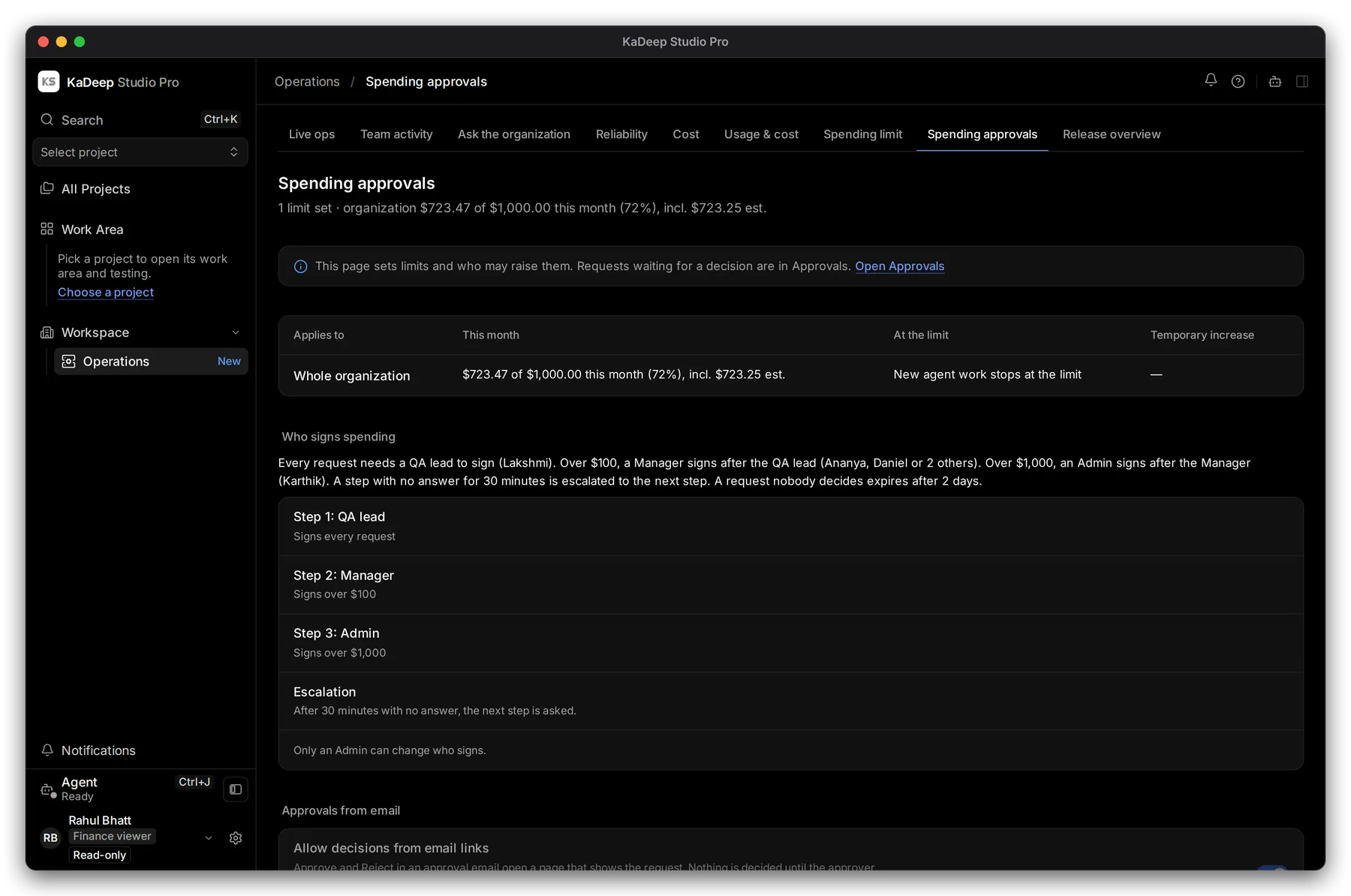
Section titled “1. Open Spending approvals”Open Workspace › Operations, then the Spending approvals tab. Spending limit next to it shows the same limit, by project.
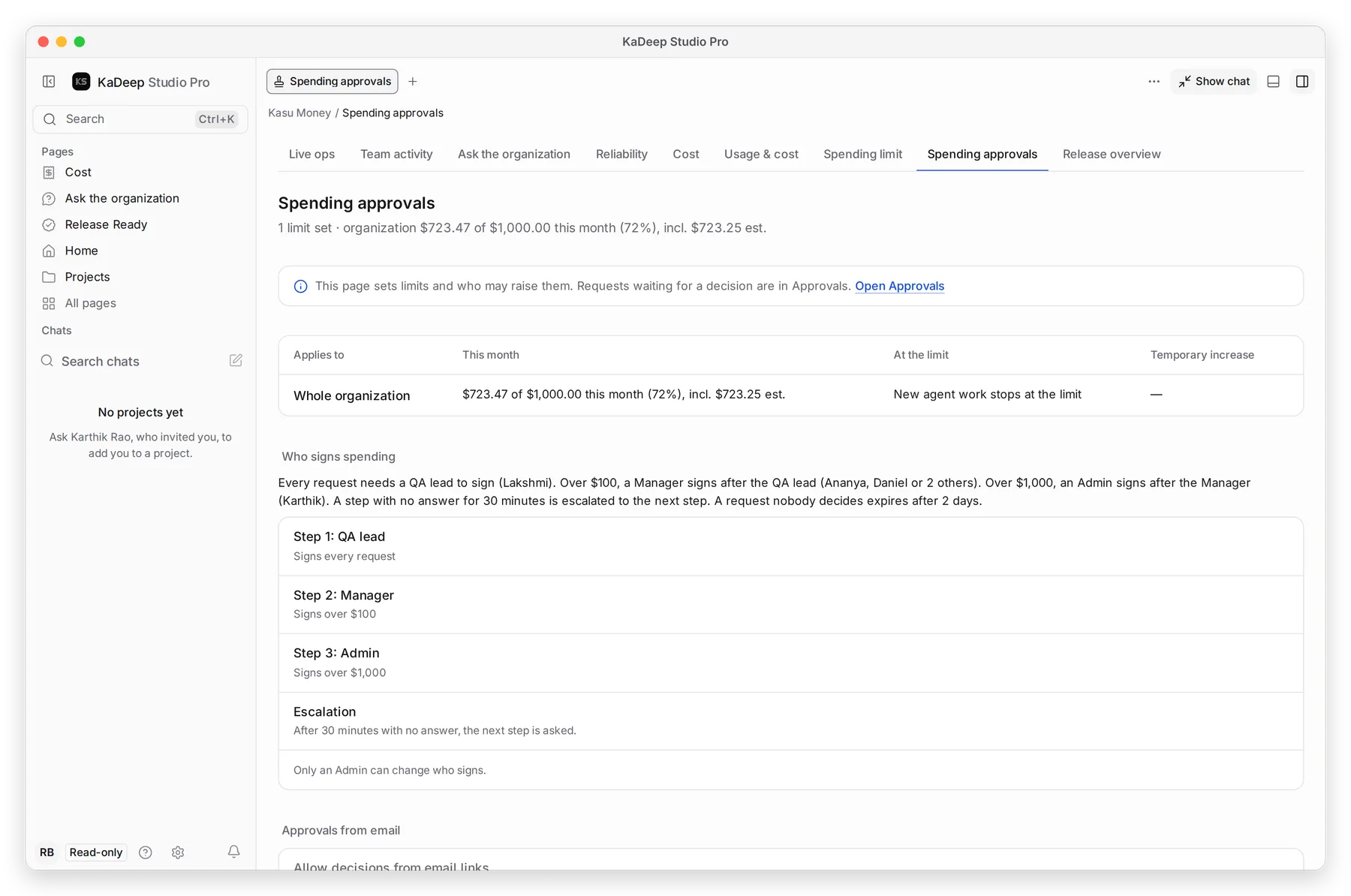
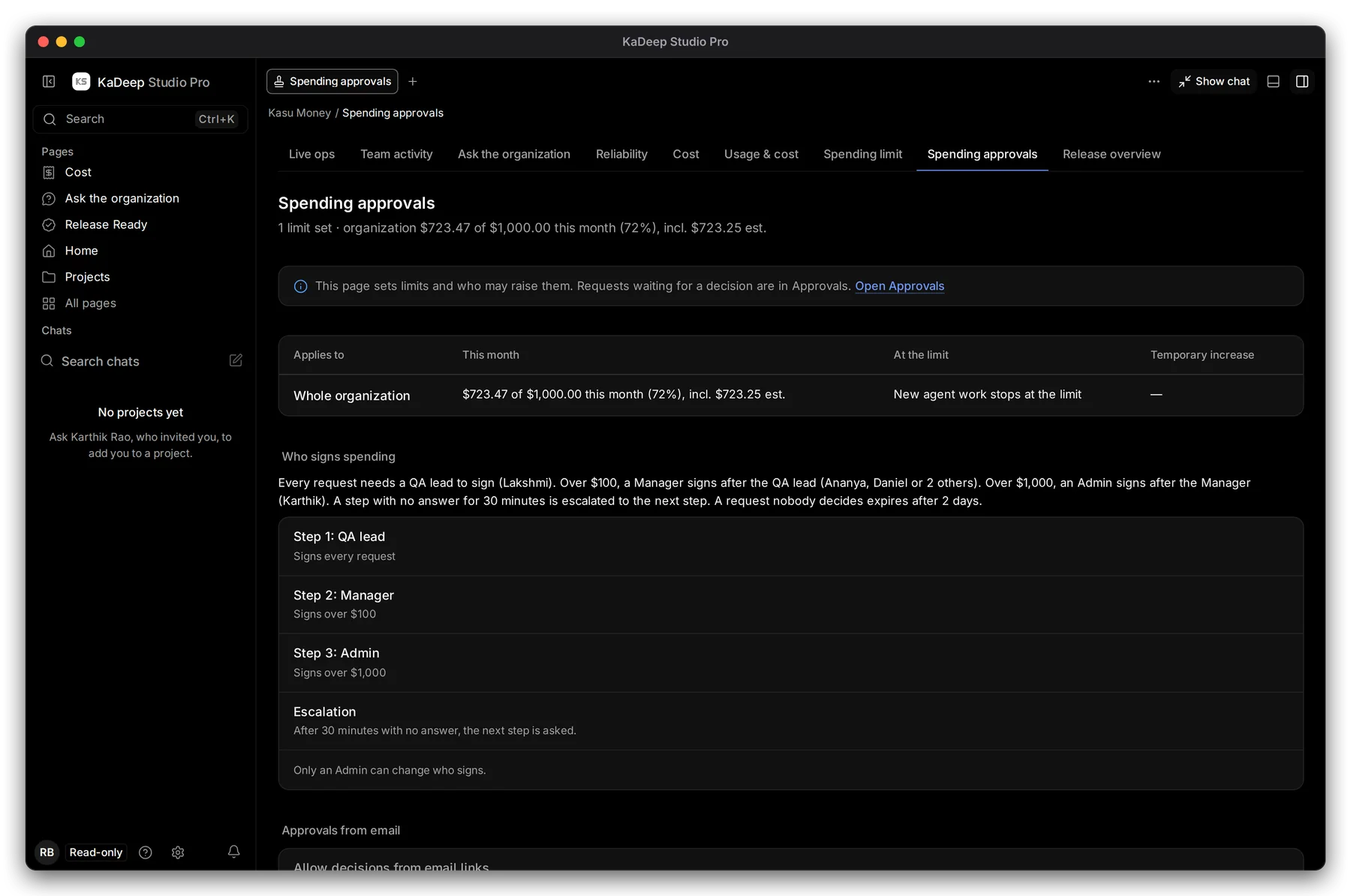
Under Pages, choose All pages, then Spending approvals.
Manage view
Hands-on view
- 1 Limits and spend: the limit, what is used this month, and what happens at the limit.
- 2 Who signs spending: the steps a request goes through, for example a QA lead for every request, a Manager over $100 and an Admin over $1,000.
- 3 Escalation: if a step does not answer in time, the next step is asked.
2. What the limit counts
Section titled “2. What the limit counts”The limit counts what KaDeep bills plus what runs on your own AI provider subscription would cost at list price. Both are on Cost.
| When | What happens |
|---|---|
| Under the limit | Agents work as usual. Large runs ask for approval first. |
| At the limit | New agent work stops. Runs that start show Stopped (budget). |
| A request nobody decides | It expires after 2 days |
3. Ask for a change
Section titled “3. Ask for a change”You can’t change the limit or the signers. Only an admin can.
- Note the number you want and why.
- Send it to your admin, or ask in Ask the organization what was spent so far.
- Requests waiting for a decision show in Home › Approvals for the people who sign.
What’s next
Section titled “What’s next”Spending limit and approvals (admins)How an admin sets the limit and the signers.
ApprovalsHow managers approve spending requests.
CostWhat is used against the limit.