Sign in and join your organization
Your view
Your admin invites you by email. Accept the invitation once, then sign in from the desktop app whenever you open it.
1. Accept your invitation
Section titled “1. Accept your invitation”- Open the email from KaDeep Studio Pro and choose the link in it.
- Choose a password, or sign in with your company account if your organization uses single sign-on.
- You land on your Home, already in your organization, with your role and projects.
No email? Check spam, then ask your admin to resend it or send you the link. Invitation links expire.
2. Sign in
Section titled “2. Sign in”When you open the desktop app, it shows the sign-in page.
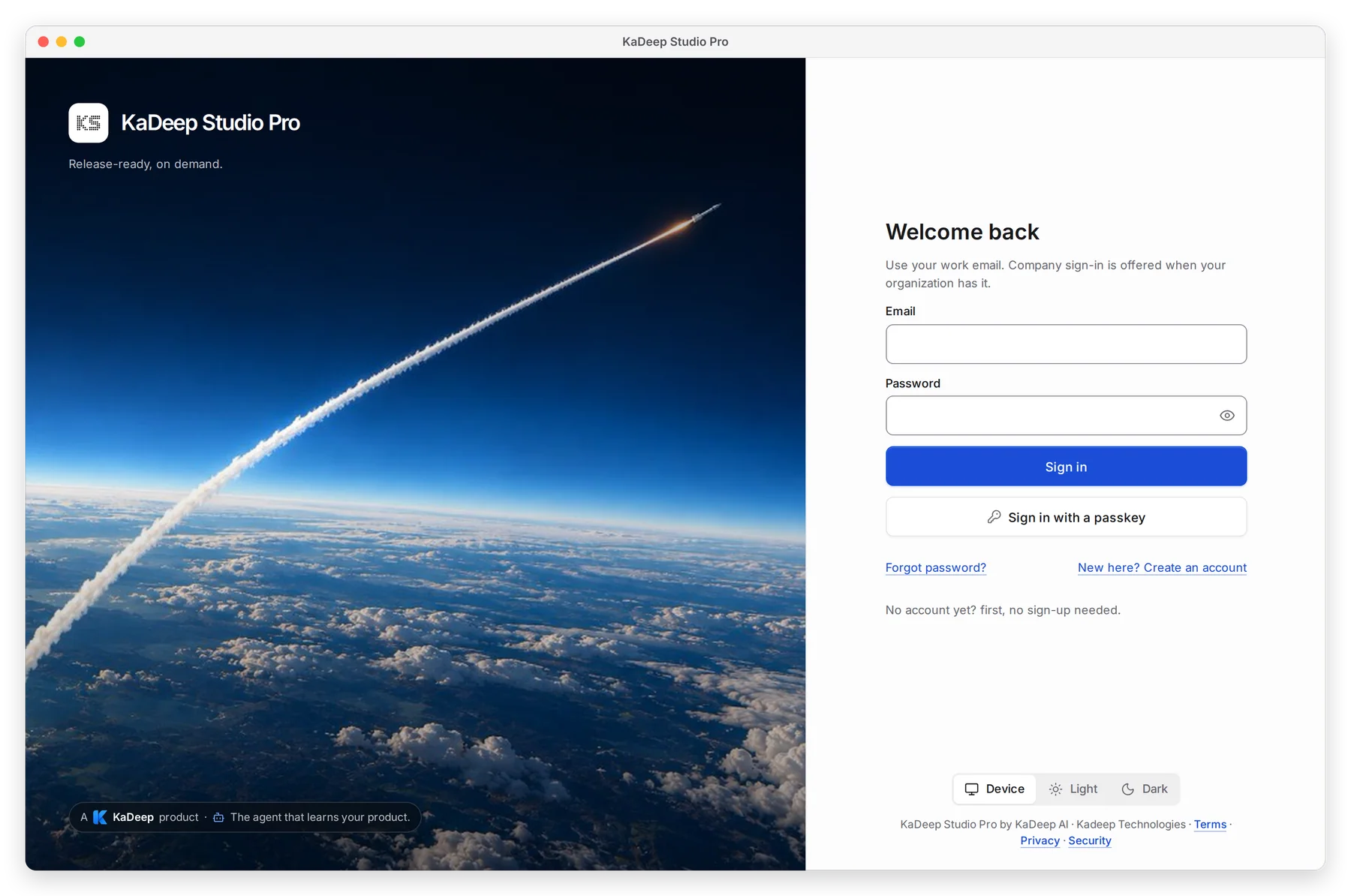
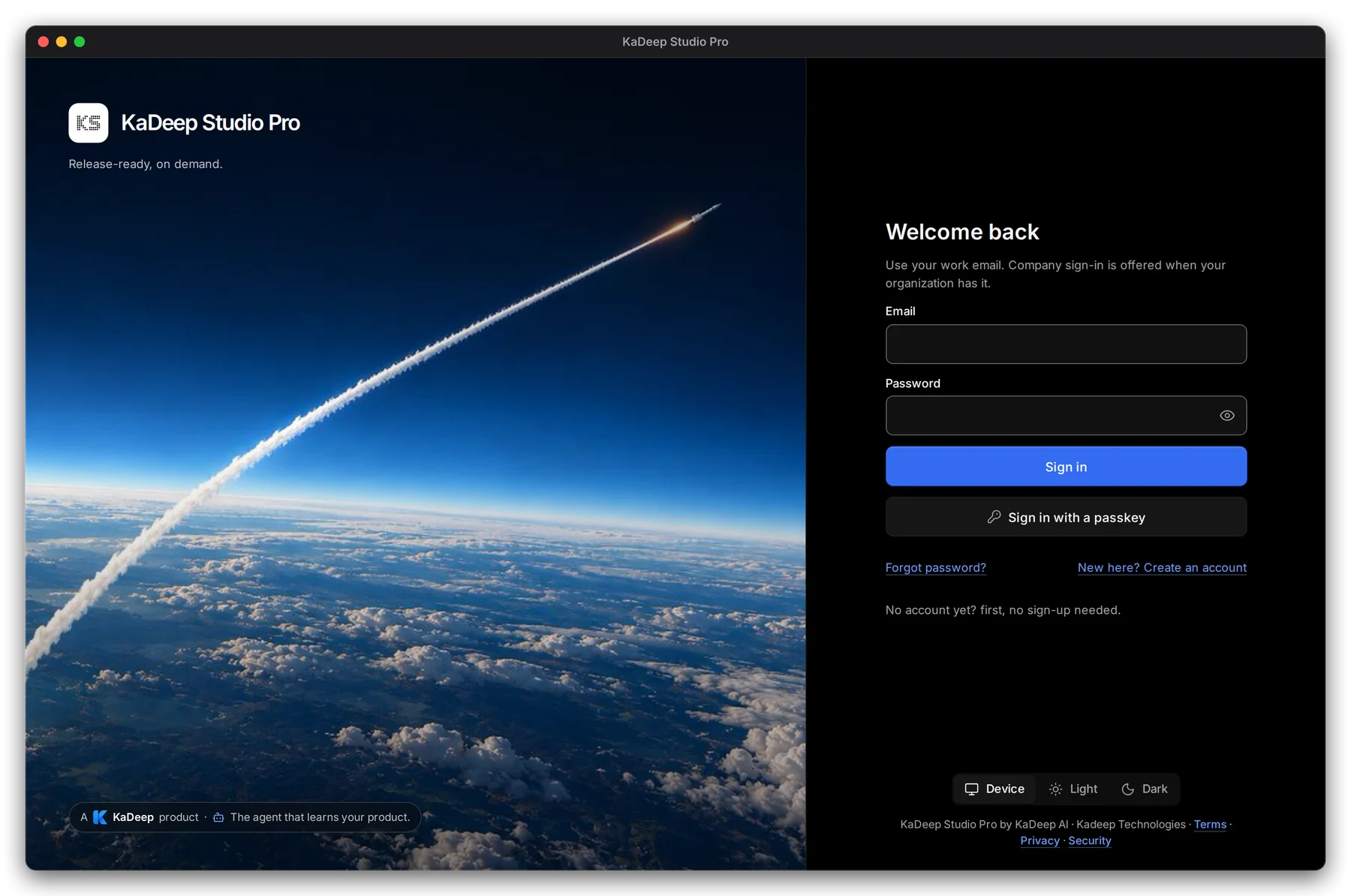
- Type your work 1 Email and 2 Password.
- Choose 3 Sign in.
- If your organization uses single sign-on, Sign in with SSO appears after you type your email. Choose it, and sign in with your company account.
- Added a passkey? Choose 4 Sign in with a passkey and use your fingerprint, face or security key.
- 5 Forgot password? emails you a link to choose a new one.
3. Set up two-step sign-in
Section titled “3. Set up two-step sign-in”A second step keeps your account safe if your password leaks. Your admin may require it.
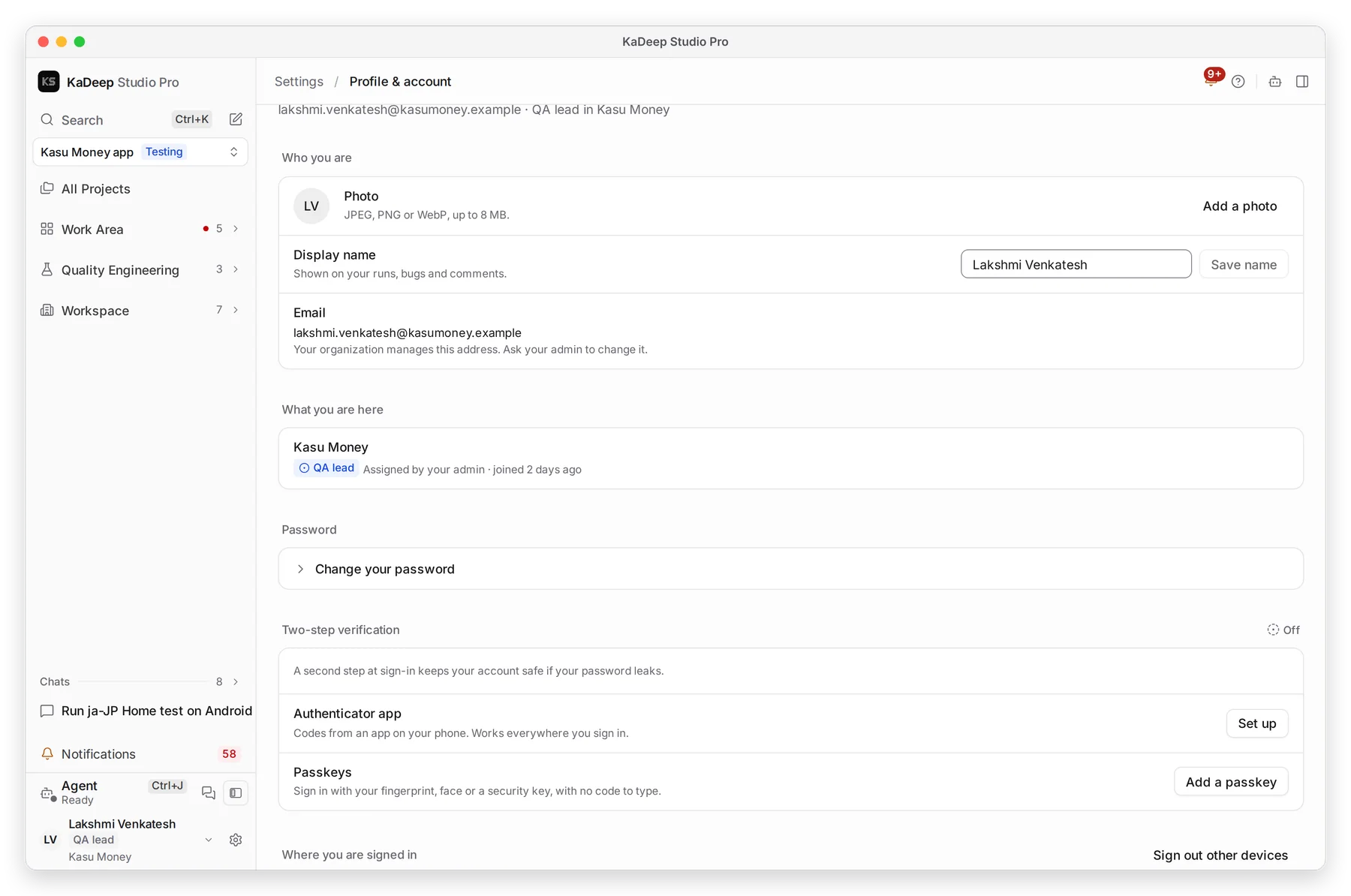
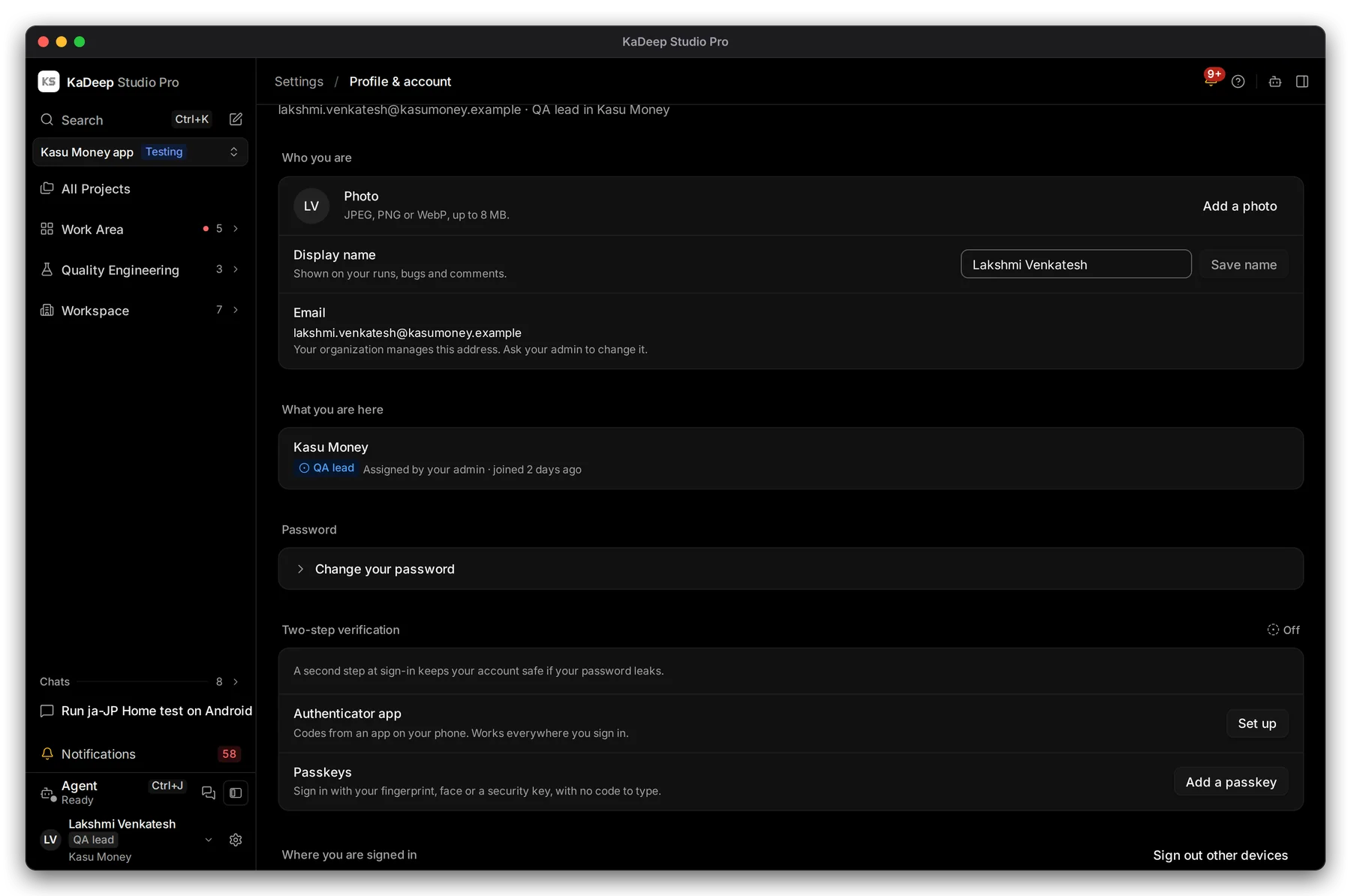
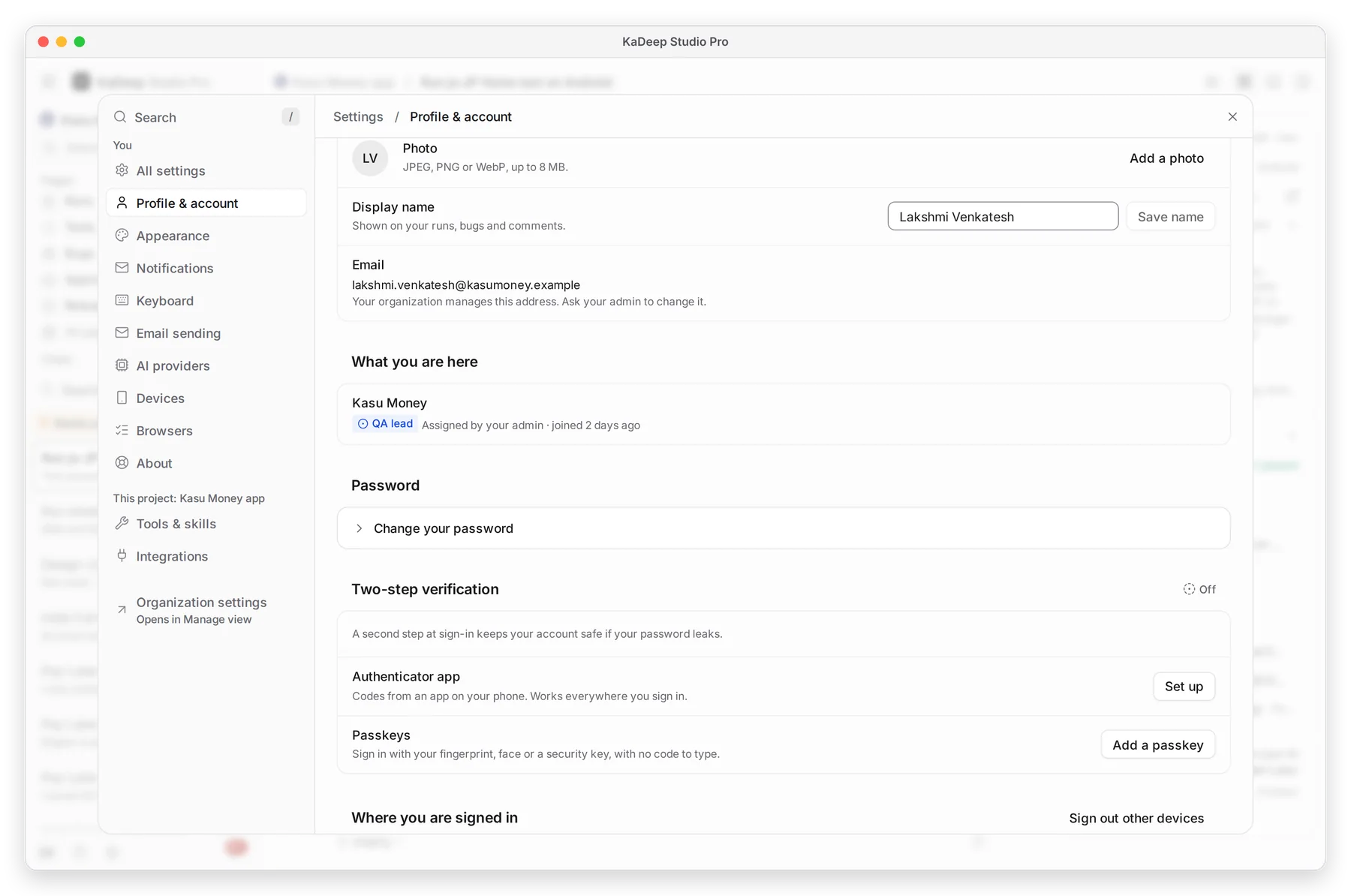
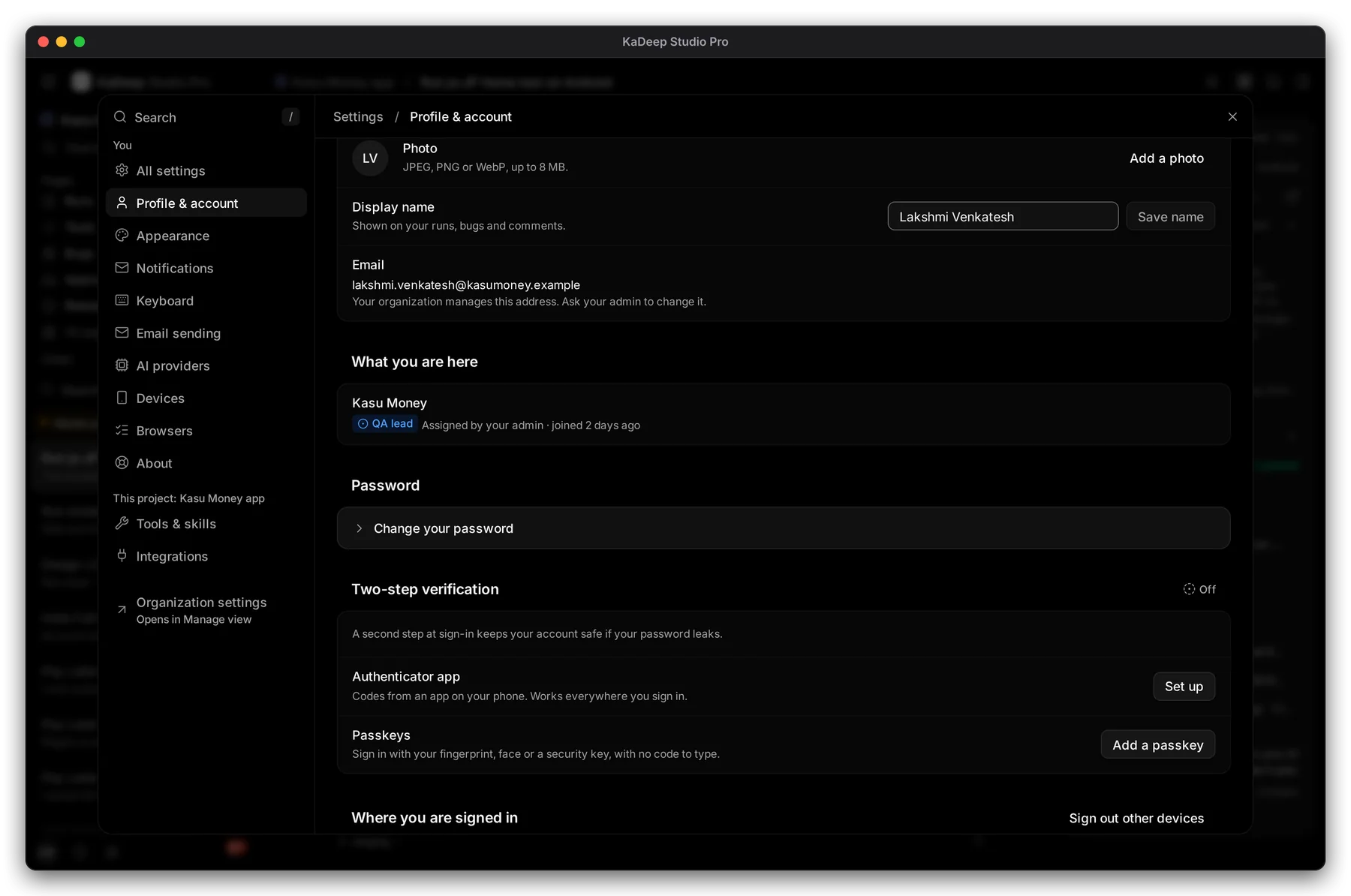
- Choose your name at the bottom of the sidebar, then Profile & account. Choose your initials at the bottom of the sidebar, then Profile & account.
- Under Two-step verification, choose 4 Set up for an authenticator app, or 5 Add a passkey.
- Follow the prompts. Next time, KaDeep asks for the code or the passkey after your password.
Manage view
Hands-on view
4. Switch organization
Section titled “4. Switch organization”If you belong to more than one organization, open the account menu and choose the organization. Each one has its own projects, people and Home.
What’s next
Section titled “What’s next”A tour of the KaDeep windowWhere everything is.
Your Home pageWhat Home shows for your role.
Sign-in problemsForgotten password, two-step, wrong organization.