Spending limit and approvals
Your view
Agents cost money when they run. A monthly limit keeps spend predictable, and an approval chain decides who may raise it.
1. Open Spending limit
Section titled “1. Open Spending limit”In the sidebar, open Workspace › Operations, then the Spending limit tab.
Press Ctrl K (Windows) or ⌘ K (Mac), type Spending limit and press Enter.
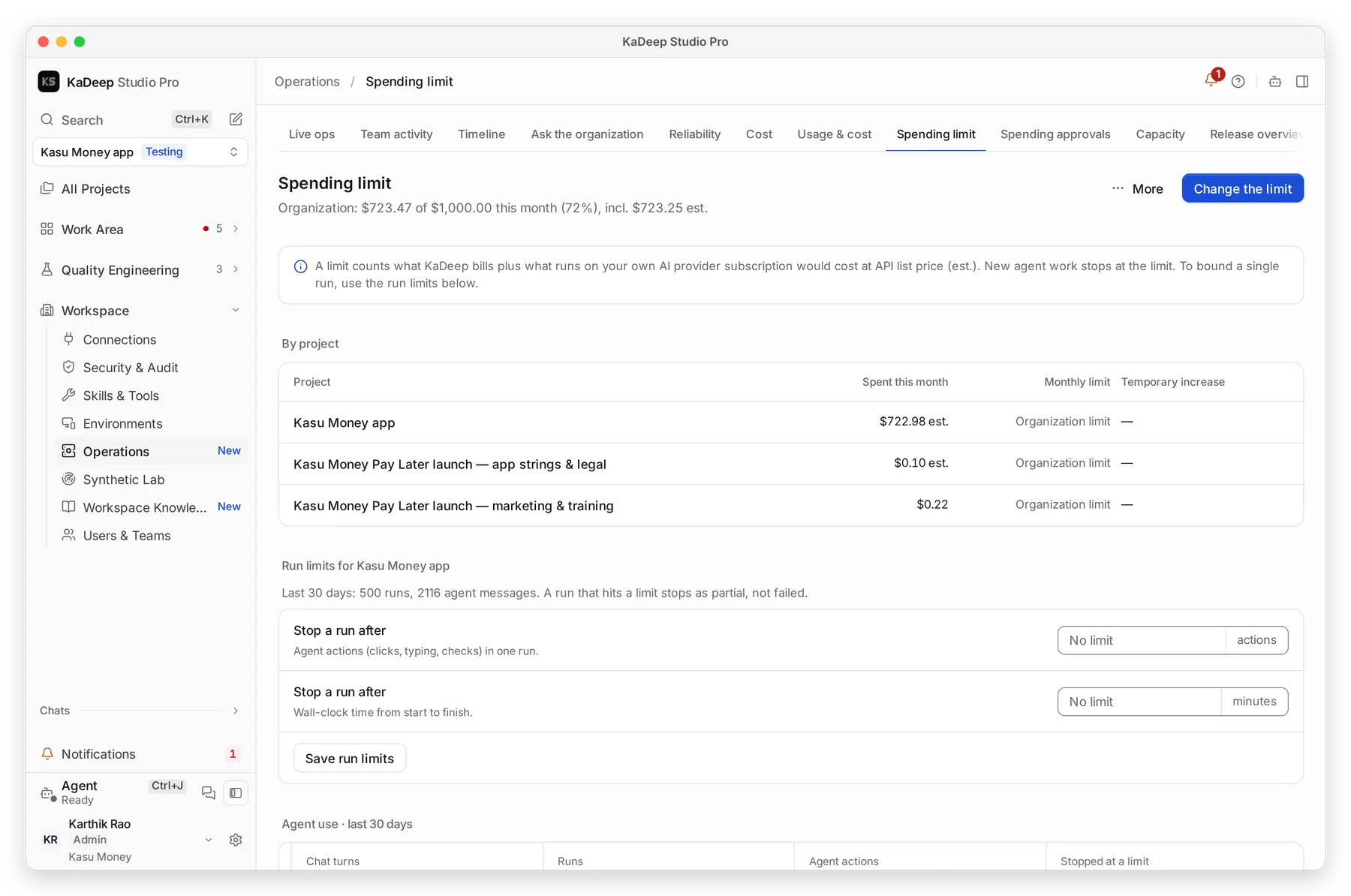
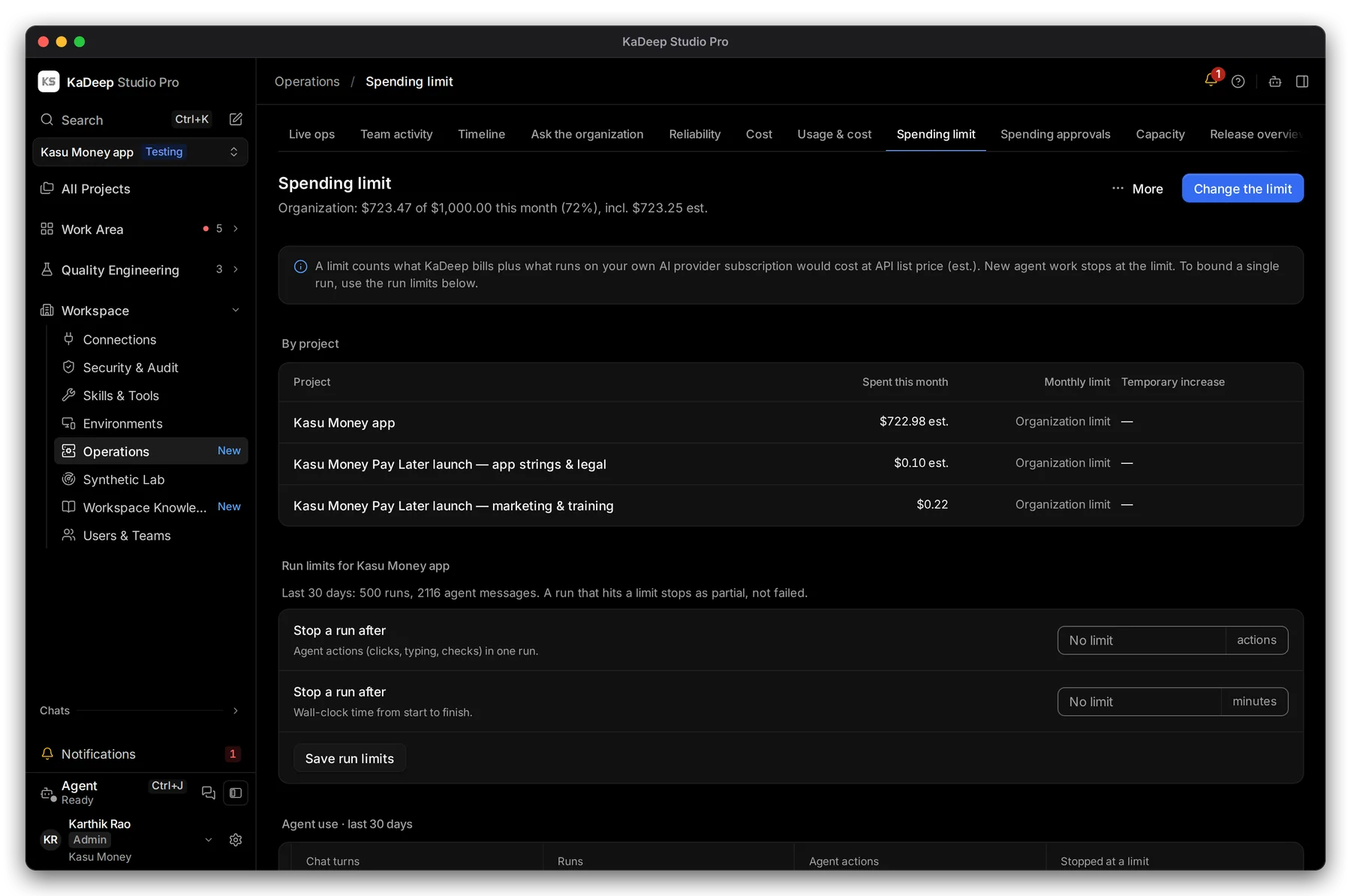
Manage view
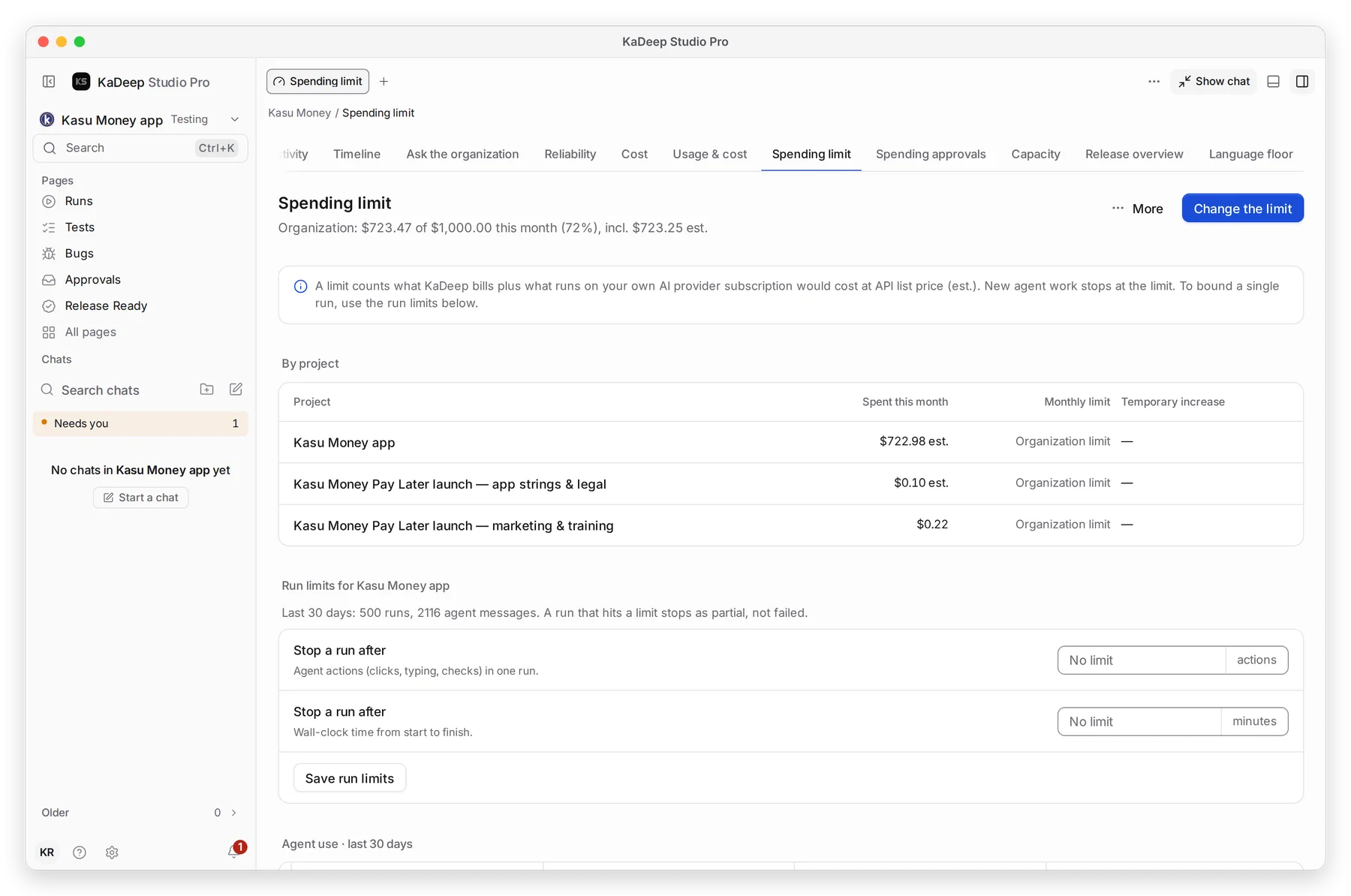
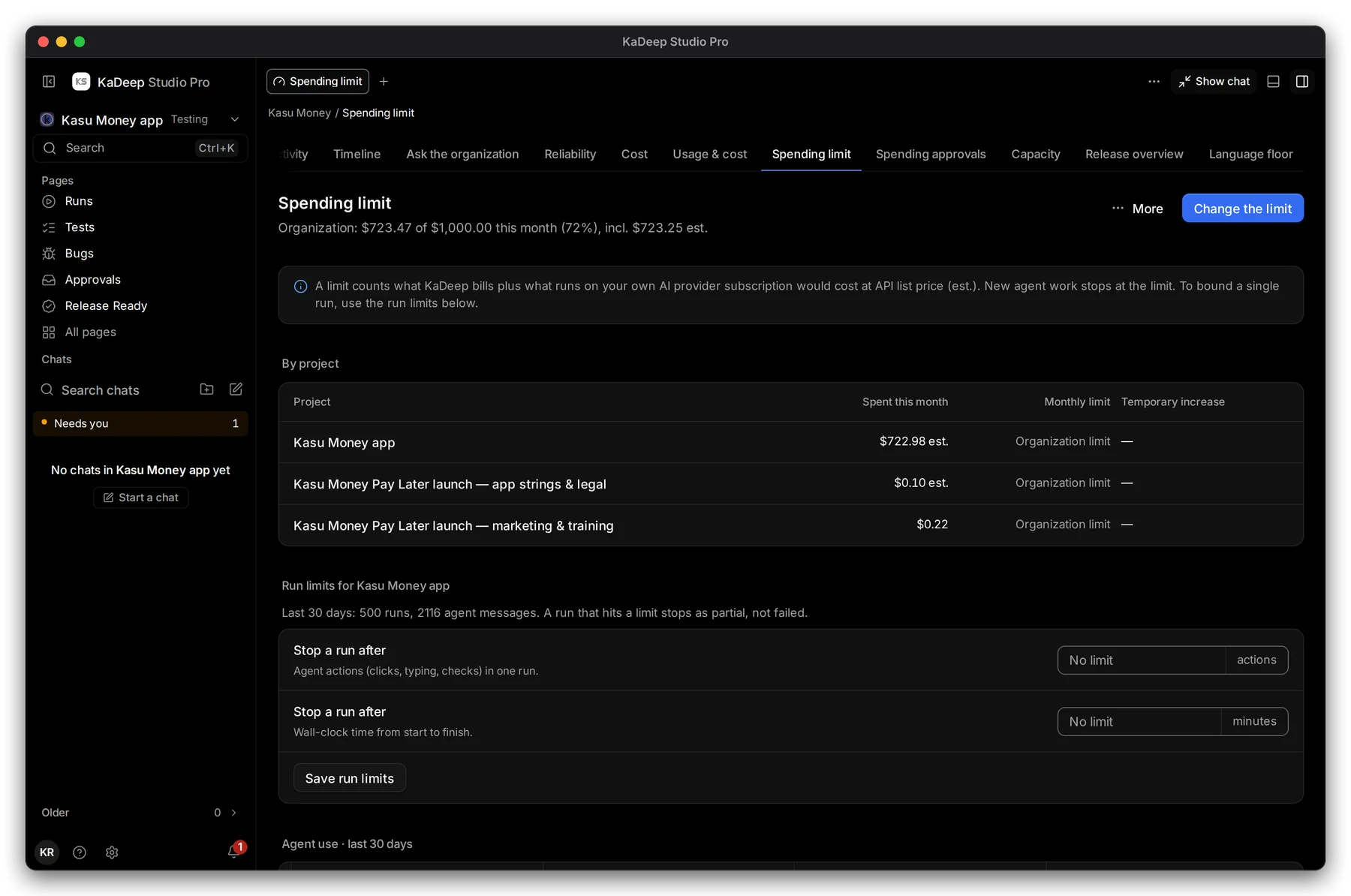
Hands-on view
1 The top line shows this month’s spend against the limit, for example $723.47 of $1,000.00 this month (72%).
2. Set the limits
Section titled “2. Set the limits”- Choose 2 Change the limit and type the monthly amount for the organization.
- Optional: give a project its own 3 Monthly limit, or a Temporary increase. Otherwise it shares the organization limit.
- Optional: under 4 Run limits, stop any single run after a number of agent actions or minutes. Choose Save run limits.
A limit counts what KaDeep bills, plus what runs on your own AI provider plan would cost at list price. At the limit, new agent work stops and shows Stopped (budget).
3. Choose who approves spending
Section titled “3. Choose who approves spending”Choose the Spending approvals tab.
Manage view
Hands-on view
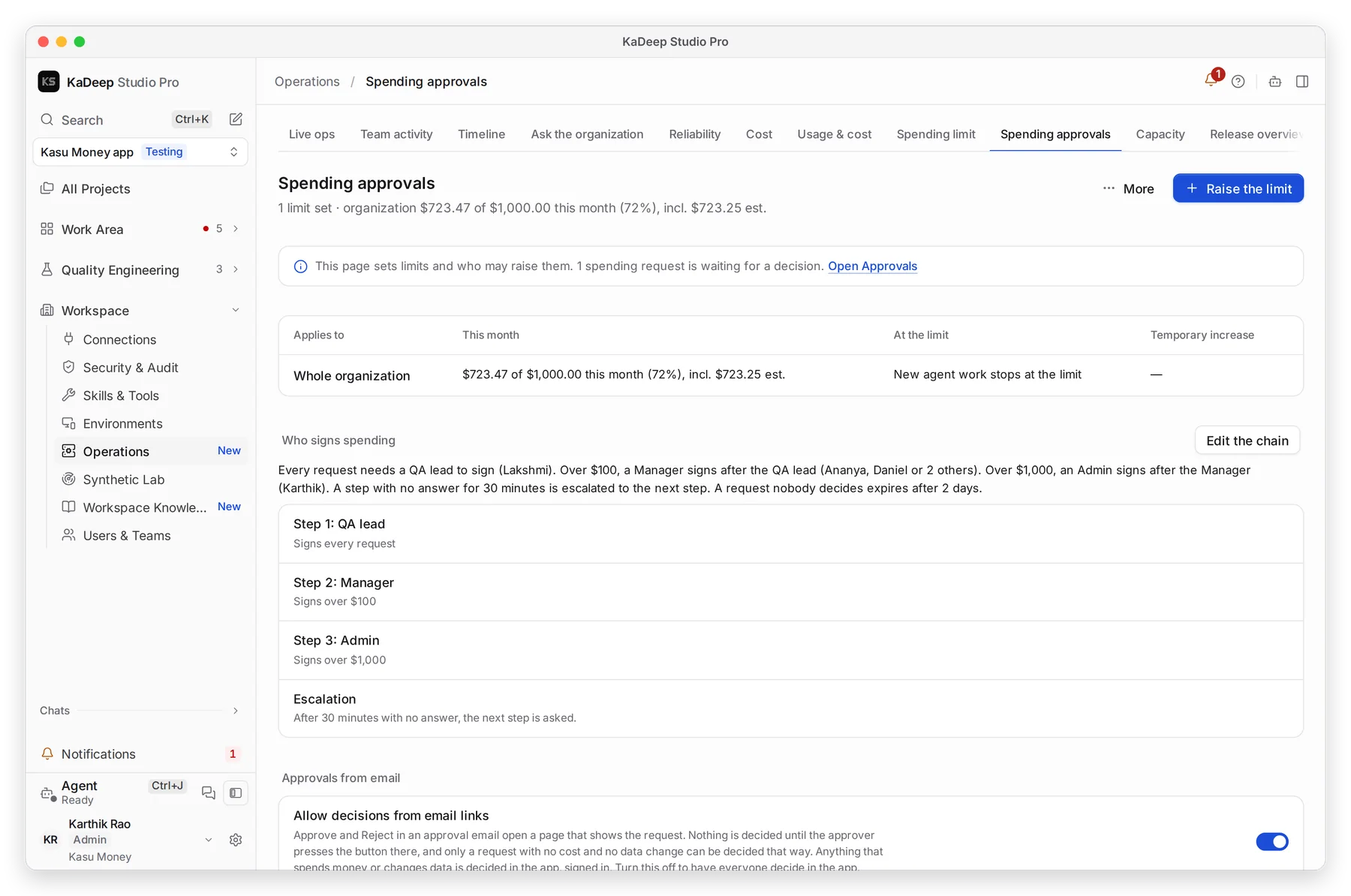
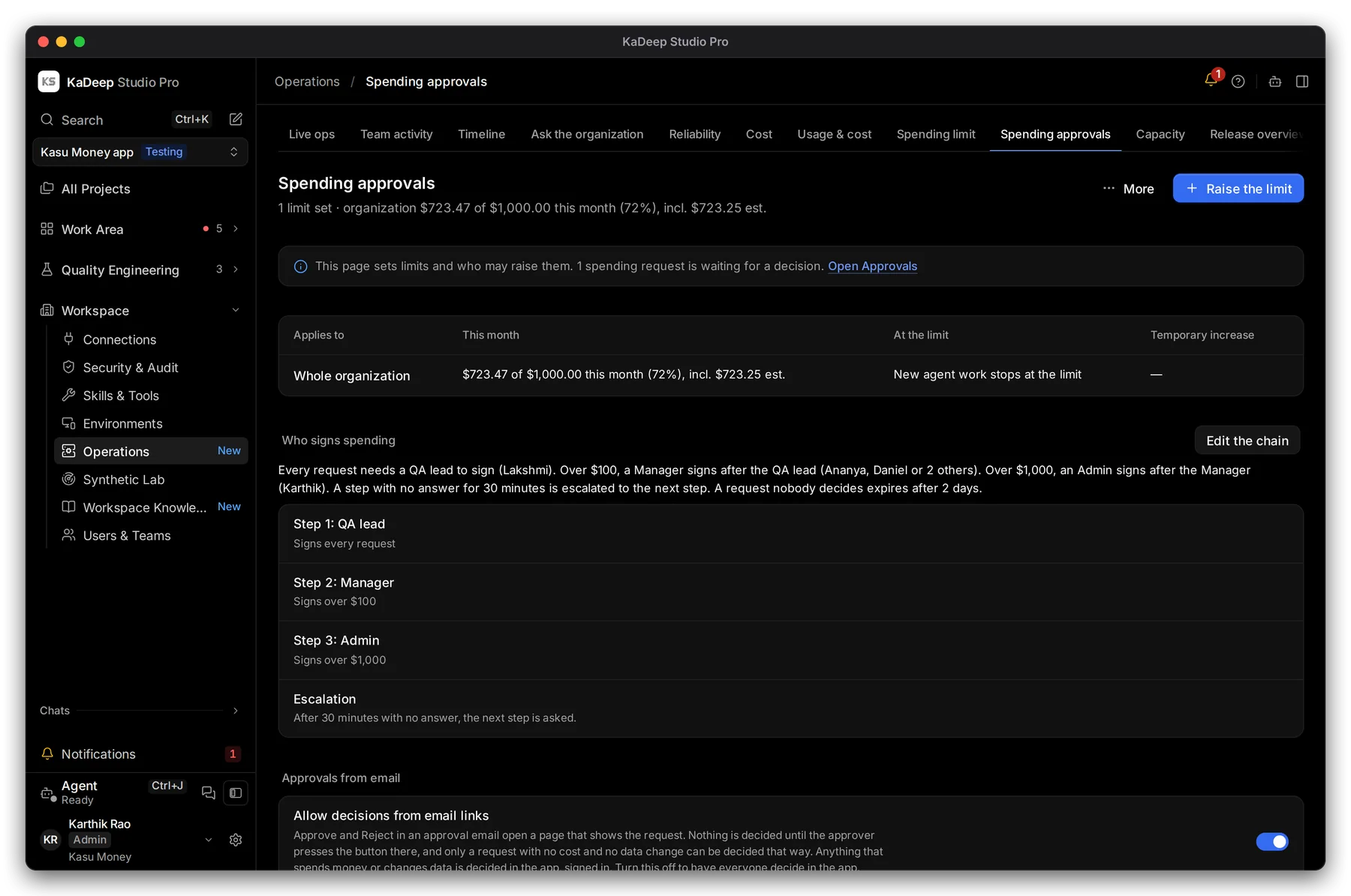
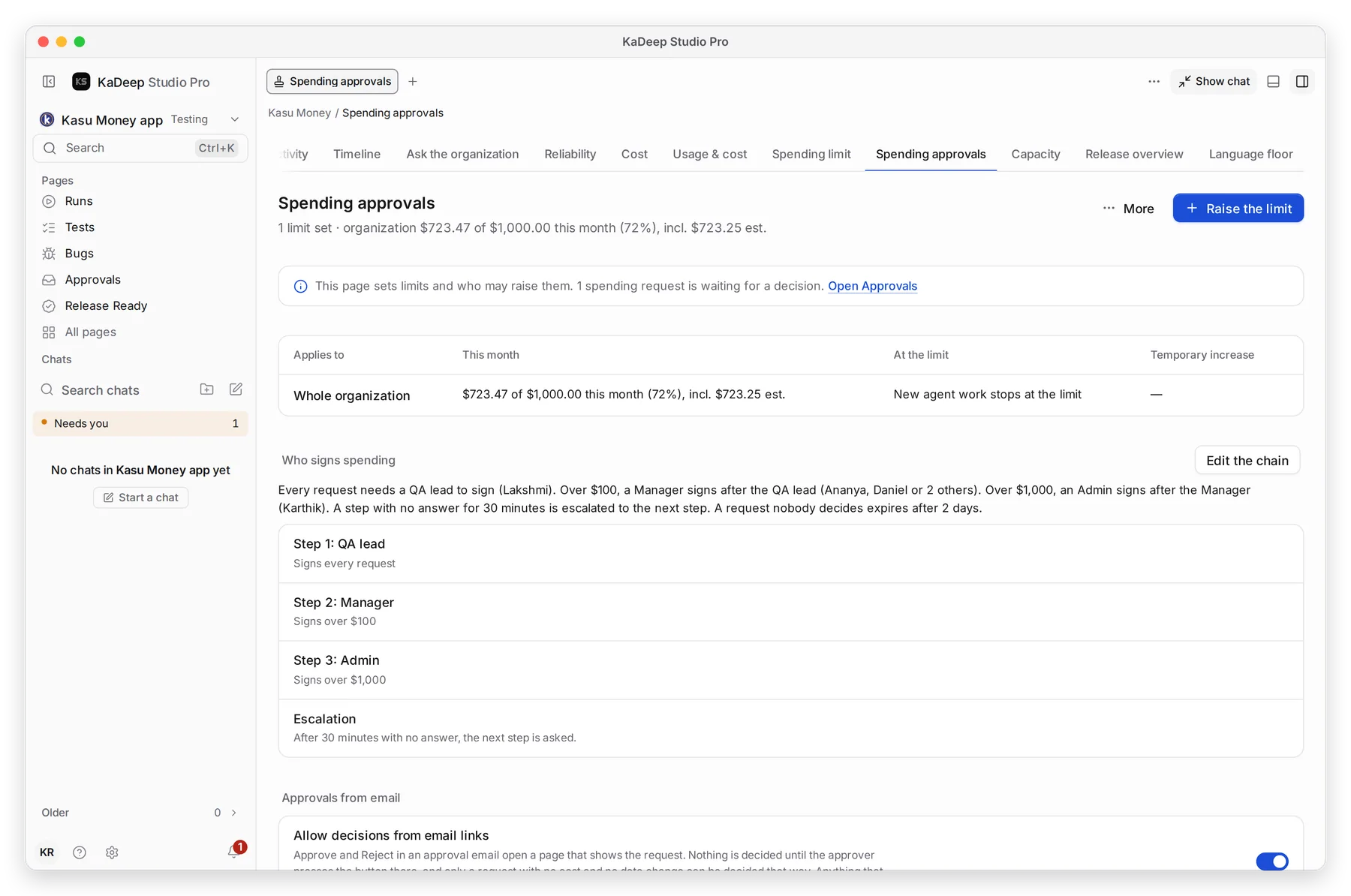
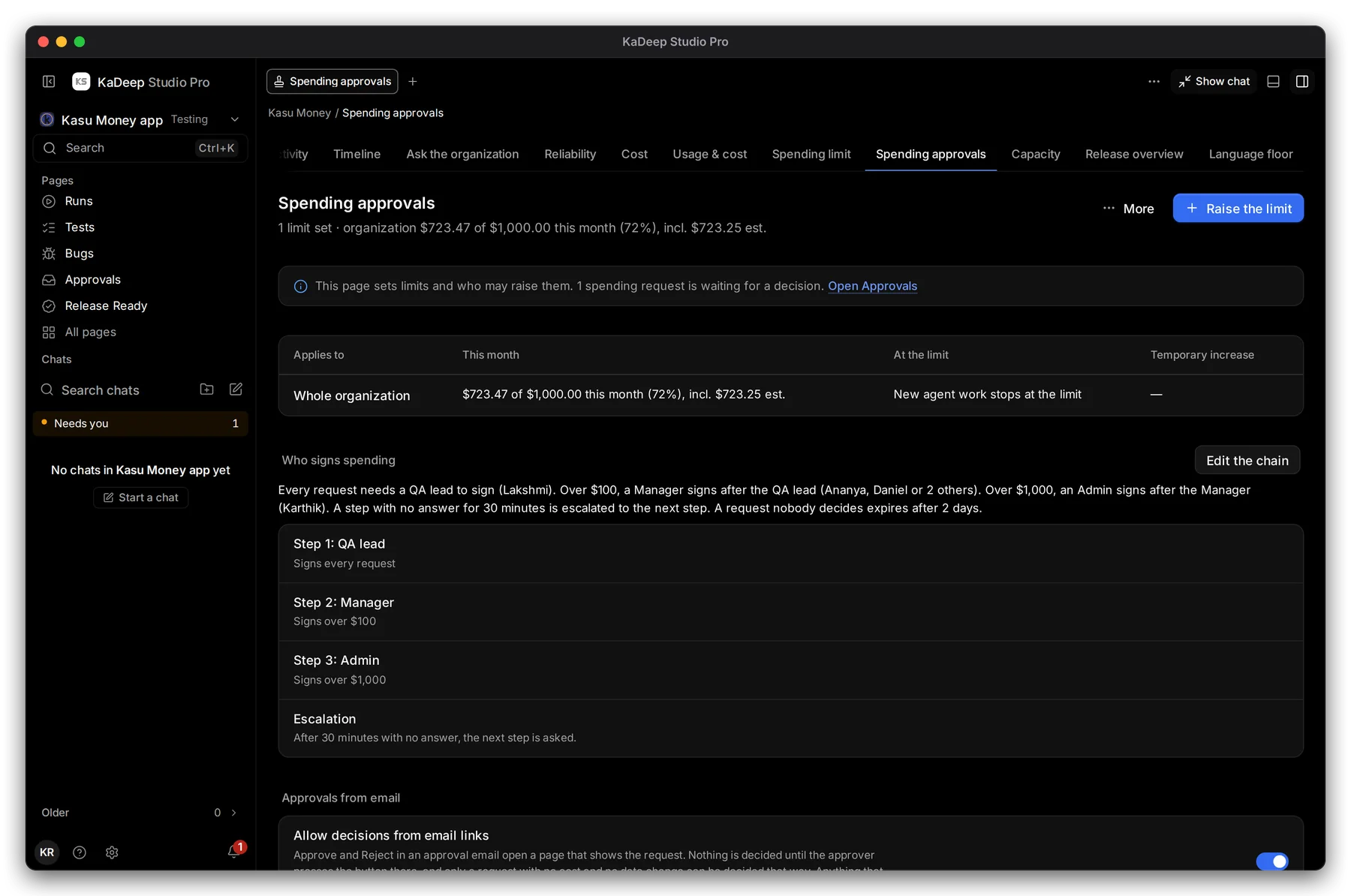
3 The chain says who signs a request to spend more. For example: a QA lead signs every request, a manager signs over $100, and an admin signs over $1,000.
- Choose 2 Edit the chain to change the steps and the amounts.
- Set Escalation: after how long an unanswered step goes to the next person.
- Turn 4 Allow decisions from email links on or off.
To raise the limit yourself, choose 1 Raise the limit.
What’s next
Section titled “What’s next”ApprovalsWhere approvers decide requests.
CostWhat runs cost, by project and person.
Set up checklistBack to the list.