Preferences and theme
Your view
Make KaDeep yours: how it looks, what it tells you about, and how your name appears to your team.
1. Open settings
Section titled “1. Open settings”Choose your name at the bottom of the sidebar, then All settings.
Choose the settings icon at the bottom of the sidebar. Settings opens in a window over the chat.
For a quick theme change, the account menu has Light, Dark and Device buttons.
2. Appearance
Section titled “2. Appearance”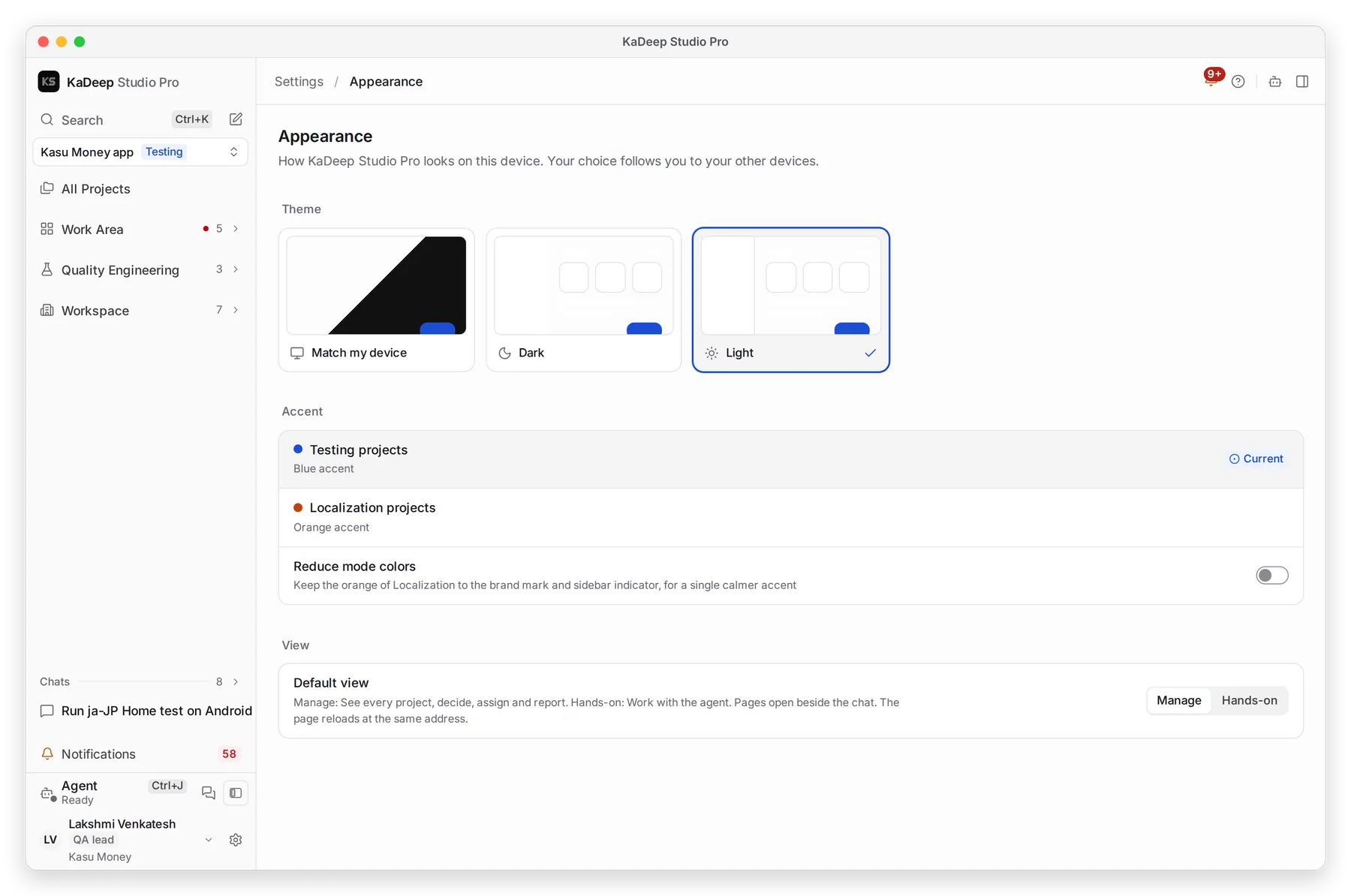
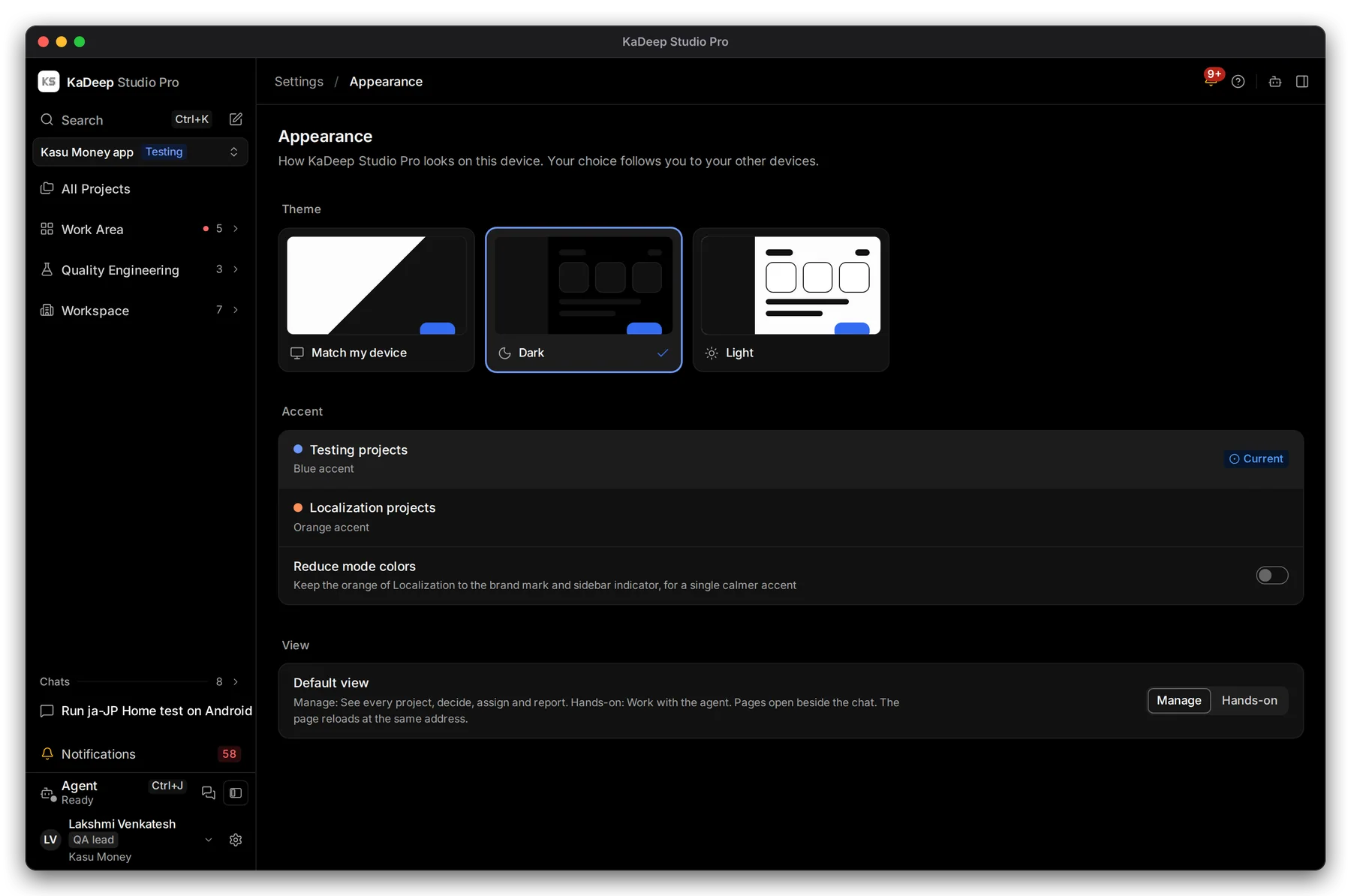
Manage view
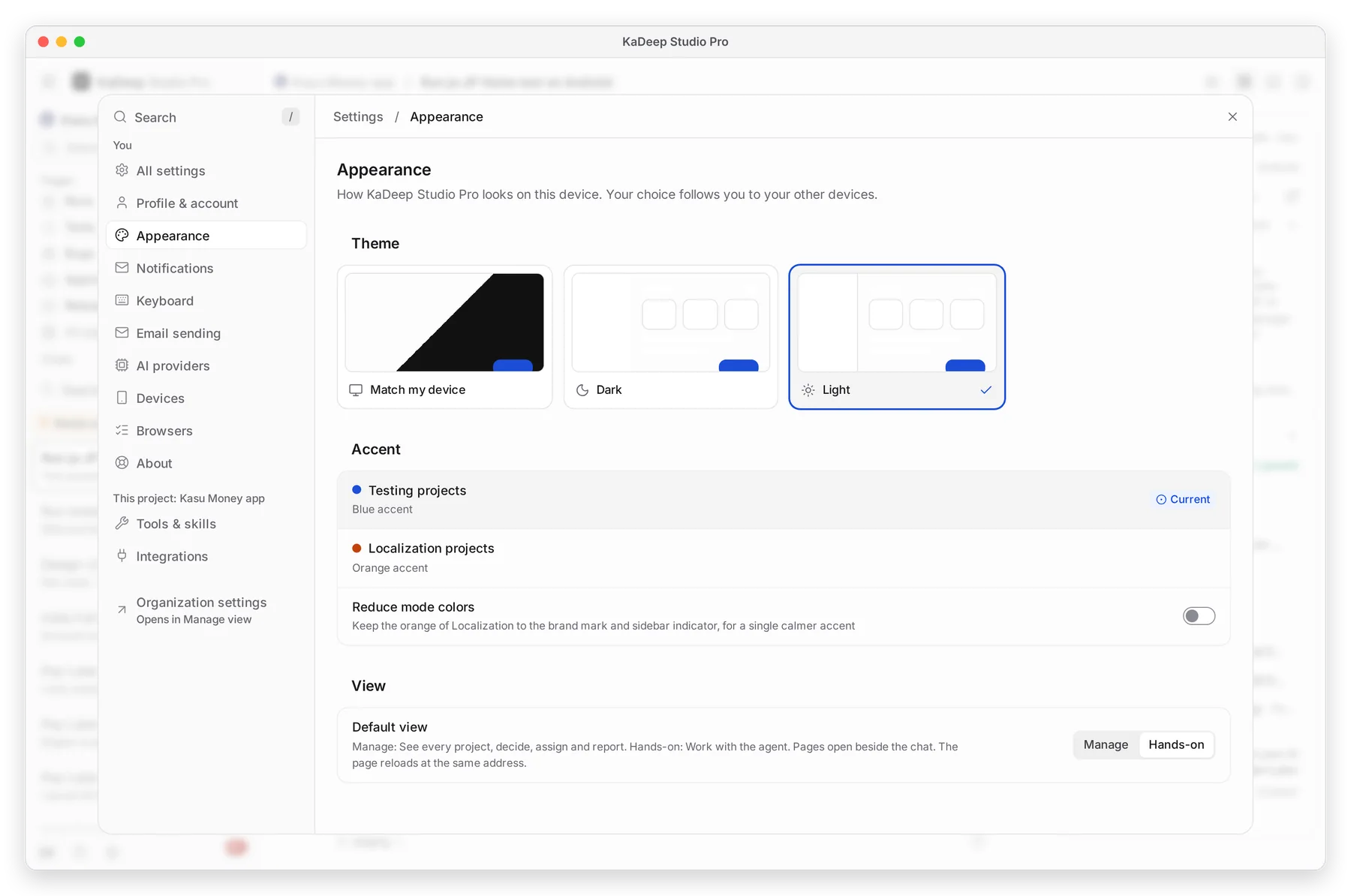
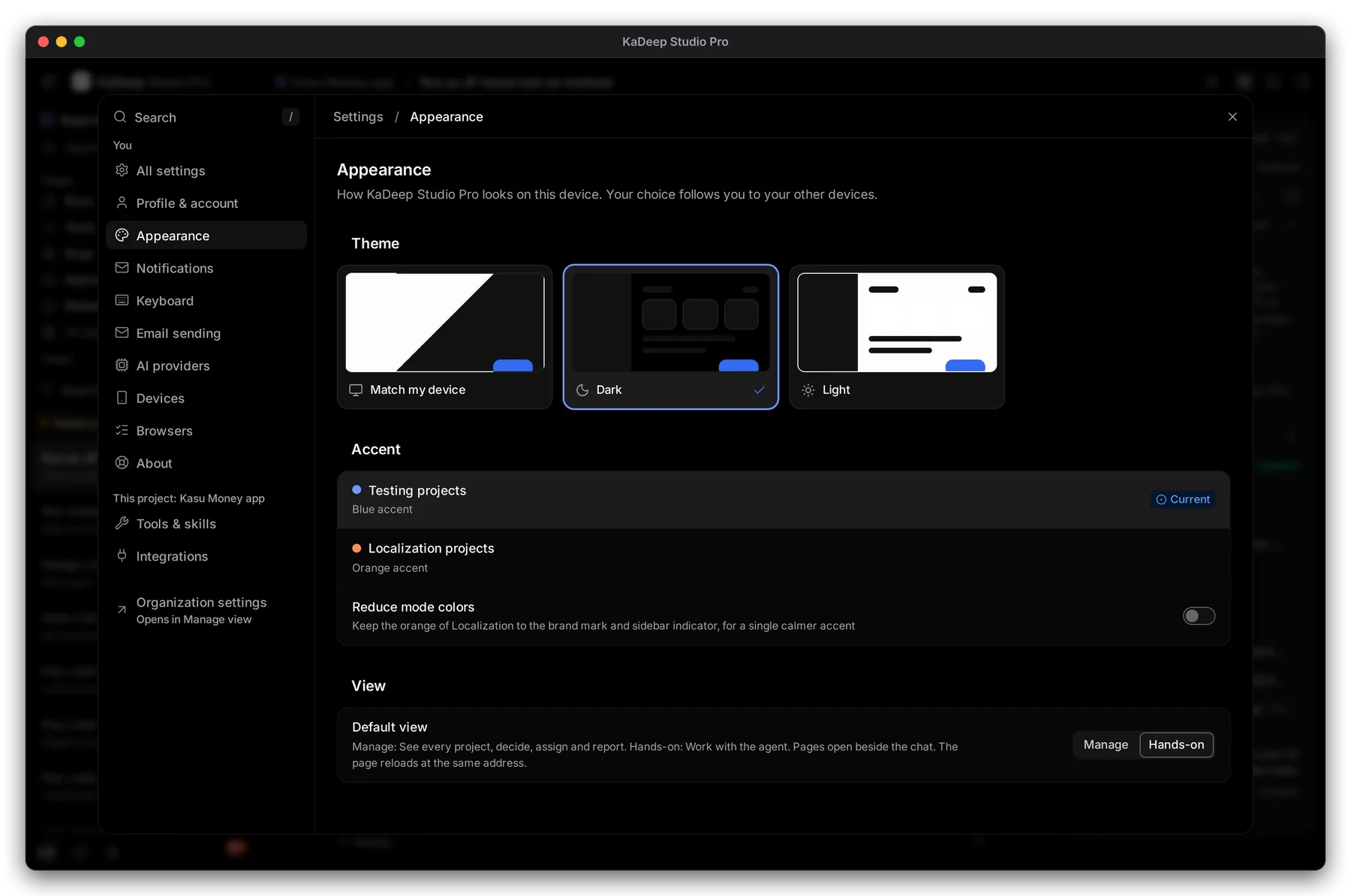
Hands-on view
- 1 Theme: Match my device, Dark or Light. Match my device follows Windows or macOS.
- 2 Accent: testing projects are blue and localization projects orange. Reduce mode colors keeps one calmer accent everywhere.
- 3 Default view: Manage or Hands-on. See Manage and Hands-on views.
Your choices follow you to your other devices.
3. Notifications
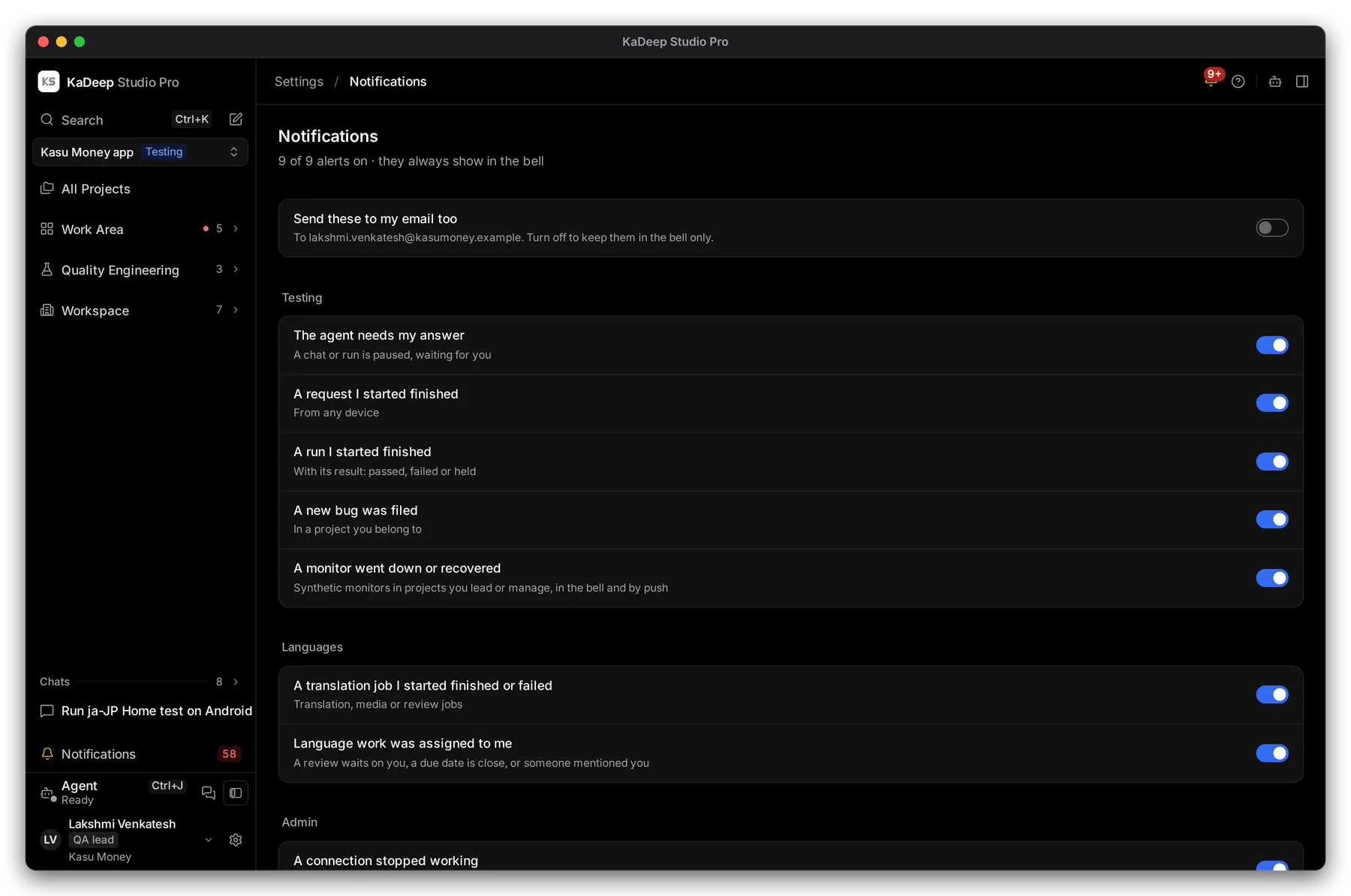
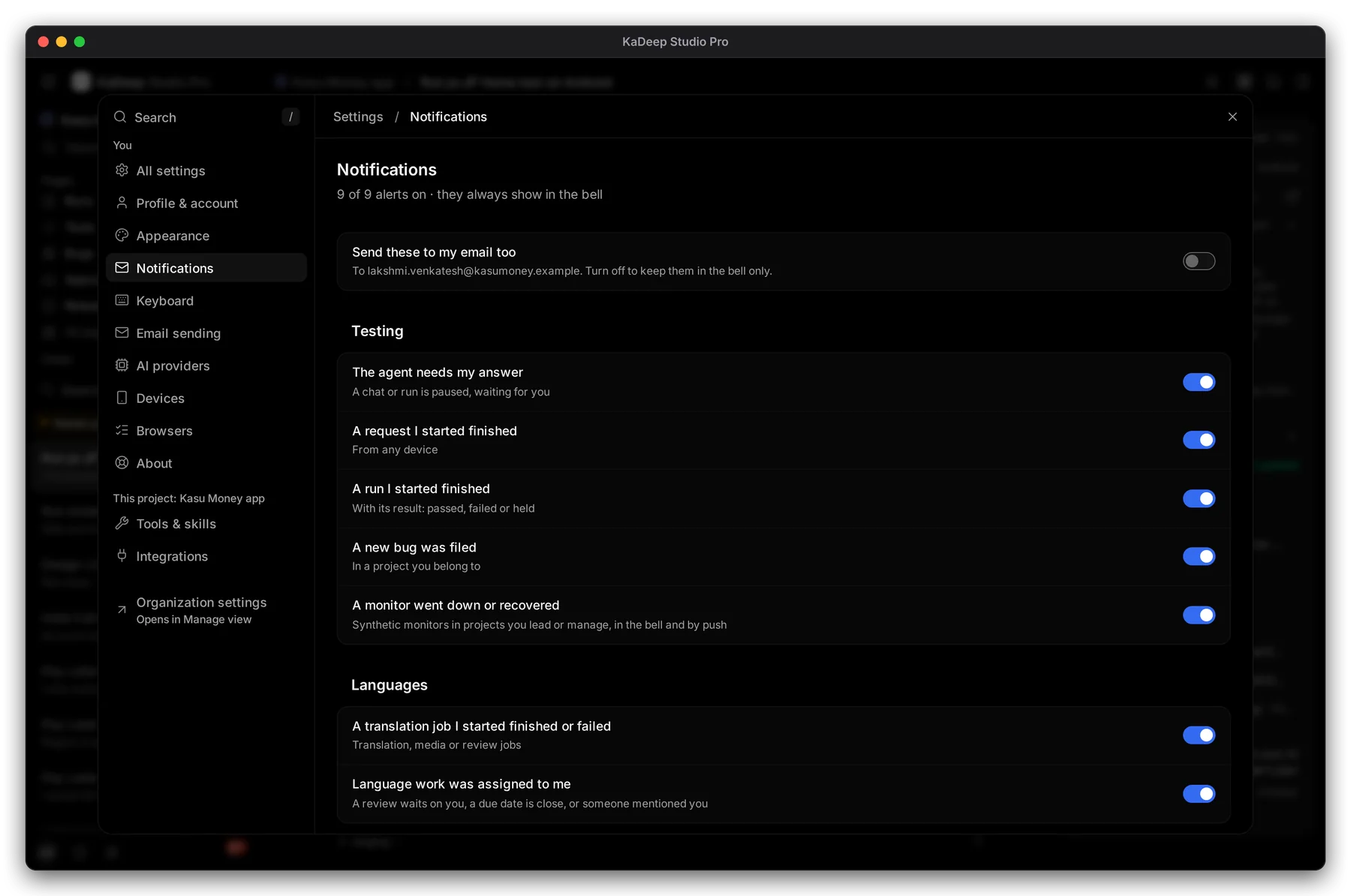
Section titled “3. Notifications”Choose Notifications.
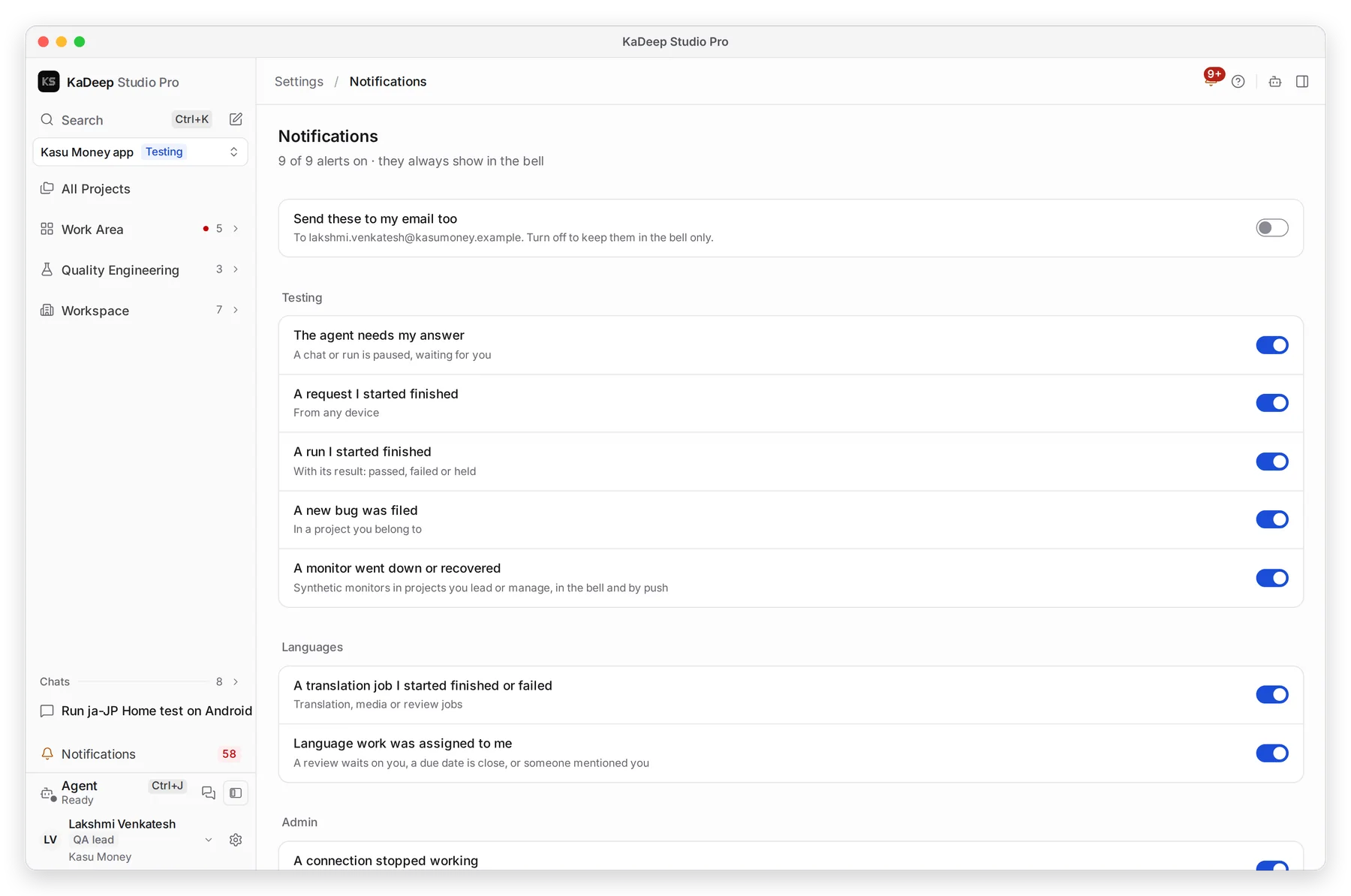
Manage view
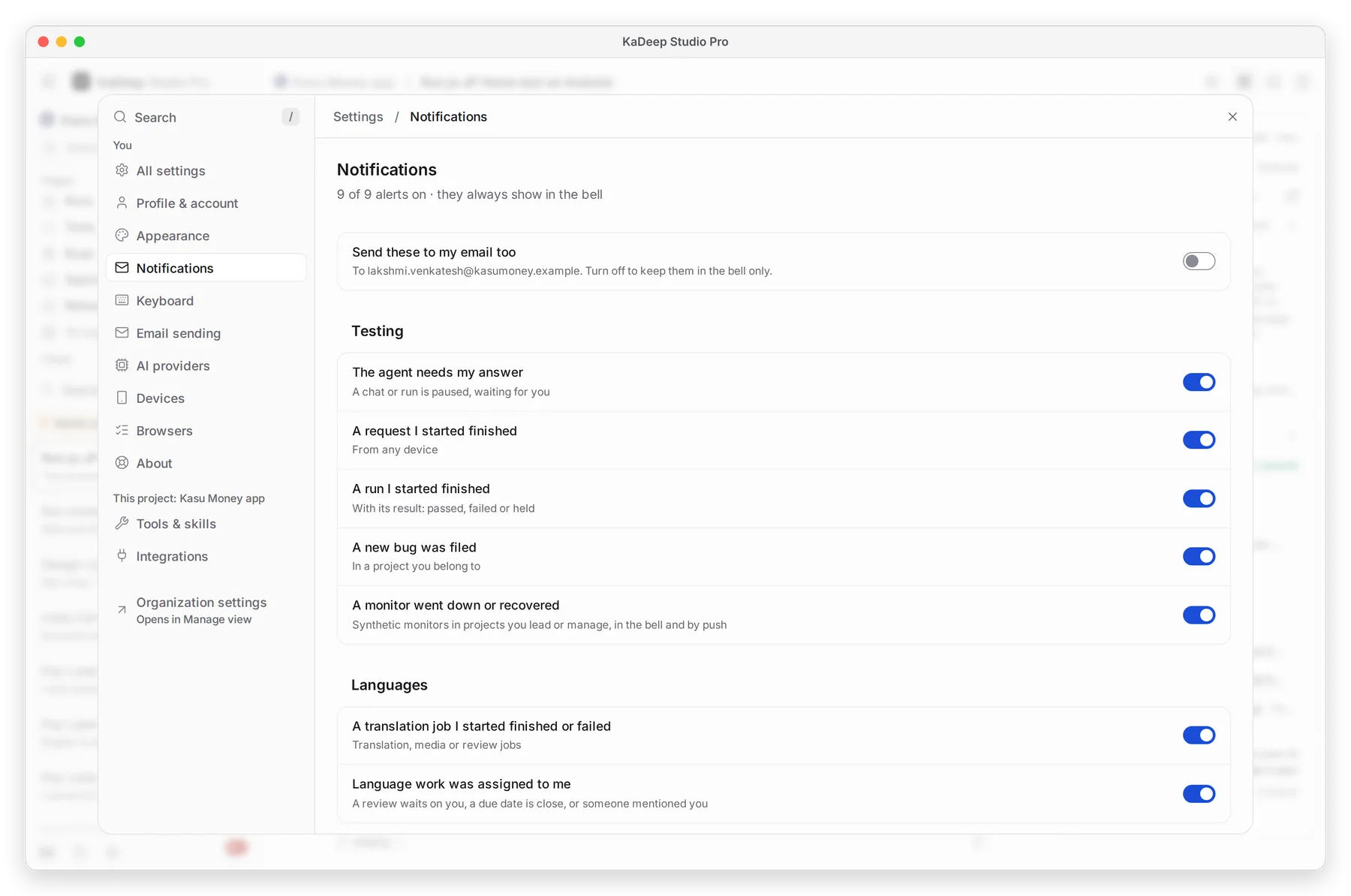
Hands-on view
- Turn each alert on or off. 2 Testing alerts include The agent needs my answer and A run I started finished. 3 Language alerts include Language work was assigned to me.
- Turn on 1 Send these to my email too to get each alert by email as well.
Alerts always appear in the bell, whatever you choose for email.
4. Profile & account
Section titled “4. Profile & account”Choose Profile & account.
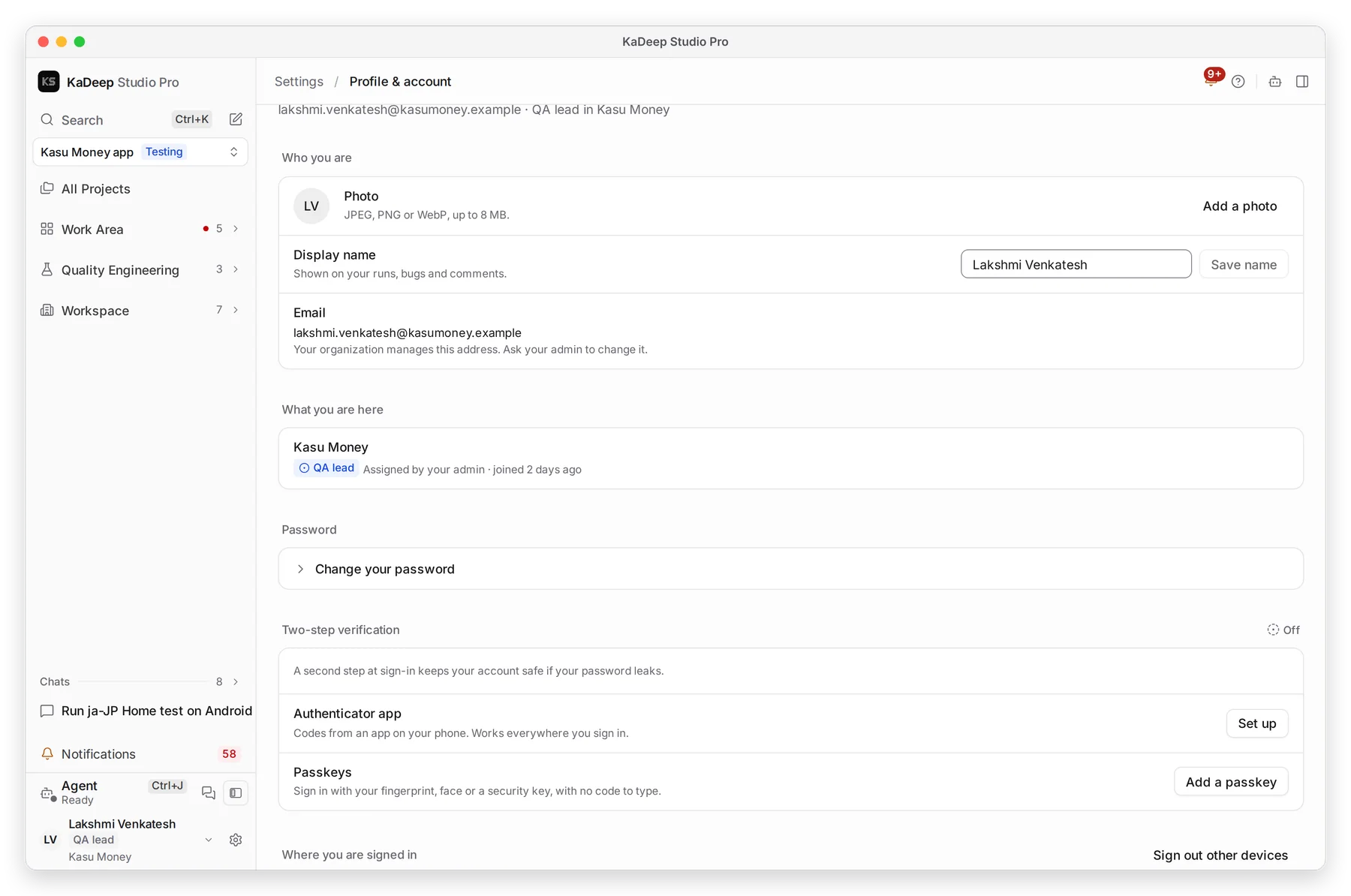
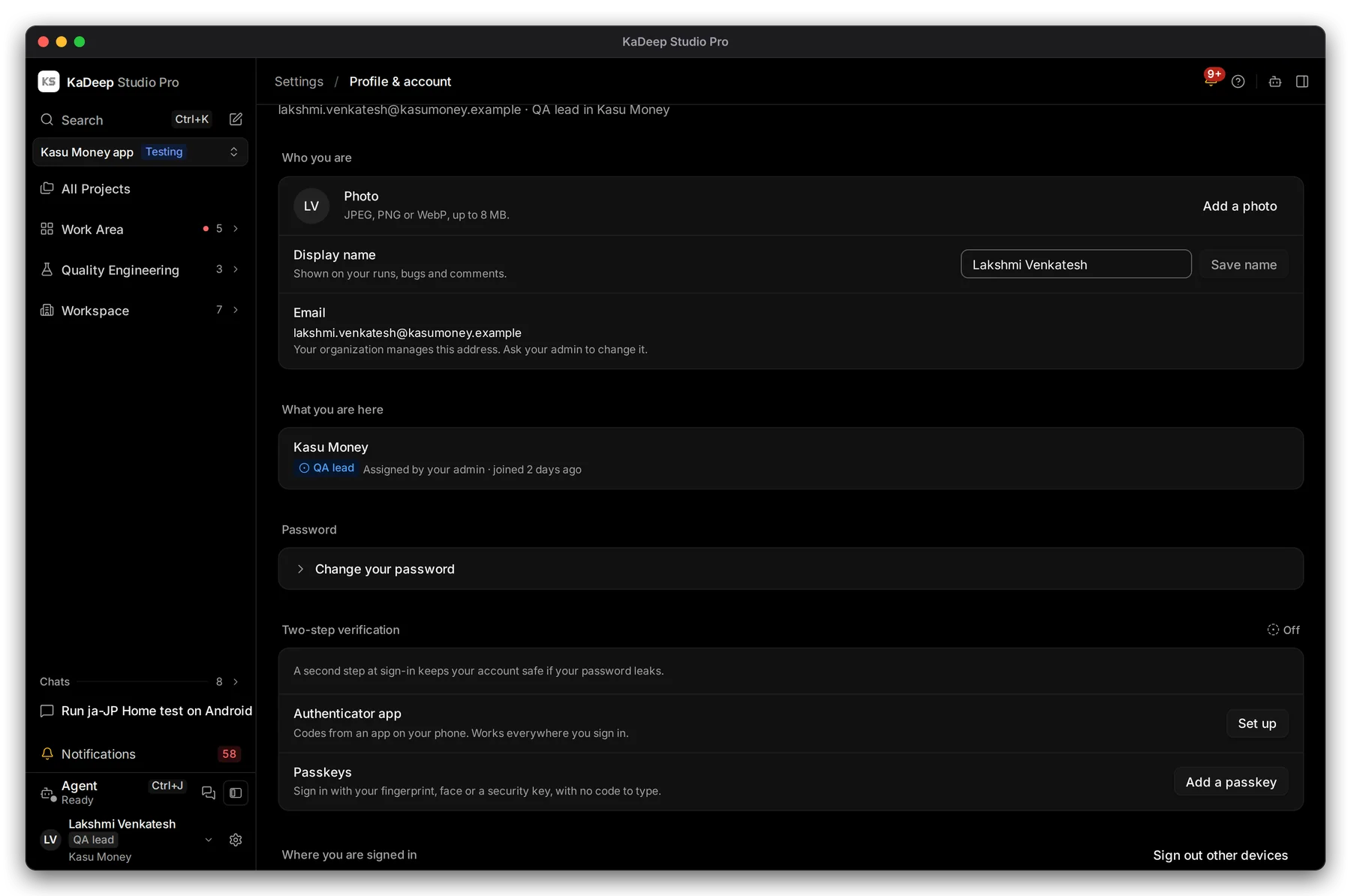
Manage view
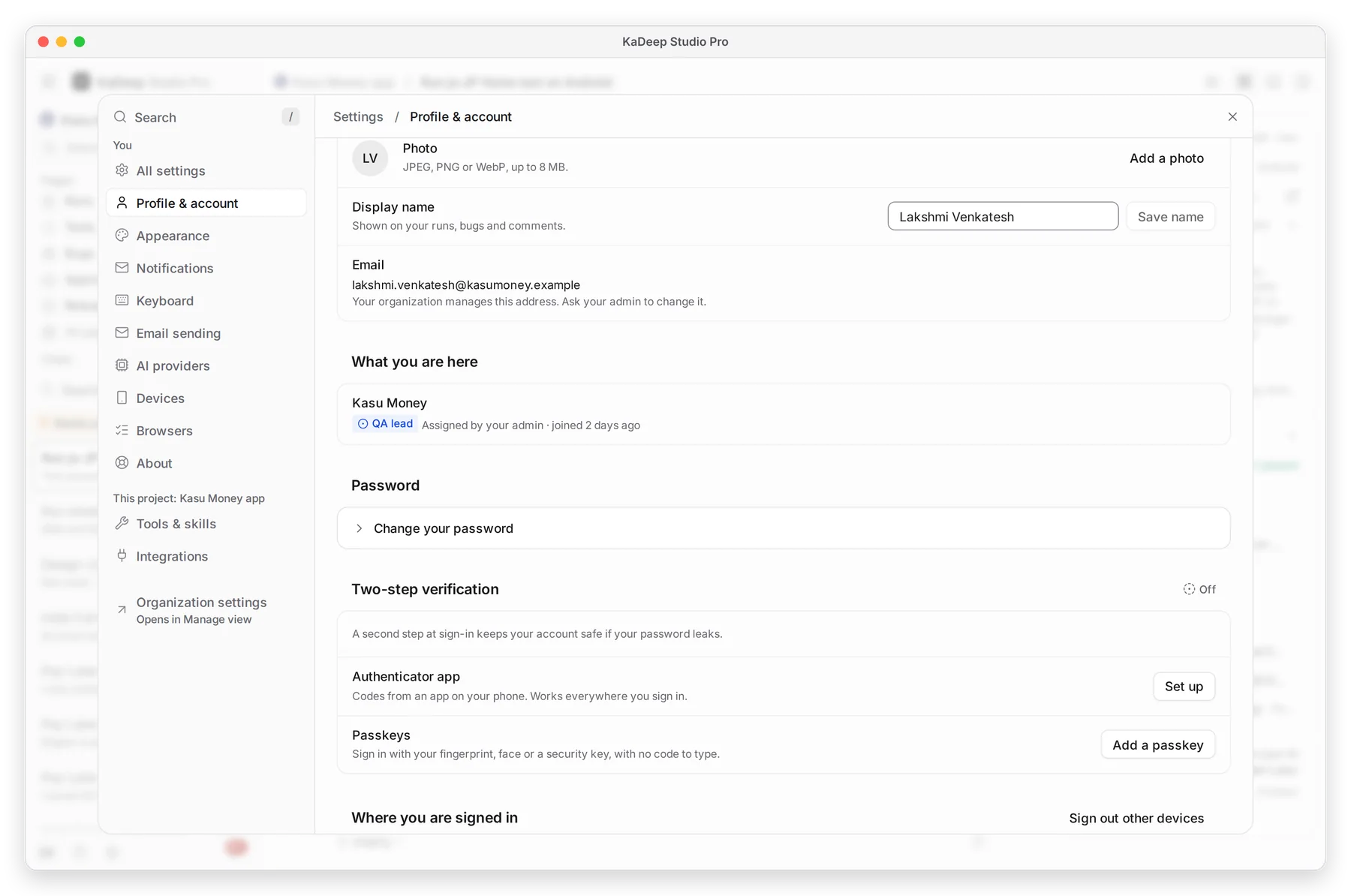
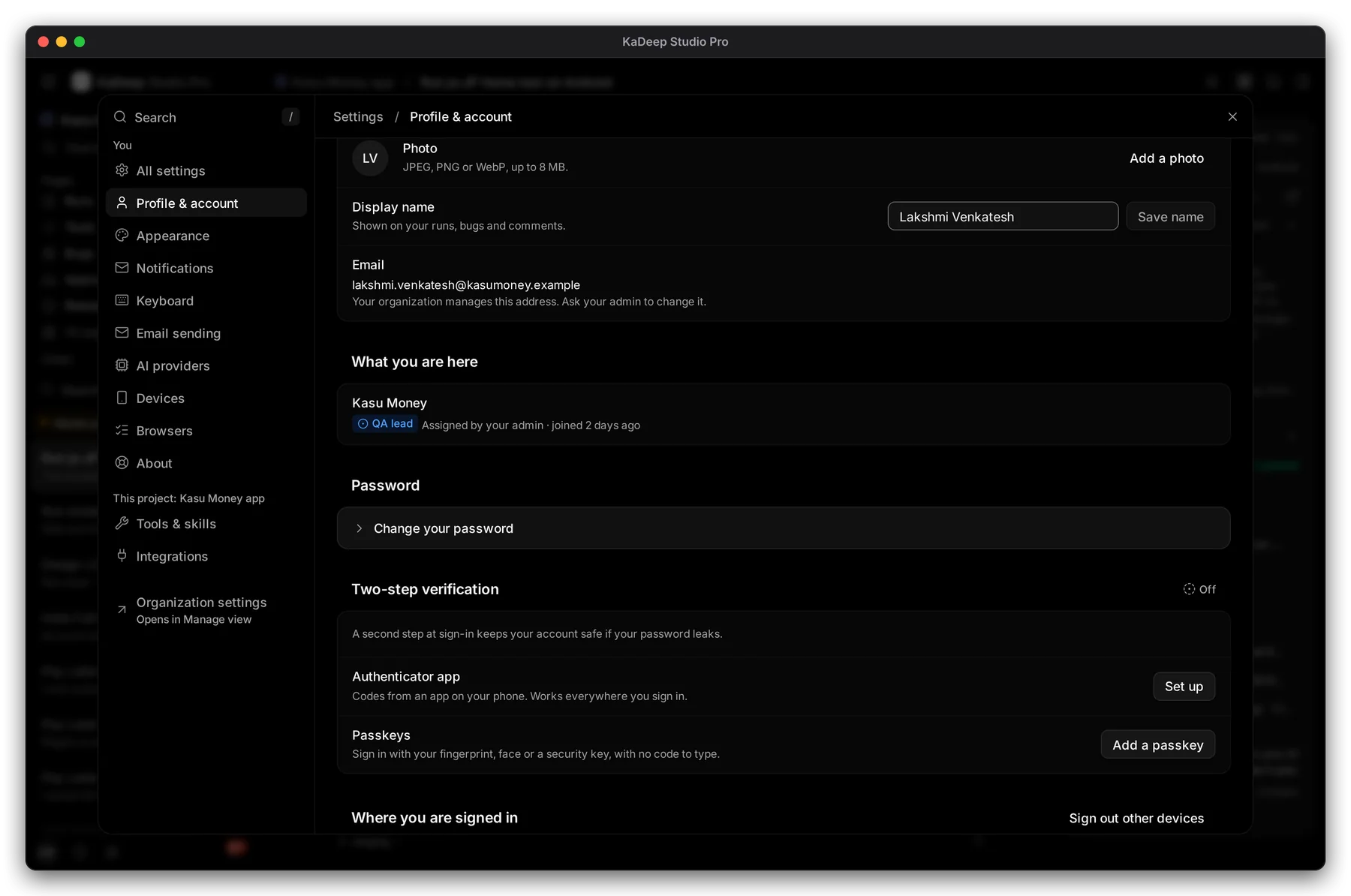
Hands-on view
- 1 Add a photo, and change your Display name: it appears on your runs, bugs and comments.
- 2 Your organization and role. Your admin changes the role.
- 3 Change your password.
- 4 5 Set up two-step verification with an authenticator app or a passkey.
What’s next
Section titled “What’s next”Sign in and join your organizationTwo-step sign-in and passkeys.
Search and keyboard shortcutsFind anything fast.
Install the desktop appOn another computer.