Finance at a glance
Your view
The Finance viewer role reads what the organization spends on agents: this month against the limit, by project, by person and by model. It never changes anything.
Before you start: your admin invites you with the Finance viewer role. You see a Read-only chip under your name.
1. Open Cost
Section titled “1. Open Cost”In the sidebar, open Workspace › Operations, then the Cost tab.
In the sidebar, under Pages, choose Cost.
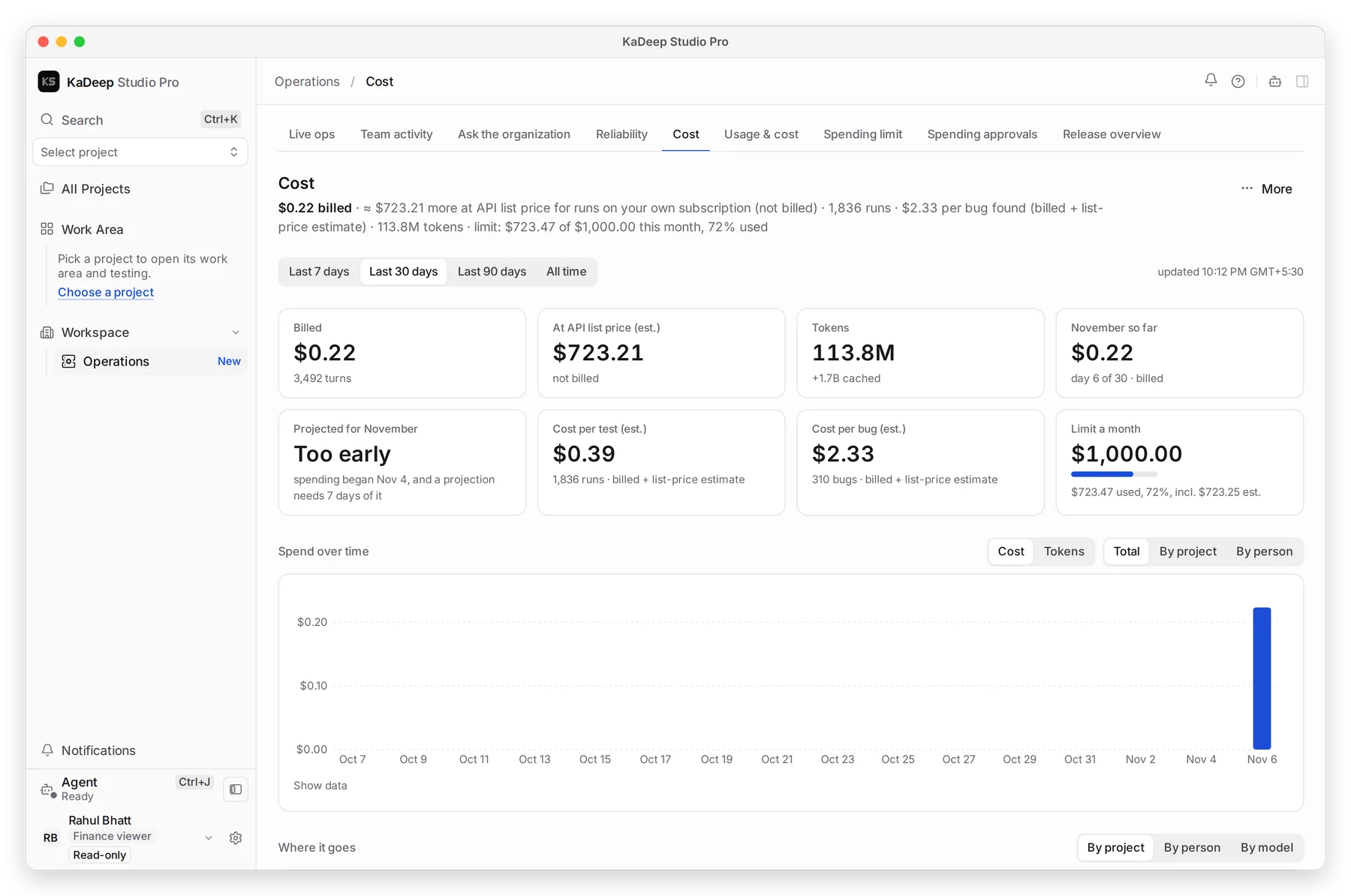
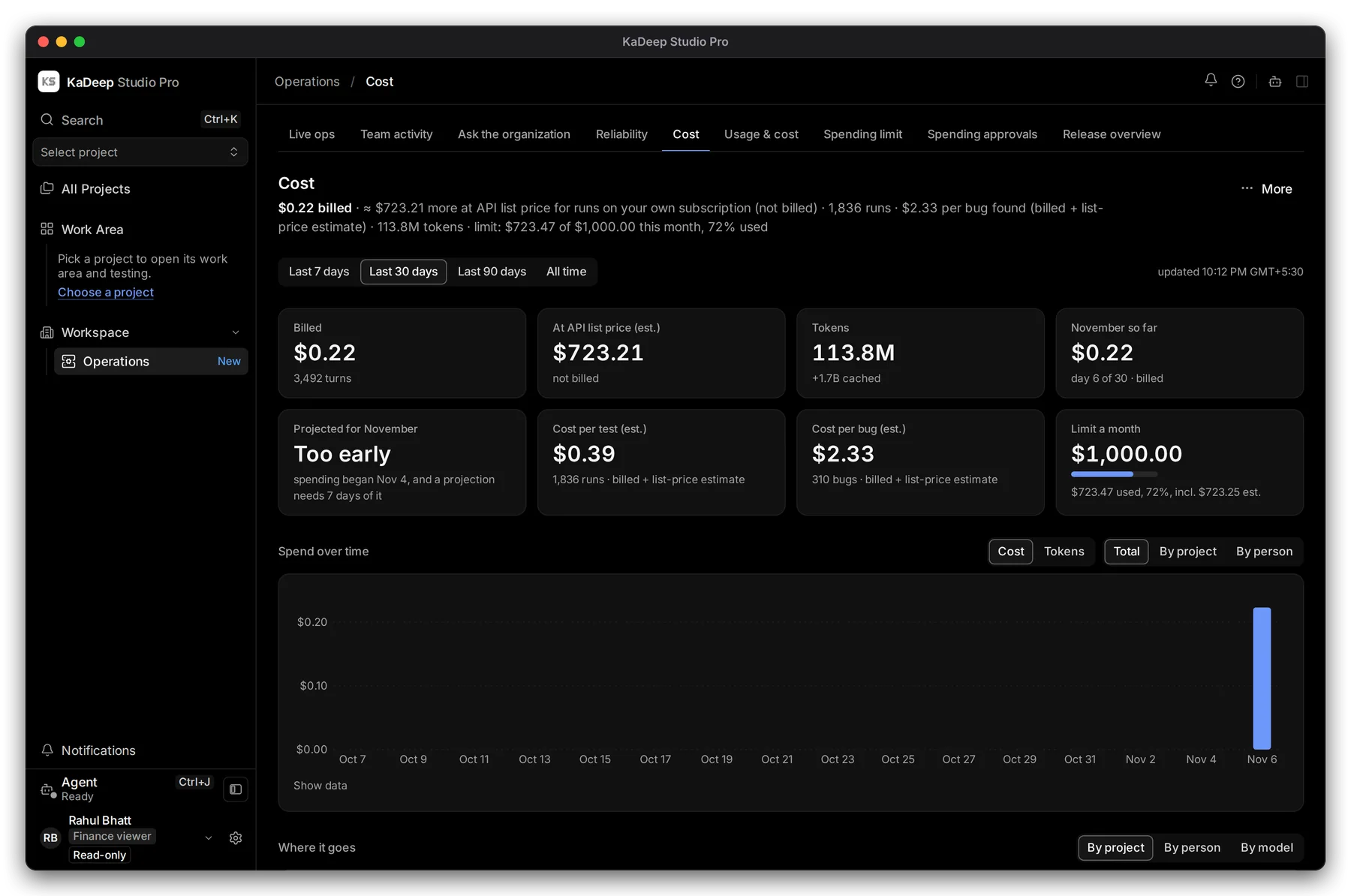
Manage view
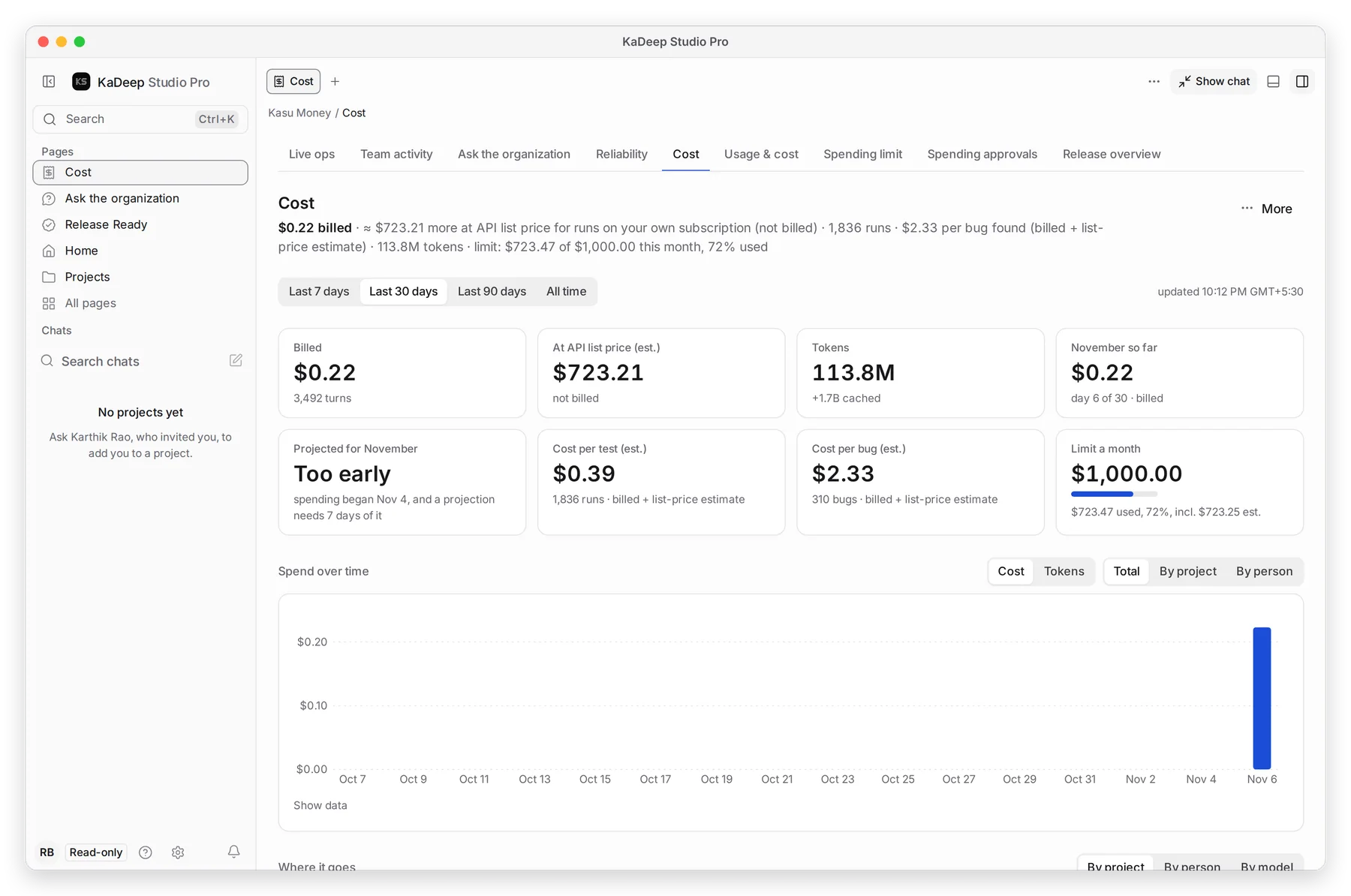
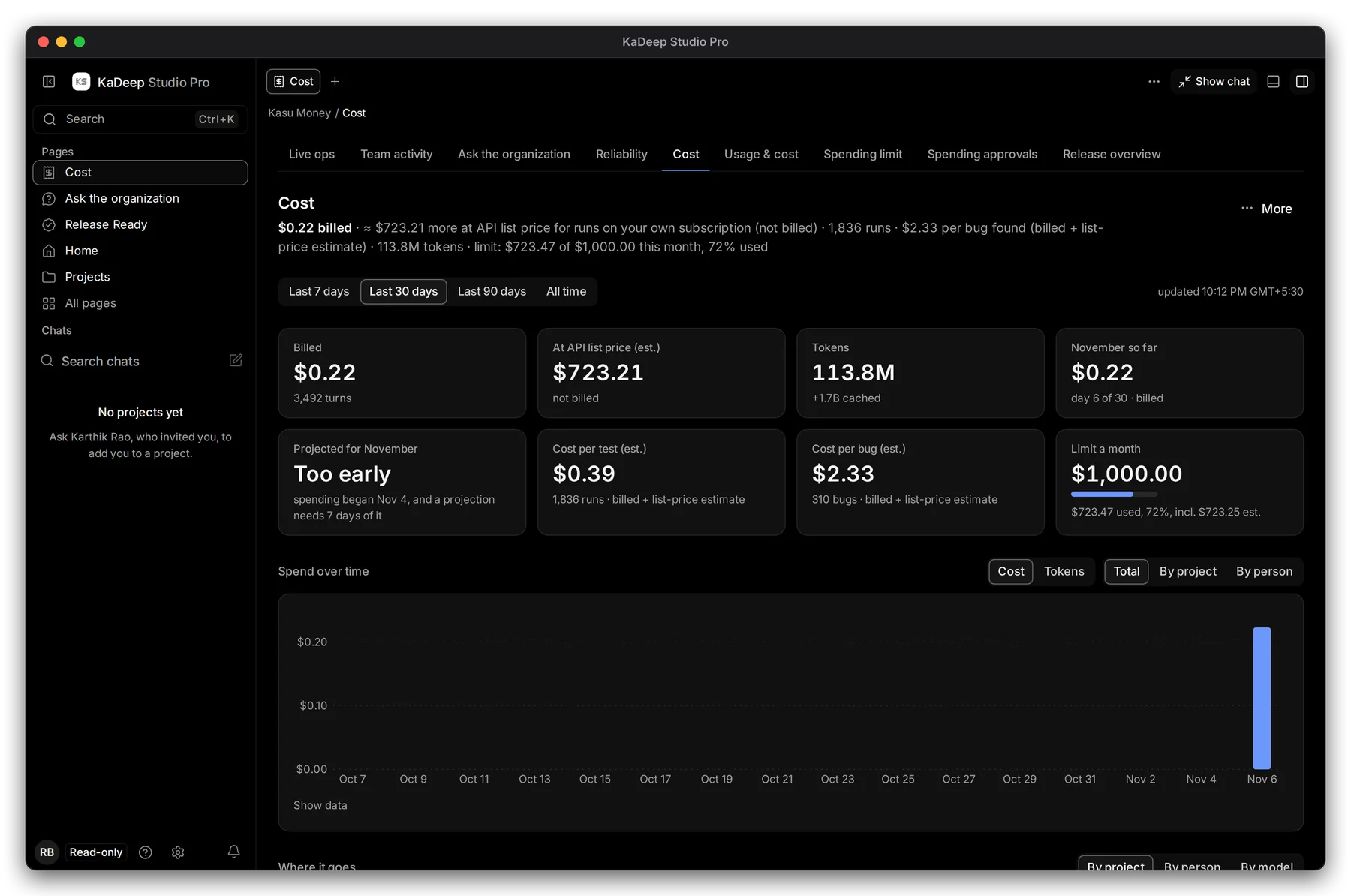
Hands-on view
- 1 Read-only: your role can read everything here and cannot change anything.
- 2 The Operations pages: Cost, Usage & cost, Spending limit, Spending approvals and Ask the organization. Your pages: Cost, Ask the organization and Release Ready. All pages has the rest.
- 3 Spend at a glance: what was billed, what runs on your own AI subscription would cost at list price, tokens, and the monthly limit.
2. What you can do
Section titled “2. What you can do”| You can | You can’t |
|---|---|
| Read cost, usage, the spending limit and who signs spending | Change the limit or who signs |
| Switch the period and group spend by project, person or model | Approve or reject a spending request |
| Ask the organization questions about spend and releases | Start runs, translate or change a project |
| Download the spend as CSV from Cost › More | Invite people or change roles |
3. Your daily check
Section titled “3. Your daily check”- Open Cost. Read November so far and Limit a month.
- If the bar is past 80%, open Usage & cost to see who and which project.
- Ask the organization a question if something is unclear.
What’s next
Section titled “What’s next”CostEvery tile and table on the Cost page.
Usage over timeSpend per day by project, person and model.
Spending limitsThe monthly limit and who signs spending.
Ask the organizationAsk about spend in plain words.