Test logins
Your view
Most apps need a sign-in before anything can be tested. Store each test account once, give it a role, and every run can use it. Passwords are encrypted and never sent to the AI model.
1. Open Test logins
Section titled “1. Open Test logins”In the sidebar, open Work Area › Setup & Control, then the Test logins tab.
Choose All pages, then Setup & Control, then the Test logins tab.
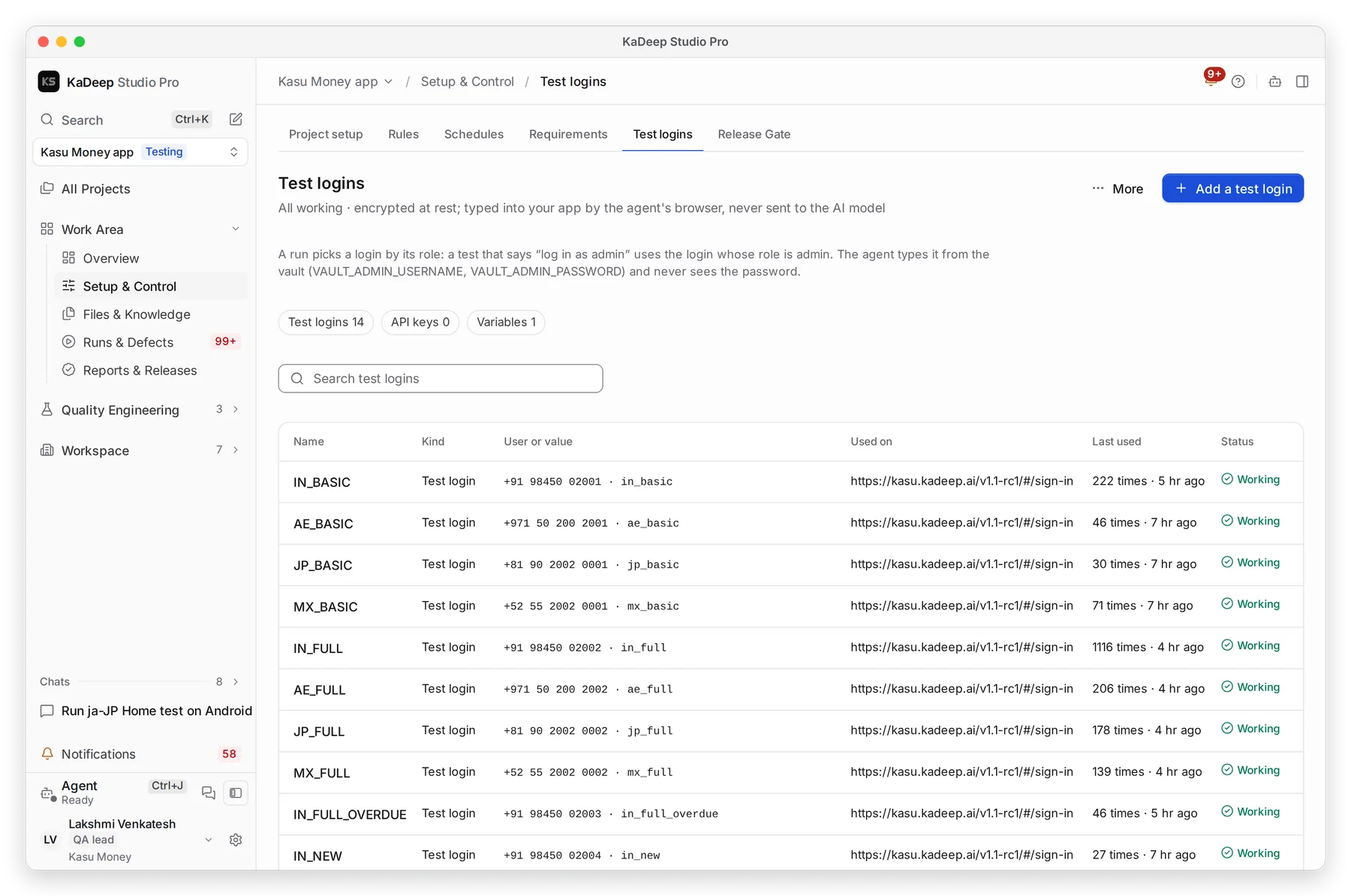
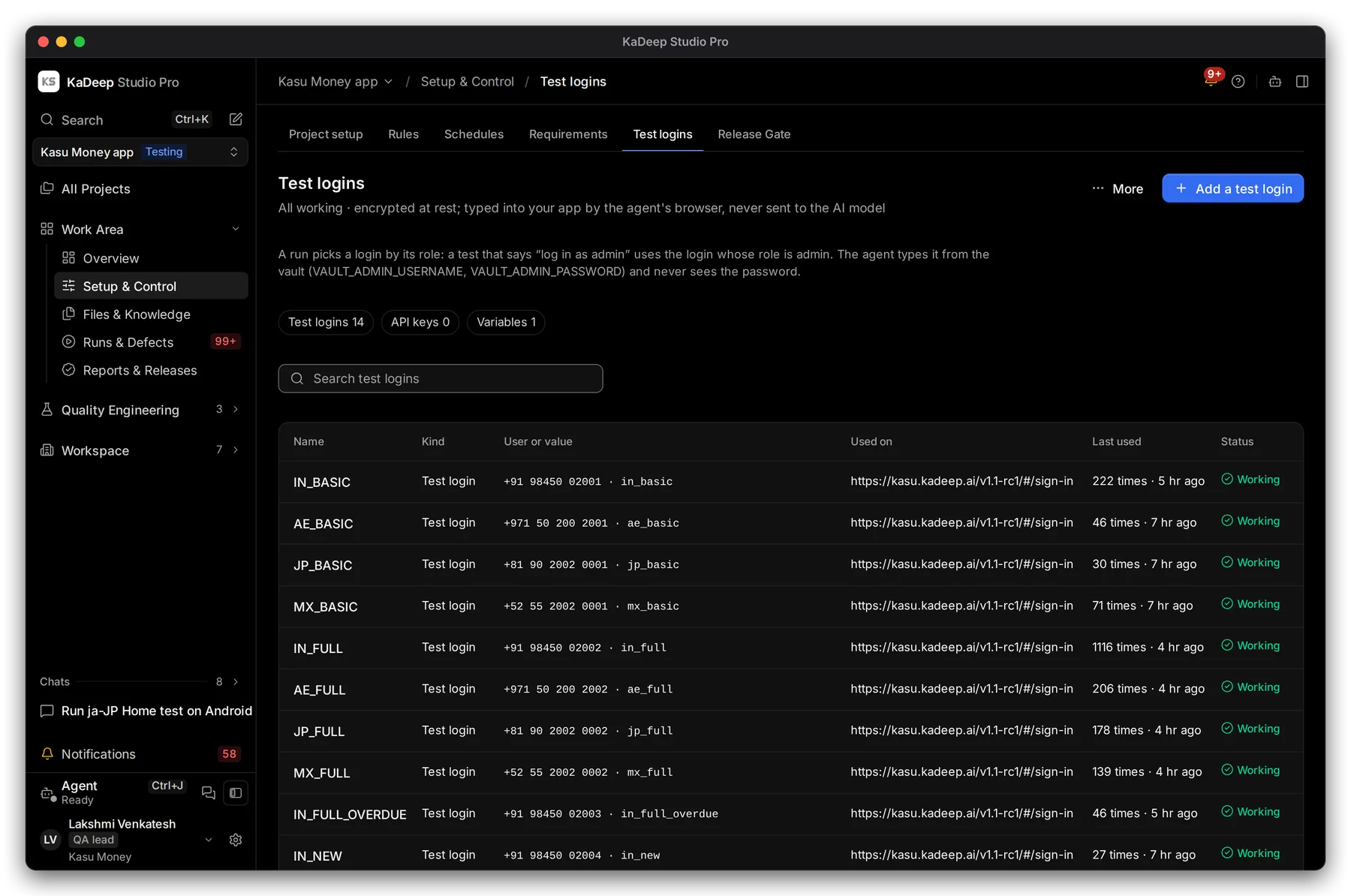
Manage view
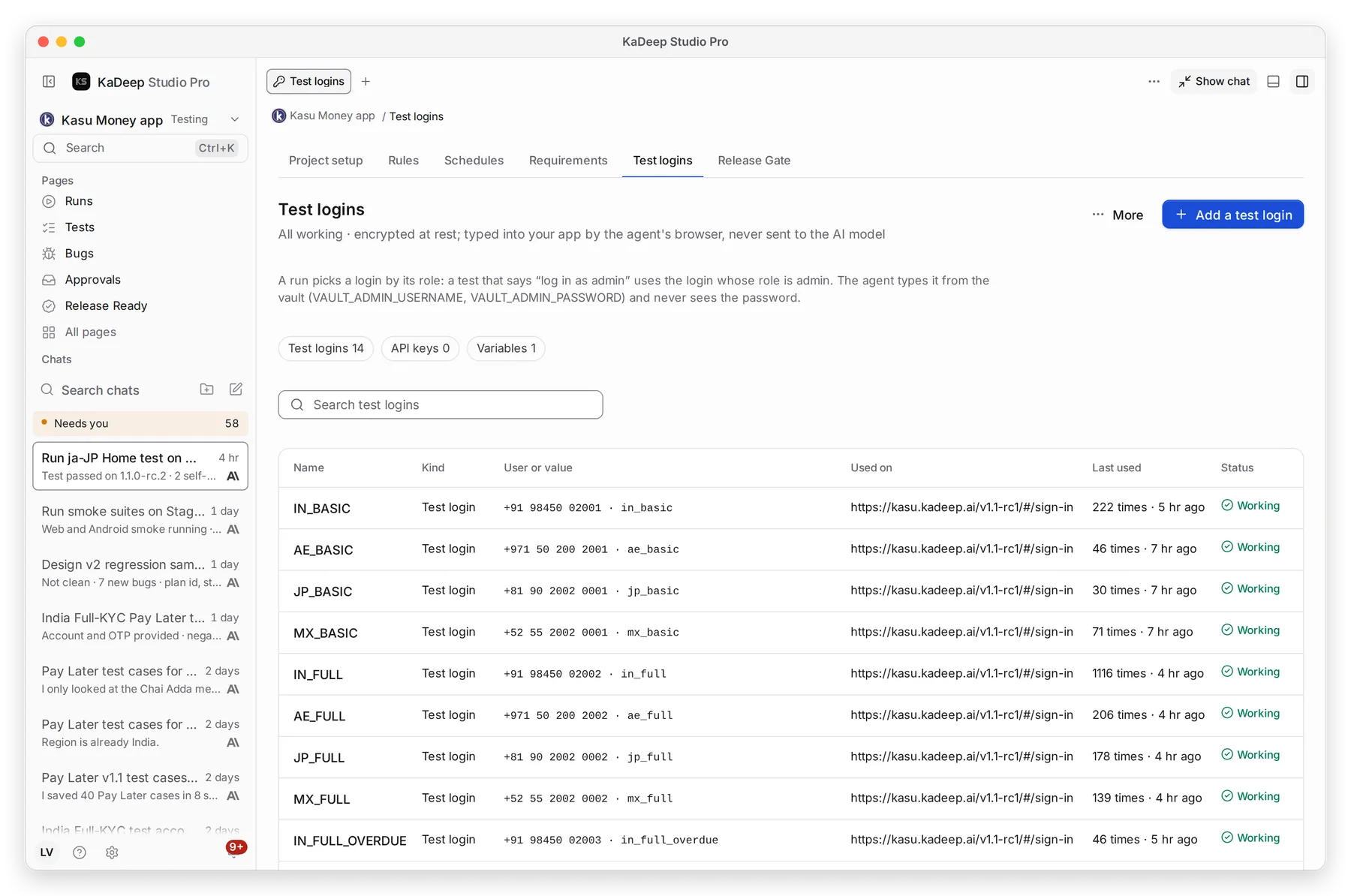
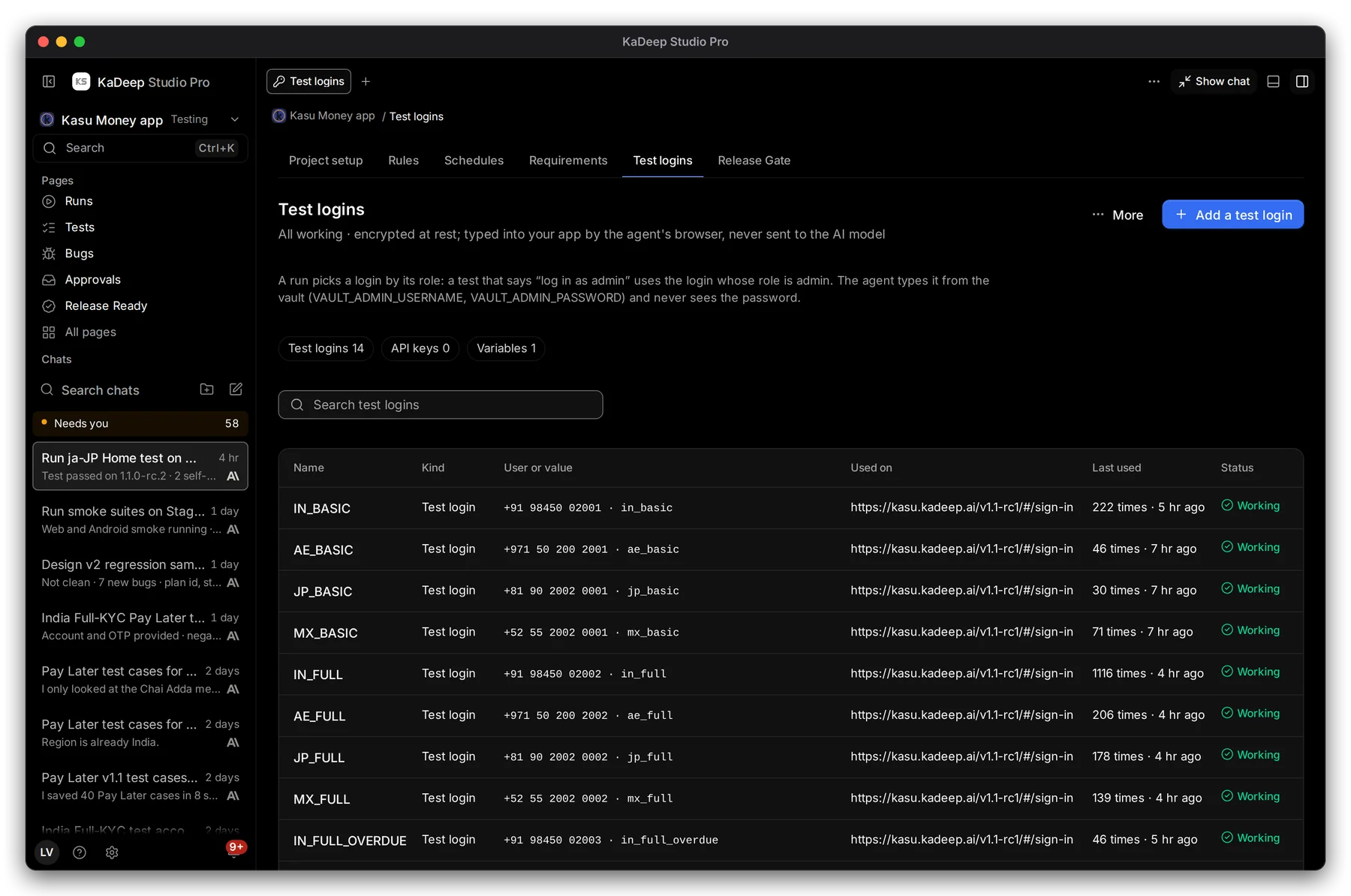
Hands-on view
- 1 Add a test login.
- 2 How a run picks a login: by its role. A test that says “log in as admin” uses the login whose role is admin.
- 3 Test logins, API keys and Variables, each with how many you have.
- 4 Each login shows its user name, where it is used, how often and when it was last used, and its status. Working means the last sign-in worked. If a run could not sign in, the status says so: fix the password or the role, then run the test again.
2. Add a login
Section titled “2. Add a login”- Choose Add a test login.
- Fill in the form. The fields are below.
- Save it. The login is encrypted, and nobody sees the password again.
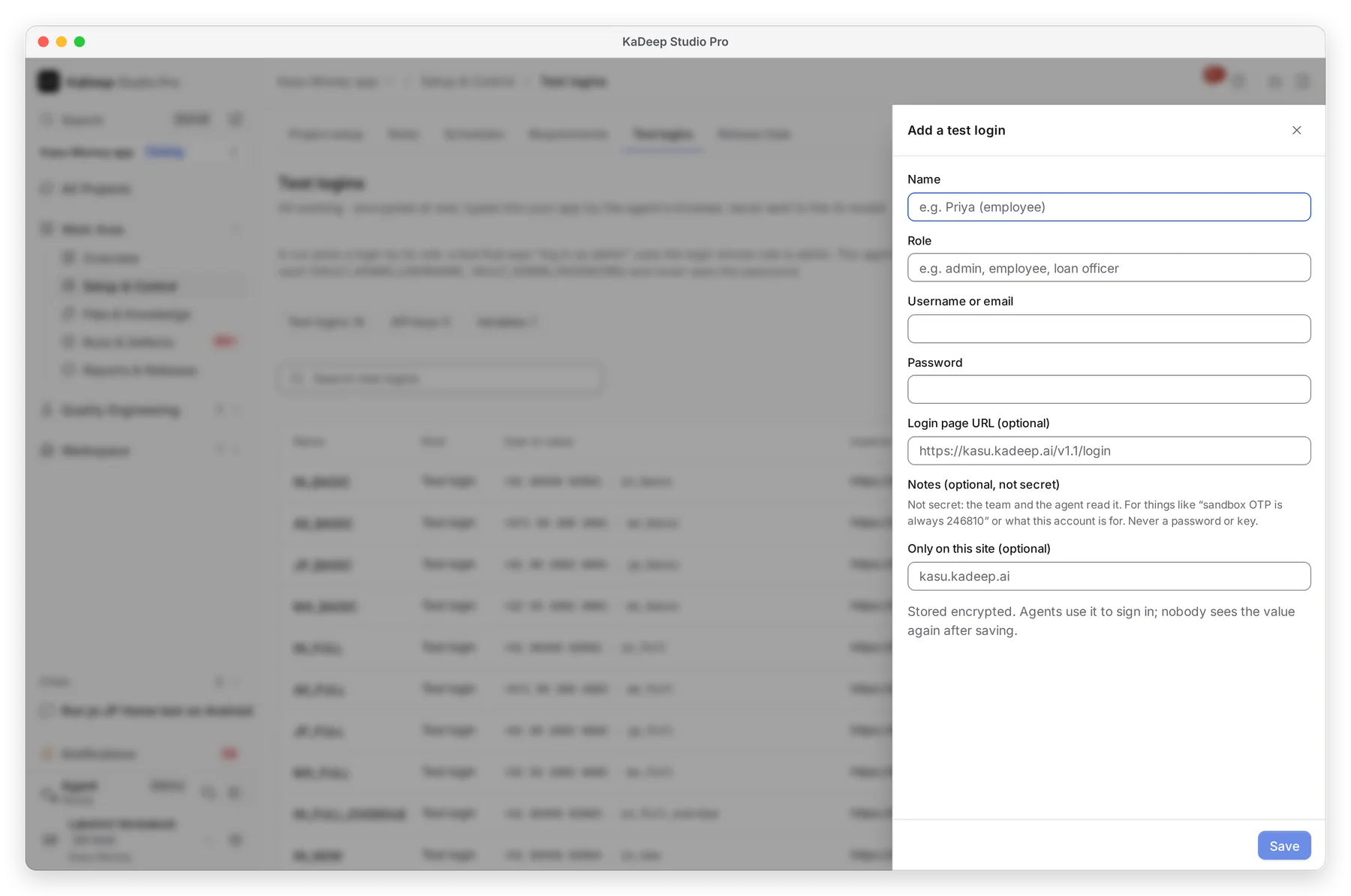
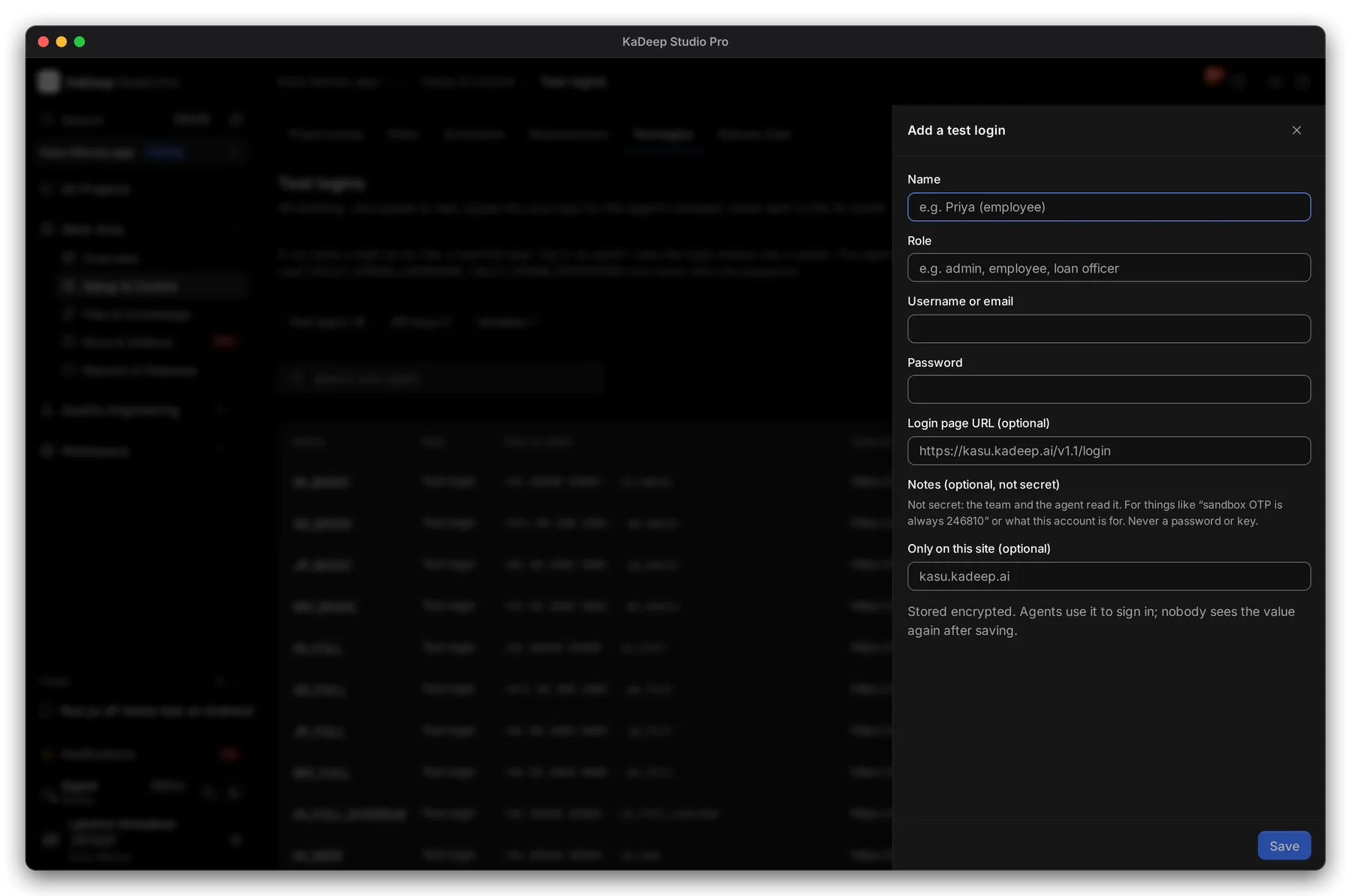
Manage view
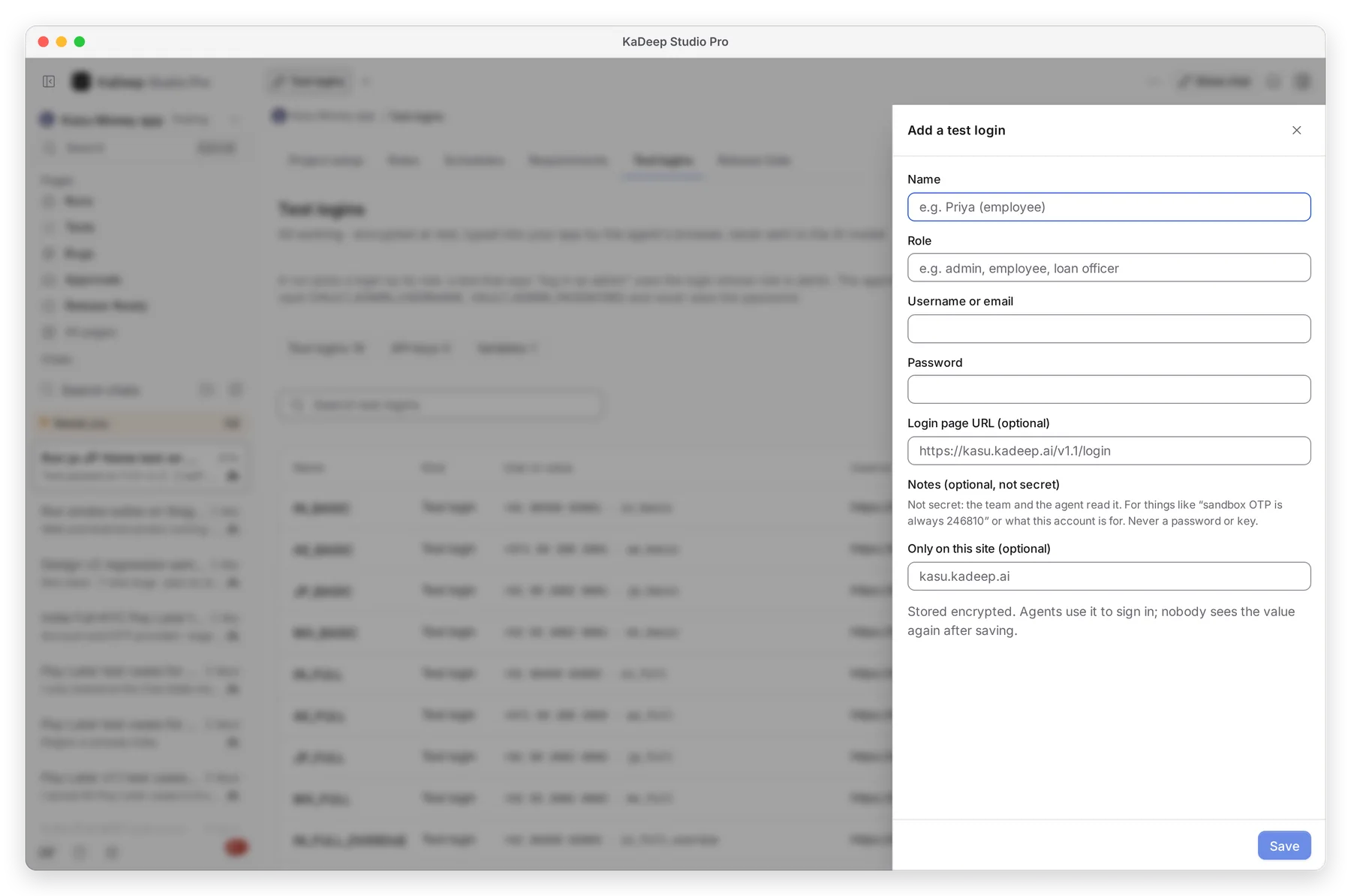
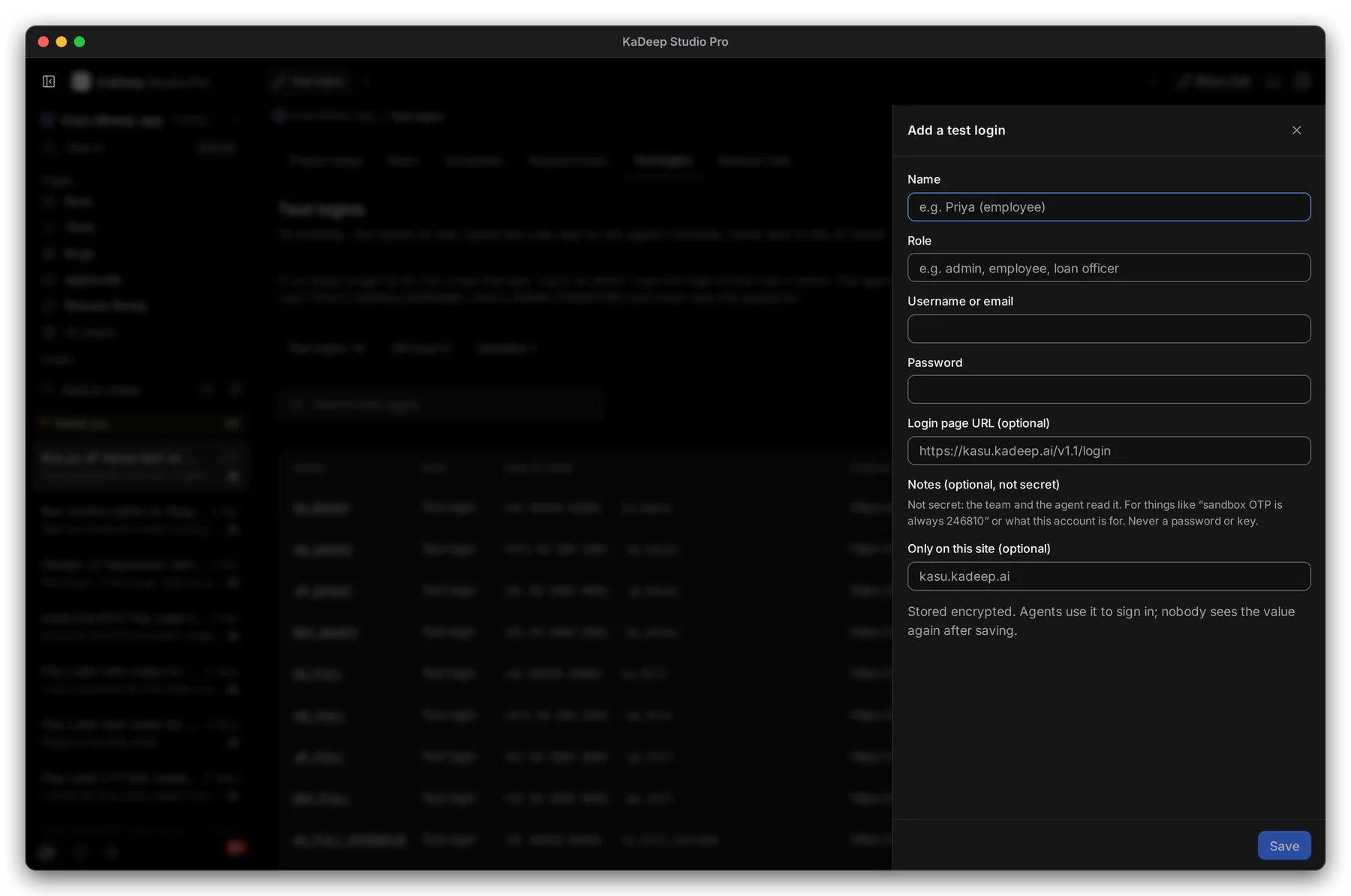
Hands-on view
| Field | What to type |
|---|---|
| Name | A short name, such as IN_FULL or Store admin. |
| Role | The role a test asks for, such as admin, employee or loan officer. |
| Username or email and Password | The account’s sign-in. |
| Login page URL (optional) | Where the sign-in form is, if it is not the app’s first page. |
| Notes (optional, not secret) | What the agent should know, such as a fixed one-time code on a test system. |
| Only on this site (optional) | Keep the login to one address. |
What’s next
Section titled “What’s next”TestsWrite the tests that use these logins.
Project setup and rulesEnvironments, recording and the agent's rules.
Run a test suite and read the resultsRun the tests, read the evidence.