Test on phones
The agent can test your mobile app the way a person would: it installs your build, taps through each step, and keeps a screenshot of every screen.
Before you start: for Android, nothing to install: a cloud phone is ready. For iOS, or for your own emulators and phones, pair a computer first.
1. Choose where phone tests run
Section titled “1. Choose where phone tests run”In the sidebar, open Workspace › Environments, then choose the Phone tab.Press Ctrl K (Windows) or ⌘ K (Mac), type Phone, and press Enter. Then choose Run on.
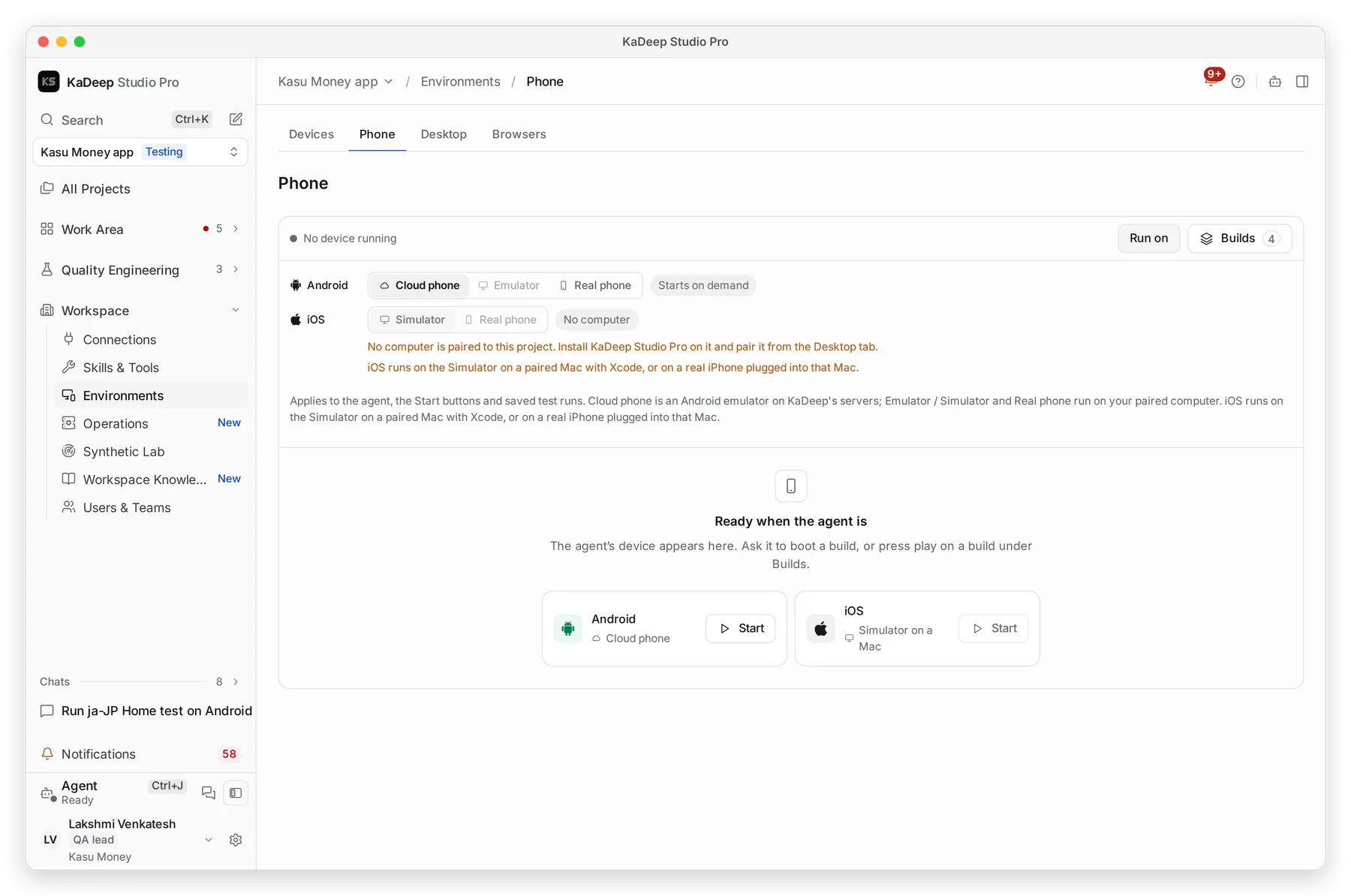
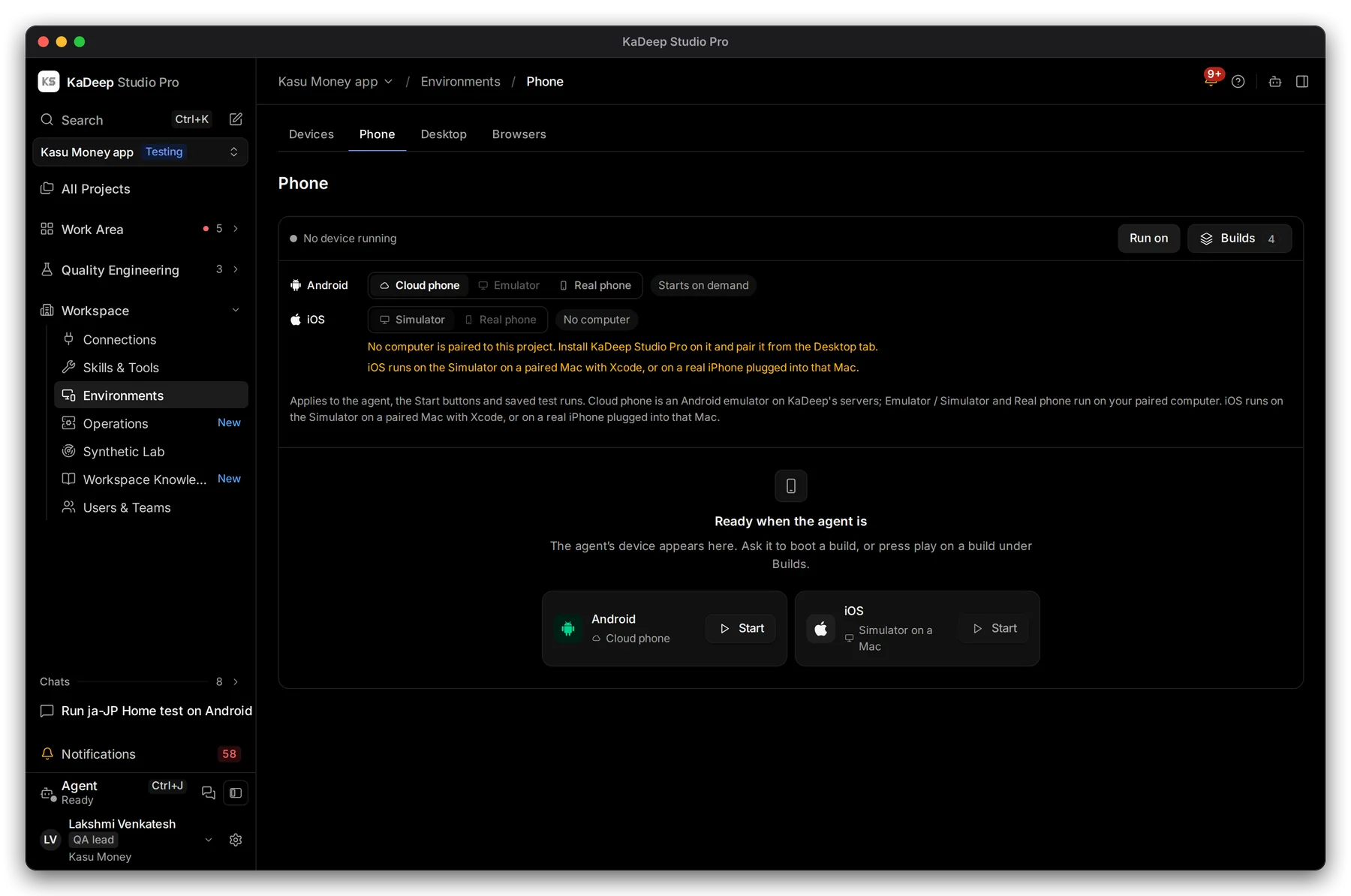
Manage view
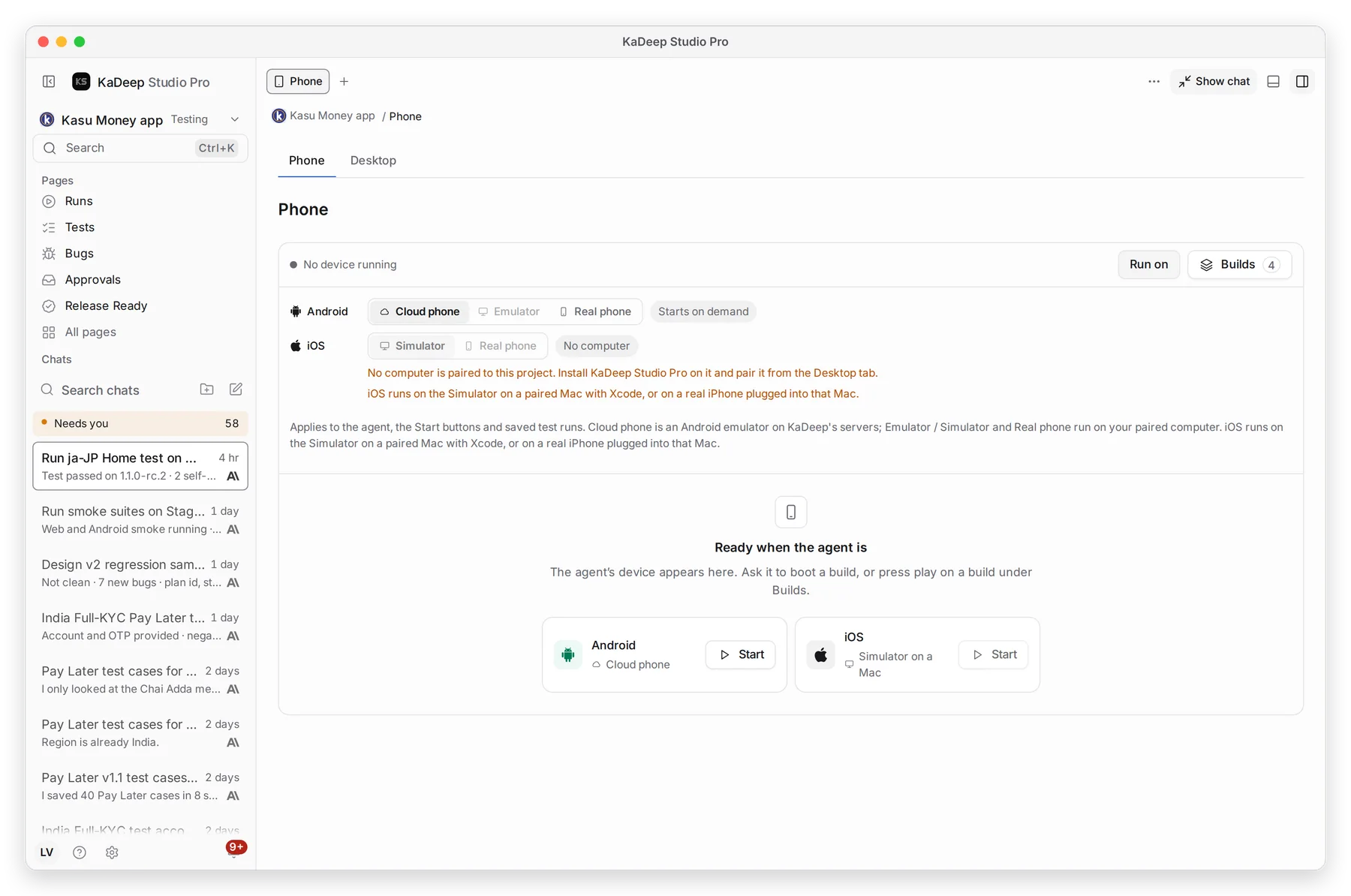
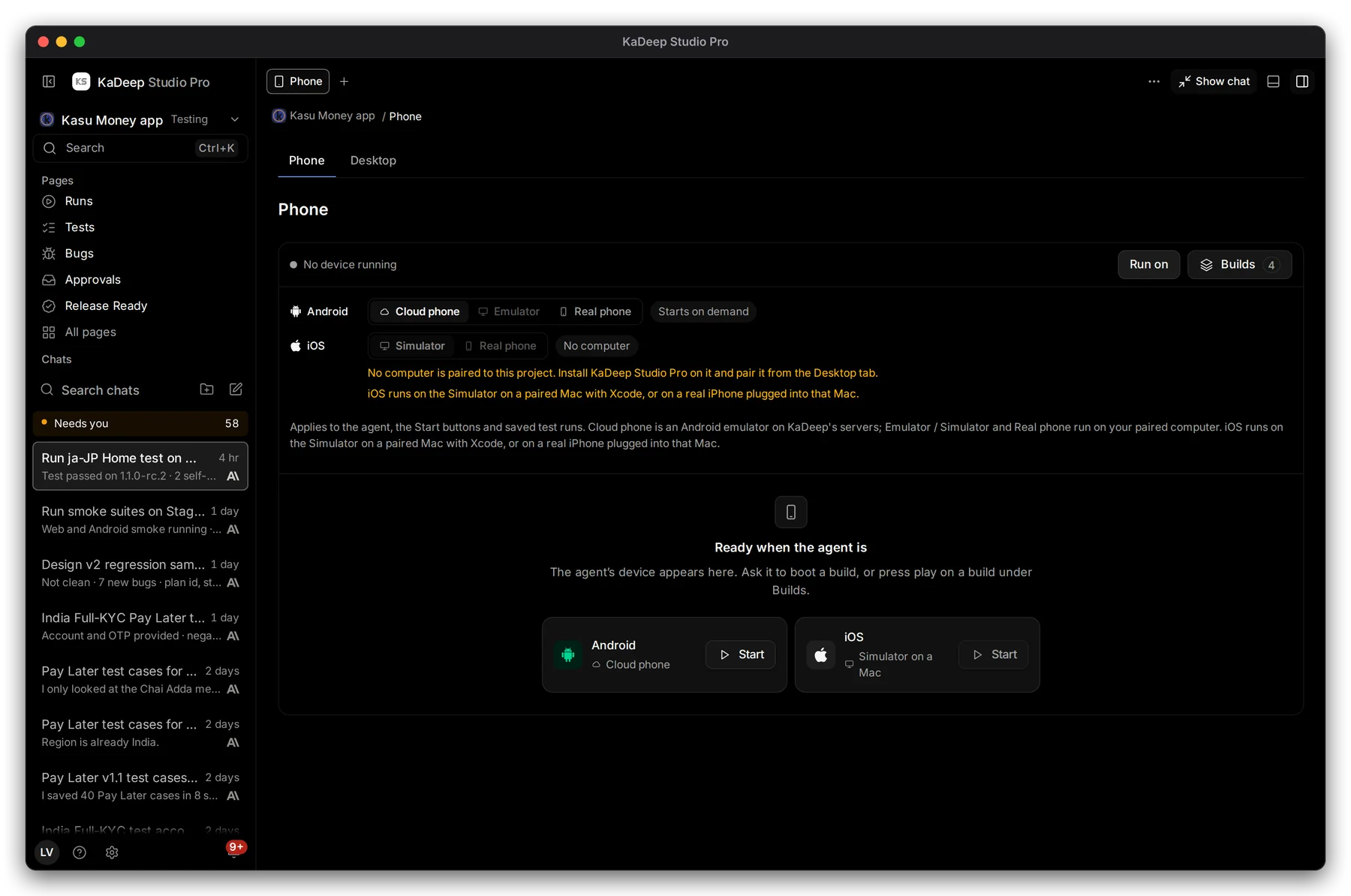
Hands-on view
- 1 Run on applies to the agent, the Start buttons and saved test runs.
- 2 Android: Cloud phone (KaDeep’s, nothing to install), Emulator or Real phone on your paired computer.
- 3 iOS: Simulator on a paired Mac with Xcode, or a Real phone: an iPhone plugged into that Mac.
| Option | Good for |
|---|---|
| Cloud phone | Most Android testing. It starts on demand. |
| Emulator / Simulator | Builds that only reach your network, or a device image you choose. |
| Real phone | Camera, biometrics, push and anything an emulator can’t do. |
2. Add your app build
Section titled “2. Add your app build”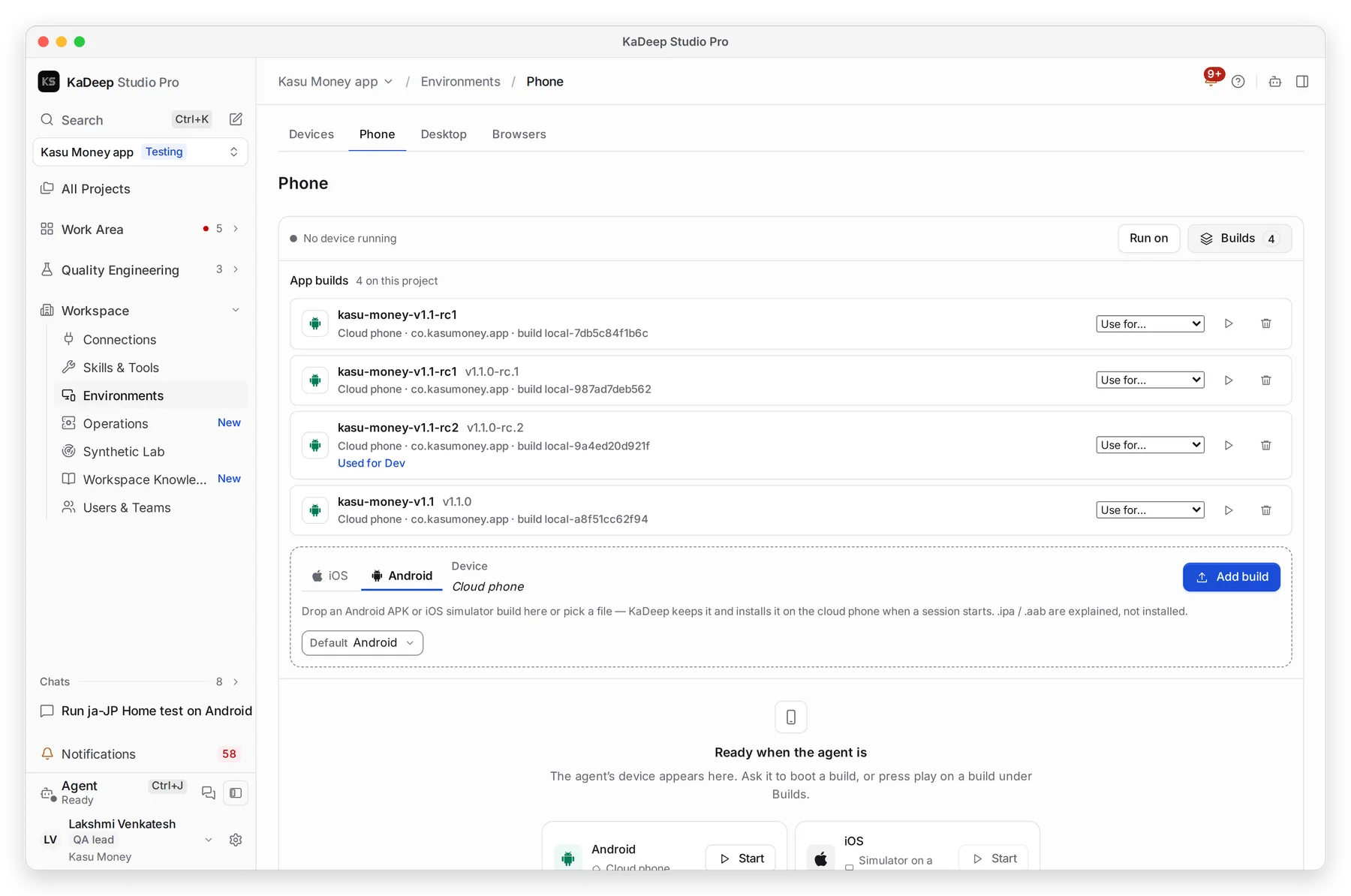
Manage view
Hands-on view
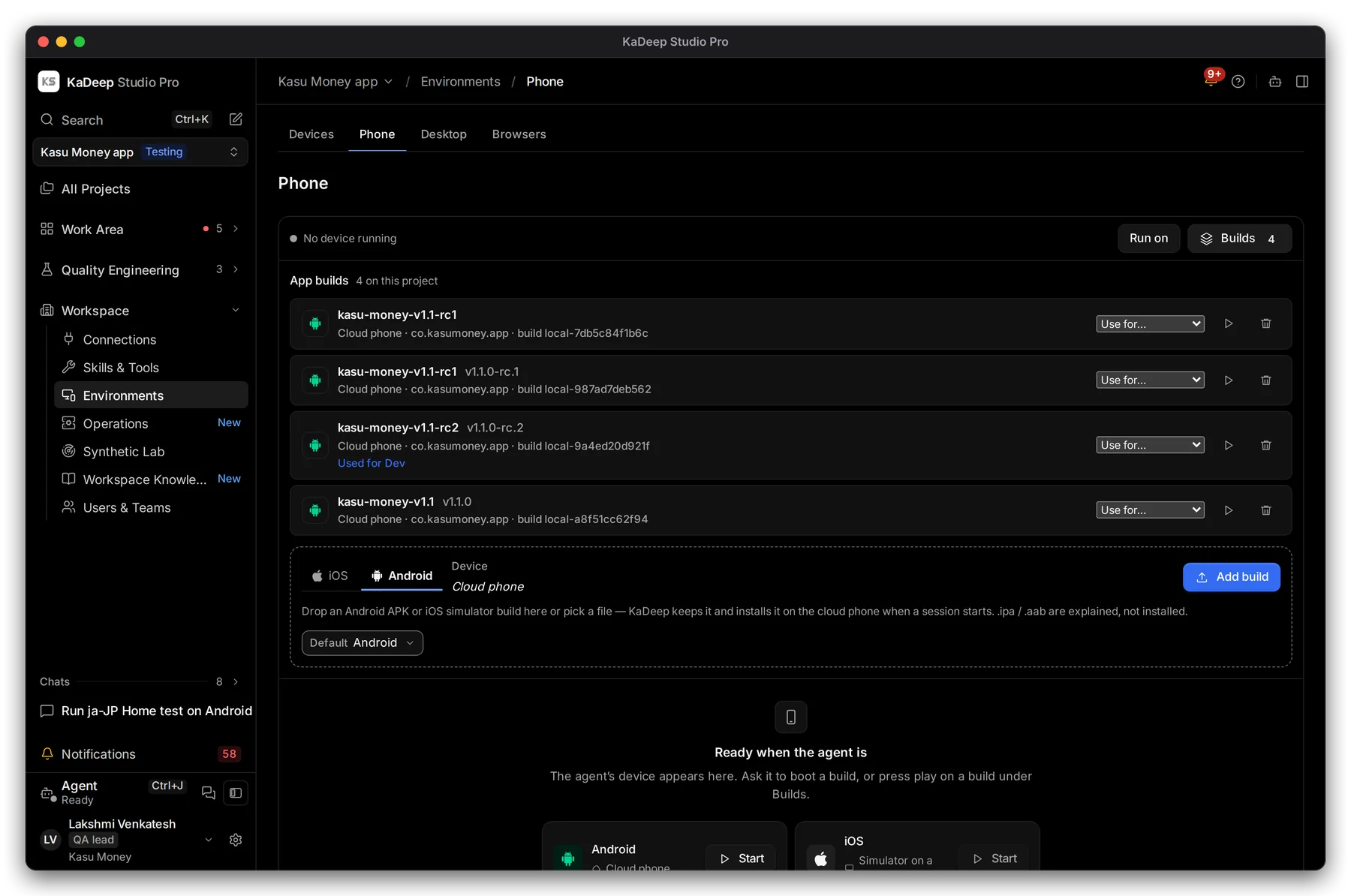
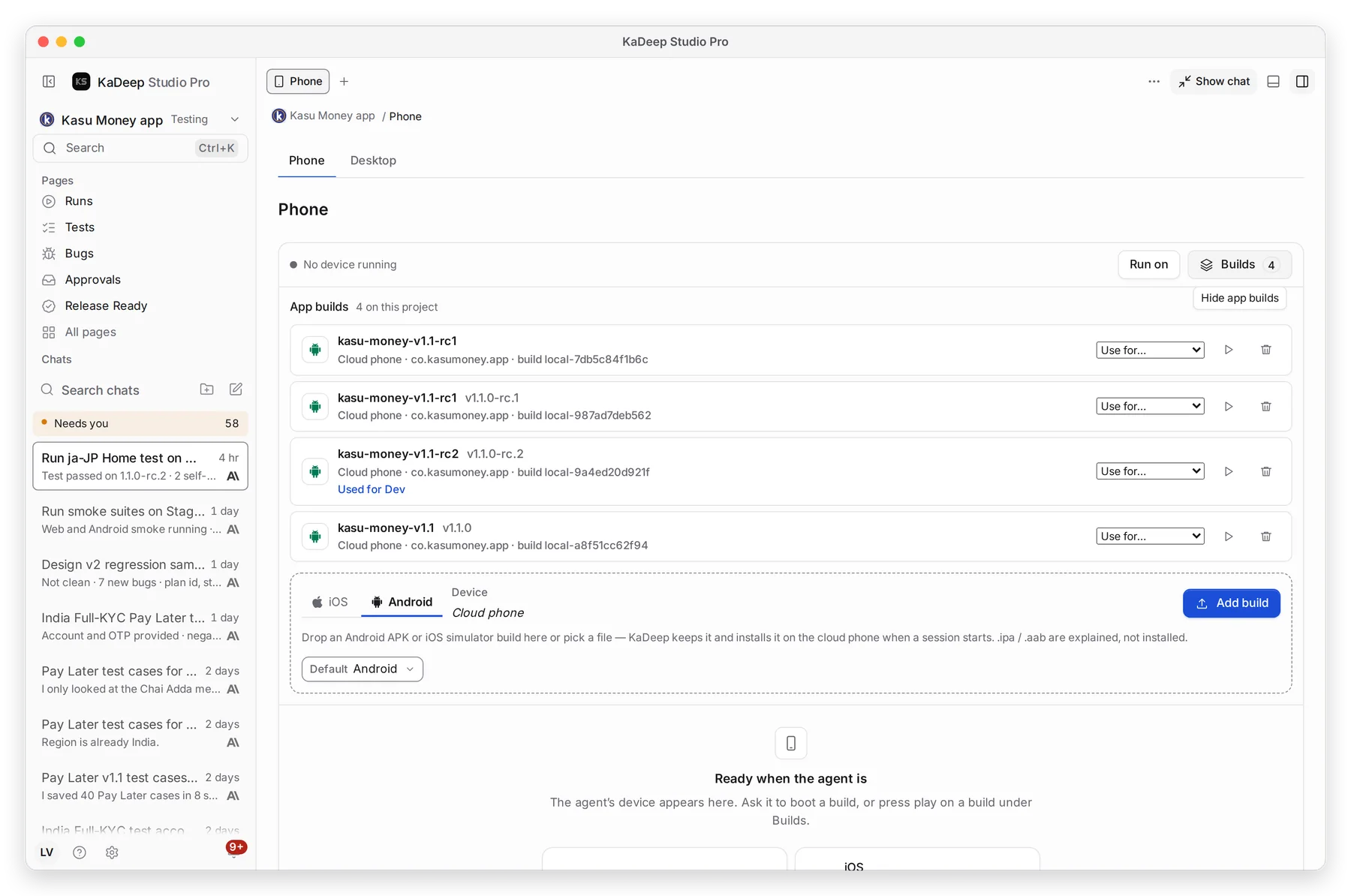
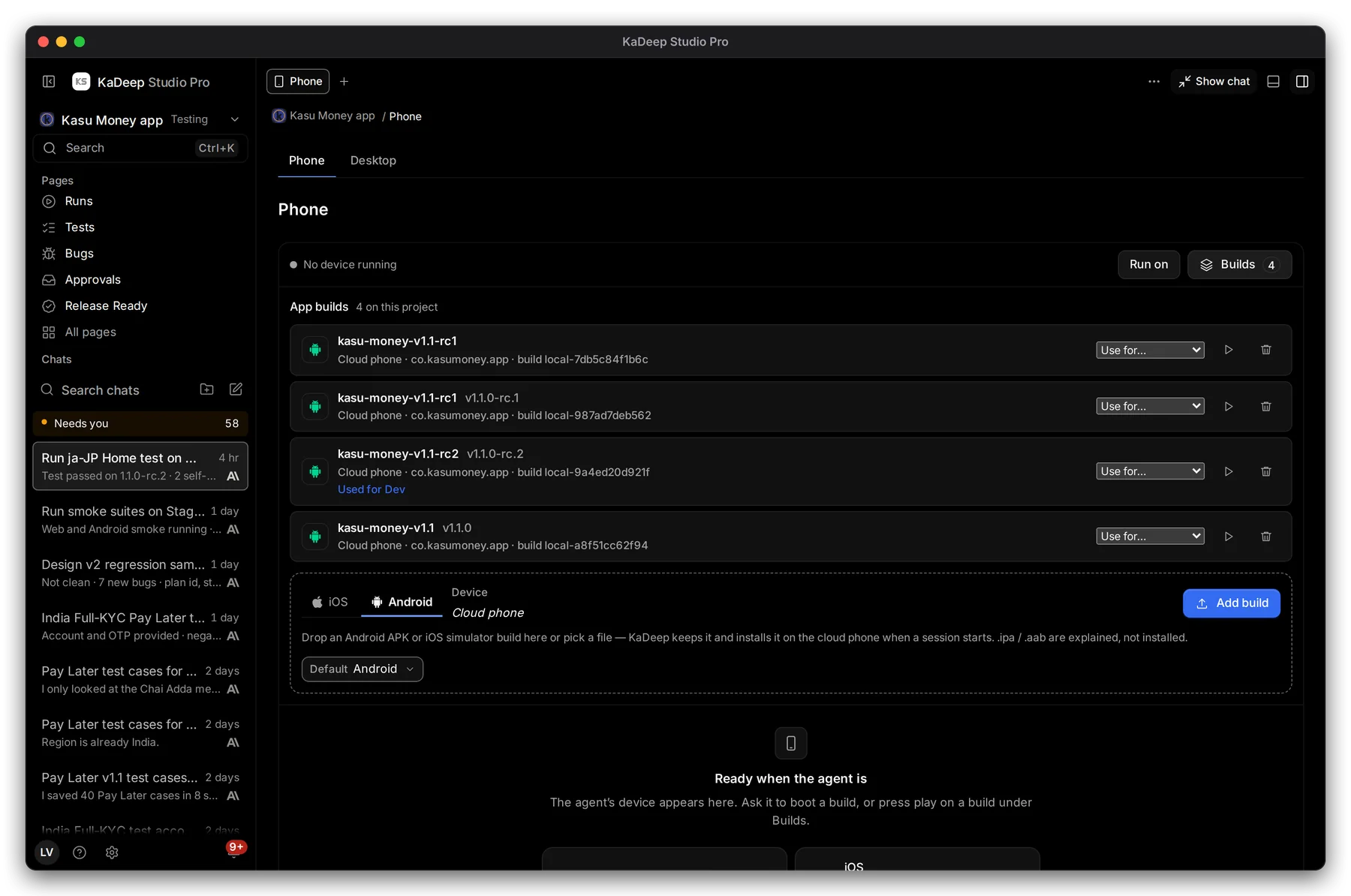
- Choose Builds, then 1 Add build. Drop an Android APK or an iOS simulator build (.app.zip). You can also drop it in the chat.
- On a build, choose 2 Use for… and pick the environment that should use it, such as Production.
- 3 The line under a build says which environment uses it. Press ▷ on a build to start a phone with it.
3. Start a phone and watch it
Section titled “3. Start a phone and watch it”Choose Start, or ask the agent: “Run the Home test on Android.” The phone screen appears on this page while the agent works. To watch several runs at once, open Mission Control.
4. Read the evidence
Section titled “4. Read the evidence”Open the run from Runs. The header says which phone you asked for and which one it ran on.
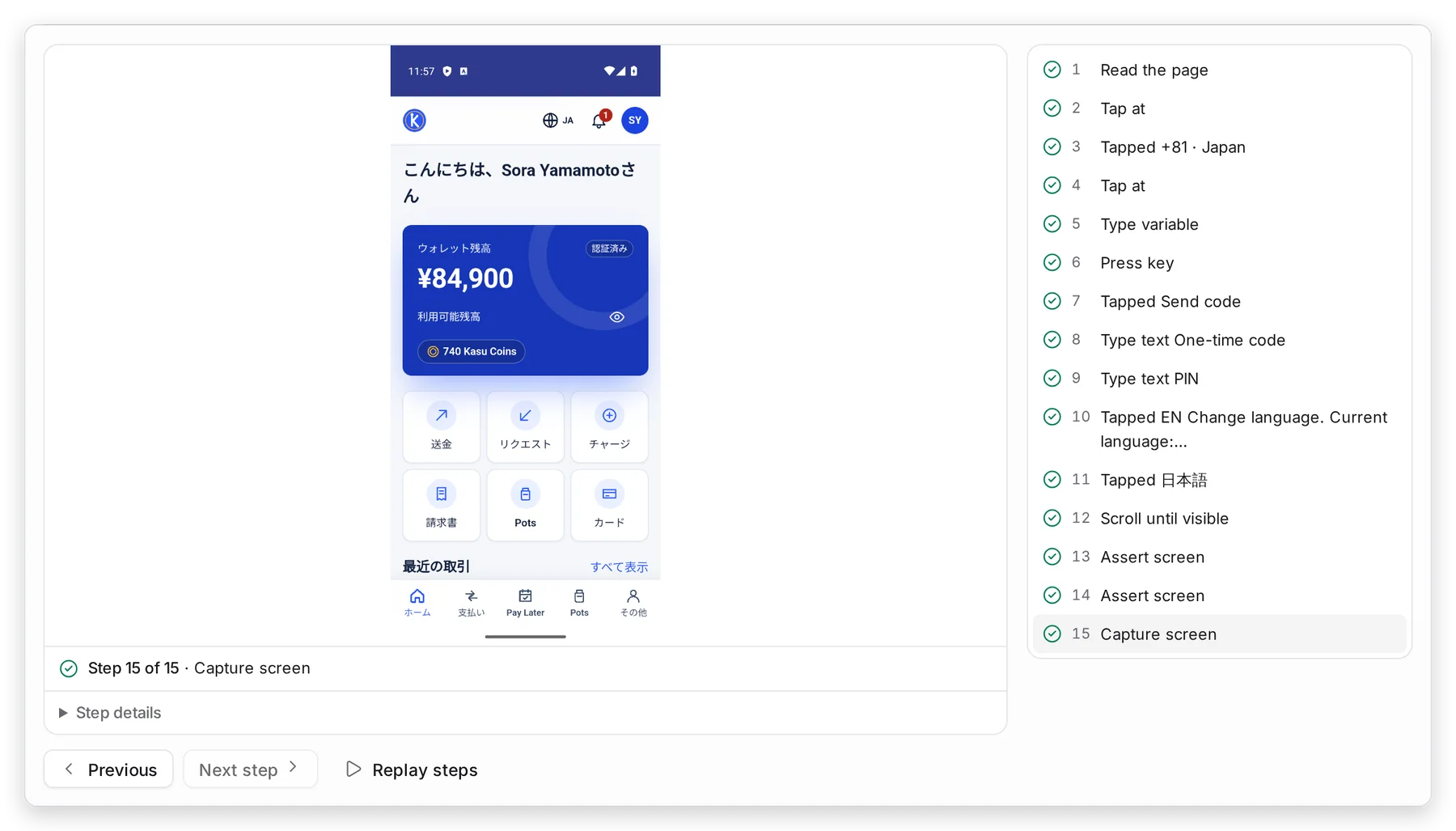
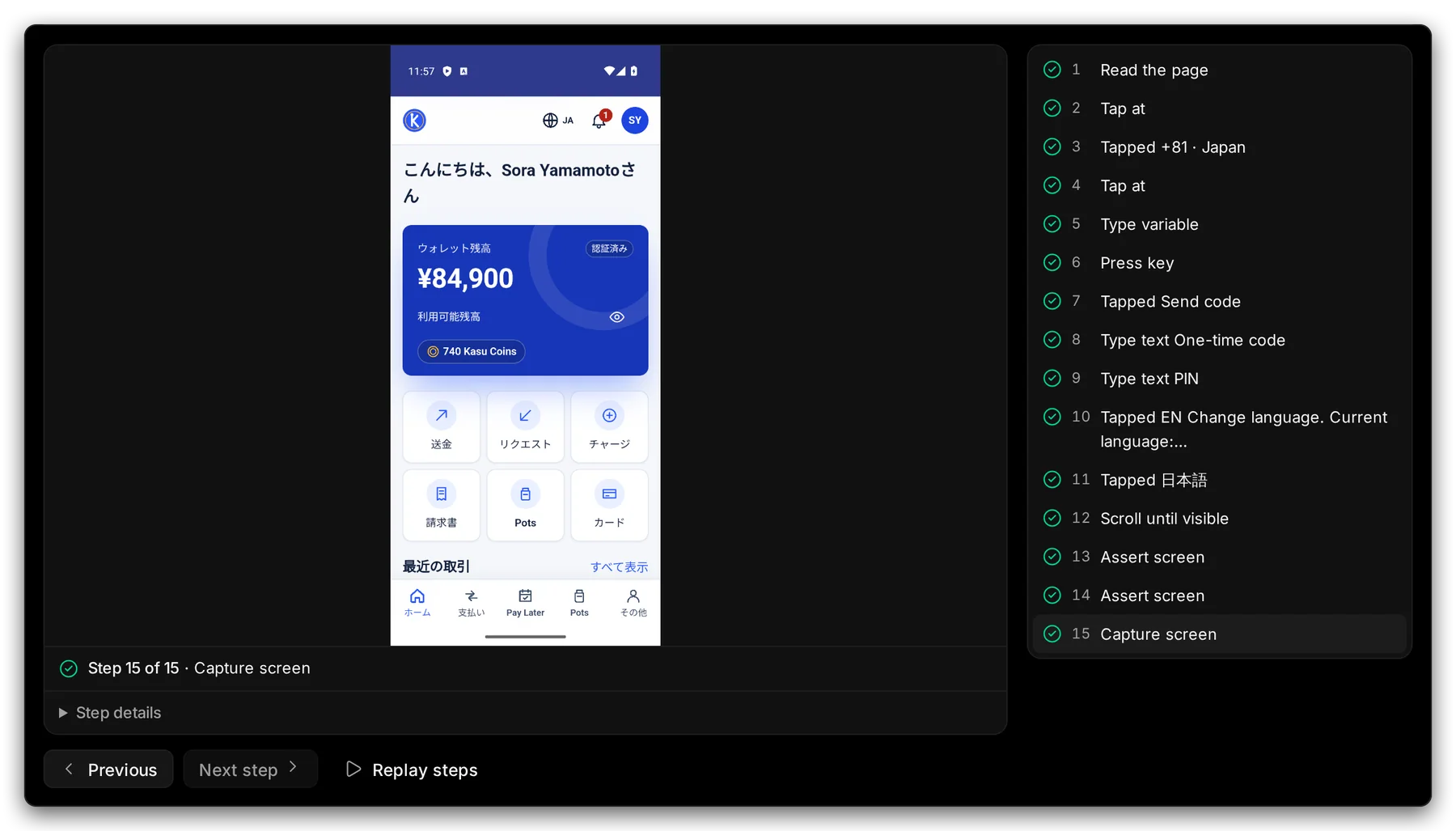
Manage view
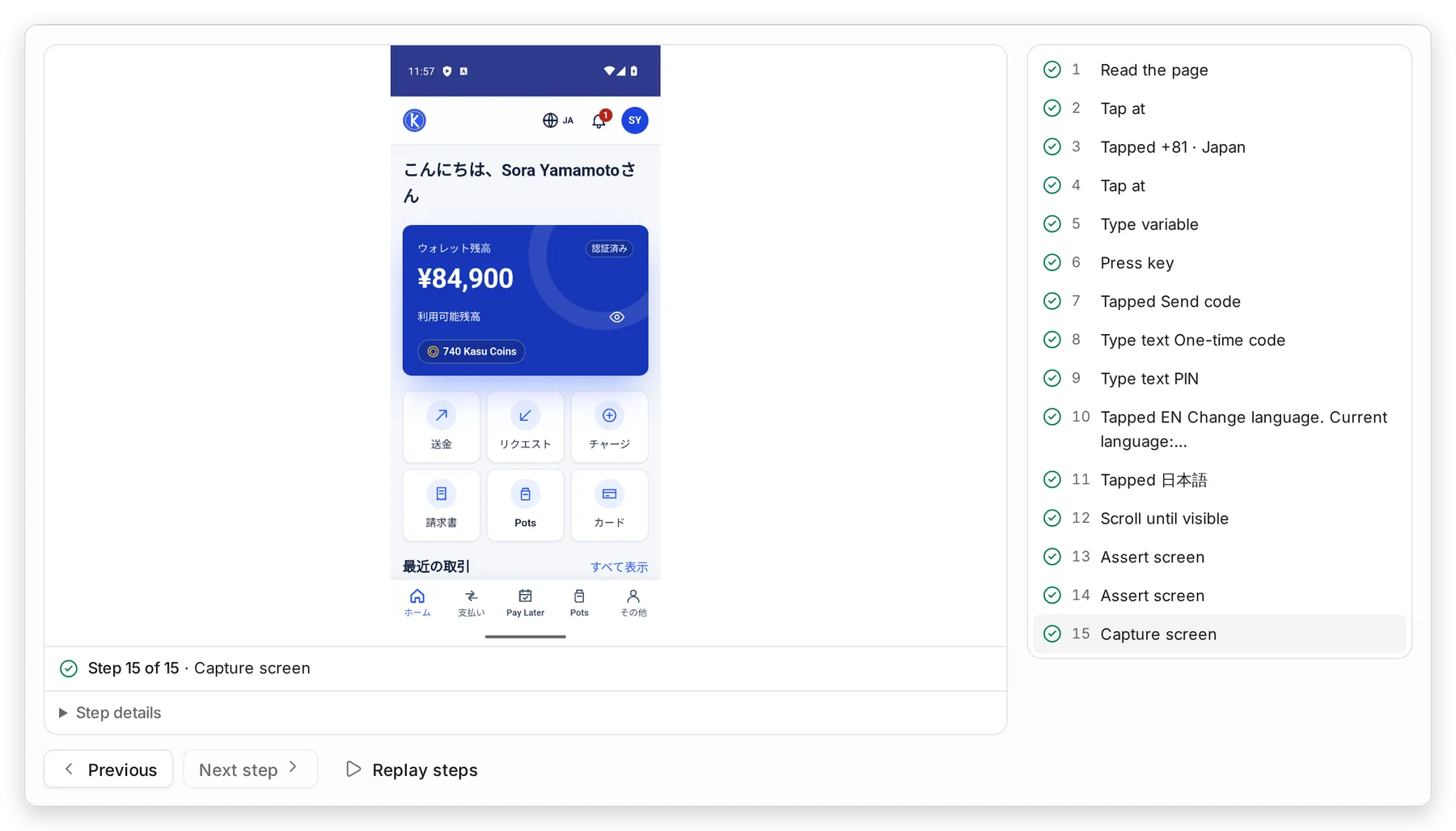
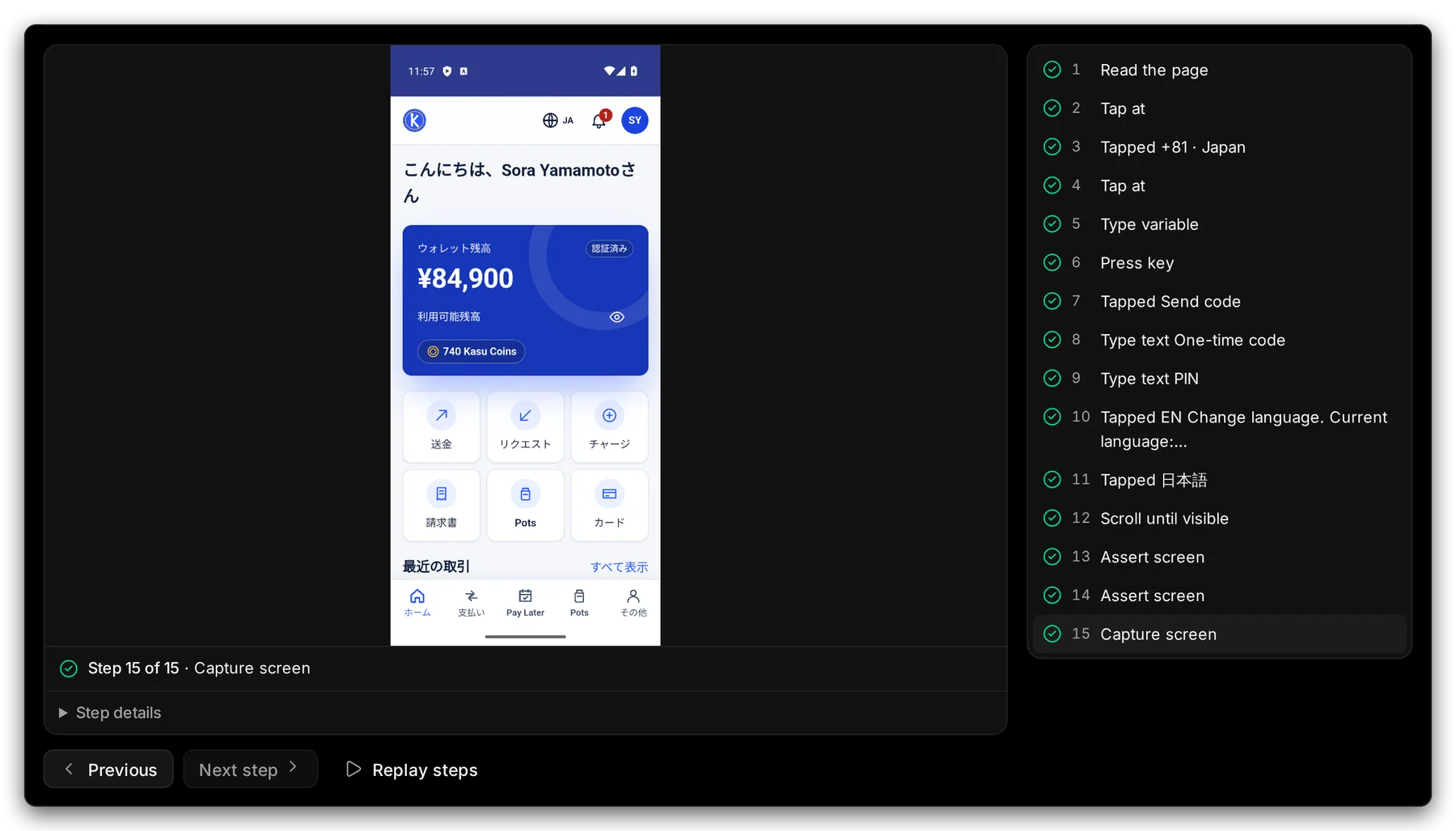
Hands-on view
- 1 The phone screen at the selected step.
- 2 Each tap, typed value and check, with its result. Click a step to see its screen.