Check governance
Your view
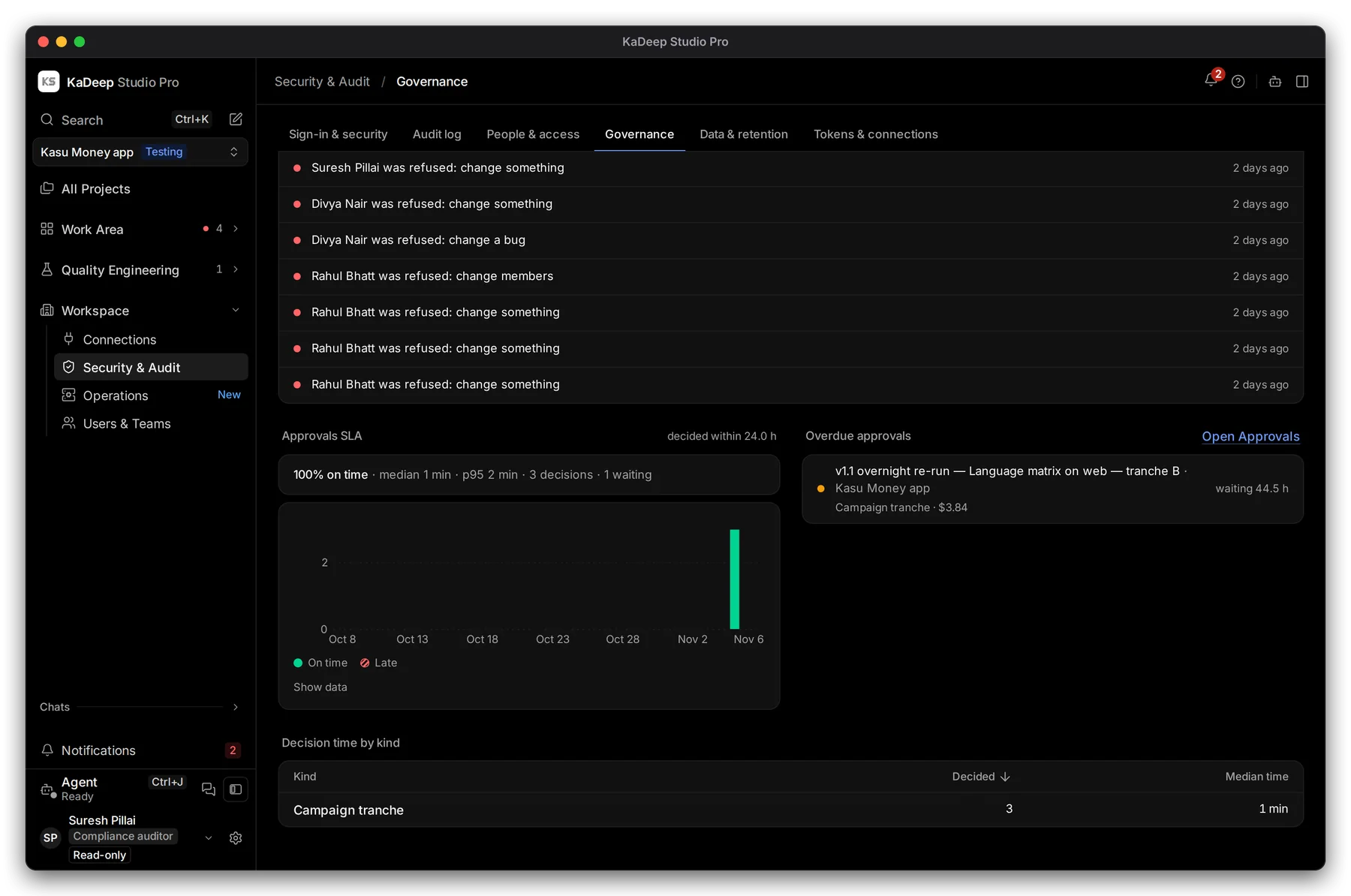
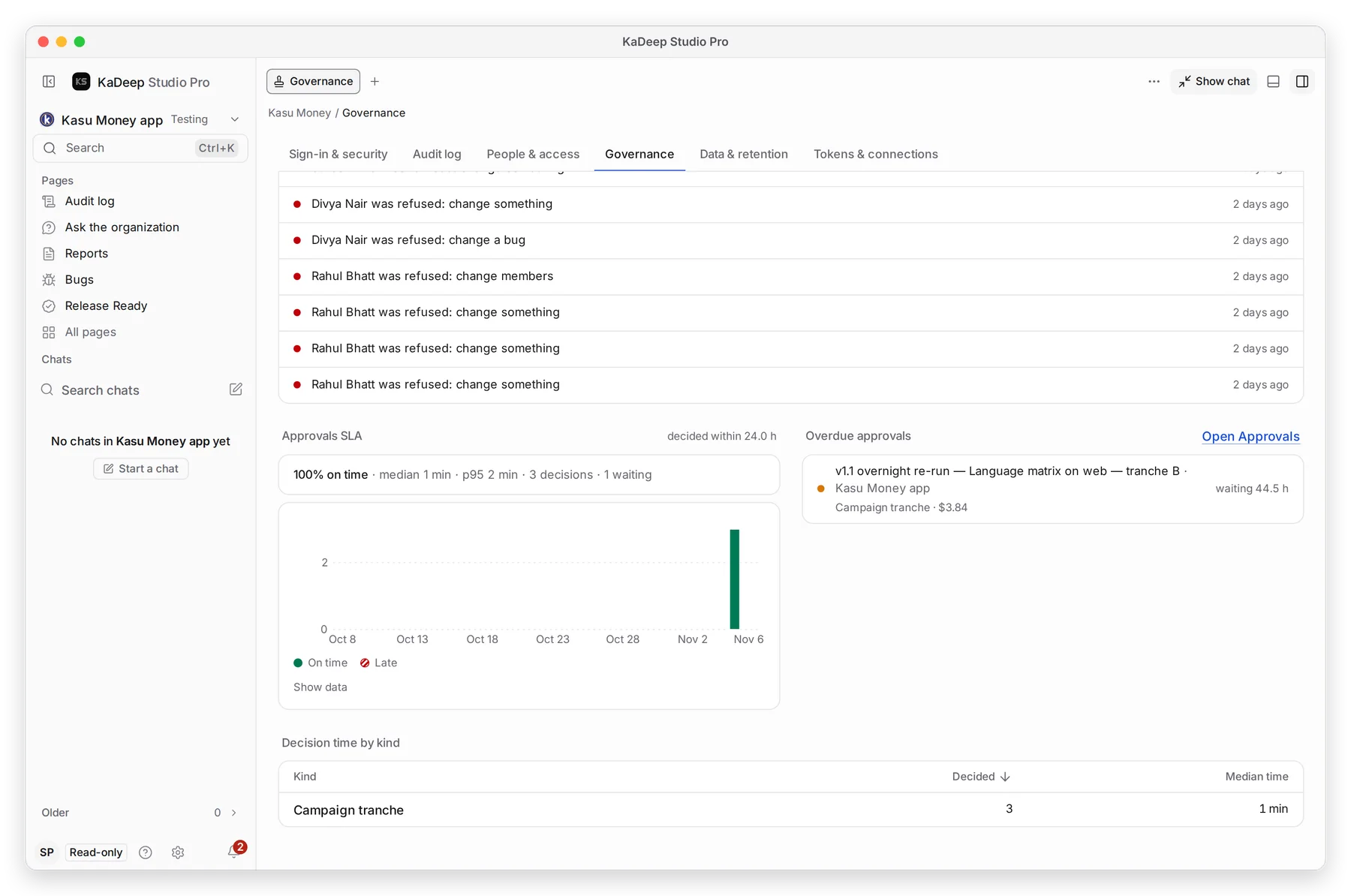
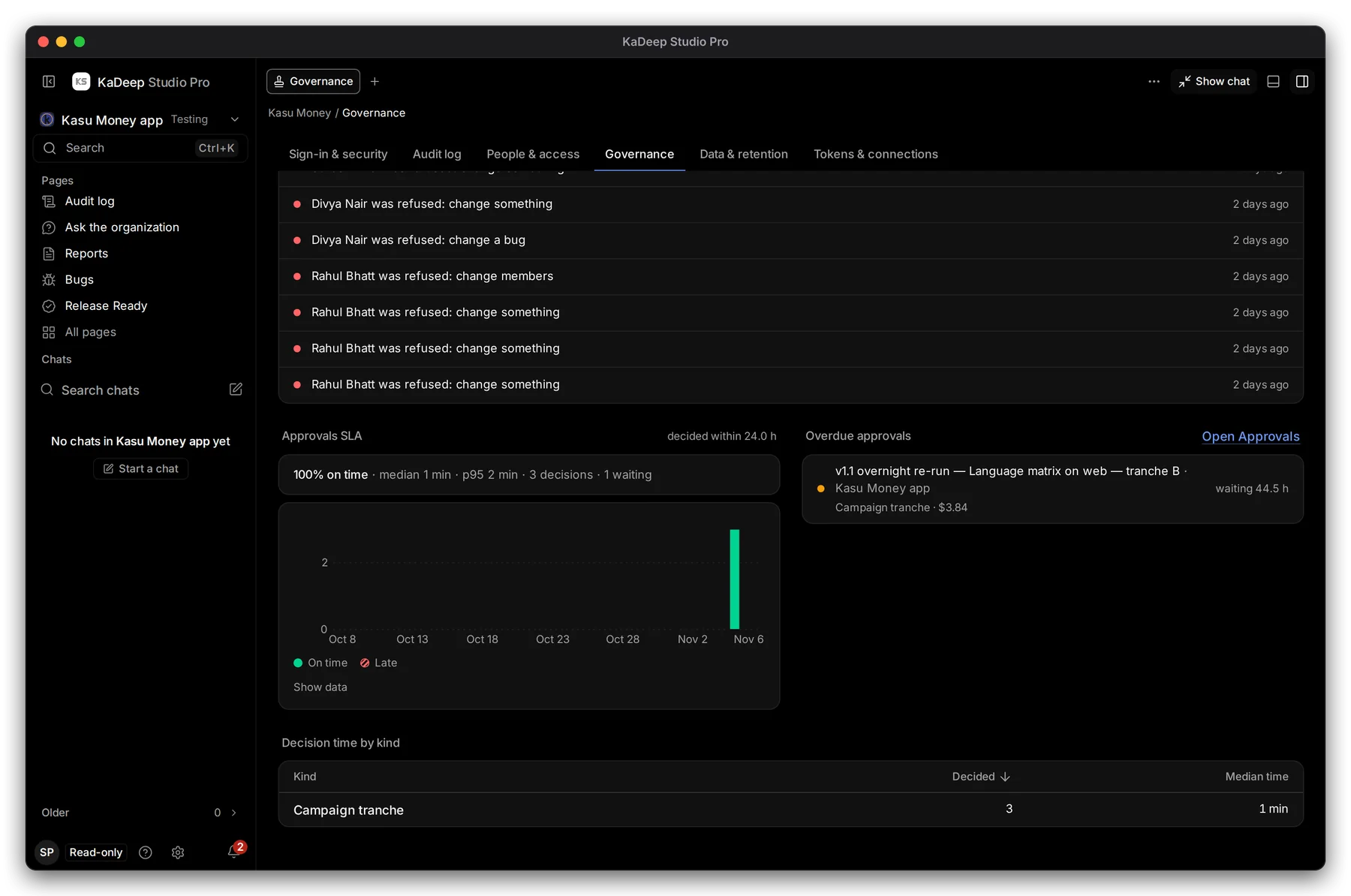
Governance shows the controls at work: what KaDeep refused because a role did not allow it, and how fast people decide approvals.
1. Open Governance
Section titled “1. Open Governance”Open Workspace › Security & Audit › Governance.
Under Pages, choose All pages, then Governance.
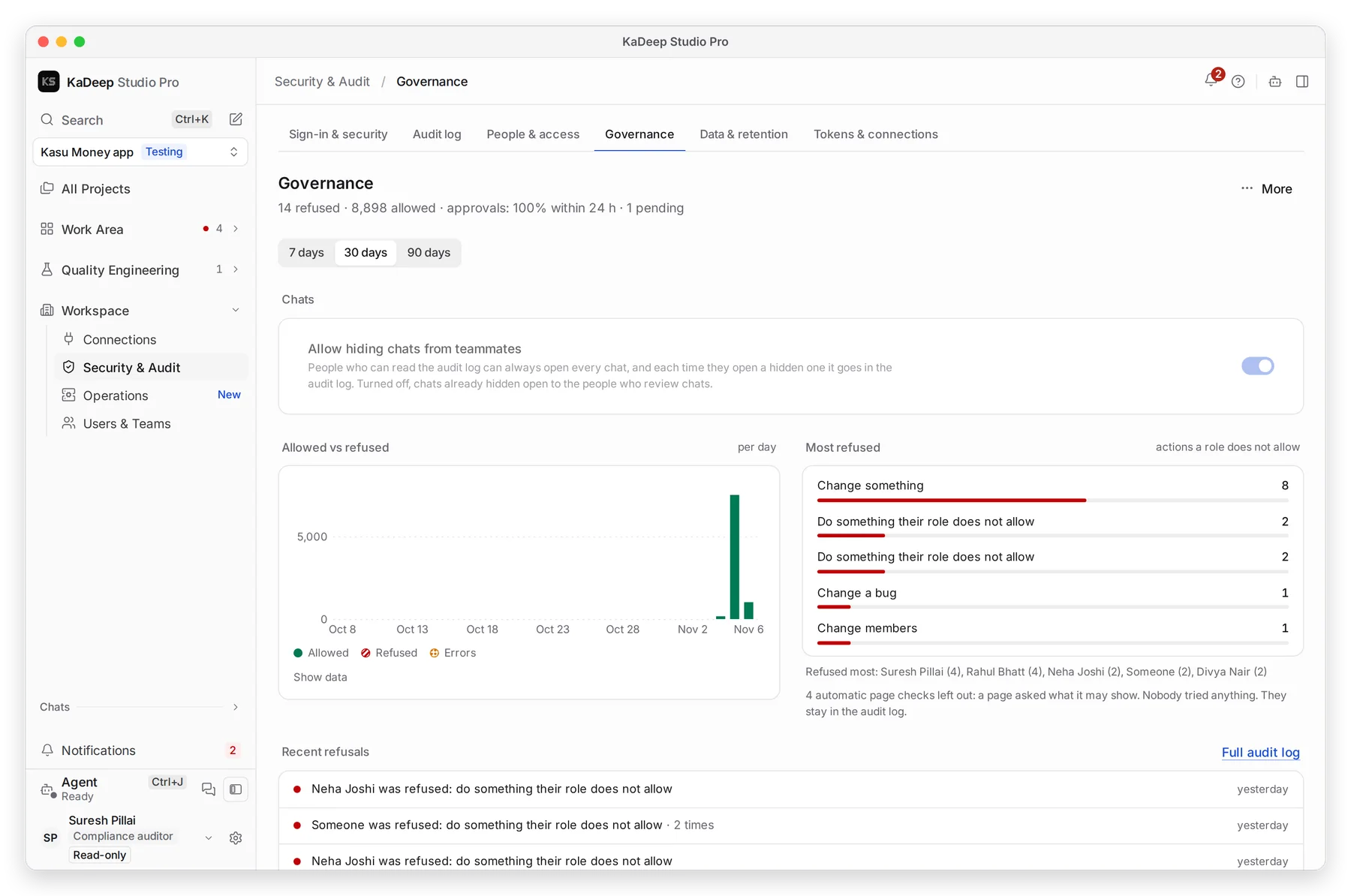
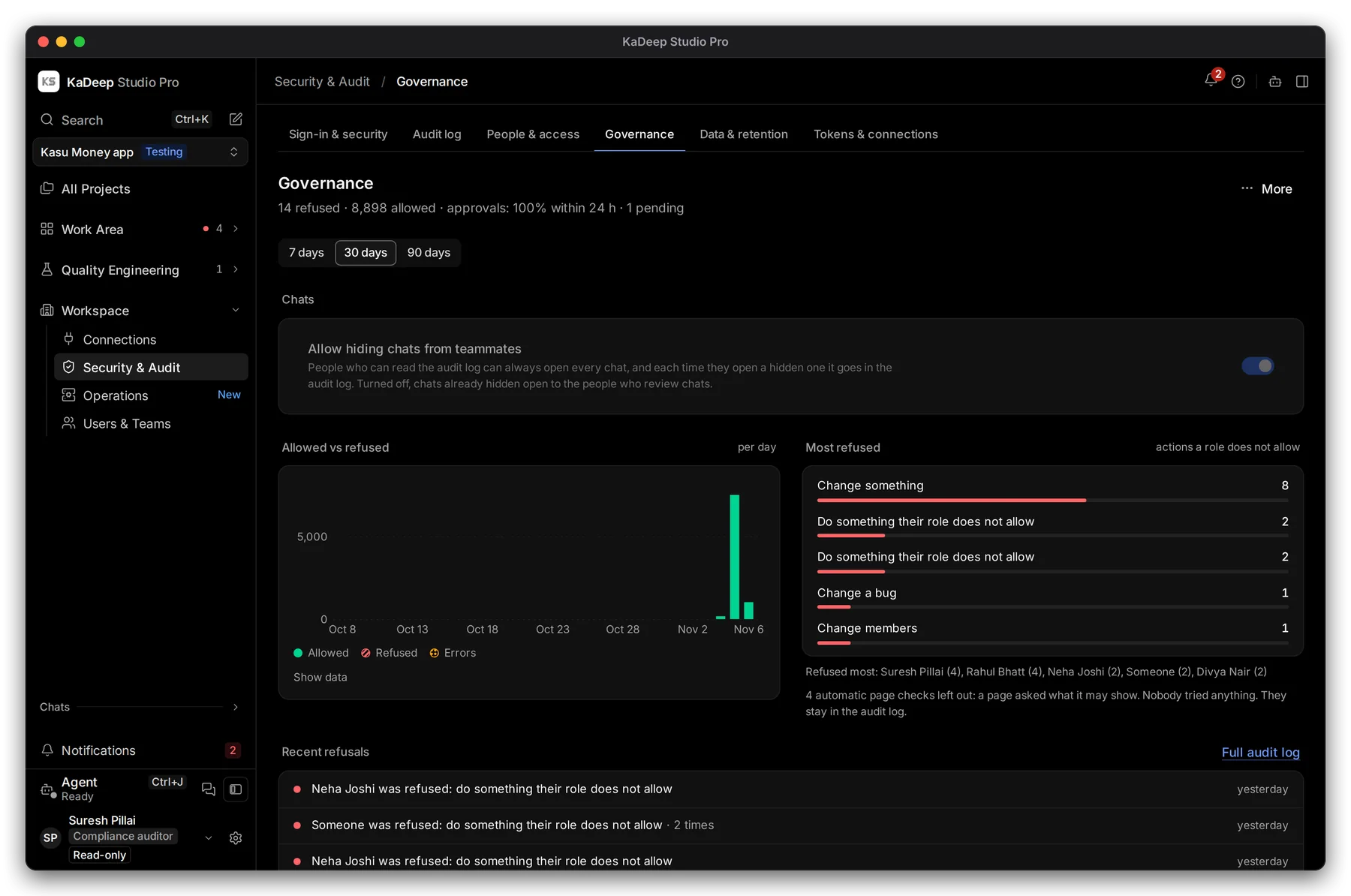
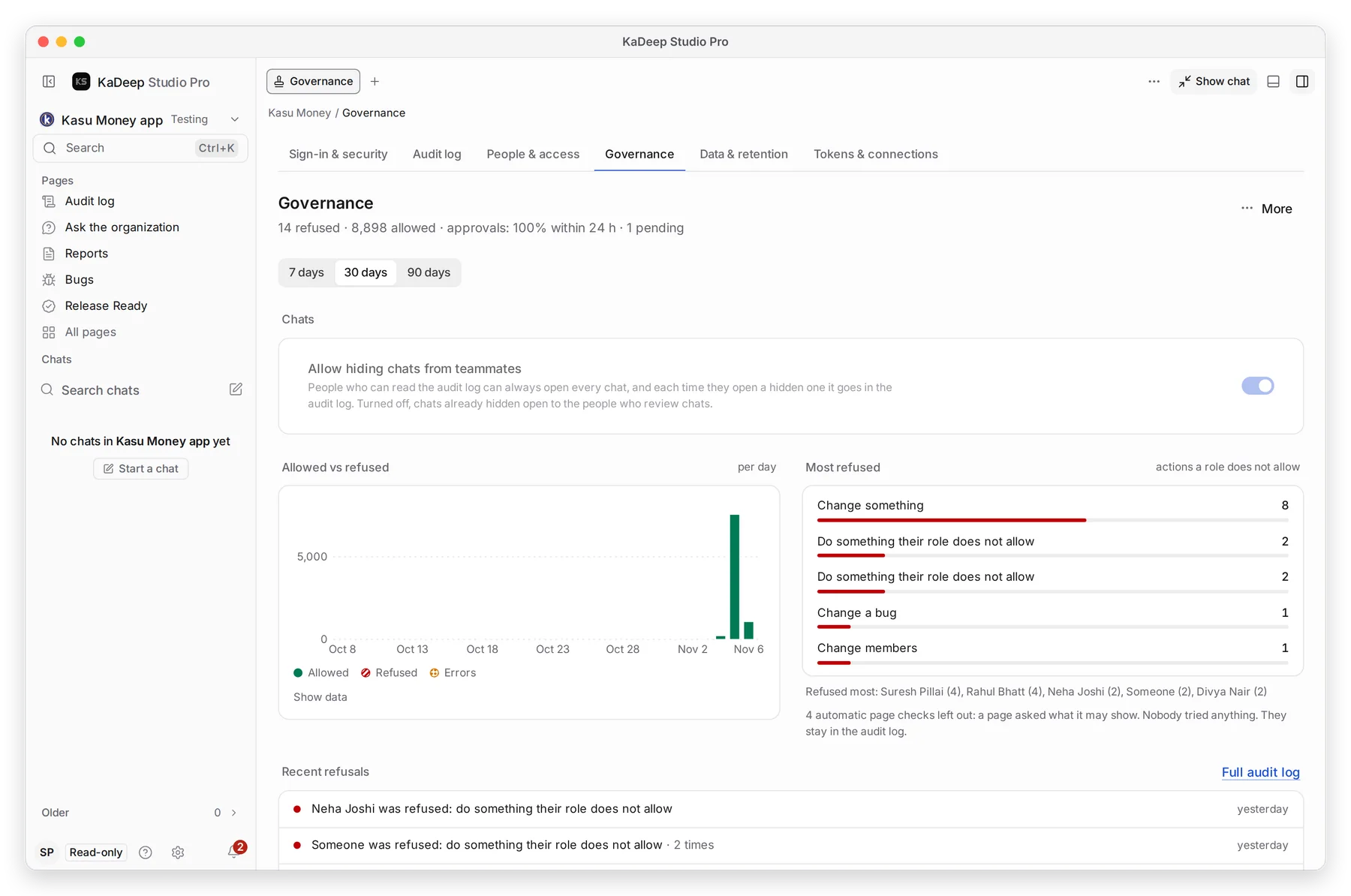
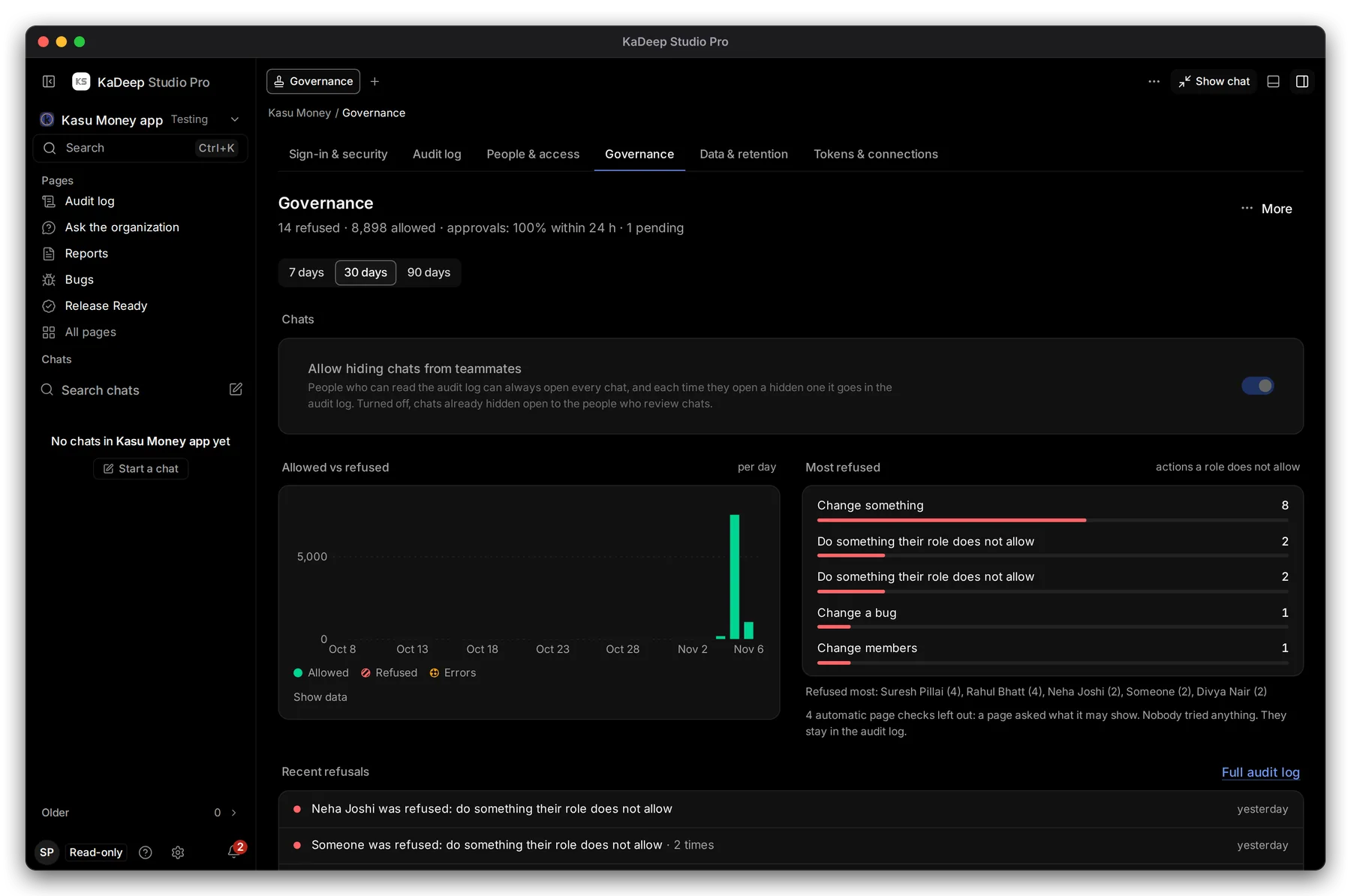
The line under the title sums it up, for example 14 refused · 8,898 allowed · approvals: 100% within 24 h · 1 pending.
Manage view
Hands-on view
- 1 Chats: whether people may hide chats from teammates. People who read the audit log can always open every chat, and each opening of a hidden chat is logged.
- 2 Most refused: the actions roles did not allow, and who was refused most.
- 3 Recent refusals: each one with who, what and when. Full audit log opens the detail.
2. Read the approvals SLA
Section titled “2. Read the approvals SLA”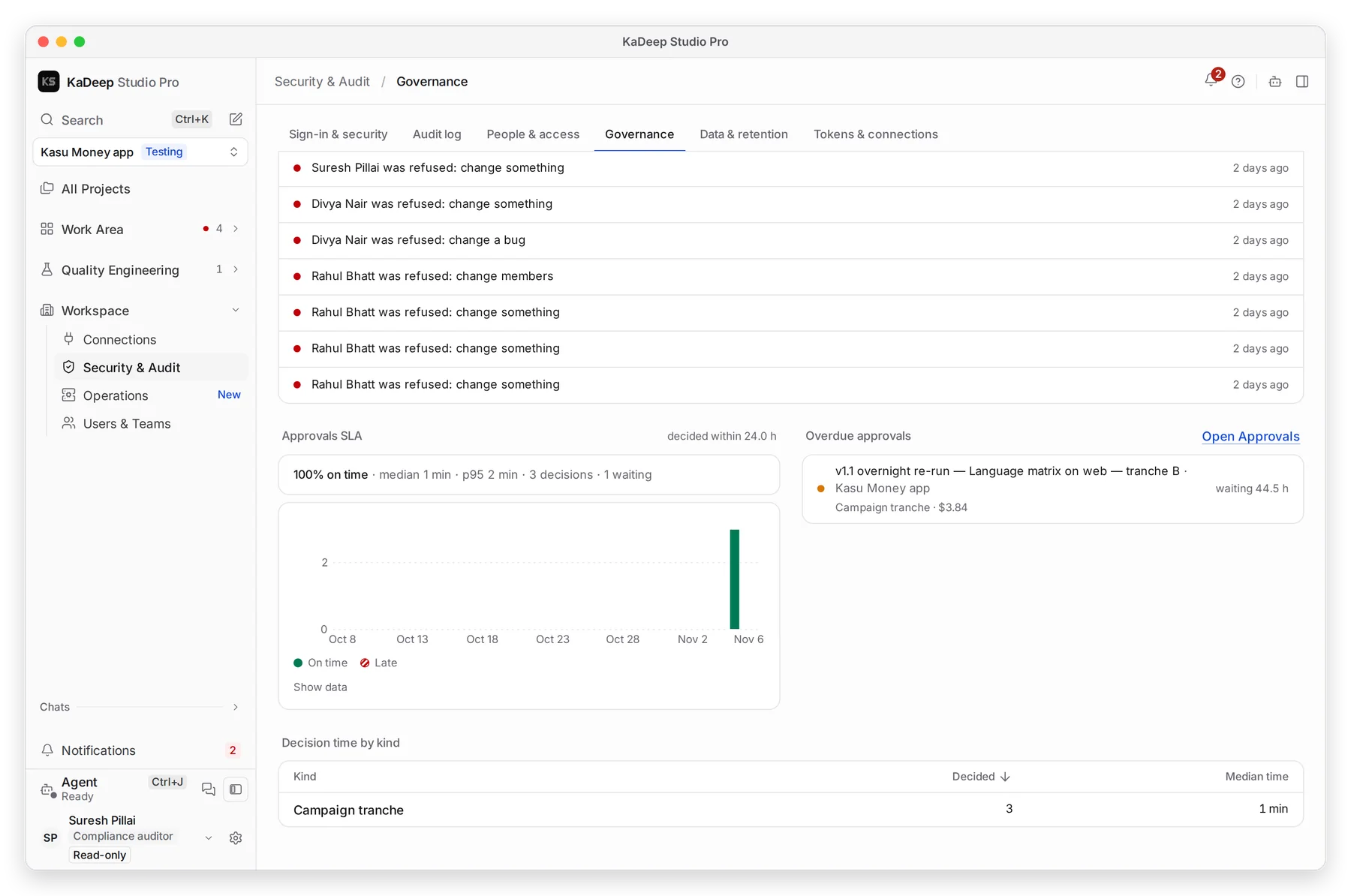
Manage view
Hands-on view
- 1 Approvals SLA: the share of approvals decided within 24 hours, the median and the 95th percentile.
- 2 Requests waiting longer than they should.
| You see | What it means |
|---|---|
| A read-only person refused | Usually expected: they tried a button their role does not allow |
| Many refusals for one person | They may need another role. Tell the admin. |
| automatic page checks left out | A page asked what it may show. Nobody tried anything. |
| Approvals late | Signers are slow; requests escalate to the next step |
What’s next
Section titled “What’s next”Audit logThe full record behind each refusal.
Spending limitsWho signs spending, and escalation.
Export evidencePackage it for an auditor.