The phone companion app
Your QA agent, from your phone. The phone app is the companion to KaDeep Studio Pro. It keeps you with the agents while they test.
| With the app, you | |
|---|---|
| Watch the agent live | See the browser, phone or computer it is testing on, as it works. |
| Answer its questions | Give it a login or a one-time code, or tell it what to do next. |
| Approve its plans | Approve, change or reject a plan before the agent runs it. |
| Follow runs and bugs | Every chat and run across your projects, and the bugs it files with their evidence. |
The testing itself runs in KaDeep’s cloud or on your computer, never on this phone. Closing the app stops nothing.
Get the app
Section titled “Get the app”| Phone | How |
|---|---|
| Android | Open releases.kadeep.ai on your phone and download the Android app under Mobile companion. The redesigned app is version 4.1.0, and it installs over 4.0. If Android asks, allow installs from this source. |
| iPhone | Coming soon. Until then, open studio.kadeep.ai in Safari on your iPhone. |
1. Set up
Section titled “1. Set up”The first time you open the app, it takes three steps: a welcome, Sign in, then notifications.
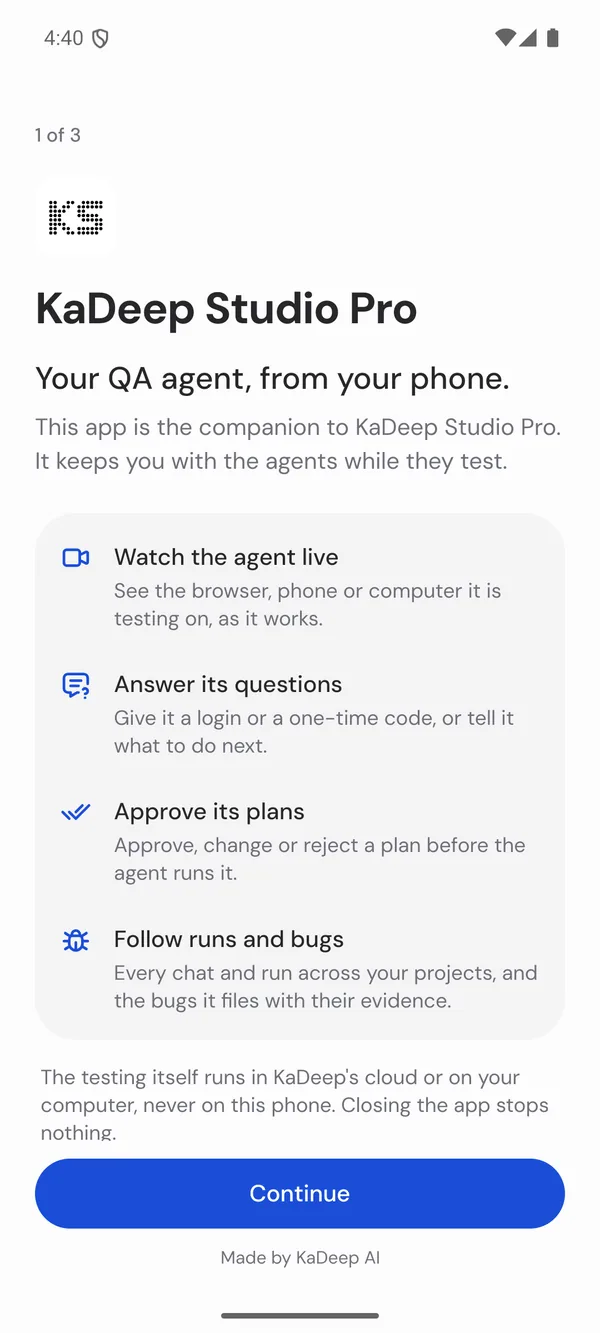
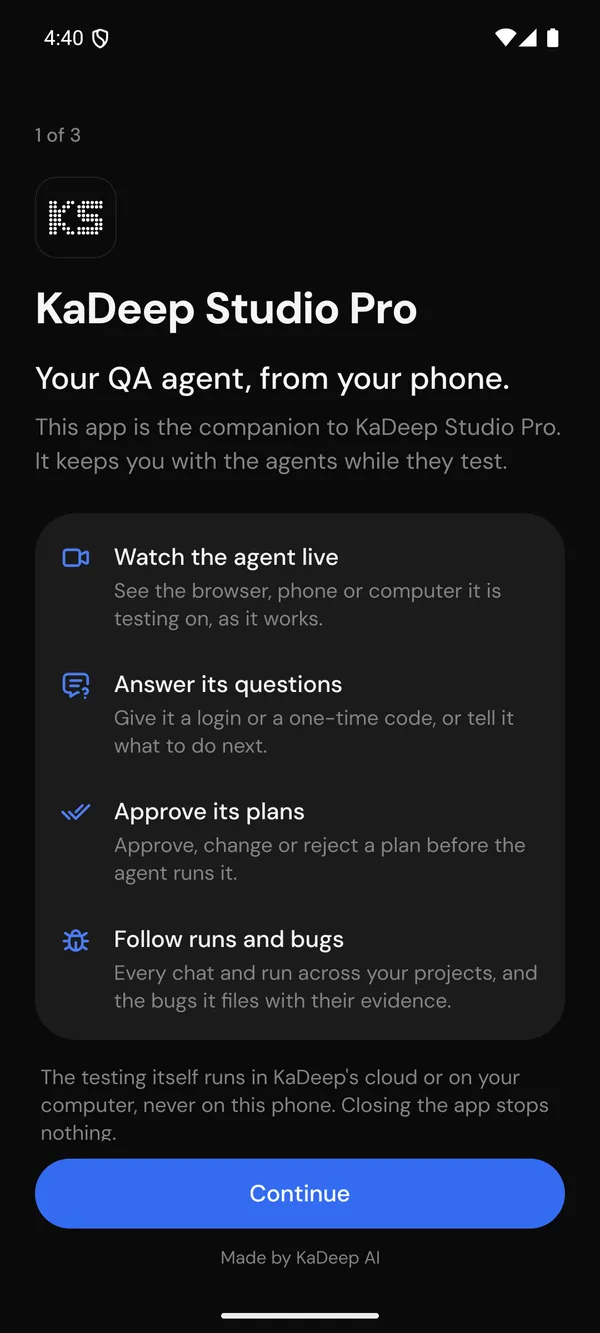
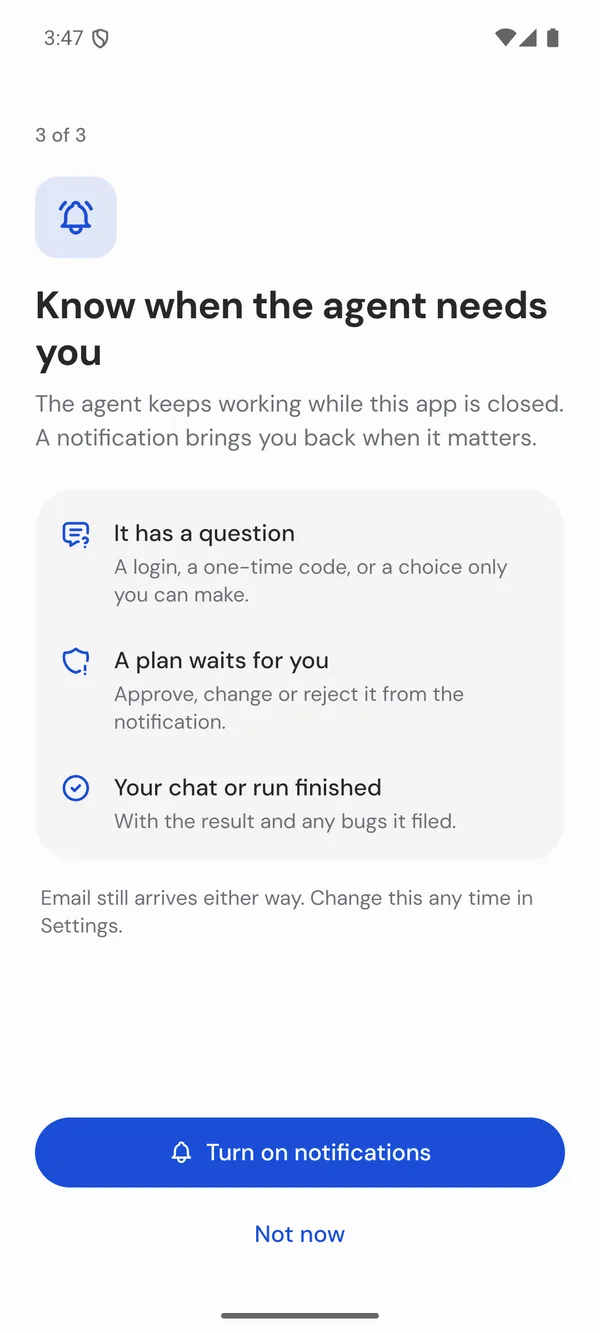
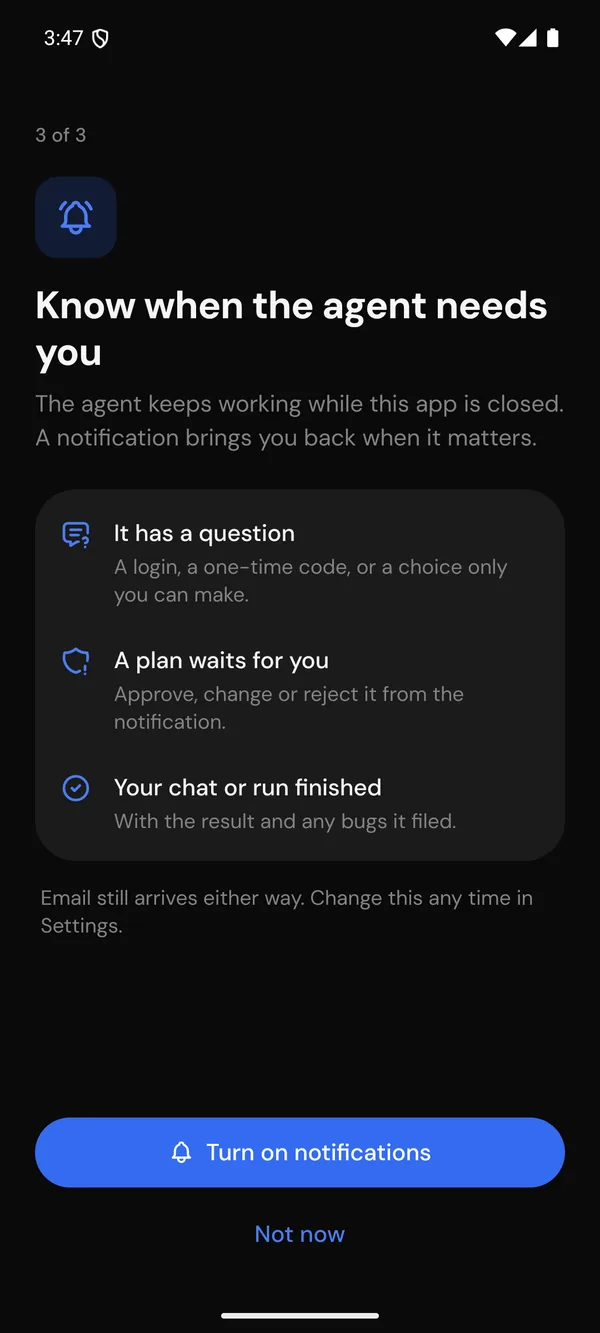
- Read the welcome and choose Continue.
- Sign in with the account you use on the web or in the desktop app. The app shows only what your role can see.
- Choose Turn on notifications. The agent keeps working while the app is closed, and a notification brings you back when it has a question, a plan waits for you, or a chat or run finishes.
2. Home: the agent’s threads
Section titled “2. Home: the agent’s threads”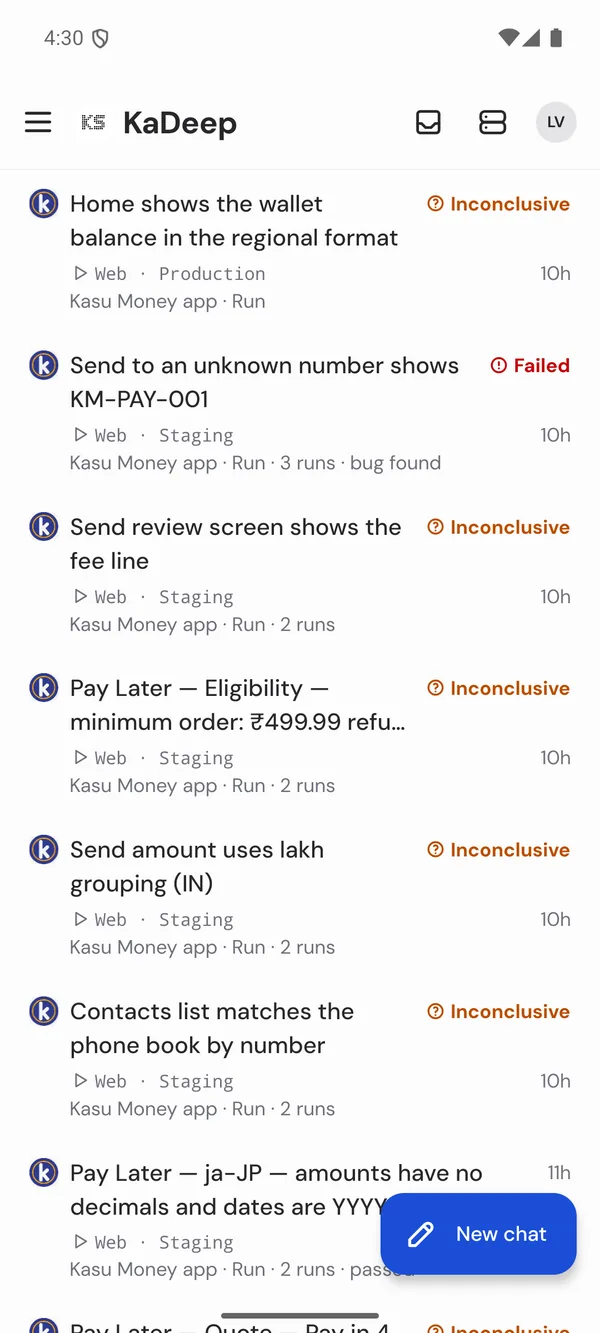
Home lists the agent’s threads across your projects.
- Project chips at the top narrow the list to one project.
- Threads are grouped: Needs you, Active, Working and Settled.
- Each row has a short line that says where the agent works, such as
Web · Staging, and its status, such as Failed or Inconclusive. - New chat starts a thread with the agent.
3. A thread, and the live view
Section titled “3. A thread, and the live view”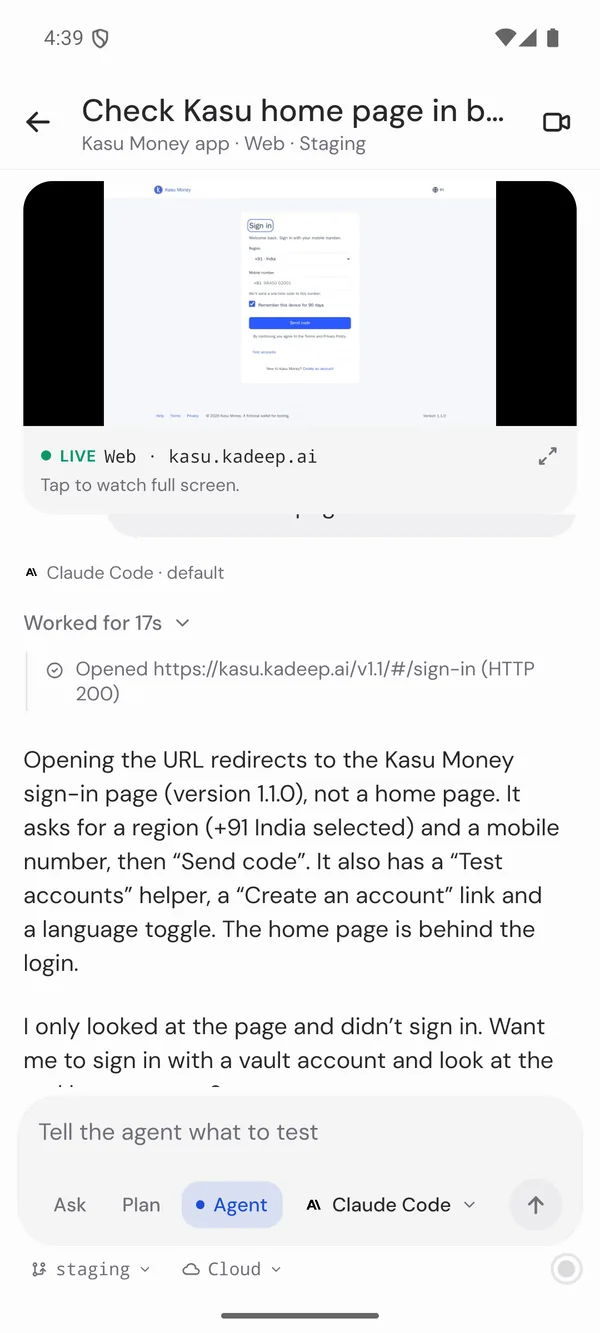
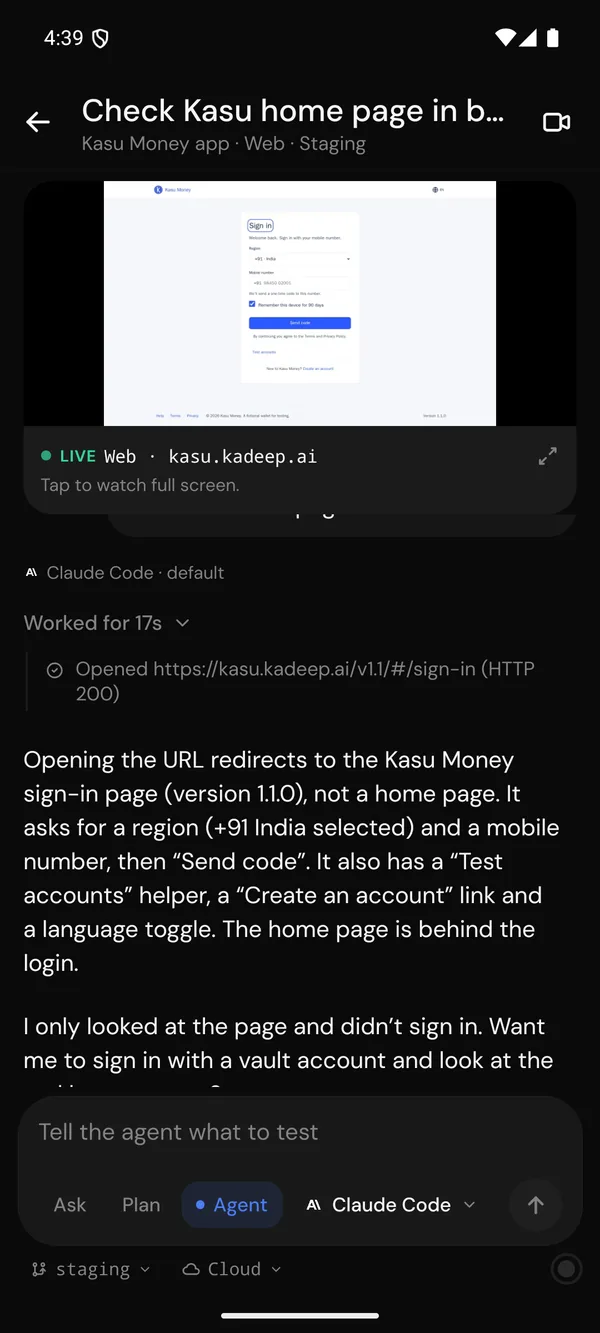
- A thread is your chat with the agent. Worked for 2m folds away the steps it took; tap it to see them.
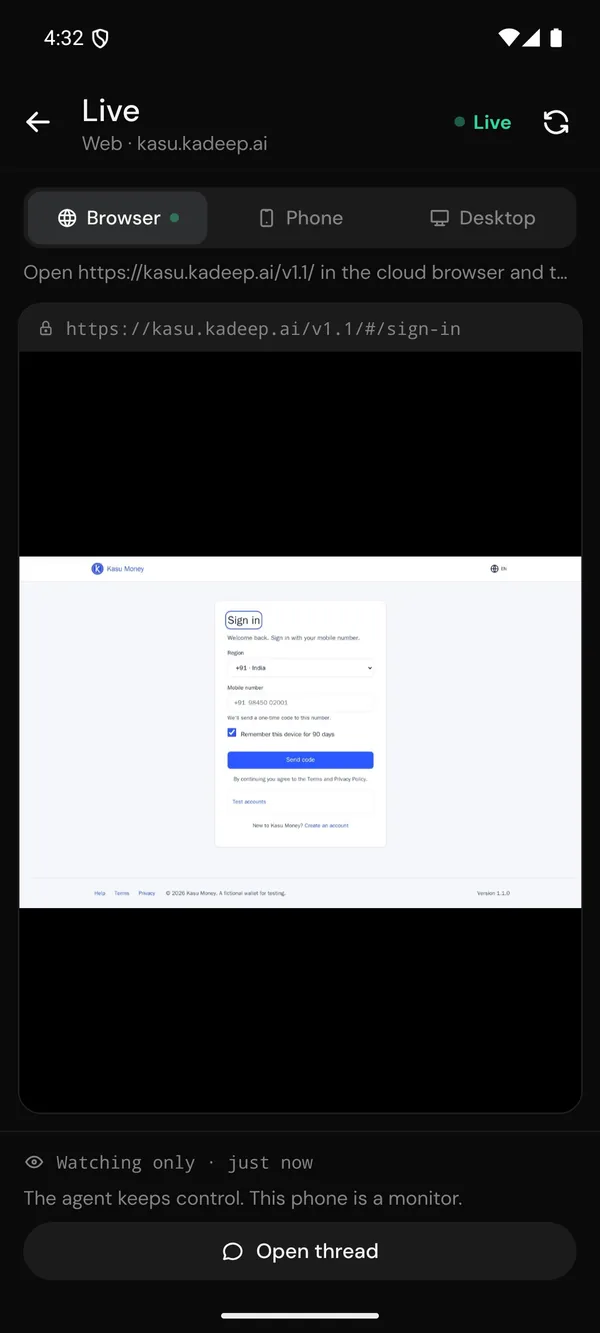
- While the agent drives a surface, a live mini view sits at the top of the thread, labeled, for example, LIVE
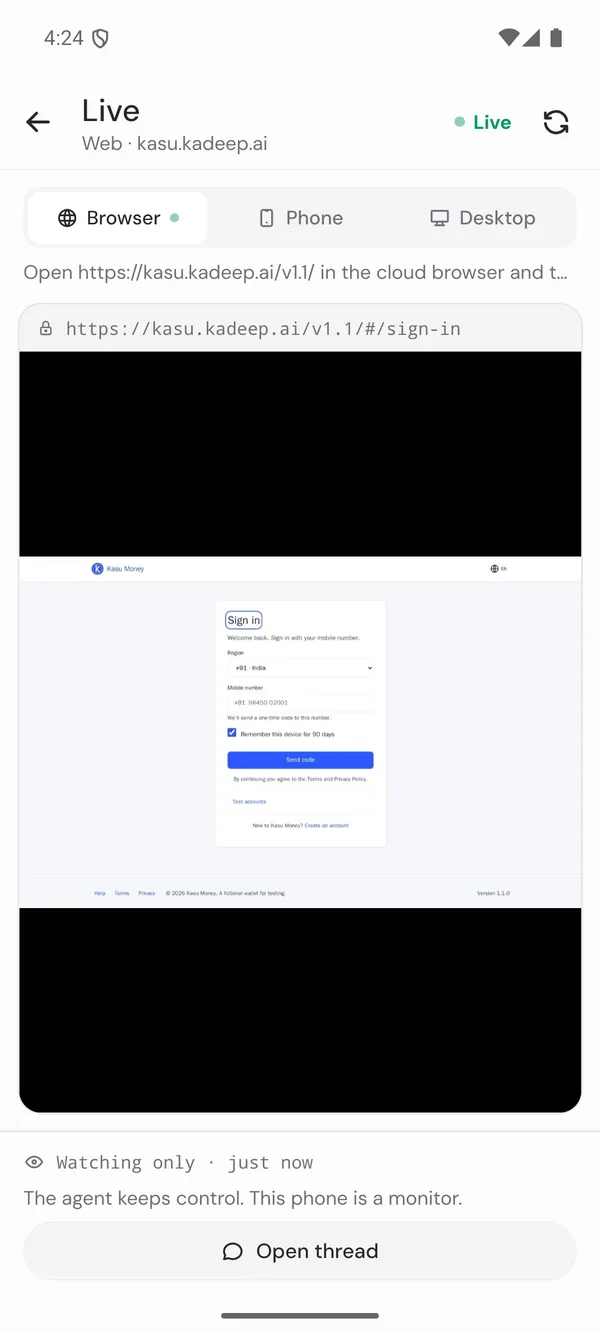
Web · kasu.kadeep.ai. Tap it to watch full screen. - Live shows the Browser, Phone or Desktop the agent is using. It is watch-only: the agent keeps control, and your phone is a monitor. Open thread takes you back to the chat.
- To answer a question, type in the box at the bottom of the thread.
4. Review: plans and bugs
Section titled “4. Review: plans and bugs”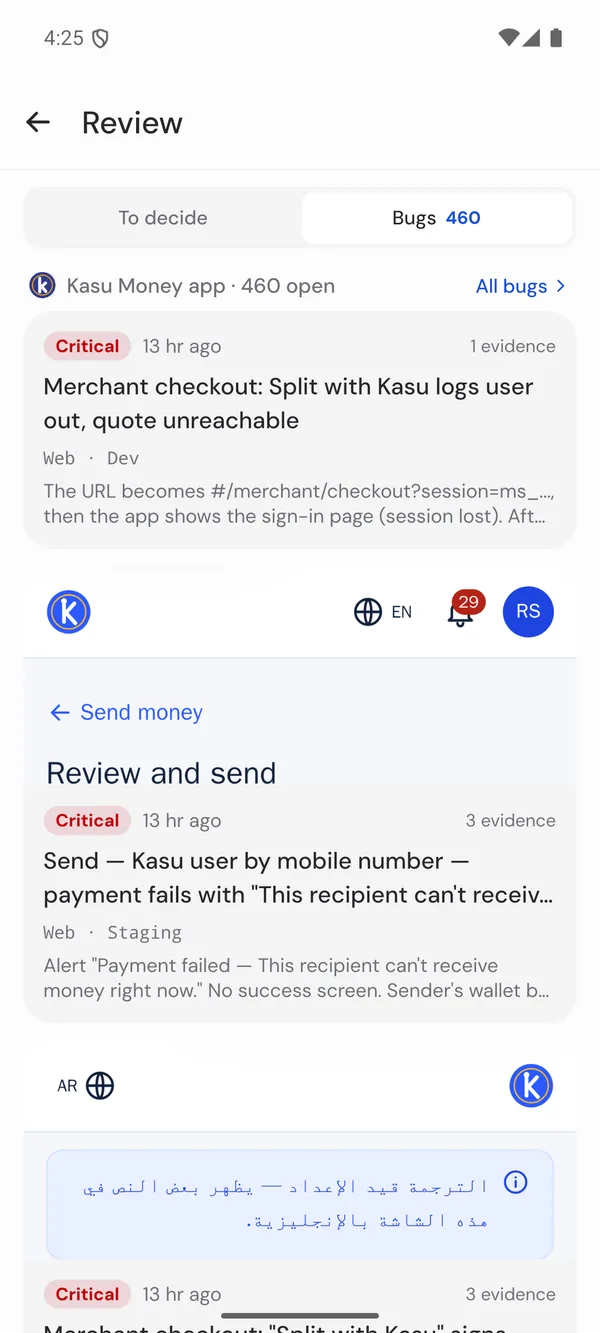
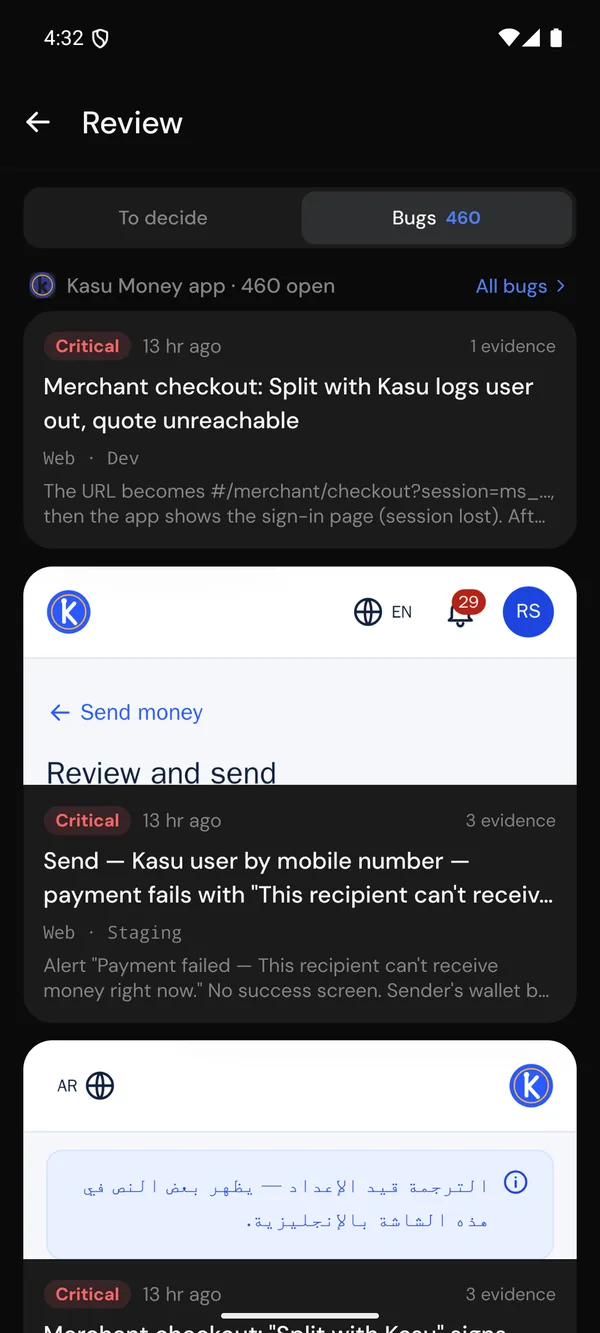
Review has two tabs. To decide holds the plans, questions, logins and one-time codes that wait for you. Bugs lists the bugs the agent filed, each with its evidence.
5. Surfaces: where the agent works
Section titled “5. Surfaces: where the agent works”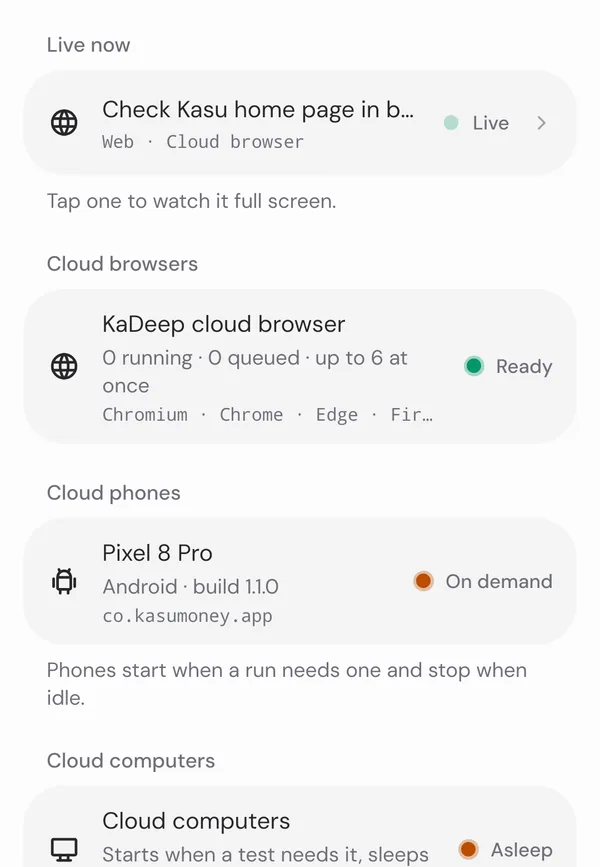
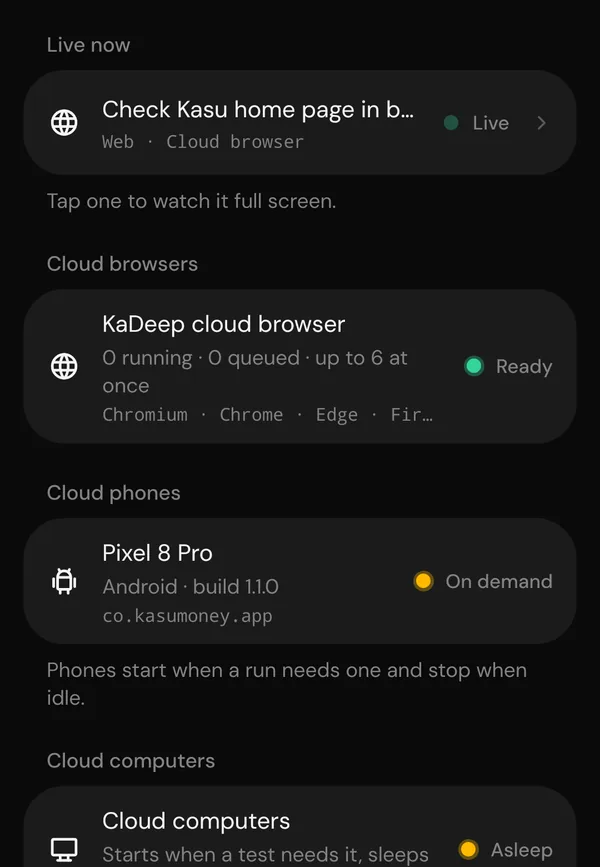
Surfaces shows everything the agent can test on, and what each one is doing now:
| Group | What it shows |
|---|---|
| Live now | What the agent is driving right now. Tap one to watch it full screen. |
| Cloud browsers | KaDeep’s browsers: how many run, how many wait, and which browsers |
| Cloud phones | Android phones in the cloud. They start when a run needs one. |
| Cloud computers | Windows computers in the cloud. They start when a test needs one, and sleep when idle. |
| Your computers | Computers your team paired with the desktop app |
| Environments | The environments of the project’s app |
6. The ☰ menu and Settings
Section titled “6. The ☰ menu and Settings”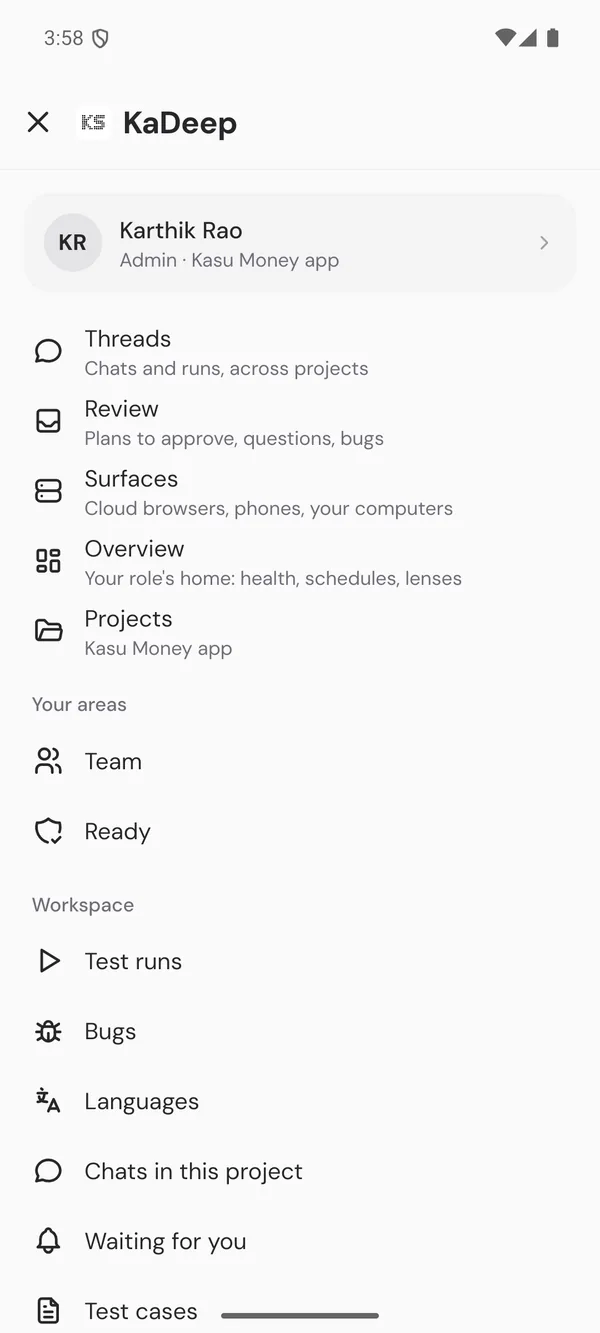
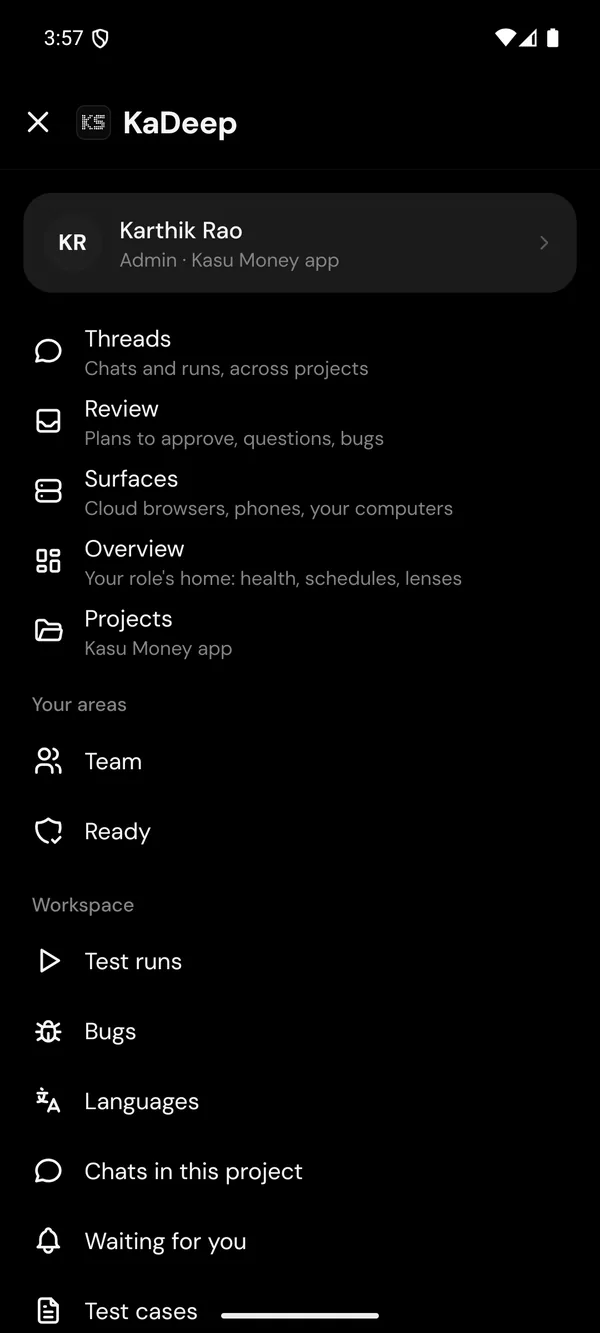
- ☰ opens the menu. It holds Threads, Review, Surfaces, Overview and Projects, then every other area your role uses, such as Test runs, Bugs, Languages, Team and Mission Control.
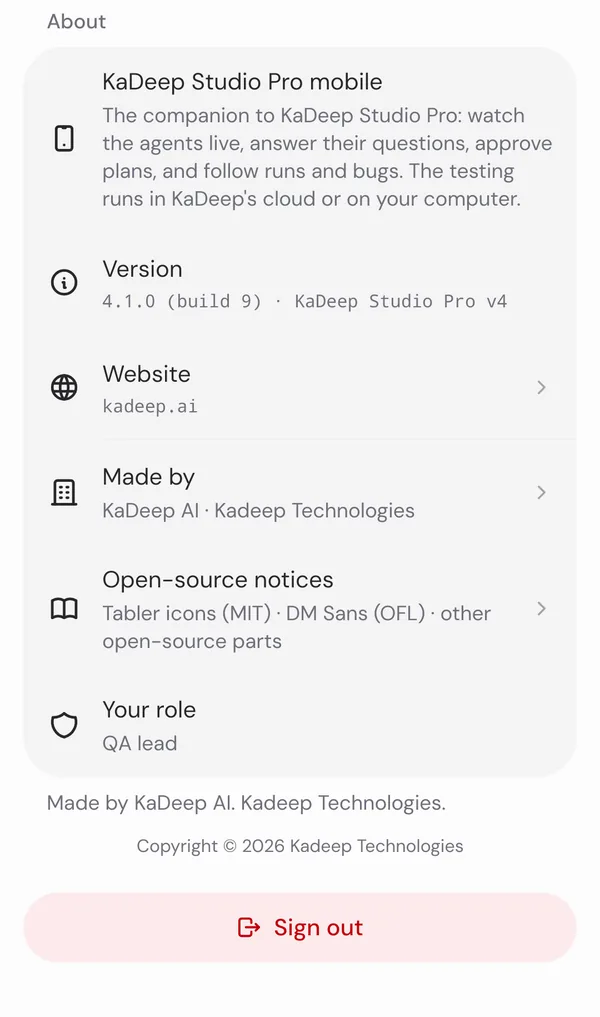
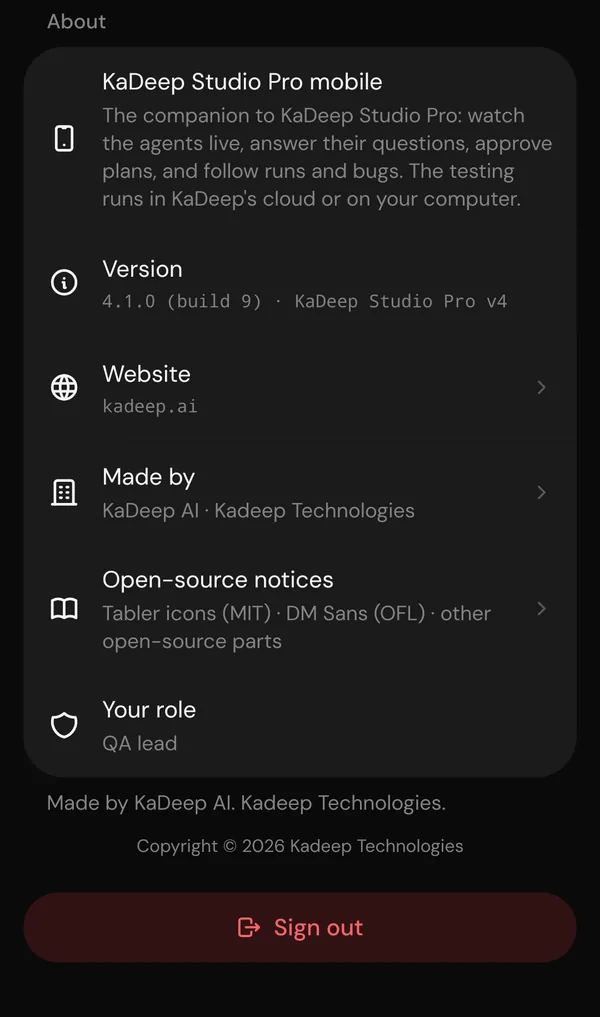
- Settings is at the bottom of the menu, under App: Appearance, Notifications, Where you’re signed in and Sign out. Settings › About shows your version, for example 4.1.0.
What’s next
Section titled “What’s next”Install the desktop appWhere projects are set up and tests are written.
Work with the agentAsk it to plan, test and explain, and approve what it proposes.
Watch agents liveMission Control: every agent's screen, on the desktop.