Team activity
Your view
Team activity is the floor view: what is running now, what needs a look, and what each person is working on. Use it for a quick stand-up without asking around.
1. Open Team activity
Section titled “1. Open Team activity”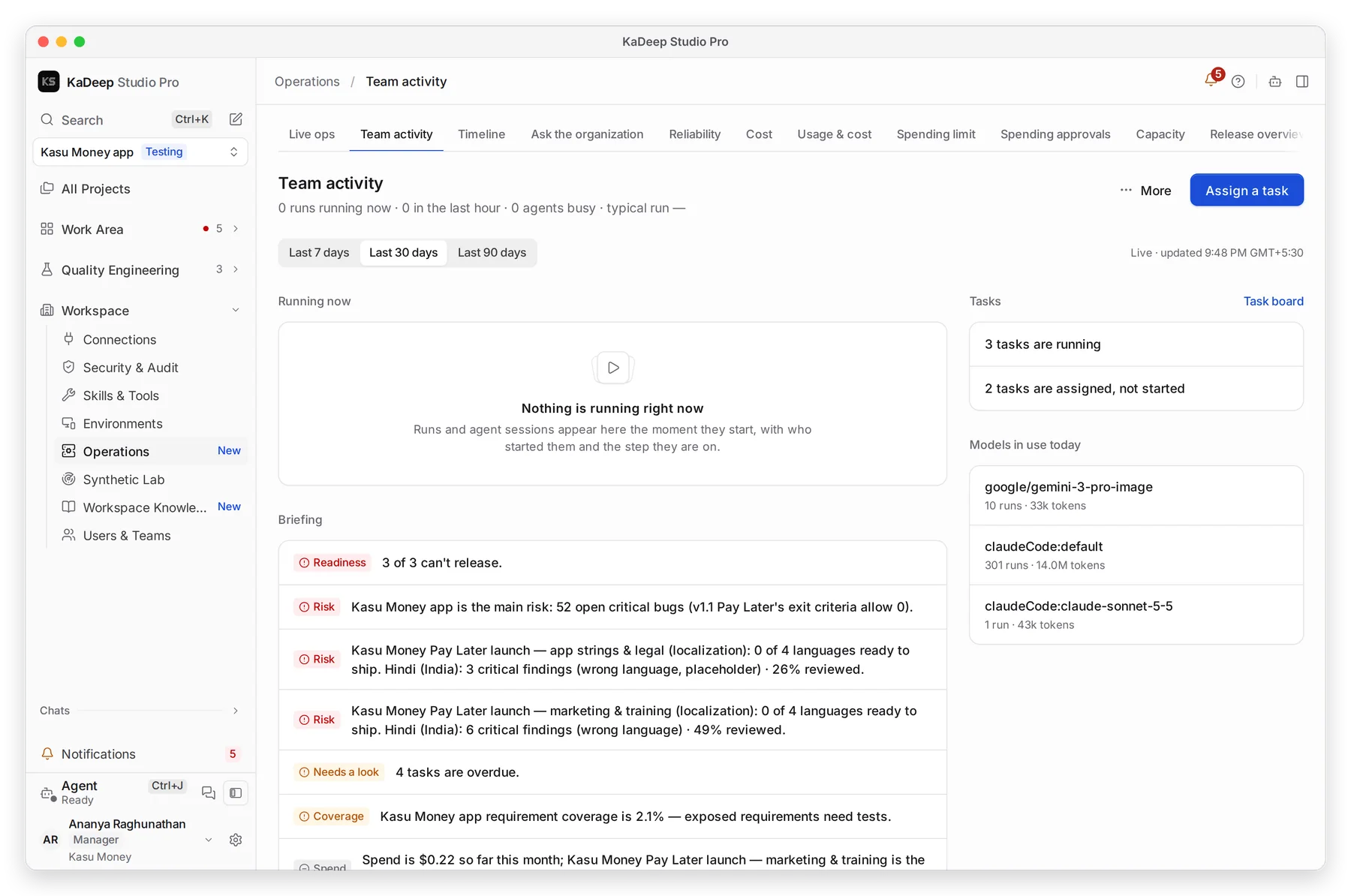
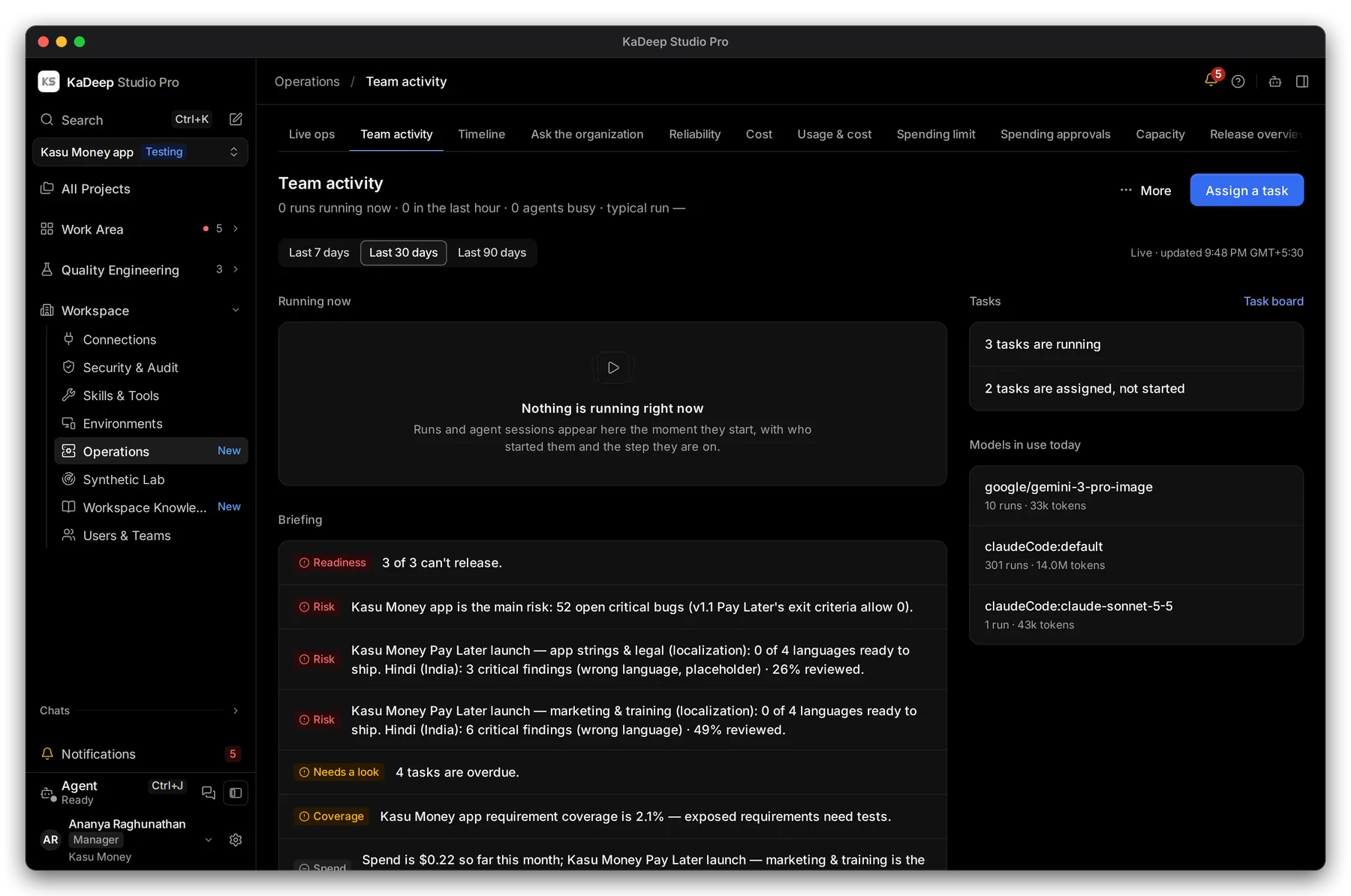
Manage view
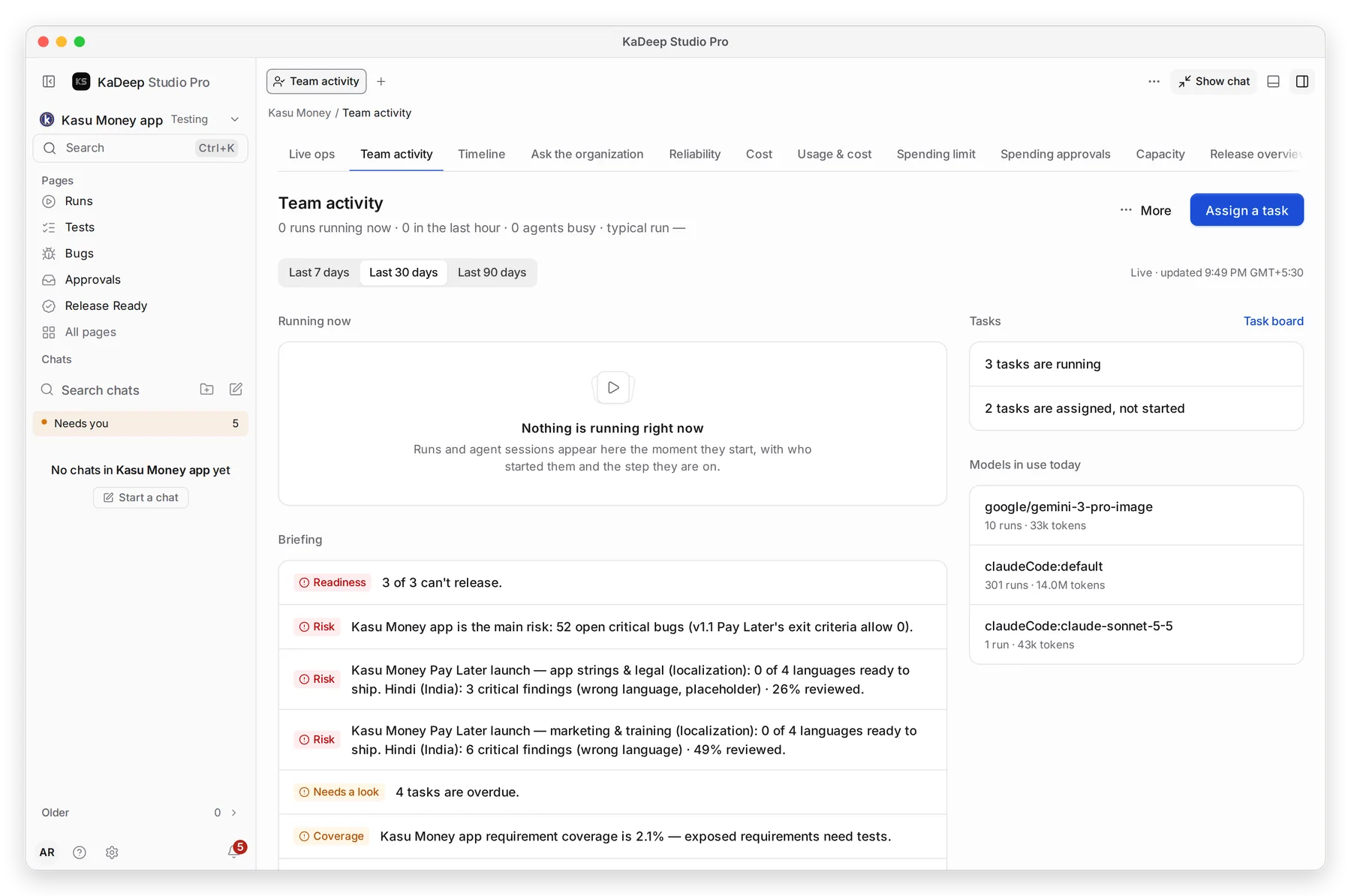
Hands-on view
- 1 Right now: runs running, runs in the last hour, busy agents, and how long a typical run takes.
- 2 The period for the charts and the table: Last 7 days, Last 30 days or Last 90 days.
- 3 Running now: each live run or agent session, who started it, and the step it is on. It updates as it happens.
- 4 Briefing: short lines on readiness, the main risk, anything unusual, overdue tasks and coverage. Each line links to its evidence.
2. See who is on what
Section titled “2. See who is on what”Scroll to People and what they are doing.
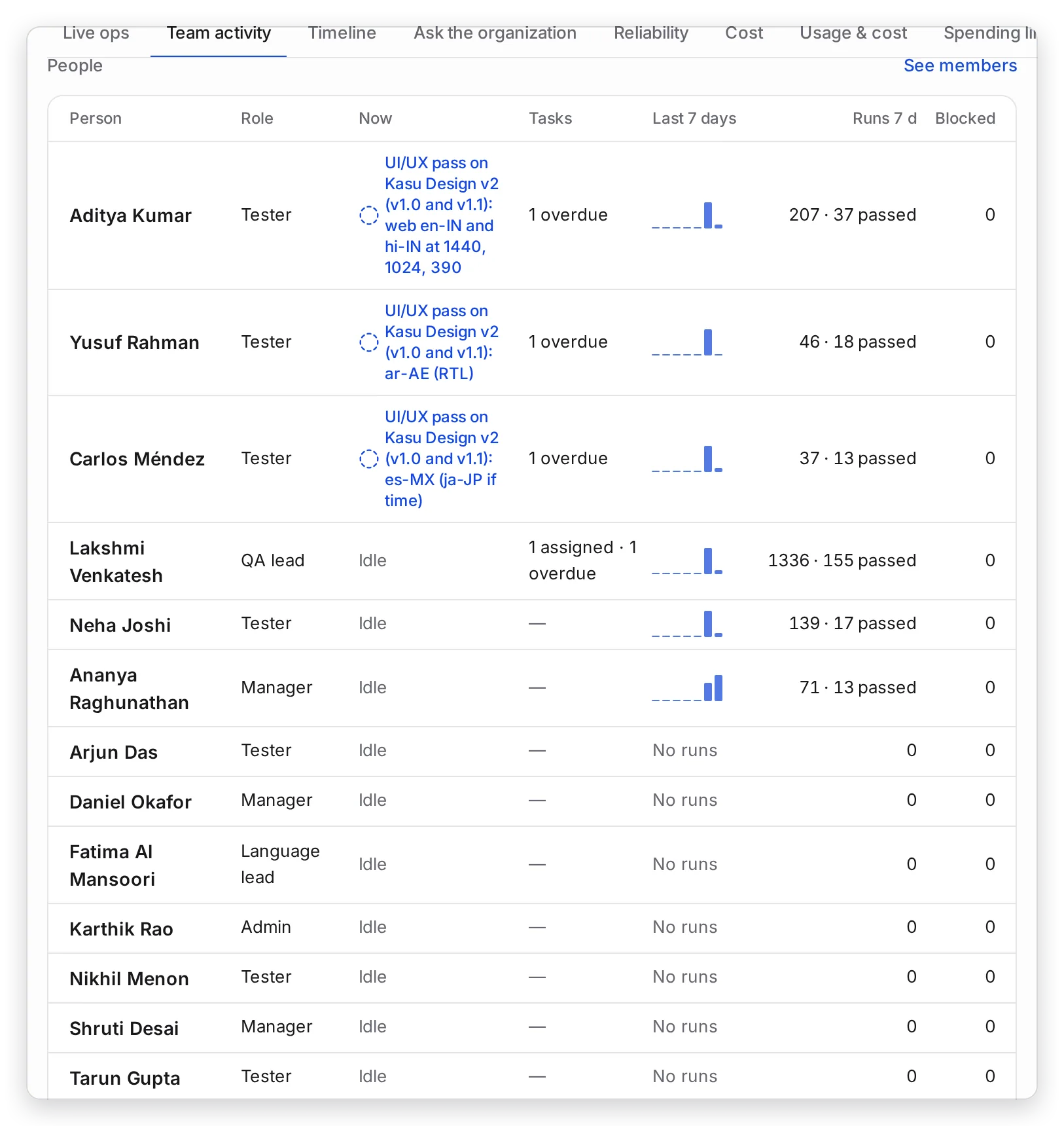
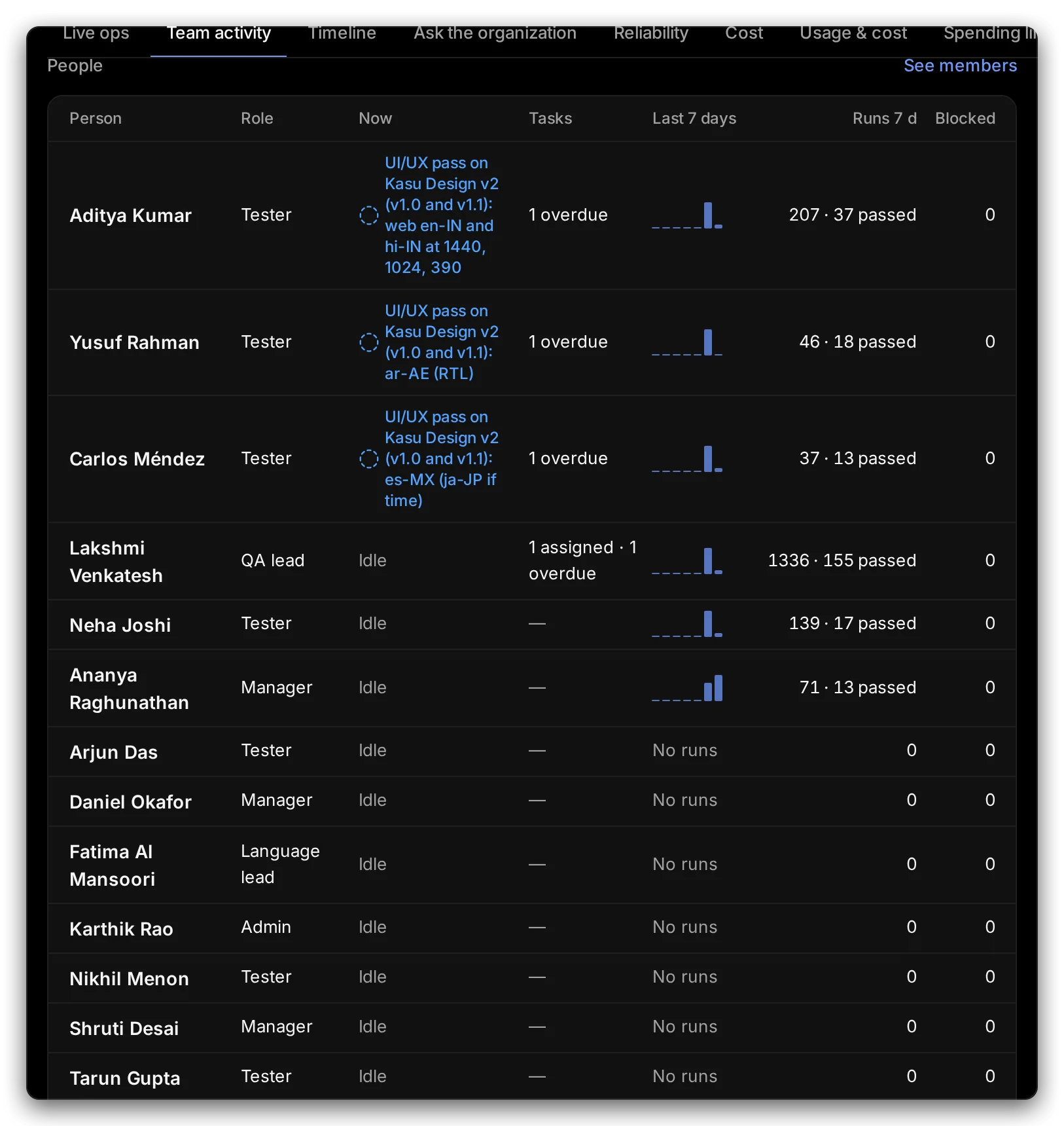
Manage view
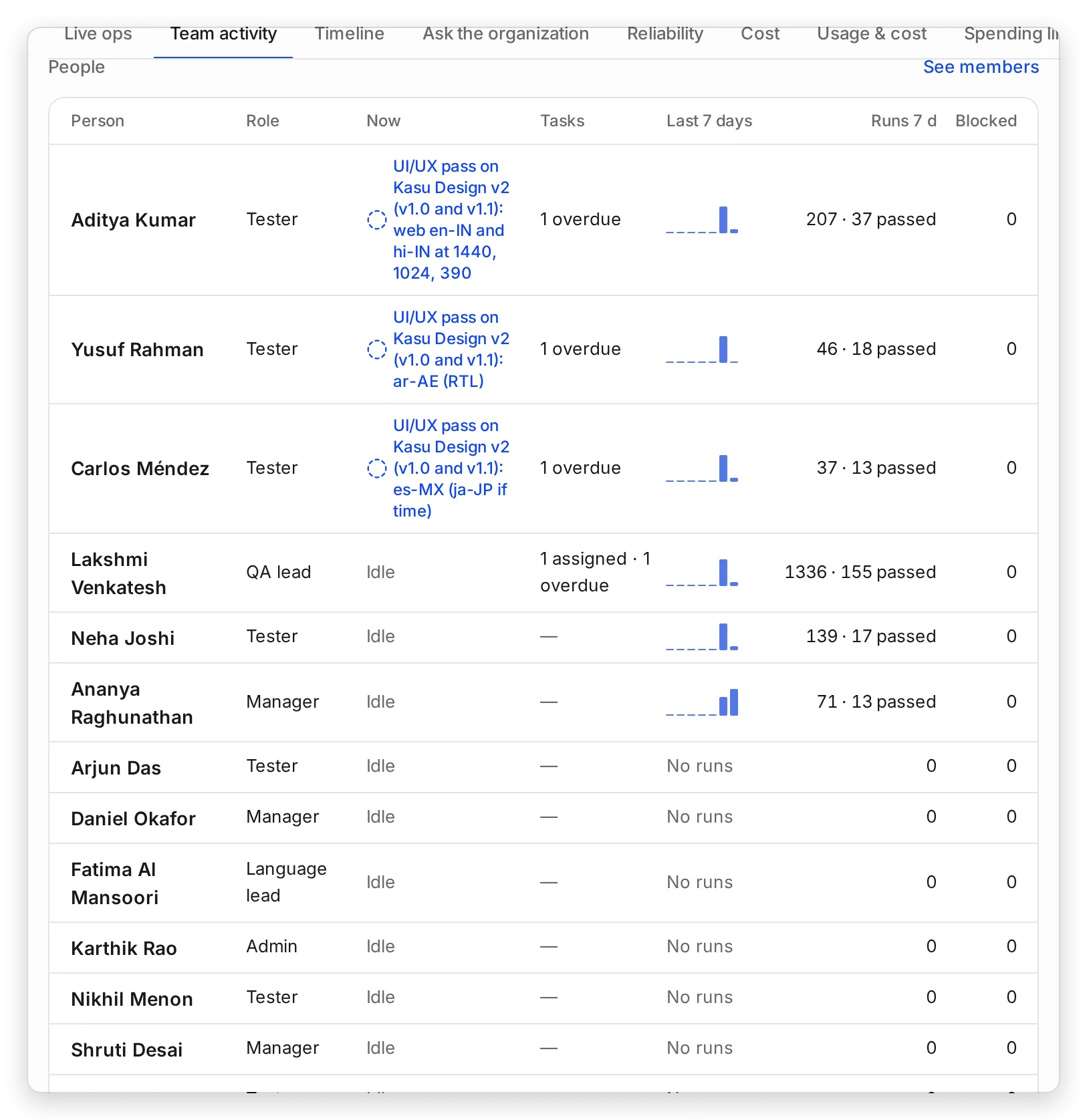
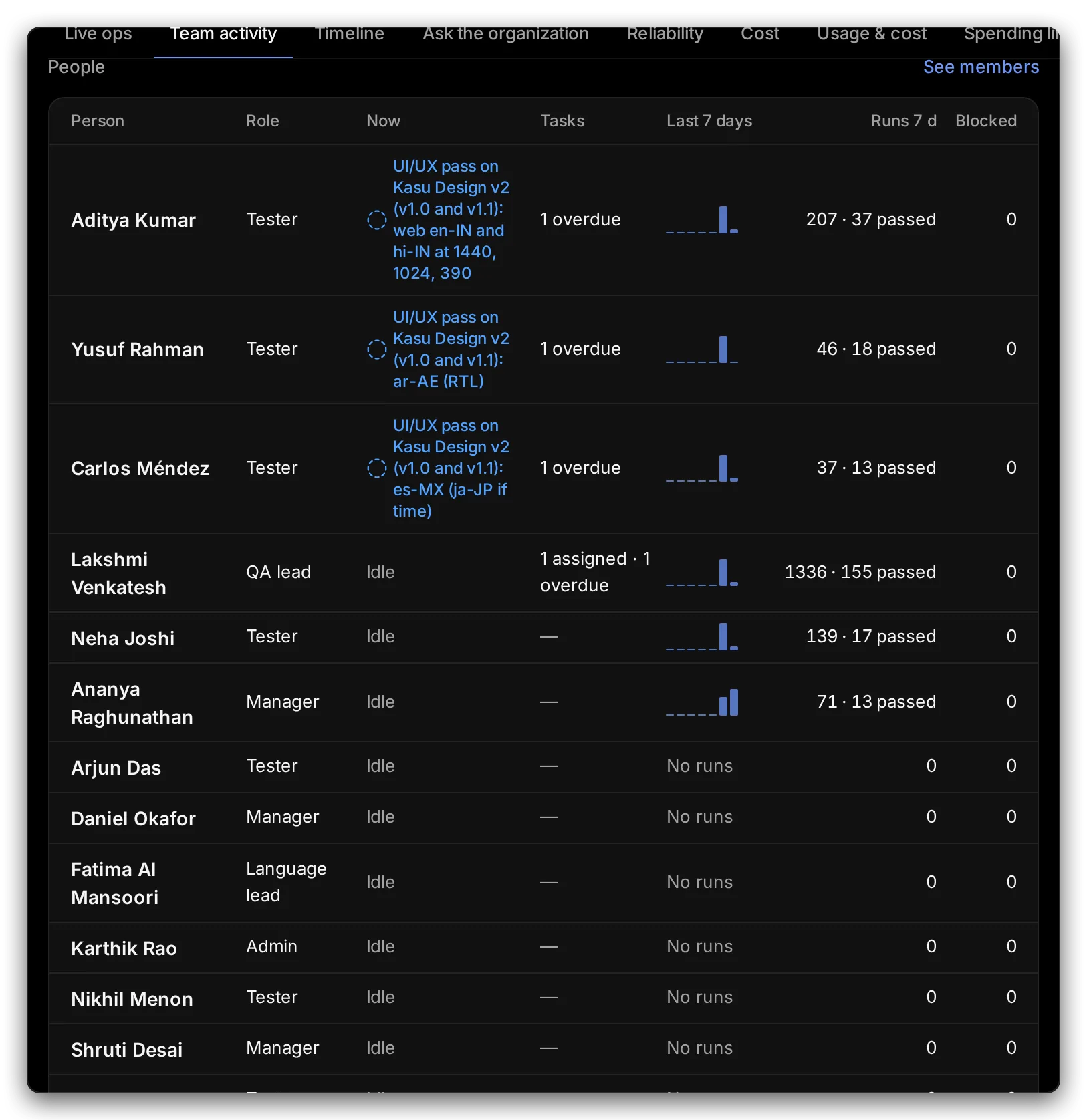
Hands-on view
| Column | What it tells you |
|---|---|
| Now 1 | The task the person is on, or Idle. |
| Tasks 2 | How many tasks they have, and how many are overdue. |
| Last 7 days and Runs 7 d | Their runs over the period, and how many passed. |
| Blocked 3 | Tasks they marked as blocked. Start here. |
On the right, Tasks counts tasks running and tasks assigned but not started; Task board opens them all. Models in use today shows which AI models the agents used. Below the table, Quality shows the pass rate over the period.
What’s next
Section titled “What’s next”TimelineHanded-out work by person and due date.
Assign tasksGive a task a person, a priority and a due date.
Watch agents liveMission Control: every agent's screen, as it happens.
Monitoring and reliabilityLive operations, flaky tests and tool errors.