What’s new in v4
KaDeep Studio Pro 4.0.0 came out on 6 November 2026. It starts a new line for KaDeep Studio Pro, and it is the most stable version we have shipped.
This page lists every change in 4.0, by role. For the highlights, the release history and what we plan next, see What’s new in 4.0, and what’s next.
| 2 views | Manage and Hands-on, one switch apart |
| 5,763 | automated checks pass on the v4 build |
| 20 of 20 | role checks passed after release: 10 roles, both views |
| 269 | issues found by a test company, all fixed |
| 4.0.0 | one version across the desktop, web and phone apps |
Two views: Manage and Hands-on
Section titled “Two views: Manage and Hands-on”v4 gives you two views of the same workspace. They show the same screens from the same data, so switching never changes a number. Switch from the account menu or Settings › Appearance. See Manage and Hands-on views.
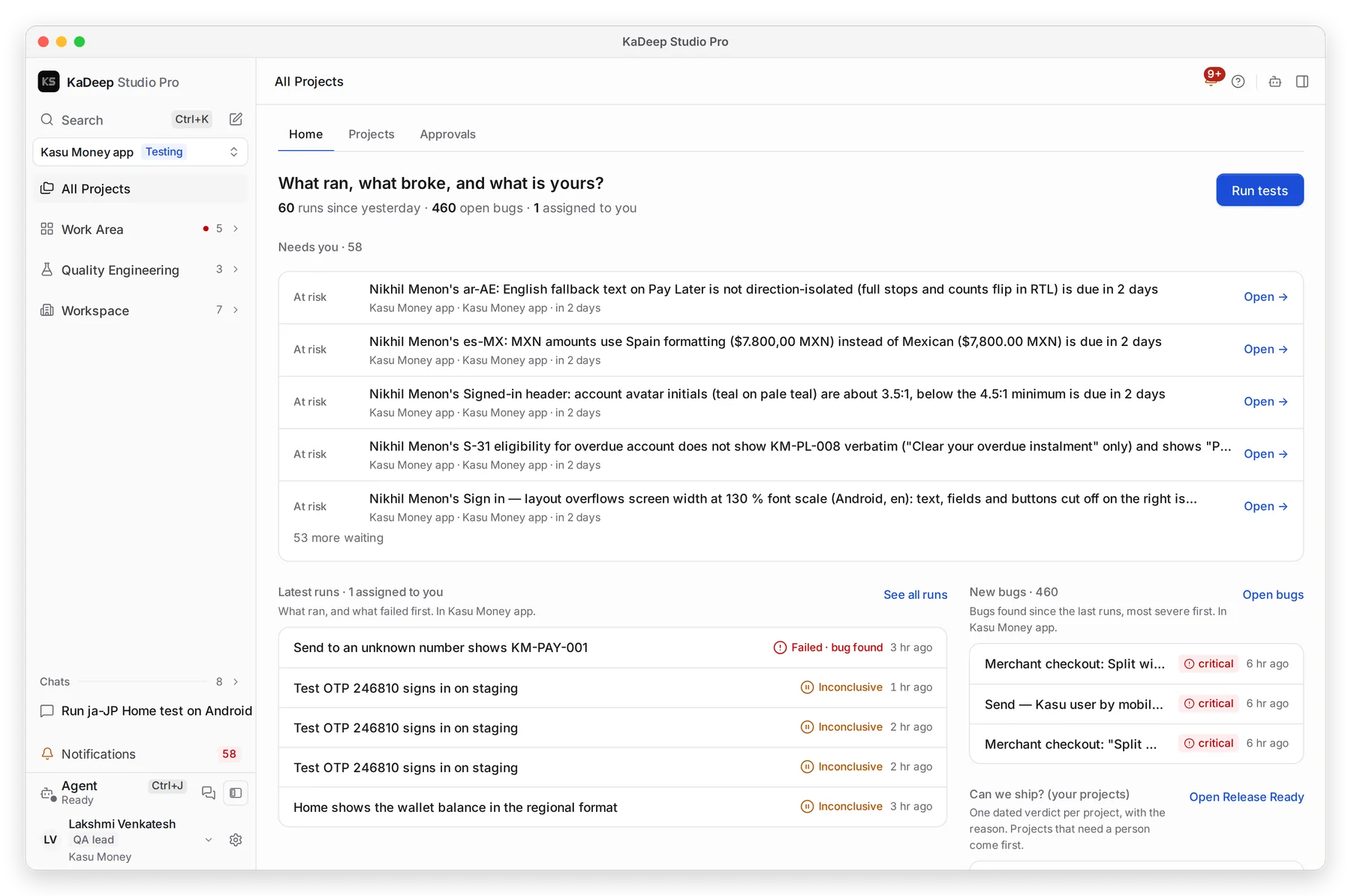
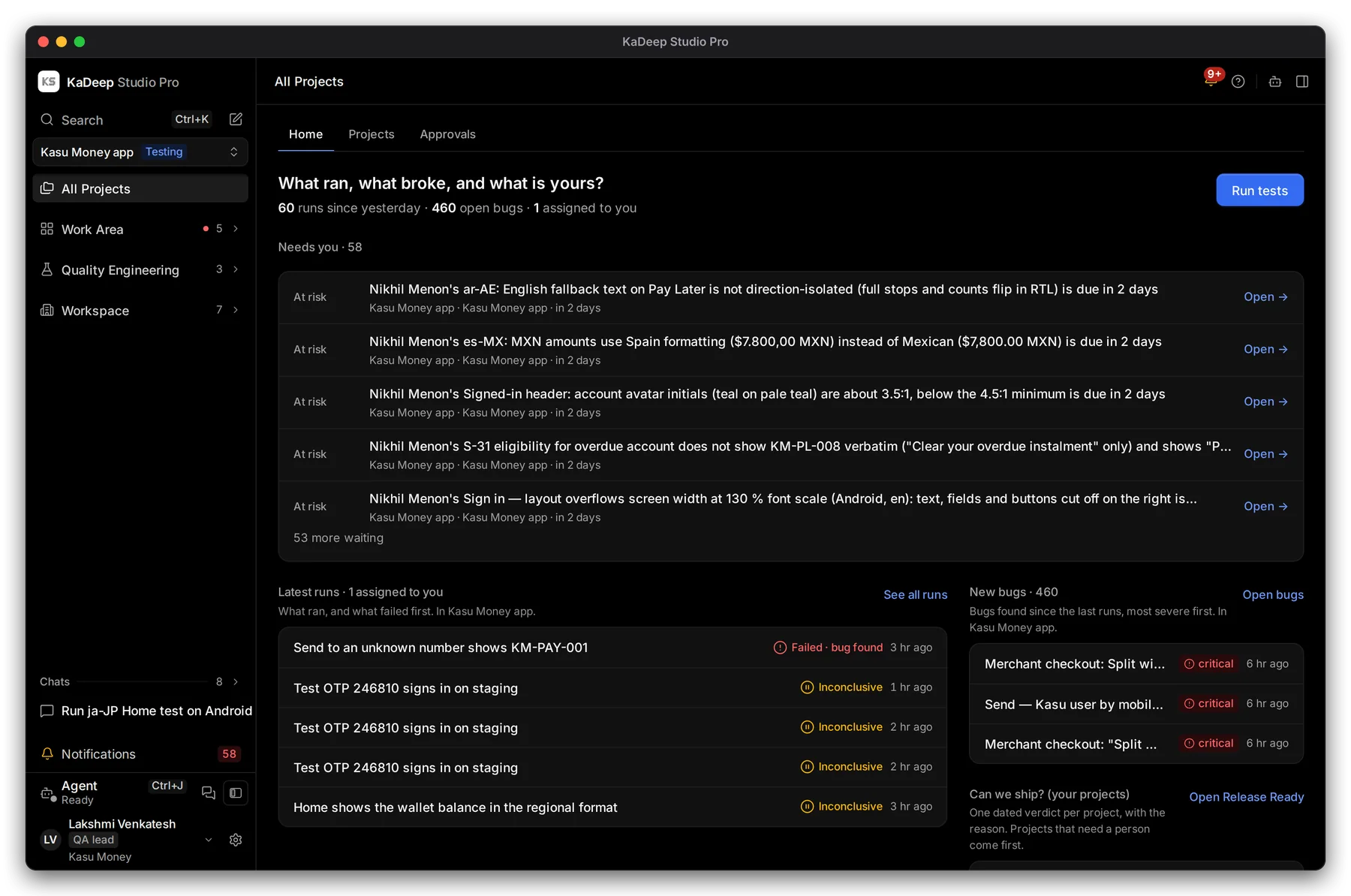
Manage view
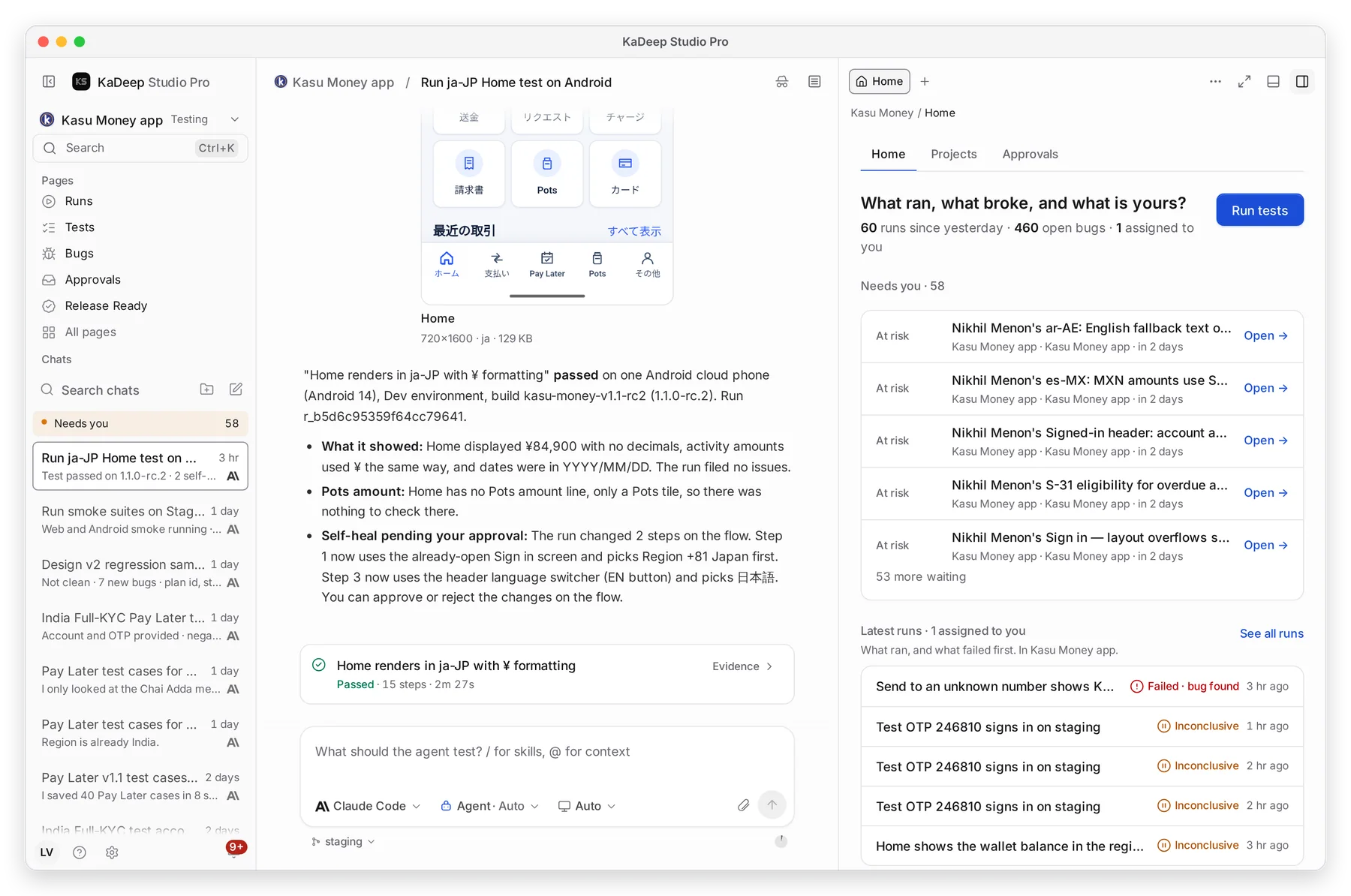
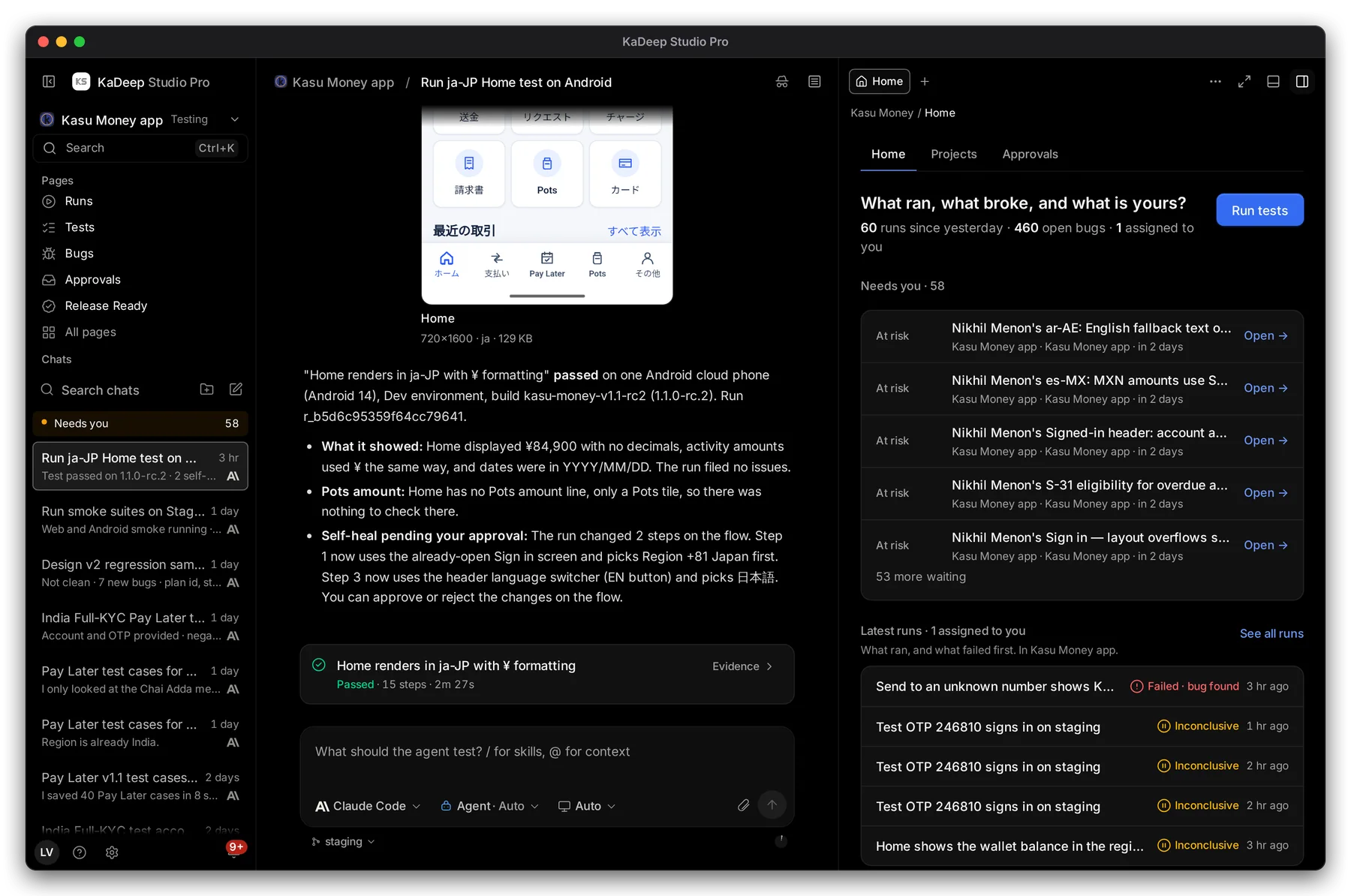
Hands-on view
| View | What it is |
|---|---|
| Manage (the default) | Every page has a place in a three-level sidebar: group, item, page. Nothing is hidden in tabs. Built for leads, managers, reviewers and anyone who wants the whole picture. |
| Hands-on | Projects and their chats sit in the sidebar, the agent’s work runs in the middle, and pages open as tabs beside it. Settings, usage and team open over your work. Built for people who work through the agent all day. |
- See the agent think. The agent’s work shows in the chat as a live thread that folds away when it is done. See Work with the agent.
- Mission Control shows every agent. Each agent at work gets a tile with its live screen, what it is doing and its result. See Watch agents live.
- Connect your AI provider. The AI providers page shows each provider’s real status and a short connect strip. See Connect AI providers.
- The same frame in both views. The sidebar keeps one width in both views, so nothing moves when you switch. See A tour of the KaDeep window.
Testing
Section titled “Testing”For QA leads and testers.
Plan and organize
Section titled “Plan and organize”- Folders, labels and suites. Put tests in folders and edit labels one at a time or in bulk. Build a suite by folder, label, priority, platform or filter. Testers can build and edit their own suites. See Tests and Suites.
- Bring your existing cases. A new test asks for platform, priority and steps. Import your case library with a dry run first, and export bugs as CSV. See Tests.
- Requirements that link up. Requirements import keeps one row per document ID, and imported cases link to the requirements they cite. The Requirements page shows linked and covered as percentages. See Requirements and coverage.
- A time and cost estimate before every run. The run panel says how long a run should take and what it should cost, and marks a guess as a guess. See Run a test suite.
- Web and phone in one test. Suites and runs can target the web, the phone app, or both. When no phone is free, the web half still runs. See Test on phones.
- The screen size you chose. Runs open at the size you pick, including 1024 px and true phone widths. Negative testing is its own kind.
- Parallel runs that keep to themselves. Every run gets its own browser session and its own copy of the saved test login, so parallel runs on one test account no longer sign each other out. See Test logins.
- Run picked tests side by side. Choose how many agents share the work, and see the estimate for that number.
- Exploration that uses its time. A time-boxed session keeps exploring until its time is used, and says why if something ends it early.
Bugs and rechecks
Section titled “Bugs and rechecks”- Better bug reports. A new bug takes a screenshot and a language. Dismiss a bug with a reason in words, or as a duplicate that links to the bug you keep. See Bugs.
- Rechecks that match the bug. A recheck runs on the bug’s own platform, width and language, in the environment where the fix shipped. It decides only what it checked, and it asks for write approval when its steps need one.
- Results that tell the truth. A stopped run reads Stopped, never passed. A run stopped by the budget says so. When the agent is unsure, the verdict is Inconclusive. When an AI allowance runs out, runs show Paused instead of running. See Runs and evidence.
Speed and reliability
Section titled “Speed and reliability”- Slowdowns where managers look. A performance regression appears on Release Ready, against its own baseline. See Performance and other non-functional tests.
- Journey monitors that reach people. When a monitored journey goes down or recovers, the people named on the monitor hear about it in the bell. See Synthetic monitors.
- Visual baselines and careful load tests. Visual baselines are listed with an audited accept. Load tests pace each simulated user, stop at a request cap, and ask consent for the most they can send.
Localization
Section titled “Localization”For language leads, linguists and reviewers.
Gates that protect what ships
Section titled “Gates that protect what ships”- Every plural form, per language. Each target language gets every plural form it needs, also for files read in earlier. An approved file that gains new plural forms says so, and you can reopen just those forms. See Languages and locales.
- Terms and limits enforced. Do-not-translate terms stay exactly as written, forbidden glossary terms are flagged, and character limits from your files are enforced. Each one blocks approval until it is fixed. See Glossary and translation memory.
- Redrawn pictures are read back. A picture redrawn in another language is read back against its approved translation. A mismatch holds approval.
- Legal and finance text gets a person. Legal and finance files are tagged when they arrive and need a person’s review, with a legal sign-off step on their deliveries. See Deliveries.
Better machine translation and memory
Section titled “Better machine translation and memory”- Every string gets its own answer. Machine translation keys each string to its segment, so a table cell never gets its neighbor’s text. A sentence drawn over several lines of a graphic is translated as one sentence. Number-only and date-only strings are copied, never left empty.
- Memory you can trust. Translation memory matches are checked against your glossary before use, and placeholders match as your file writes them. See Translate in the Workbench.
Right-to-left, e-learning and in-context checks
Section titled “Right-to-left, e-learning and in-context checks”- Right-to-left done right. Arabic graphics export with their language set and lines drawn right to left, with an optional mirrored layout. QA flags number ranges that would show reversed.
- SCORM courses end to end. Validation reads course pages inside the player, the player records status and score, reviewers sign off a course on its delivery, and course deliveries can run an accessibility check. See Source assets.
- Check text in your real product. In-context capture can start signed in with the project’s saved login. Validate in context checks the pages that show a file’s strings. See Site logins and Review and LQA.
Teams of linguists and reviewers
Section titled “Teams of linguists and reviewers”- Each linguist in their own languages. Linguists edit strings, move deliveries and review screens only in their own languages. See Your language queue.
- Bulk work with care. Select all in the Workbench shows the count before anything changes. Bulk Accept leaves out strings with a critical finding and says why.
- Late changes, handled. A late source change comes in as the next version of the file it updates. Dismiss a finding with a reason, for one string or for every one like it.
Managers and tracking
Section titled “Managers and tracking”For managers, admins and finance.
- New: Timeline. Team › Timeline puts handed-out work from testing and localization on one axis, by person or by project. Choose this week, the next three weeks or your own dates. A today line, LATE and AT RISK flags, sign-off markers and milestones show what needs you. Open, reassign or message from any bar. See Timeline.
- Due dates everywhere. Needs you, the bell, Assigned and the task drawer show due dates, marked late or due today. A task notification opens the task. See Needs you and Assign tasks.
- Nobody waits in silence. Bug assignments, release sign-off requests, approval requests and escalations reach the people they wait on. “Waiting on others” lists only the requests that concern you. See Approvals.
- Spending you can follow. See and edit the approval chain on Spending approvals. Cost shows estimate against actual. See Spending limit and approvals and Cost.
- Ask about the whole organization. Finance, compliance, managers and admins can ask the agent about the organization, outside any one project. See Ask the organization.
- One set of numbers. Pass rates, run counts and localization progress now agree from page to page.
Release decisions
Section titled “Release decisions”For release owners and stakeholders.
- Your criteria decide. Set entry and exit criteria on the test plan. Release Ready and the ship gate judge each release by its own criteria. See Plans.
- Every miss, listed. Every verdict lists each exit criterion a release misses, coverage included, before any top bug. See Release Ready: can we ship?.
- Sign-offs that work like people do. A QA lead who owns a release can name stakeholders, and the project owner and the organization admin can be stakeholders. A rejected sign-off says why, and you can ask again.
- No surprises from edits. A release edit that resets sign-offs warns you before saving and tells stakeholders why. Release edits are audited with before and after.
- Decisions on the record. Hold, lift and ship are signed entries. Mark fixed waits for a measured recheck. Releases list their languages, and Home’s Can we ship? card reads in full on a phone.
Desktop app
Section titled “Desktop app”KaDeep Studio Pro is a desktop app for Windows and macOS, with a phone companion app for Android; the iPhone app is coming soon. At release every v4 app carried the same version, 4.0.0, and About reads “KaDeep Studio Pro v4”. The phone app is now 4.1.0. See What the desktop app adds and About and menus.
- The same look as the web. The desktop app uses the same design as the web, so your team sees one product wherever it works.
- Get the desktop app from anywhere. Every workspace links to its downloads page, with each app’s version, size and checksum. Installed apps keep updating. See Install the desktop app and Check for updates.
- Test desktop software too. The agent can drive desktop applications on a cloud Windows machine. It reads text on screen, follows dialogs, waits through long installs and launches, and recovers when its connection stalls. See Test desktop apps.
The v4 apps are not code-signed yet, so Windows and macOS ask you to confirm the first time you open them. Install the desktop app shows the steps for each.
Accessibility
Section titled “Accessibility”In KaDeep
Section titled “In KaDeep”- Controls say what they show. The bell, My work rows, the Workbench key strip and table sort buttons announce what they show to screen readers.
- Checked in both themes. The setup wizard passes automated accessibility checks in light and dark. The Timeline’s flags meet contrast, and the keyboard stays on the row you are on.
- Part of every release. The release test suite runs accessibility checks on both views.
In your product
Section titled “In your product”- A weekly check from day one. Setup adds a weekly accessibility check in your organization’s time zone. It starts paused and tells you so. See Accessibility testing and Schedule runs.
- Findings you can act on. Reflow problems come as one finding per page, naming the element that sticks out. The accessibility gate applies only where a check can run.
Security and governance
Section titled “Security and governance”For admins and compliance.
Access and identity
Section titled “Access and identity”- Two-step verification. Authenticator apps, passkeys and recovery codes. See Sign in and join your organization.
- Enterprise identity. SCIM handling for people who leave, and safeguards on Require SSO. See Sign-in and security.
- Invites you can trust. Invites keep the role you chose. Waiting invites are listed and accepted only for a proven email address. See Invite people and give them roles.
- Read-only roles that stay read-only. The Compliance and Finance roles can’t change work. Email links never decide spending or data changes. See Roles and what they can do.
Data and audit
Section titled “Data and audit”- Retention and legal hold. Set how long data is kept and place a legal hold. Exports are audited, and evidence links are read-only. See Data and retention.
- An audit log you can search. The log records the person’s own address. A change that relaxes an approval gate needs a reason. Search finds threshold and exit-criteria changes in plain words. See Audit log.
Safe testing
Section titled “Safe testing”- Read-only production stays read-only. On a read-only environment, the saved test login can sign in and nothing else writes. A recheck that needs to write says so before it starts. See Project setup and rules.
- Writes only where a lead allows them. A lead allows test-data writes for a suite on test environments only.
- Guards that know test data. The payment guard accepts only payment-gateway test cards and the test cards your project declares. Load and security tests need proof that you own the address.
- You set the limits. The agent stops at the stop points you set. Every run start goes through the organization’s budget, and transcripts mask secrets. See Spending limit and approvals.
Stability
Section titled “Stability”Why v4 is the most stable KaDeep yet.
Proven by a whole company, in every role
Section titled “Proven by a whole company, in every role”Before v4, we built Kasu Money, a fictional digital wallet launching a Pay Later product in India, the UAE, Japan and Mexico. Its people used KaDeep Studio Pro for their whole launch before release, and every problem they hit went on a fix list. The screenshots on this site come from that company.
| 26 | people in the company |
| 10 | roles, from admin to reviewer |
| 4 | languages, including right-to-left Arabic |
| 16 | work cycles, from invites to release sign-off |
| 269 | issues found, from blockers to polish |
| 22 | rounds of fixes, every issue fixed |
- Every journey, replayed. All 26 people replayed their work. Each journey finished in 5 minutes or less, with no dead end and nothing that sent the person outside KaDeep.
- Real localization volume. 606 app strings and 67 merchant strings were translated, reviewed and approved in 4 languages. A training course was accepted 616 of 616 strings in all 4.
- Every decision on record. The audit log held every kind of decision, from invites and role grants to sign-offs, hold, lift and ship: 4,478 events.
Checks on the exact v4 build
Section titled “Checks on the exact v4 build”| Checks | Result |
|---|---|
| Browser tests, in both views | 730 of 730 |
| Service tests | 3,315 pass |
| Web app unit tests | 1,314 |
| Desktop app tests | 135 |
| File-format and device tests | 130 · 108 |
| Downloads page tests and web server setups | 22 · 9 of 9 |
After release, as every role
Section titled “After release, as every role”Right after v4 went out, we signed in as one person in each role, in both views: 20 of 20 passed. Every person saw “KaDeep Studio Pro v4 · 4.0.0”, with no page errors. The roles: Admin, Manager, QA lead, Tester, Language lead, Linguist, Reviewer, Finance viewer, Compliance auditor and Viewer.
Get v4
Section titled “Get v4”- Download the apps from releases.kadeep.ai: the desktop app for Windows and for Mac (Apple silicon), and the Android companion, with install steps for each. The iPhone companion will follow.
- Phone app 4.1. The redesigned Android companion, with a live view of the agent at work. See The phone companion app.
- Already on the web? Your workspace is on v4 now.