Test desktop apps
Your view
The agent can test a desktop app the way a person does: it clicks, types and reads the screen. It works on a cloud computer that KaDeep starts for you, or on your own computer.
1. Open Desktop
Section titled “1. Open Desktop”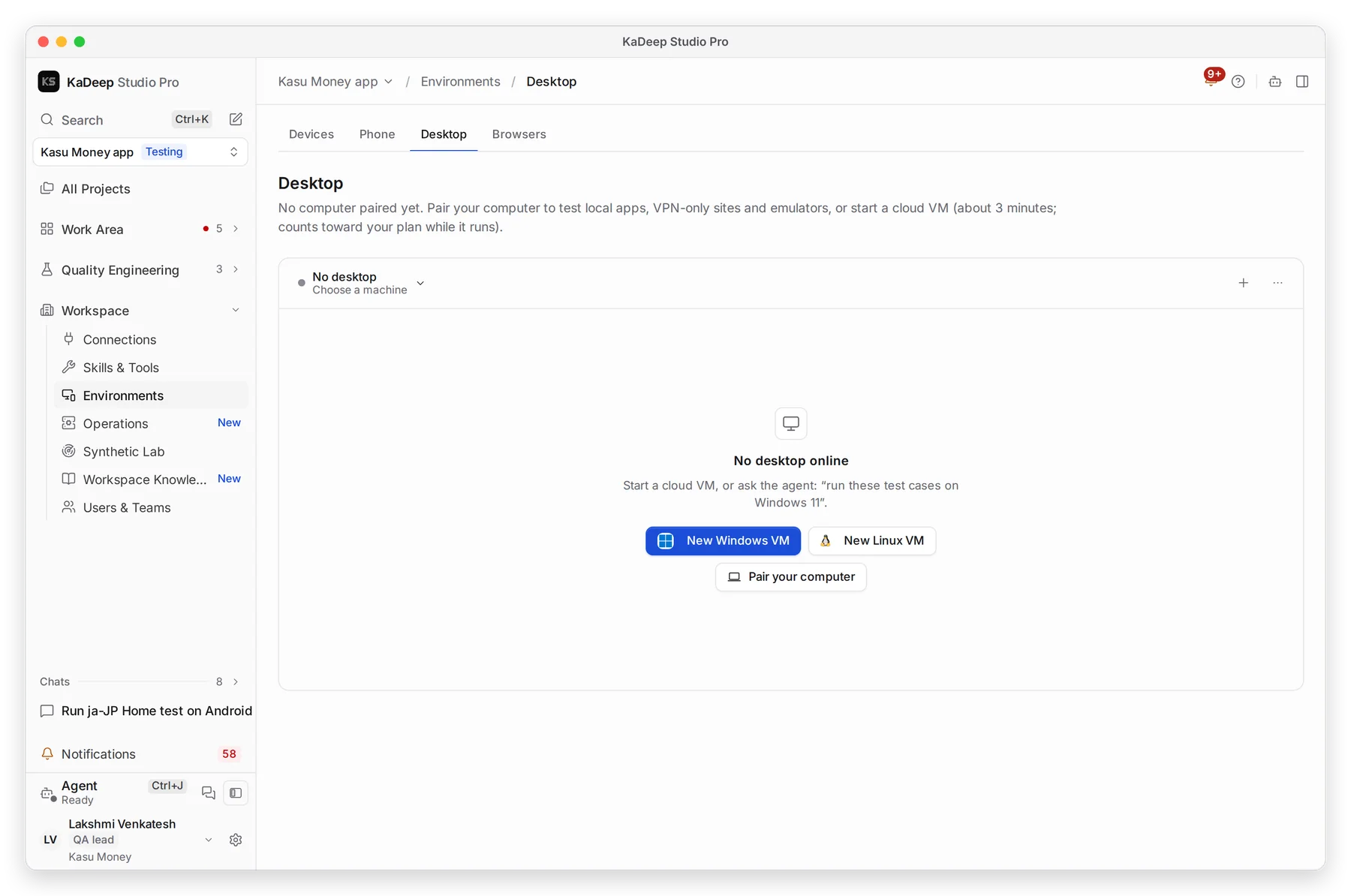
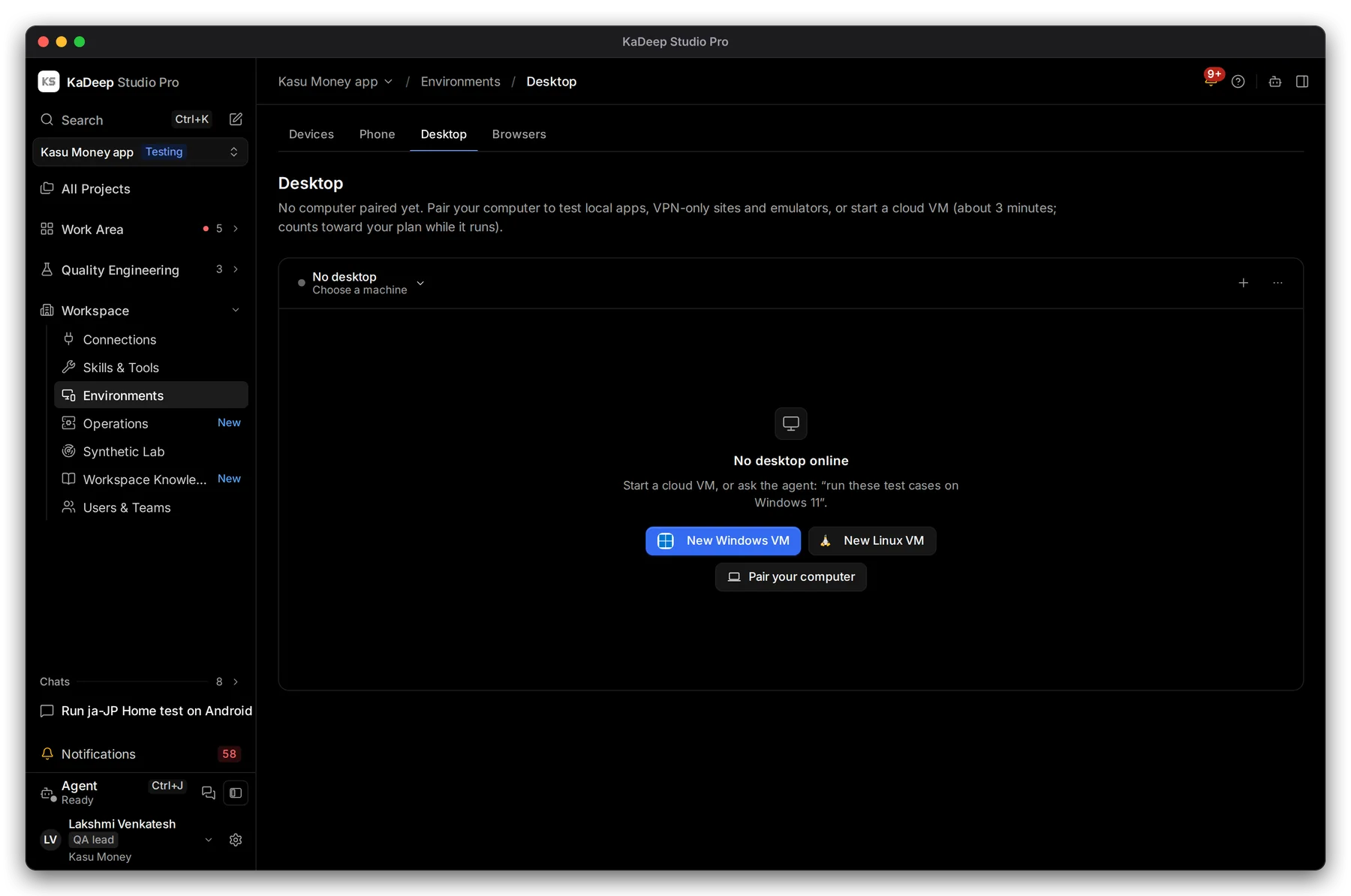
Manage view
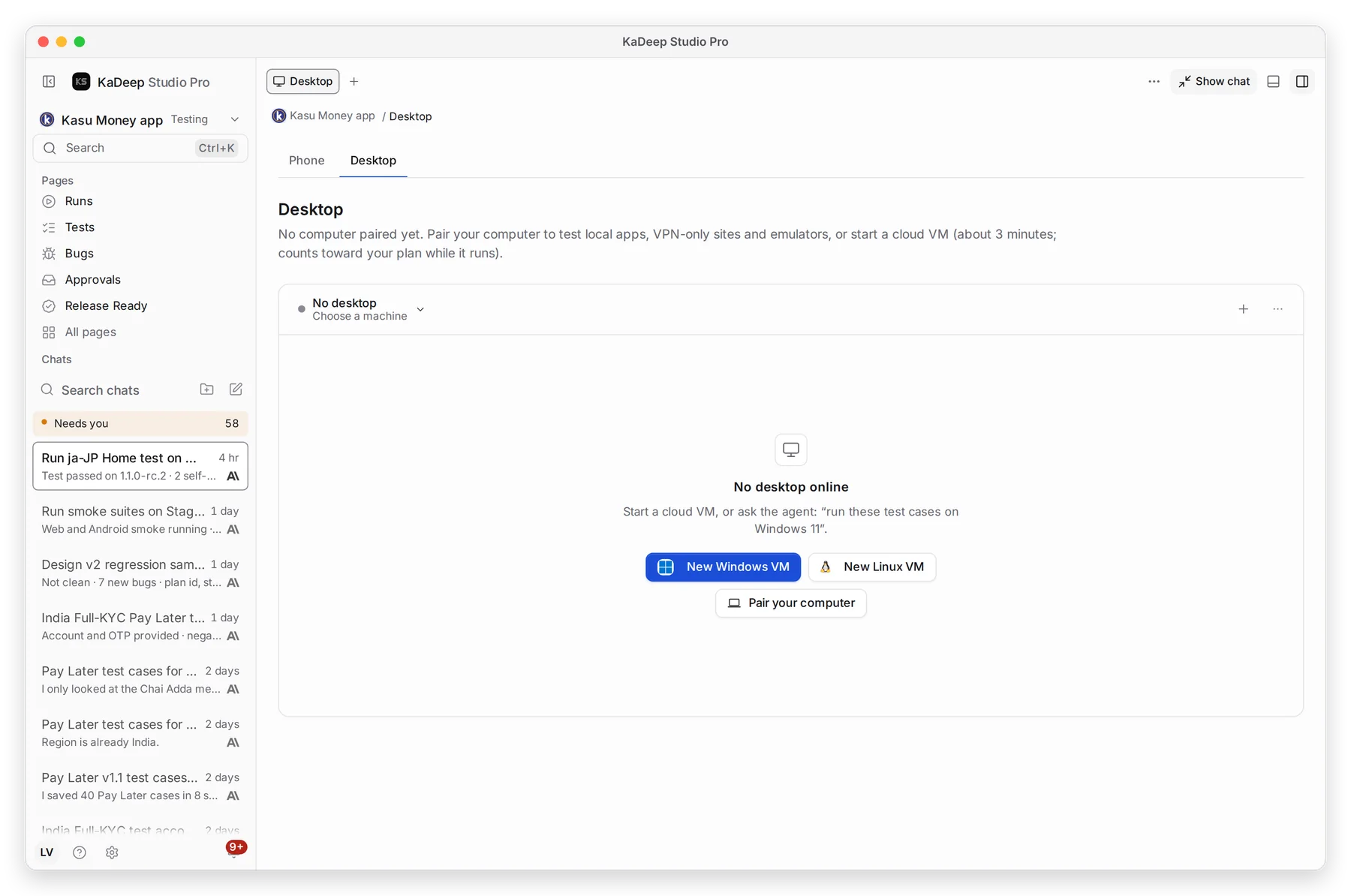
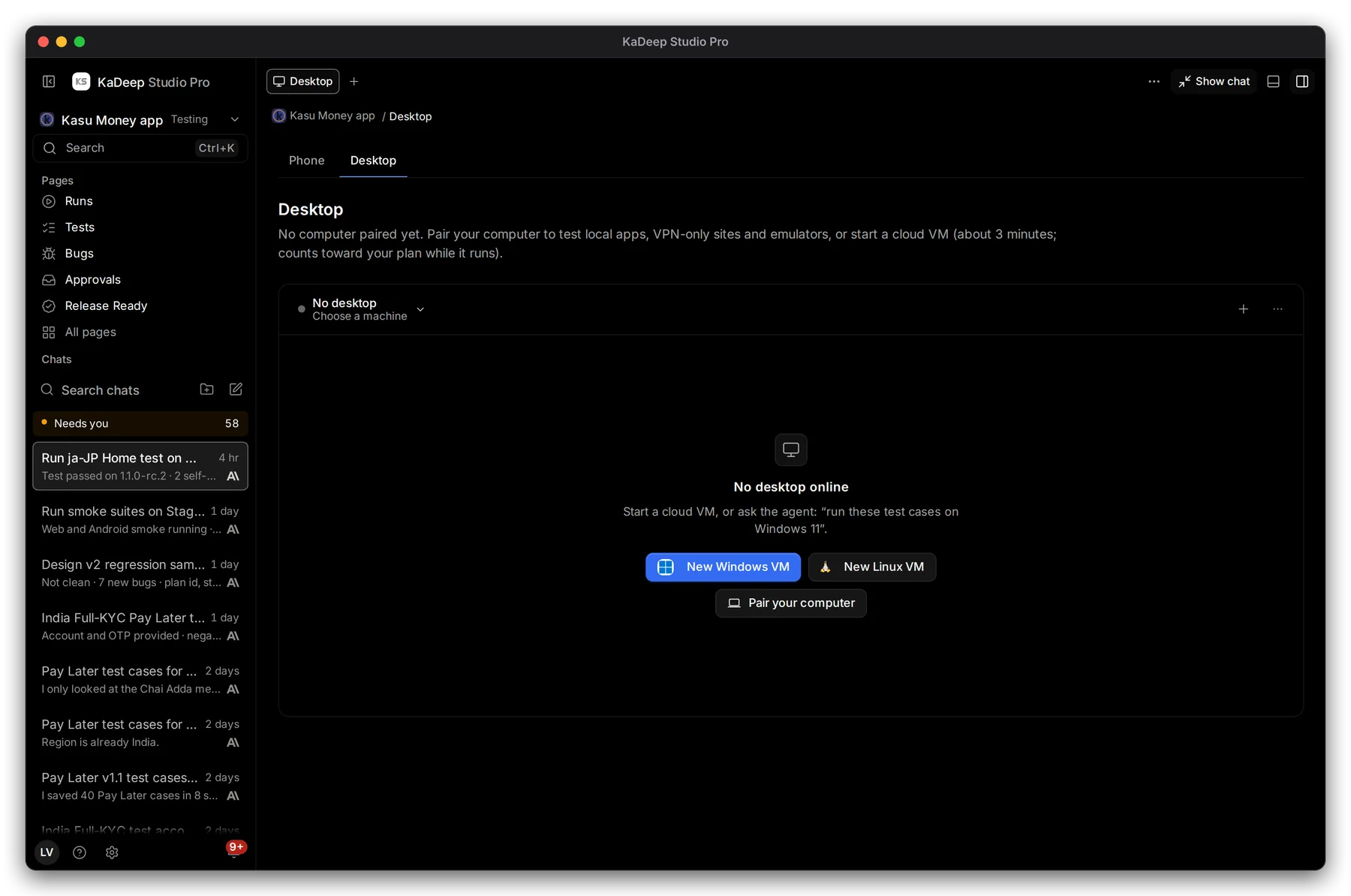
Hands-on view
- 1 Choose a machine: a cloud VM or a paired computer.
- 2 With no machine yet, start one here. New Windows VM and New Linux VM start a computer in the cloud. Pair your computer uses your own Windows PC or Mac.
2. Pick the computer
Section titled “2. Pick the computer”| Choose | When |
|---|---|
| Cloud VM | You want a clean Windows or Linux computer with nothing to install. It takes about 3 minutes to start, and counts toward your plan while it runs. |
| Paired computer | The app runs on macOS, needs your network or VPN, or needs hardware on your desk. See Pair this computer. |
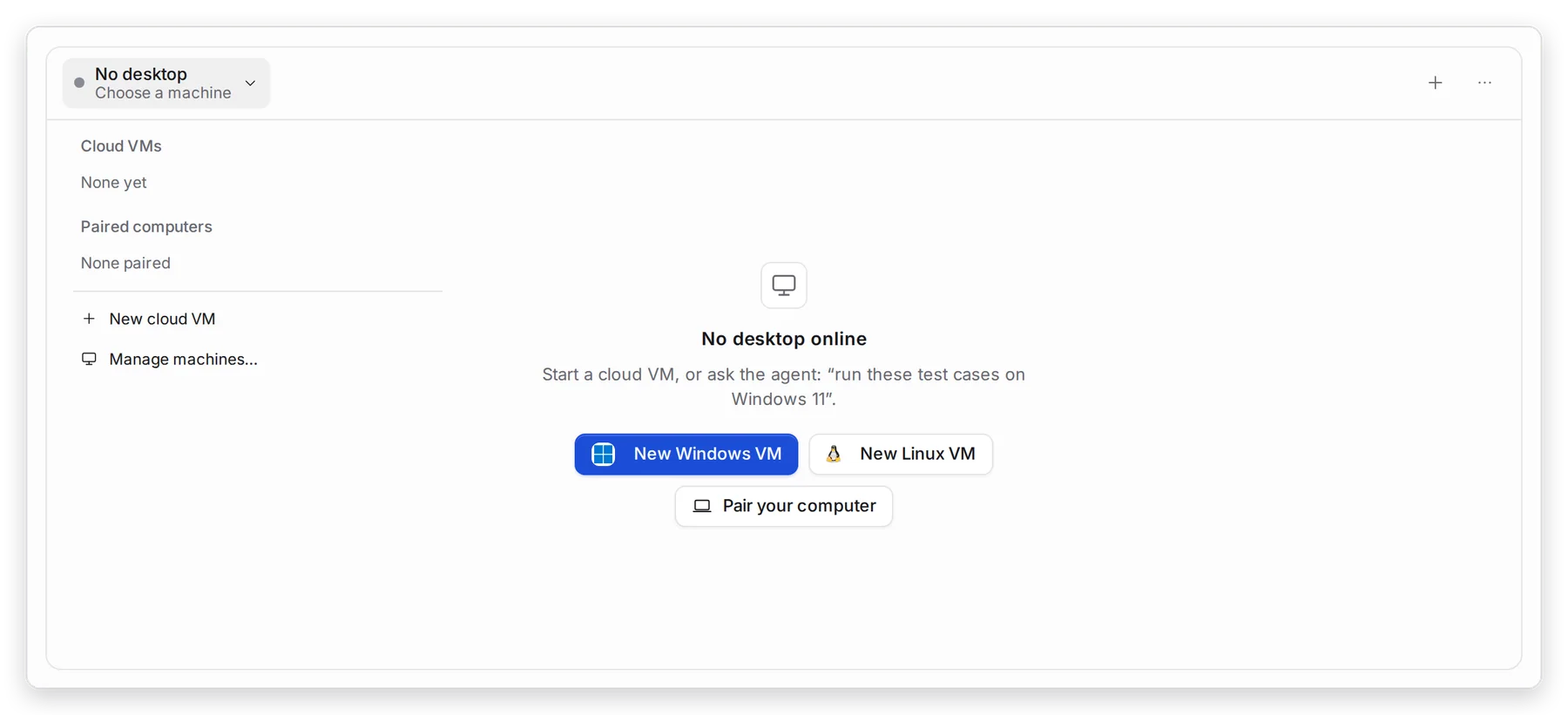
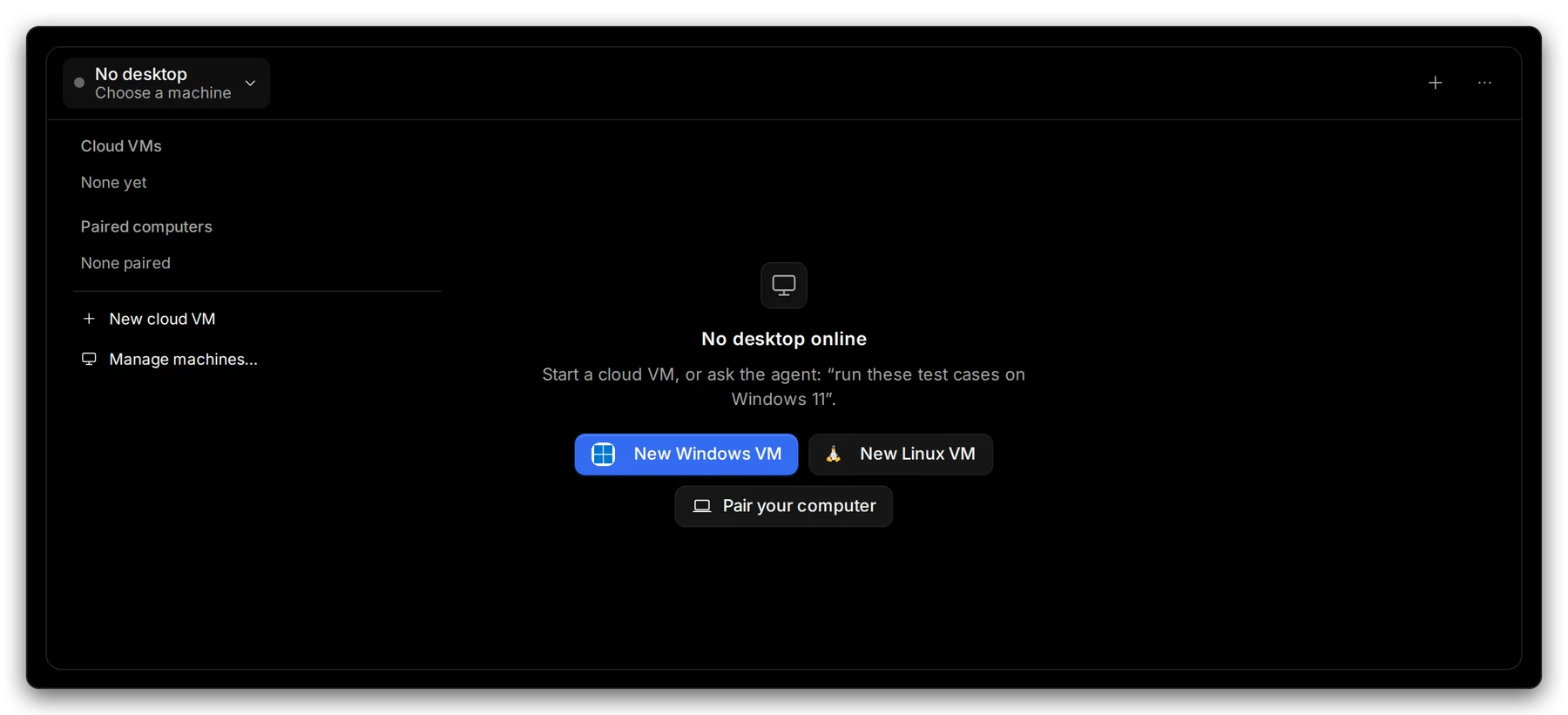
Manage view
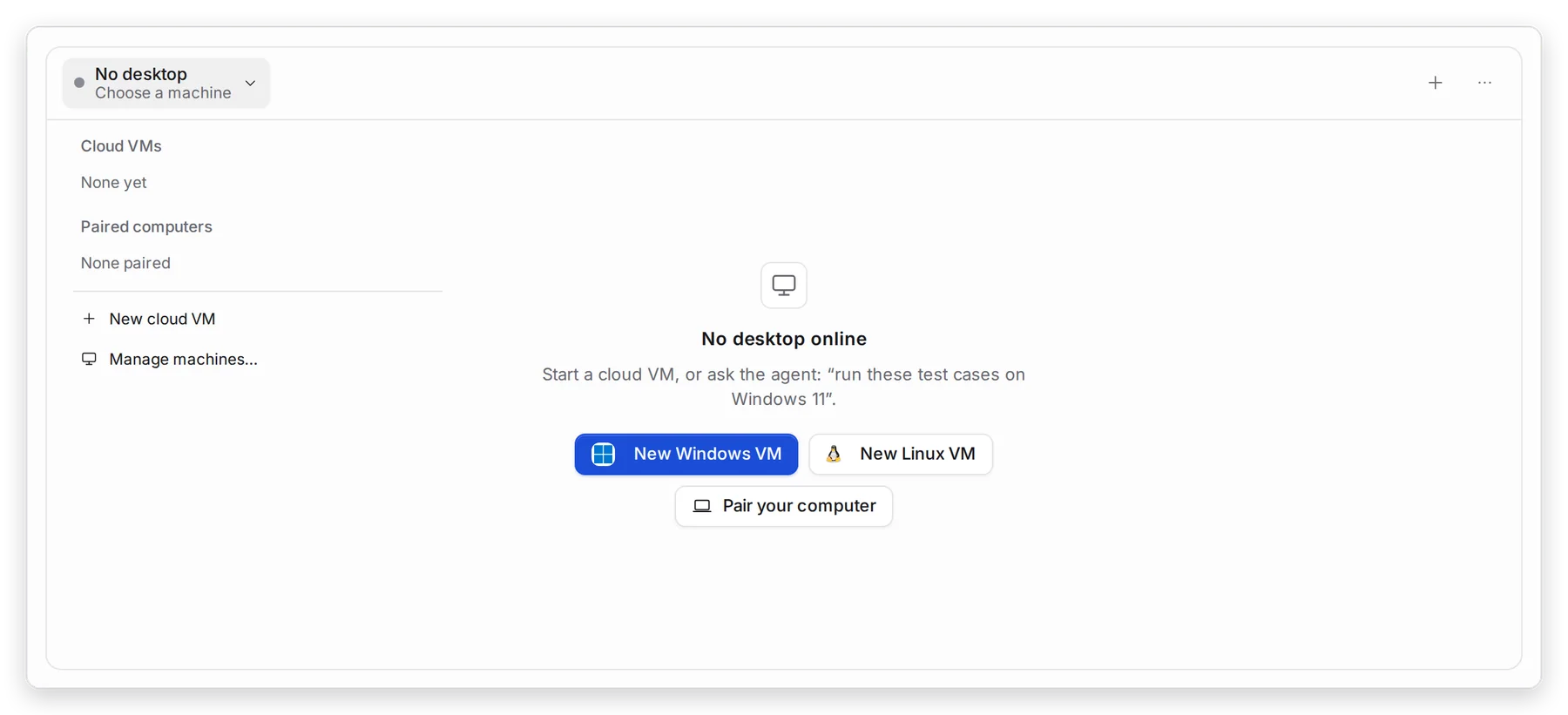
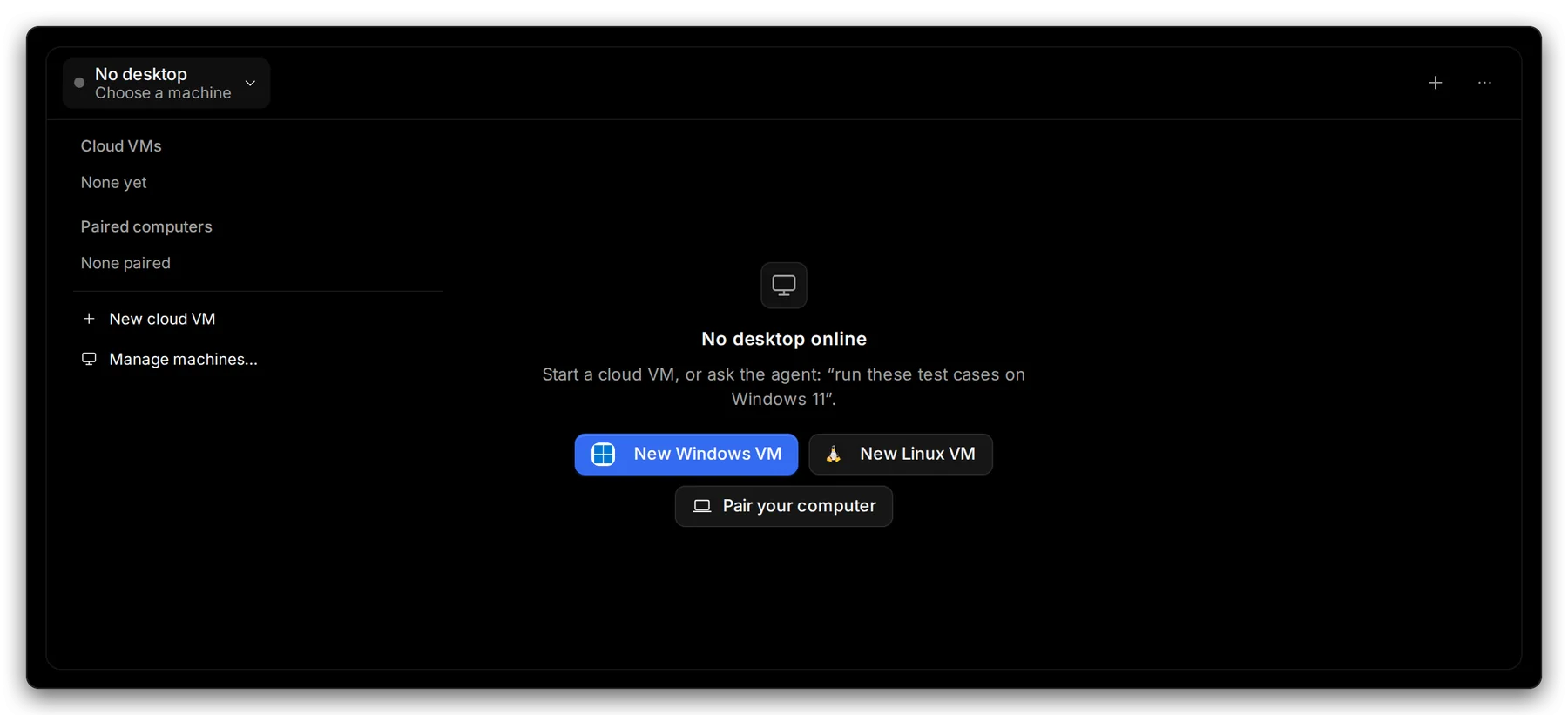
Hands-on view
1 The menu lists your Cloud VMs and Paired computers. 2 Manage machines… shows them all.
A cloud VM shows its state: Creating Starting Ready.
3. Ask the agent to test
Section titled “3. Ask the agent to test”In the agent’s message box, say what to test and where: “Run these test cases on Windows 11.” The agent opens the app and works through each step.
4. Watch it, or take over
Section titled “4. Watch it, or take over”While the agent works, its screen shows live on the Desktop page and in Mission Control. The status line says Agent acting and the step it is on.
- Choose Take control to use the keyboard and mouse yourself. The agent waits.
- Choose Hand back when you’re done. The agent carries on.
- Choose Stop to end the session.
What’s next
Section titled “What’s next”Pair this computerConnect your Windows PC or Mac to a project.
Allow permissions on macOSAccessibility and Screen Recording.
Test on phonesAndroid and iOS apps.