Release Ready: can we ship?
Release Ready answers one question per project: can we ship? The verdict is based on the latest runs, open bugs, coverage and your release criteria. The page lists every reason and keeps a signed record of what people decided.
1. Read the verdicts
Section titled “1. Read the verdicts”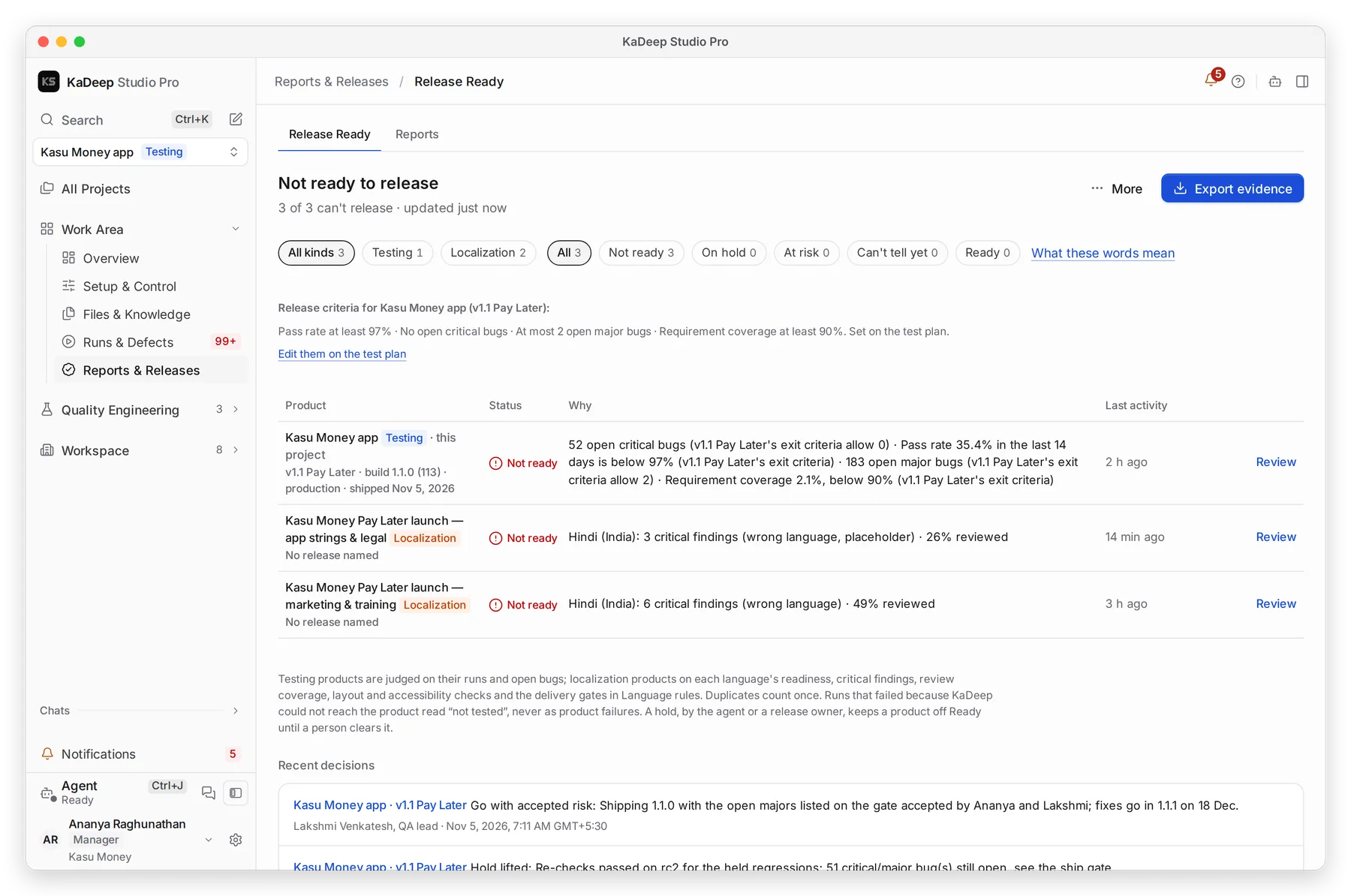
Manage view
Hands-on view
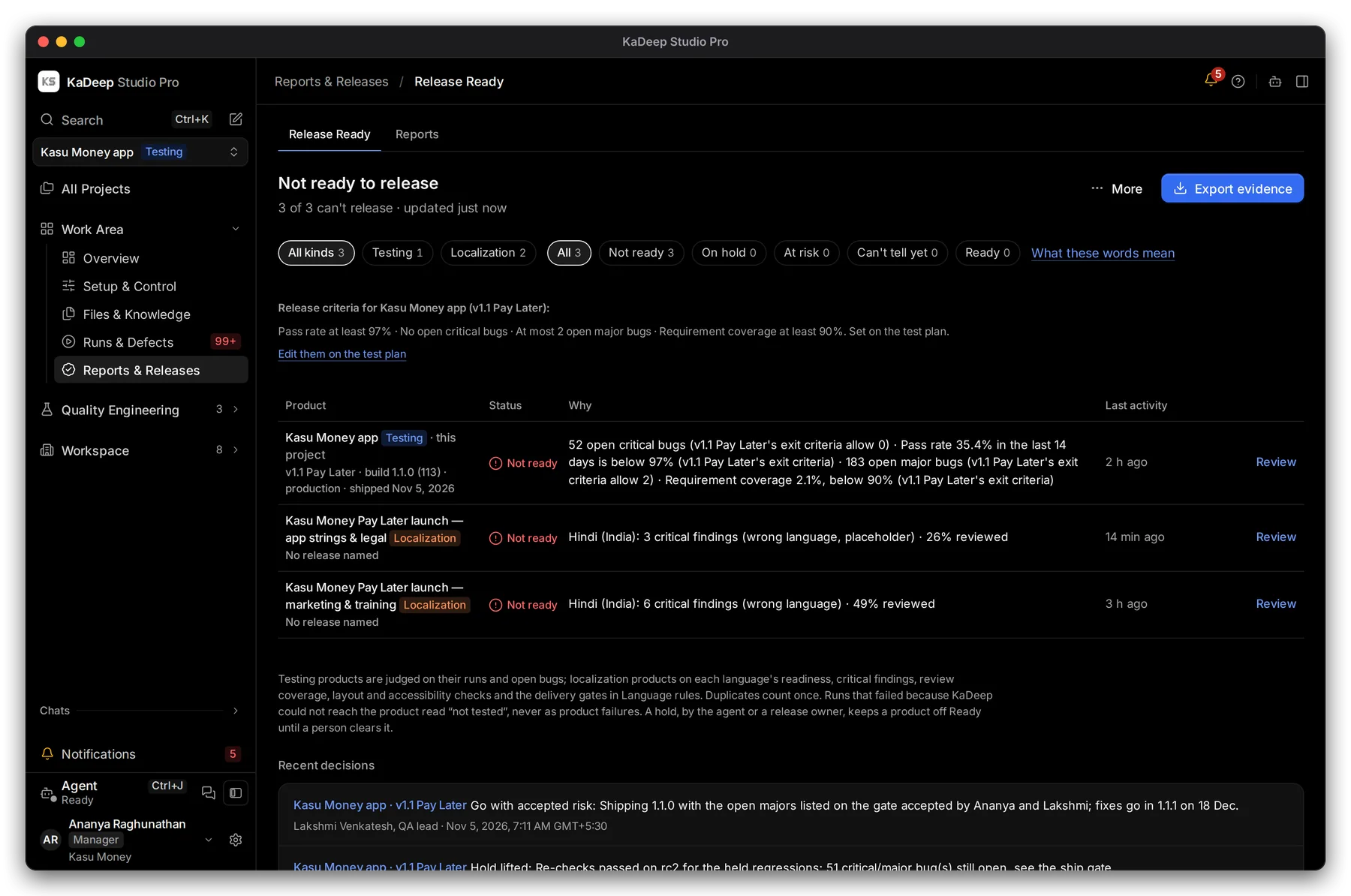
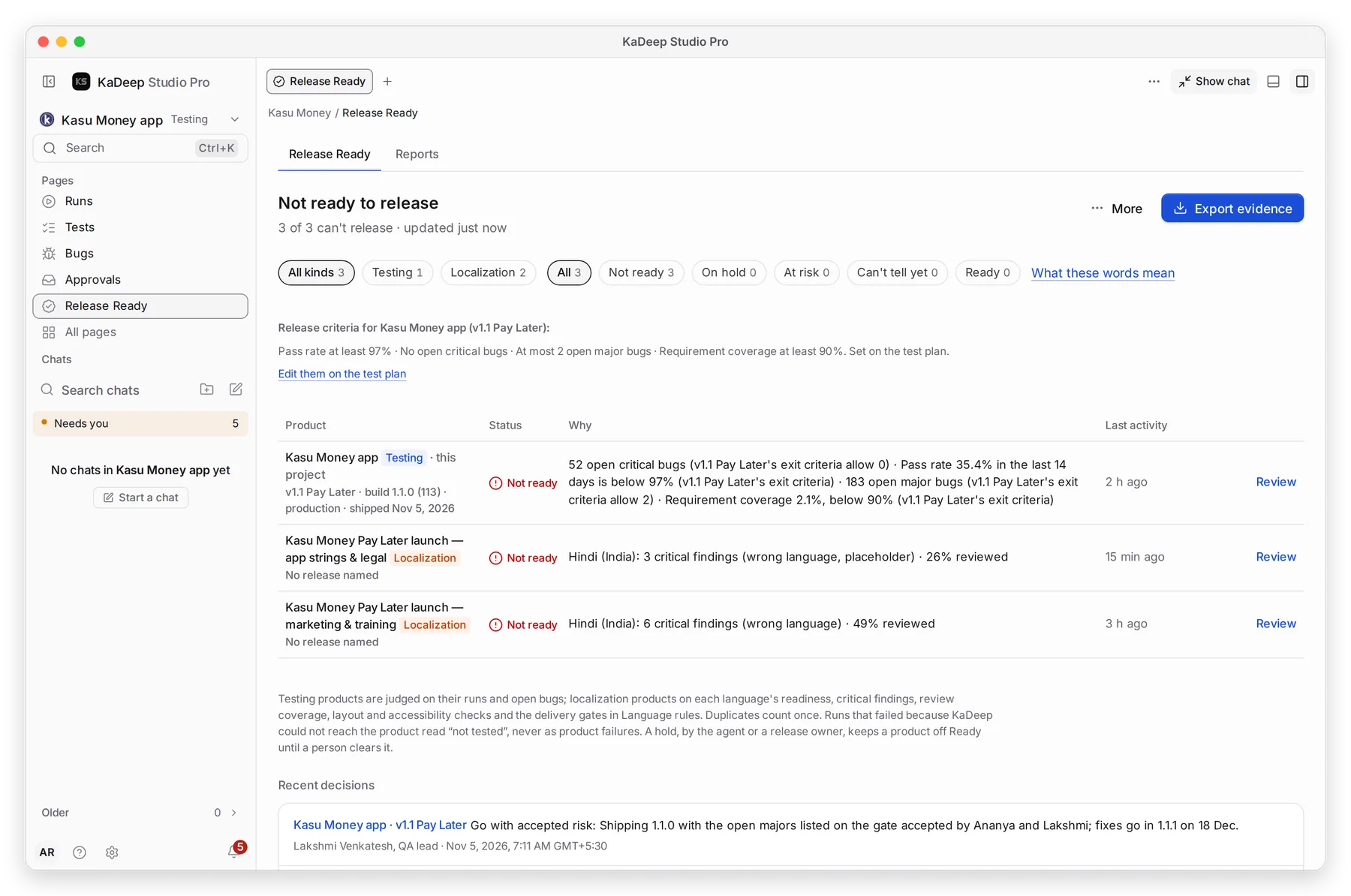
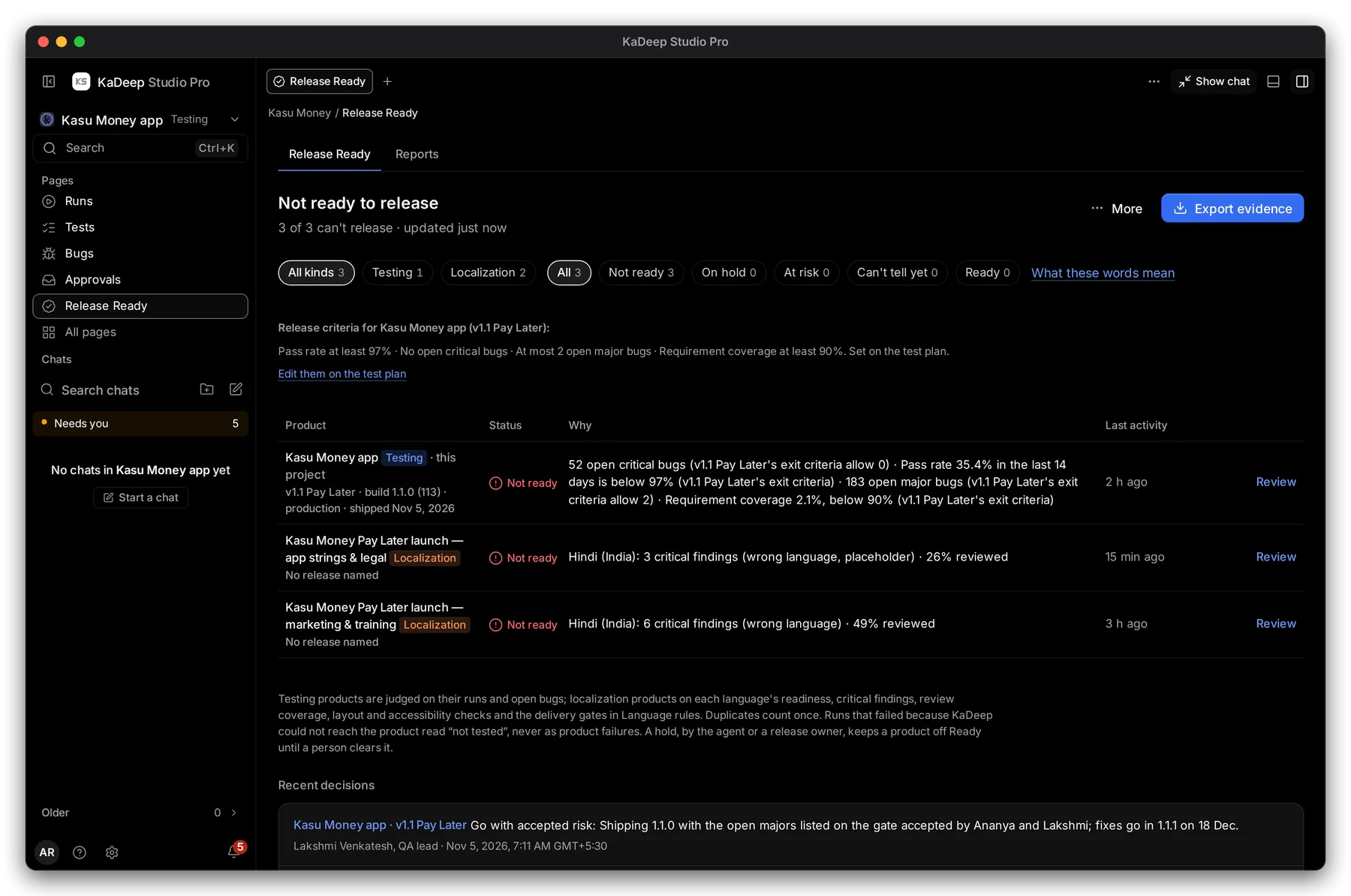
- 1 Filter by verdict. What these words mean explains each one.
- 2 Release criteria, such as “Pass rate at least 97%”. They are set on the test plan.
- 3 Why: every reason the project isn’t ready.
- 4 Review opens the project’s full report.
- 5 Recent decisions: holds, lifts and ships, with who made them.
| Verdict | What it means |
|---|---|
| Ready | Recent runs pass and no critical or major bug is open. |
| At risk | Only minor bugs are open, or some results need a person to look first. The QA lead reviews them. |
| On hold | A release owner held it, or a run ended without a result. It clears when the hold is lifted or the run is repeated. |
| Not ready | A critical or major bug is open, or recent runs fail. It clears when they are fixed and a new run passes. |
| Can't tell yet | Too few runs measured the product to judge it. |
| Out of date | The last run is old, so the product may have changed since. |
Runs that failed because KaDeep couldn’t reach your app count as “not tested”, never as product failures. Duplicate bugs count once.
2. Open a project’s report
Section titled “2. Open a project’s report”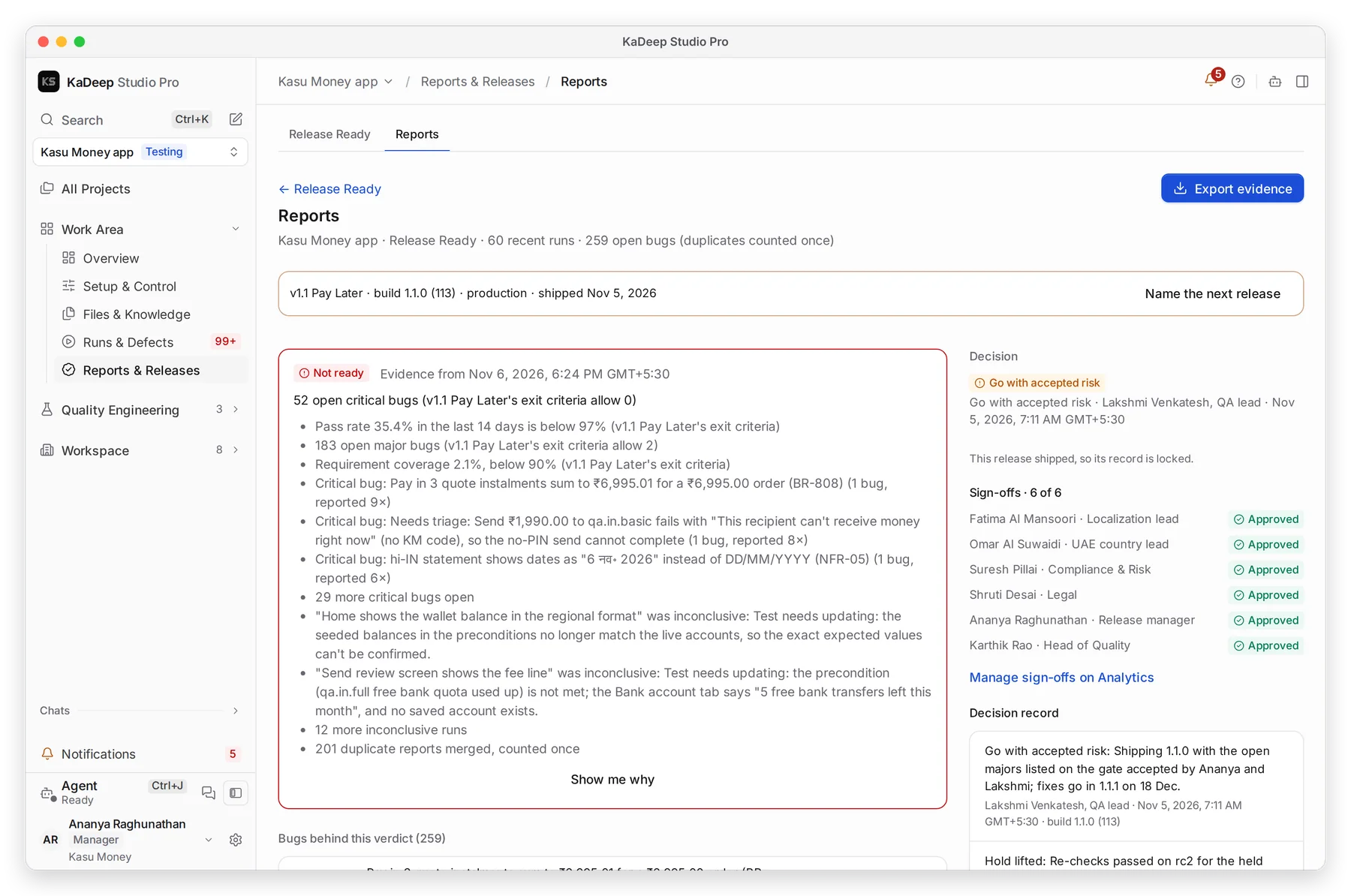
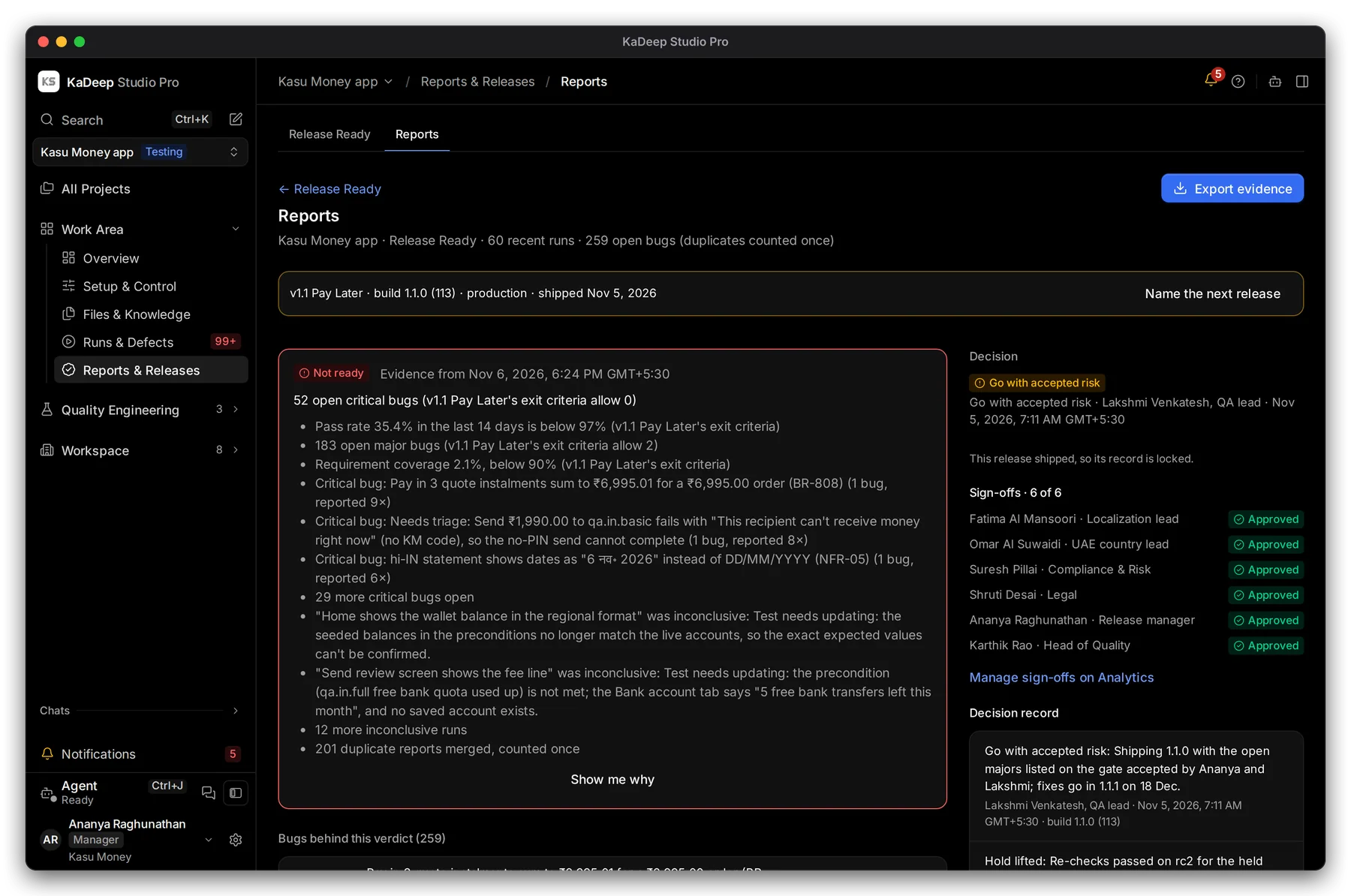
Manage view
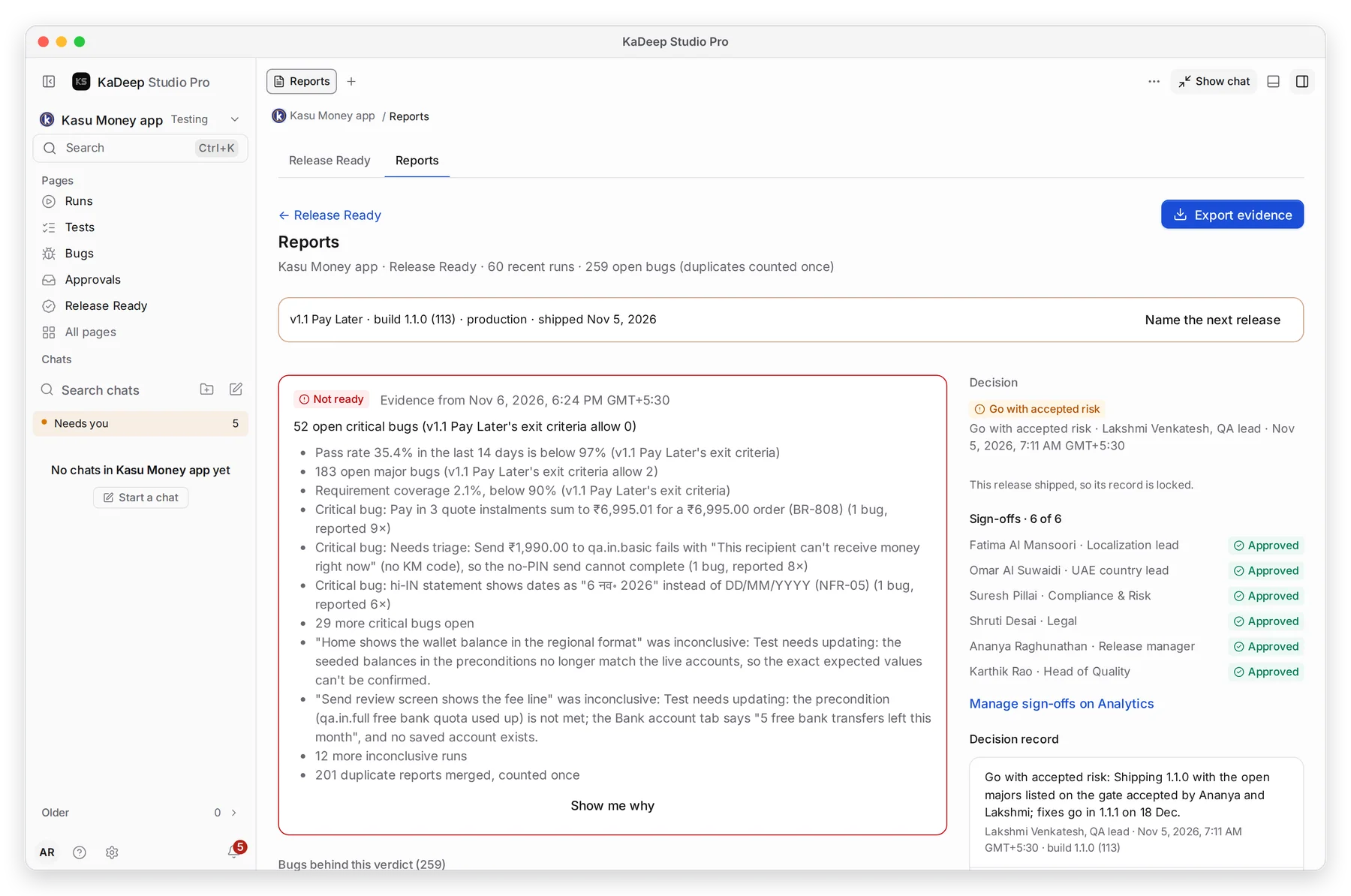
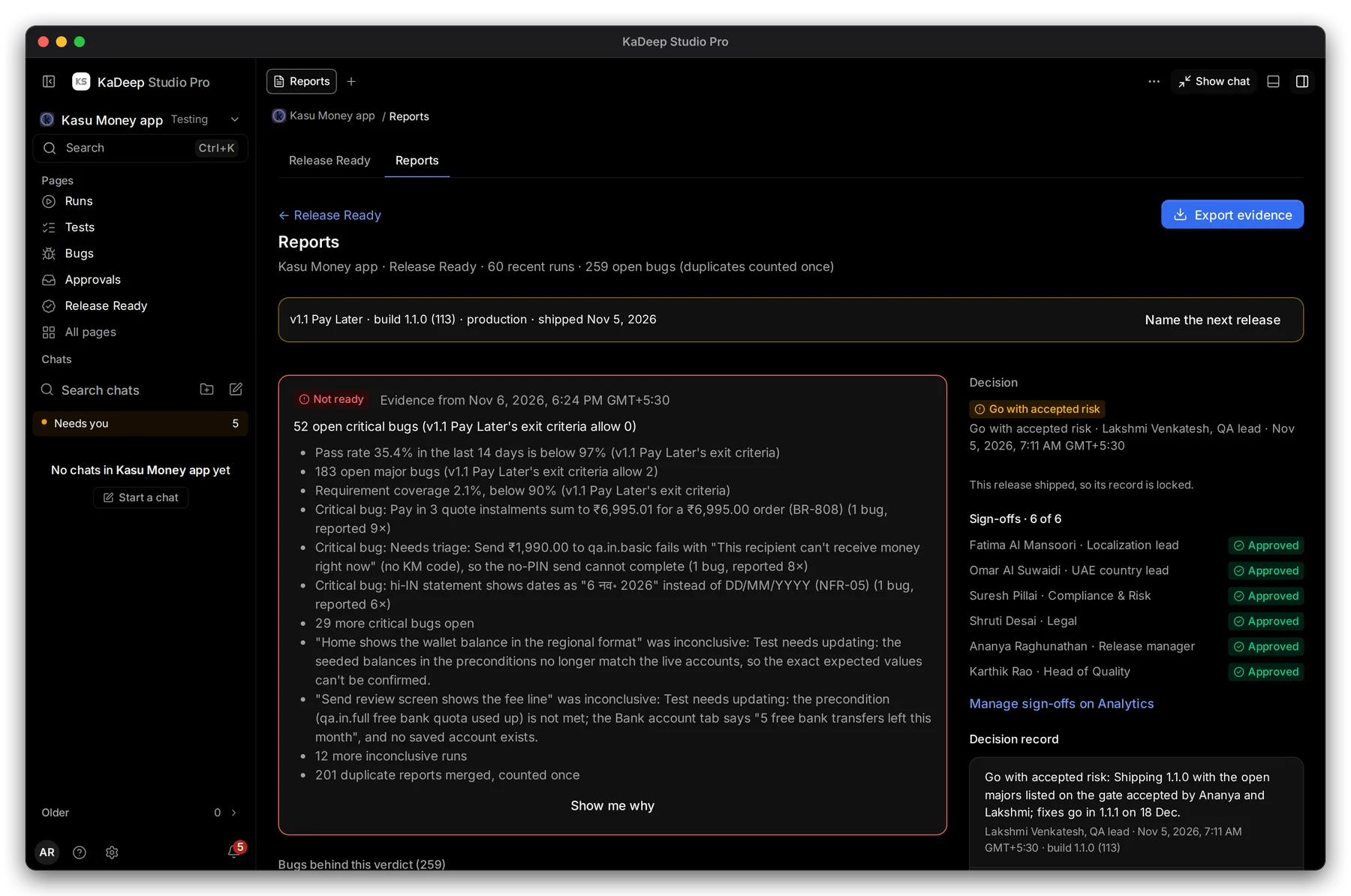
Hands-on view
- 1 The release and its build, environment and date. Name the next release starts the next one.
- 2 Every reason, then the bugs and runs behind them.
- 3 The decision: Go, Go with accepted risk, On hold or Not decided.
- 4 Sign-offs: each stakeholder and their answer.
- 5 Decision record: every decision with its reason, who made it, when, and on which build.
3. Collect sign-offs
Section titled “3. Collect sign-offs”Stakeholders, such as legal or a country lead, approve a release before it ships.
- Open Manage sign-offs on Analytics, then choose Stakeholder to add a person and their role. See Analytics.
- Each stakeholder gets a Sign-off row in their Needs you list. They choose Decide, then Approve or Reject.
- If the project’s rules require sign-off, the release can’t ship until everyone has approved.
4. Hold, lift, or ship
Section titled “4. Hold, lift, or ship”Only a release owner can decide: a Lead, Manager, Owner or Admin on the project.
| To | Choose | What happens |
|---|---|---|
| Stop a release | Hold this release, then type why | Shipping is blocked. Everyone sees On hold and your reason. |
| Lift a hold | Lift hold, then type why | The release can ship again. The record keeps both entries. |
| Ship when Ready | Mark as shipped | Records Go with your name and the build. |
| Ship when not Ready | Mark as shipped, then type a risk reason of at least 20 characters | Records Go with accepted risk, with your reason. |
Under the buttons, a line tells you what Mark as shipped will do before you press it. After a release ships, its record is locked.
5. Share the evidence
Section titled “5. Share the evidence”Choose Export evidence at the top of the report.
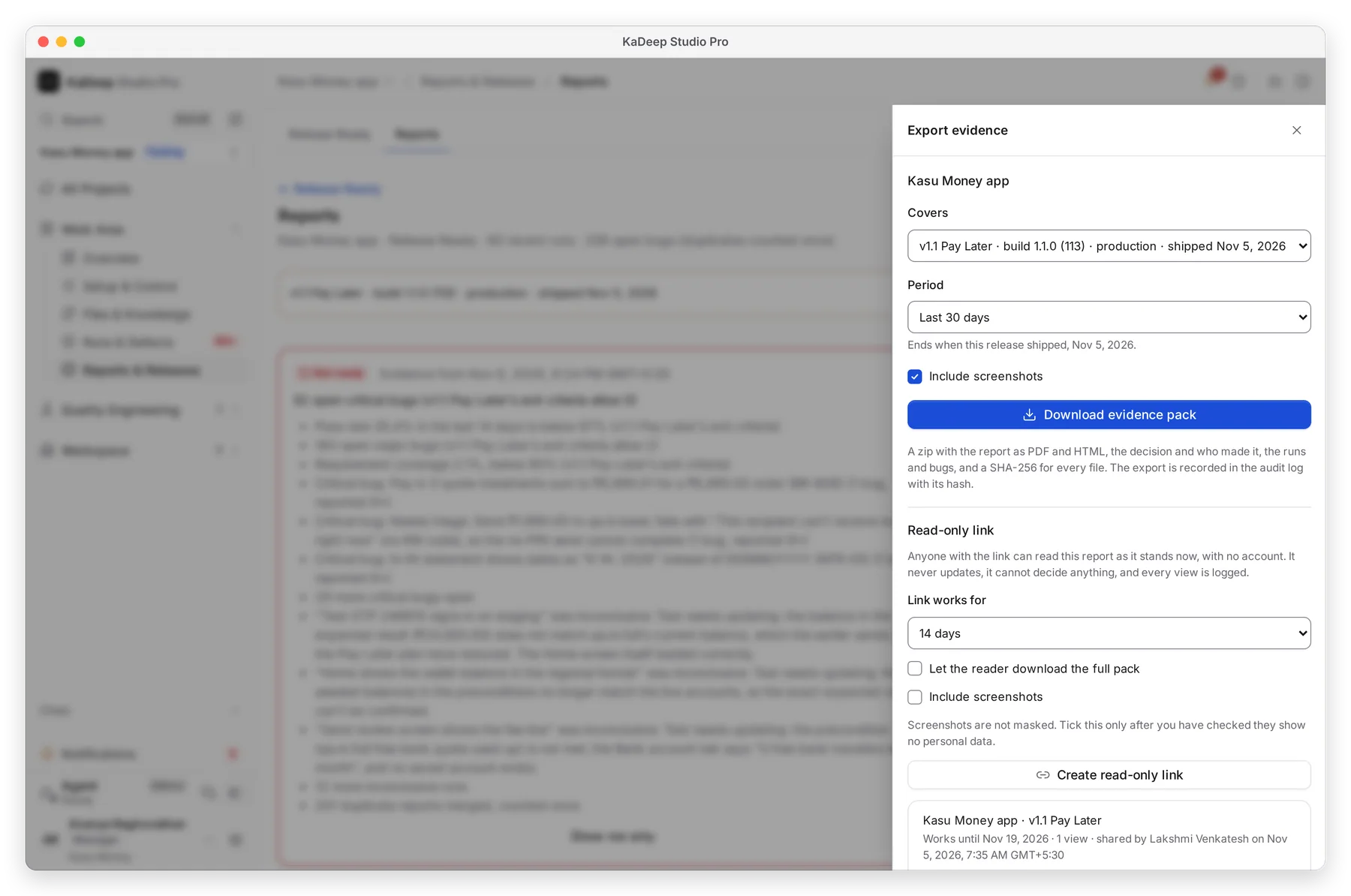
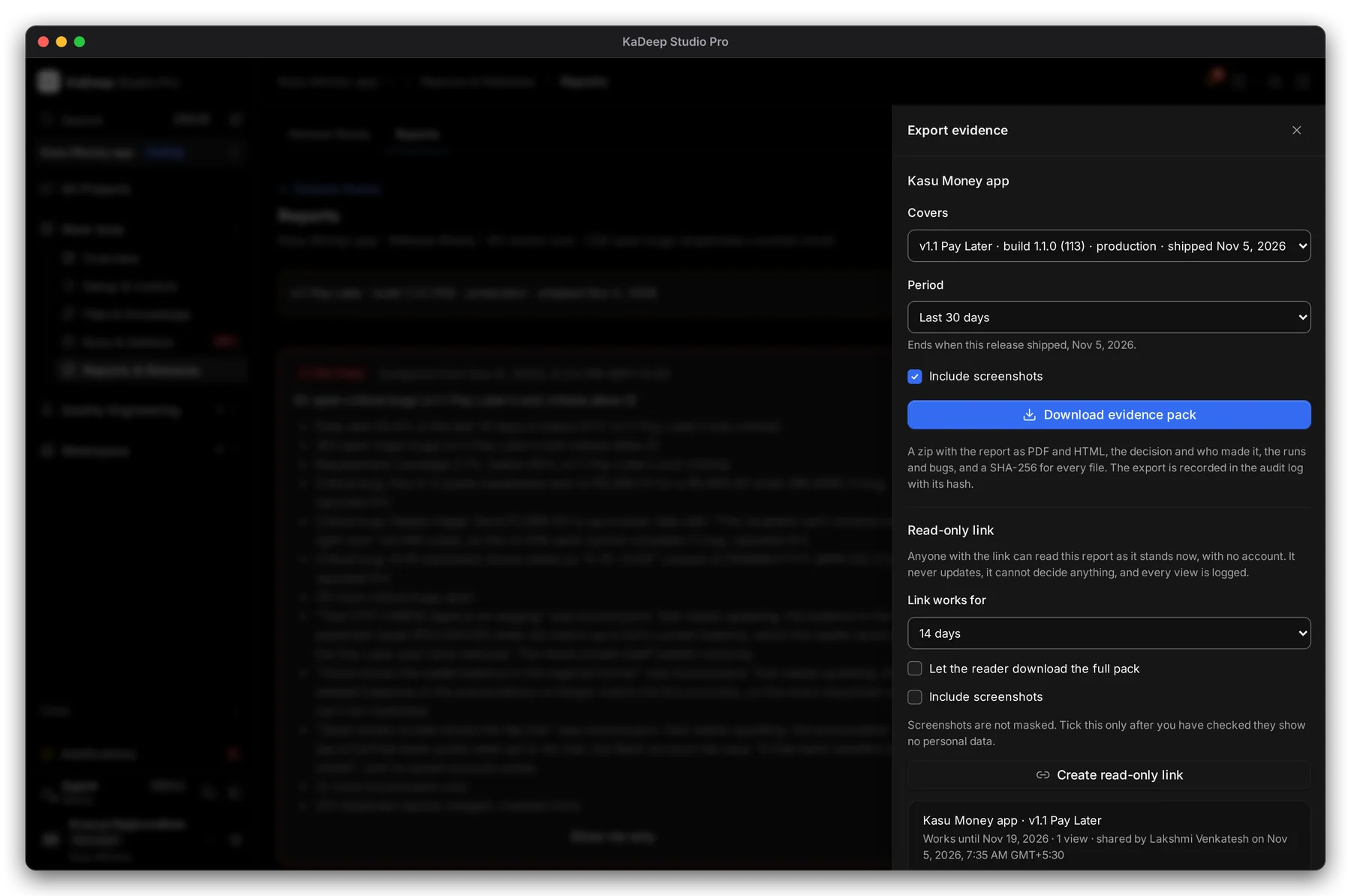
Manage view
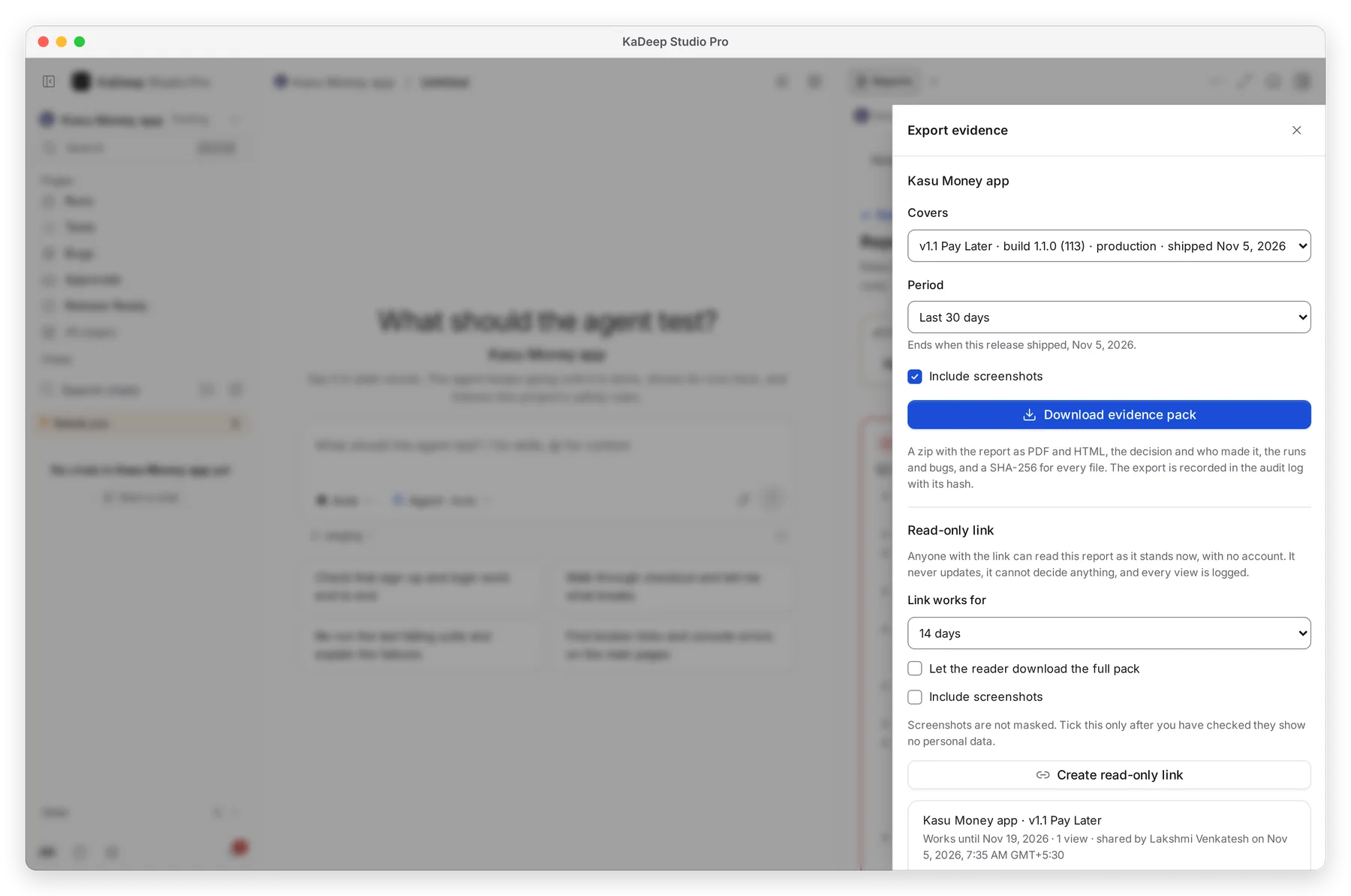
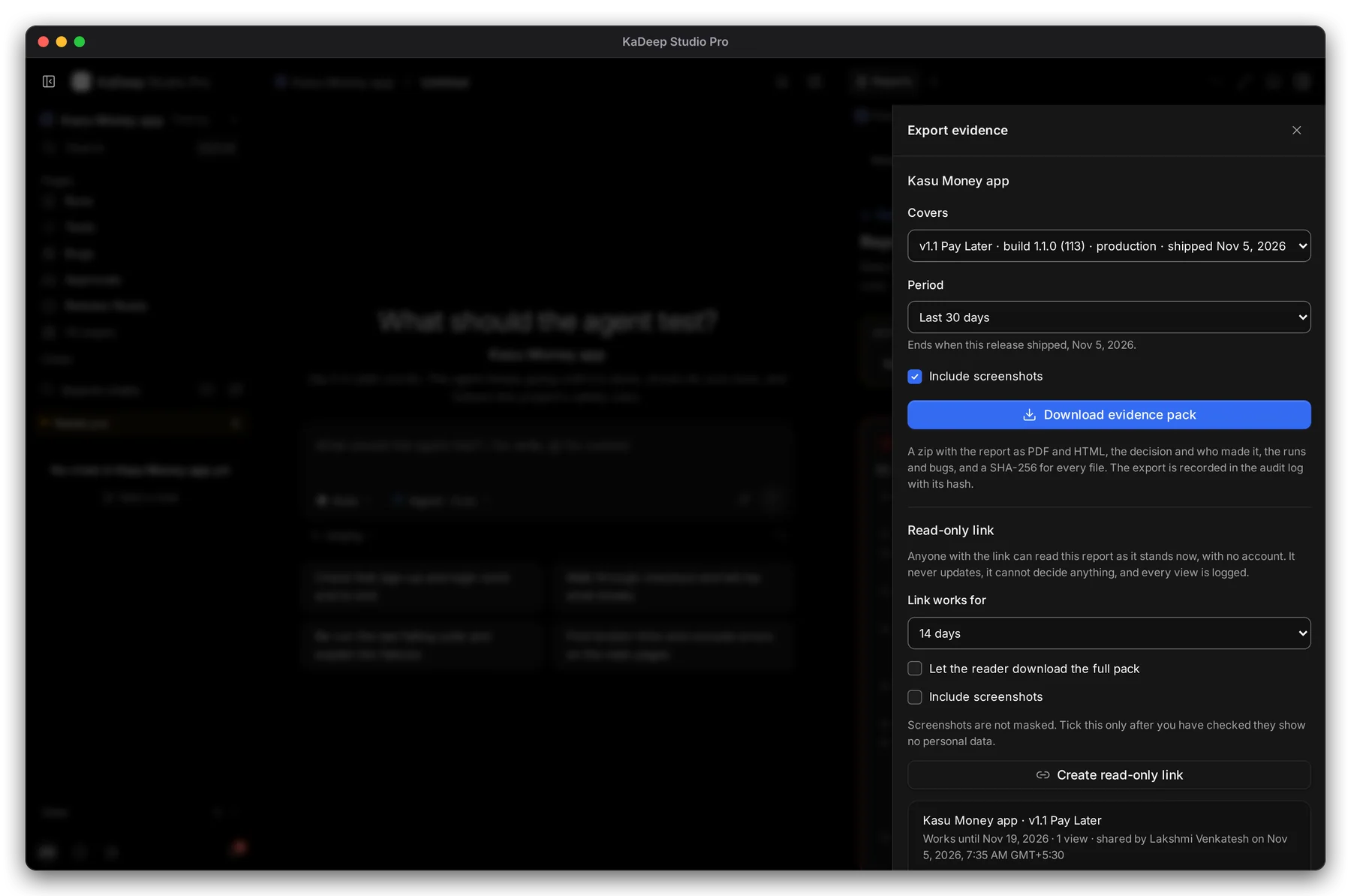
Hands-on view
- 1 Covers: a release, or a project snapshot with no release.
- 2 Period of runs and bugs to include.
- 3 Download evidence pack: a zip with the report as PDF and HTML, the decision and who made it, the runs and bugs, and a SHA-256 hash for every file. The export is written to the audit log.
- 4 Read-only link: anyone with it can read the report as it stands now, with no account. Choose how many days it works, whether readers may download the pack, and whether to include screenshots. Then choose Create read-only link and copy it. It is shown only once.
- 5 Links you already shared, with their views. Revoke stops one at once.