Local devices
Your view
Your paired computer can lend the agent its phones: Android emulators, iOS simulators and real phones plugged in by USB. They cost nothing per minute and reach what your computer reaches.
Before you start: pair this computer with the project.
1. Get the devices ready
Section titled “1. Get the devices ready”| Device | You need on the paired computer |
|---|---|
| Android emulator | Android Studio, with at least one virtual device (AVD) |
| Android phone | The phone plugged in by USB, with USB debugging on |
| iOS Simulator | A Mac with Xcode |
| iPhone | A Mac with Xcode, the iPhone plugged in by USB, your Apple Team ID and the app’s bundle ID |
2. Choose where each platform runs
Section titled “2. Choose where each platform runs”- Open Workspace › Environments. The Devices tab opens. Choose the settings icon at the bottom of the sidebar, then Devices.
- Open Choose where each platform runs.
- For Android and iOS, choose where sessions run.
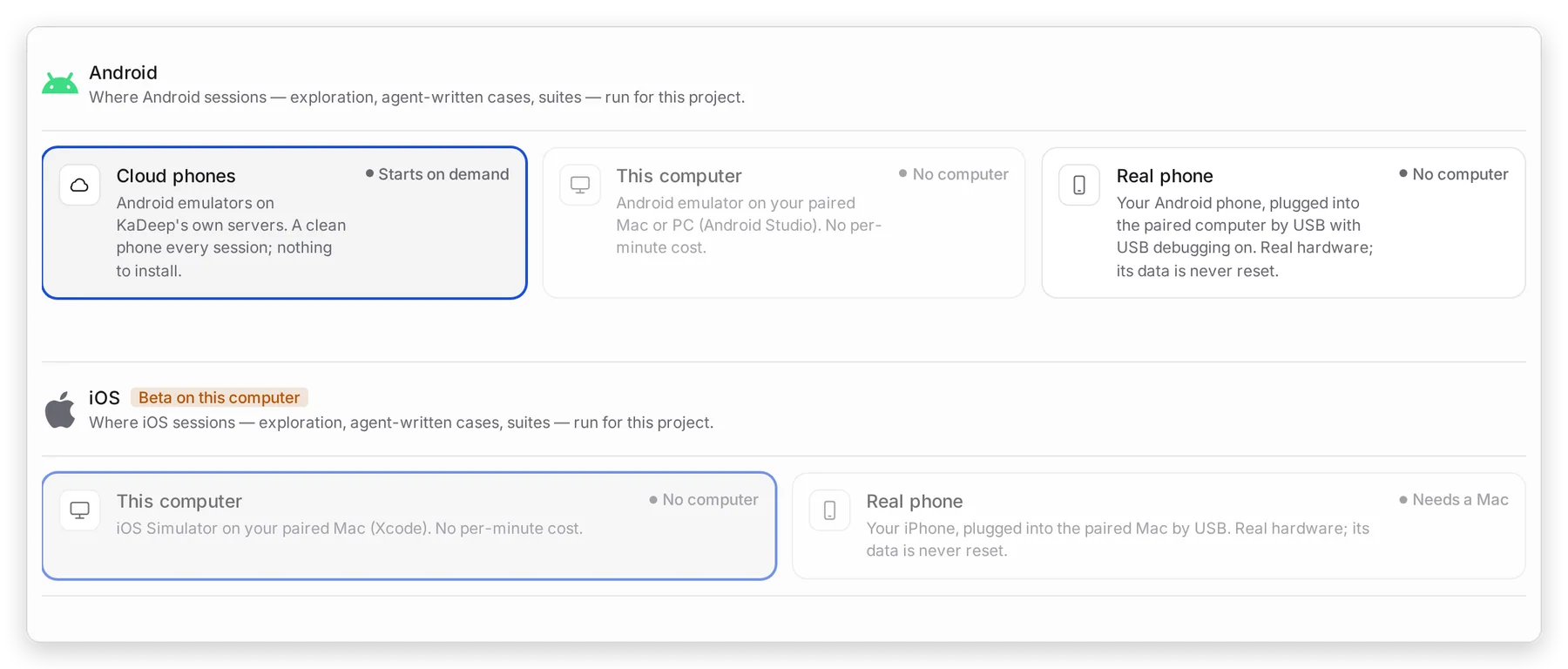
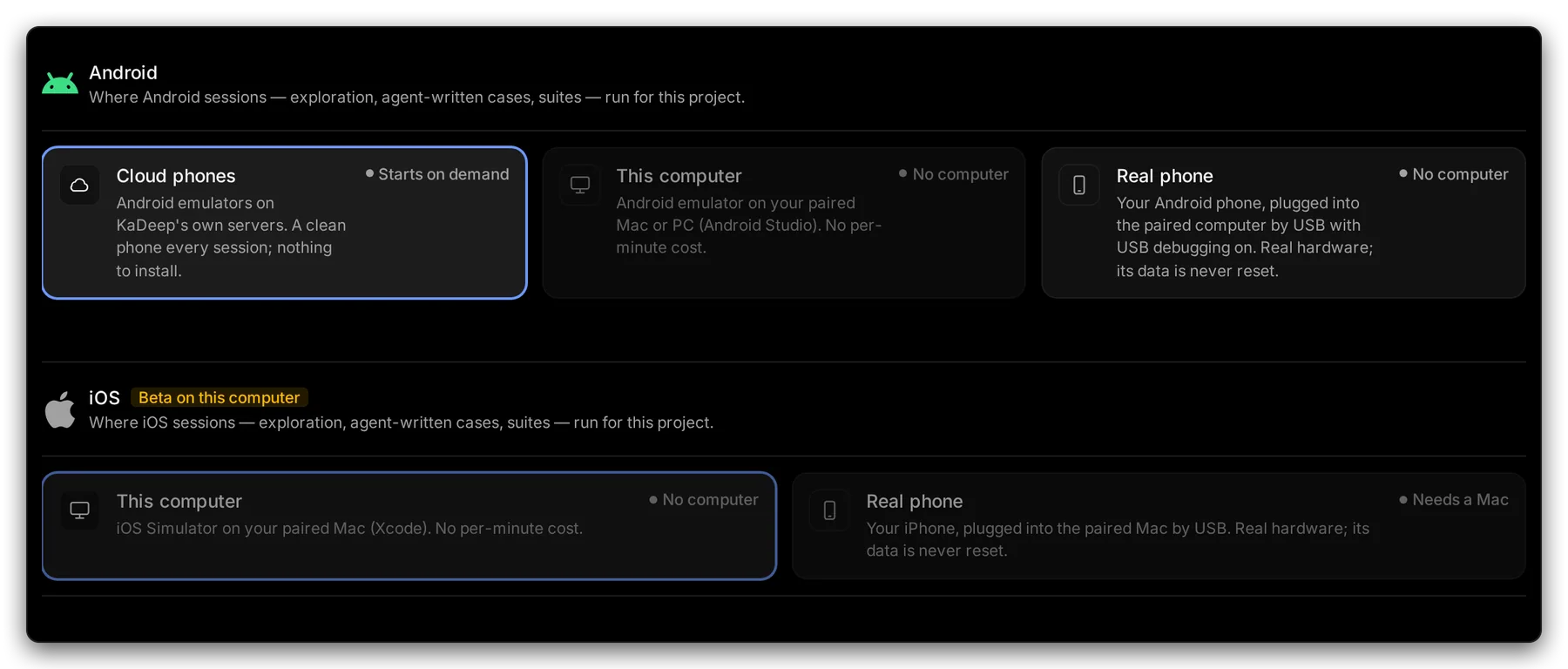
Manage view
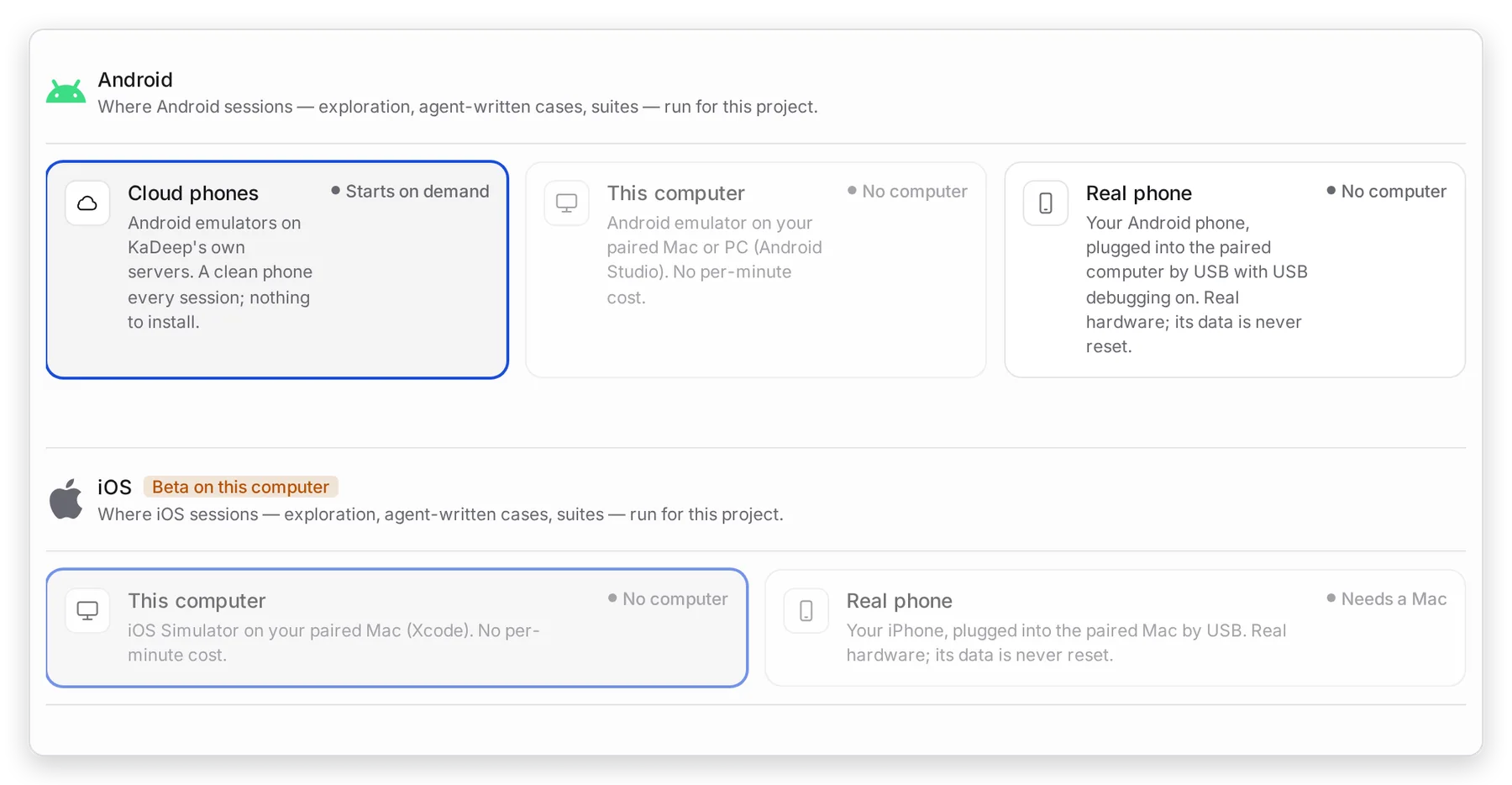
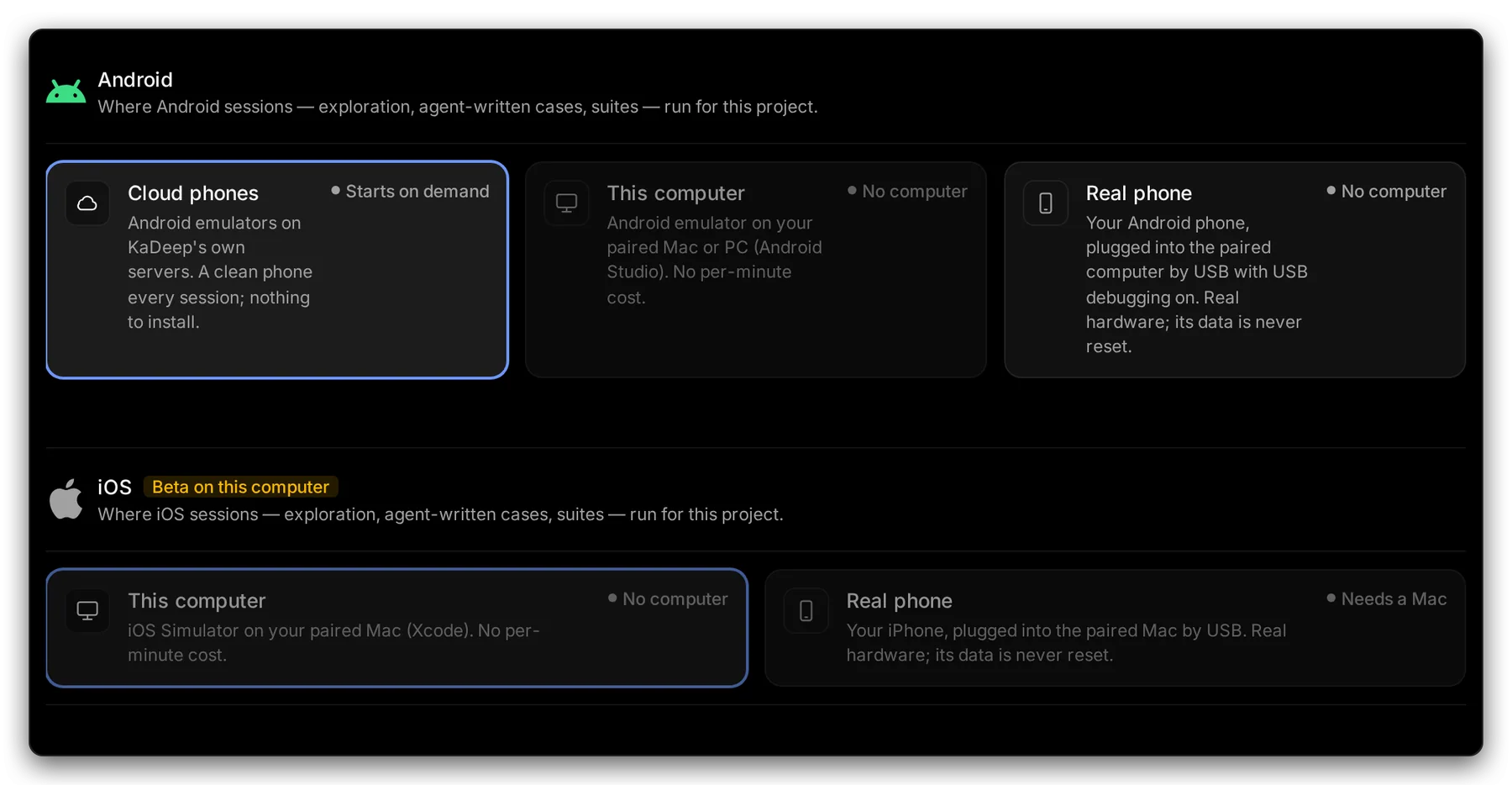
Hands-on view
| Choice | Good for | |
|---|---|---|
| 1 | Cloud phones | A clean Android phone every session. Nothing to install. |
| 2 | Android, This computer | Your own emulator, at no per-minute cost |
| 3 | Android, Real phone | Real hardware. Its data is never reset. |
| 4 | iOS, This computer | The iOS Simulator on your paired Mac |
| 5 | iOS, Real phone | A real iPhone on your paired Mac |
The choice applies to every Android or iOS session in the project: exploring, agent-written tests and suites.
3. Refresh the list
Section titled “3. Refresh the list”KaDeep checks the paired computer’s devices every 10 minutes. After you start an emulator or plug in a phone, choose Check again to see it now.
What’s next
Section titled “What’s next”Test on phonesRun tests on Android and iOS.
Devices and browsersFor admins: the organization's choices.
Worker mode and the tray menuKeep a device host running.