Your tasks
Your view
What do I test today, and am I done? Your lead assigns you tasks, each with what to test, a goal and a due date. You do them with the agent, then send them back for review.
1. See what is assigned to you
Section titled “1. See what is assigned to you”Your Home page starts with your work.
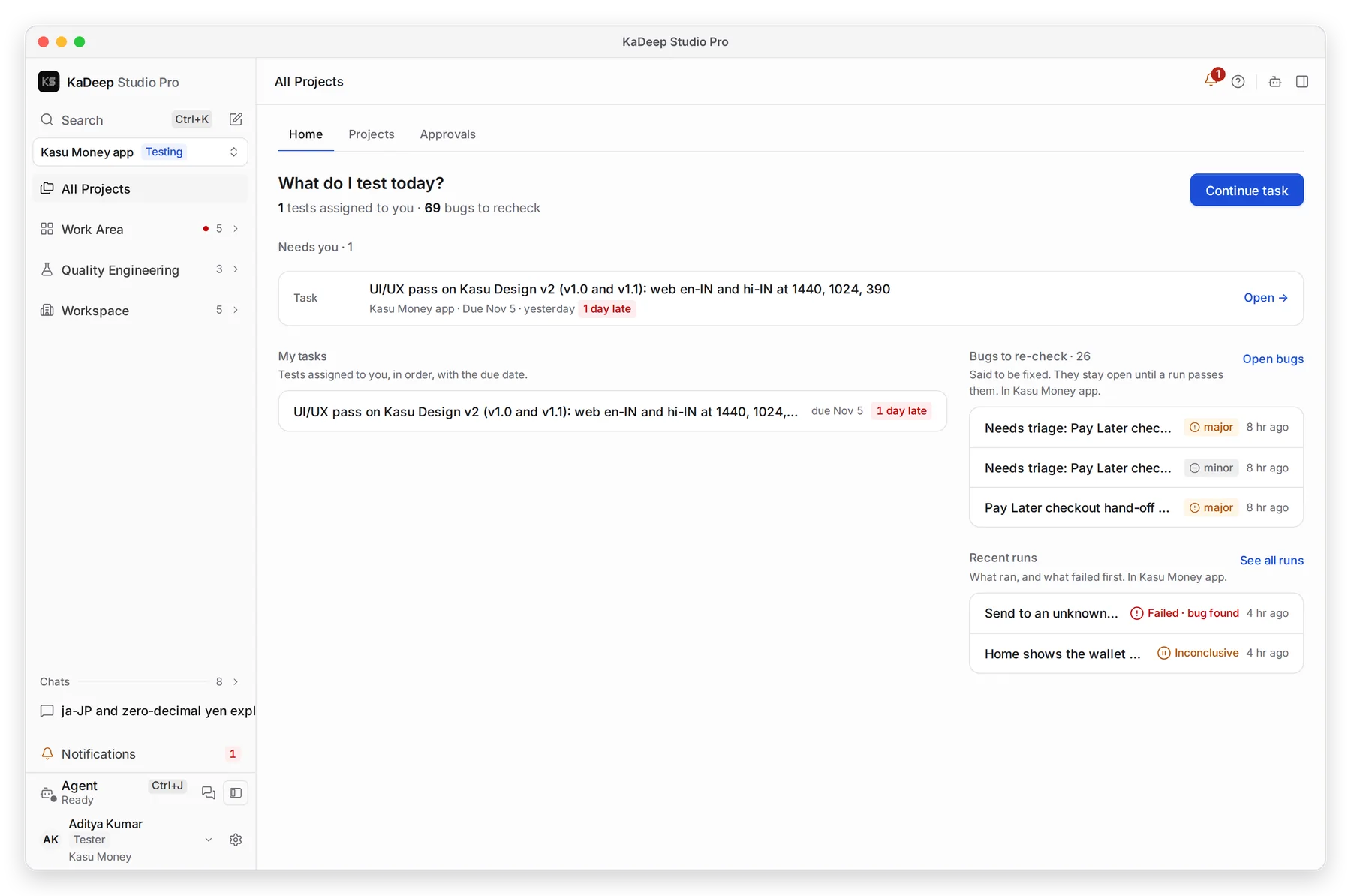
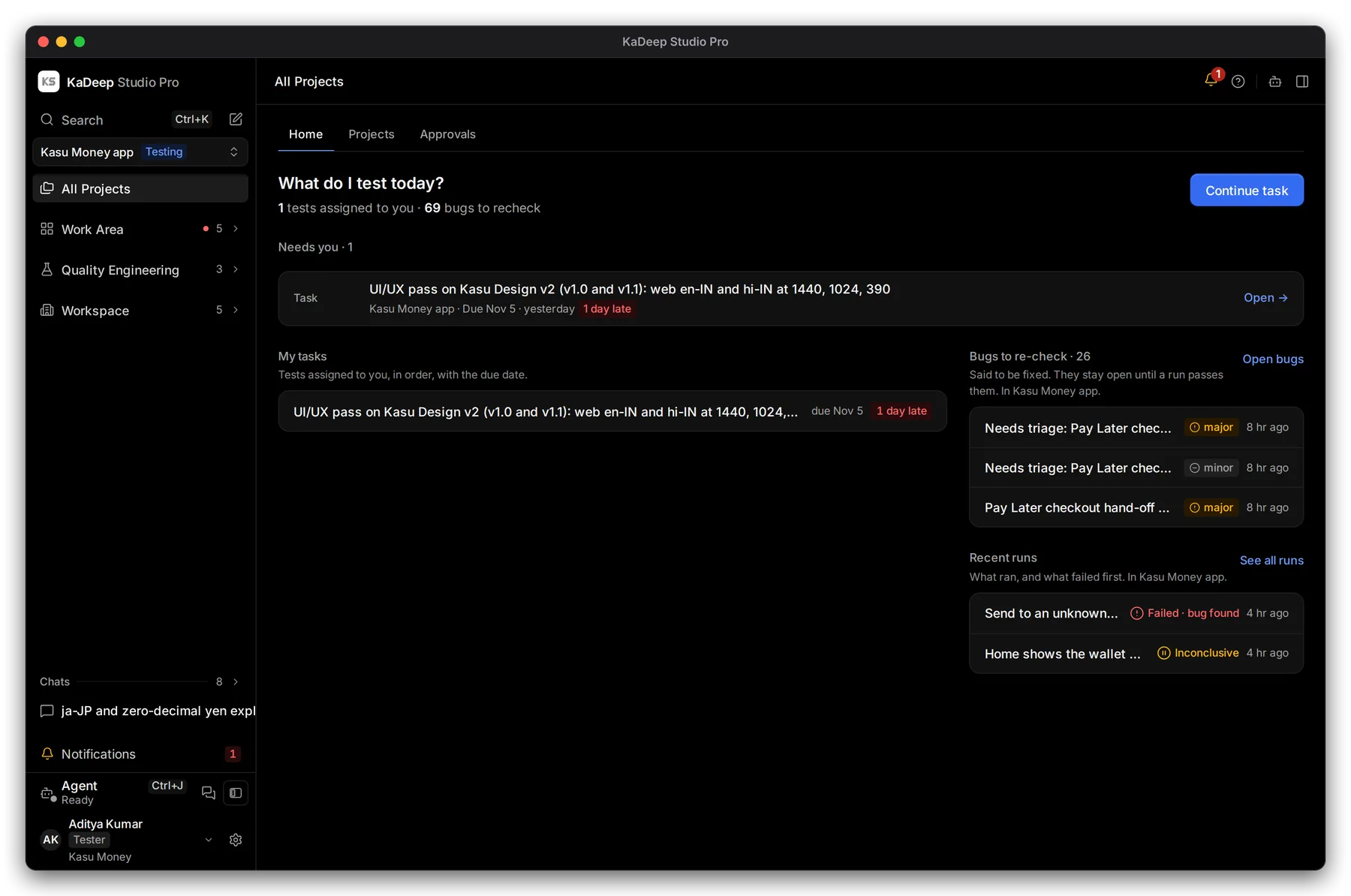
Manage view
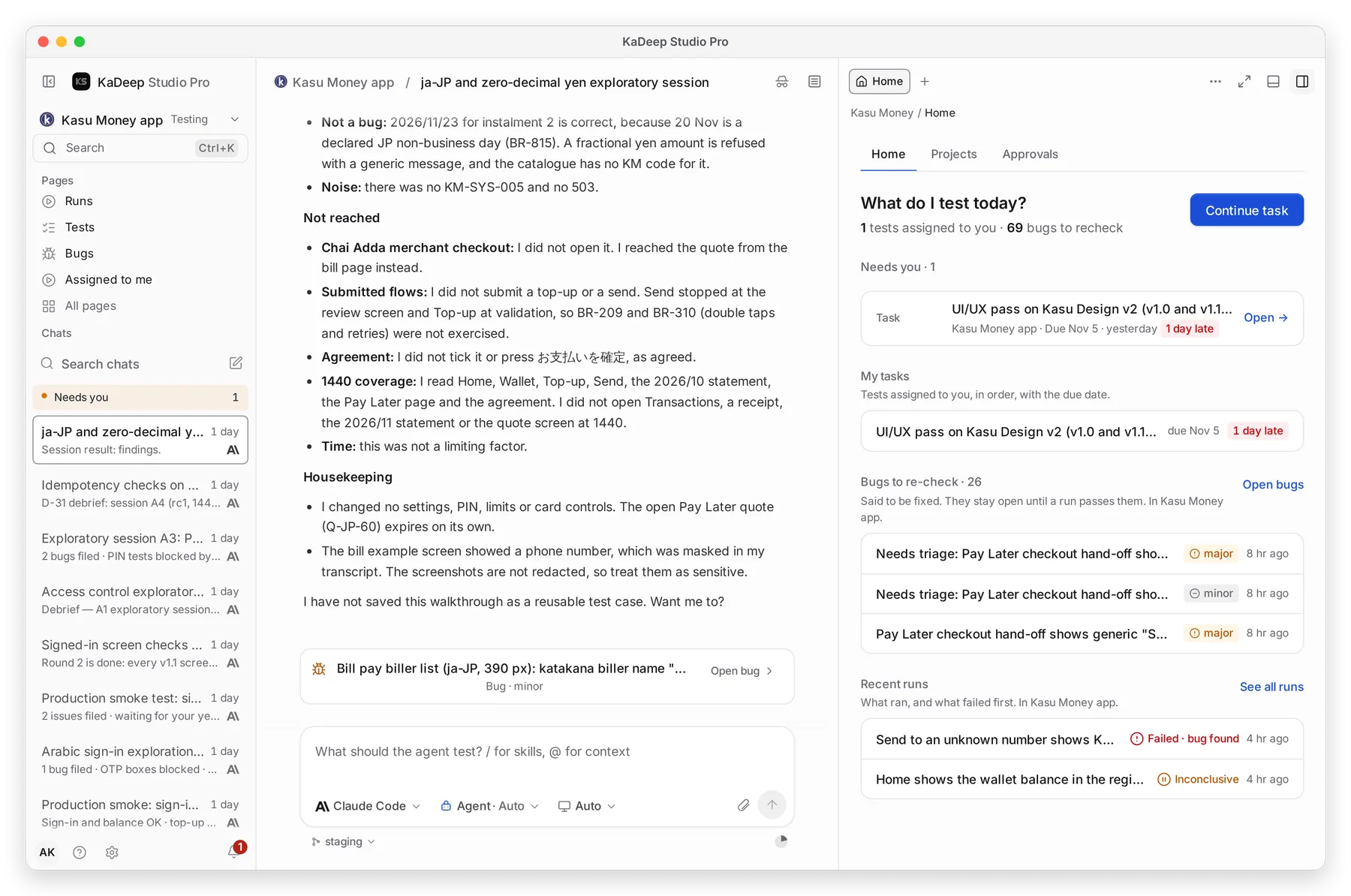
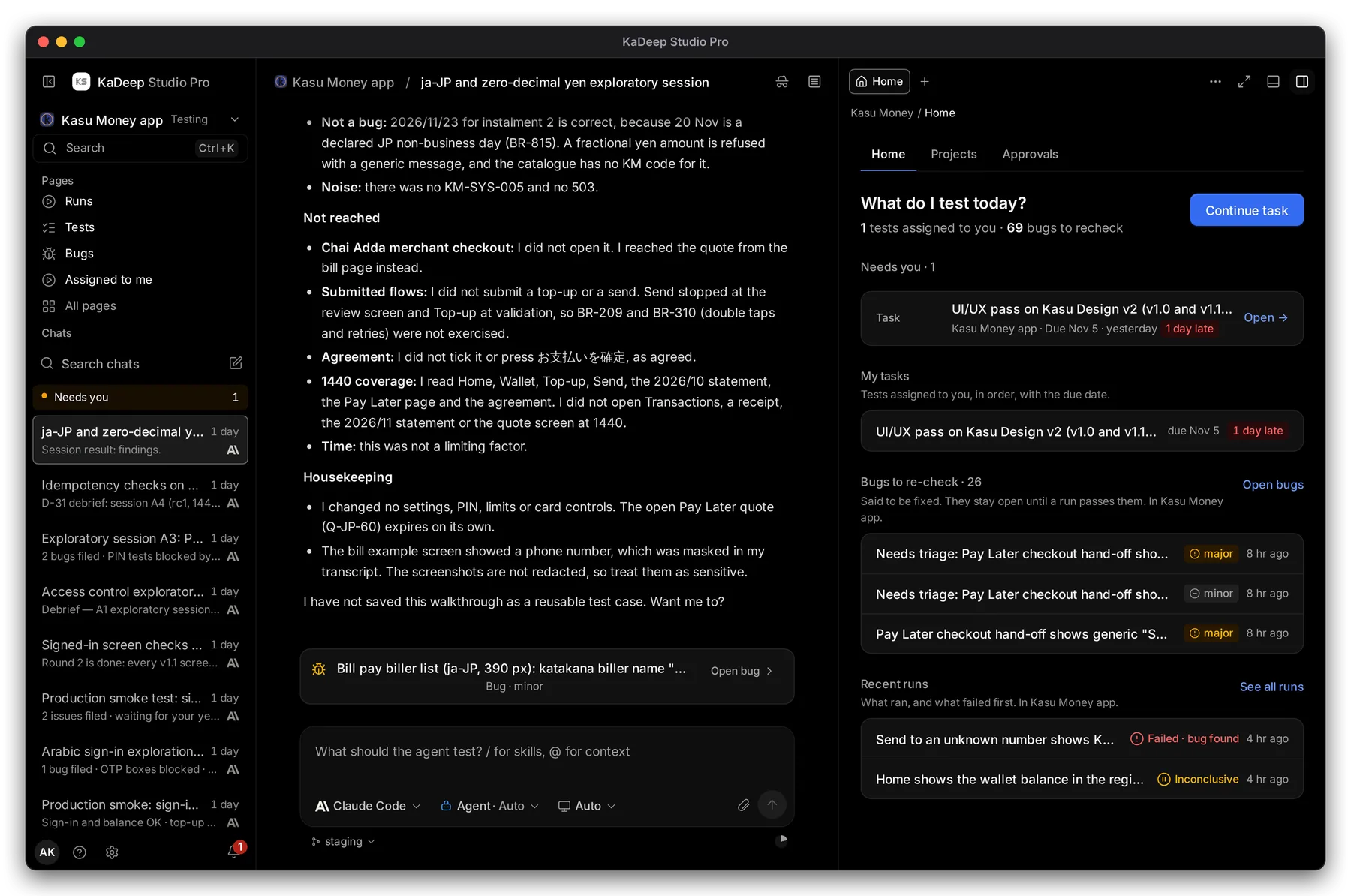
Hands-on view
- 1 How many tests are assigned to you, and how many bugs wait for a re-check.
- 2 My tasks, in order, with the due date. A late task says how late.
- 3 Bugs to re-check: bugs said to be fixed. They stay open until a run passes them.
- 4 Start task, or Continue task if you already started.
2. Open Assigned to me
Section titled “2. Open Assigned to me”In the sidebar, open Quality Engineering › Functional Testing, then the Assigned to me tab.
Under Pages, choose Assigned to me.
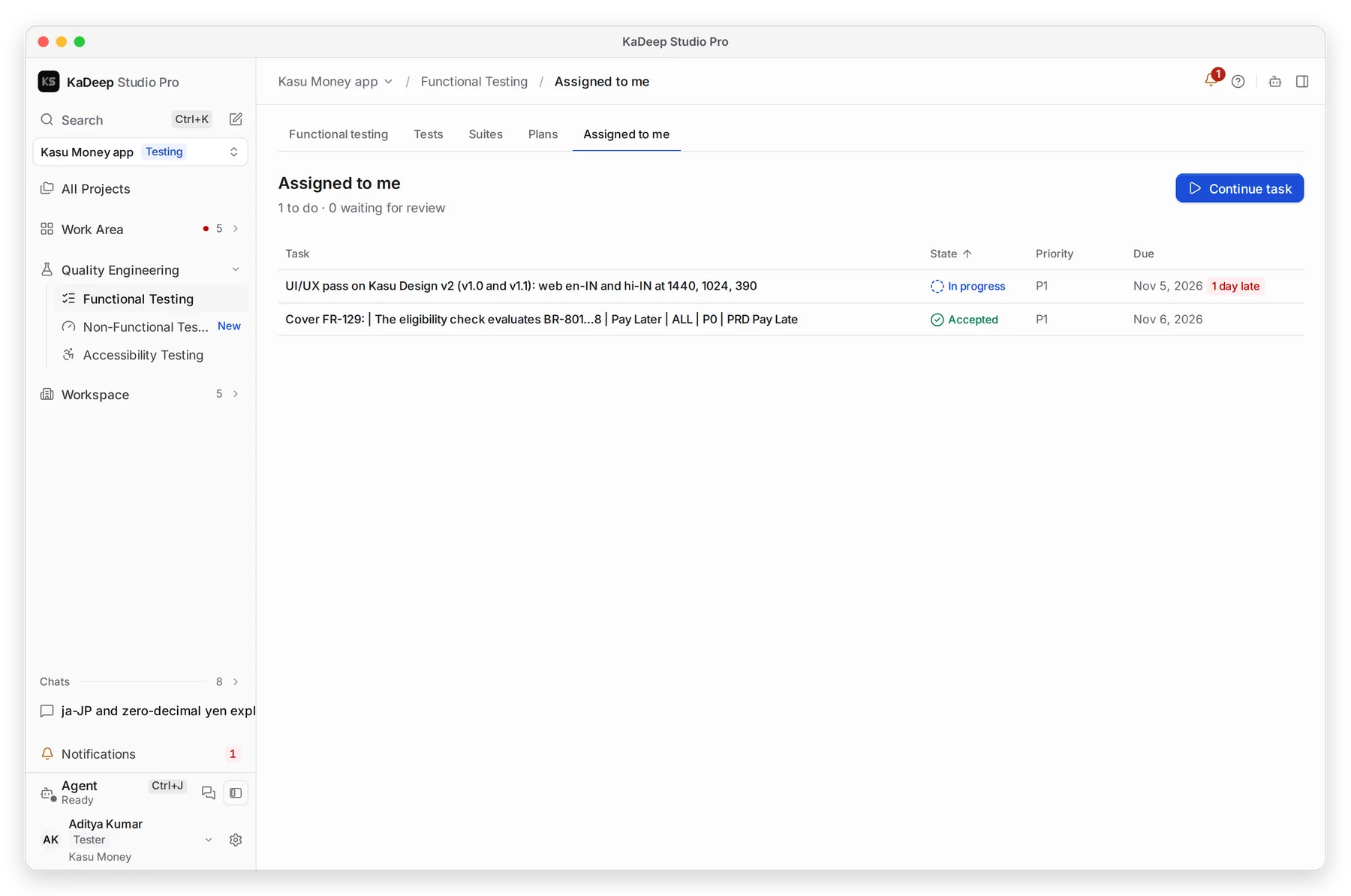
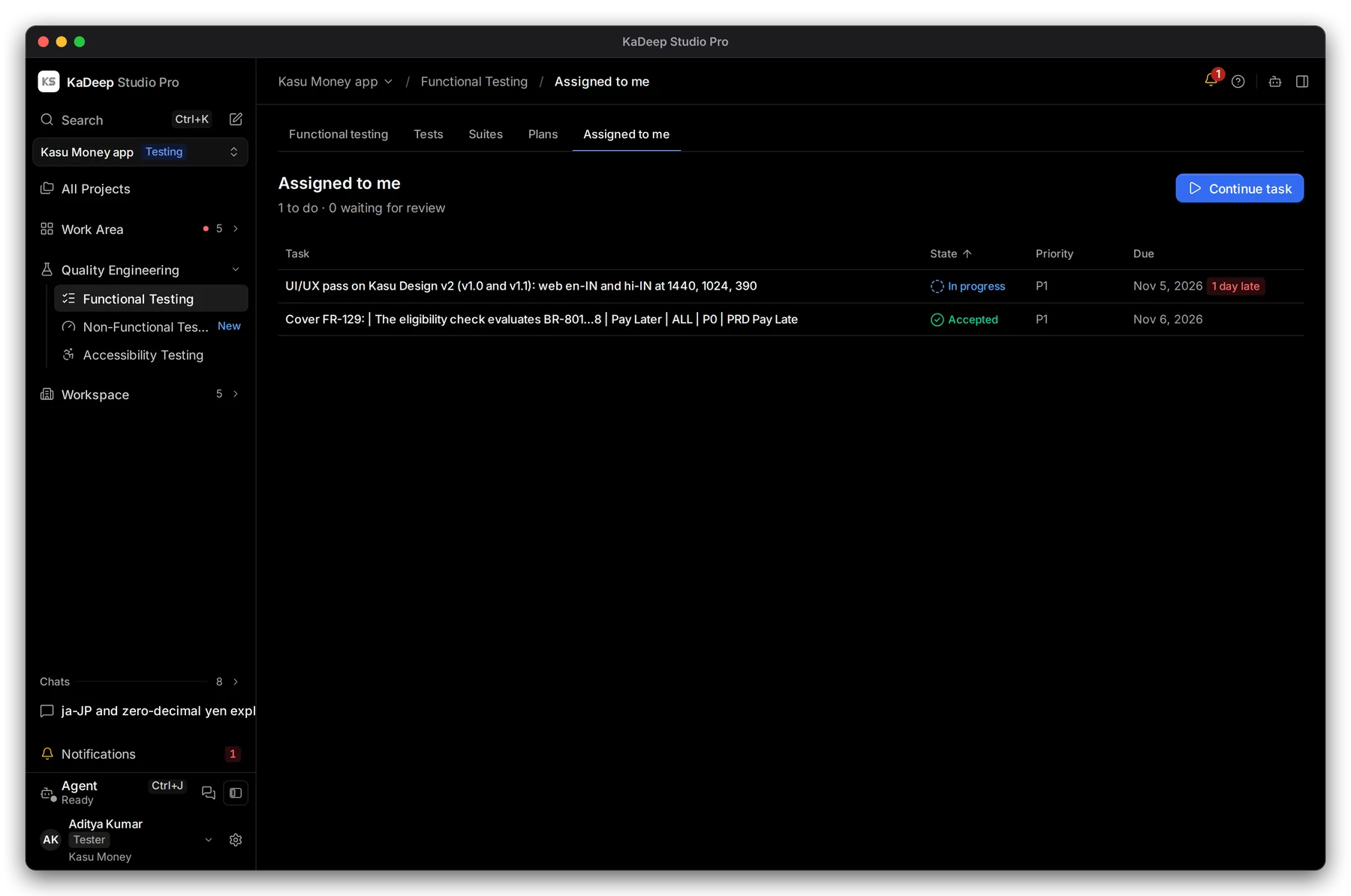
Manage view
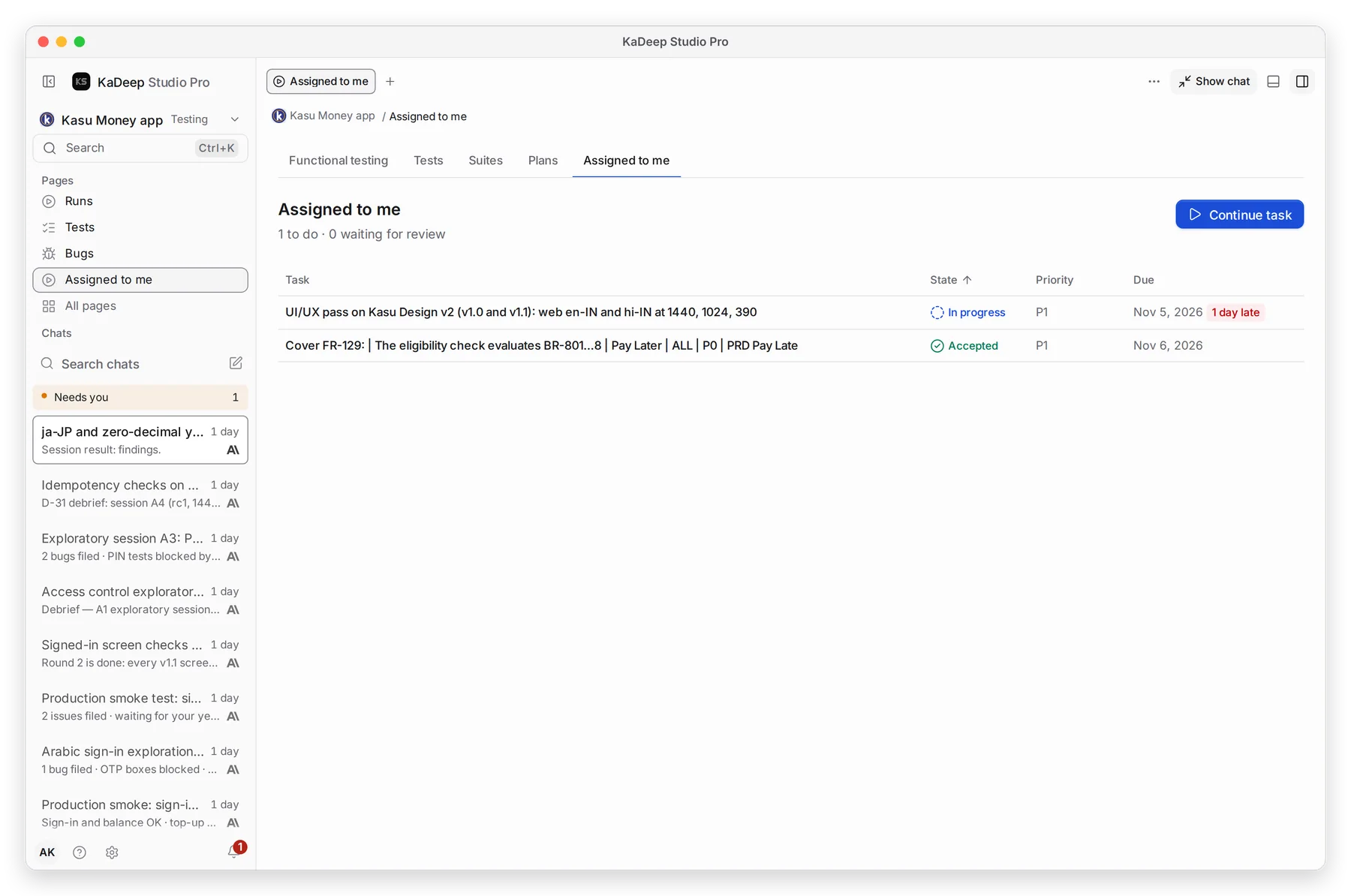
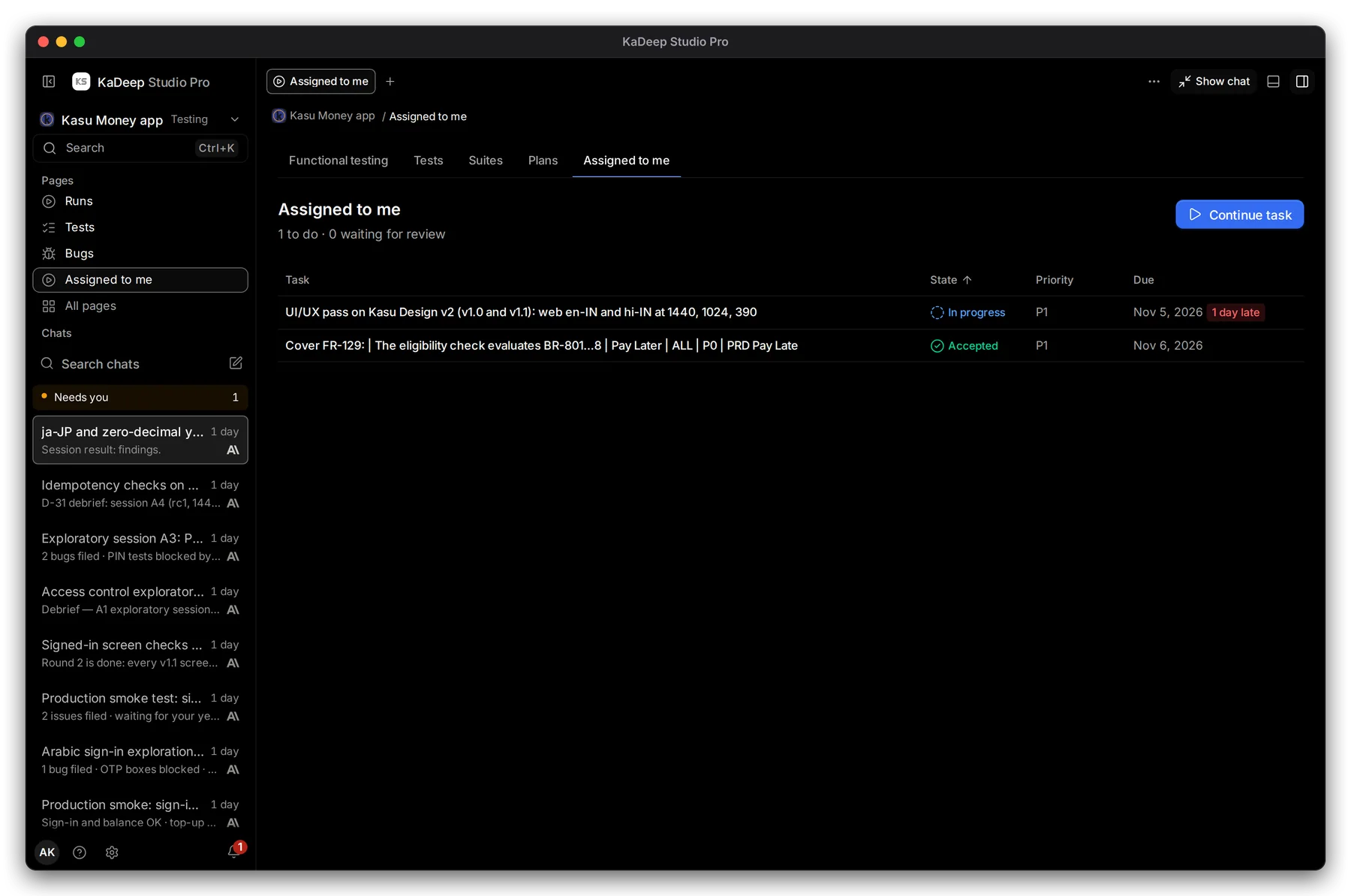
Hands-on view
- 1 Functional Testing, where the tab lives. Assigned to me in your pages.
- 2 How many tasks are to do, and how many wait for review.
- 3 Continue task opens your next task with the agent.
- 4 Each task, with its state, priority and due date.
| State | What it means |
|---|---|
| To do | Assigned to you, not started. |
| In progress | You started it. |
| Waiting for review | You sent it for review. |
| Accepted | Your lead accepted it. Done. |
| Sent back | Your lead says something still needs doing. Read Reviewer said. |
| Blocked | Something stops the work. Tell your lead. |
3. Do the task, then send it for review
Section titled “3. Do the task, then send it for review”- Click a task to read it.
- Choose Start. The agent’s chat opens with the task already in the message box. Send it, and work with the agent.
- When the work is done, open the task again and choose I am done: send for review.
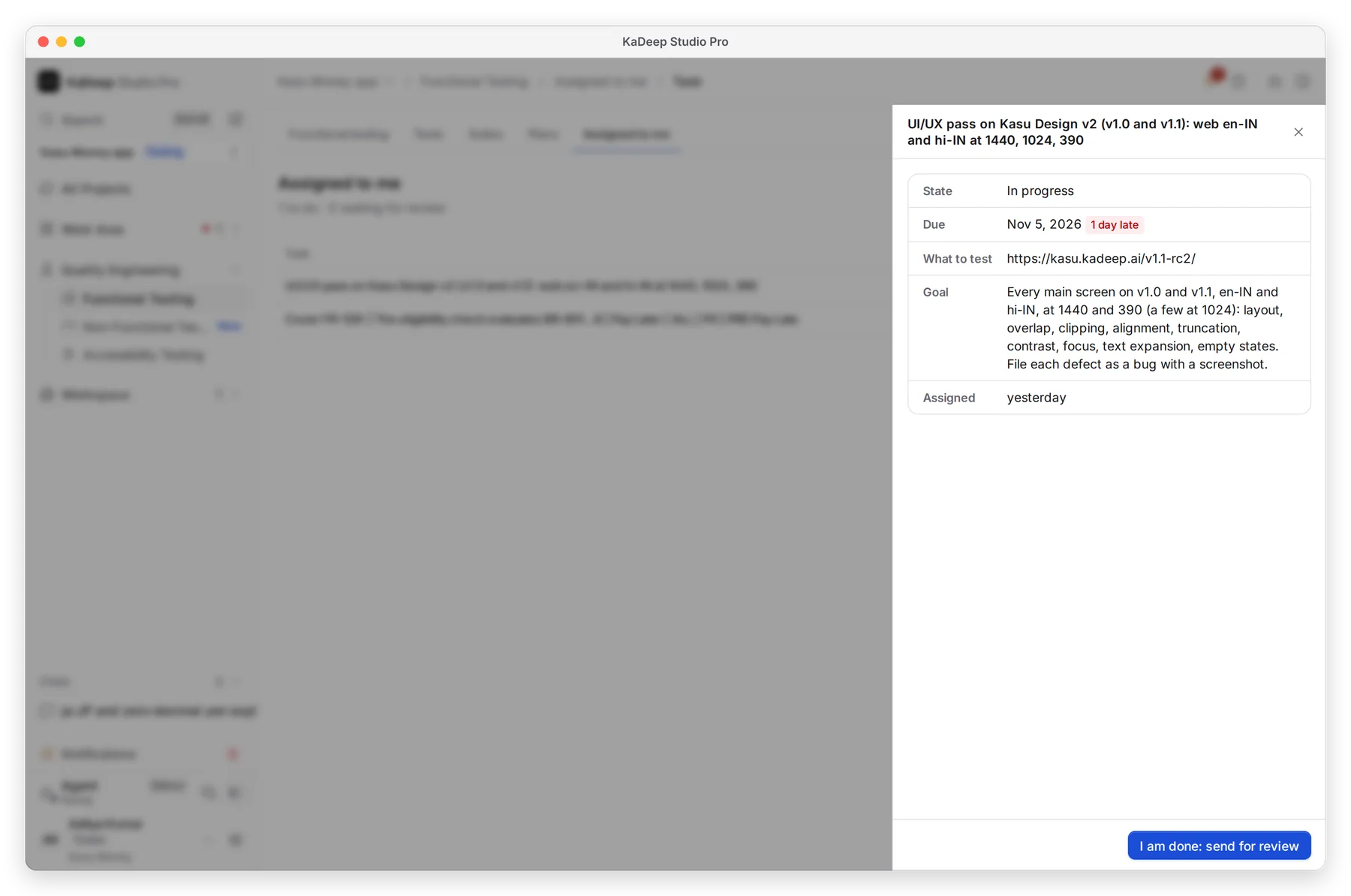
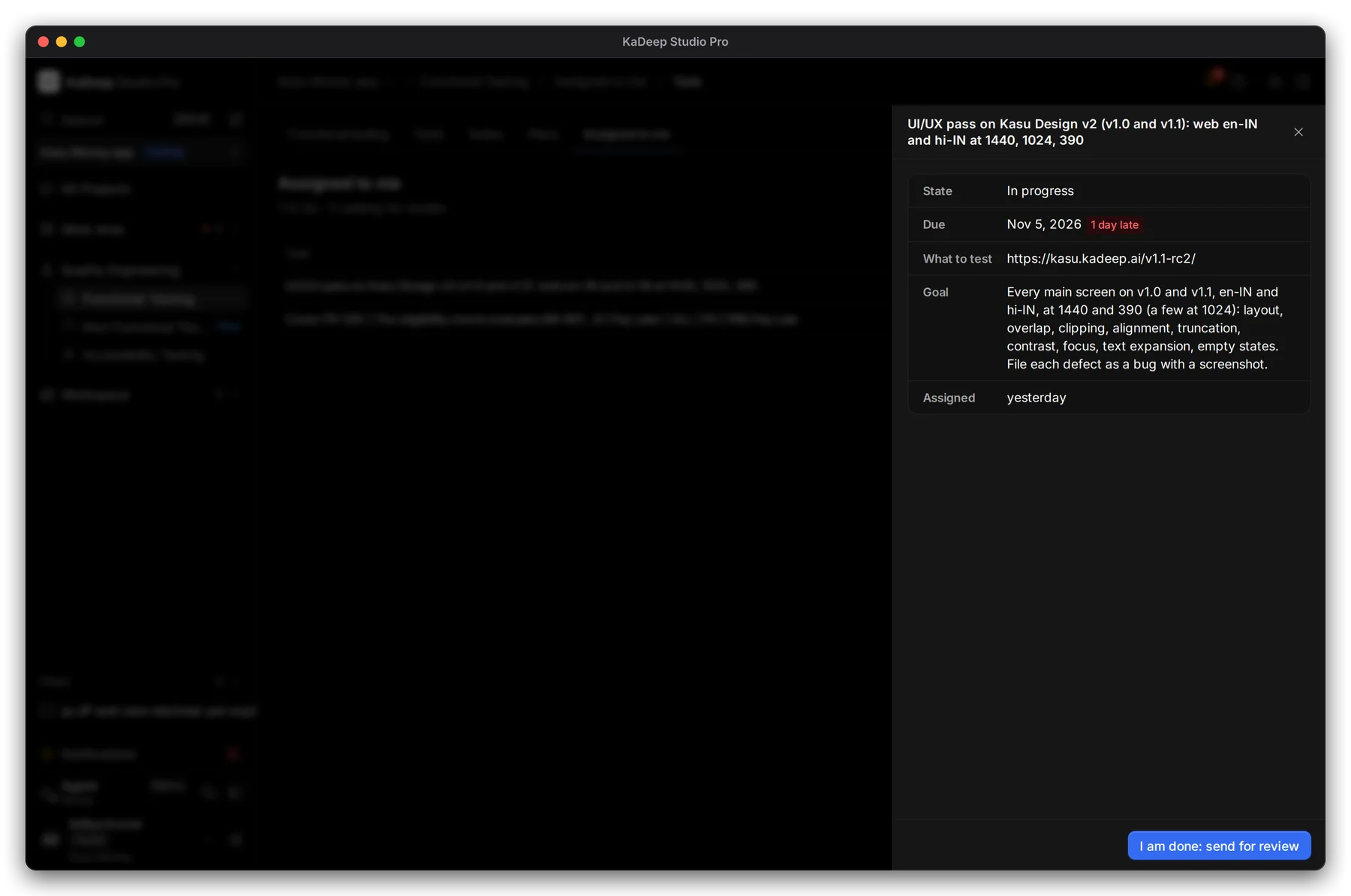
Manage view
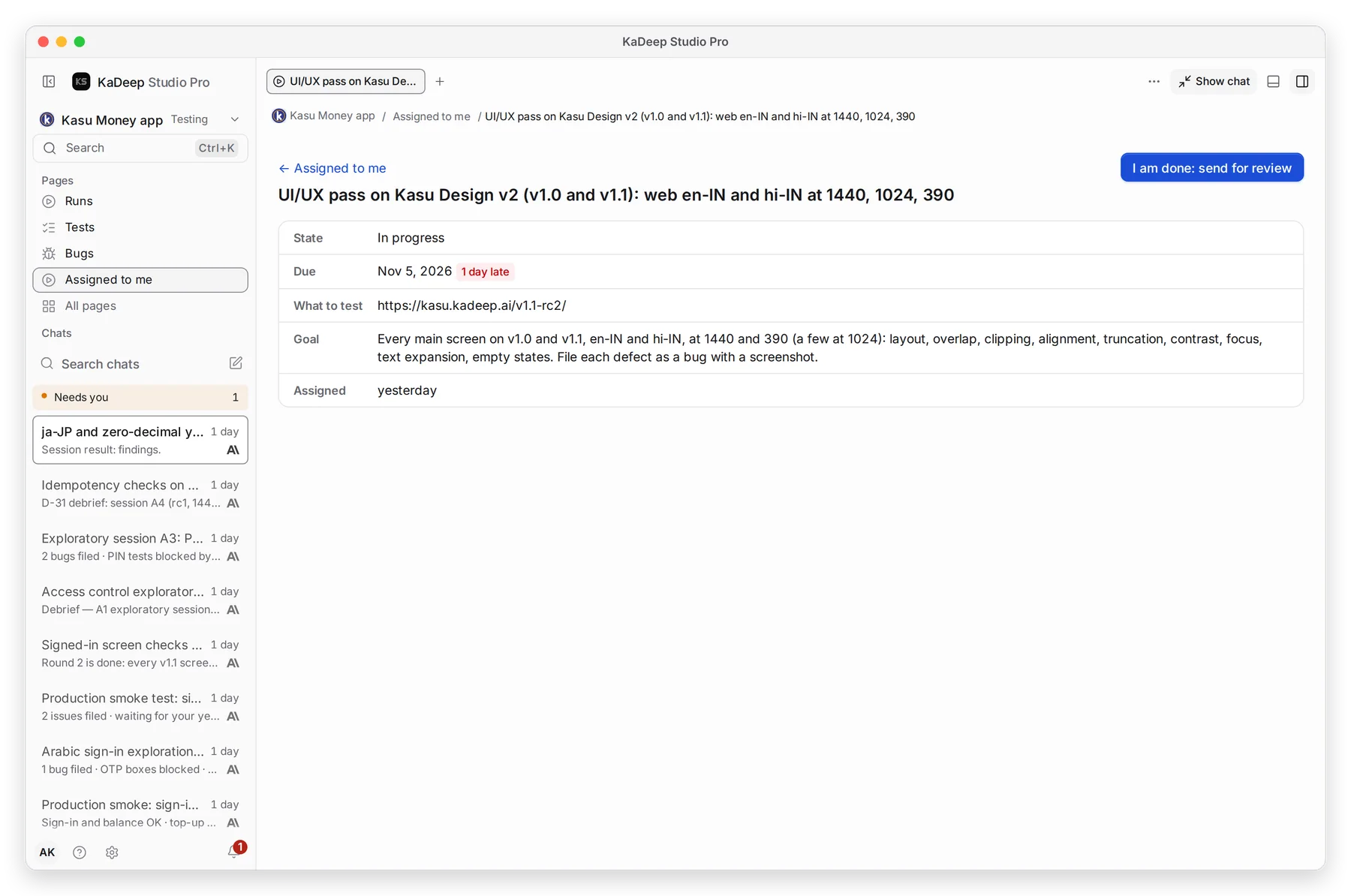
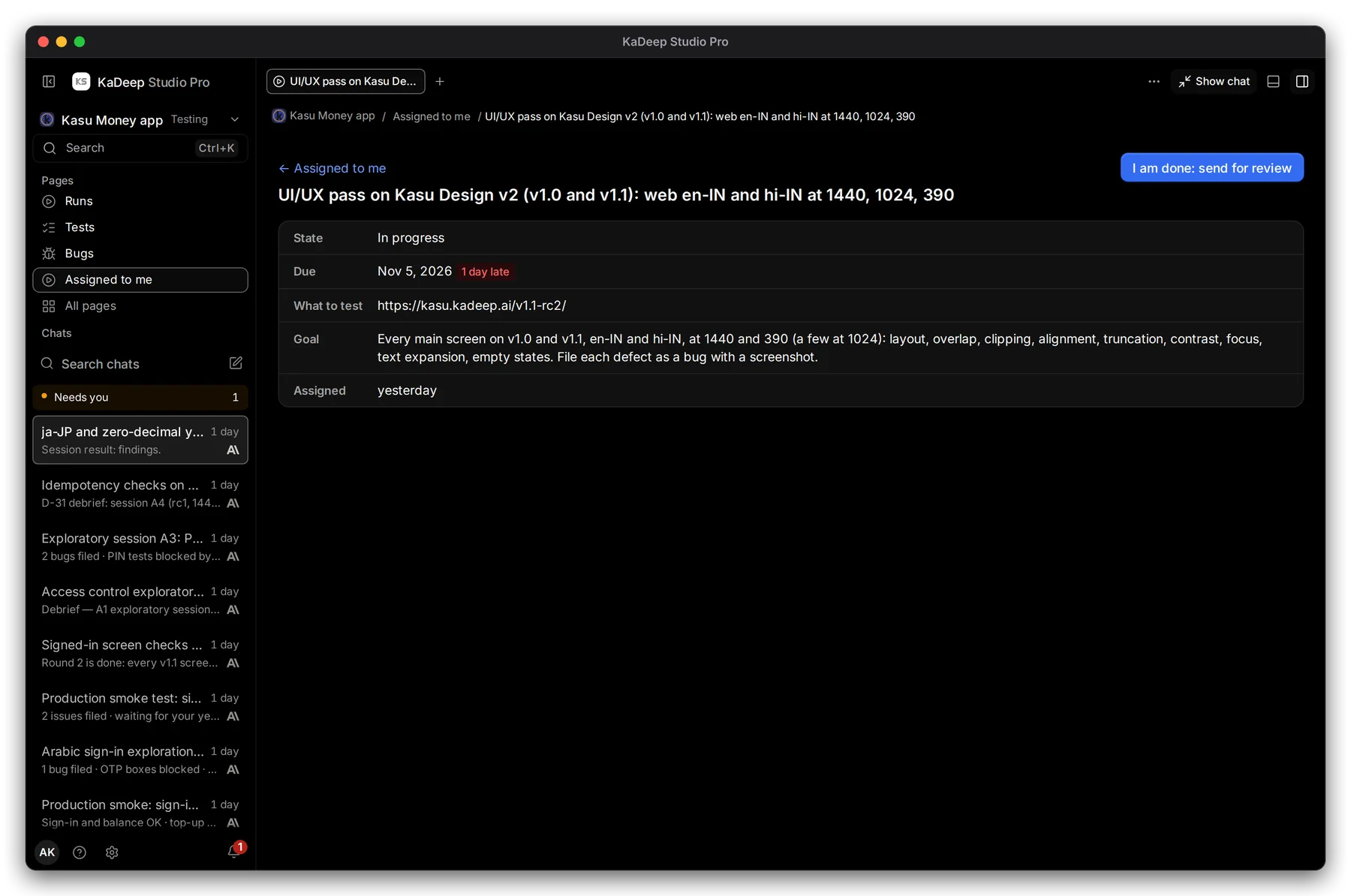
Hands-on view
- 1 Due, and how late it is.
- 2 What to test: the address or the build.
- 3 Goal: what done looks like.
- 4 I am done: send for review.
What’s next
Section titled “What’s next”Run a test suite and read the resultsRun tests and read the evidence.
BugsTriage and re-check bugs.
Work with the agentAsk, approve and follow what it does.