Add site logins
Your view
To check translations in context, the agent opens your app in each language. If your app needs a sign-in, store a login here. The agent types it in; the AI never sees the password.
1. Open Site logins
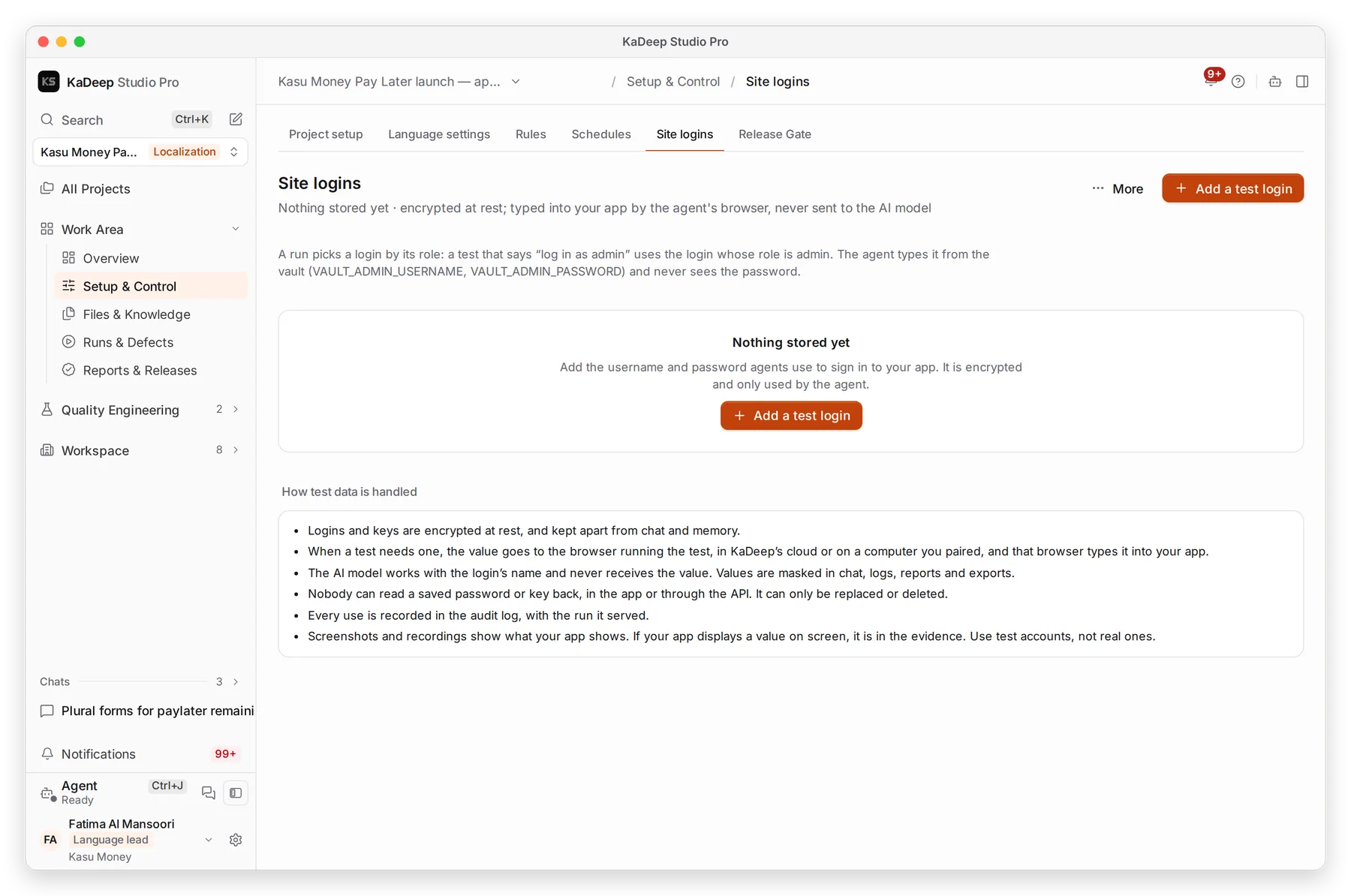
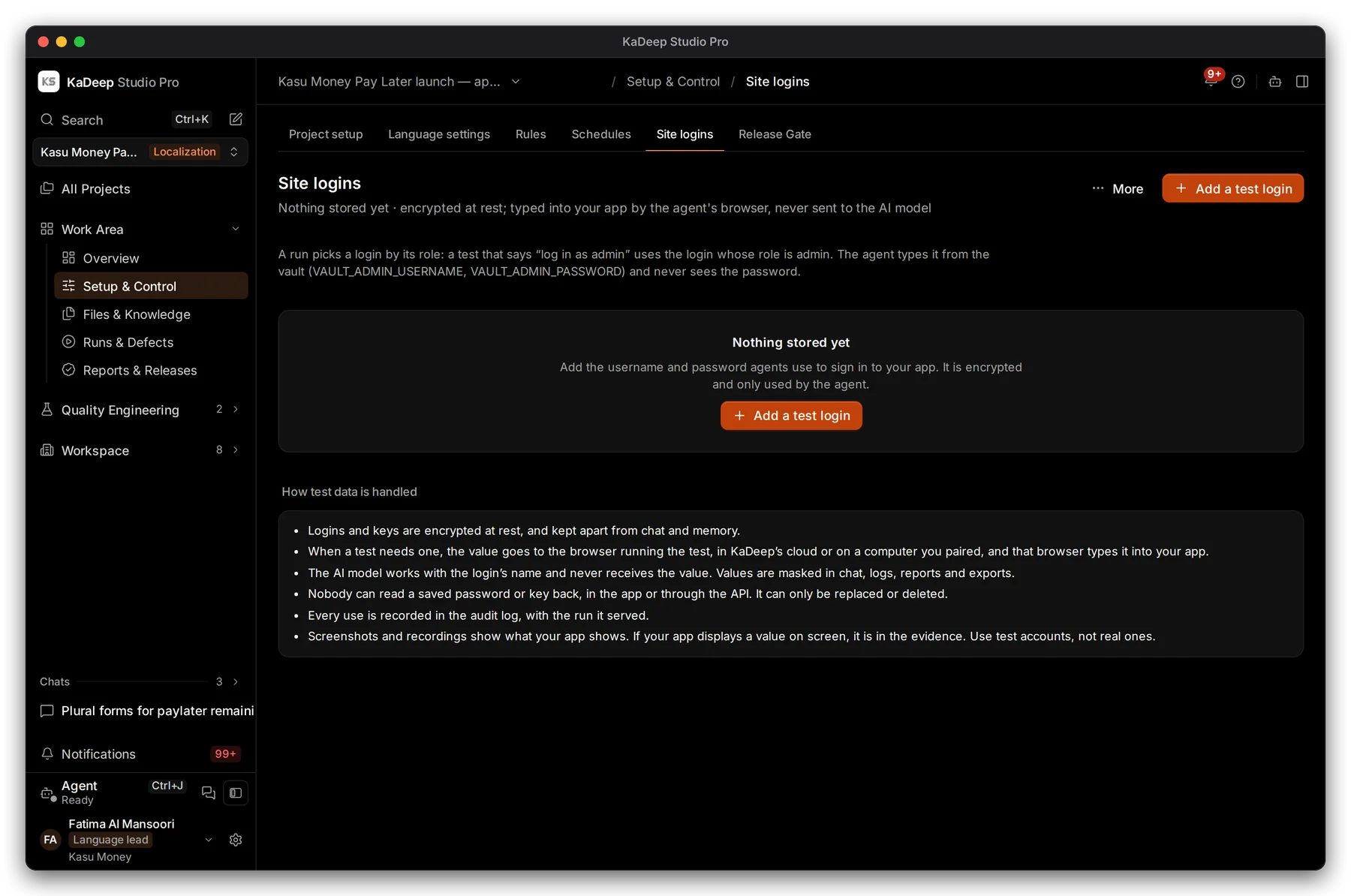
Section titled “1. Open Site logins”Open Work Area › Setup & Control › Site logins.
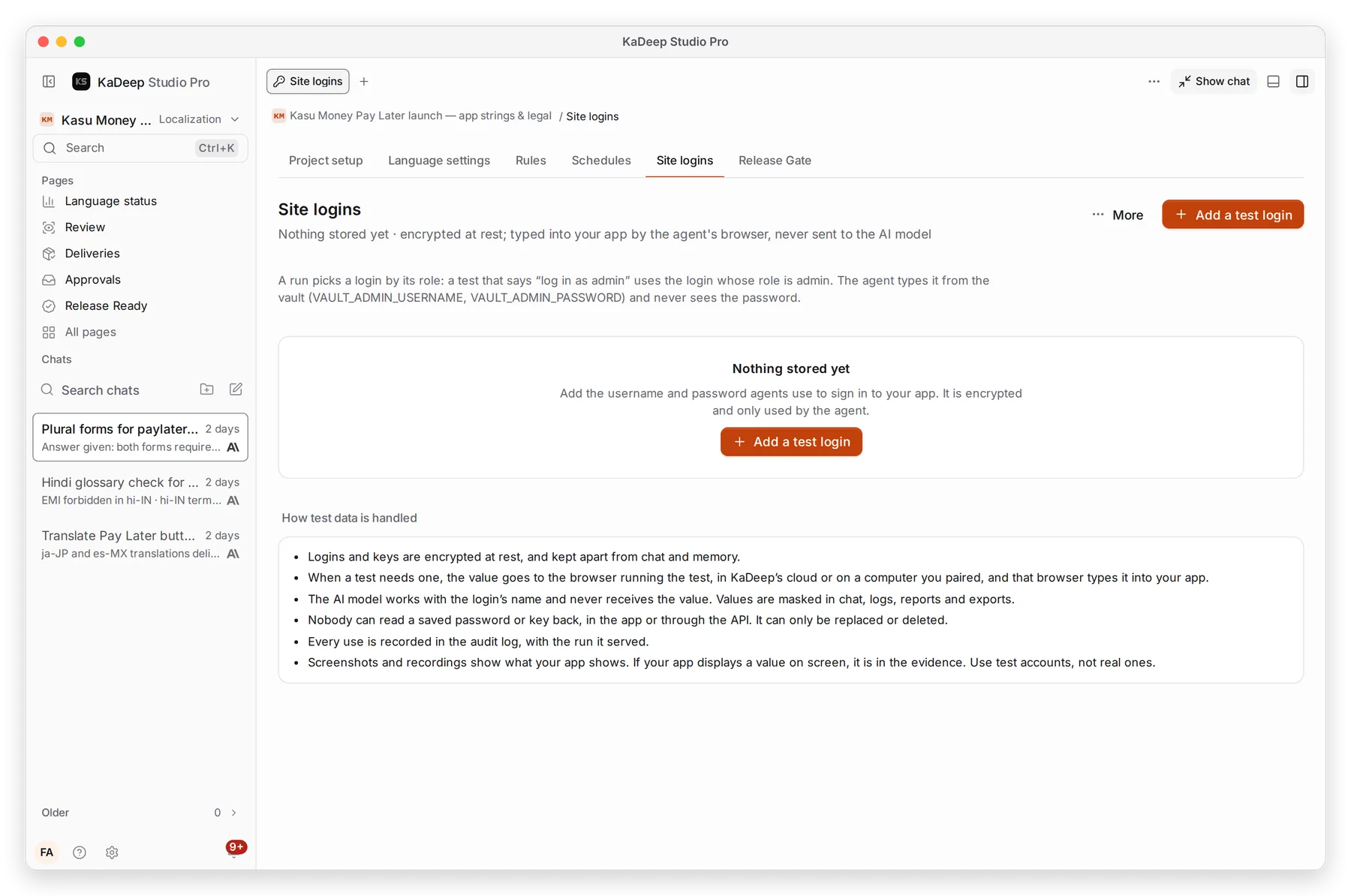
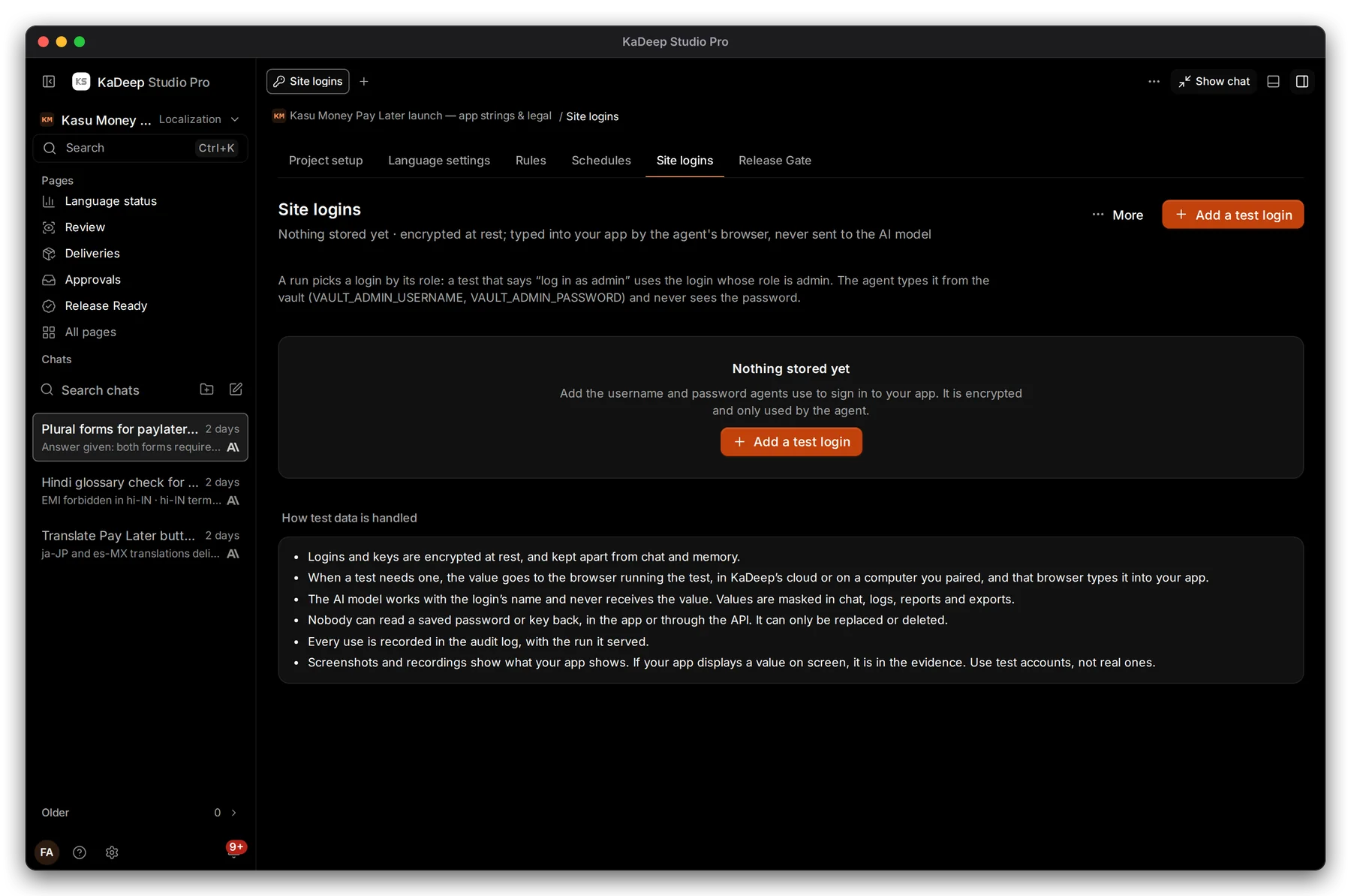
Choose All pages, then Site logins.
Manage view
Hands-on view
- 1 Add a test login.
- 2 How a login is picked: by its role. A check that says “log in as admin” uses the login whose role is admin.
- 3 How test data is handled.
2. Add a login
Section titled “2. Add a login”- Choose Add a test login.
- Give it a role, such as admin or customer.
- Type the username and password of a test account.
- Save it. The list shows the login’s name and role, never the password.
3. How it is kept safe
Section titled “3. How it is kept safe”| Promise | What it means |
|---|---|
| Encrypted at rest | Logins are stored apart from chat and memory |
| Typed by the browser | The browser running the check types the value; the AI works with the login’s name only |
| Masked everywhere | Values are hidden in chat, logs, reports and exports |
| Write-only | Nobody can read a saved password back. Replace or delete it instead. |
| Audited | Every use is in the audit log, with the run it served |
What’s next
Section titled “What’s next”Review and LQAScreenshot checks use these logins.
Test loginsThe same page in a testing project.
Audit logWhere every use is recorded.