Organization tools and requests
Your view
The agent works with tools: a web browser, phones, desktop apps, reports and more. Turn a tool off here, and it is off in every project, every chat and every run.
1. Open Organization tools
Section titled “1. Open Organization tools”In the sidebar, open Workspace › Skills & Tools, then the Organization tools tab.
Press Ctrl K (Windows) or ⌘ K (Mac), type Organization tools and press Enter.
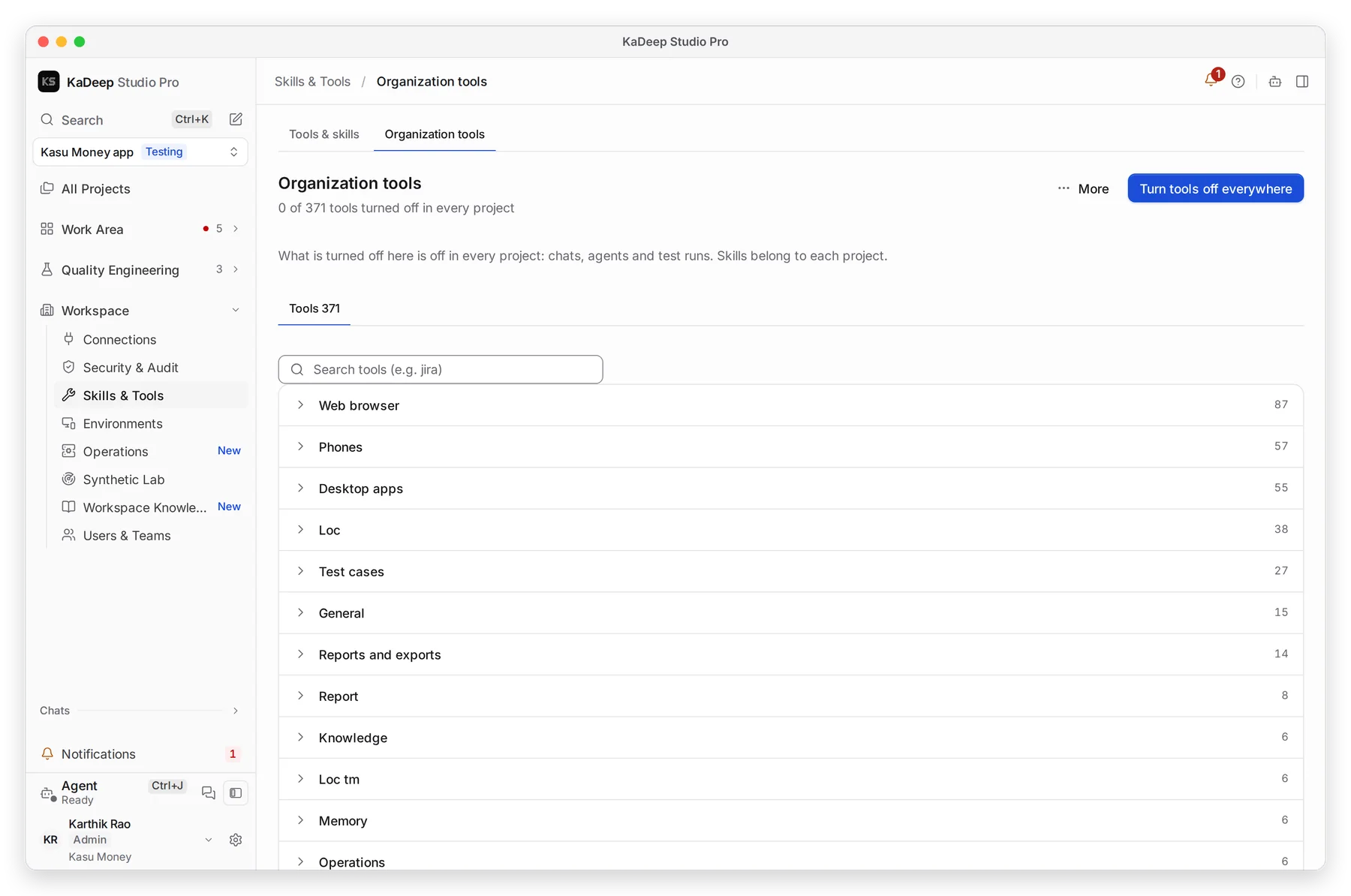
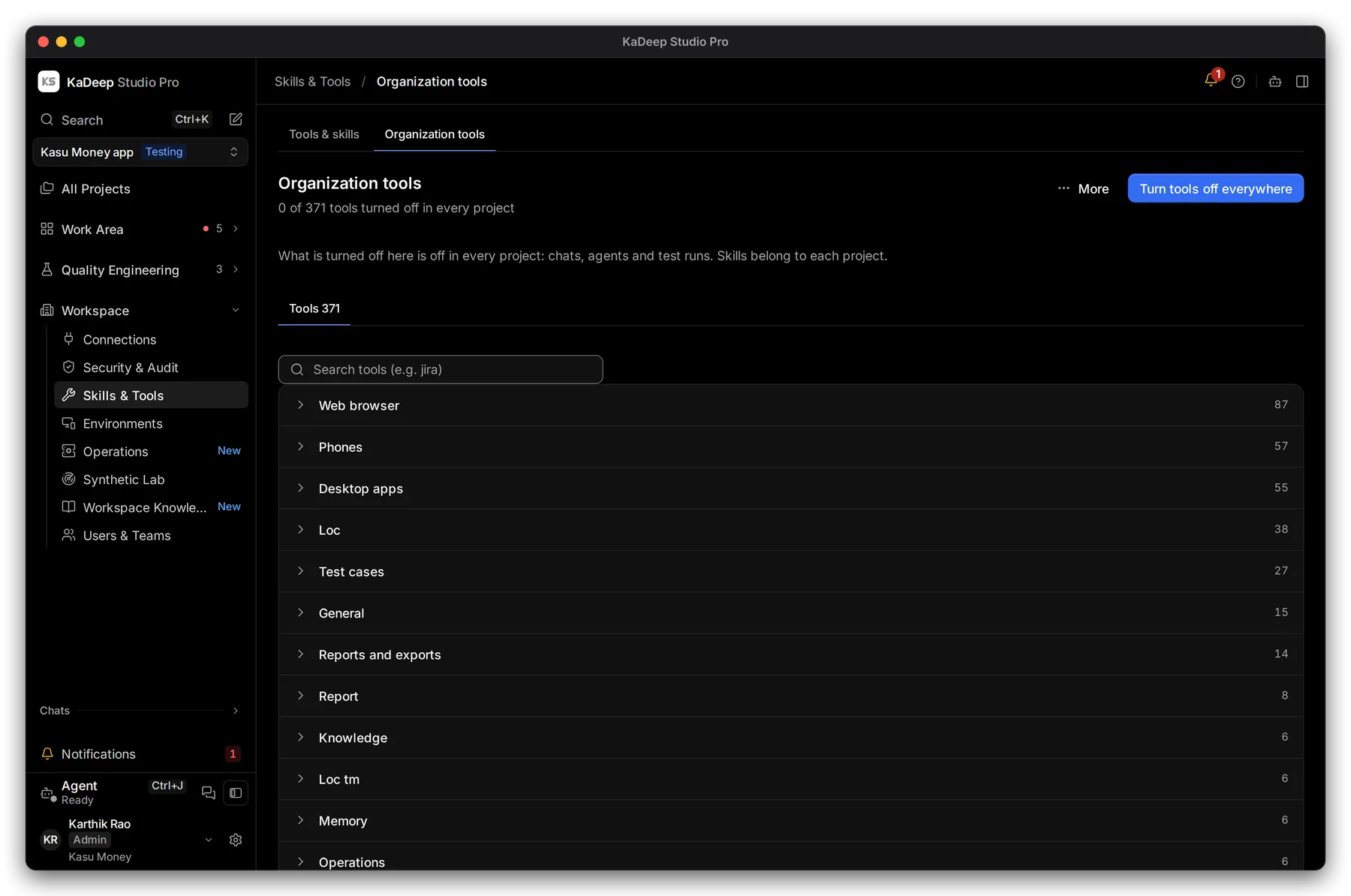
Manage view
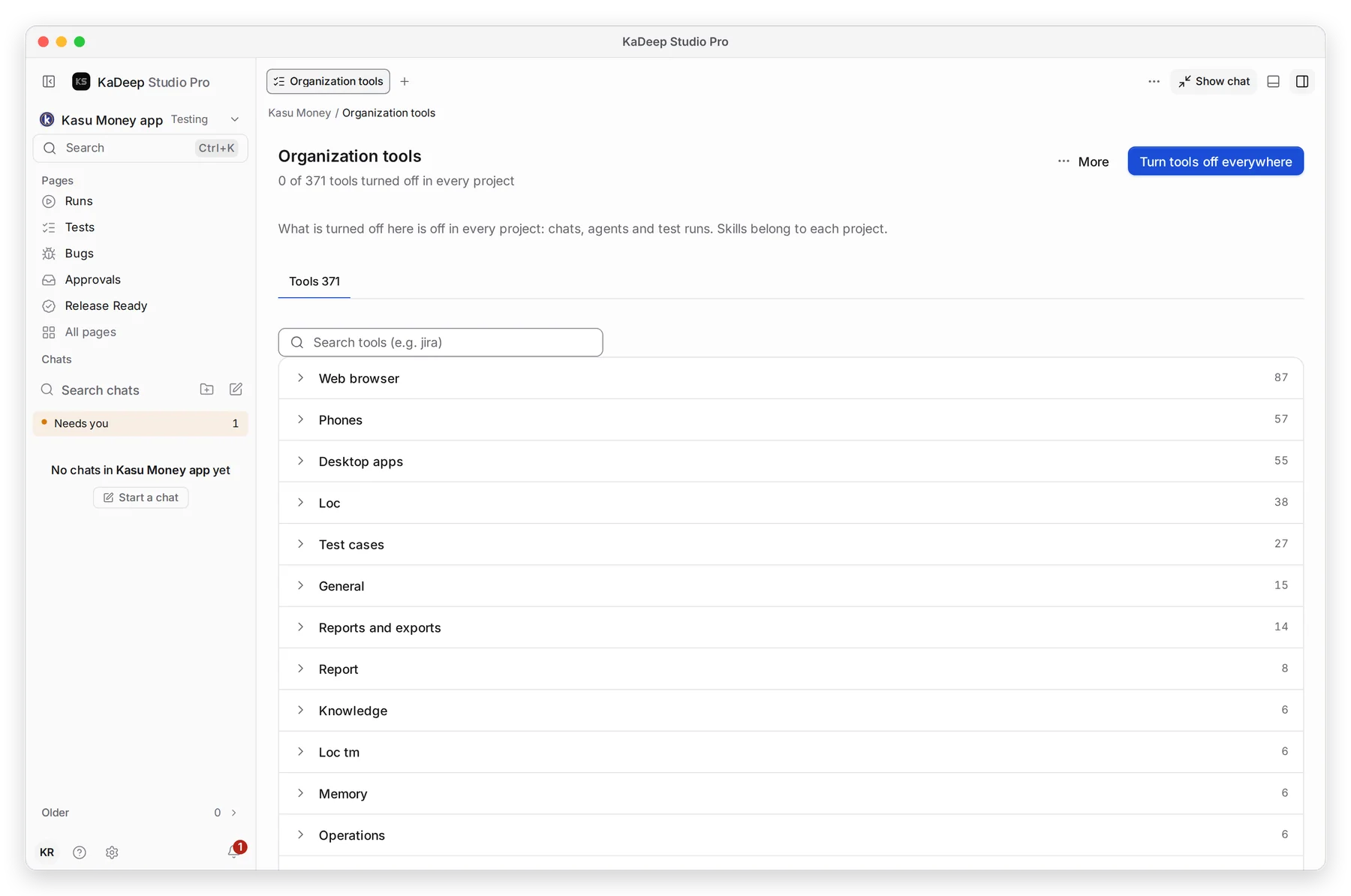
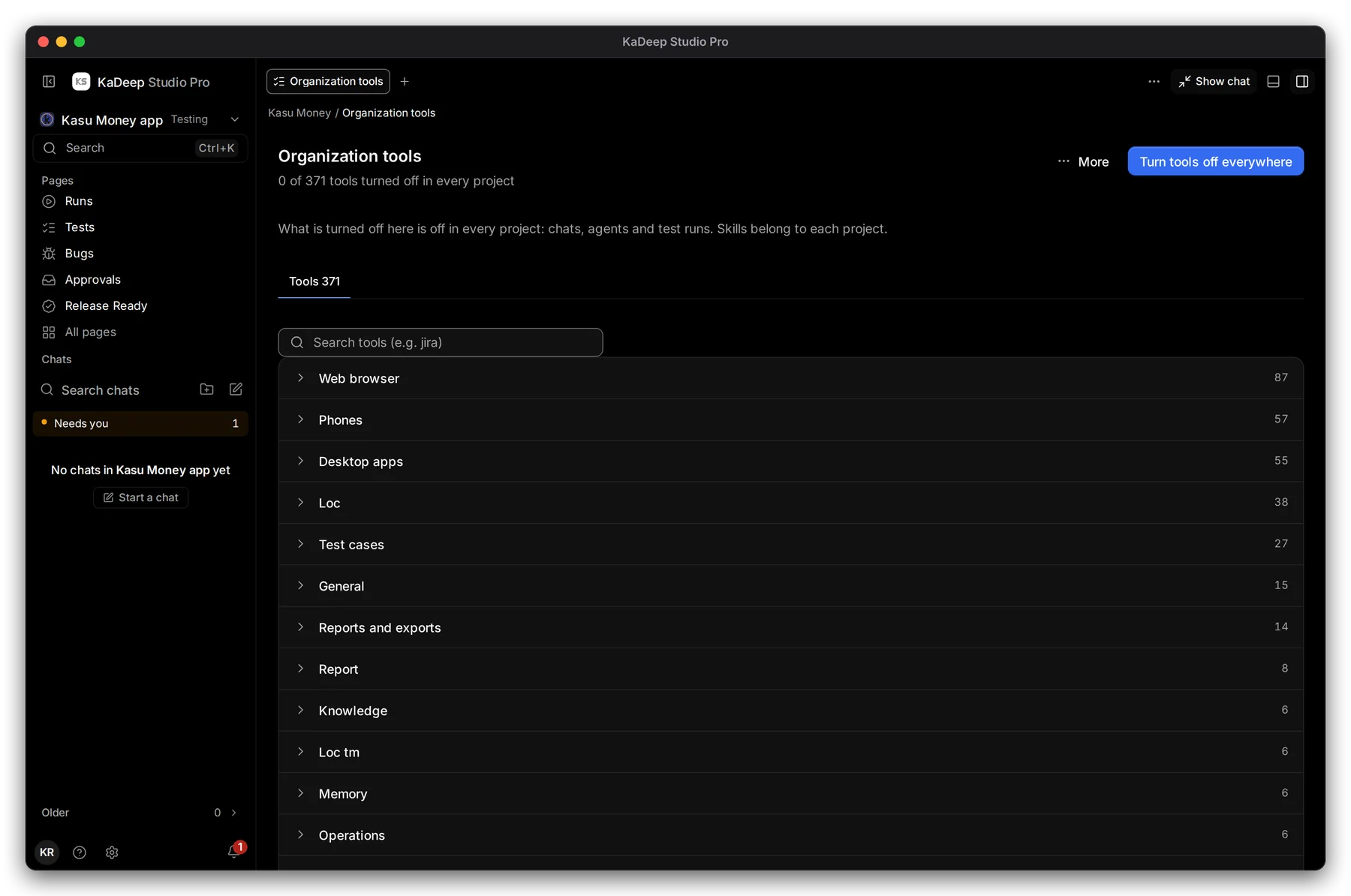
Hands-on view
1 The count shows how many tools are off. 4 Tools are grouped by kind, such as Web browser, Phones and Desktop apps. Open a group to see each tool.
2. Turn tools off everywhere
Section titled “2. Turn tools off everywhere”- Choose 2 Turn tools off everywhere.
- 3 Search for a tool, for example “jira”, or open a group.
- Tick the tools to turn off, then save.
3. Answer requests
Section titled “3. Answer requests”When someone asks for a tool or an AI provider that is not turned on, the request lands on Requests.
Open Workspace › Users & Teams, then the Requests tab.
Search for Requests (Ctrl K / ⌘ K).
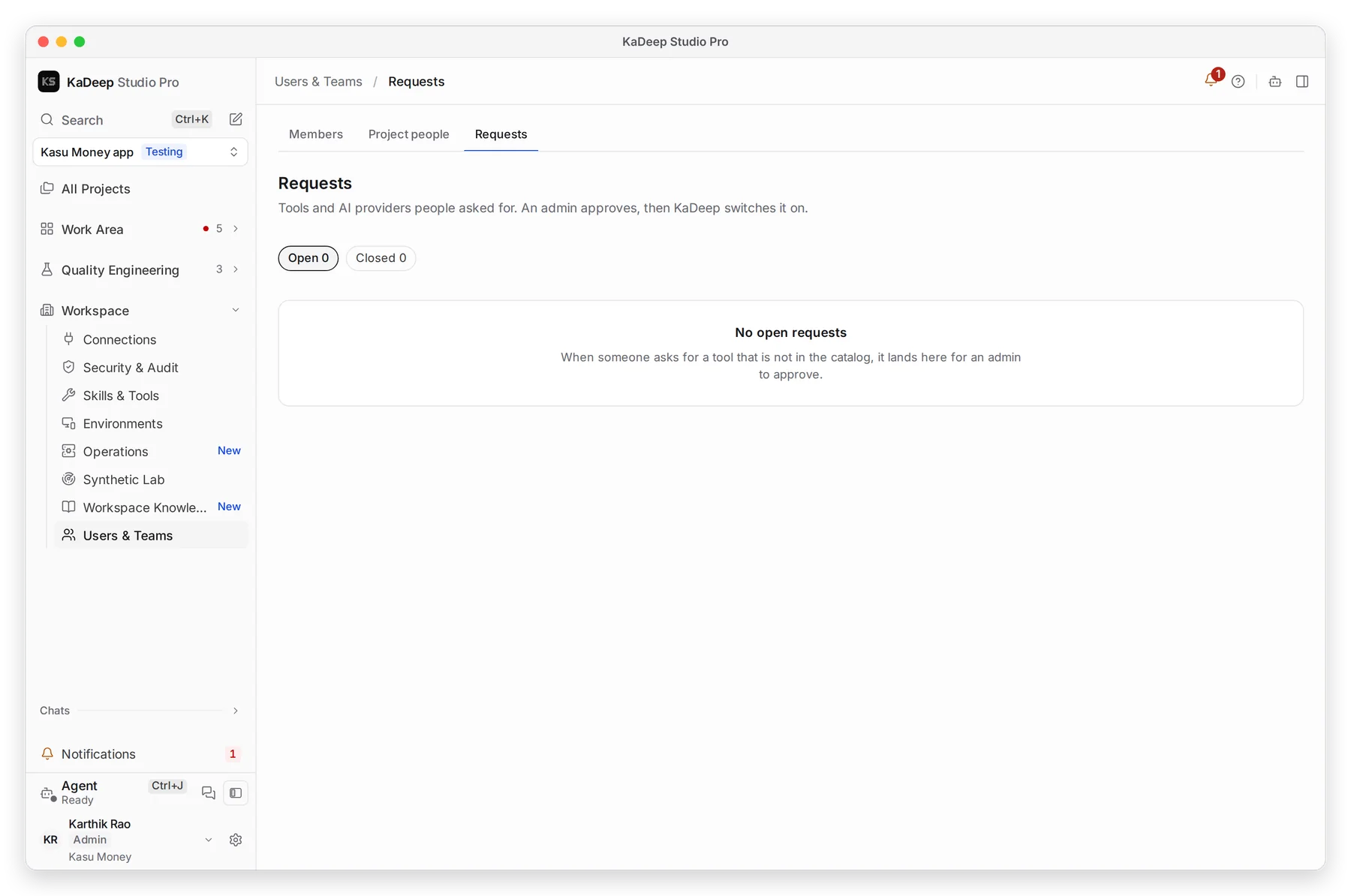
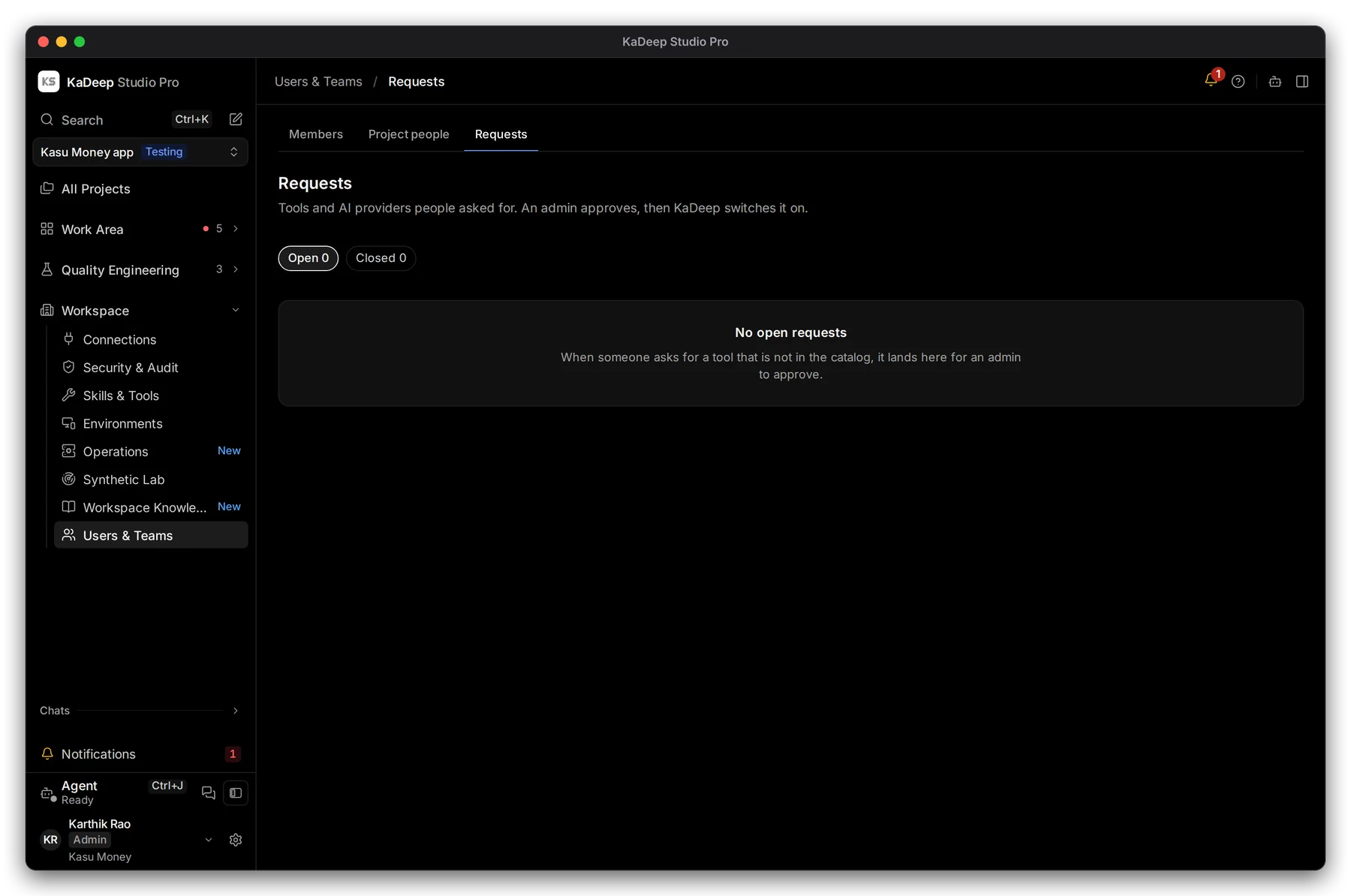
Manage view
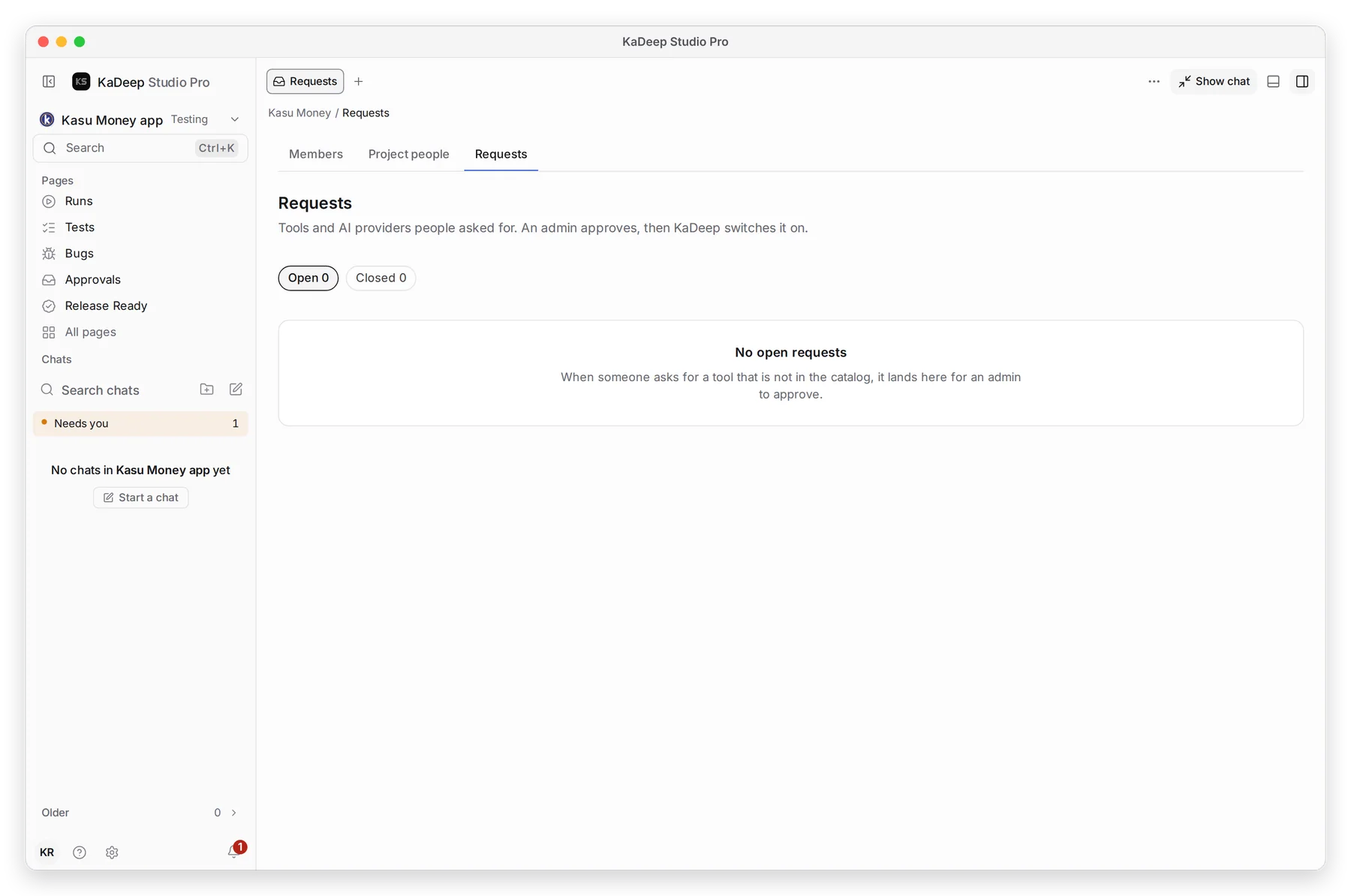
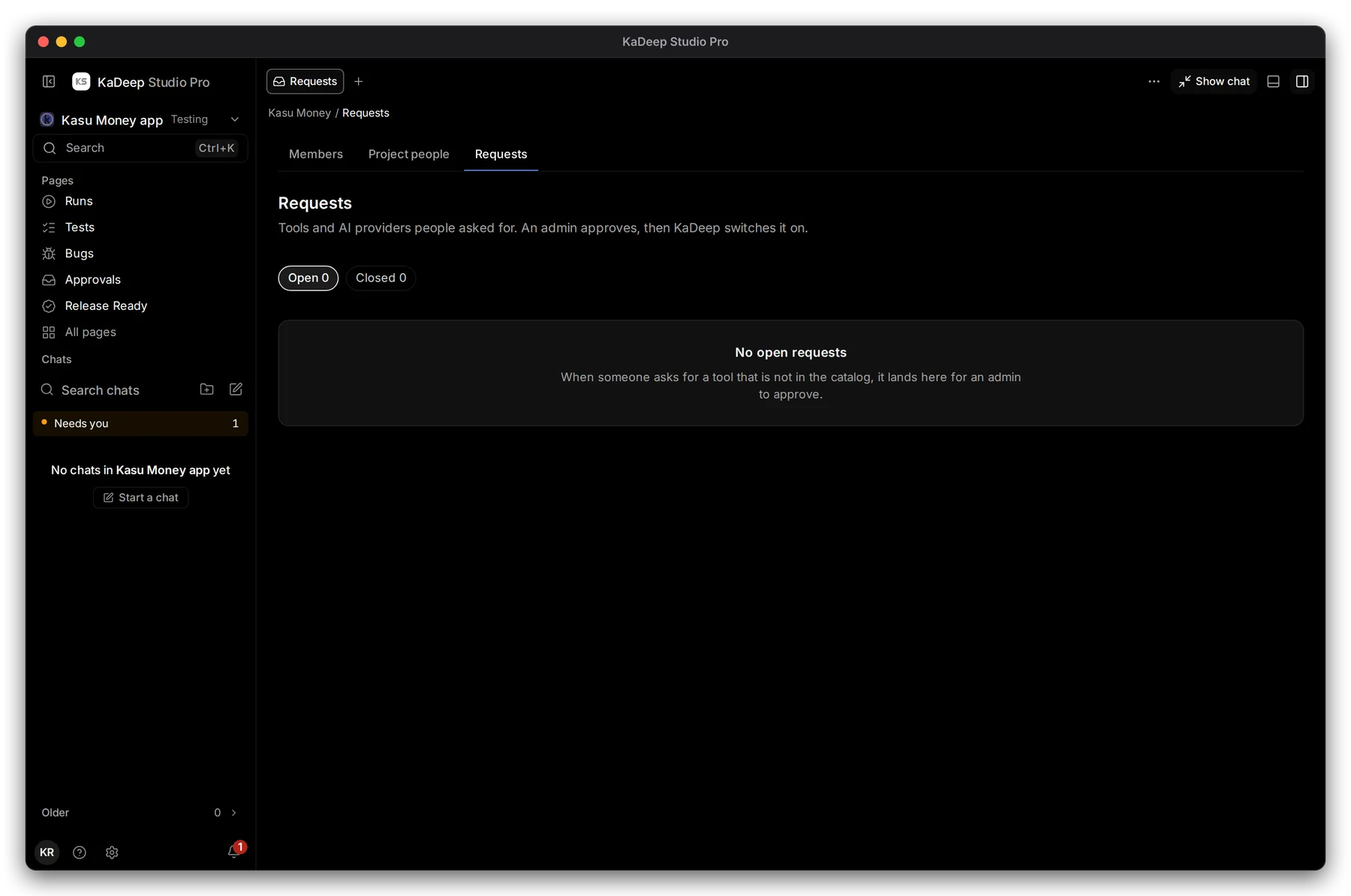
Hands-on view
Open a request to read who asked and why, then approve or decline it. When you approve, KaDeep turns it on. Decided requests move to 2 Closed.
What’s next
Section titled “What’s next”Spending limit and approvalsCap spend and choose who approves it.
Tools and skillsWhat each project's agent can use.
Set up checklistBack to the list.