Invite people and give them roles
Your view
Invite people by email. Each person gets one role in the organization, and you choose which projects they can see.
Before you start: you need the Admin or Manager role. Only an admin can give the Admin role.
1. Open Members
Section titled “1. Open Members”- In the sidebar, open Workspace › Users & Teams. Press Ctrl K (Windows) or ⌘ K (Mac), type Members and press Enter.
- The Members tab lists everyone in the organization.
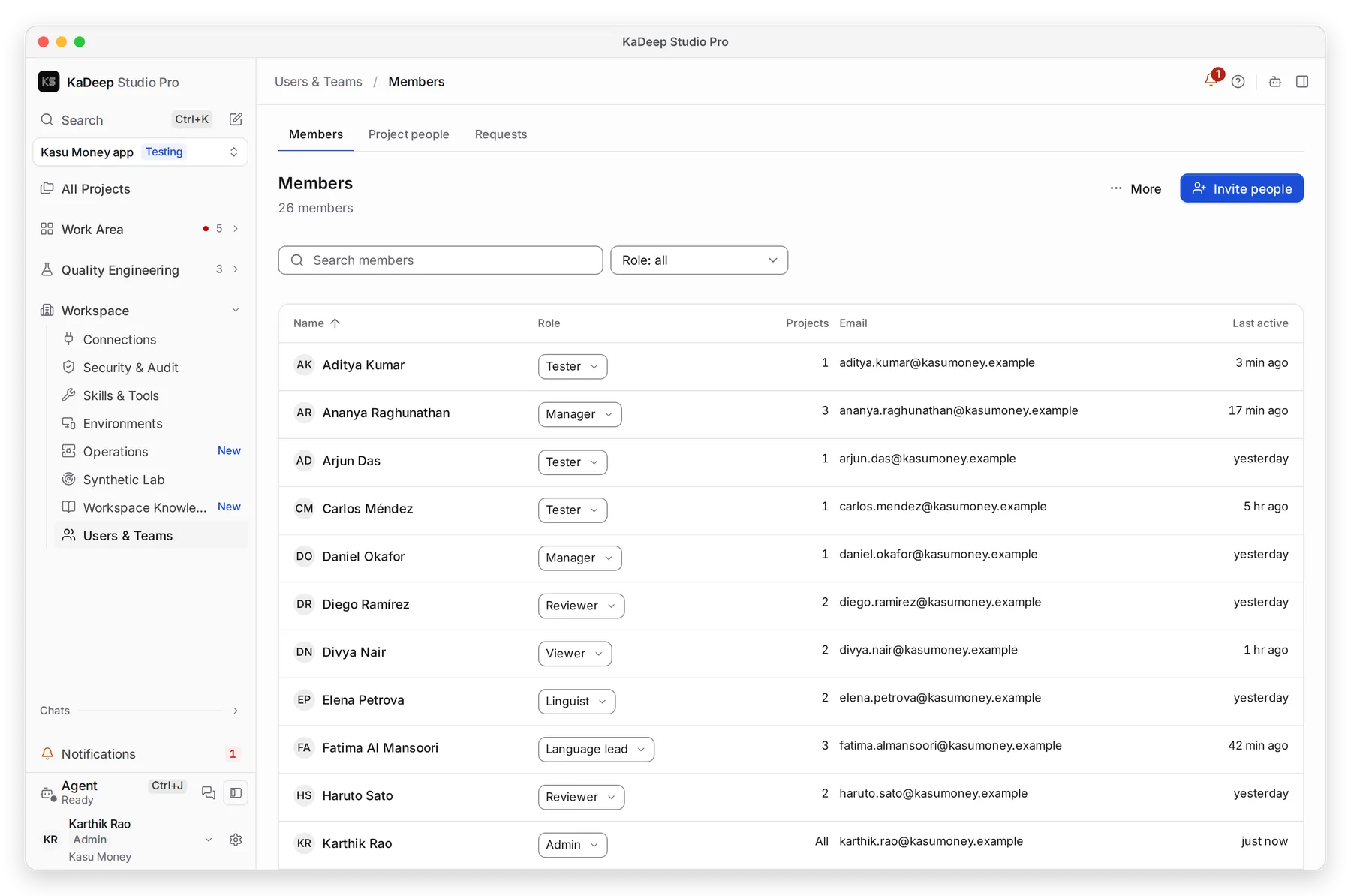
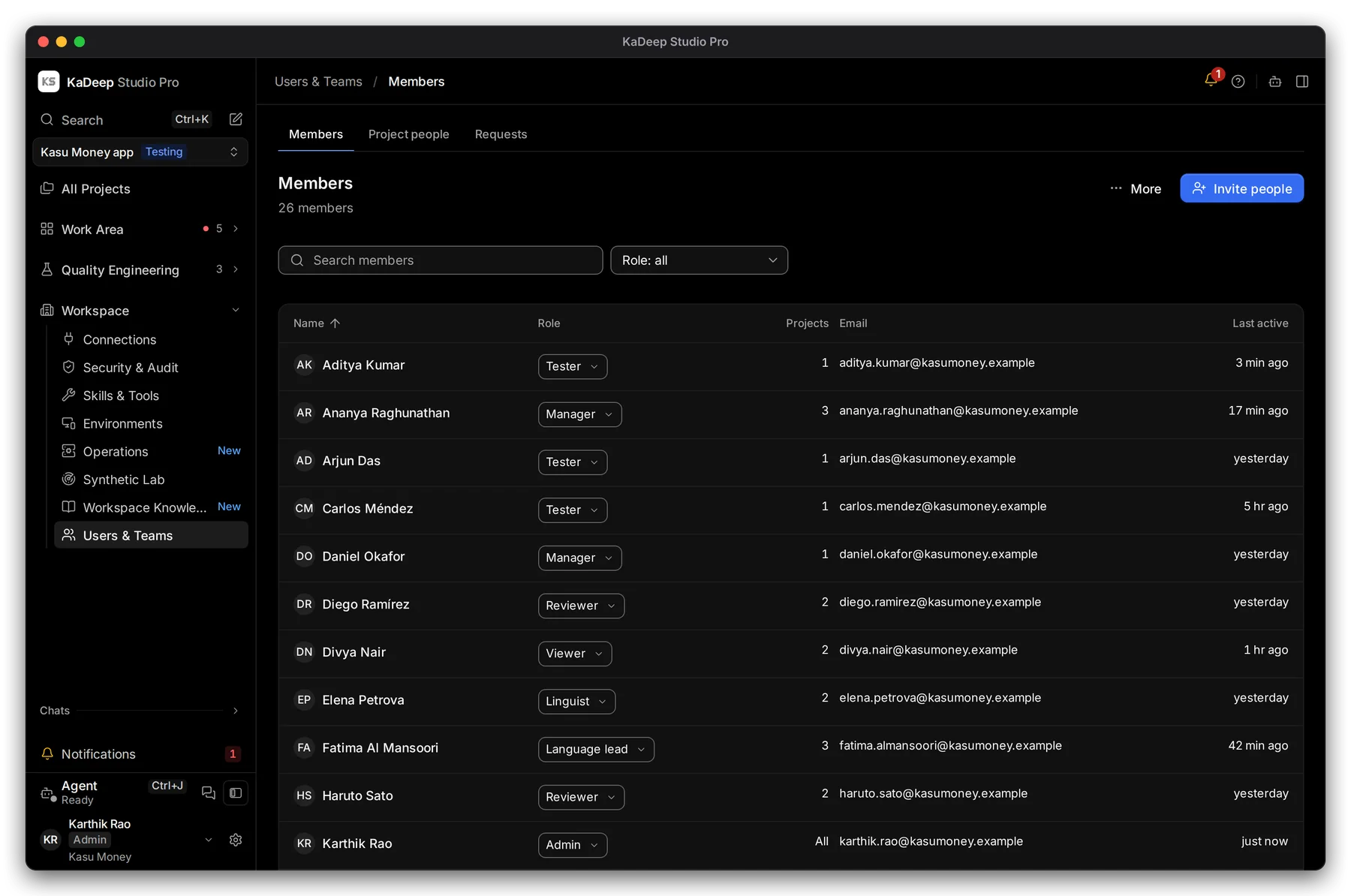
Manage view
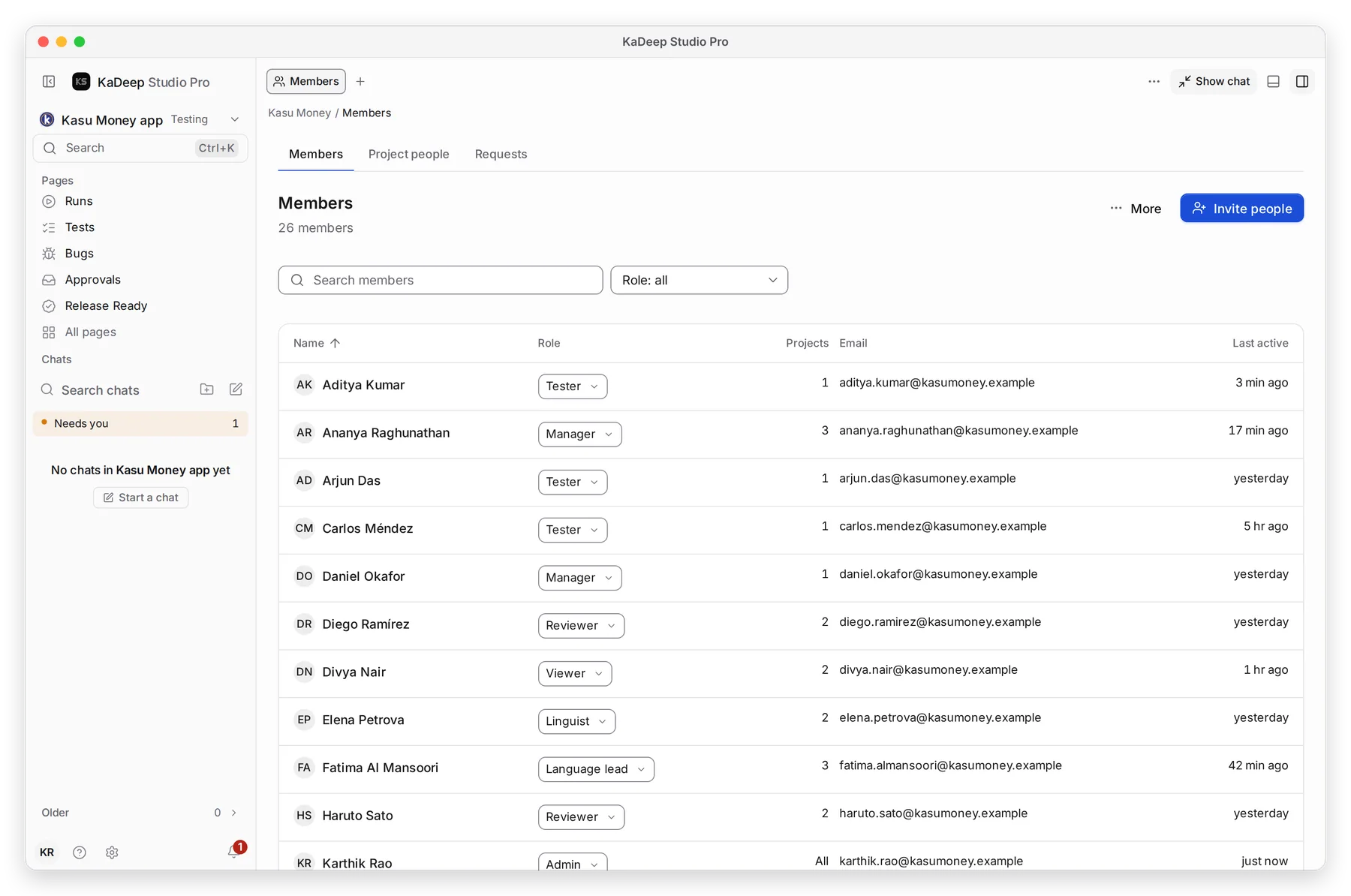
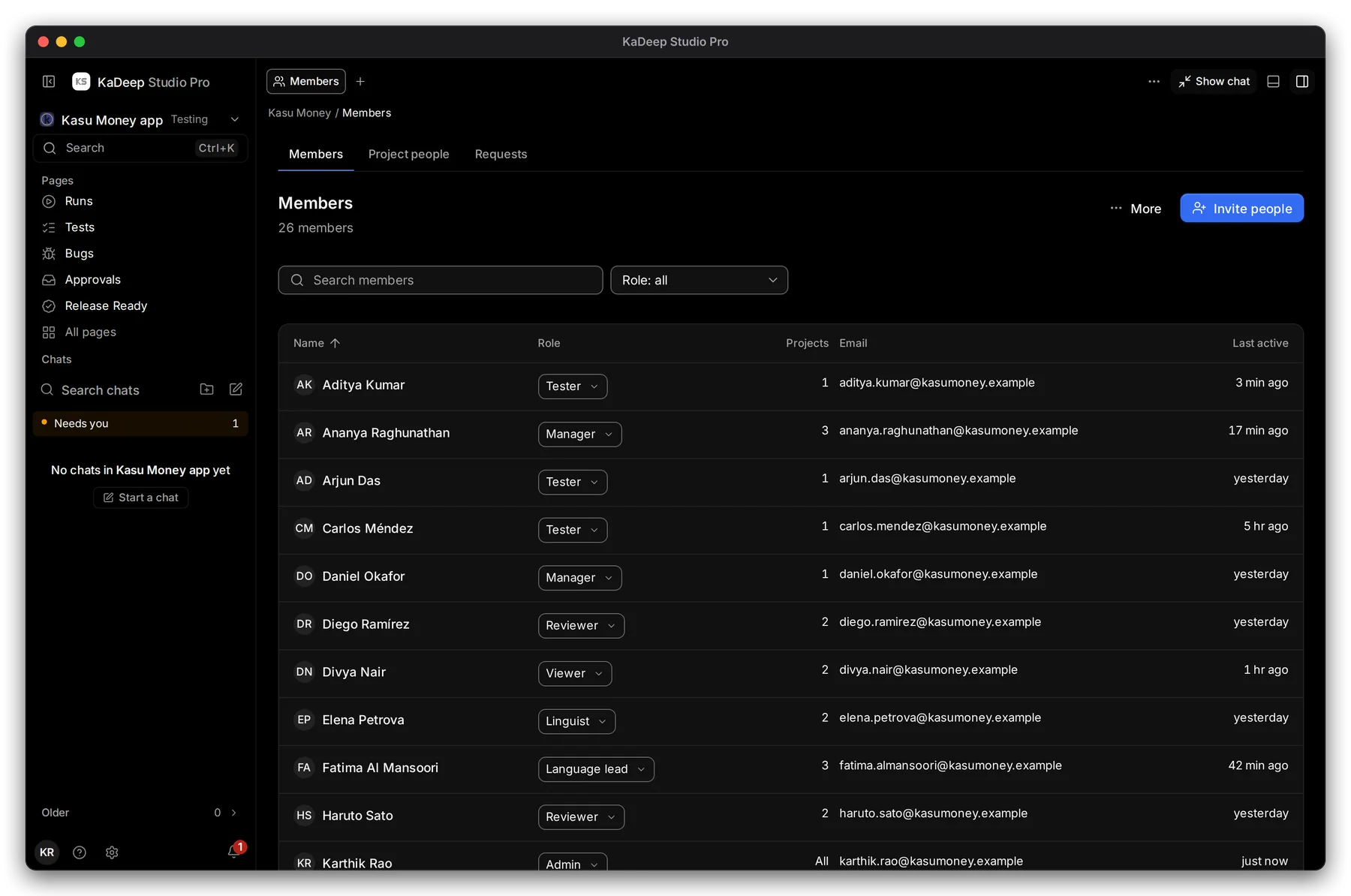
Hands-on view
2 Search by name or email, or filter by role. 4 Last active shows who is really using KaDeep.
2. Send the invitations
Section titled “2. Send the invitations”- Choose Invite people.
- In Emails, paste one address or a list: one per line, or separated by commas.
- Choose a Role. Every address in this invitation gets it.
- Optional: under Projects they can see, tick projects. For each one, Role on each project can differ from the organization role.
- Choose Send invite. For a list, the button reads Send 5 invites, for example.
Each person gets an email with a link. They choose a password, or sign in with single sign-on, and land on their Home. See Sign in and join your organization.
3. Resend, revoke or change a role
Section titled “3. Resend, revoke or change a role”| To | Do this |
|---|---|
| Send the email again | Under Invites waiting, choose Resend. |
| Send the link yourself | Under Invites waiting, choose Copy link. |
| Cancel an invitation | Choose Revoke. The link stops working. |
| Change someone’s role | Choose the person, choose a new Role, then Save role. |
| Remove someone | Choose the person, then Remove from organization. Their work stays. |
What’s next
Section titled “What’s next”Roles and what they can doPick the right role for each person.
Add people to a projectWho works on each project, and as what.
Set up checklistBack to the list.