Sign-in problems
Most sign-in problems come down to a password, a two-step code, an invitation or the organization you are in. Find the message you see below.
1. The sign-in page
Section titled “1. The sign-in page”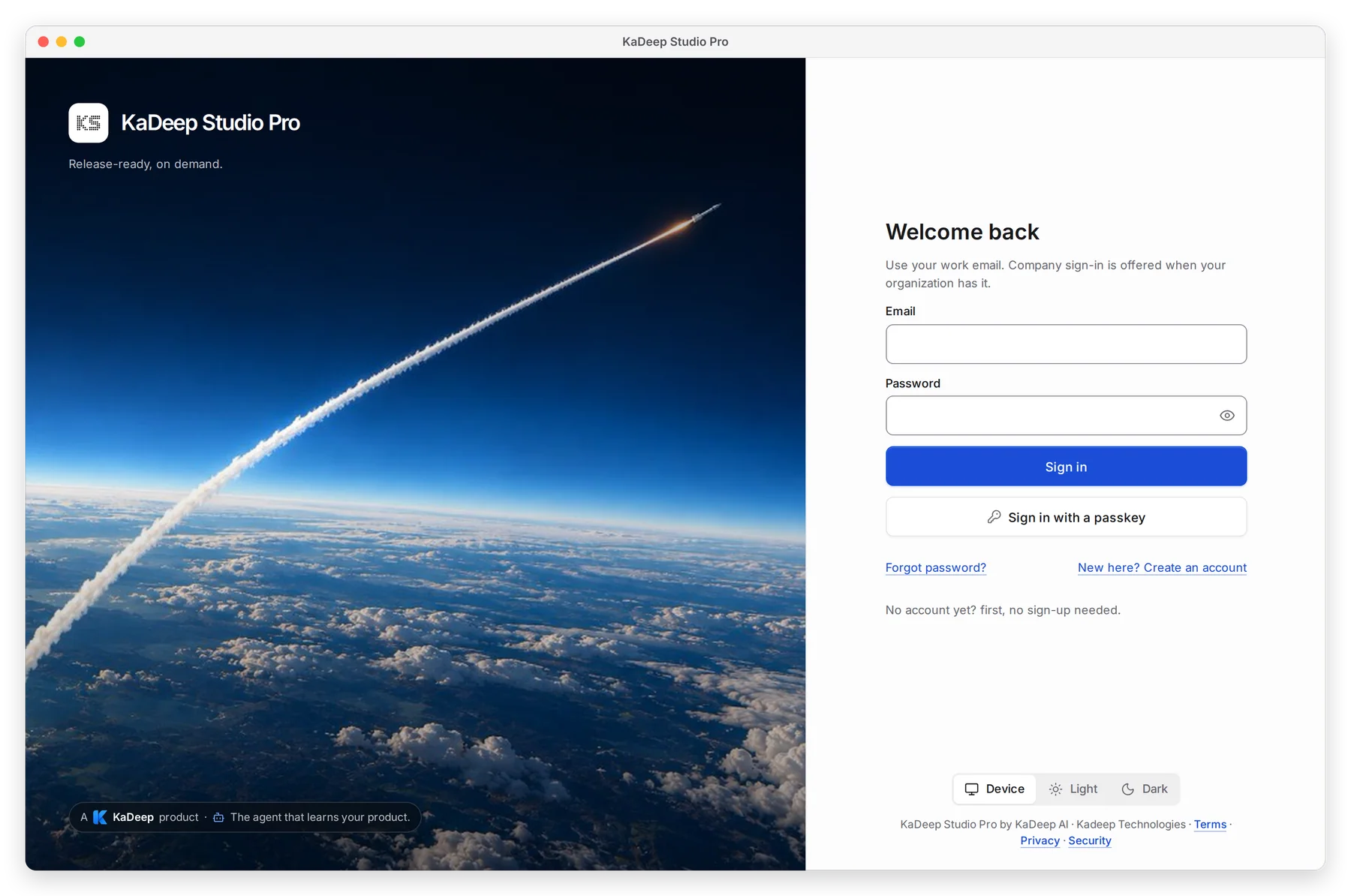
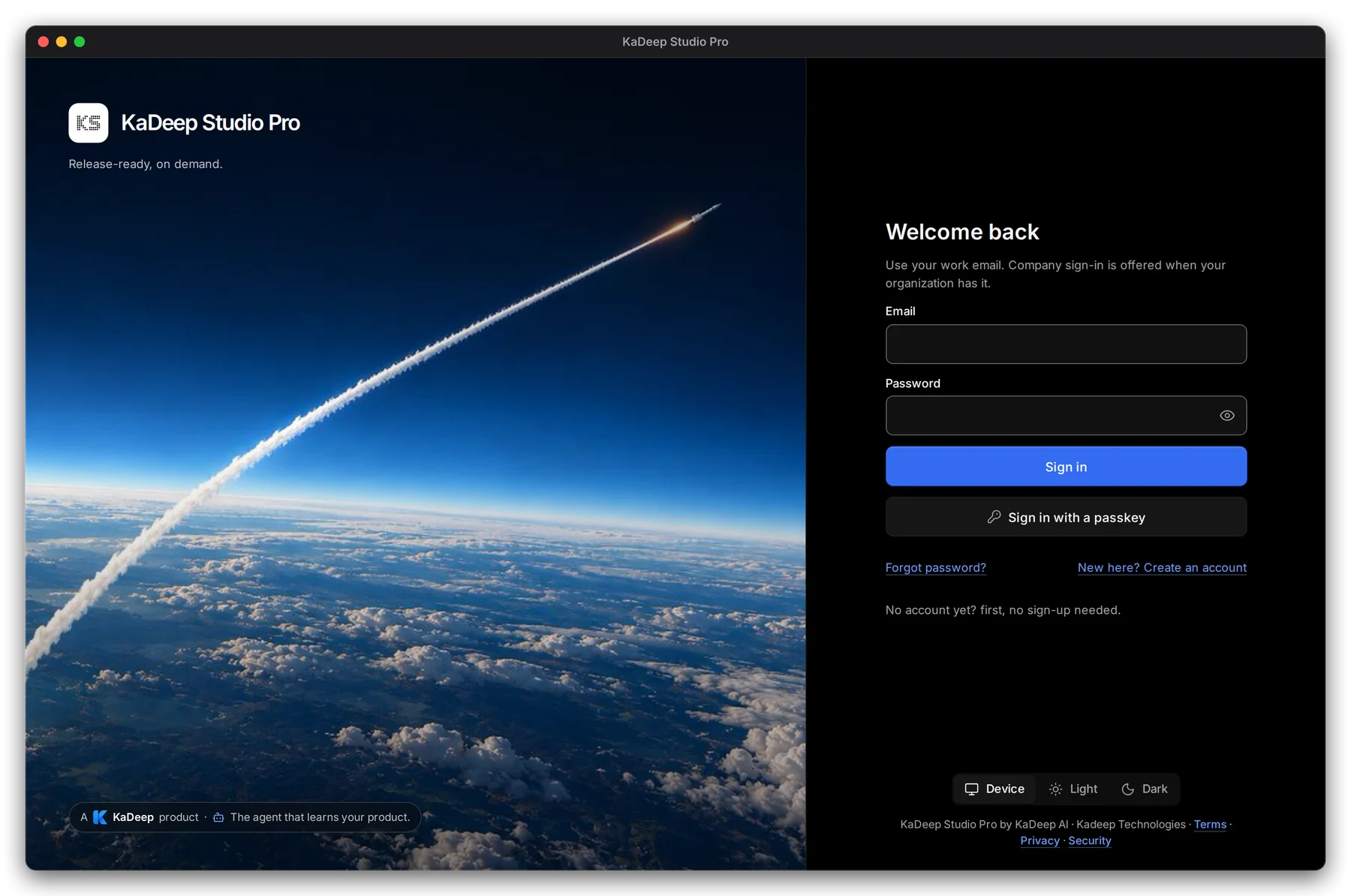
Sign in with the email your admin invited. If your organization uses single sign-on, choose Continue with company sign-in instead of typing a password.
2. Find your message
Section titled “2. Find your message”| You see | What it means | What to do |
|---|---|---|
| That email and password do not match | The password is wrong, or the account uses another email | Check the email. Then reset your password (step 3). |
| Your organization signs in through its identity provider | Your admin turned on single sign-on | Choose Continue with company sign-in. |
| Company sign-in did not finish | Your identity provider did not answer, or you closed its window | Try again. If it keeps failing, ask your IT team. |
| This invite link does not work | The invitation expired, was used already, or was copied only in part | Ask your admin to send a new invitation. |
| Locked to the invited address | The invitation is for one email address only | Sign in with the address the invitation went to. |
| Passkeys work in your browser. In this app, use a code. | The desktop app can’t use a passkey | Enter the code from your authenticator app. |
3. Reset a forgotten password
Section titled “3. Reset a forgotten password”- On the sign-in page, choose Forgot password?.
- Type your account email and choose Send reset link.
- Open the email from KaDeep and follow the link.
- Type a new password of at least 8 characters, then choose Set new password.
You are signed out on every other device afterwards. If your organization uses single sign-on, reset the password with your IT team instead.
4. Two-step verification
Section titled “4. Two-step verification”After your password, KaDeep asks for the 6-digit code from your authenticator app.
- The code changes every 30 seconds. If it is refused, wait for a new one, and check your phone’s clock.
- No phone? Choose Recovery code and type one of the codes you saved when you set up two-step verification. Each code works once.
- Lost your phone and your codes? Ask your admin to Reset two-step verification for you.
5. You are in the wrong organization
Section titled “5. You are in the wrong organization”If you belong to more than one organization, KaDeep opens the one you used last. Open your account menu at the bottom of the sidebar and choose the organization you want.
You signed in but see No projects yet? You are in the organization, but nobody has added you to a project. Ask the admin or the project’s lead to add you.