Assign tasks and follow them to done
A task is a piece of work you give to one person, with a due date: “Regression pass on Pay Later checkout by Friday”. It lands in their list, appears on your Timeline, and comes back to you for review when they finish.
Before you start: the person must be a member of the project. See Add people to a project.
1. Start a task
Section titled “1. Start a task”Choose Assign a task from any of these places:
| Where | What it fills in for you |
|---|---|
| Timeline (top right) | Nothing |
| Team activity (top right) | Nothing |
| Quality Engineering › Functional Testing › Assigned to meTests › Assigned to me | Nothing |
| A suite, then Assign | “Run and review” plus the suite’s name |
| A requirement, then Assign | The requirement, linked to the task |
| In a localization project: My work › More › Assign a task | Nothing. The task lands in the person’s language queue. |
2. Fill it in
Section titled “2. Fill it in”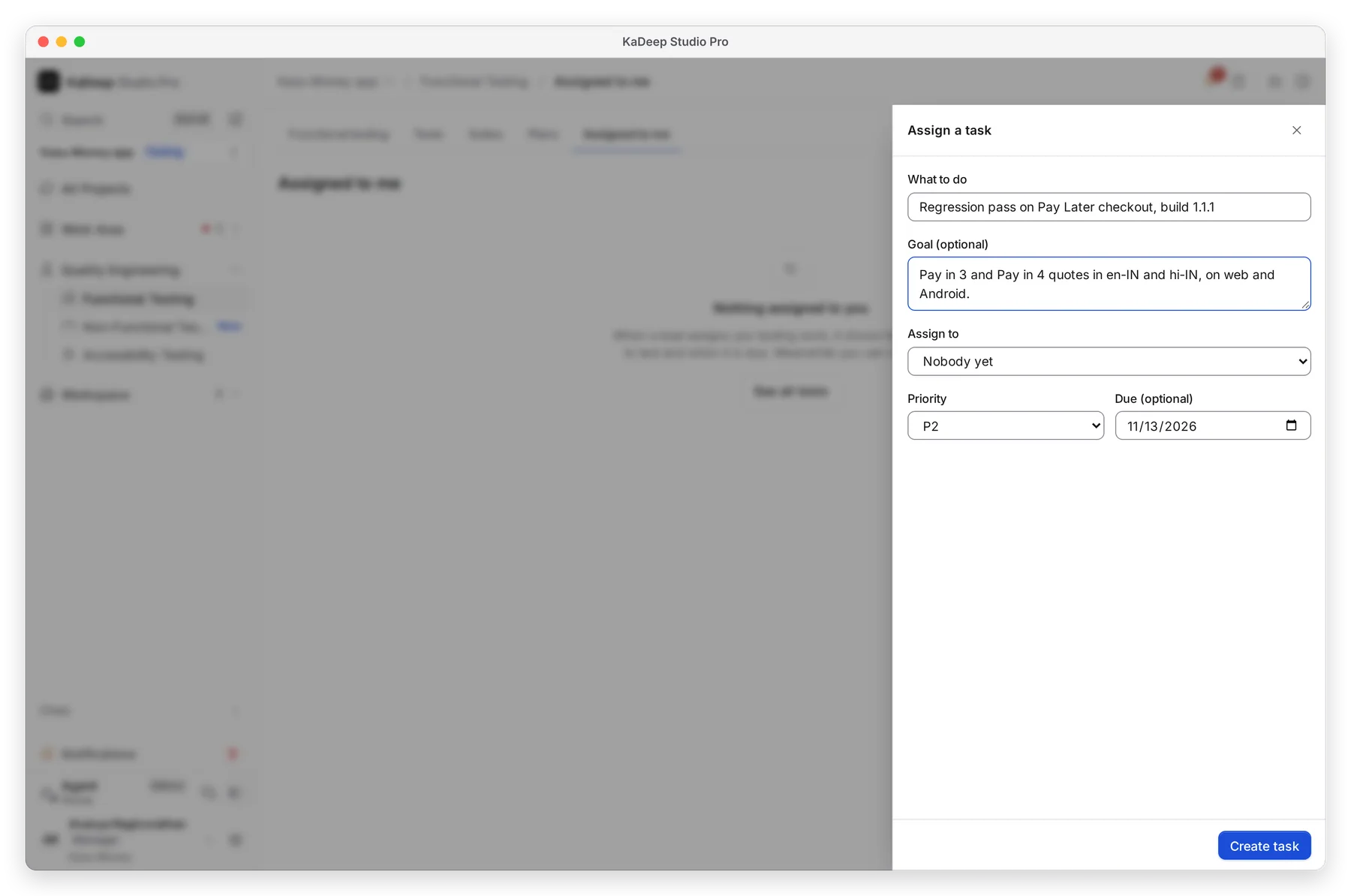
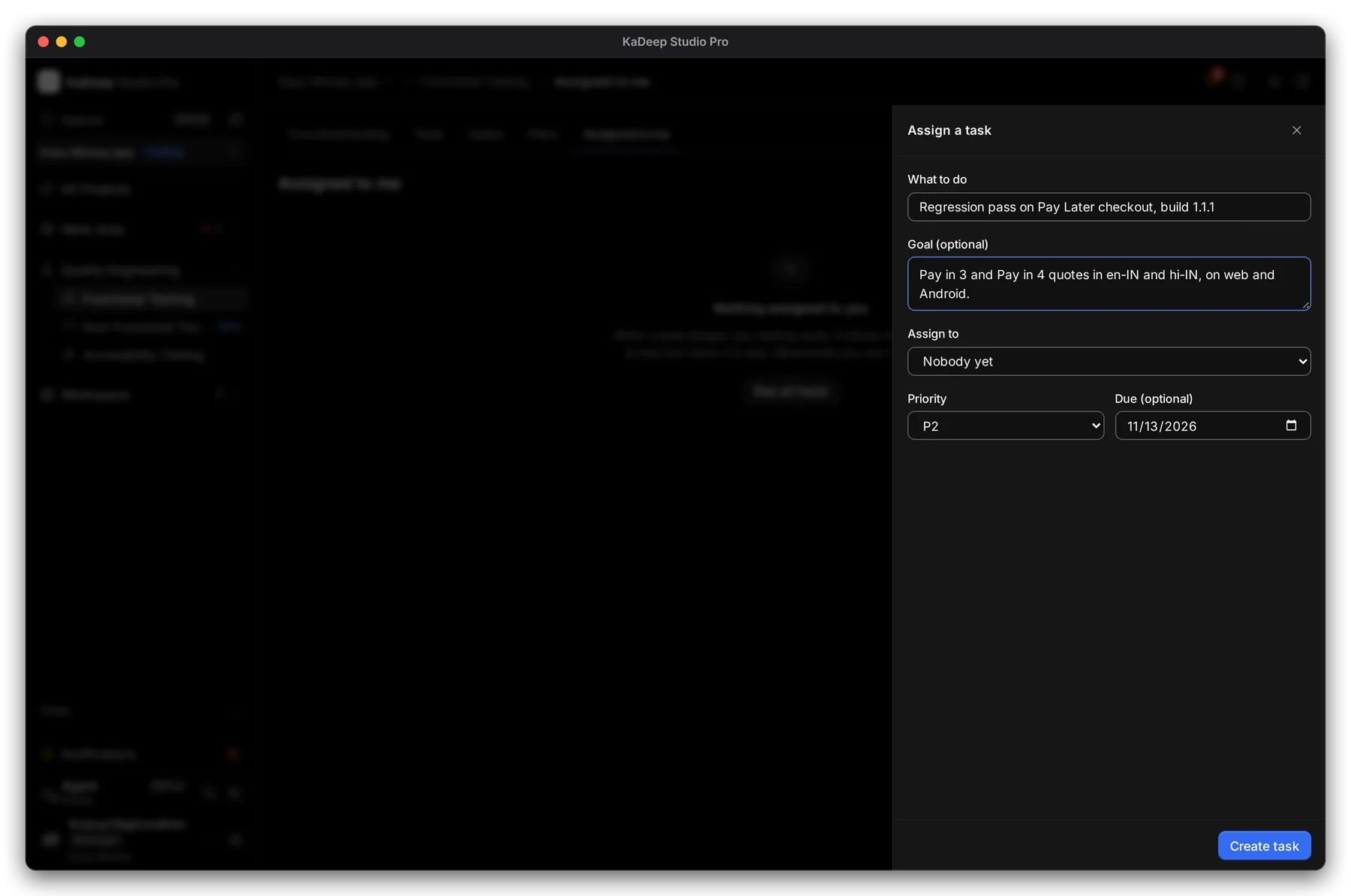
Manage view
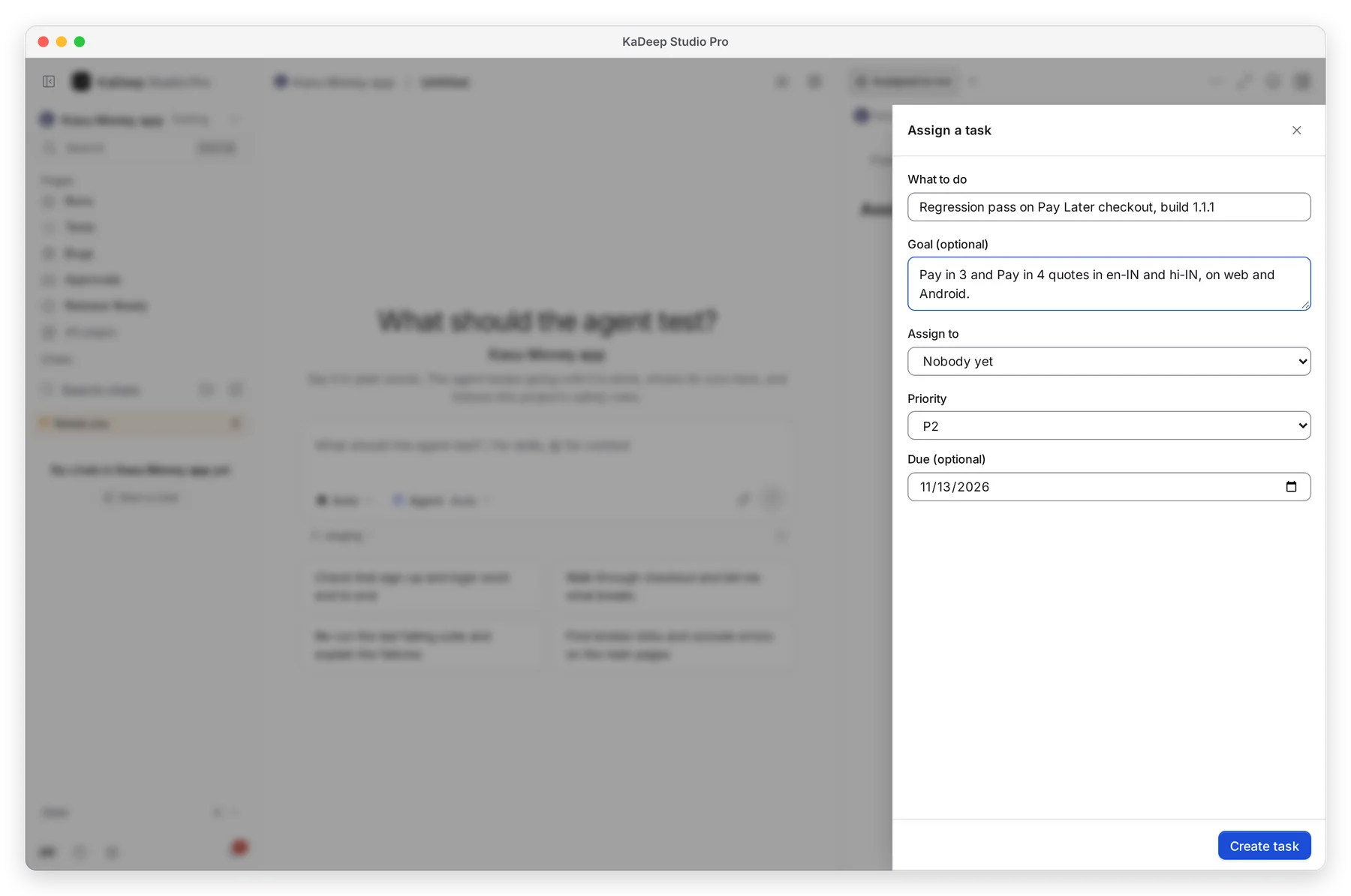
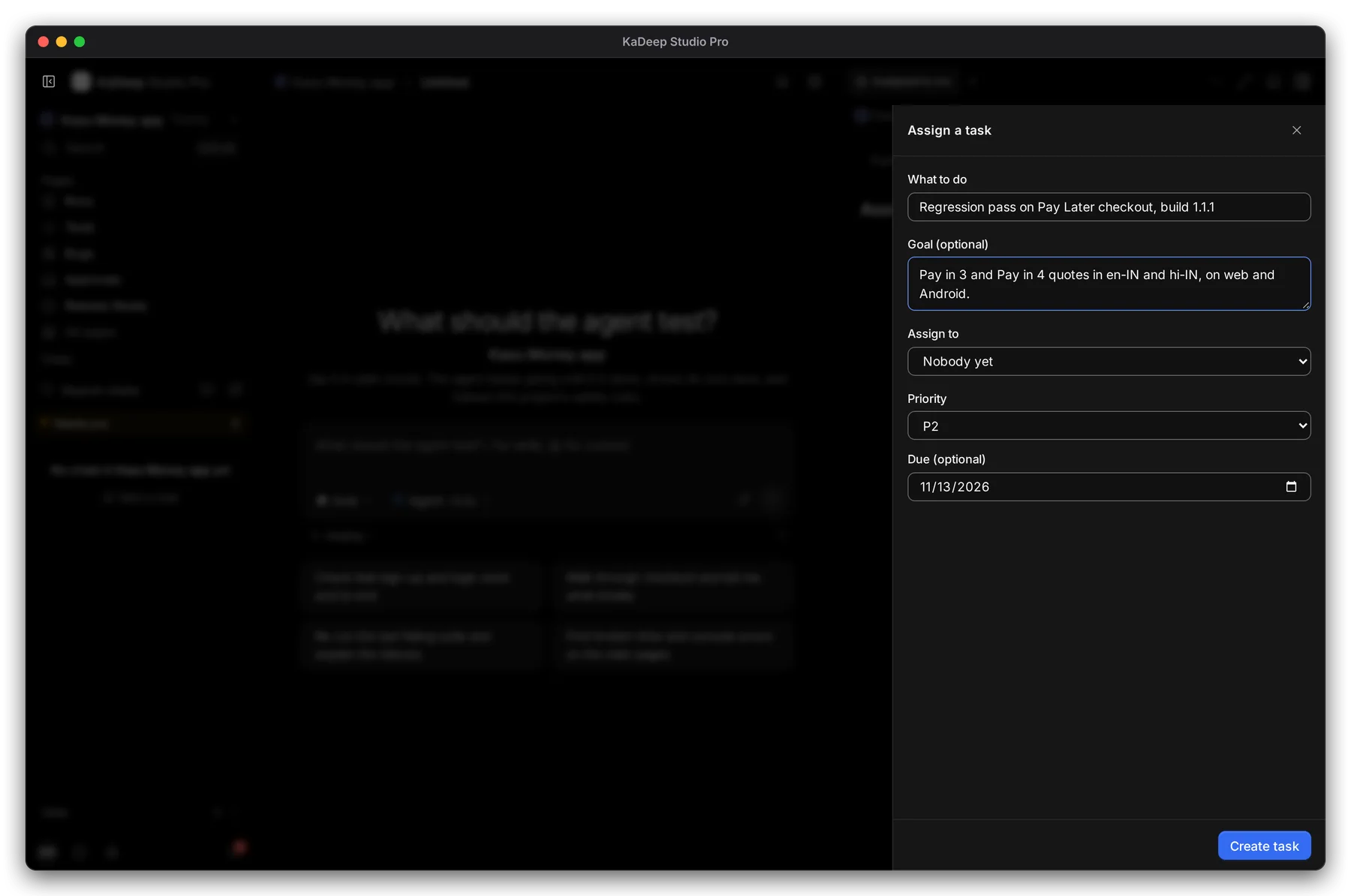
Hands-on view
- 1 What to do: one line, as the person will see it in their list. Add a Goal if they need context.
- 2 Assign to: choose the person. Leave Nobody yet to create the task and assign it later.
- 3 Priority: P1, P2 (the default) or P3.
- 4 Due: choose a date. The task is due at 5 PM that day.
- 5 Choose Assign task. The button reads Create task while nobody is chosen.
3. Follow it
Section titled “3. Follow it”The task moves through these states. The person updates it as they work.
| State | Meaning |
|---|---|
| To do | Assigned, not started. |
| In progress | They are working on it. |
| Blocked | Something stops them. Open it to see why. |
| Waiting for review | They finished. It is your turn. |
| Accepted | You accepted it. Done. |
| Sent back | You sent it back with a note. |
Open the Timeline to see every task you handed out, by person. Click a bar to reassign it or send a note.
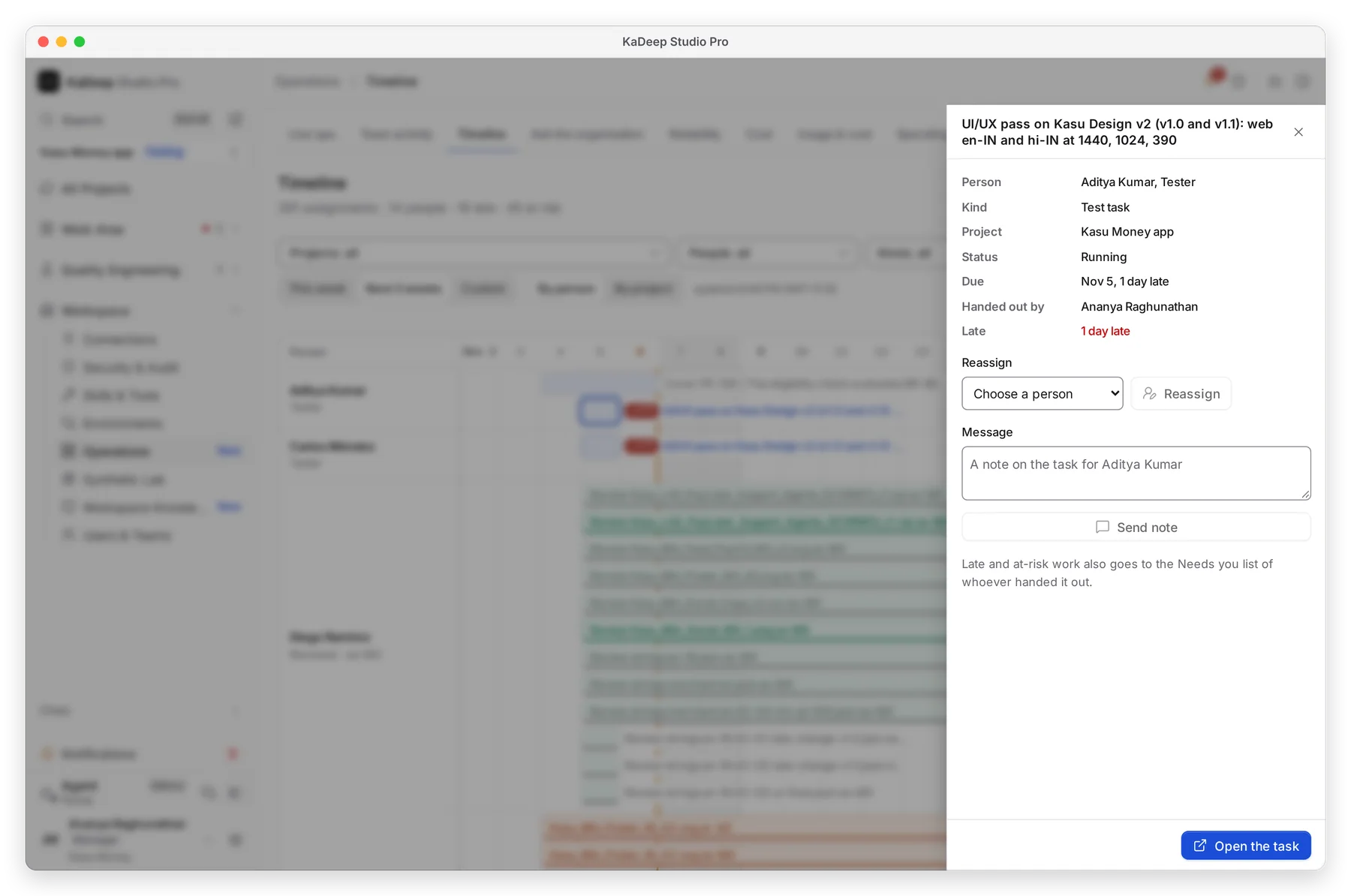
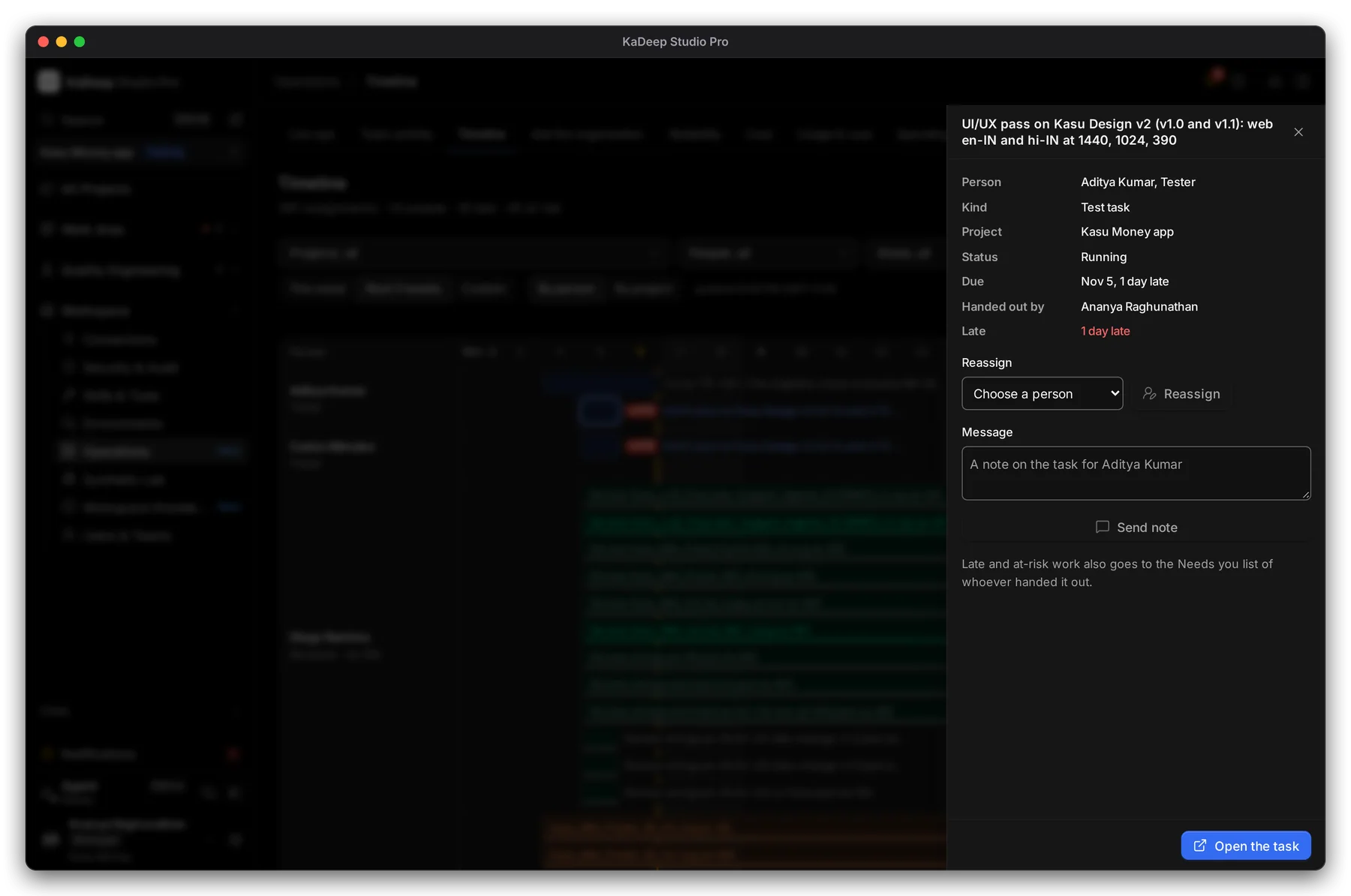
Manage view
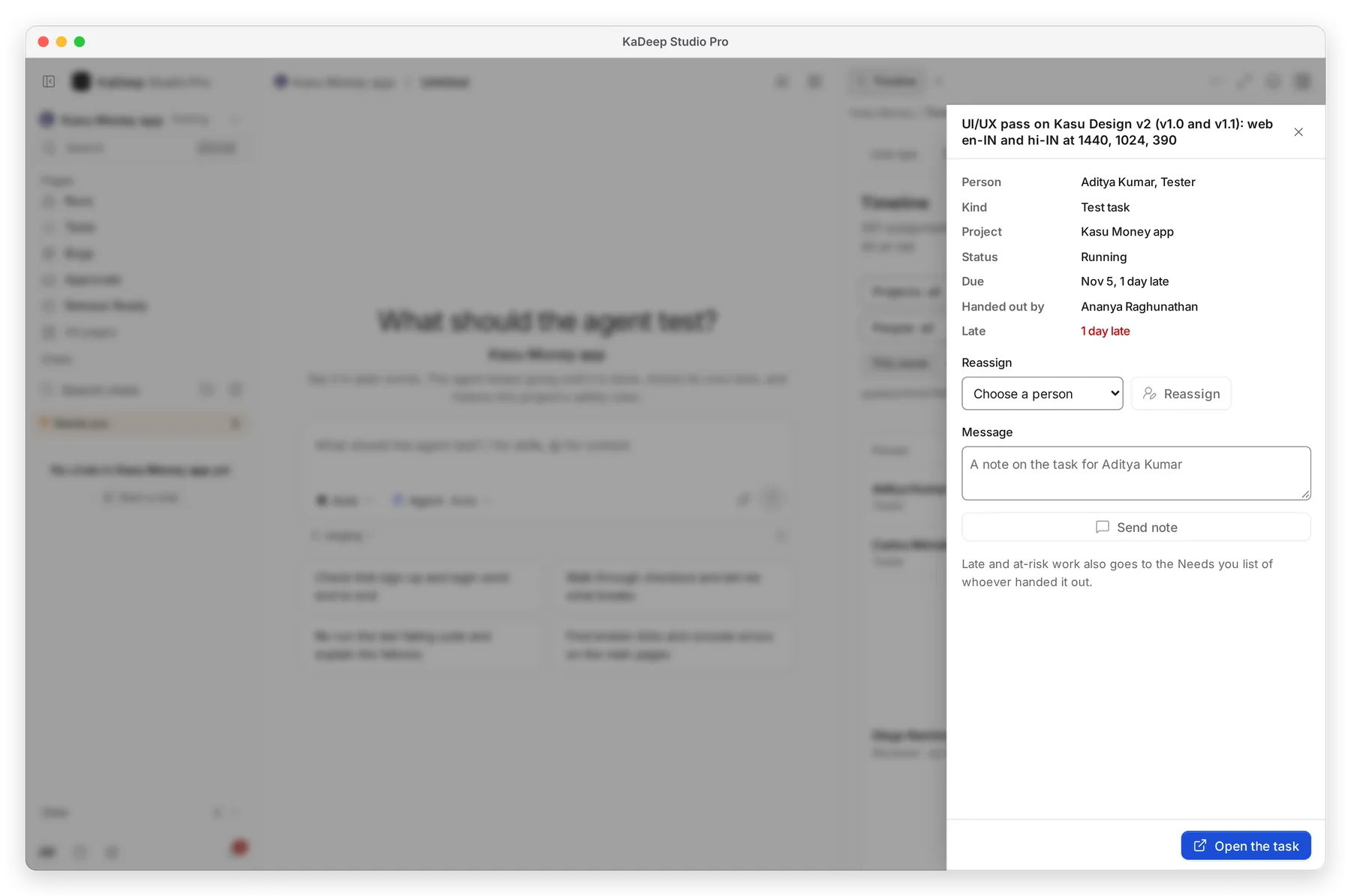
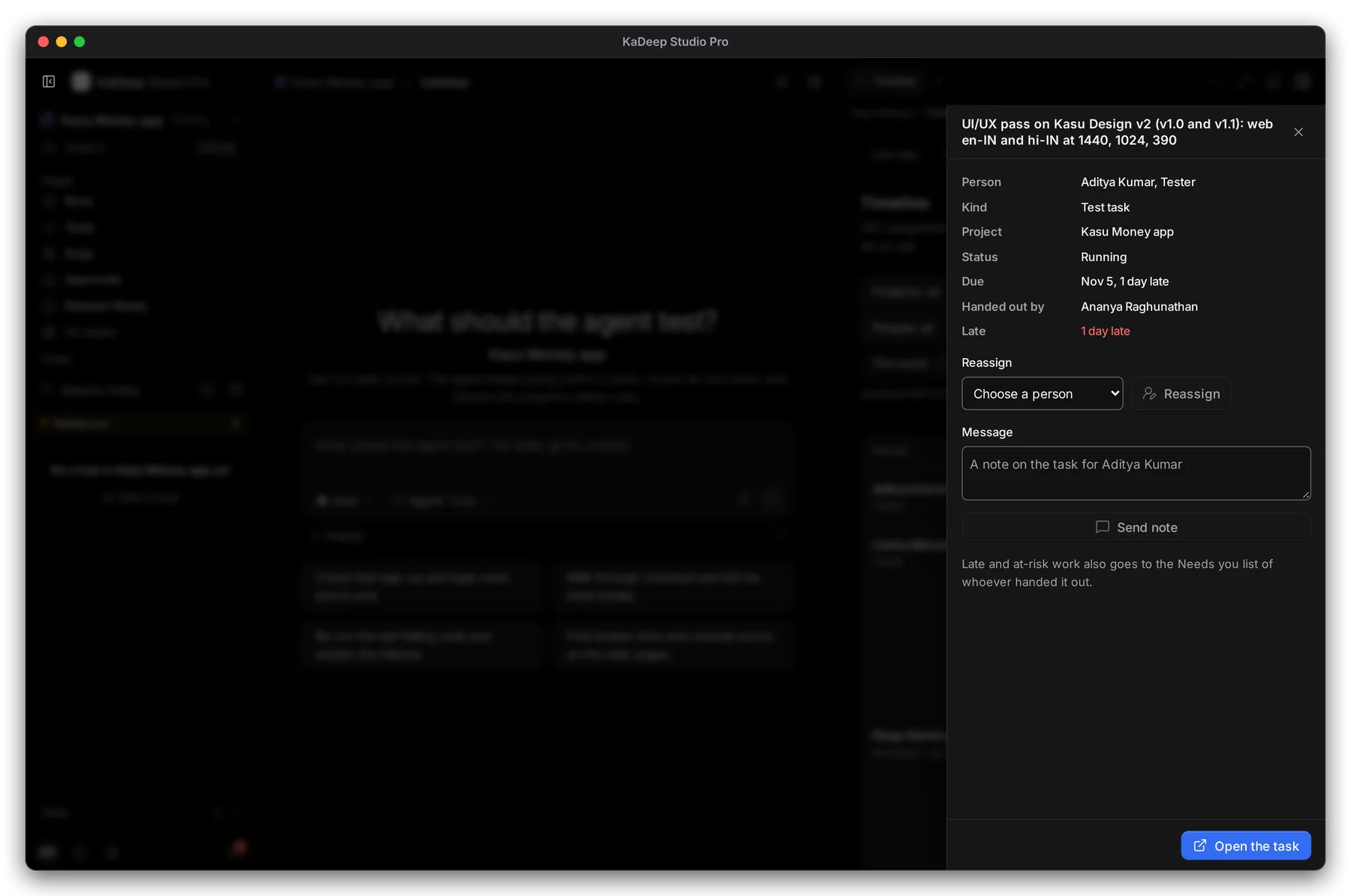
Hands-on view
If a task slips, it appears in your Needs you list as Late or At risk. You don’t have to look for it.
4. Review the result
Section titled “4. Review the result”When the person finishes, the task appears under Waiting for your review at the top of your Assigned to me page.
- Open the task to read what they did and see their runs.
- Choose Accept, or choose Send back and type What needs doing. The tester sees your note.