Track the work you handed out on the Timeline
You gave a tester a regression pass and a linguist a file to translate. The Timeline answers “where is it?” It puts all the work you handed out on one calendar, with whoever has it and when it is due. Anything late or slipping is flagged.
It covers testing and localization projects together: test tasks, translations, reviews, language tasks, bugs with a due date, releases and sign-offs.
1. Open the Timeline
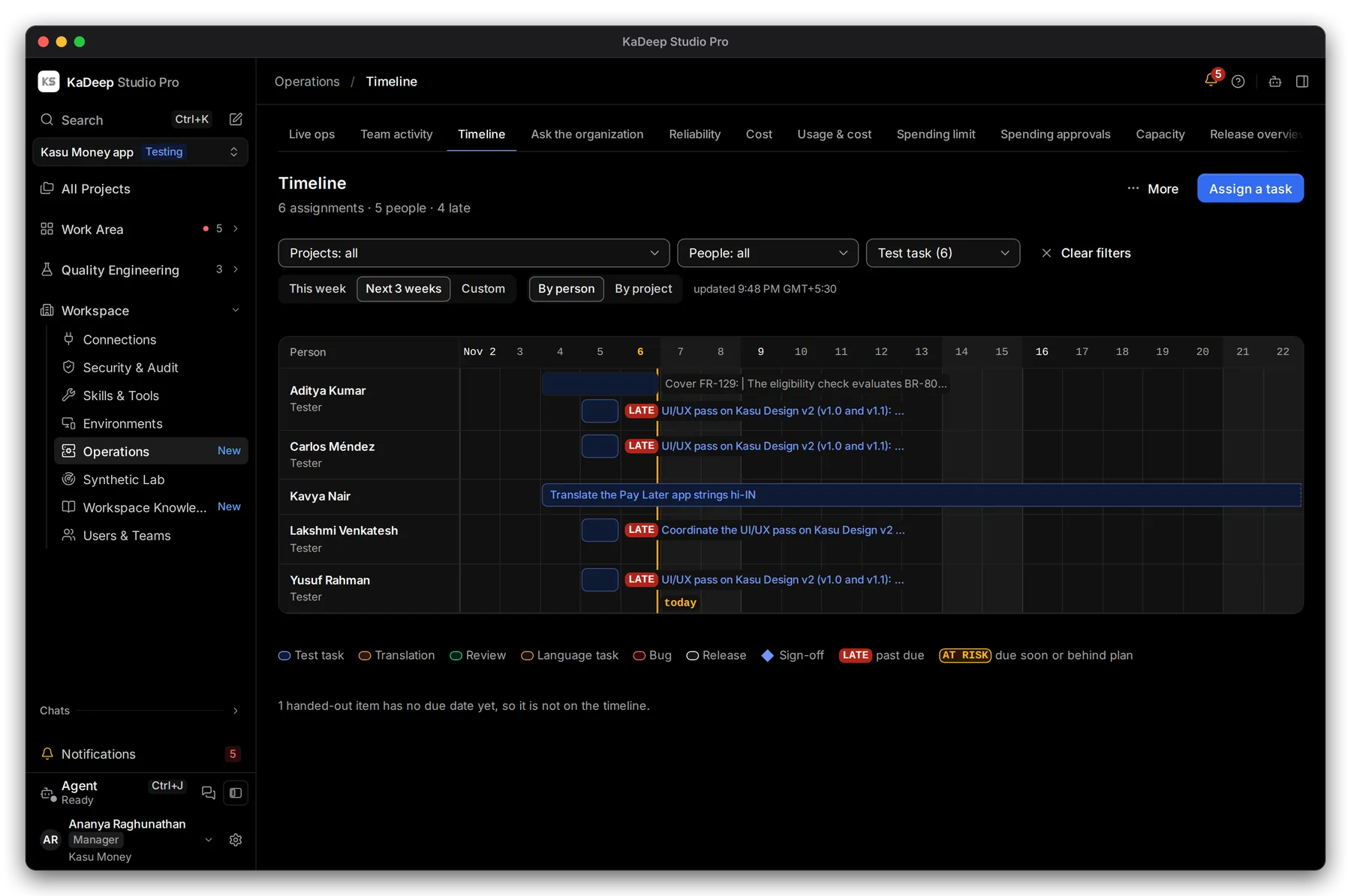
Section titled “1. Open the Timeline”- In the sidebar, open Workspace › Operations, then choose the Timeline tab. Press Ctrl K (Windows) or ⌘ K (Mac), type Timeline, and press Enter. It opens in the page panel; choose maximize at the top of the panel to give it the whole window.
- Read the line under the title: how many assignments, how many people, and how many are late or at risk.
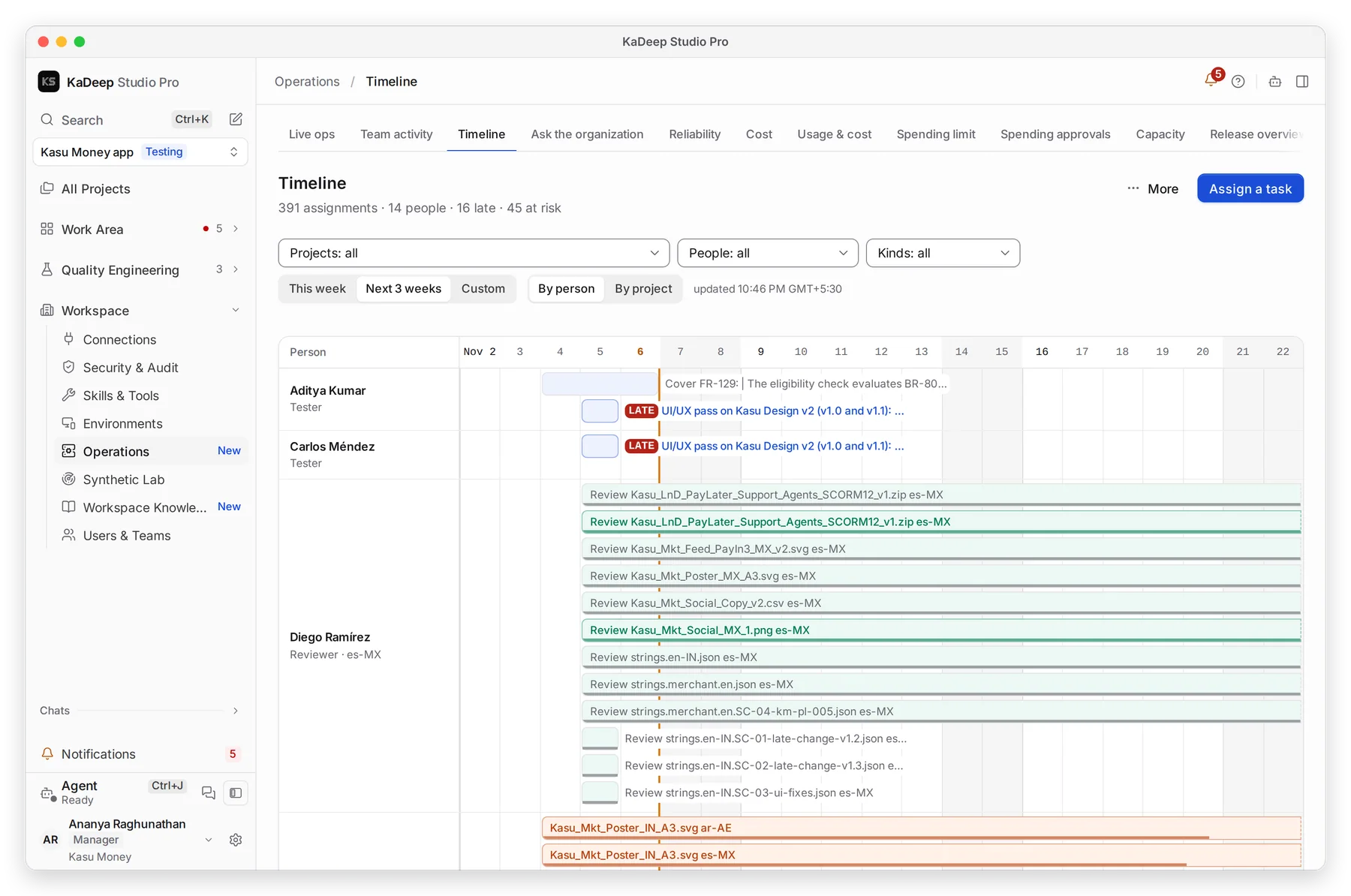
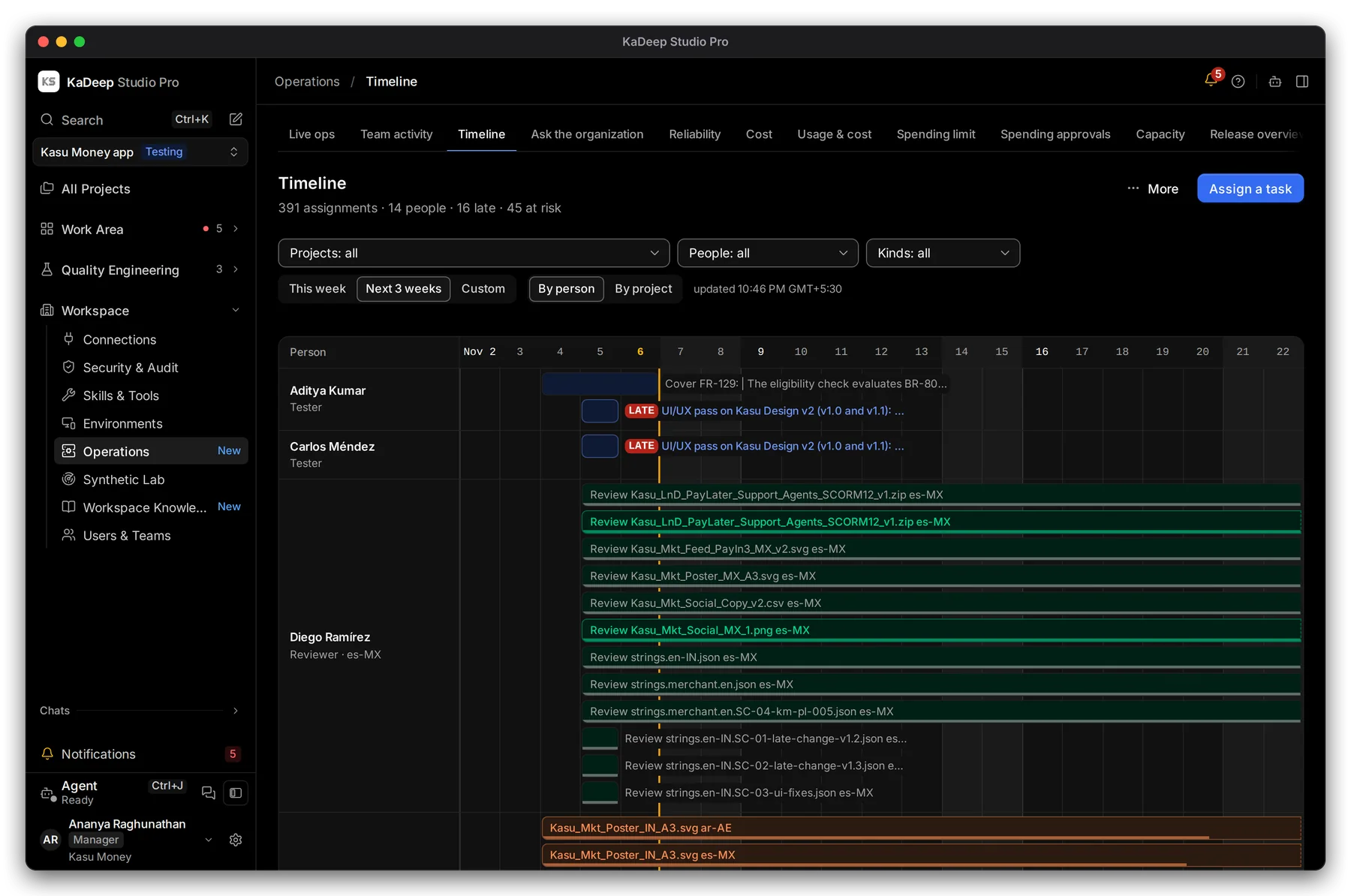
Manage view
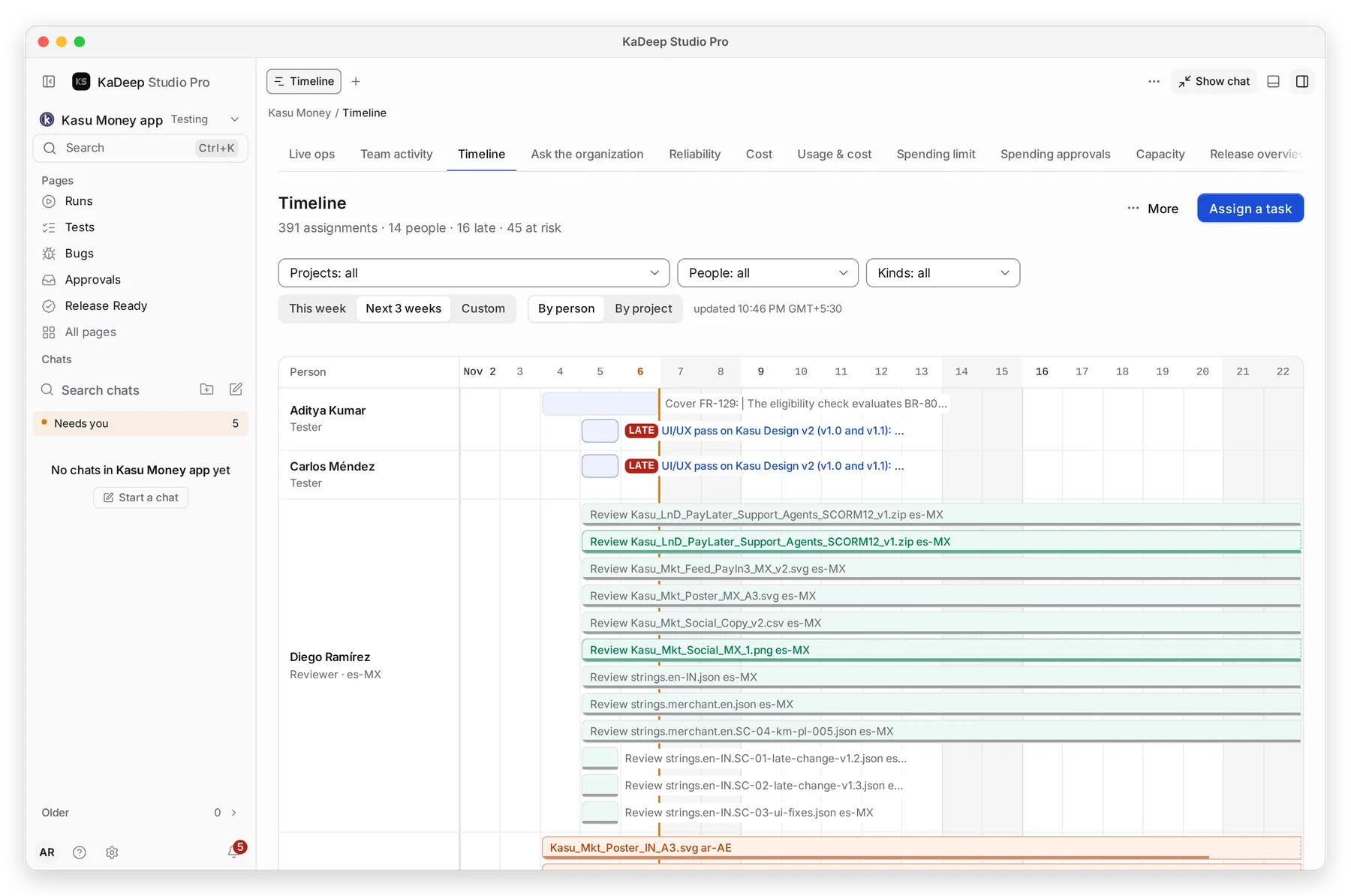
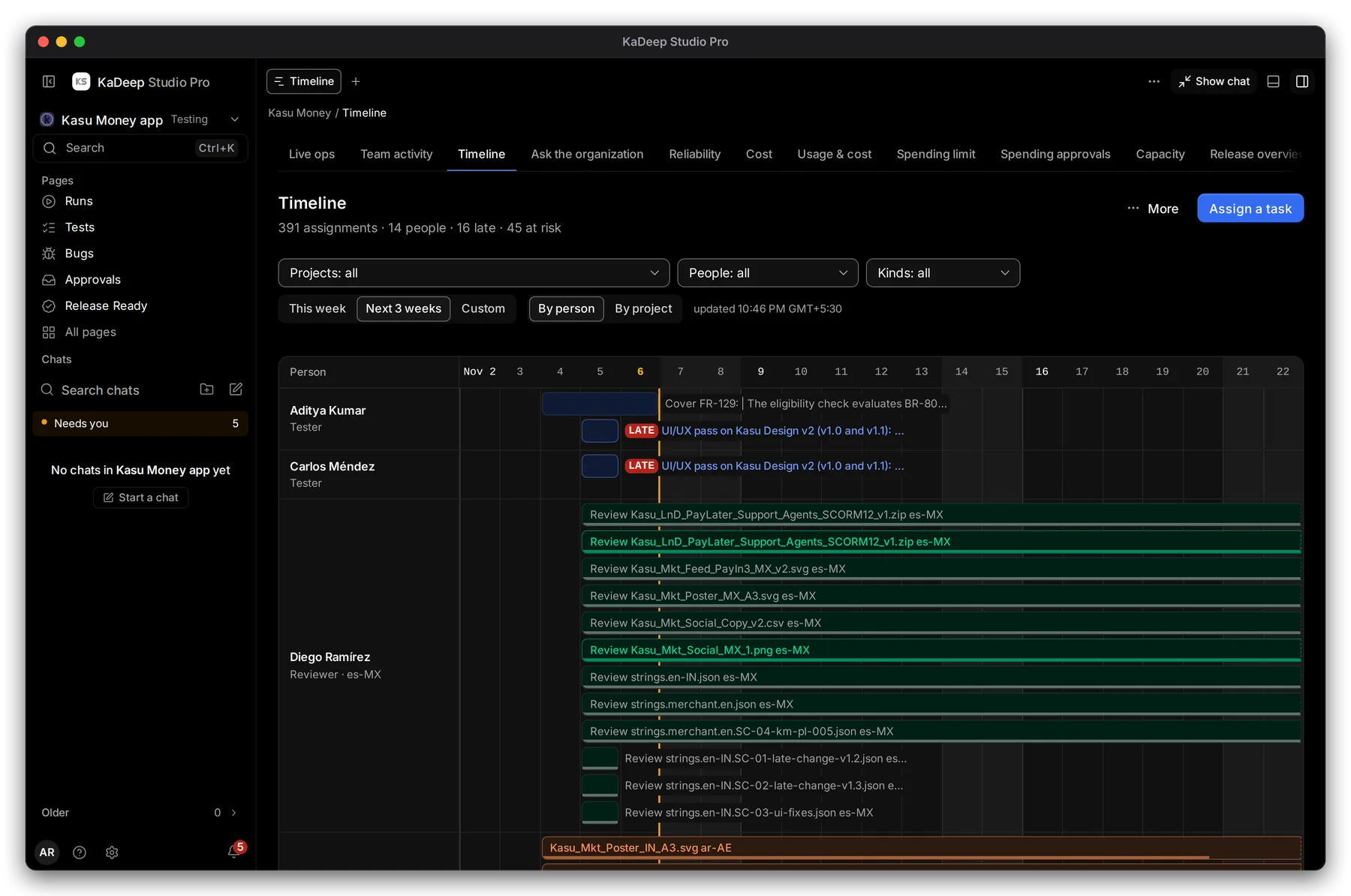
Hands-on view
- 1 Dates: This week, Next 3 weeks (the default) or Custom, up to 120 days.
- 2 By person or By project.
- 3 One row per person, with their role, such as Tester or Reviewer · es-MX. Each bar runs from the day the work was handed over to the day it is due.
- 4 LATE means past its due date.
The line marked today runs down the grid.
2. Narrow it down
Section titled “2. Narrow it down”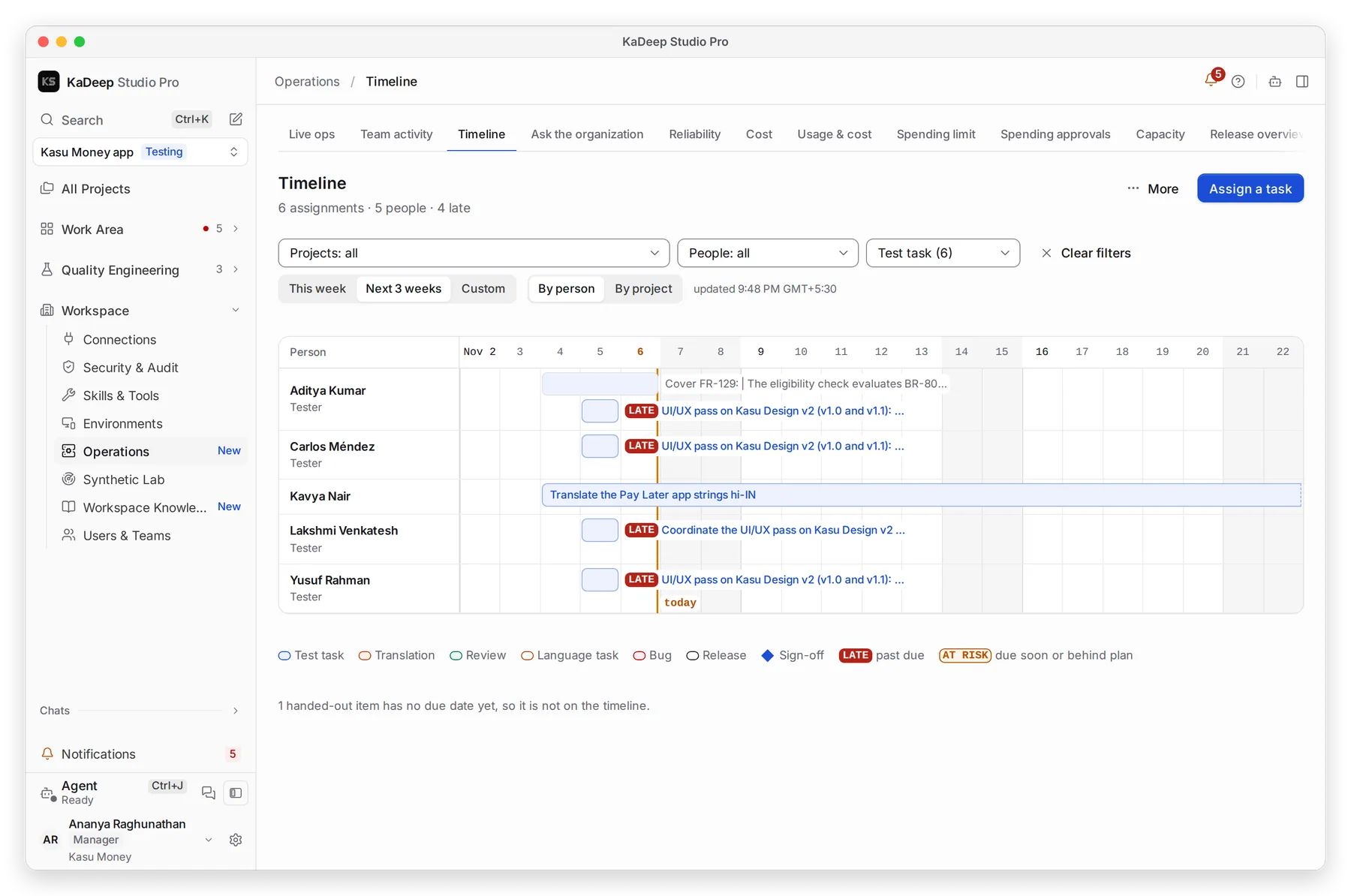
Manage view
Hands-on view
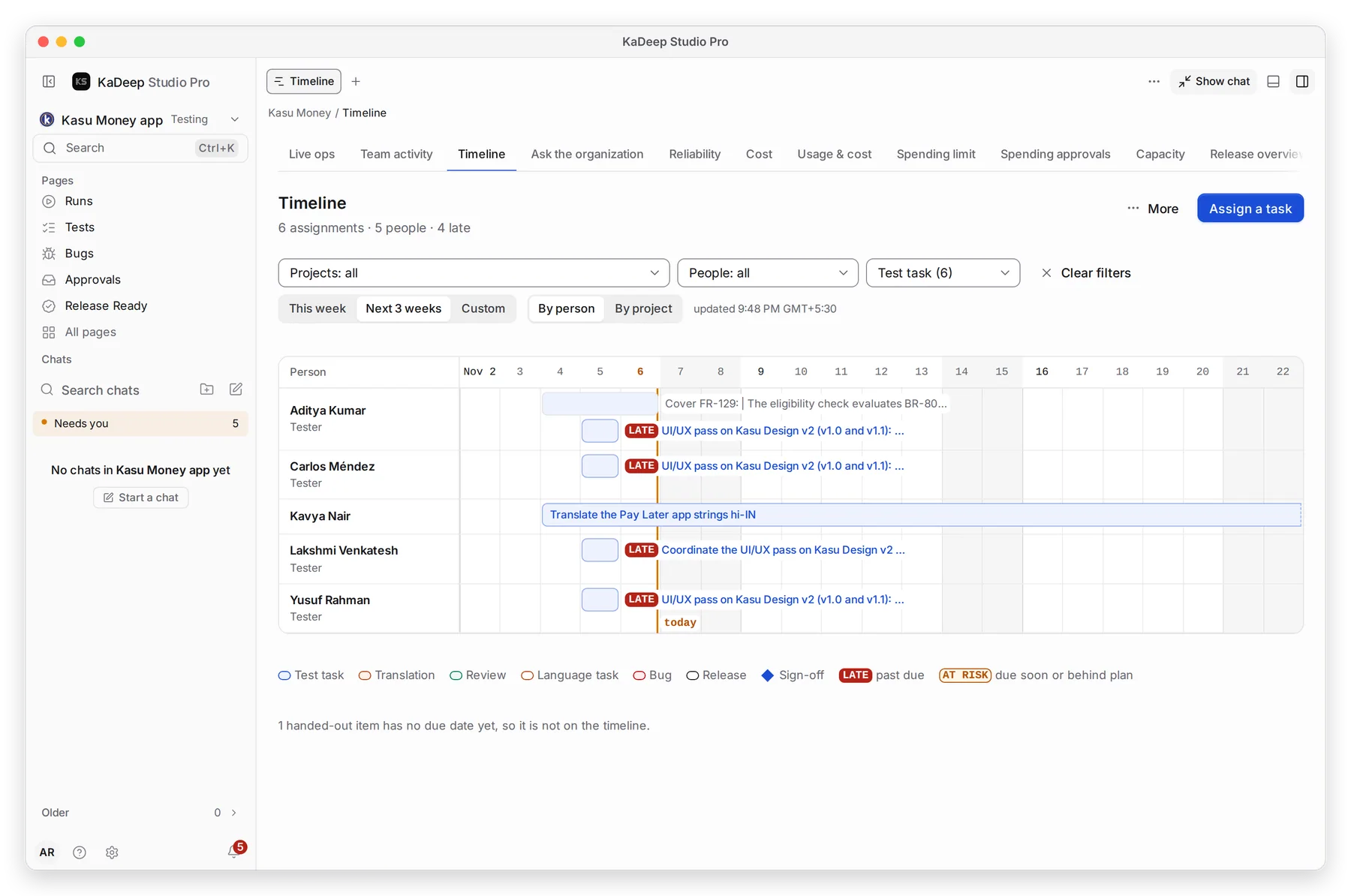
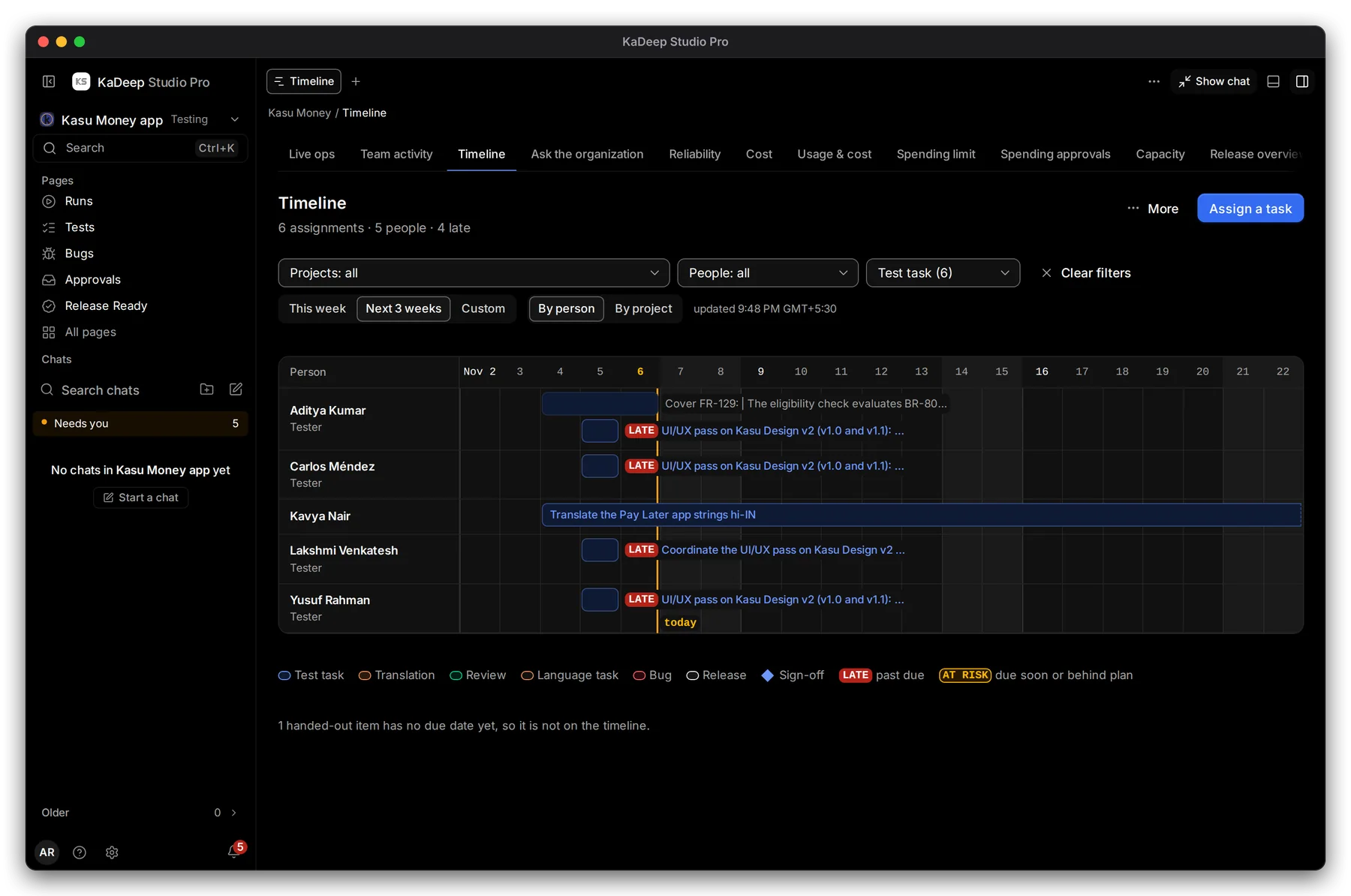
- 1 The counts follow your filters.
- 2 Filter by Projects, People (choose Me for your own) and Kinds. Choose Clear filters to see everything again.
- 3 Assign a task hands out new work. See Assign tasks.
- 4 The legend says what each color means.
- 5 Work with no due date can’t be drawn, so it is counted here instead.
| Flag | When it shows |
|---|---|
| LATE | The due date has passed and the work isn’t done. |
| AT RISK | It is due within 2 days and less than 80% done, or it is more than 20% behind where an even pace from start to due date would put it. |
Translations and reviews measure progress from the strings done, so a bar fills as the linguist works.
3. Open one piece of work
Section titled “3. Open one piece of work”Click any bar.
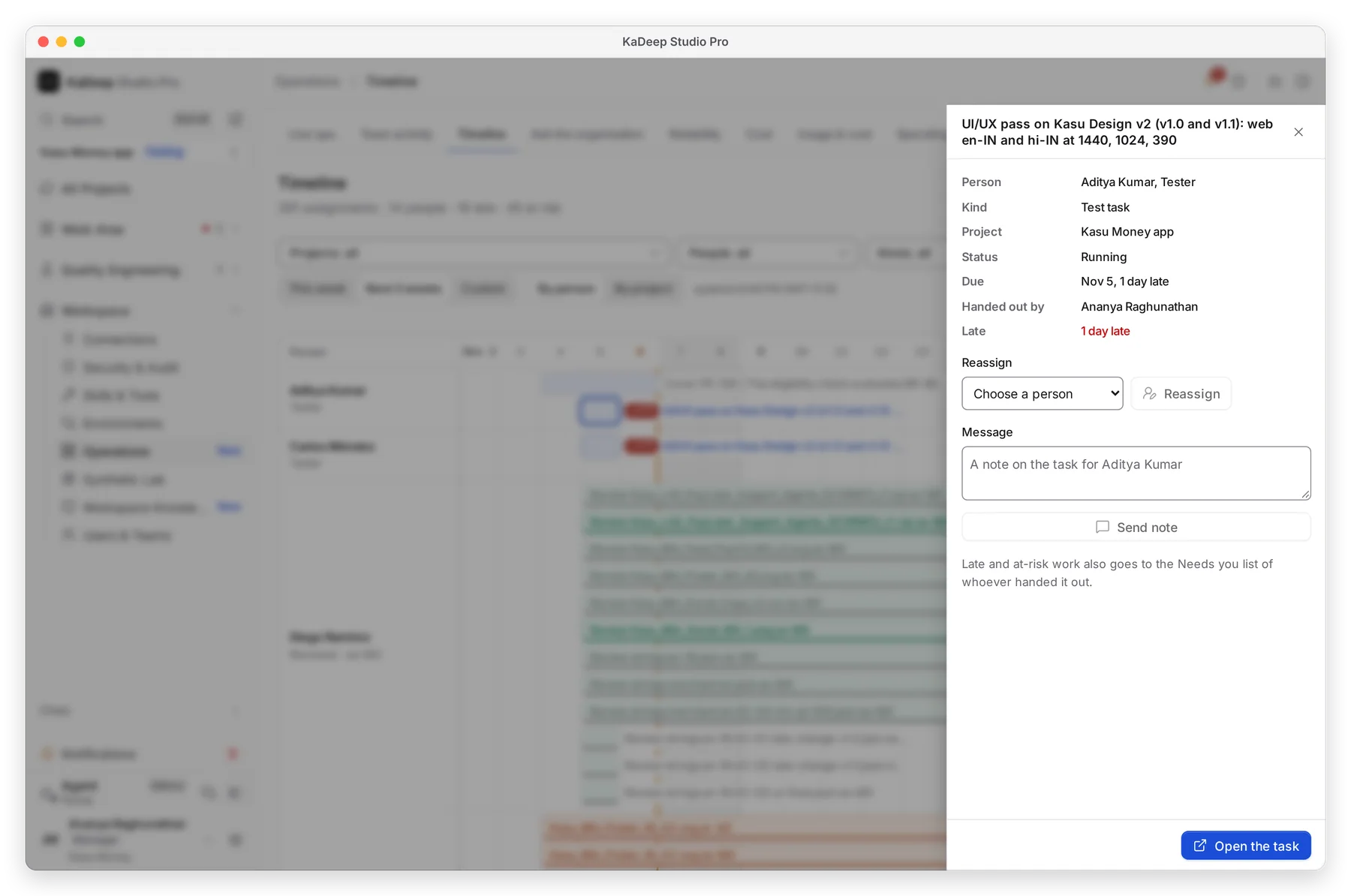
Manage view
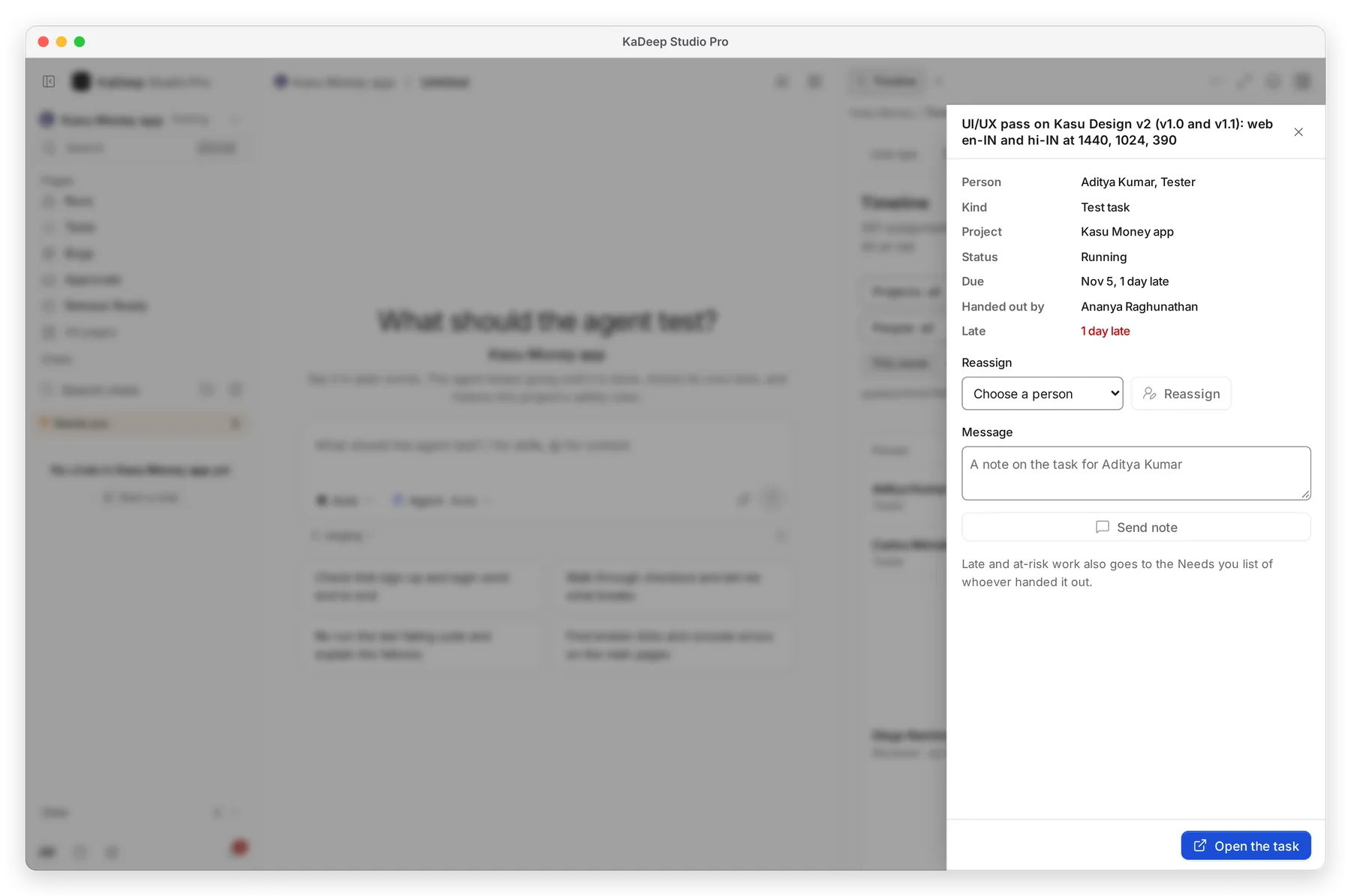
Hands-on view
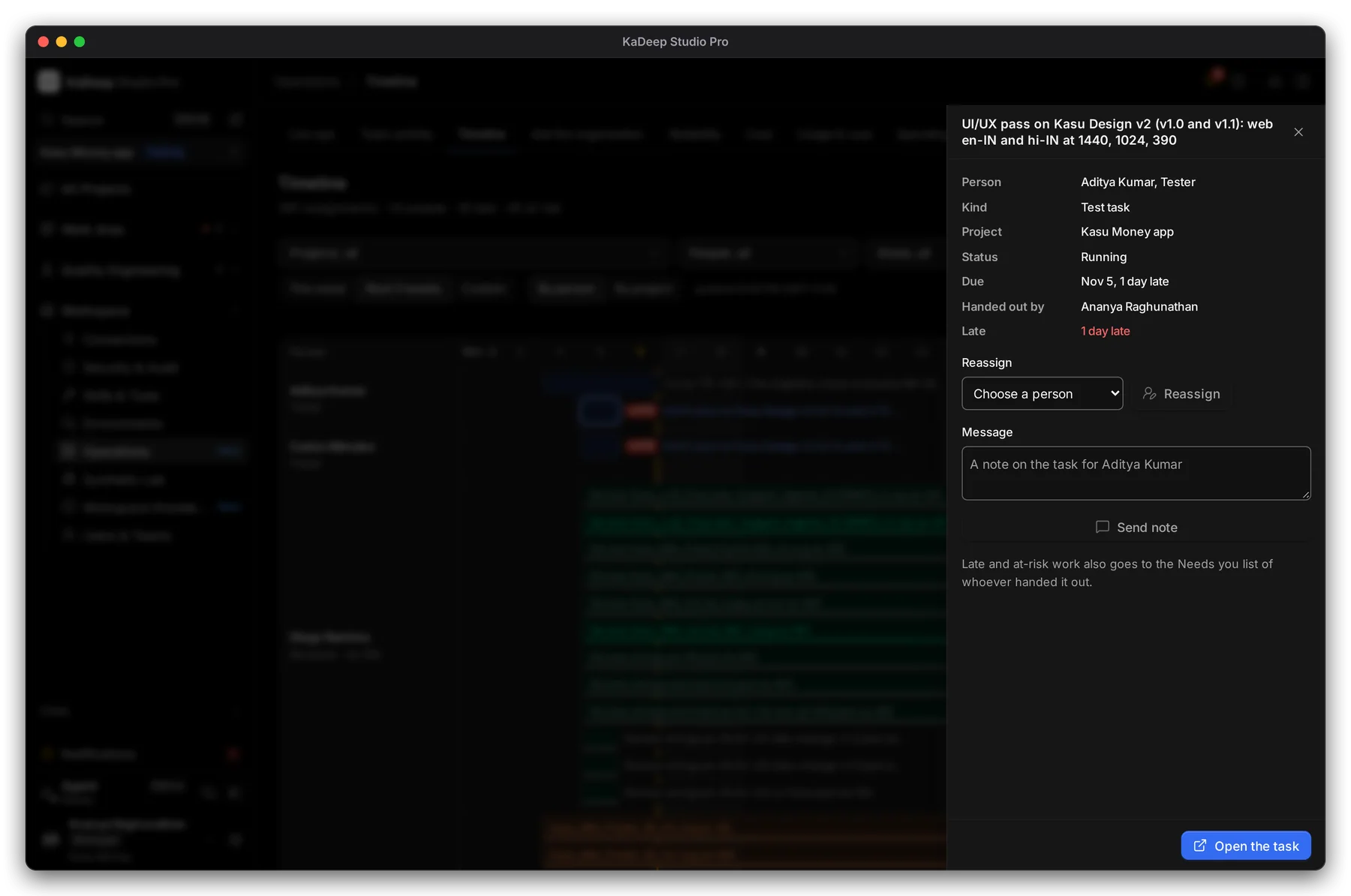
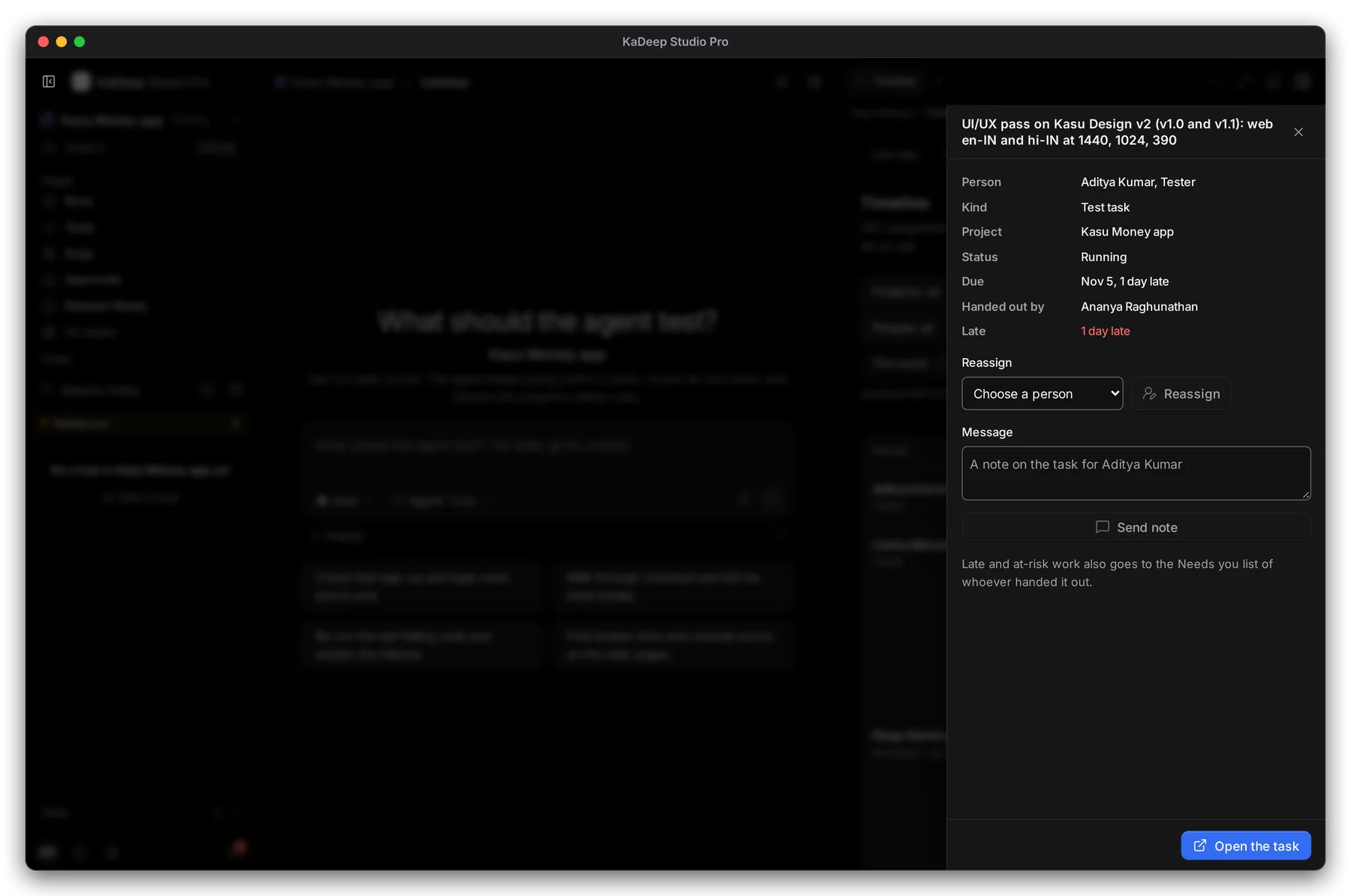
- 1 Due: the date, and how late it is.
- 2 Late or Risk: the reason in plain words, such as “1 day late” or “due tomorrow, 41% done”.
- 3 Reassign: choose a person in Give it to, then choose Reassign.
- 4 Message: type a note and choose Send note. It is added to the task or bug for them to read.
- 5 Open the task to see it in full.
4. See it by project
Section titled “4. See it by project”Choose By project to see each project’s work in one row.
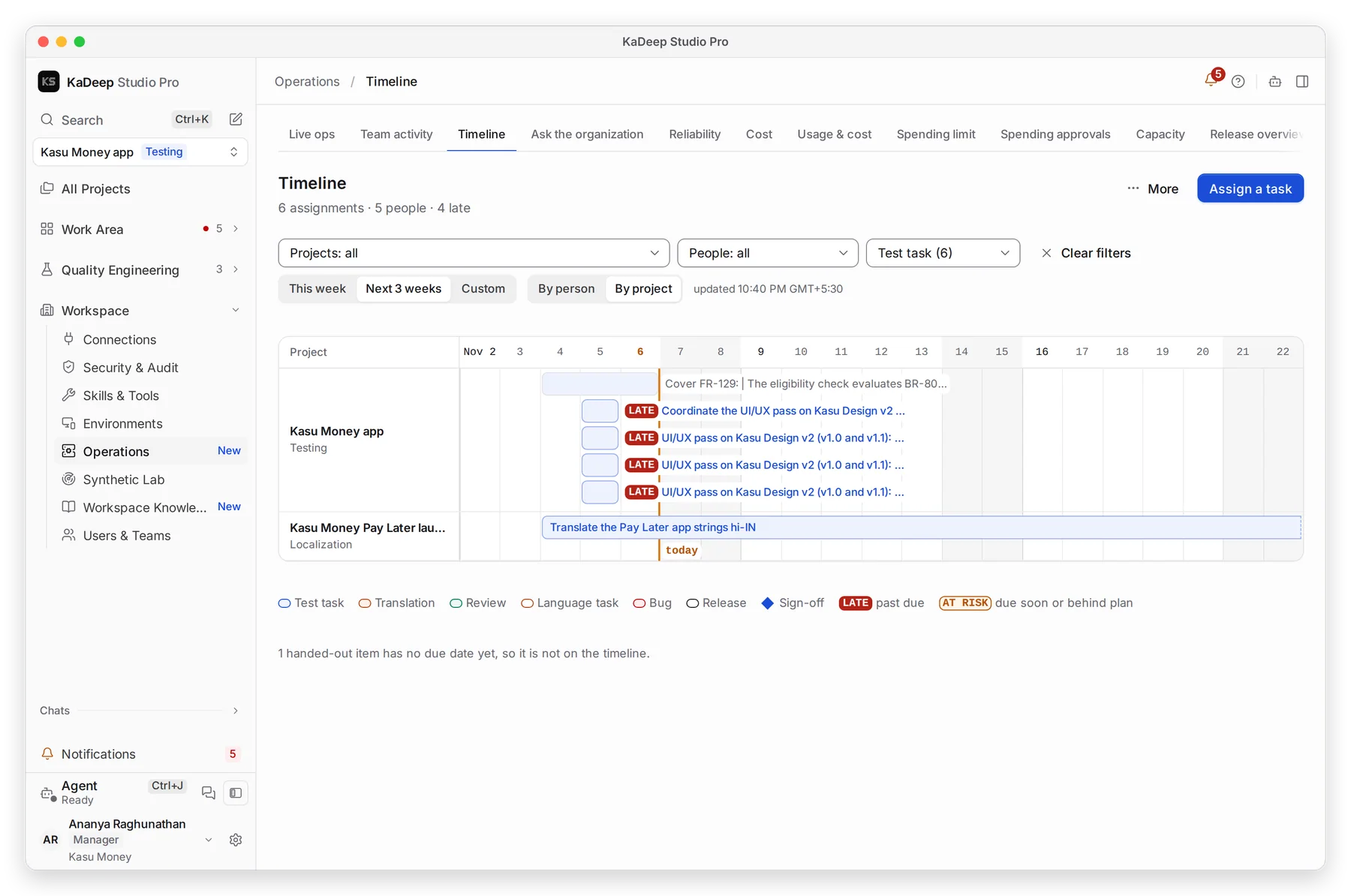
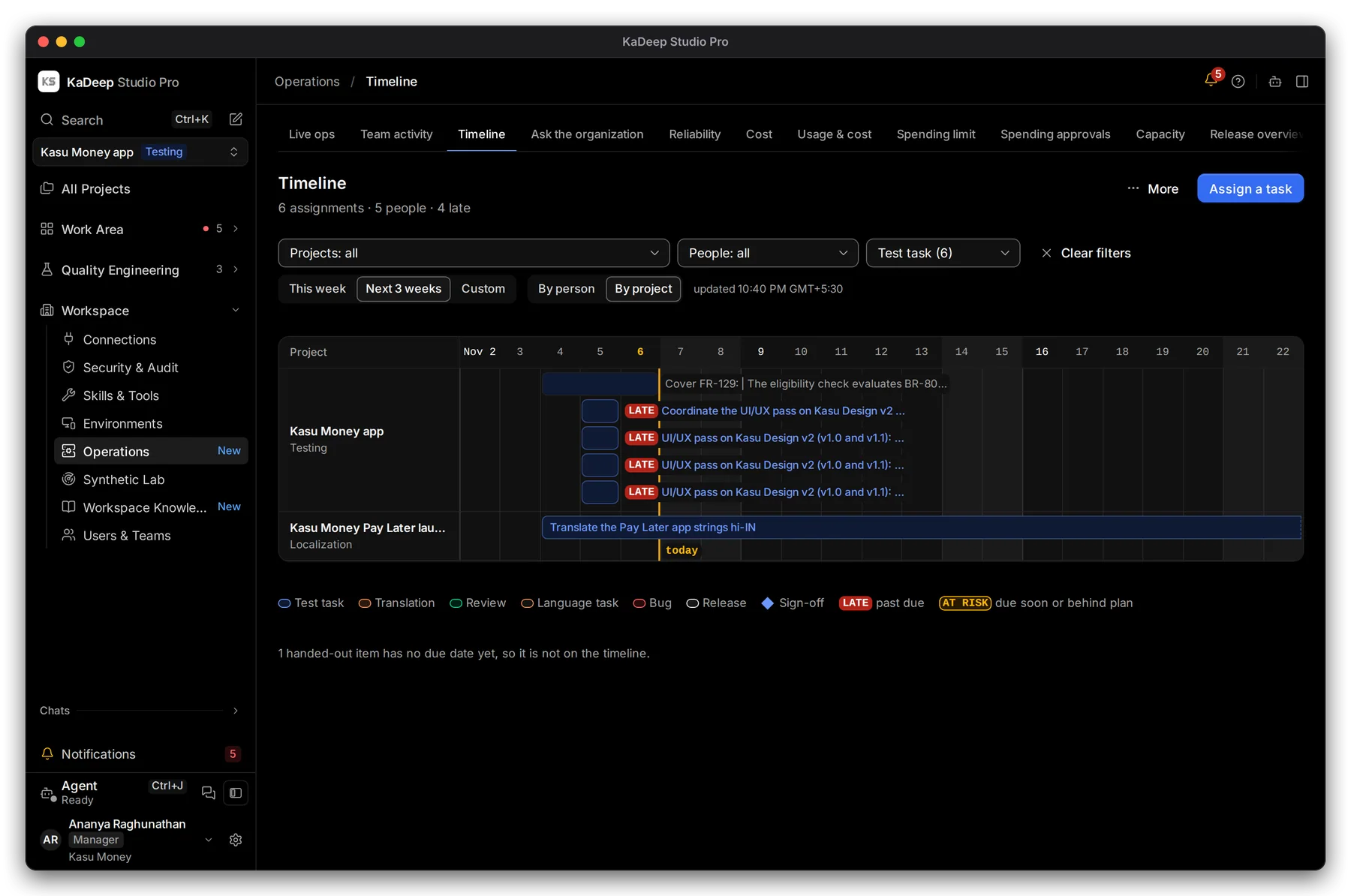
Manage view
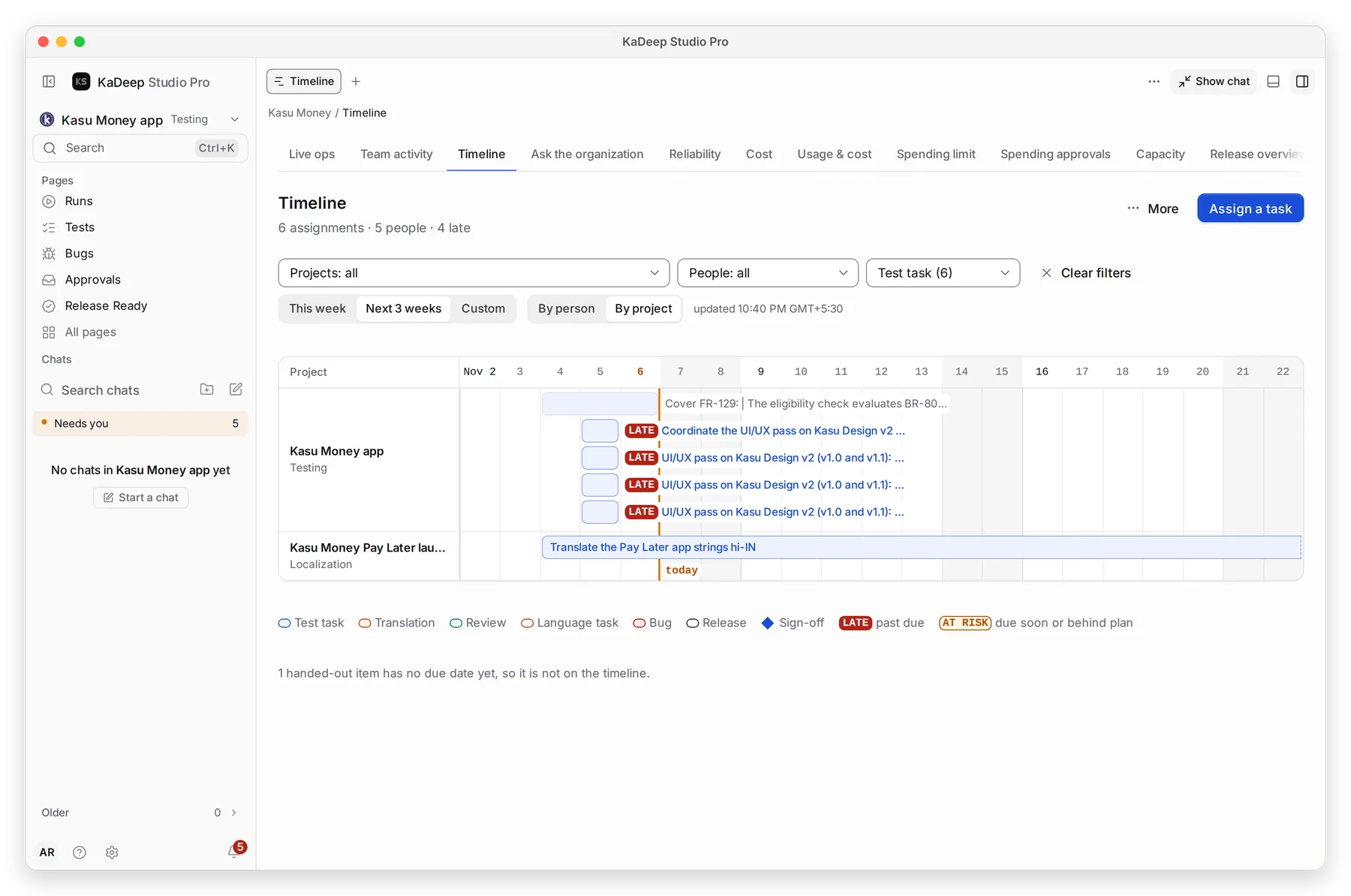
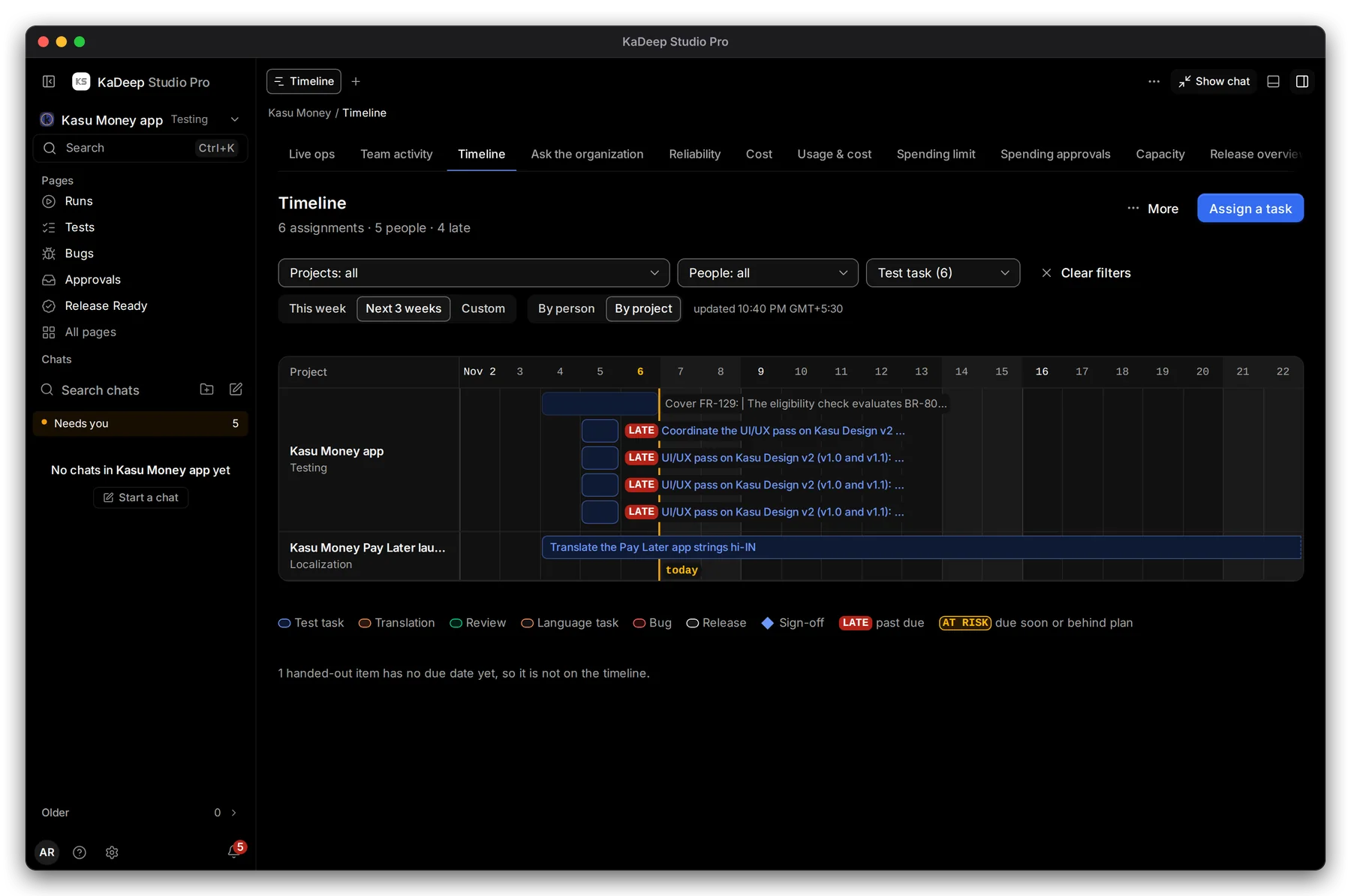
Hands-on view
- 1 By project.
- 2 One row per project, testing and localization together.
When the dates include them, milestones run along the bottom of the grid: release windows, go-live dates, language deadlines and the next scheduled runs. Sign-offs show as diamonds.
The address keeps your filters, so you can bookmark a view or send it to a colleague. The page refreshes every minute.