Roles and what they can do
Your view
A role decides what a person can see and do, and what their Home shows. Give each person the smallest role that lets them do their job.
1. The roles
Section titled “1. The roles”Open Workspace › Users & TeamsOpen Members (Ctrl K / ⌘ K) and scroll to the bottom. What each role can do lists every role in your organization.
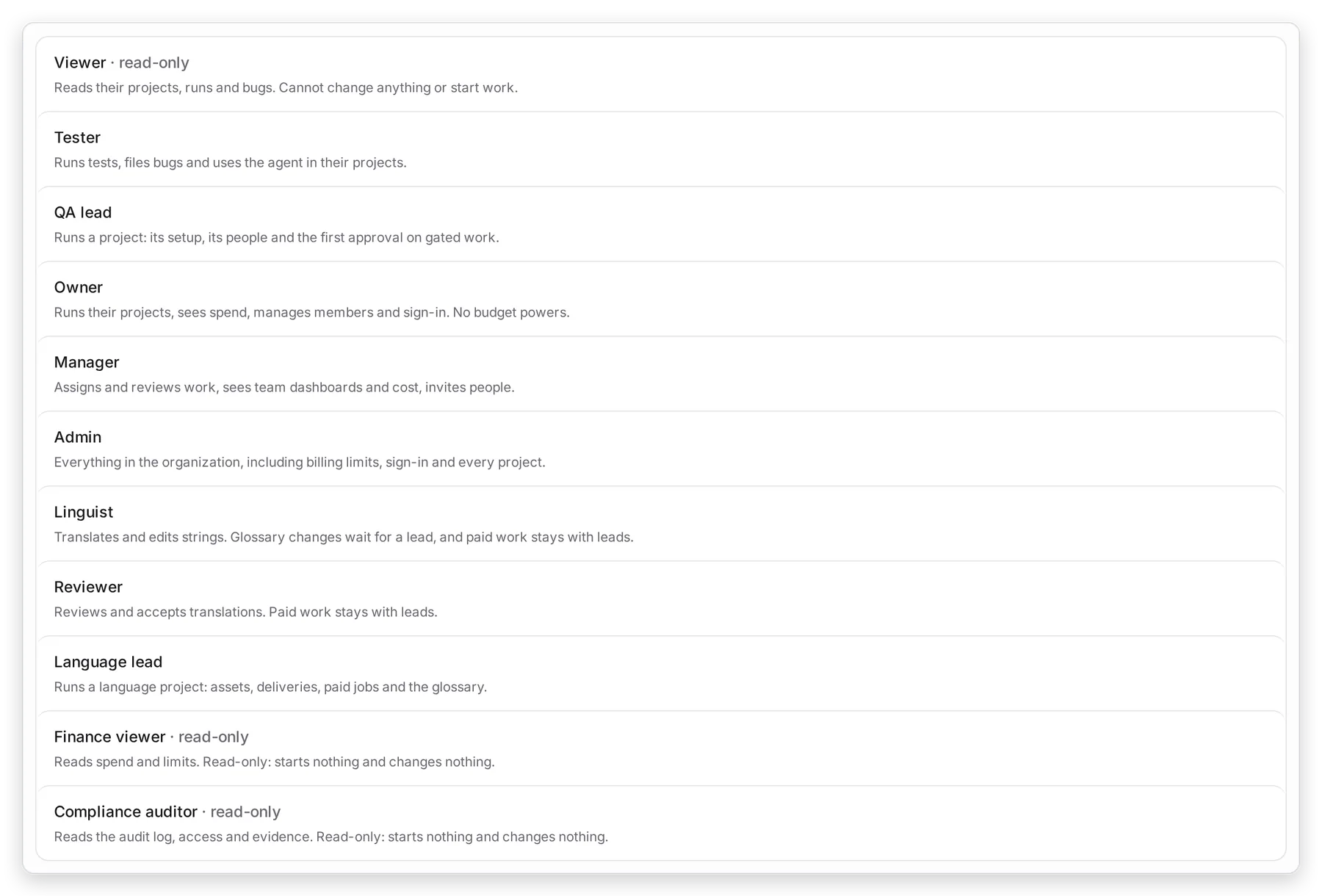
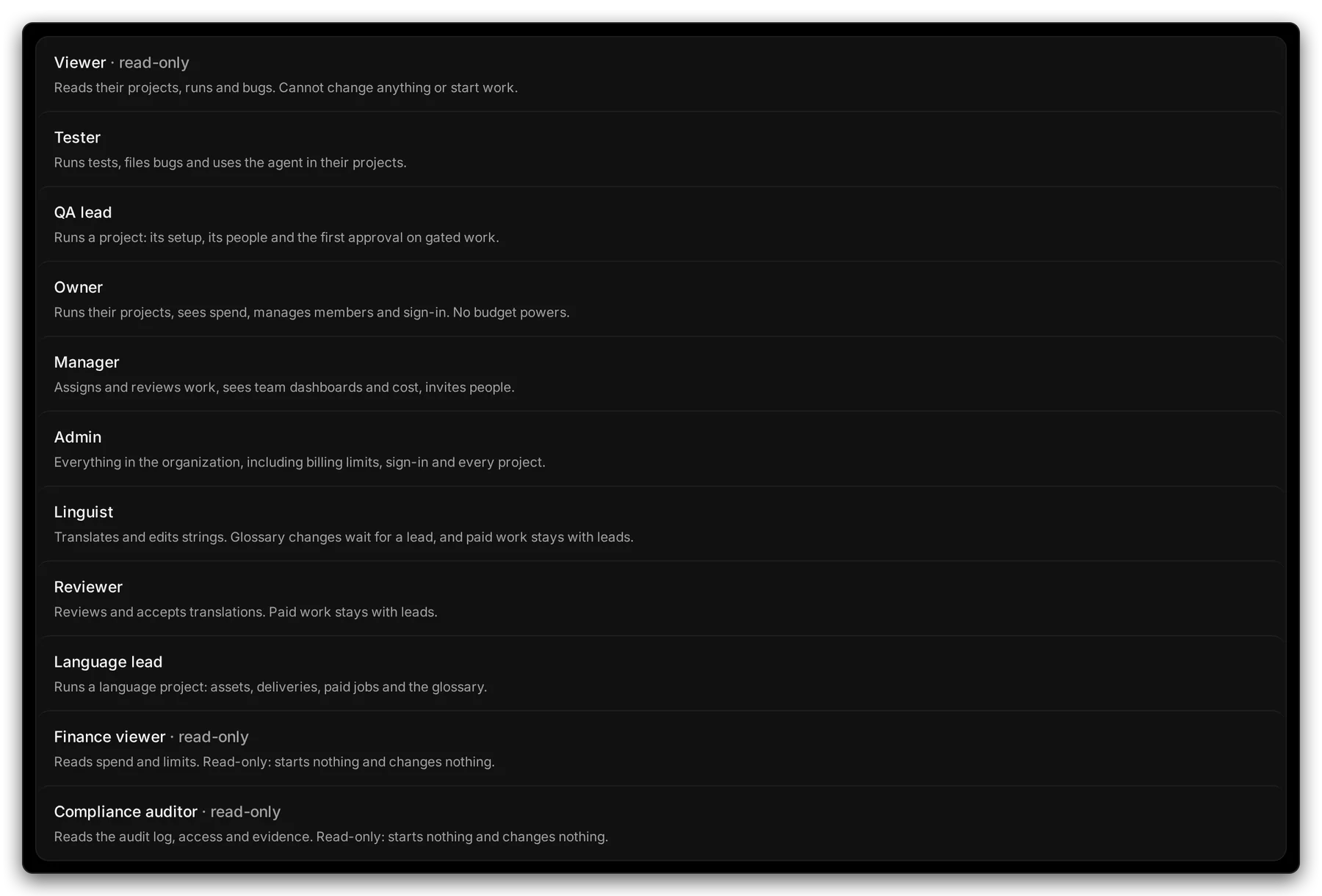
Manage view
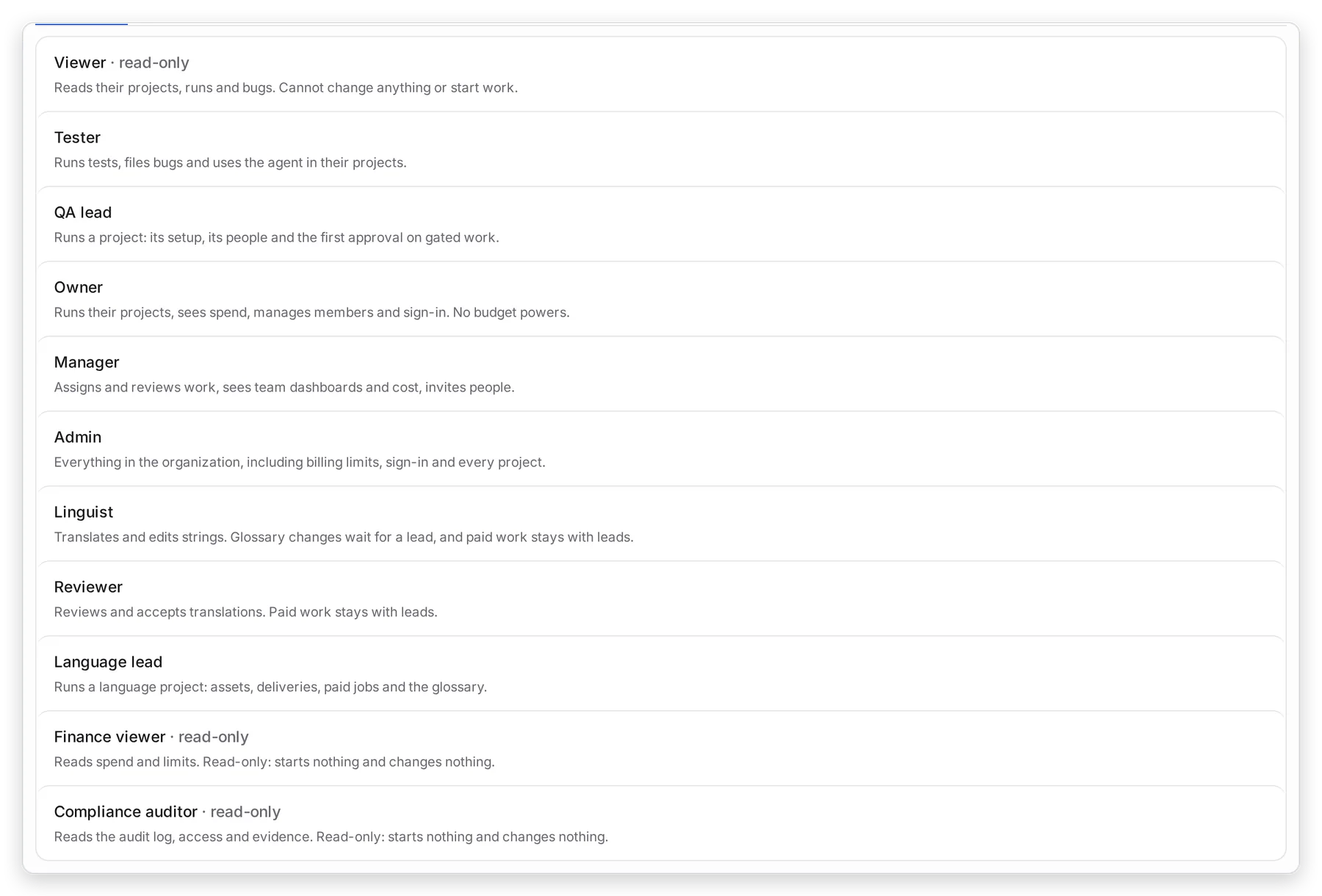
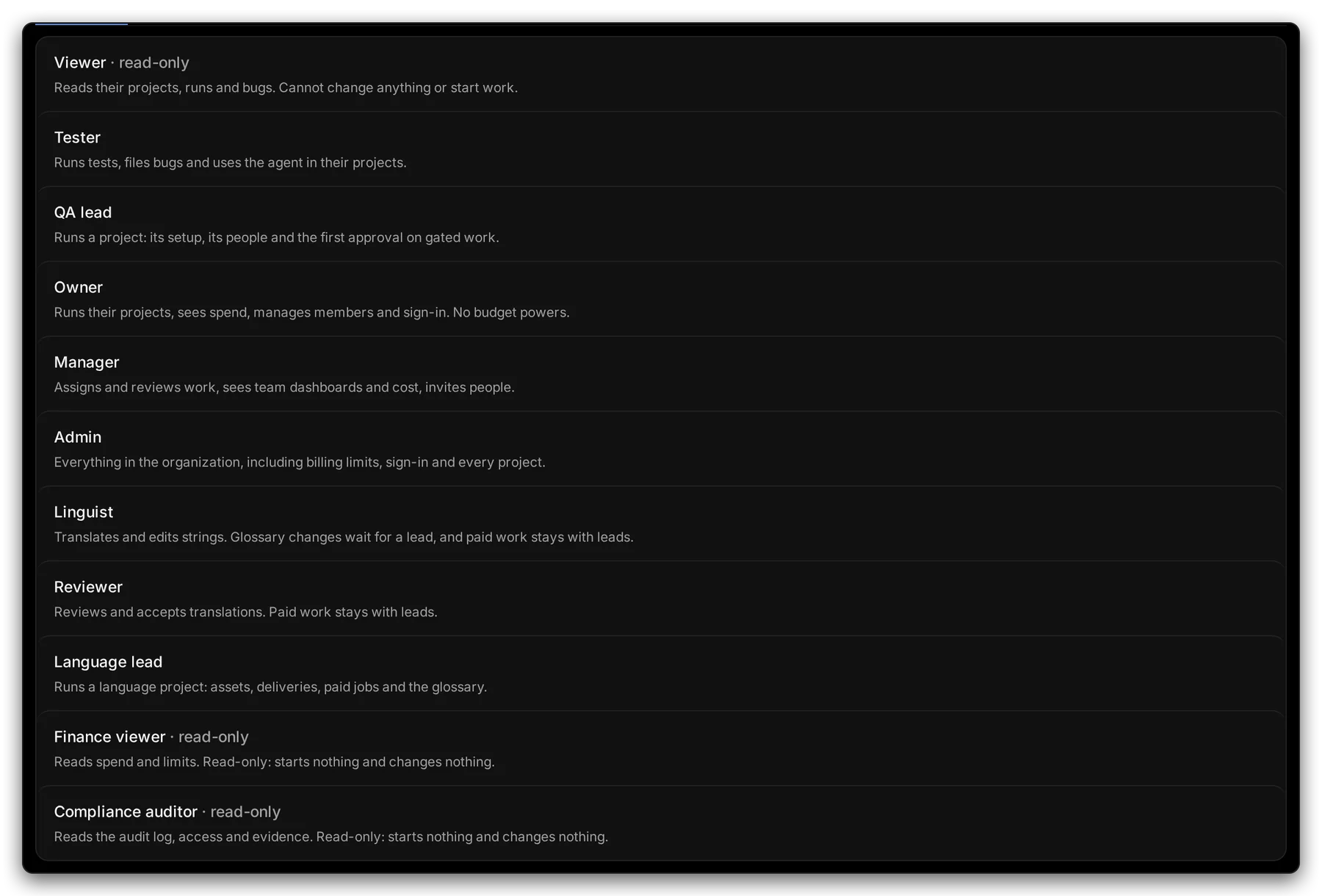
Hands-on view
| Role | Give it to | Their Home shows | Main button |
|---|---|---|---|
| Admin | Whoever sets up the organization | Users & roles, single sign-on, spend | Invite people |
| Owner | A business owner who signs off releases | Can we ship?, spend against the limit, top risks | Show me why |
| Manager | Heads of product or QA | Who is on what, approvals, oldest bugs | Review approvals |
| QA lead | The person who runs a testing project | Latest runs, new bugs, can we ship? | Run tests |
| Tester | People who run tests and check bugs | My tasks, bugs to recheck, recent runs | Start task |
| Language lead | The person who runs a localization project | Language status, my queue, who is on what | Open language status |
| Linguist | Translators | My queue, due soon, sent back to me | Next task |
| Reviewer | In-country reviewers | My queue, due soon, sent back to me | Next task |
| Finance viewer | Finance. Read-only. | Spend vs limit, by project, by model | Open cost |
| Compliance auditor | Risk and audit. Read-only. | Can we ship?, accessibility, audit log | Export evidence |
| Viewer | Anyone who only needs to look. Read-only. | Their projects, runs and bugs |
Linguist, Reviewer, Language lead, Finance viewer and Compliance auditor are presets: ready-made roles built for that job. A linguist or reviewer sees only Home, Languages, Team and Settings.
2. Change a person’s role
Section titled “2. Change a person’s role”- On Members, choose the person. Their panel opens.
- Choose a new 1 Role.
- Choose 2 Save role.
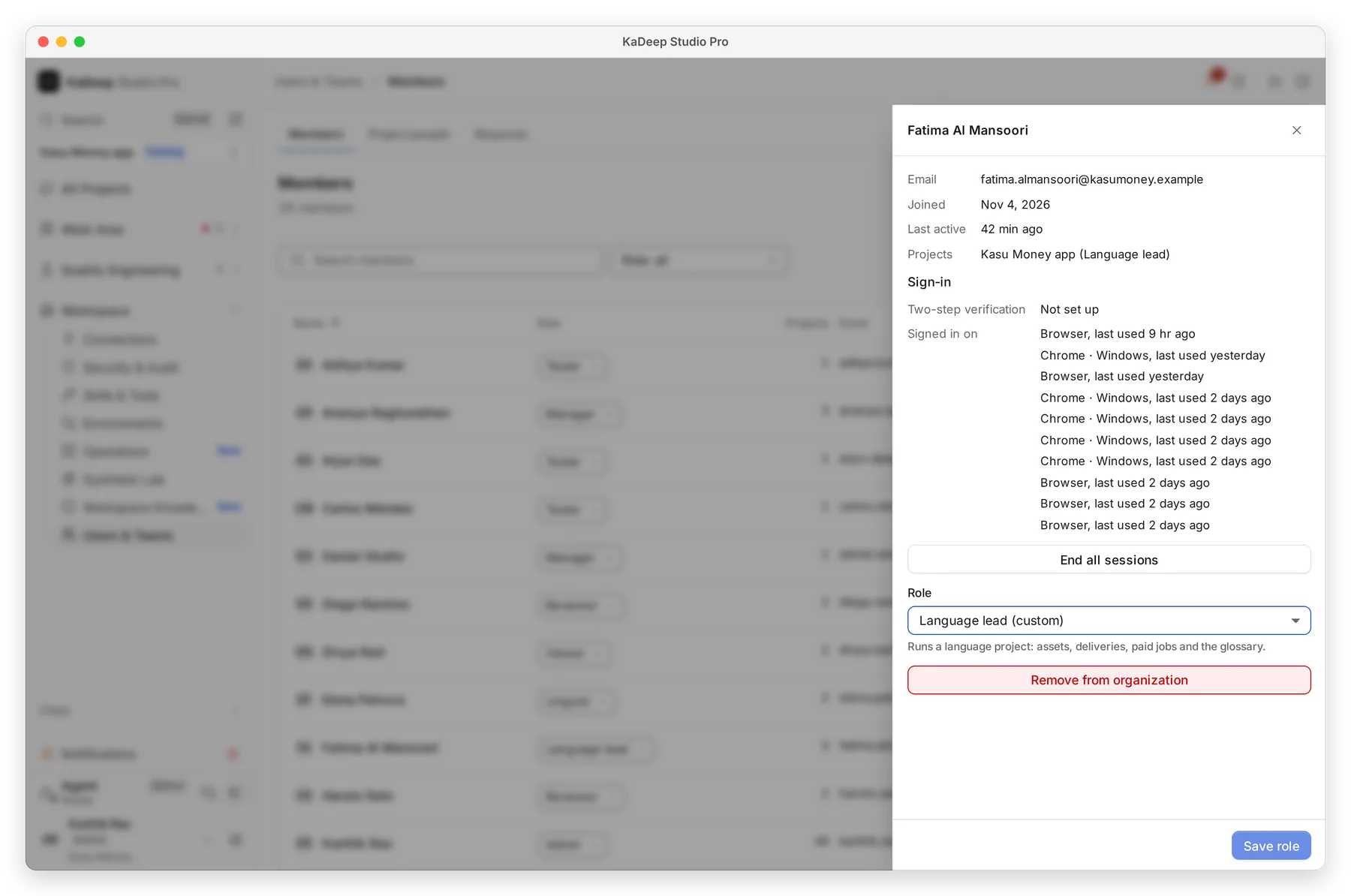
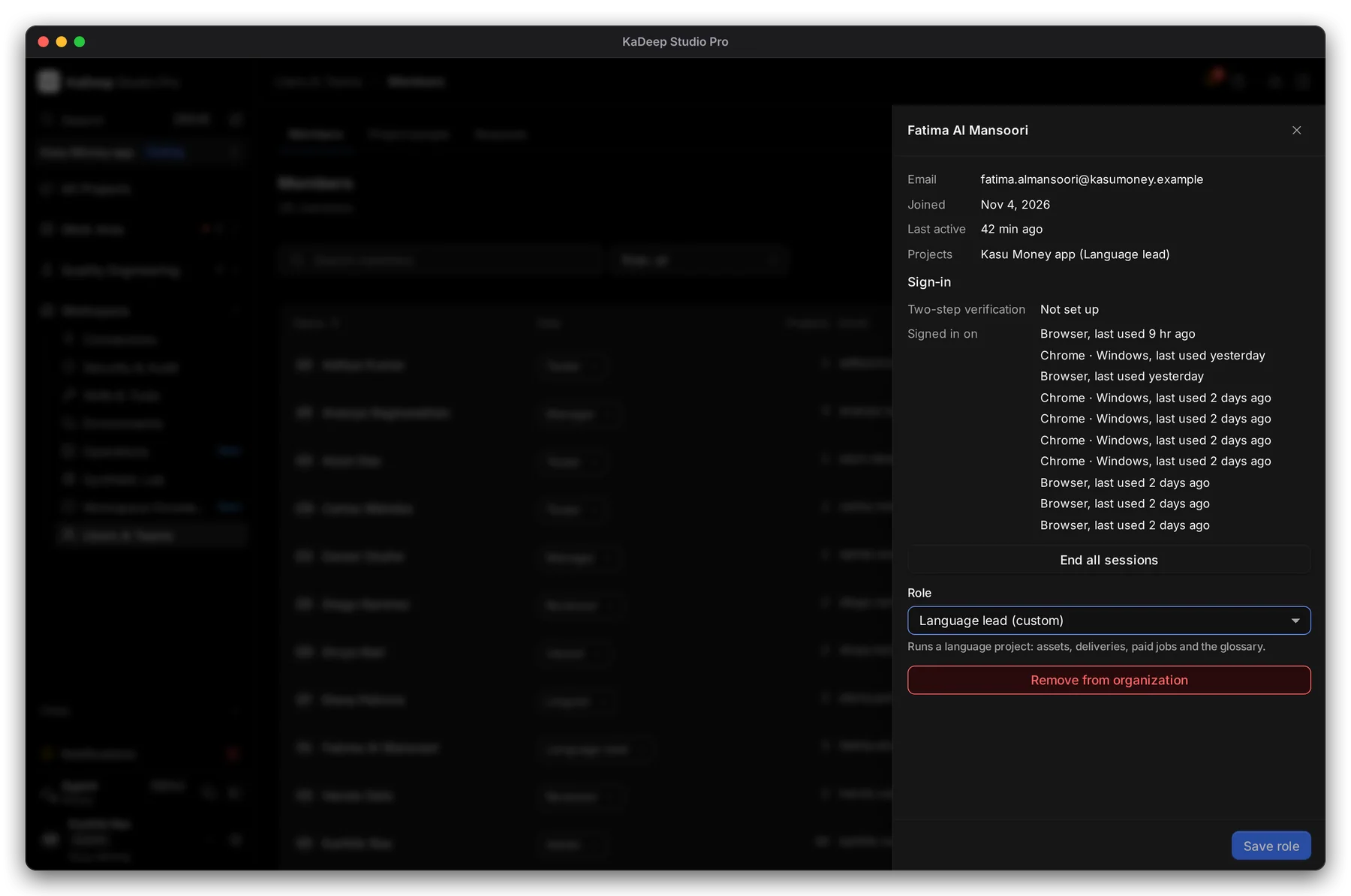
Manage view
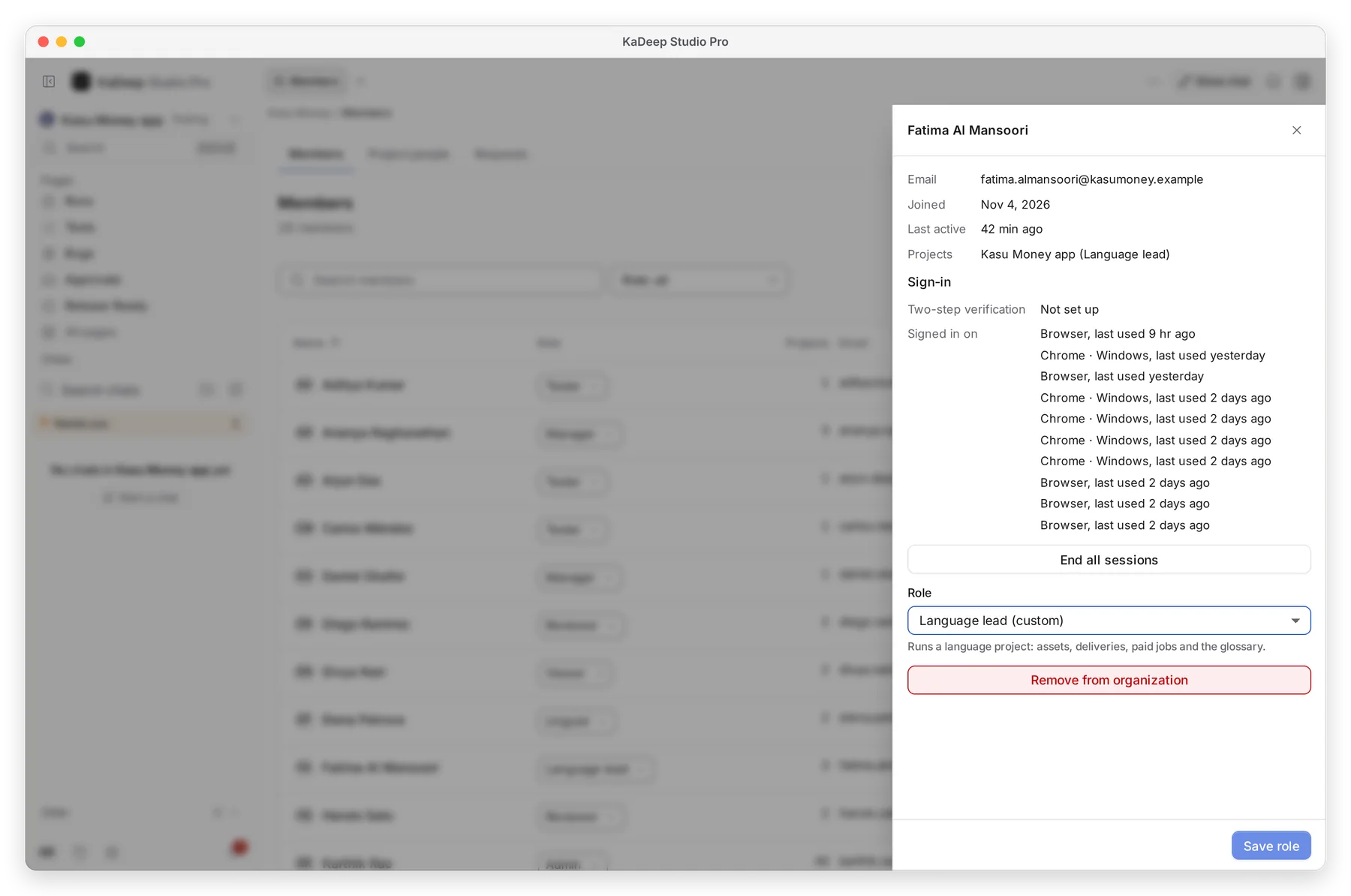
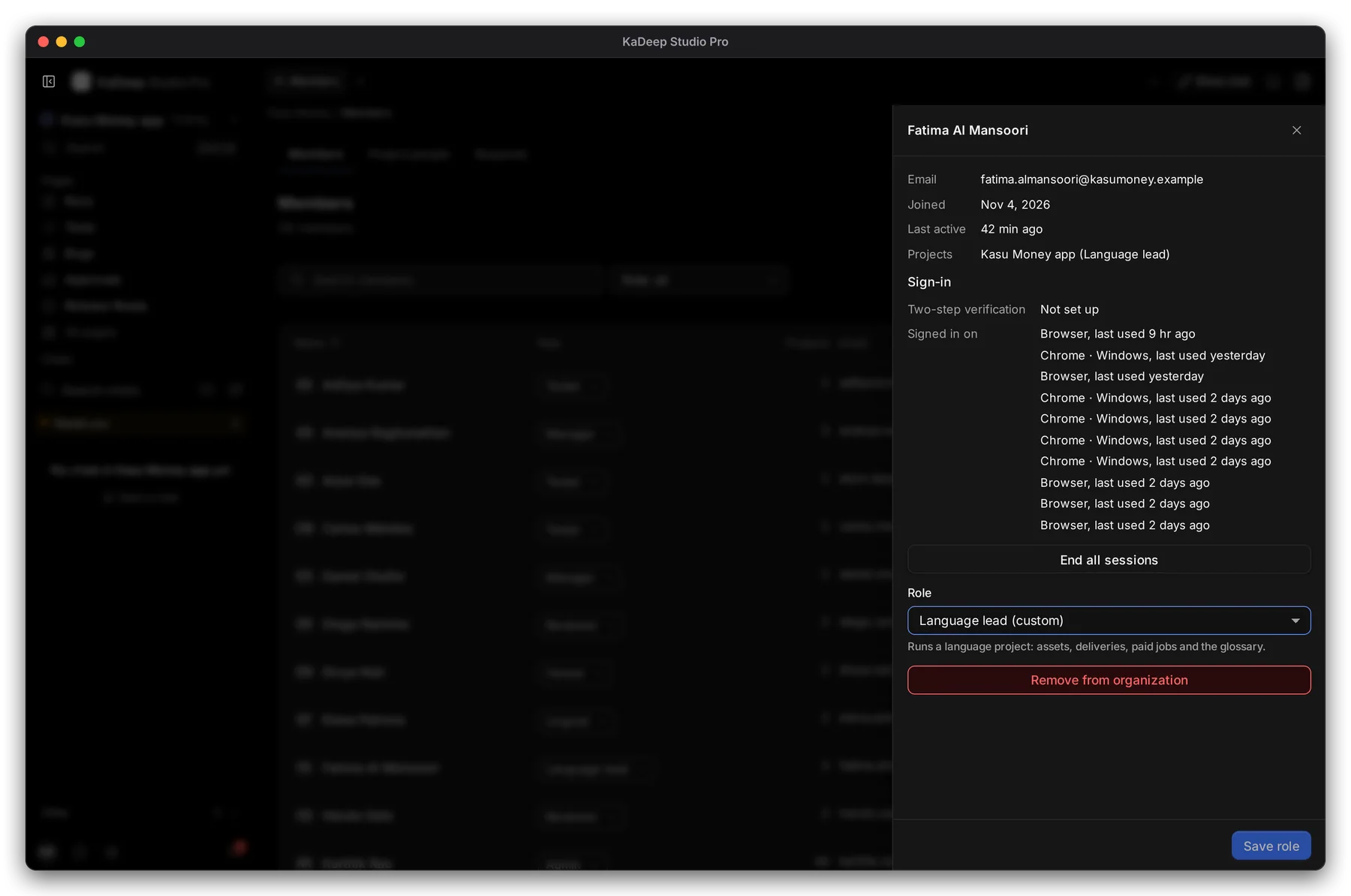
Hands-on view
The panel also shows their projects, two-step sign-in and where they are signed in. 3 End all sessions signs them out everywhere. 4 Remove from organization takes away their access; their work stays.
What’s next
Section titled “What’s next”Invite people and give them rolesSend invitations with the right role.
Add people to a projectA role for each project.
People and accessReview who holds which role.