Integrations
Your view
Connect the tools your team already uses. The agent files bugs in your tracker, posts verdicts to your chat, and links tests to your pipelines.
Before you start: integrations belong to a project. Choose the project in the project switcher first.
1. Open Integrations
Section titled “1. Open Integrations”In the sidebar, open Workspace › Connections, then the Integrations tab.
Choose the settings icon at the bottom of the sidebar. Under the project’s name, choose Integrations.
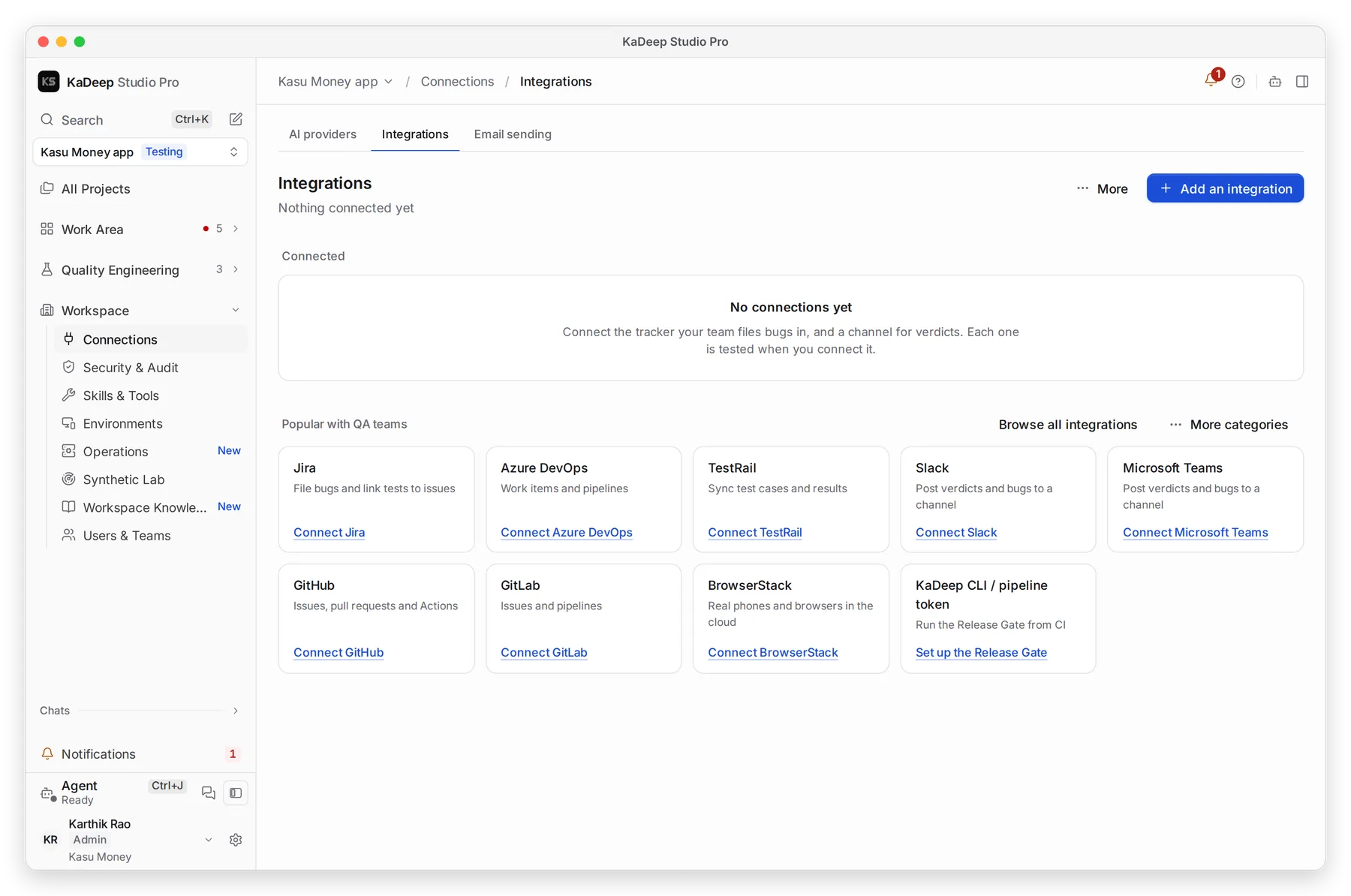
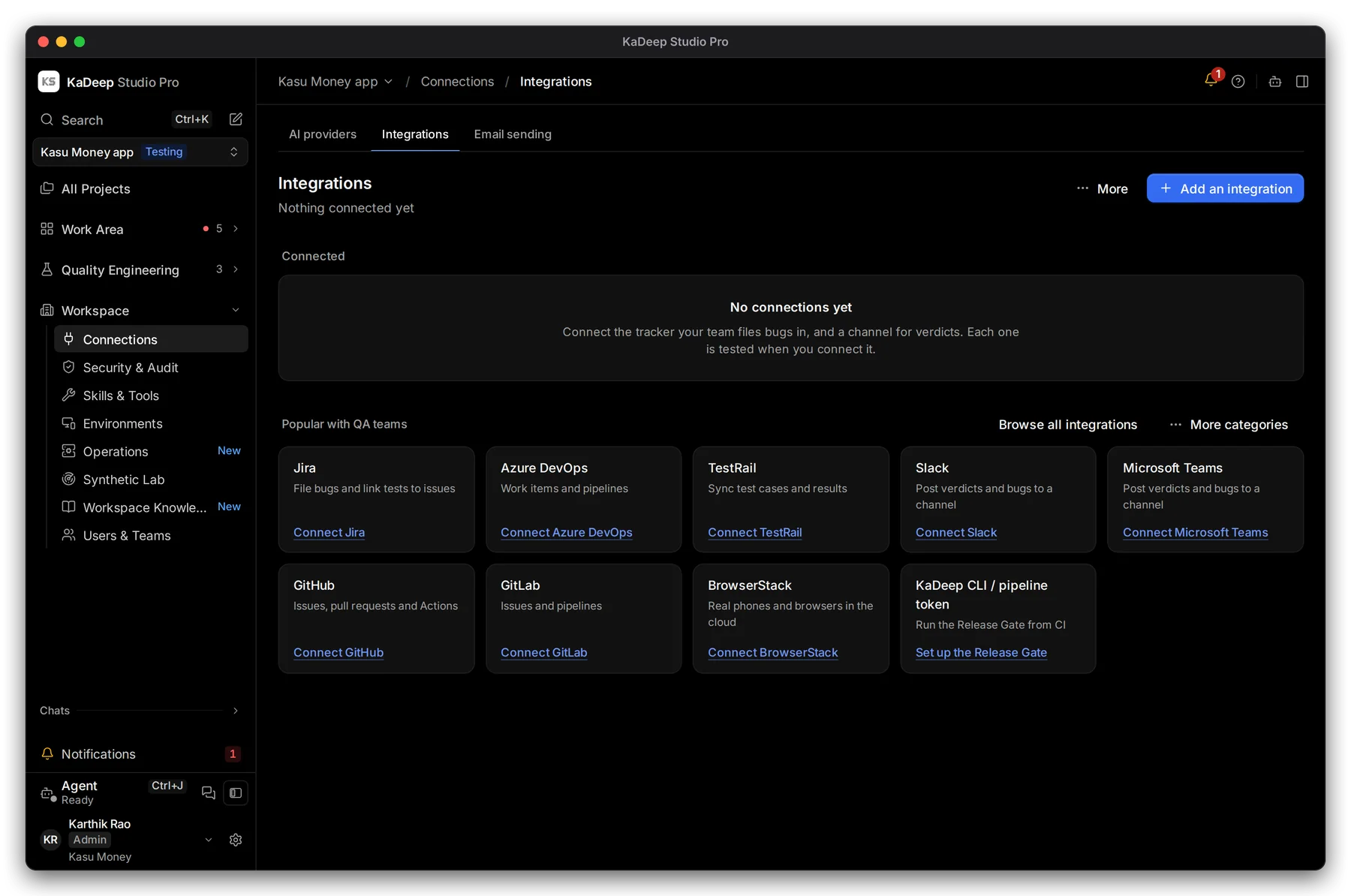
Manage view
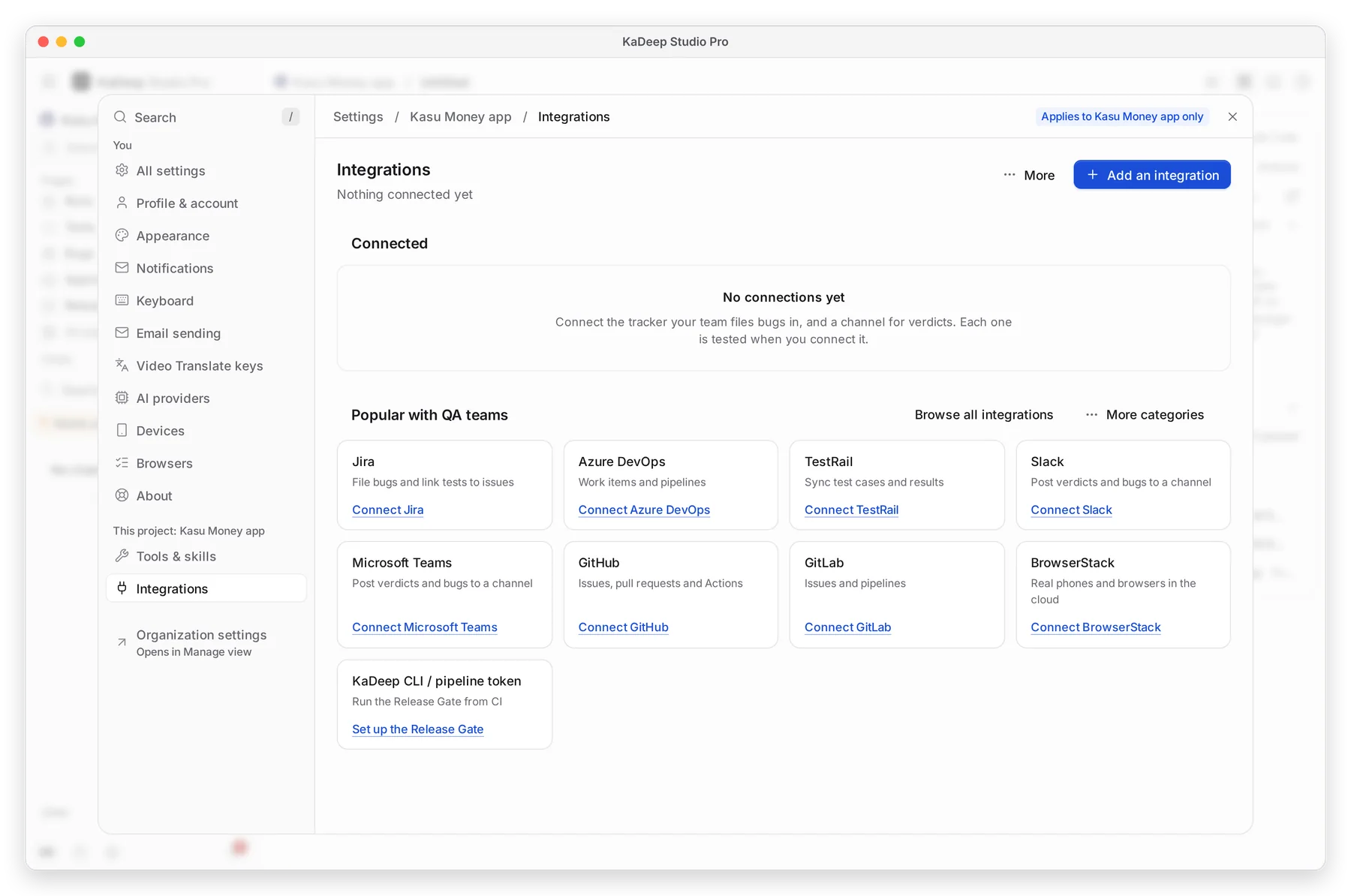
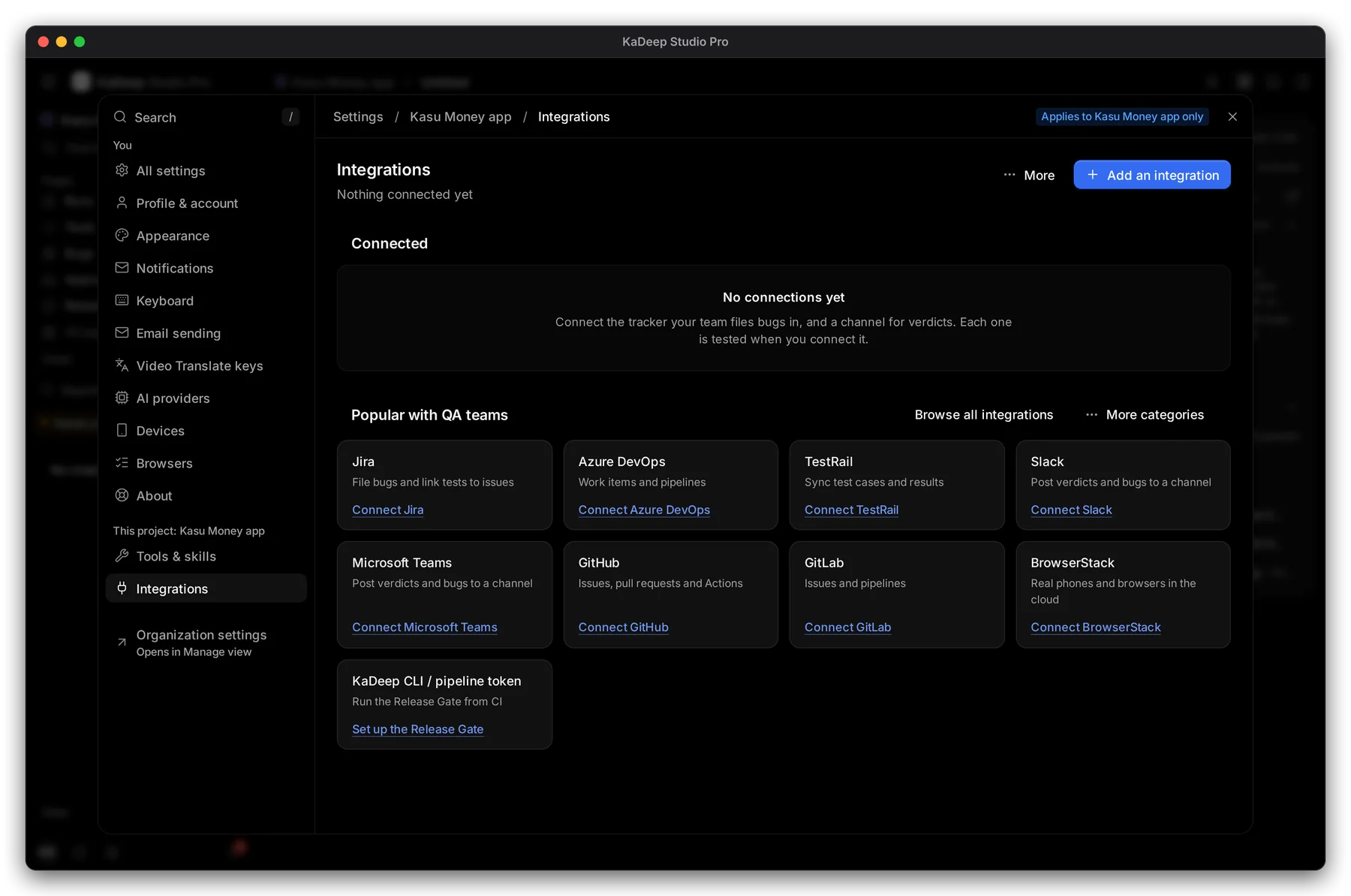
Hands-on view
2. Connect a tool
Section titled “2. Connect a tool”- Choose the tool’s 2 Connect link, or 1 Add an integration.
- Paste the address and the API token from that tool. KaDeep tests the connection as soon as you paste it.
- Choose what it is for, for example the Jira project bugs go to, or the Slack channel for verdicts.
- Save. The tool moves to Connected at the top.
| Tool | What KaDeep does with it |
|---|---|
| Jira, Azure DevOps | Files bugs and links tests to issues and work items |
| TestRail | Syncs test cases and results |
| GitHub, GitLab | Issues, pull requests, Actions and pipelines |
| Slack, Microsoft Teams | Posts verdicts and bugs to a channel |
| BrowserStack | Real phones and browsers in the cloud |
| KaDeep CLI / pipeline token | Runs the Release Gate from your CI |
4 Browse all integrations lists the rest.
What’s next
Section titled “What’s next”Release Gate in CIStop a release when tests fail.
Email sendingLet the agent email from your address.
Set up checklistBack to the list.