Run a test suite and read the results
Your view
A suite is a set of tests you run together, like a smoke test before every release. The agent runs each test, records what it saw, and files a bug when something is wrong.
Before you start: open a testing project that has at least one suite. To make one, see Suites.
1. Open the suite
Section titled “1. Open the suite”- In the sidebar, open Quality Engineering › Functional Testing. In the sidebar, under Pages, choose Tests.
- Choose the Suites tab.
- Click the suite you want to run.
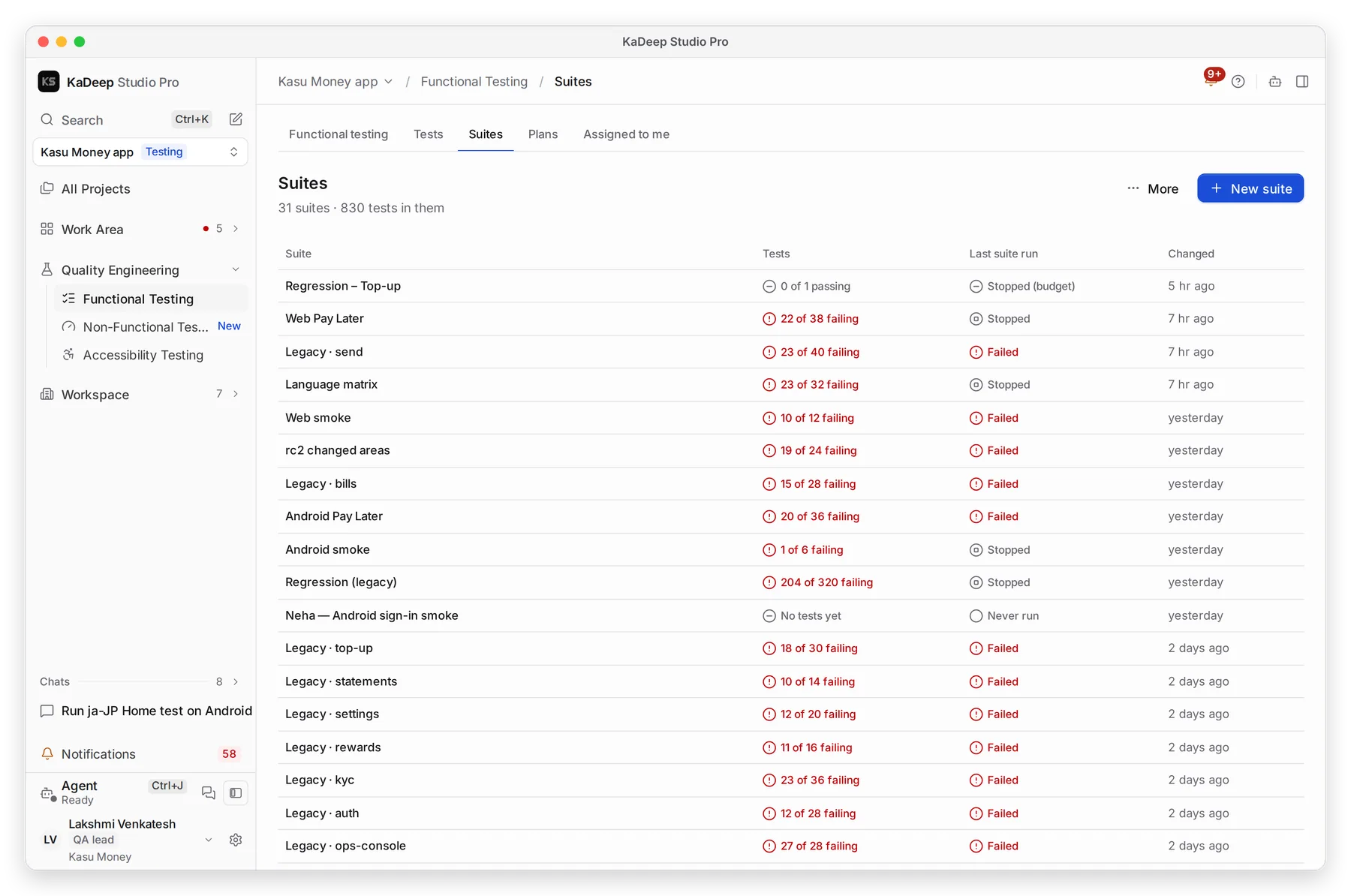
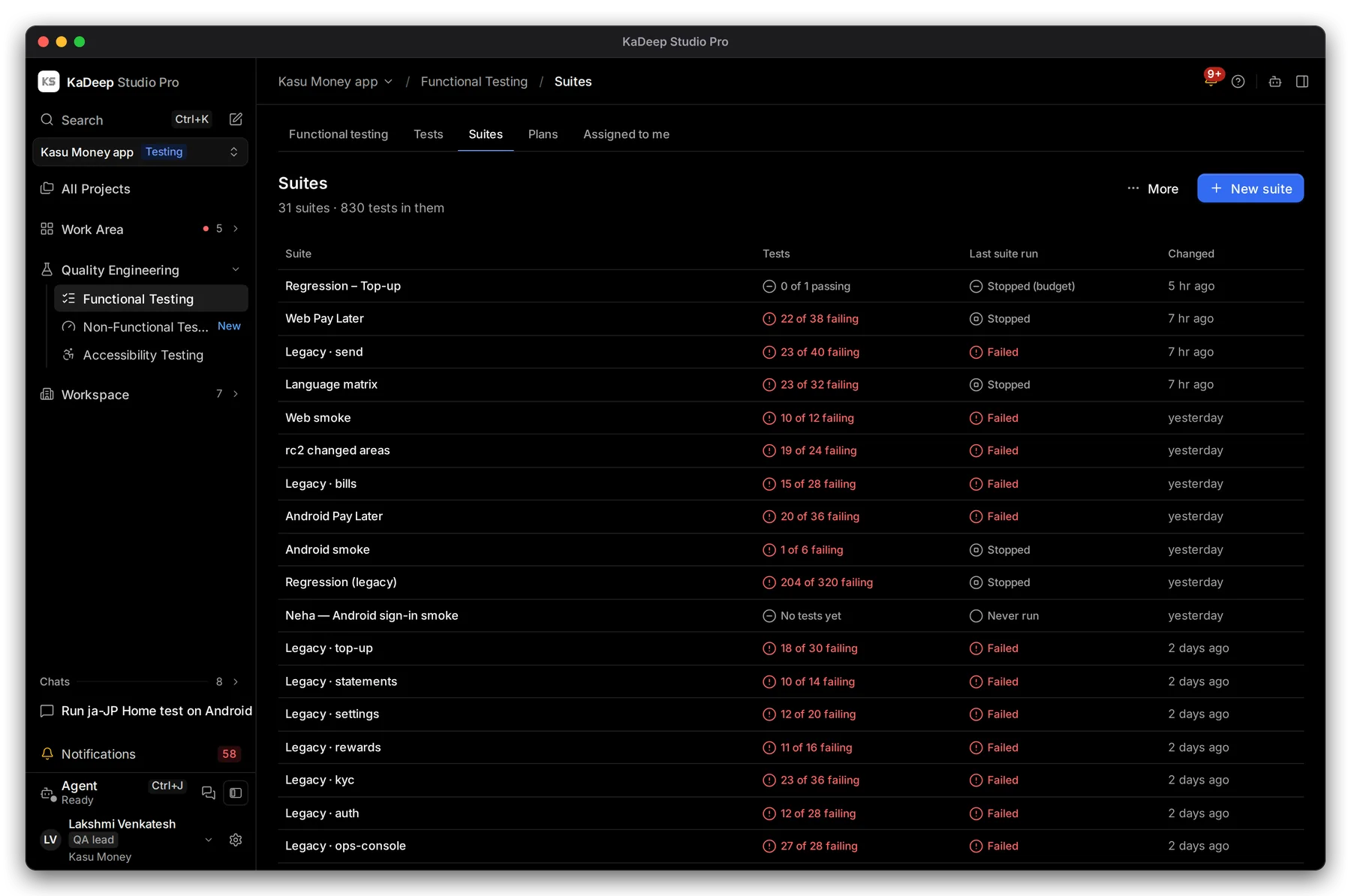
Manage view
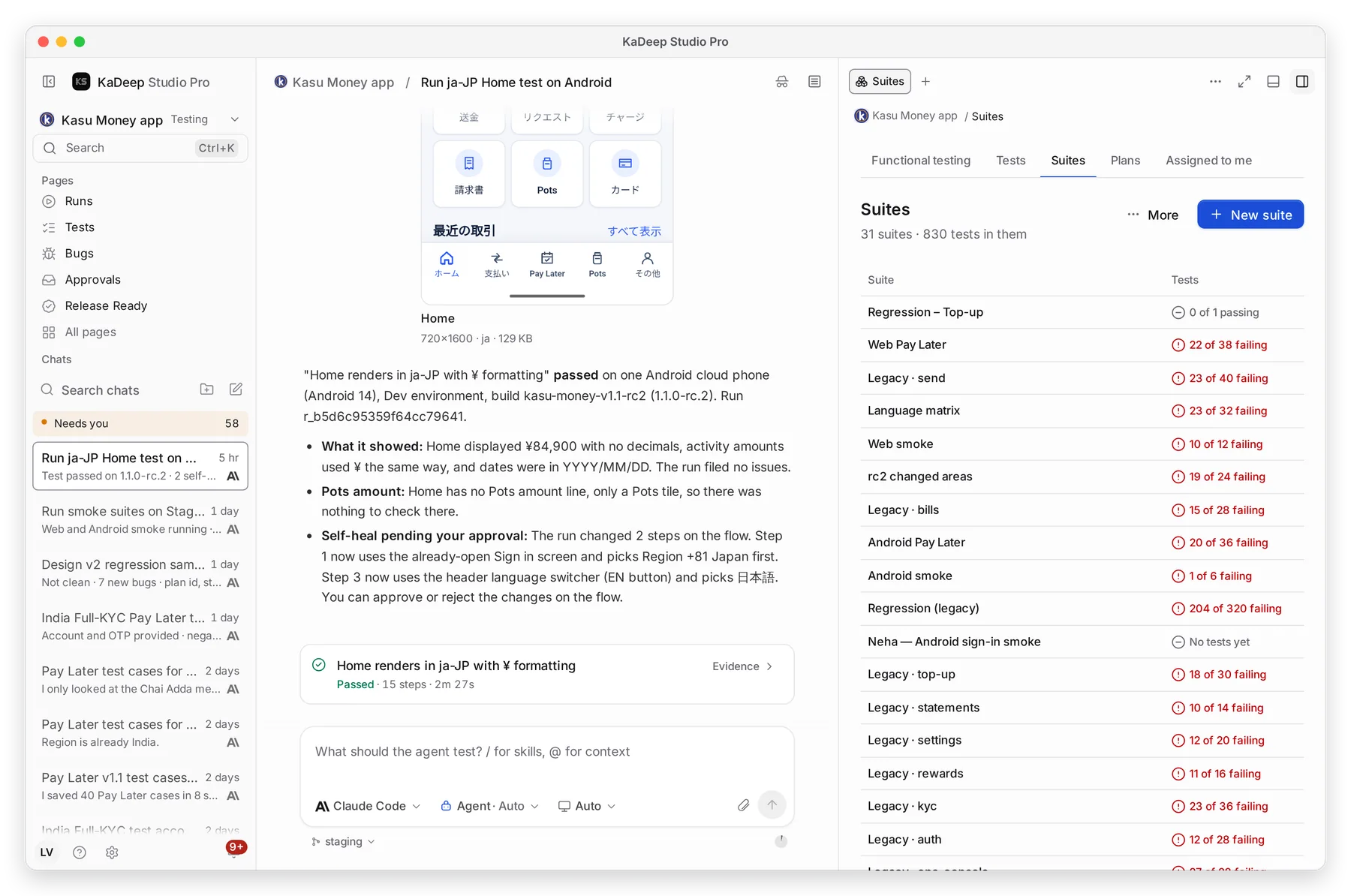
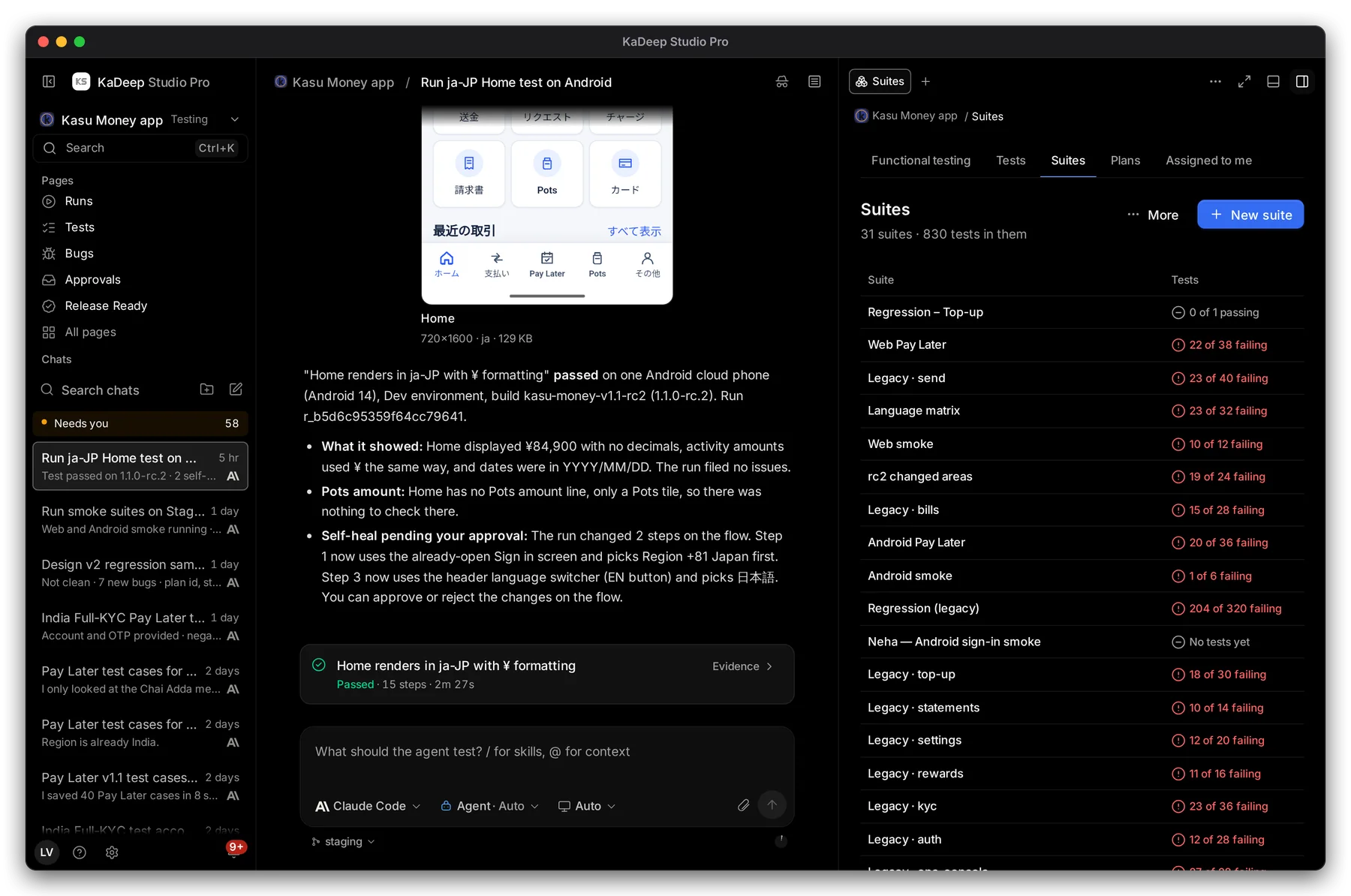
Hands-on view
2. Choose where it runs, then start it
Section titled “2. Choose where it runs, then start it”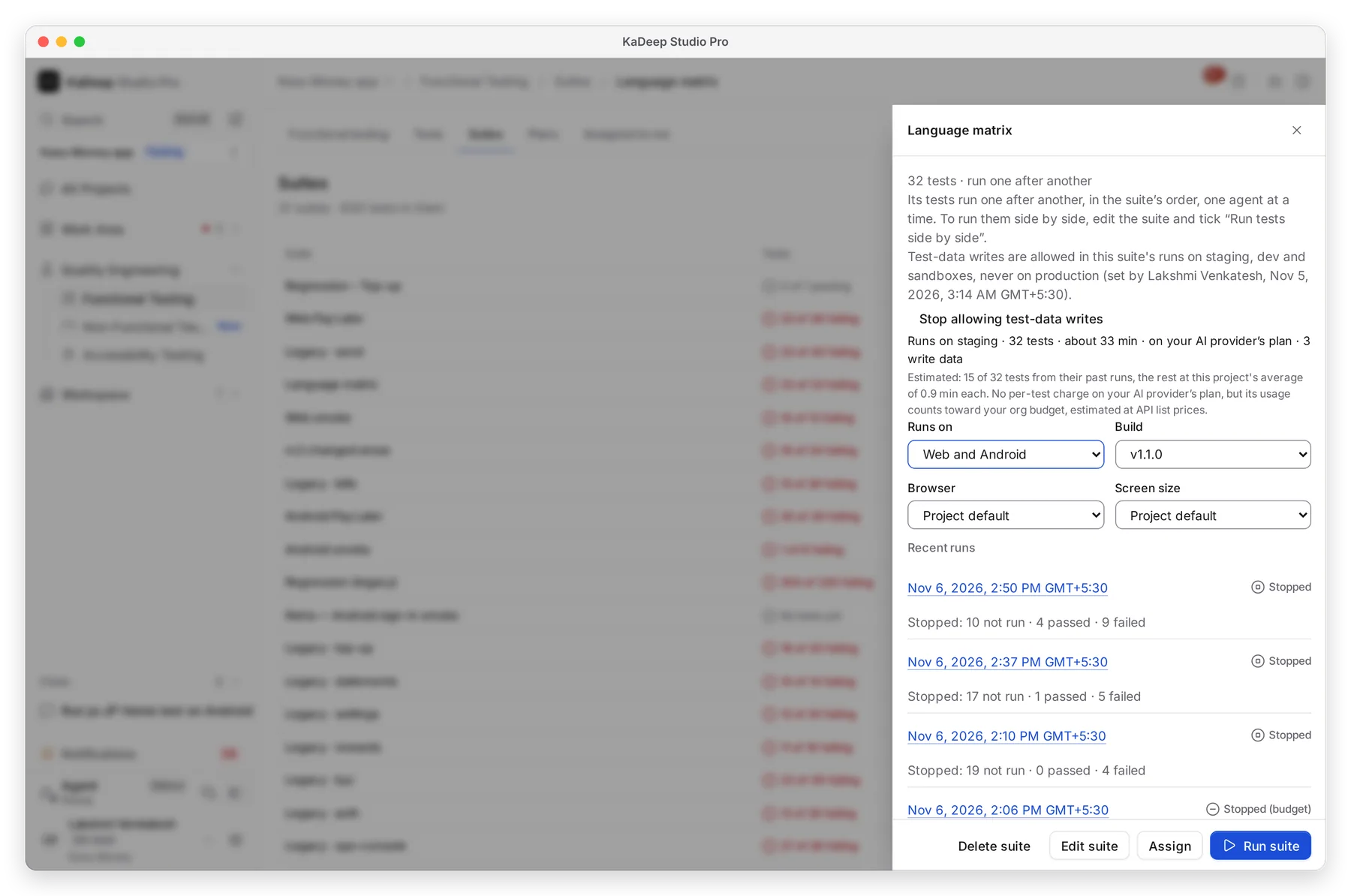
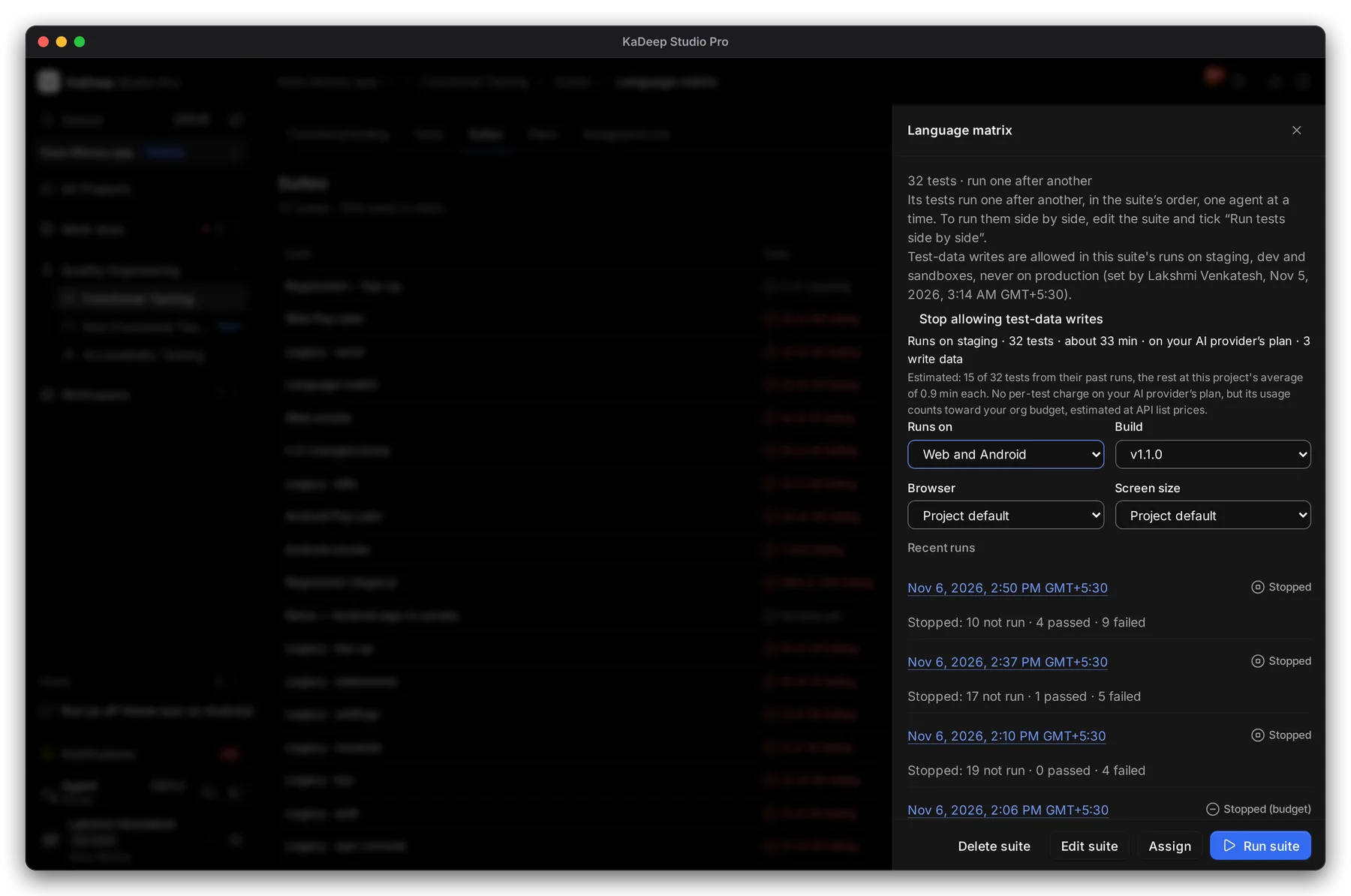
Manage view
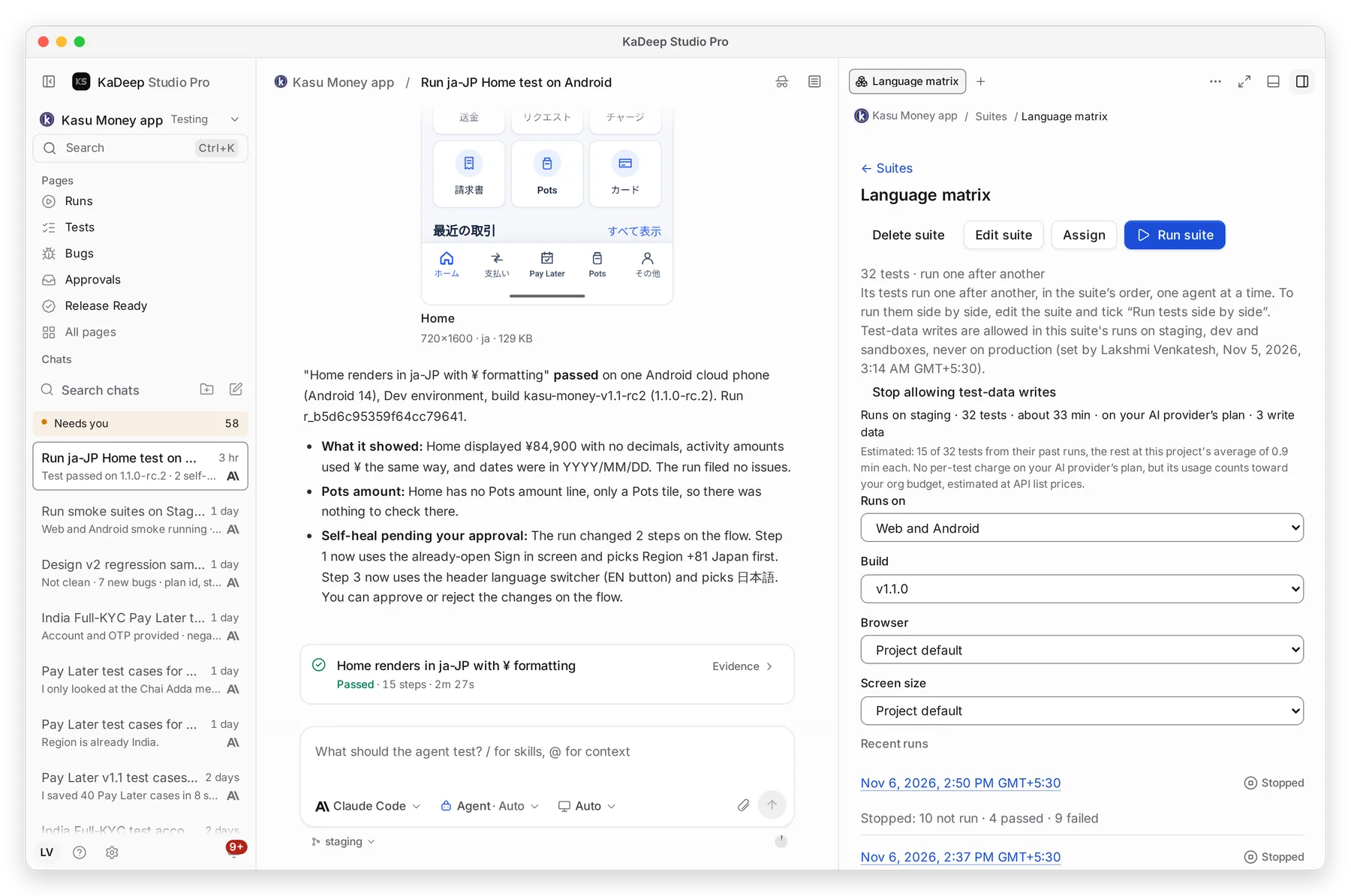
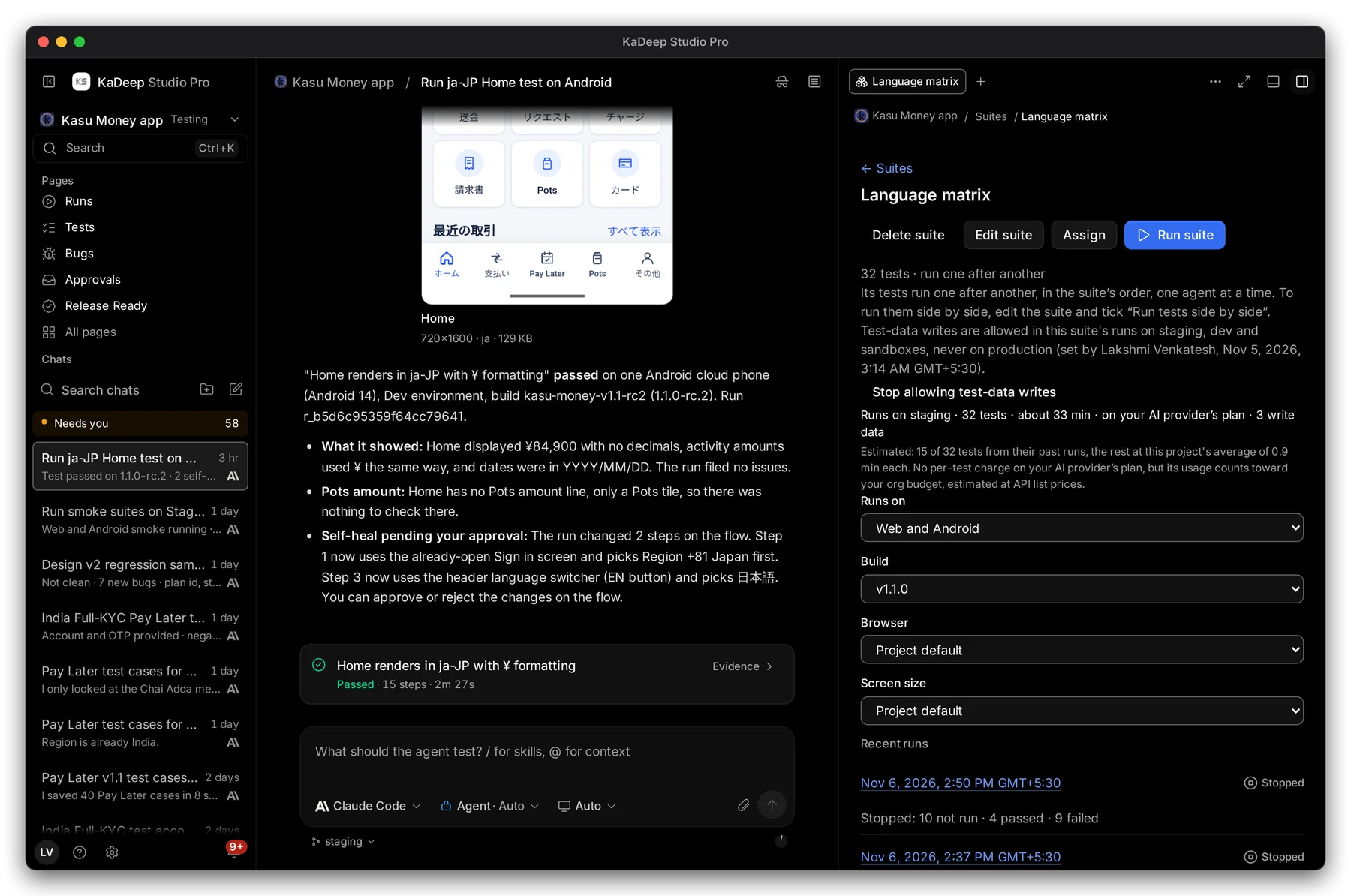
Hands-on view
- 1 Runs on: web, Android, or both. Pick a Build, Browser and Screen size if you need to; otherwise the project’s defaults are used.
- 2 Check the estimate: how many tests, about how long, and what it costs.
- 3 Choose Run suite.
4 Recent runs lists earlier runs of this suite. Click one to open its results.
3. Let it run
Section titled “3. Let it run”You don’t need to watch. The agent works through the tests in order, and you get a notification when the run finishes. To watch the browser or phone live, open Mission Control.
4. Read the results
Section titled “4. Read the results”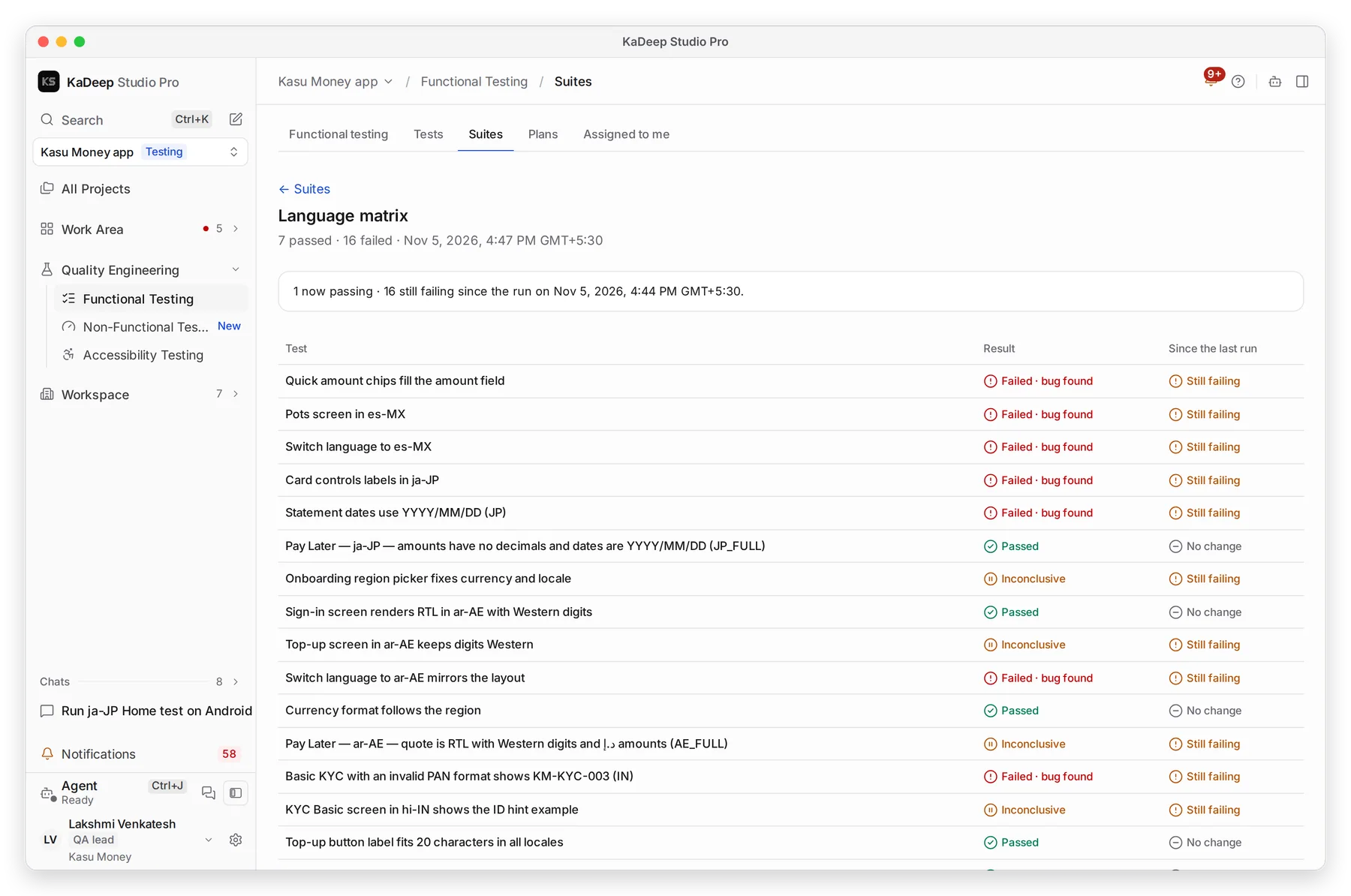
Manage view
Hands-on view
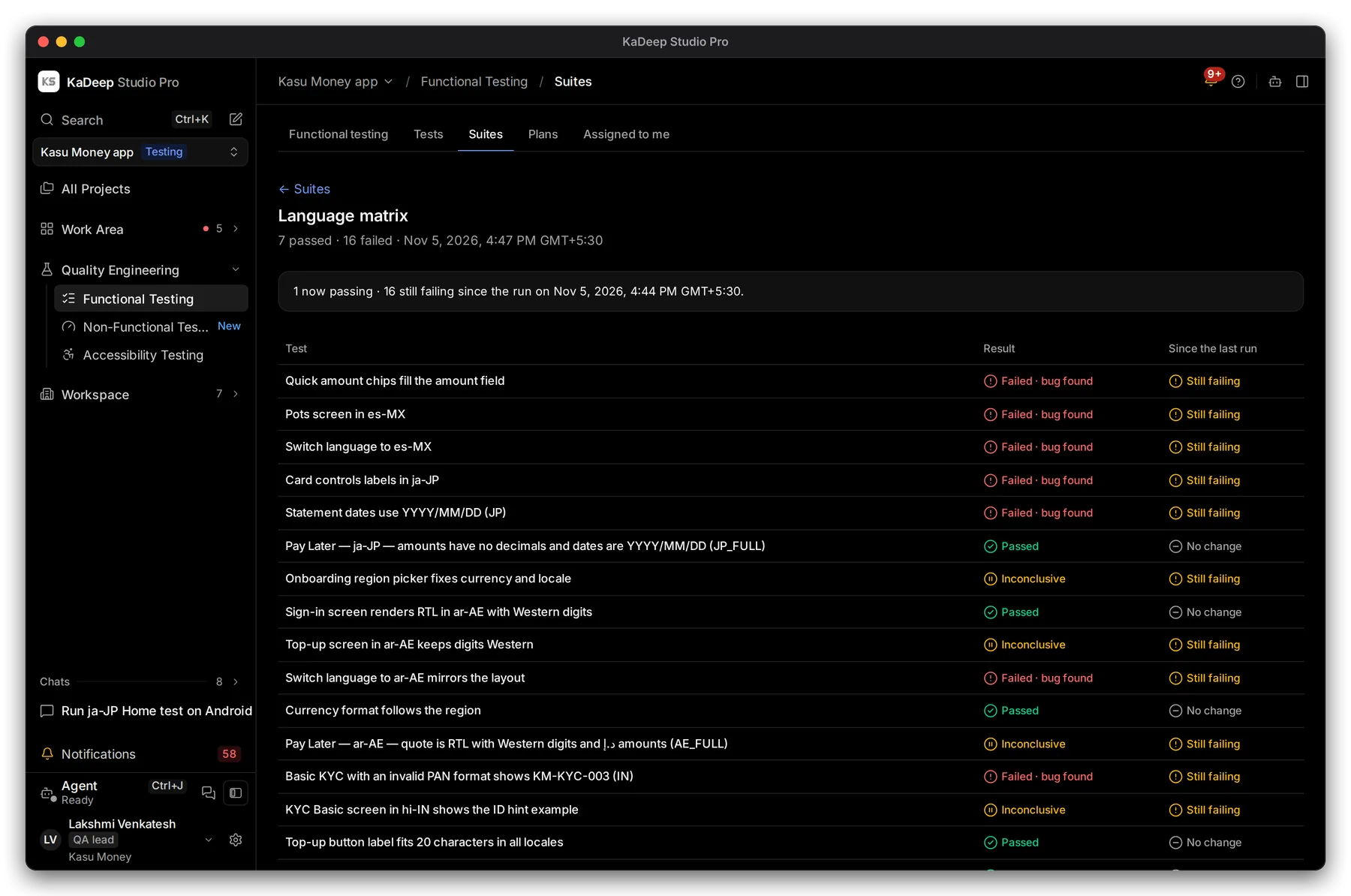
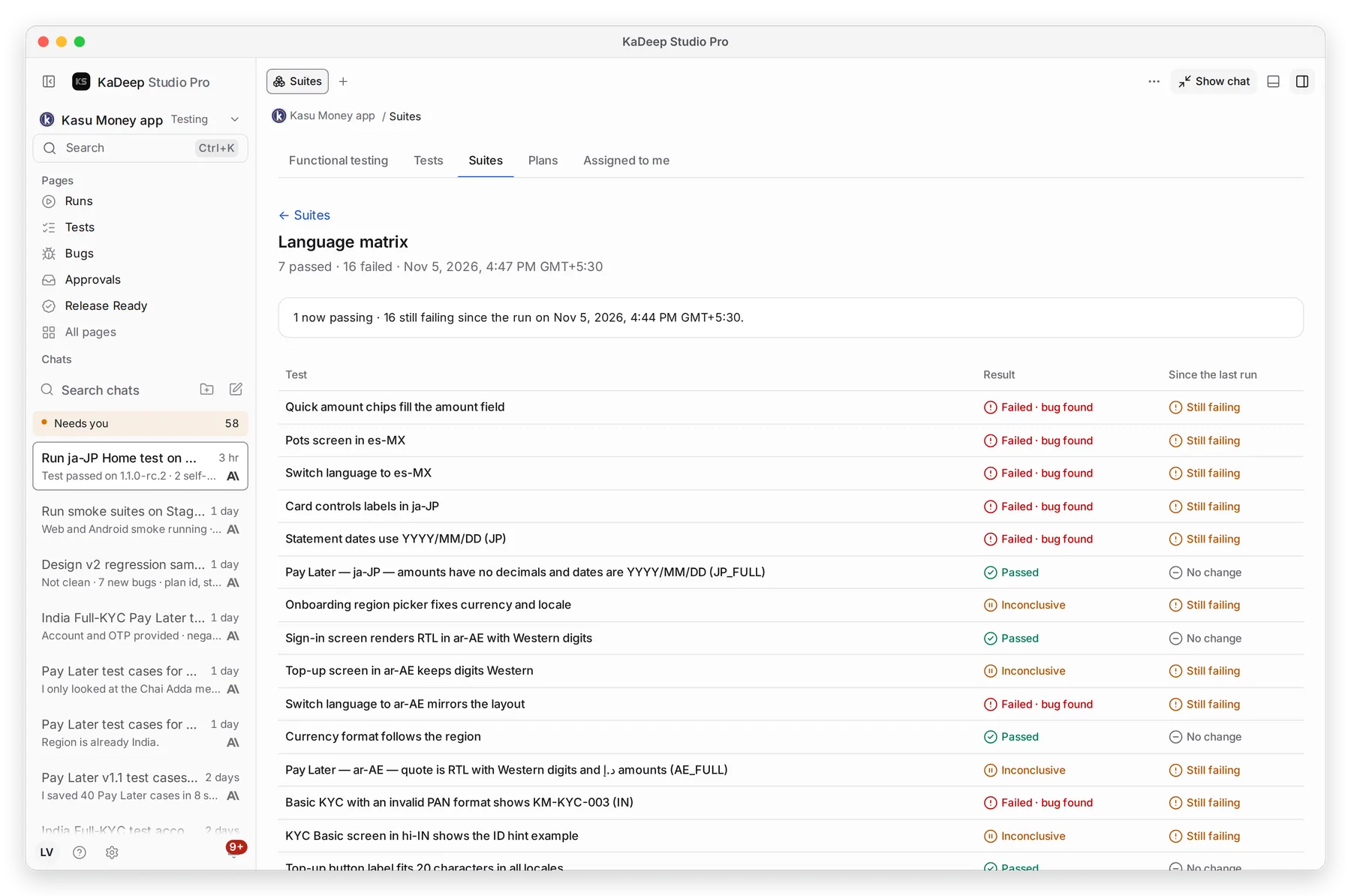
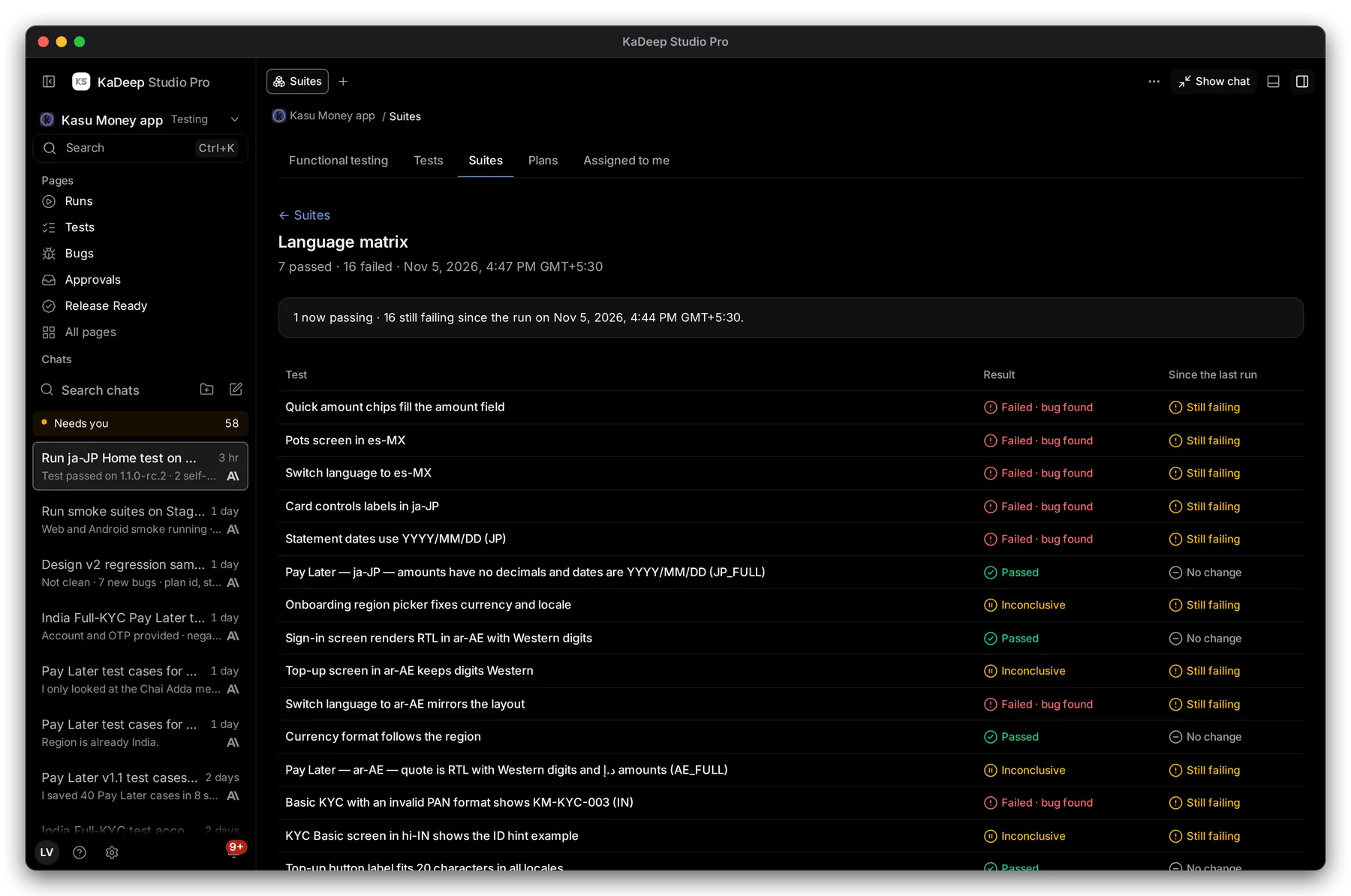
- 1 The totals: how many tests passed and failed, and when the run started.
- 2 What changed since the last run of this suite: tests that now pass, still fail, or newly failed.
- 3 Each test’s result, with how it changed since the last run.
- 4 Click any test to open it.
| Result | What it means | What to do |
|---|---|---|
| Passed | The app did what the test expects. | Nothing. |
| Failed · bug found | The app did something wrong. The agent filed a bug. | Open the test, then the bug. |
| Inconclusive | The agent could not tell, for example a step could not be reached. | Read why, then run it again or fix the test. |
| Test needs updating | The test no longer matches the app, for example an expected amount changed. | Update the test. |
| Not tested | The test could not run. This is a setup or service problem, not a product failure. | Fix what is missing, or run it again. |
5. Open a failed test
Section titled “5. Open a failed test”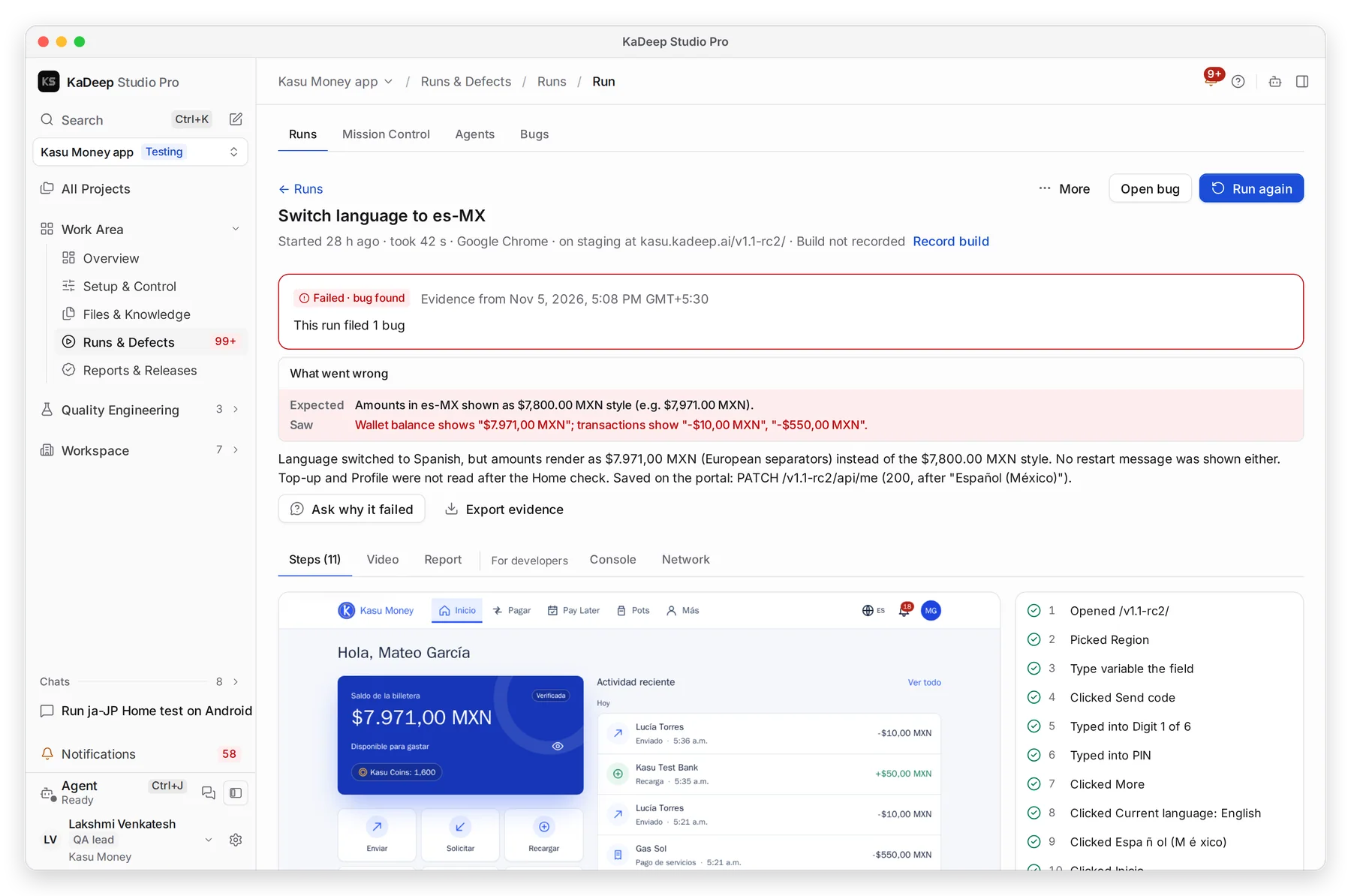
Manage view
Hands-on view
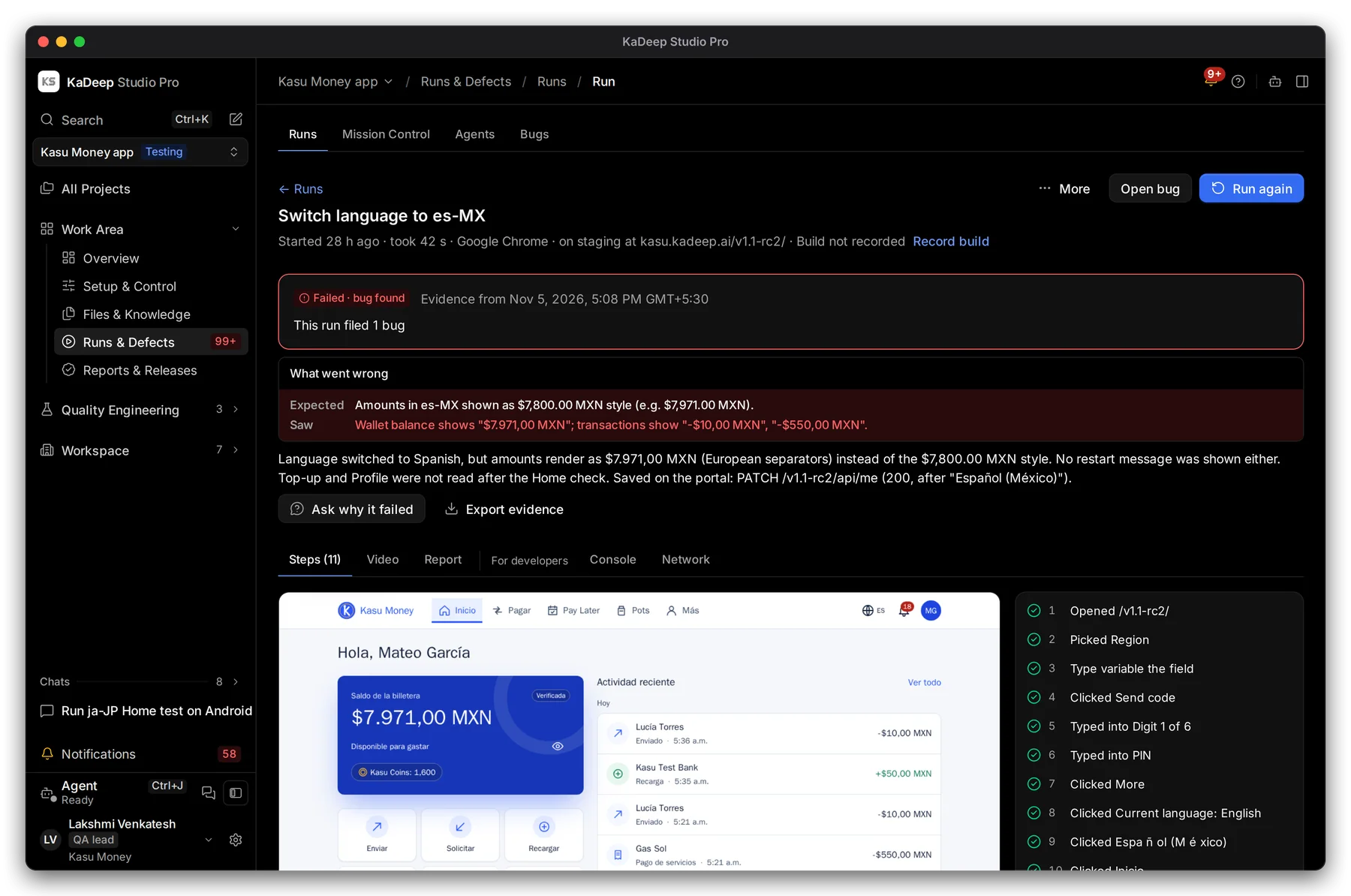
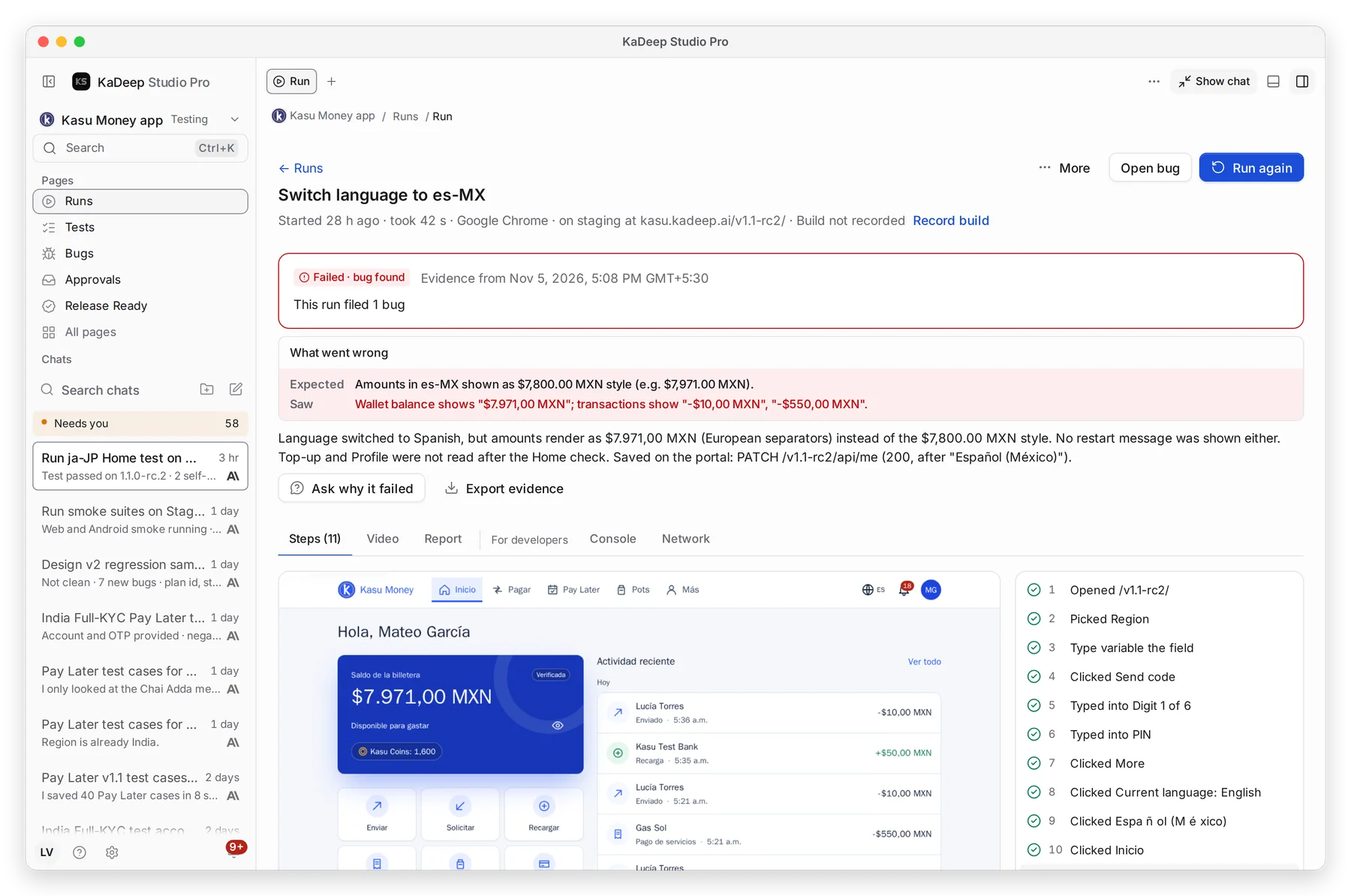
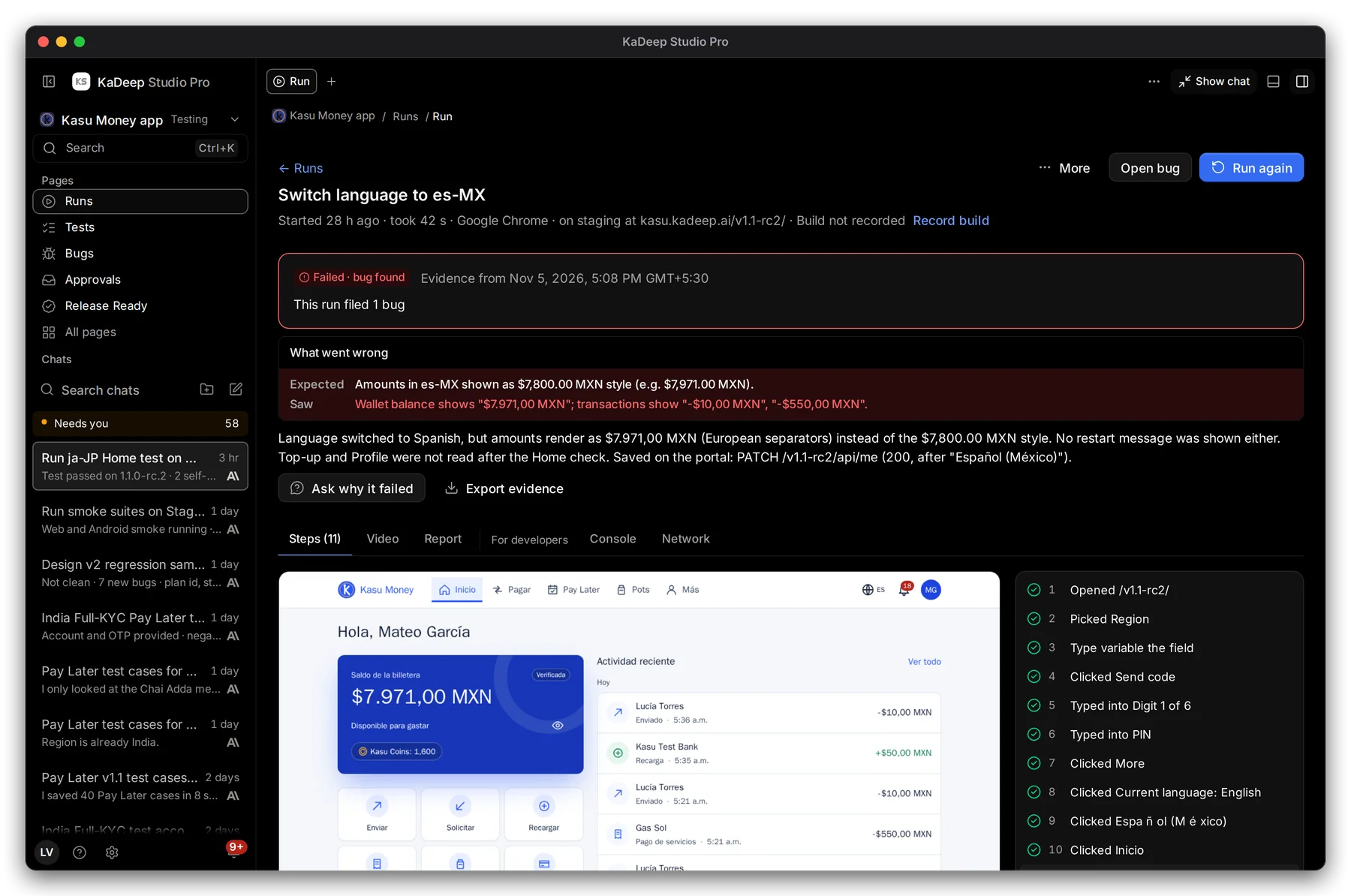
- 1 The verdict, and the bugs this run filed.
- 2 What went wrong: what the test expected, and what the agent saw.
- 3 Ask why it failed: the agent explains, in plain words, using the evidence.
- 4 Open bug to triage it, or Run again after a fix.
6. Check the evidence
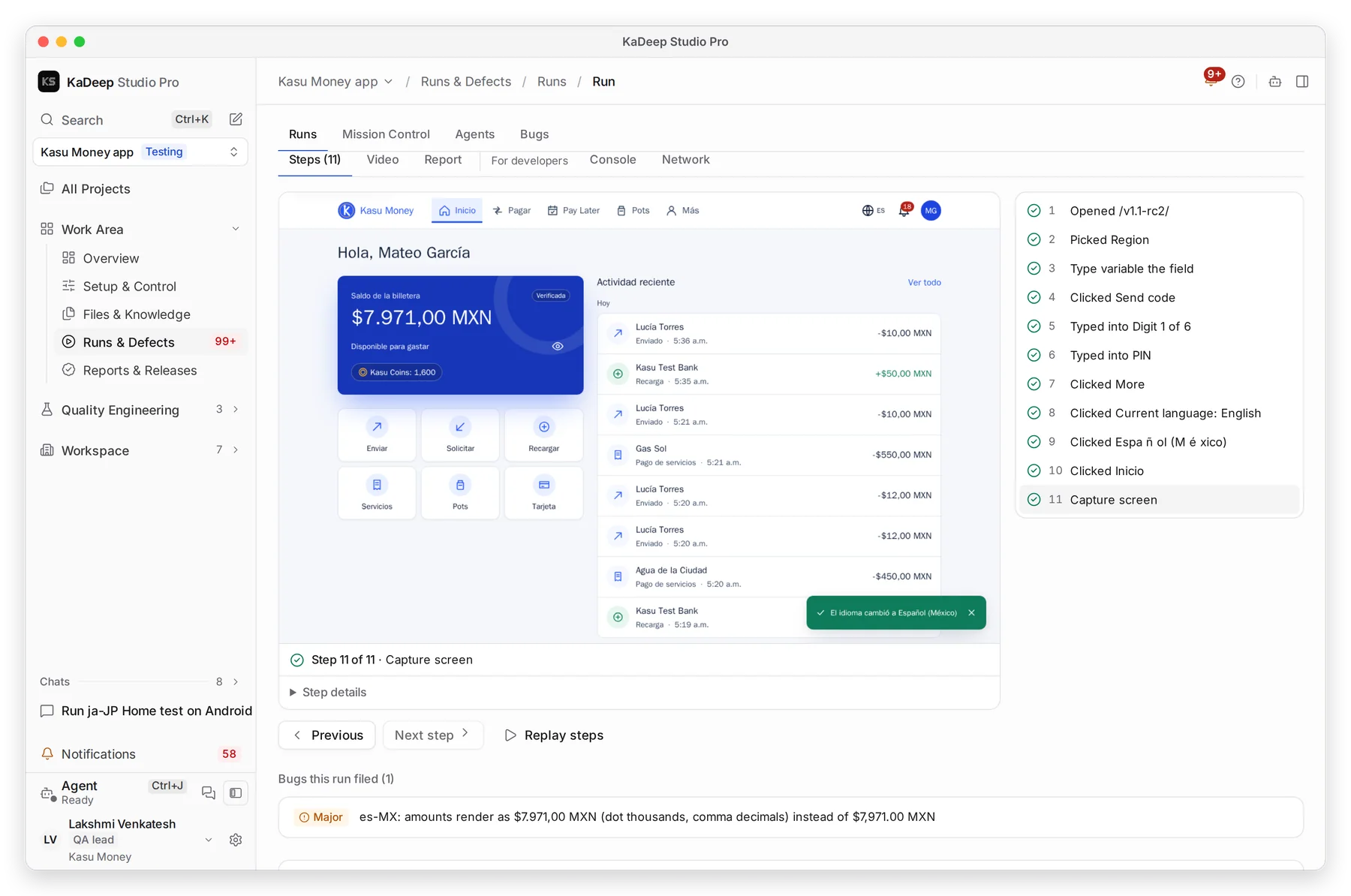
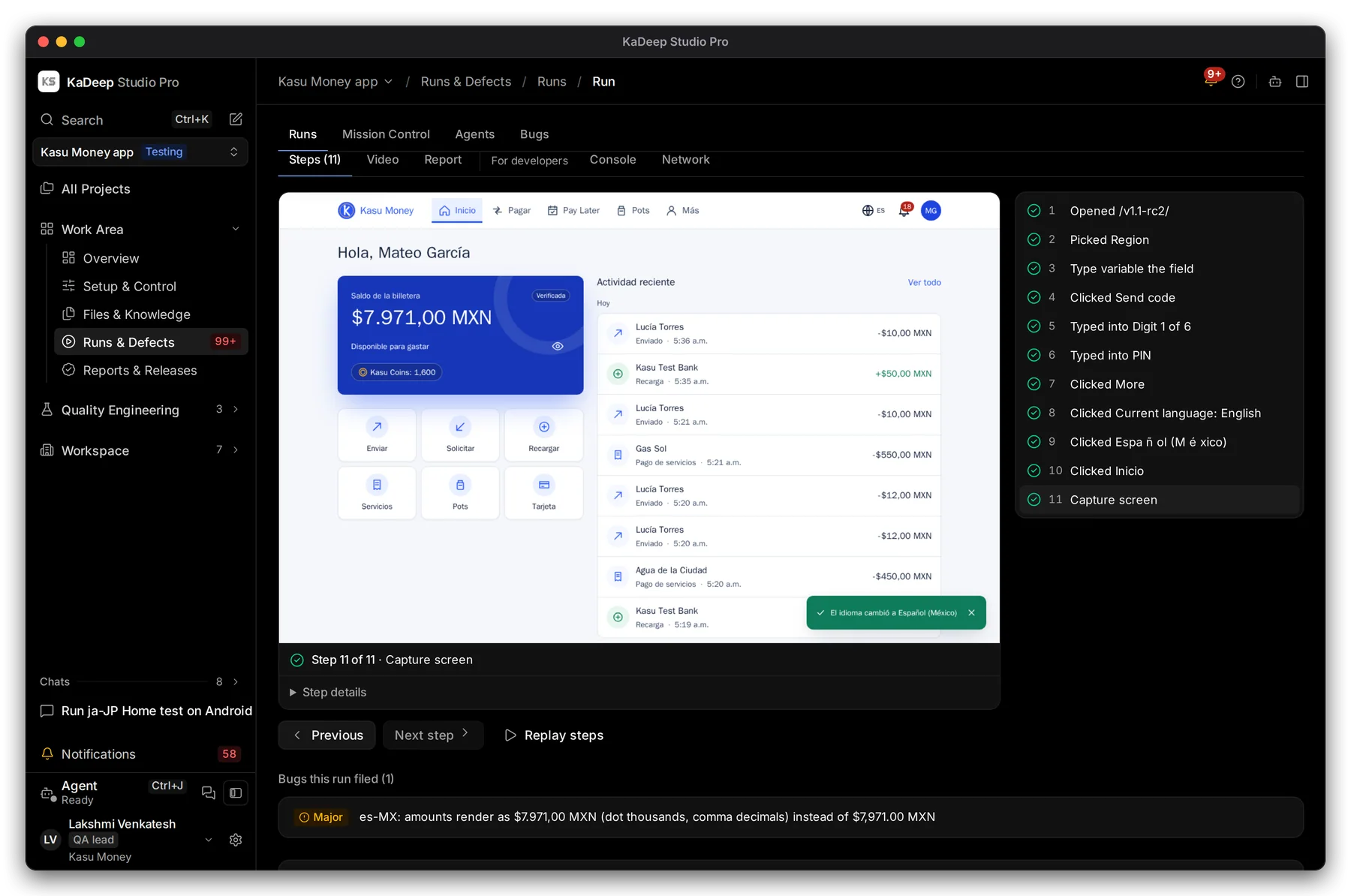
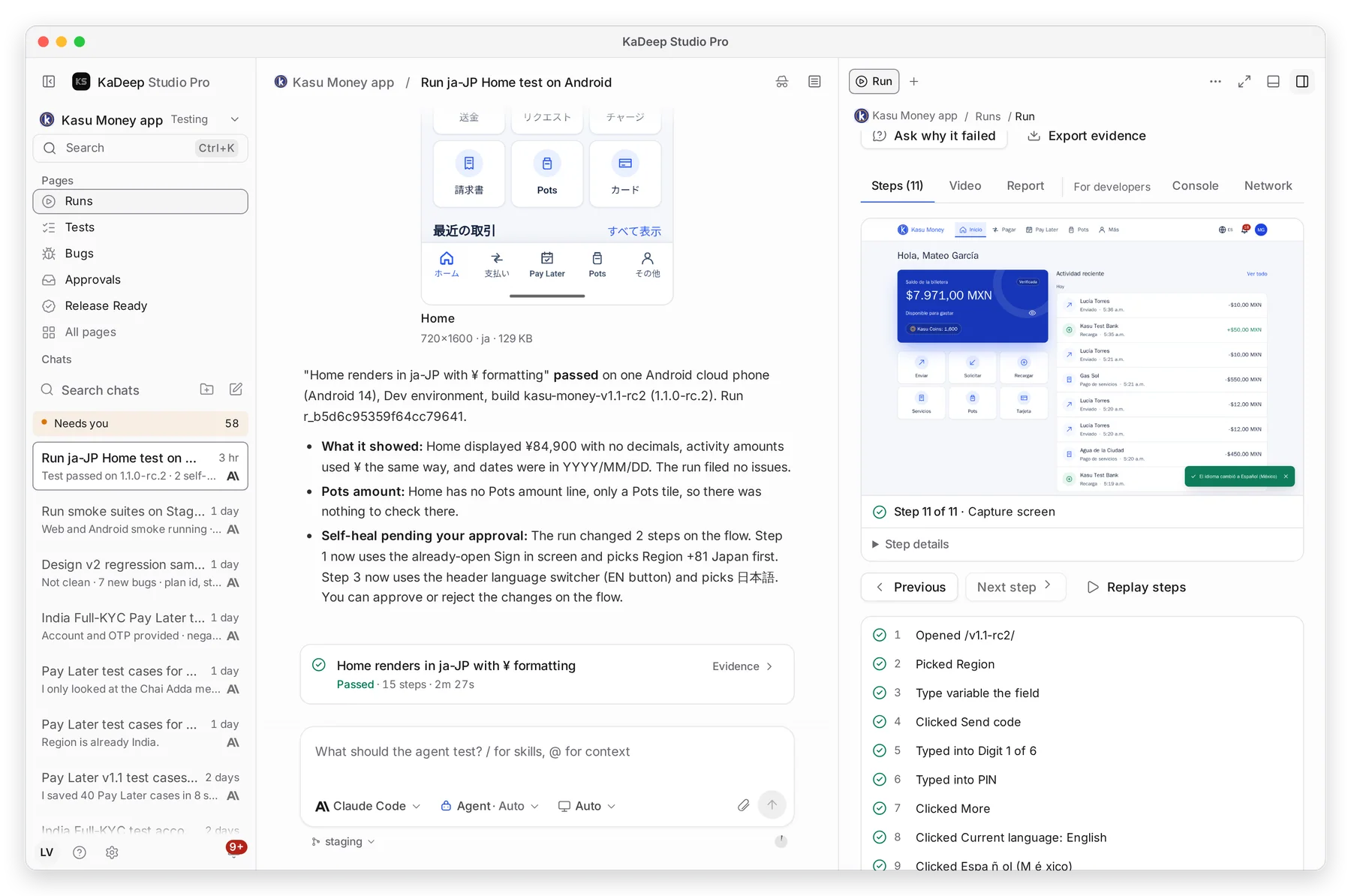
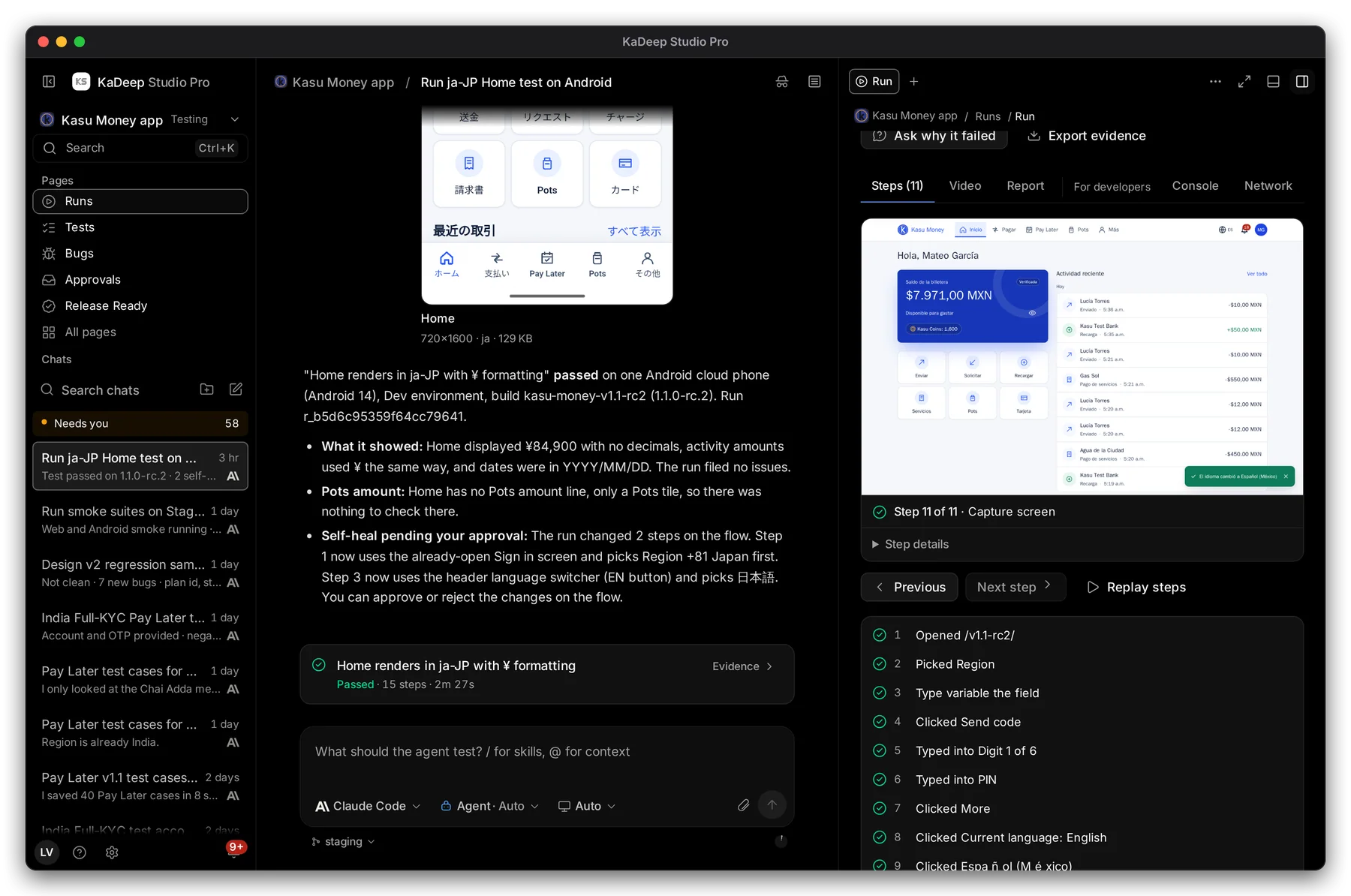
Section titled “6. Check the evidence”Scroll down to see each step the agent took.
Manage view
Hands-on view
- 1 Steps, Video and Report: the screen at each step, a recording of the whole test, and a written report you can forward.
- 2 The screen as the agent saw it at the selected step.
- 3 Every step with its result. Click a step to see its screen.
What’s next
Section titled “What’s next”BugsTriage what the agent found, and recheck fixes.
Schedule runsRun this suite every night, or after each deploy.
Release Ready: can we ship?Turn results into a dated verdict.
Runs and evidenceEvery run in the project, and how to filter them.