Data and retention
Your view
Evidence takes space and can hold personal data. Decide how long KaDeep keeps each kind, and hold a project’s data when an audit or dispute needs it.
Compliance: you can read this page. Only an admin changes it.
1. Open Data & retention
Section titled “1. Open Data & retention”In the sidebar, open Workspace › Security & Audit, then the Data & retention tab.
Press Ctrl K (Windows) or ⌘ K (Mac), type Data & retention and press Enter.
Manage view
Hands-on view
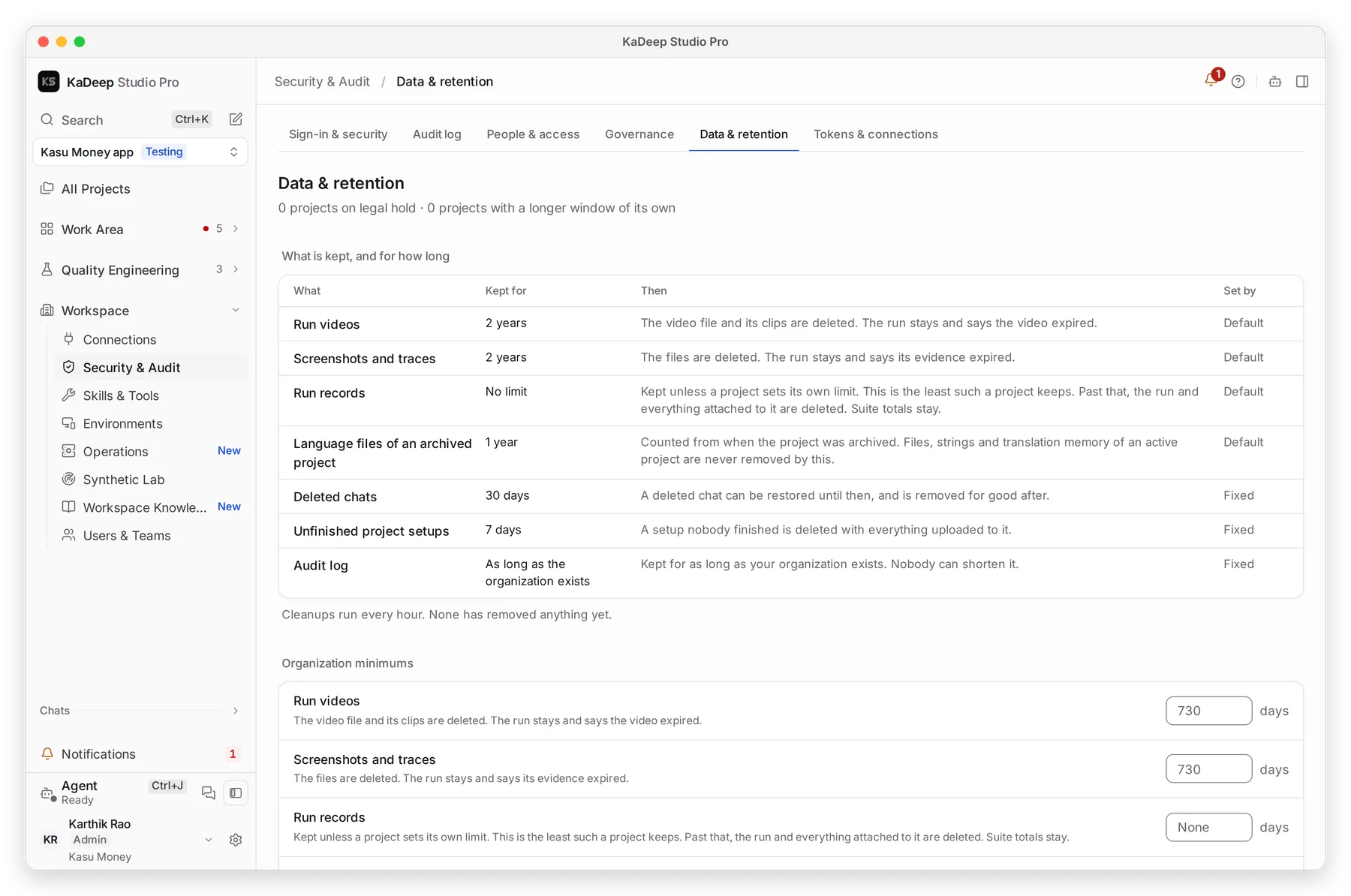
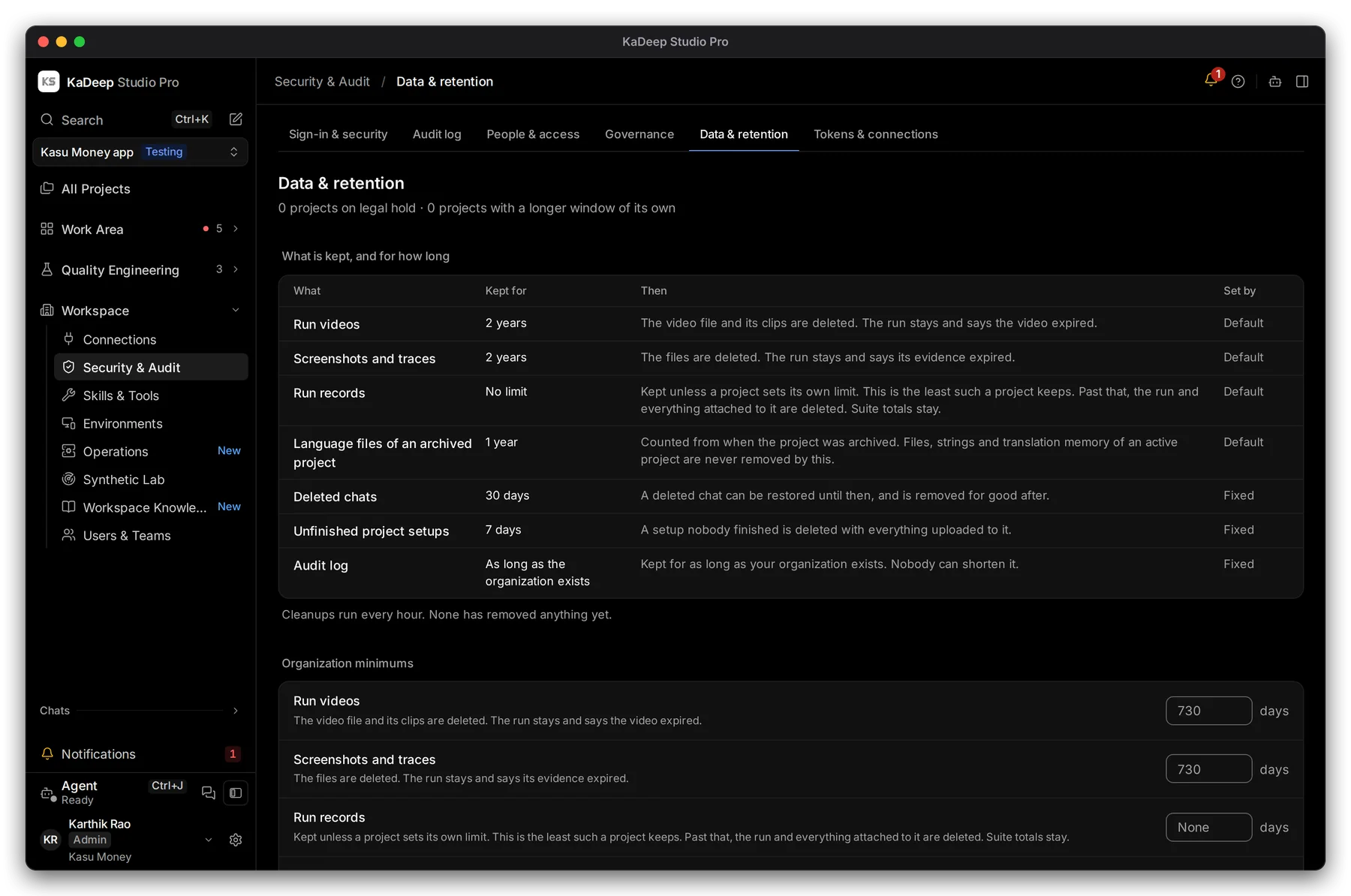
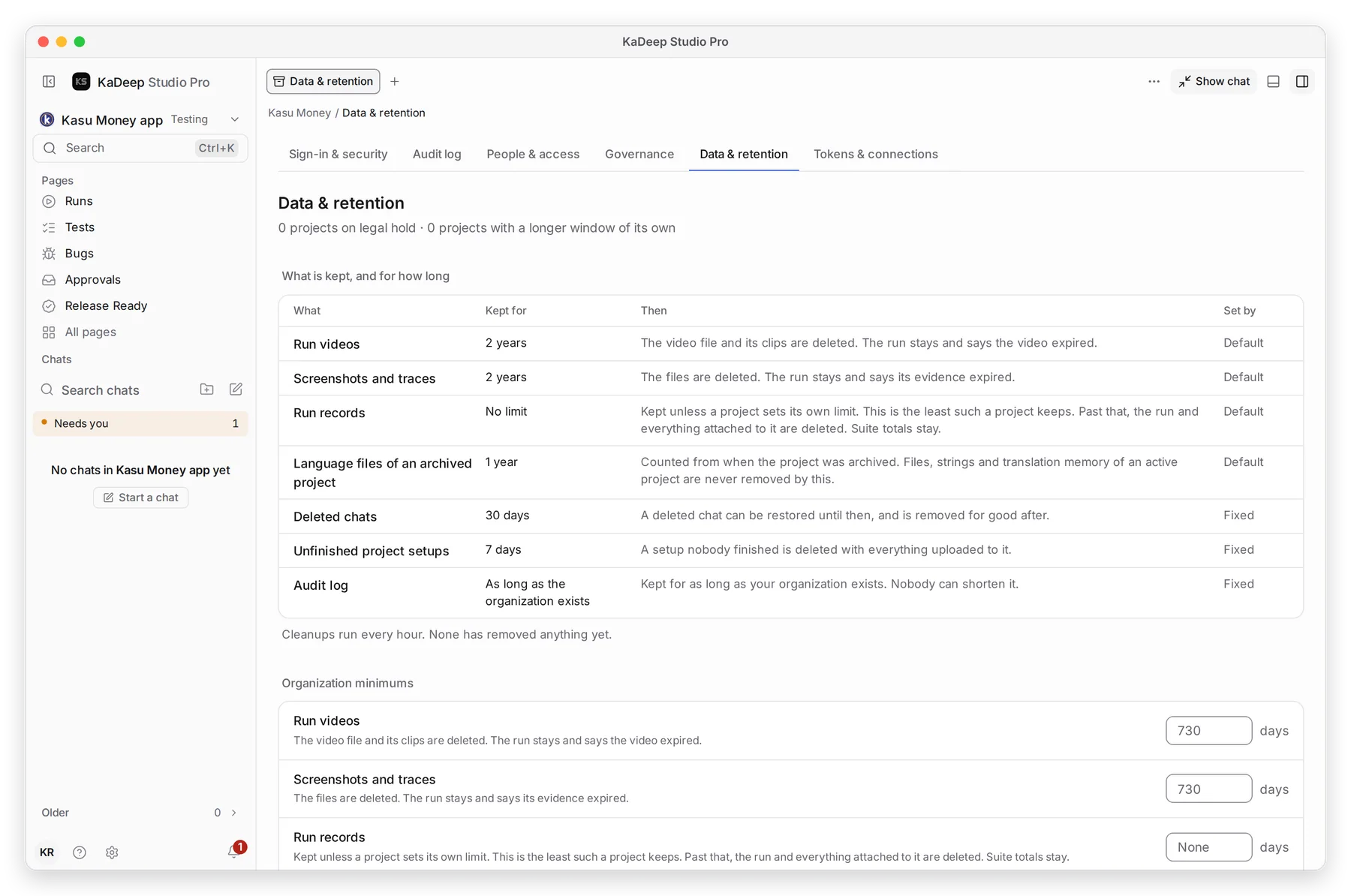
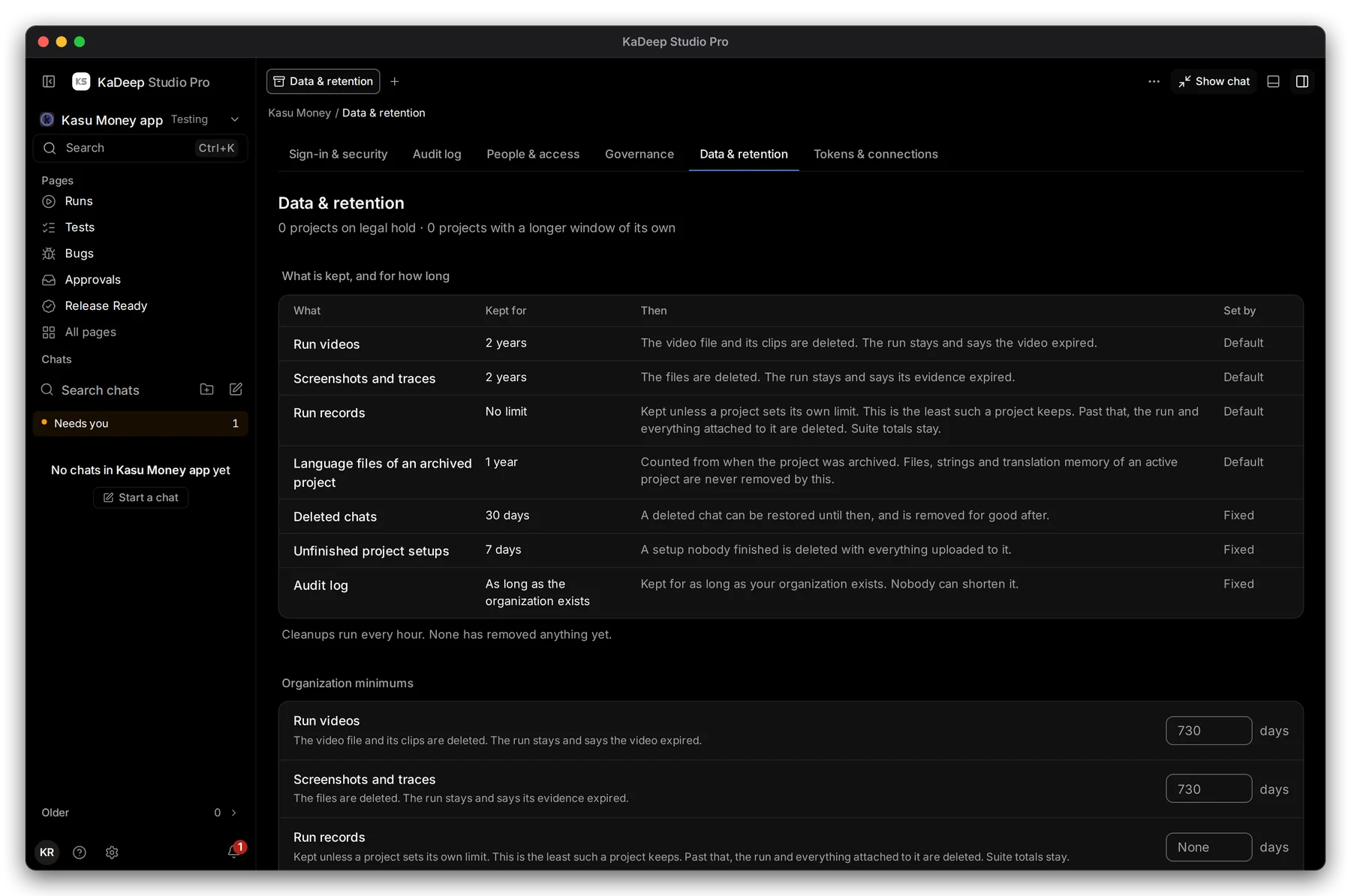
1 What is kept, and for how long lists each kind of data, how long it stays, and what happens then.
| What | Kept for (default) | Then |
|---|---|---|
| Run videos | 2 years | The video is deleted. The run stays. |
| Screenshots and traces | 2 years | The files are deleted. The run says its evidence expired. |
| Run records | No limit | Kept unless a project sets its own limit. |
| Language files of an archived project | 1 year | Files, strings and translation memory are deleted. |
| Deleted chats | 30 days (fixed) | Can be restored until then. |
| Audit log | As long as the organization exists (fixed) | Nobody can shorten it. |
2 Cleanups run every hour.
2. Change the organization minimums
Section titled “2. Change the organization minimums”- Under 3 Organization minimums, type the number of days for each kind.
- Choose Save retention.
A project can keep data longer than these minimums, never shorter.
3. Keep one project’s data longer, or hold it
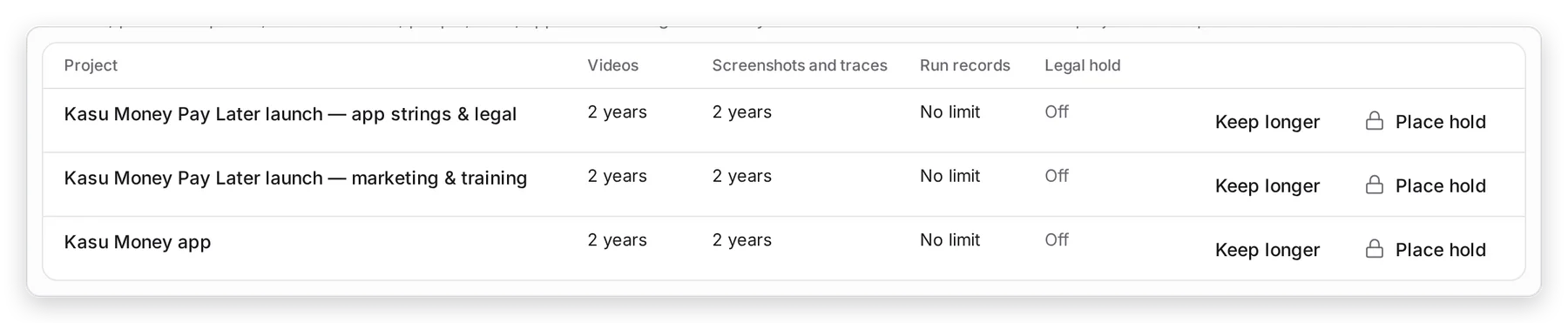
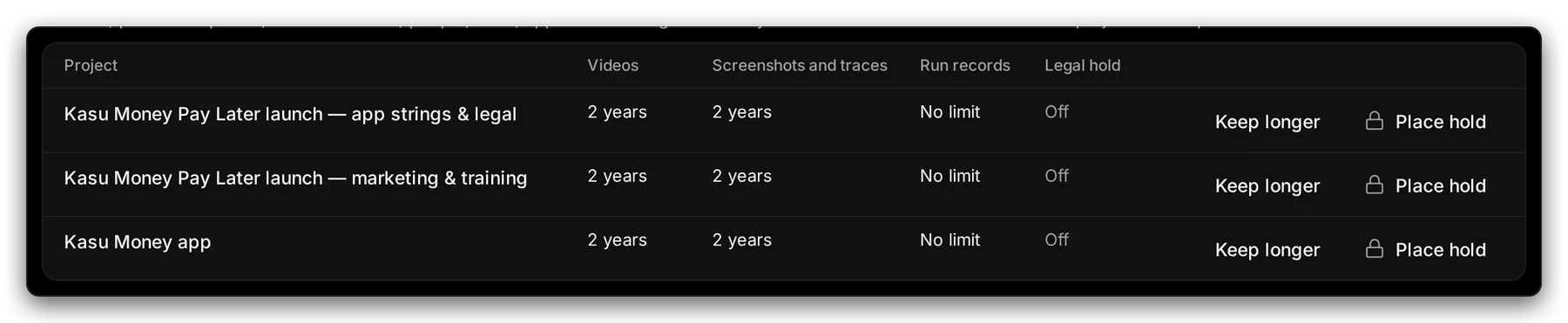
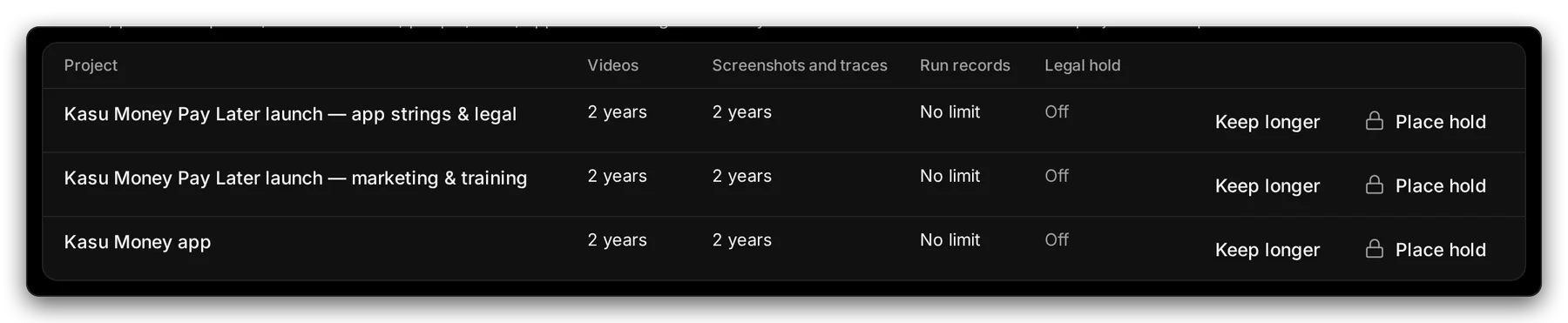
Section titled “3. Keep one project’s data longer, or hold it”Scroll to What each project keeps.
Manage view
Hands-on view
- 1 Keep longer sets longer windows for that project.
- 2 Place hold stops every cleanup for that project. No person or agent can delete its data until you lift the hold.
What’s next
Section titled “What’s next”Audit logEvery change, who made it and when.
Tokens and connectionsEvery token, with its owner and expiry.
Set up checklistBack to the list.