Pair this computer
Your view
Pairing connects this computer to one project. Then that project’s agents can test desktop apps, use your emulators and phones, and open a browser here.
Before you start: install the desktop app on the computer and sign in.
1. Open Desktop in the project
Section titled “1. Open Desktop in the project”- Choose the project in the project switcher.
- In the sidebar, open Workspace › Environments, then the Desktop tab. Press Ctrl K (Windows) or ⌘ K (Mac), type Desktop and press Enter.
- Choose Pair your computer.
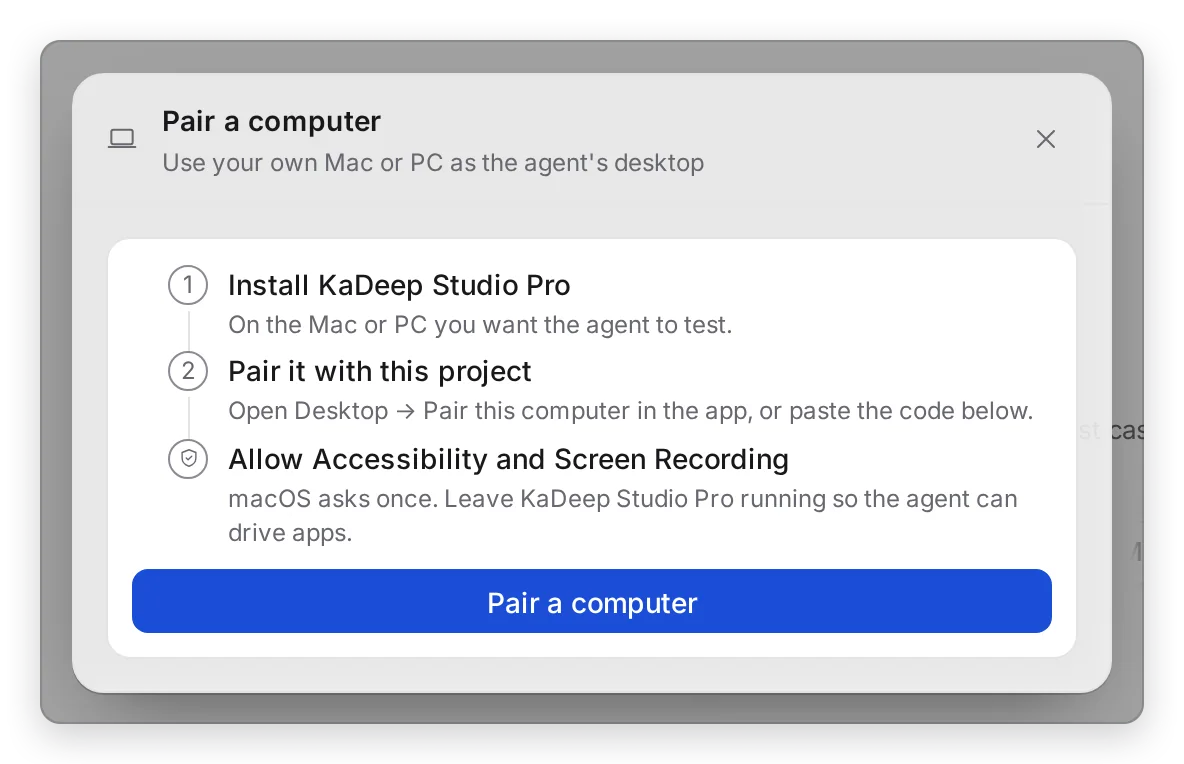
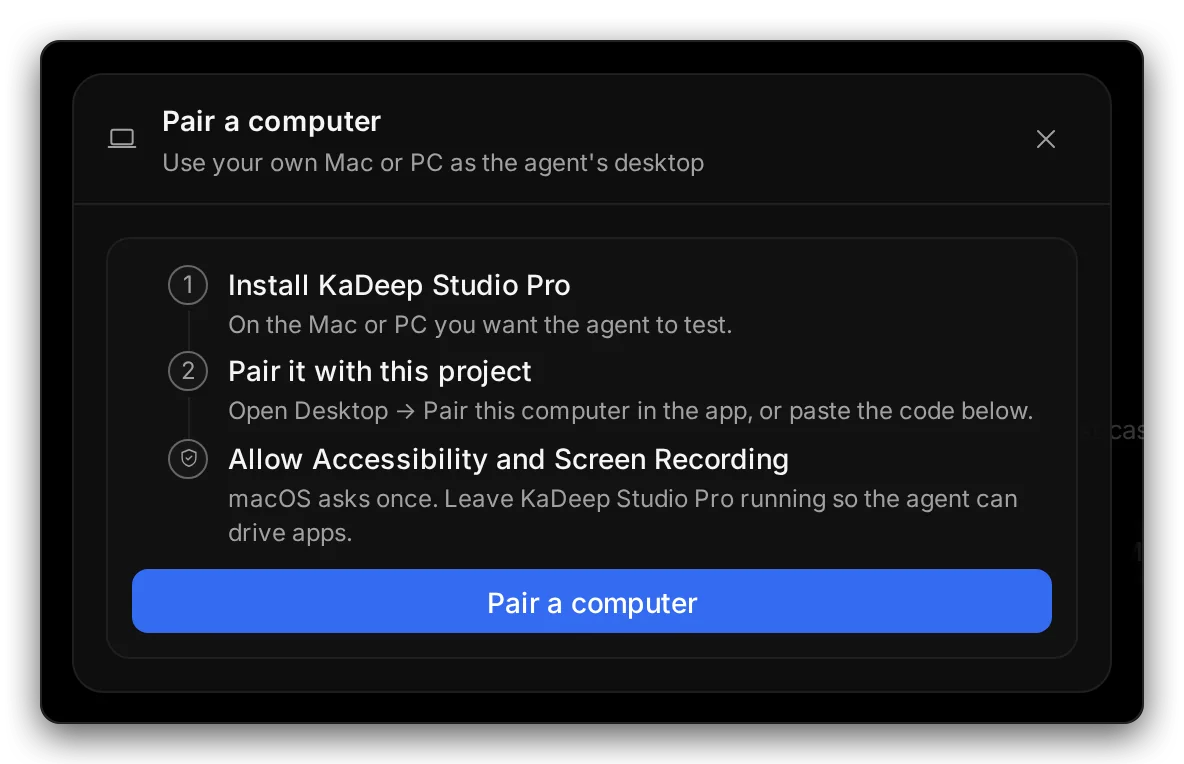
Manage view
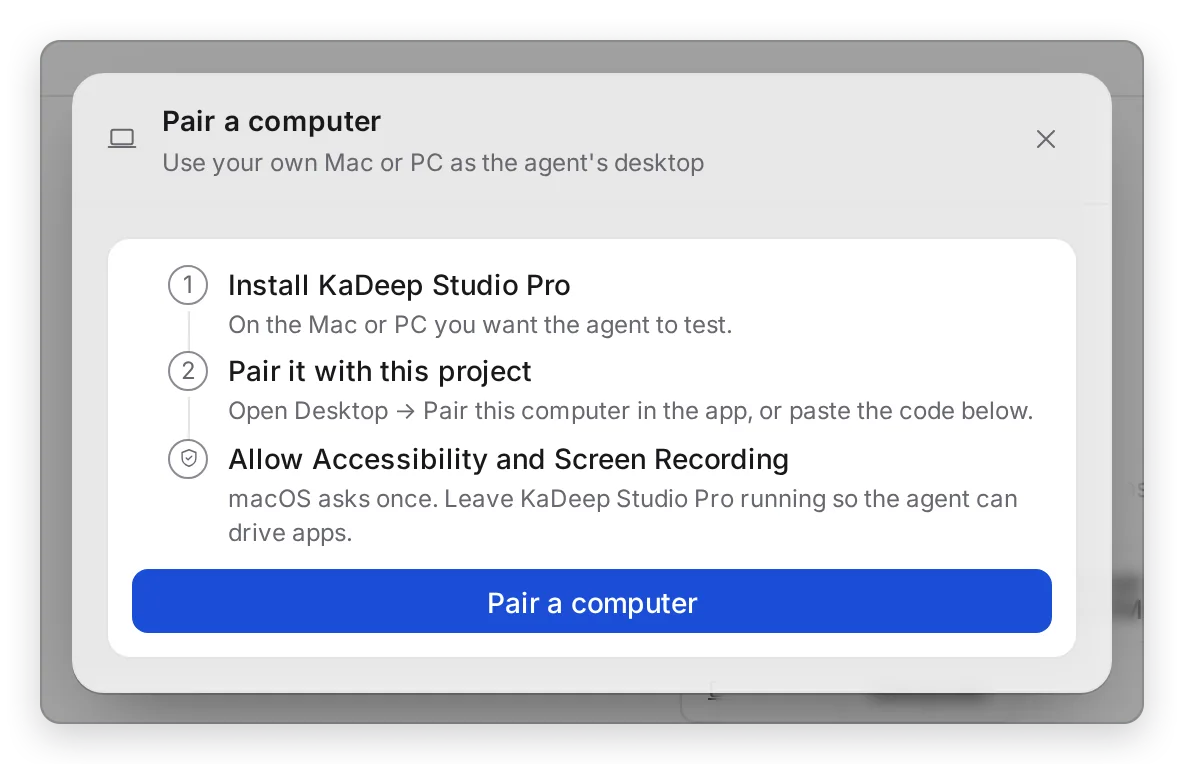
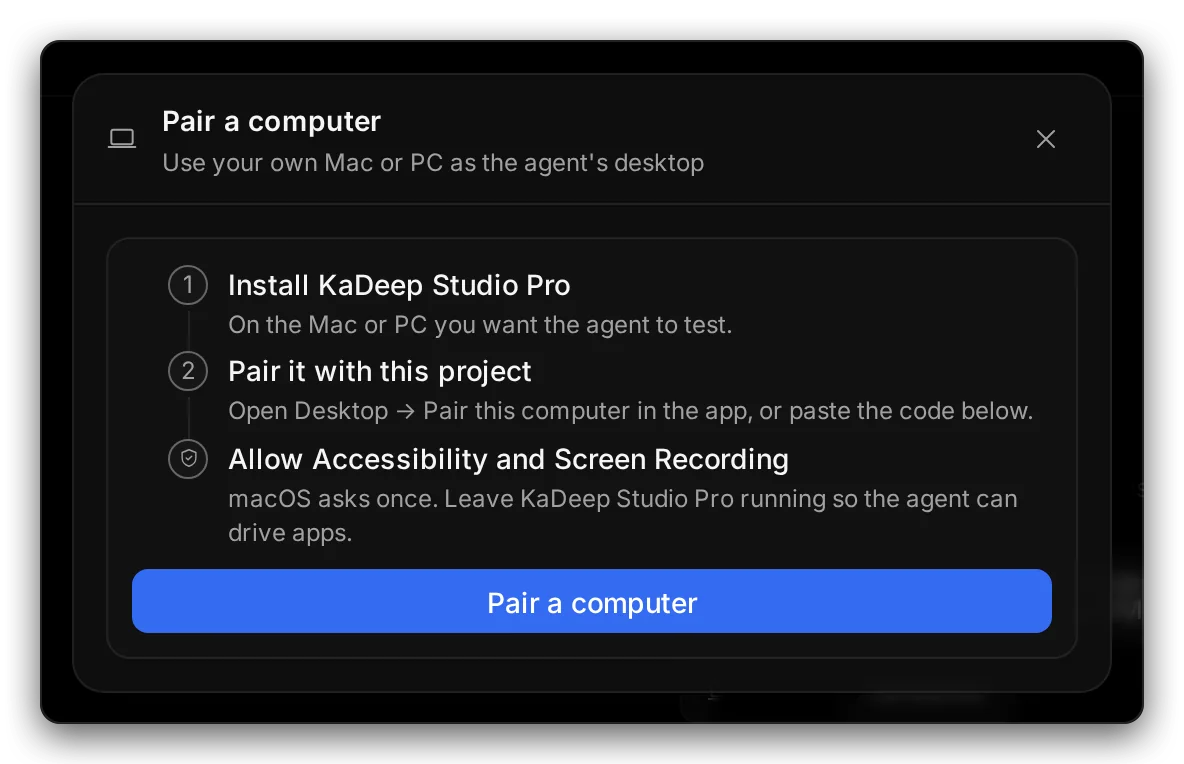
Hands-on view
The Pair a computer dialog shows three steps: 1 install the app, 2 pair it, 3 allow permissions on a Mac.
2. Pair it
Section titled “2. Pair it”On this computer, in the desktop app: choose Pair this computer. That’s it.
For another computer, such as a shared test Mac:
- Choose 4 Pair a computer. A pairing code appears, with how long it is valid.
- On the other computer, open KaDeep Studio Pro and its tray menu, then Permissions & pairing….
- Paste the code and choose Pair.
Testers who can’t make a code: ask a lead for one.
3. Allow permissions (Mac)
Section titled “3. Allow permissions (Mac)”macOS asks once for Accessibility and Screen Recording. See Allow permissions on macOS. Windows doesn’t ask.
4. Check it is paired
Section titled “4. Check it is paired”The computer appears under Choose a machine, and the tray menu shows its state.
| State | Meaning |
|---|---|
| Paired | Online and ready for work. |
| Busy | Running sessions now. Don’t quit the app. |
| Paused | You paused it. It takes no new work. |
| Pairing… or Reconnecting… | Connecting. Wait a moment. |
| Offline or Not paired | The app is closed, or the computer isn’t paired. |
| Error | Something stopped it. The tray says what. |
What’s next
Section titled “What’s next”Allow permissions on macOSSo the agent can see and click.
Worker mode and the tray menuPause, resume or stop sessions.
Pairing problemsOffline, Busy or Error.