Devices and browsers
Your view
Tests run on phones and in browsers. KaDeep has both in its cloud, ready to use. Add your own computers and devices when you need something the cloud can’t reach.
1. Phones: open Devices
Section titled “1. Phones: open Devices”In the sidebar, open Workspace › Environments. The Devices tab opens.
Choose the settings icon at the bottom of the sidebar, then Devices.
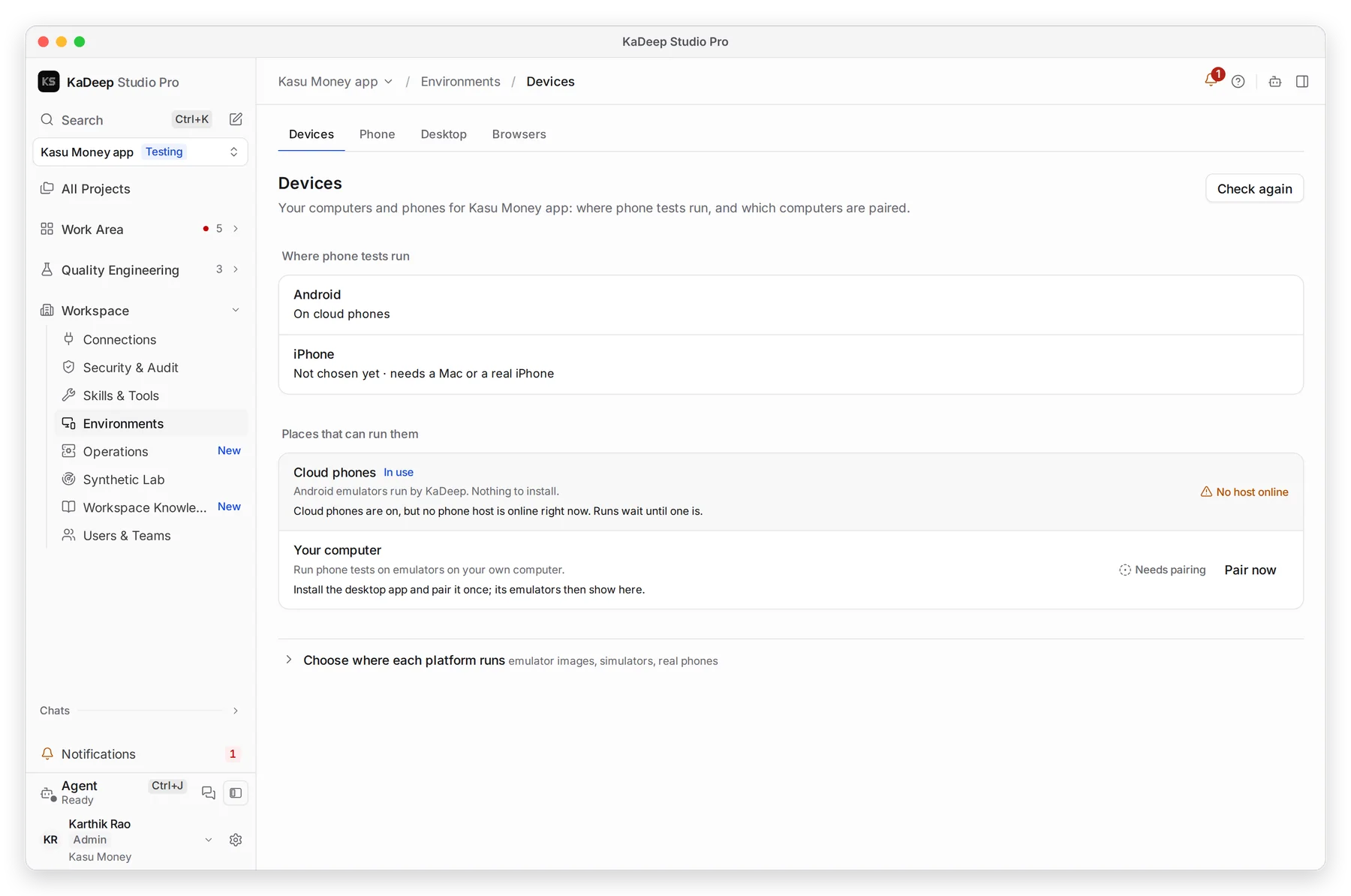
Manage view
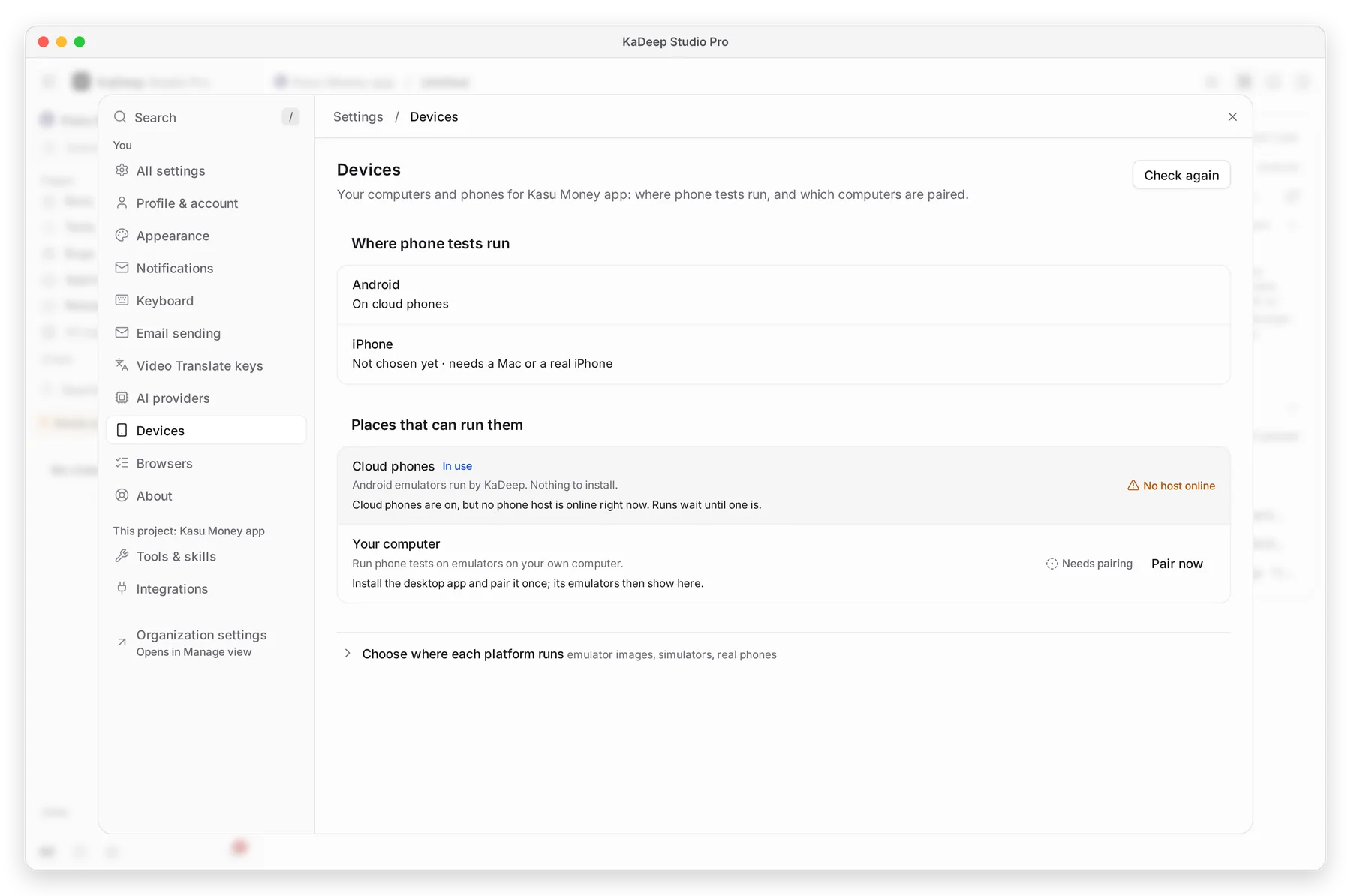
Hands-on view
- 1 Where phone tests run shows the choice for Android and iPhone.
- 2 Cloud phones: Android emulators run by KaDeep. Nothing to install.
- 3 Your computer: emulators, simulators and USB phones on a paired computer. Choose Pair now.
- 4 Choose where each platform runs: pick emulator images, simulators or real phones.
- 5 Check again after you plug in a phone or start an emulator.
2. Browsers: open Browsers
Section titled “2. Browsers: open Browsers”Choose the Browsers tab.
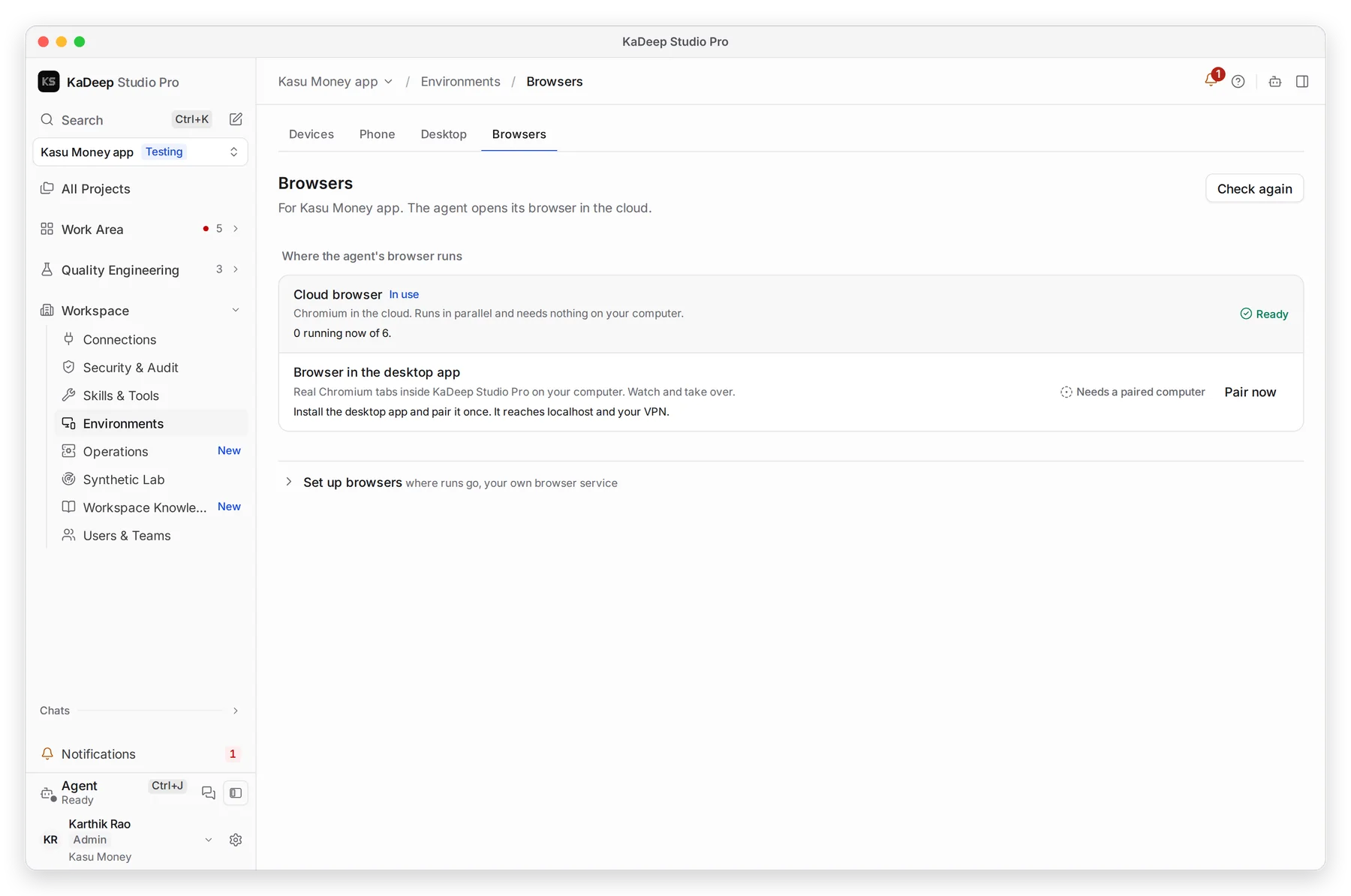
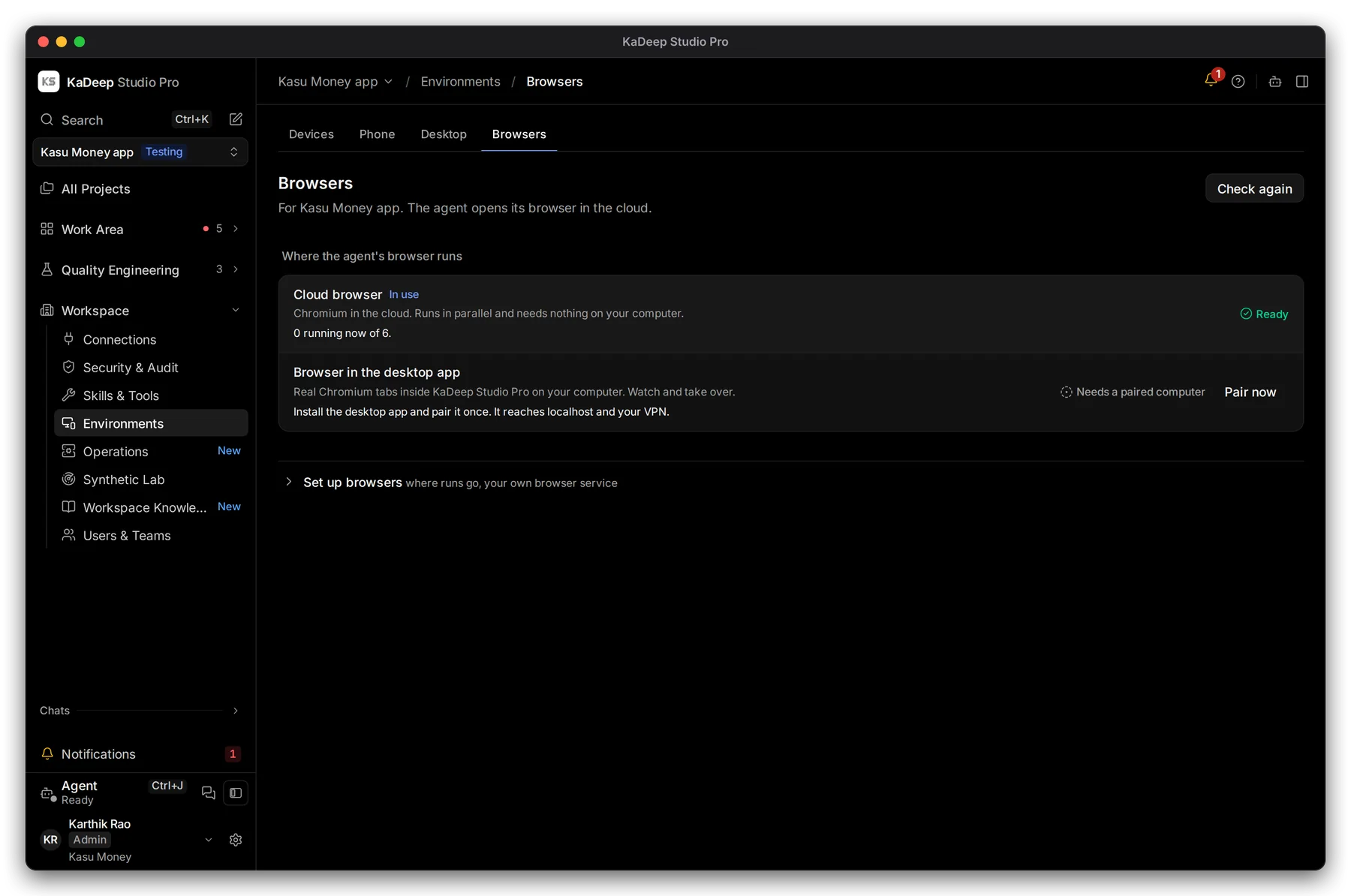
Manage view
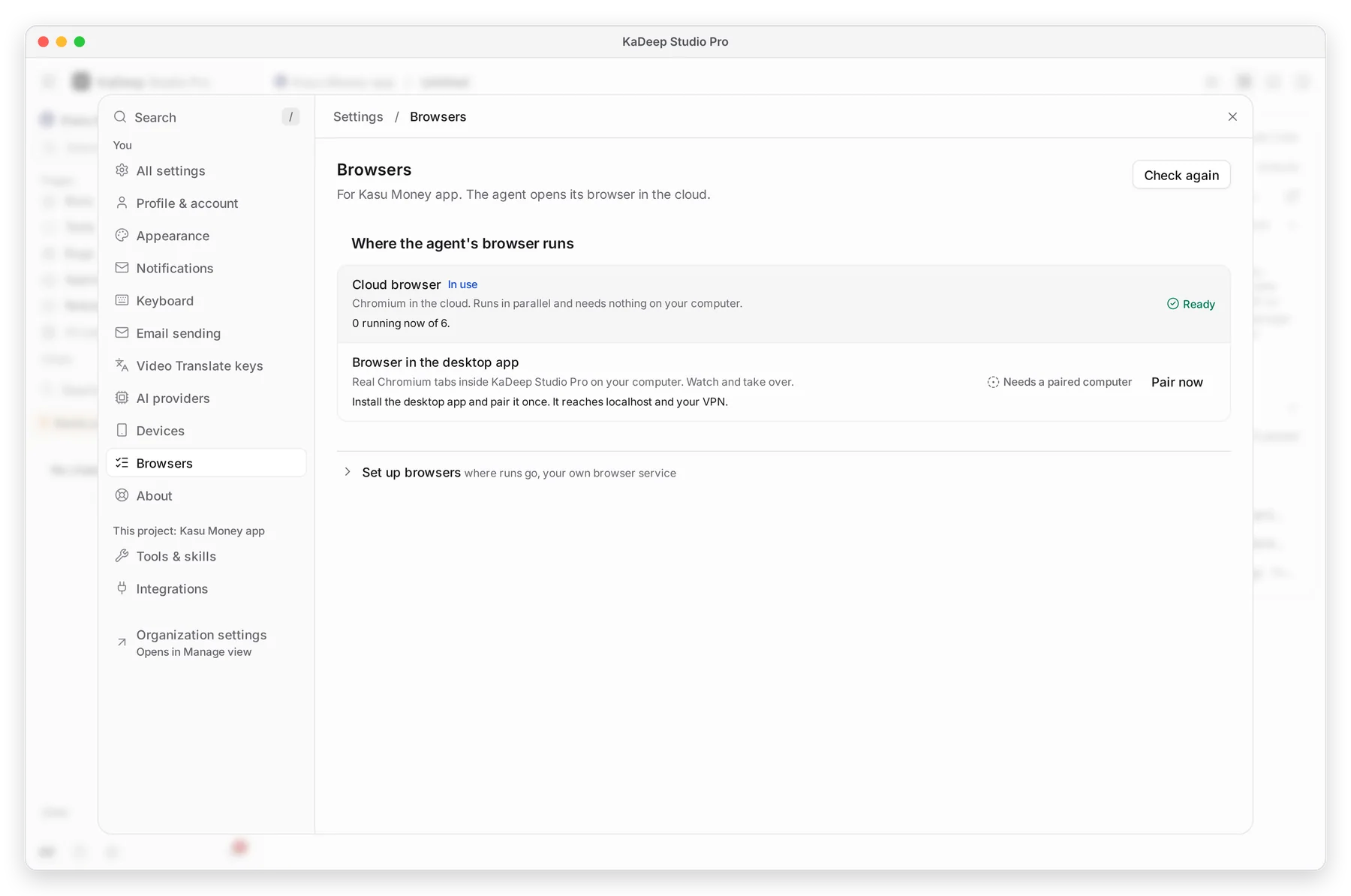
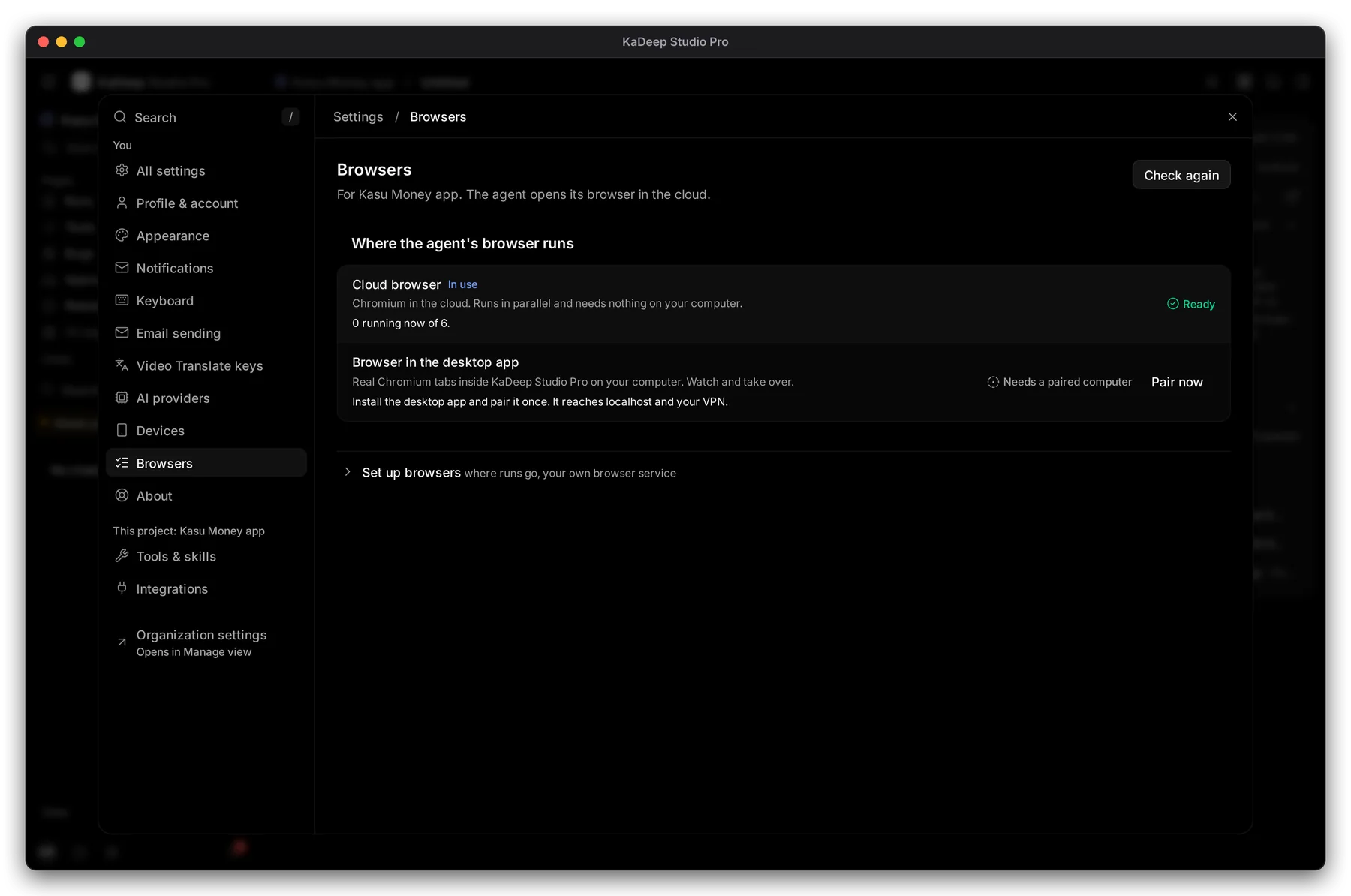
Hands-on view
| Choice | Use it when | |
|---|---|---|
| 1 | Cloud browser | Most of the time. Chromium in the cloud, runs in parallel, nothing to install. |
| 2 | Browser in the desktop app | Your app is on localhost or behind a VPN. You can watch and take over. |
| 3 | Set up browsers | You want runs to go to your own browser service. |
3. Add your own computer
Section titled “3. Add your own computer”- Install the desktop app on the computer.
- Pair it with the project.
- Come back here and choose Check again. The computer and its devices appear.
What’s next
Section titled “What’s next”Local devicesEmulators, simulators and USB phones.
Test on phonesRun tests on Android and iOS.
Set up checklistBack to the list.