A tour of the KaDeep window
Every screen in KaDeep Studio Pro has the same parts. Learn them once, and every page feels familiar.
KaDeep has two views. They show the same pages and the same agent; only the layout changes. Pick yours, and the screenshots on this site follow.
The window
Section titled “The window”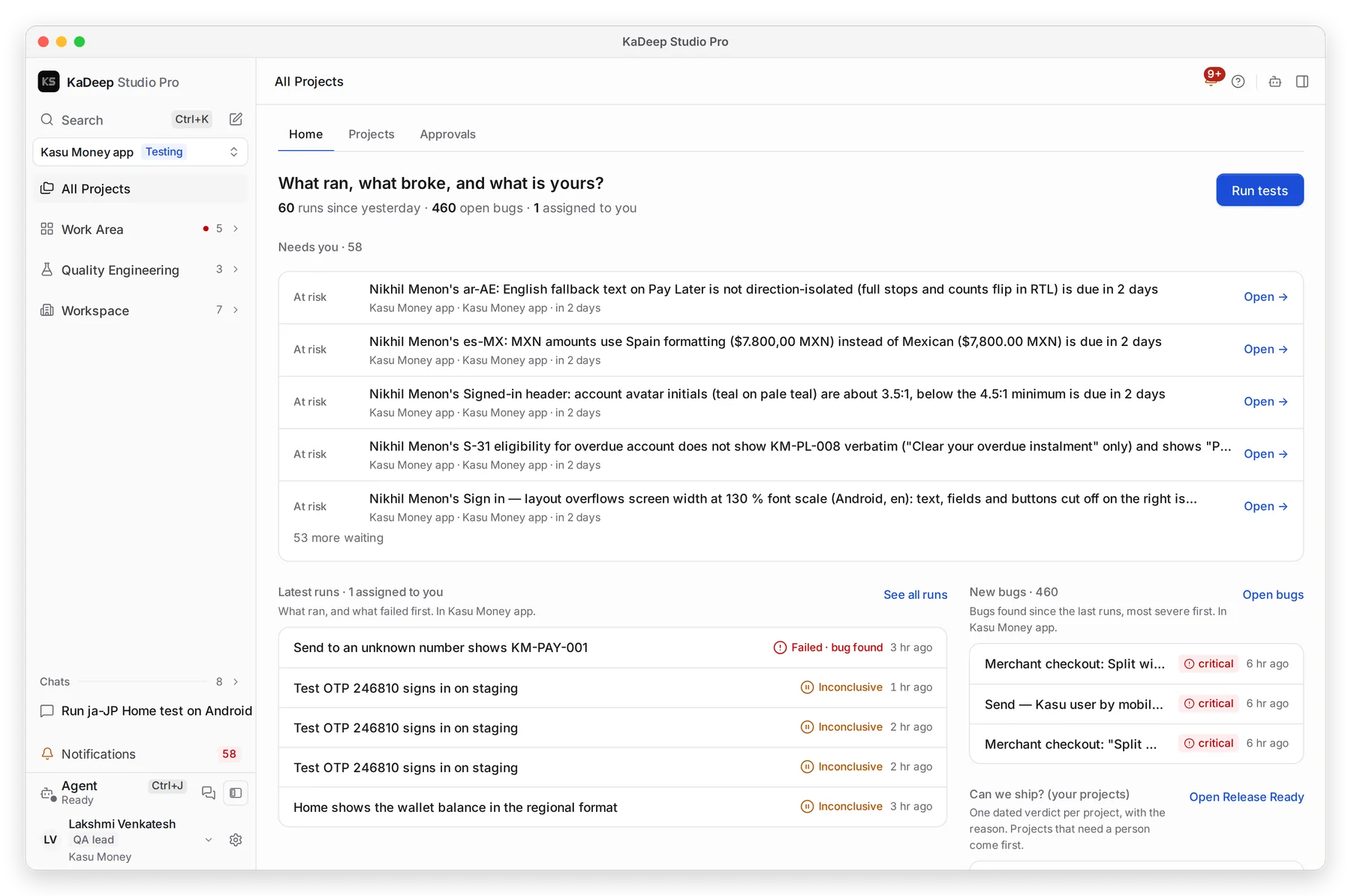
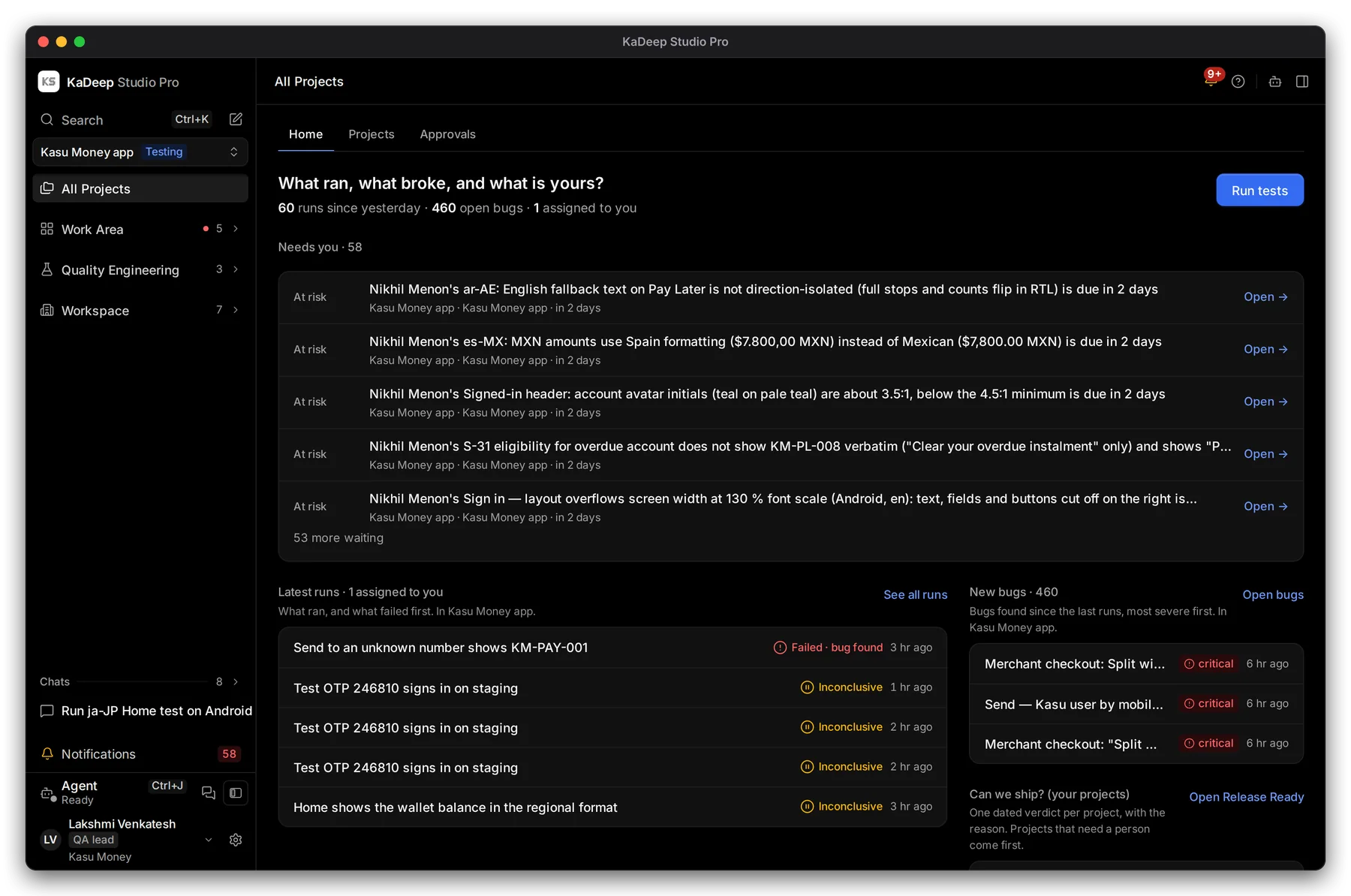
Manage view
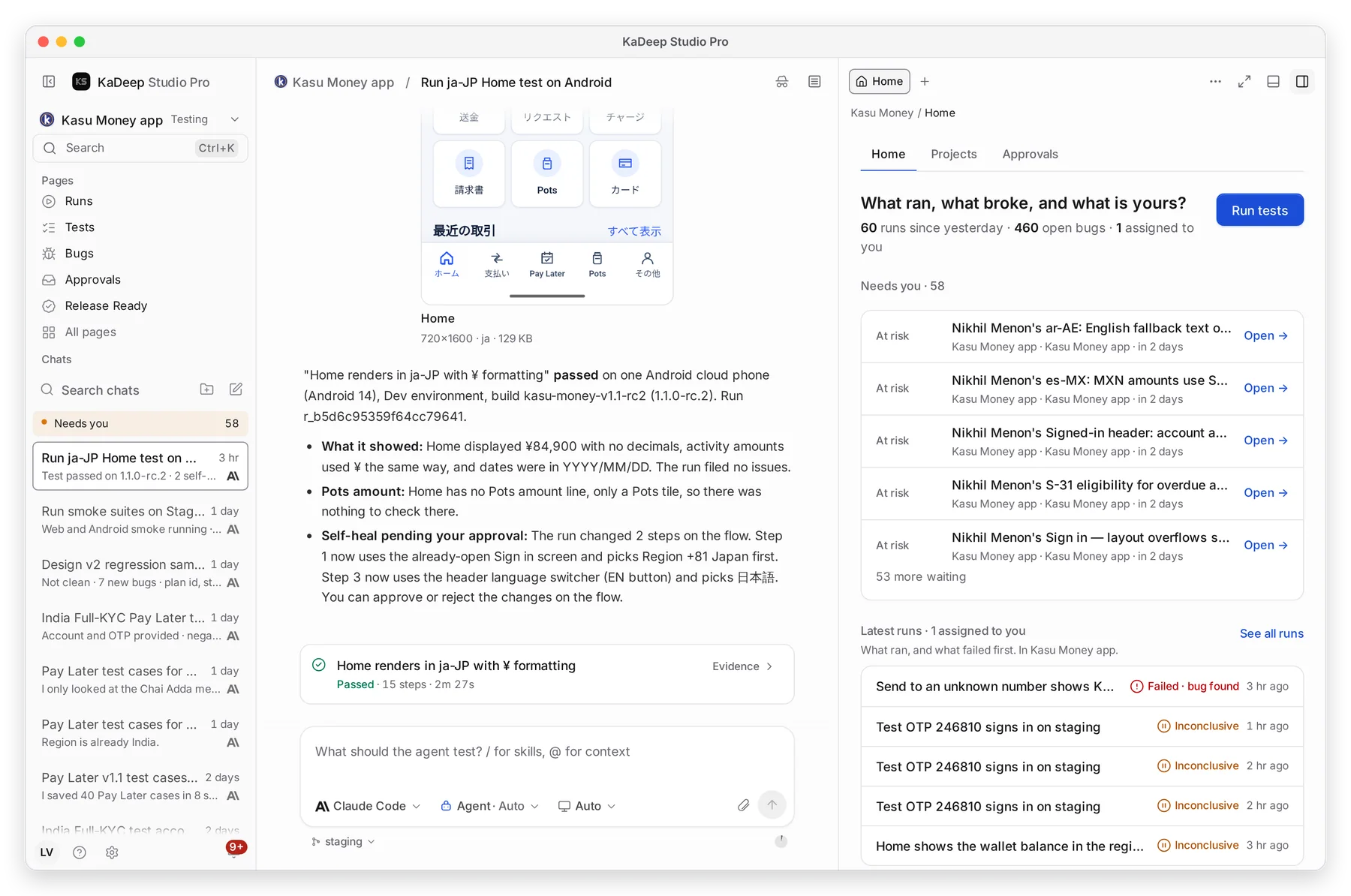
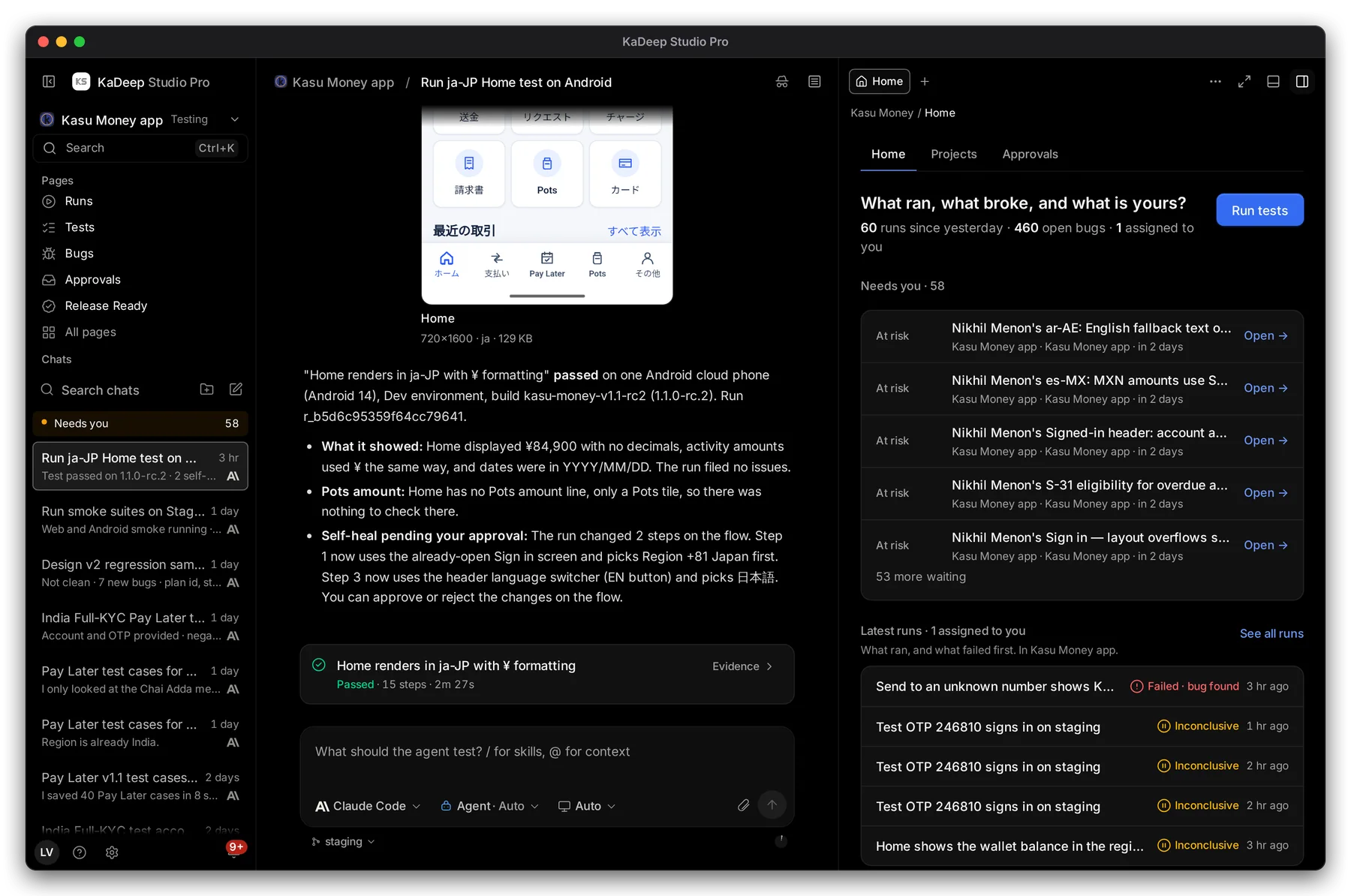
Hands-on view
1 Sidebar: projects and pages. 2 Top bar: where you are, notifications and help. 3 The page you opened. 4 The agent, one click away on every page. 5 You: your role, settings and account menu.
1 Sidebar: your pages and your chats. 2 The chat with the agent, in the middle. 3 The page panel: pages open here as tabs, beside the chat. 4 Ask the agent here. 5 You: your account menu.
The sidebar
Section titled “The sidebar”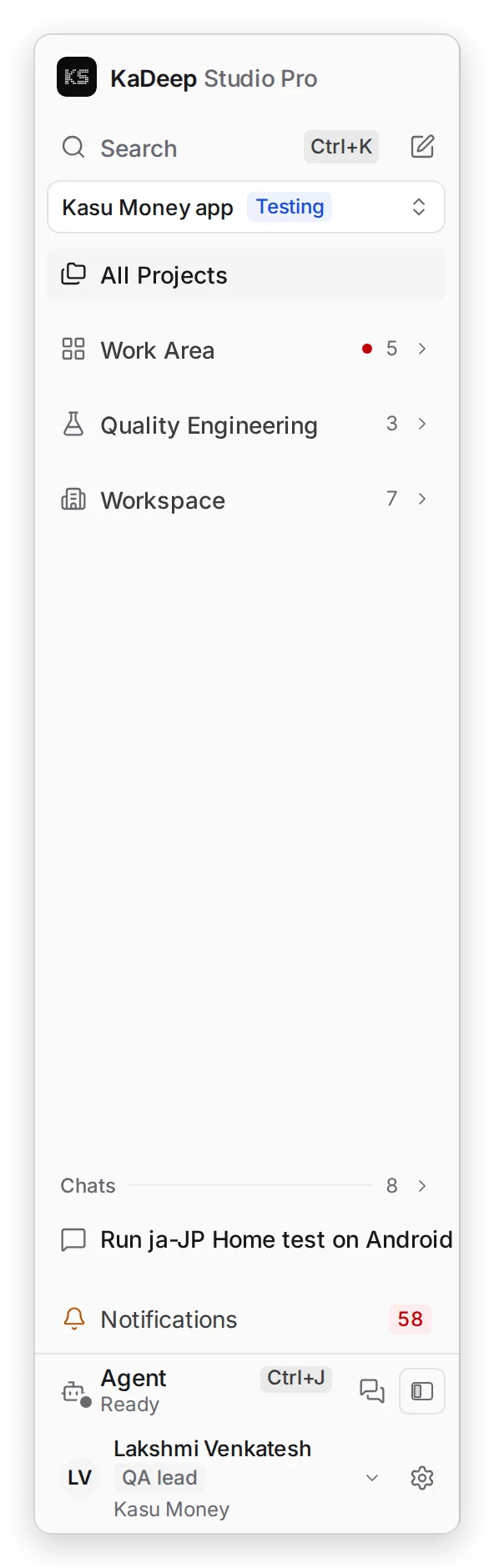
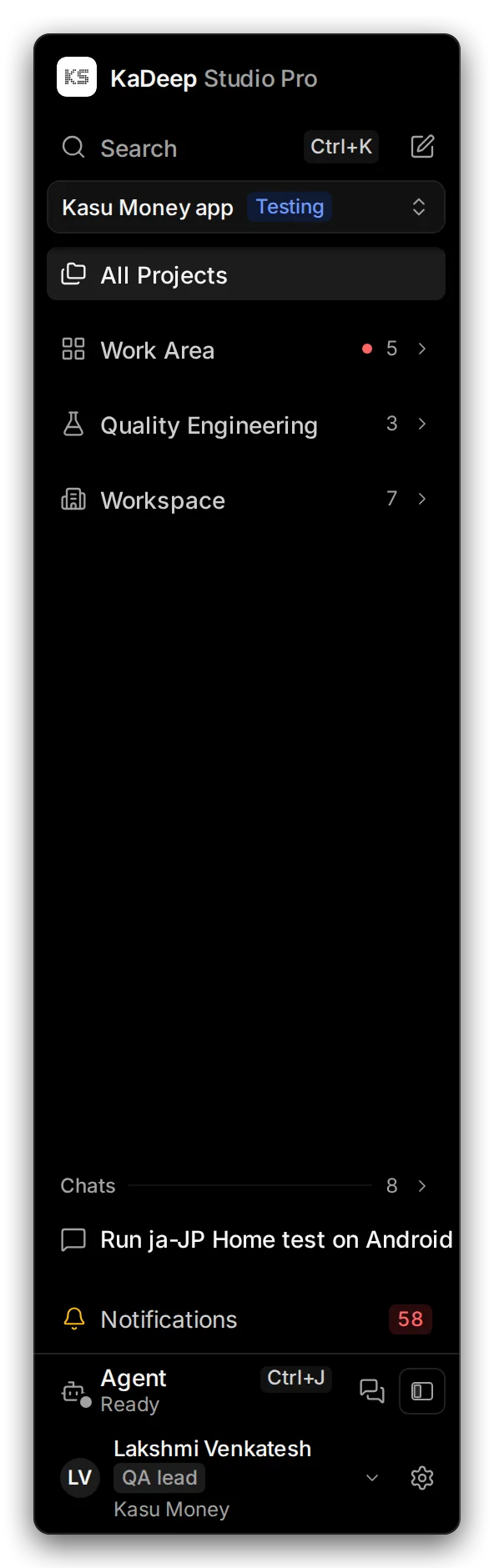
Manage view
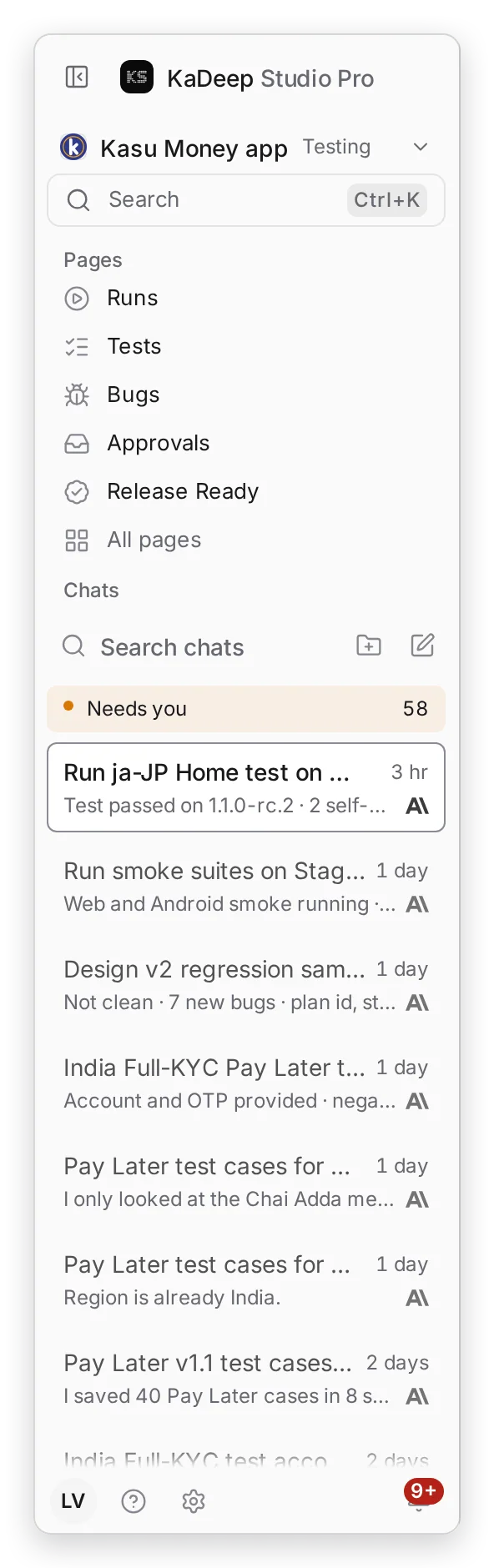
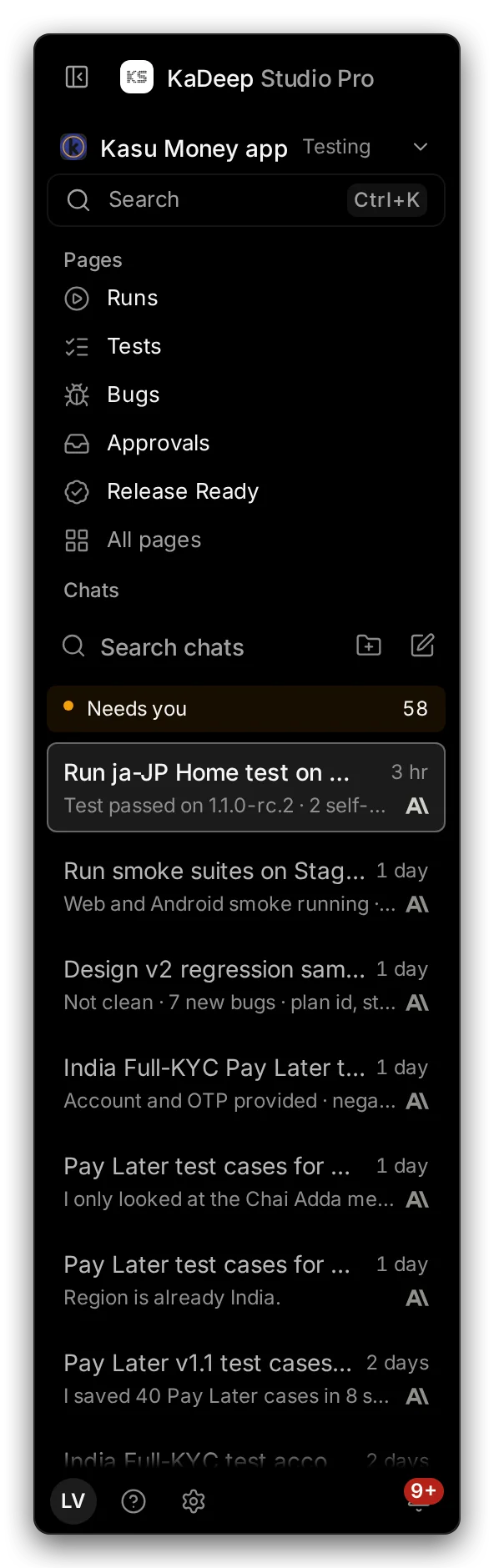
Hands-on view
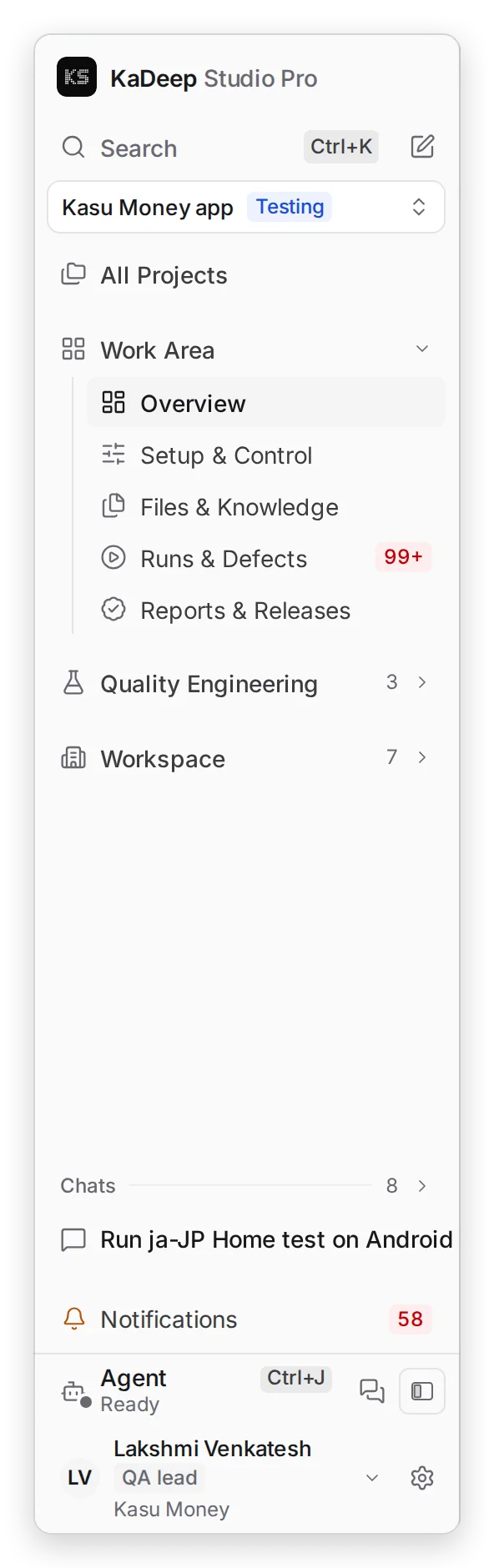
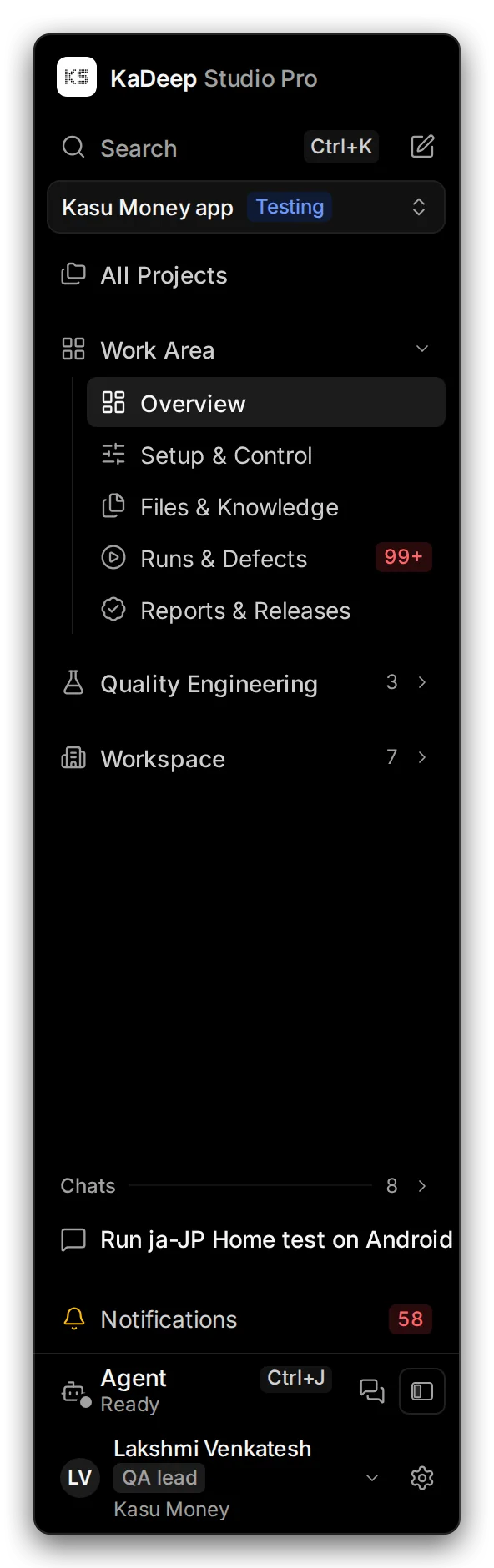
- 1 Search finds any page, project, test or chat. Press Ctrl K (Windows) or ⌘ K (Mac).
- 2 Project switcher: choose the project you are working on. The badge says if it is a Testing or a Localization project.
- 3 Pages for the project you picked.
- 4 Chats with the agent.
- 5 Notifications: what changed and what waits for you. Needs you: everything waiting for your decision.
Three groups
Section titled “Three groups”Pages are grouped by what they are about. Open a group to see its pages.
| Group | What is in it | |
|---|---|---|
| 1 | Work Area | This project: overview, setup, files, runs and bugs, reports |
| 2 | Quality Engineering | The testing itself: functional, non-functional, accessibility, or languages in a localization project |
| 3 | Workspace | Your organization: connections, security, tools, devices, people |
The agent
Section titled “The agent”The agent plans tests, runs them, files bugs, translates and explains. Ask it in plain words.
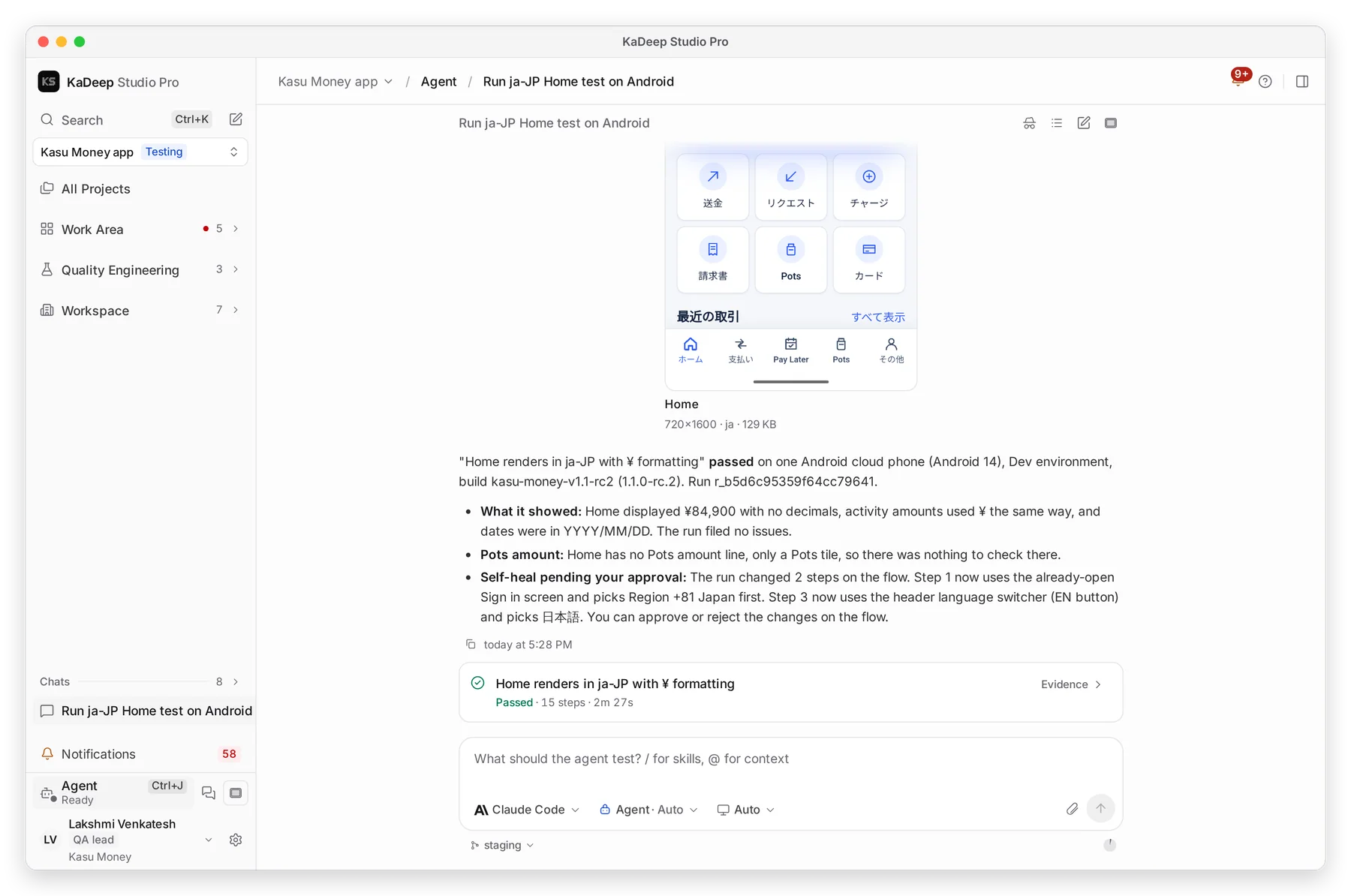
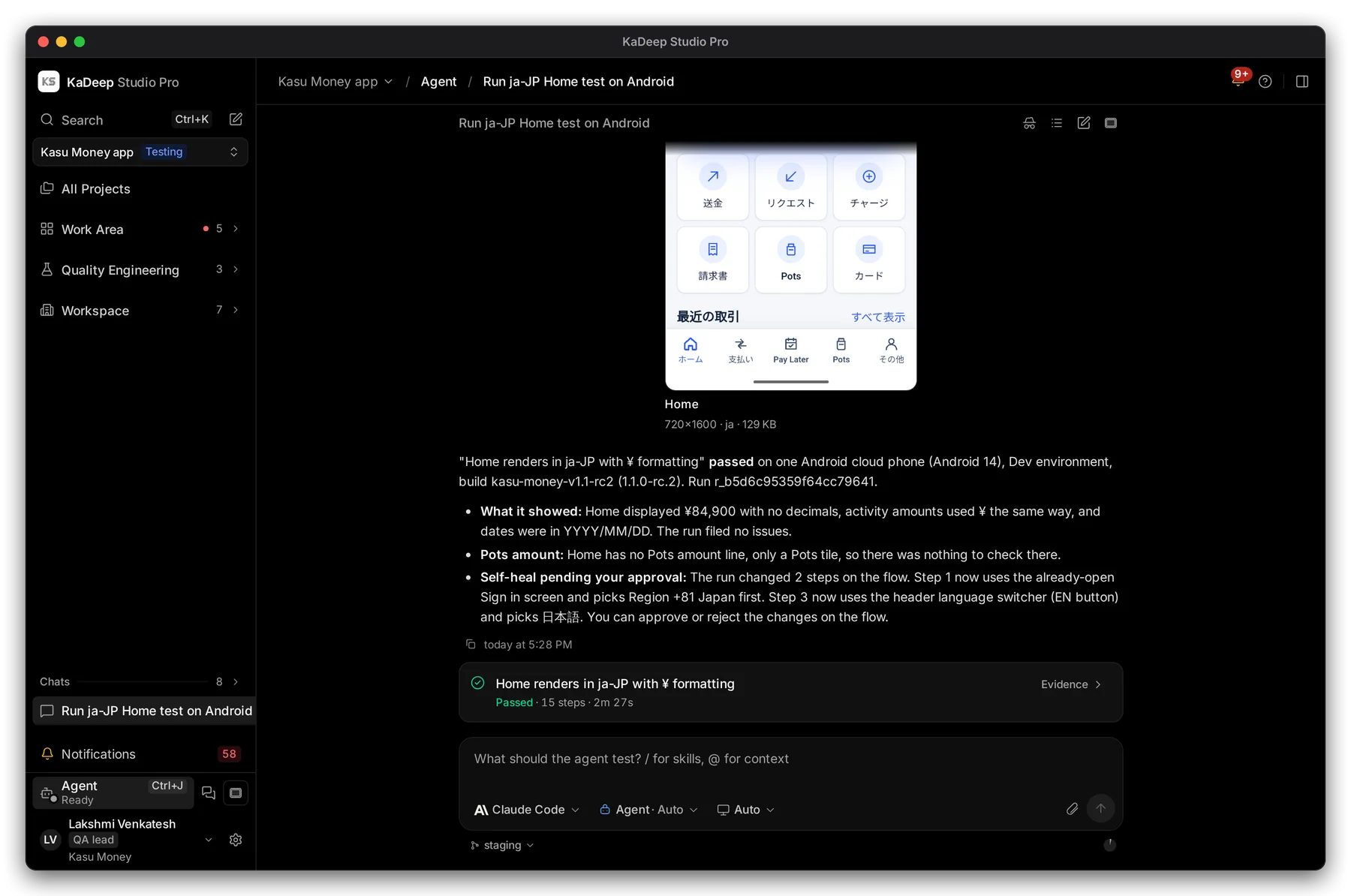
1 Open the agent from any page, or press Ctrl J / ⌘ J. 2 It shows what it did, with screenshots and results. 3 Type what you need.
In Hands-on view the chat is always in the middle of the window, and the pages it talks about open in the panel on the right. Type in the box at the bottom of the chat.
Your account menu
Section titled “Your account menu”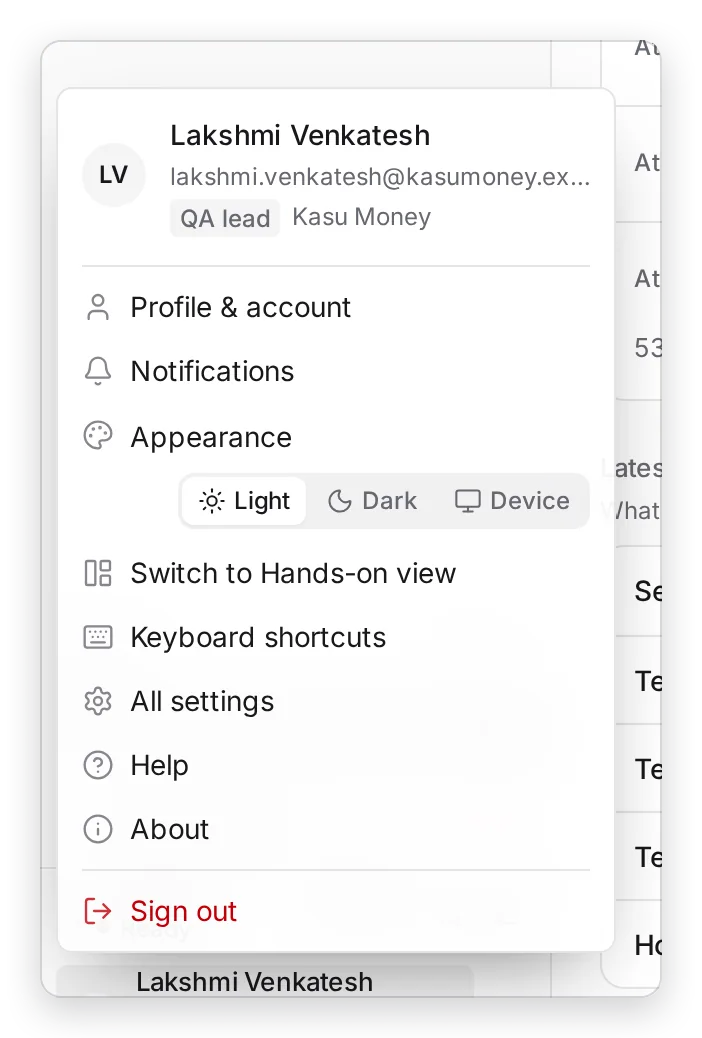
Manage view
Hands-on view
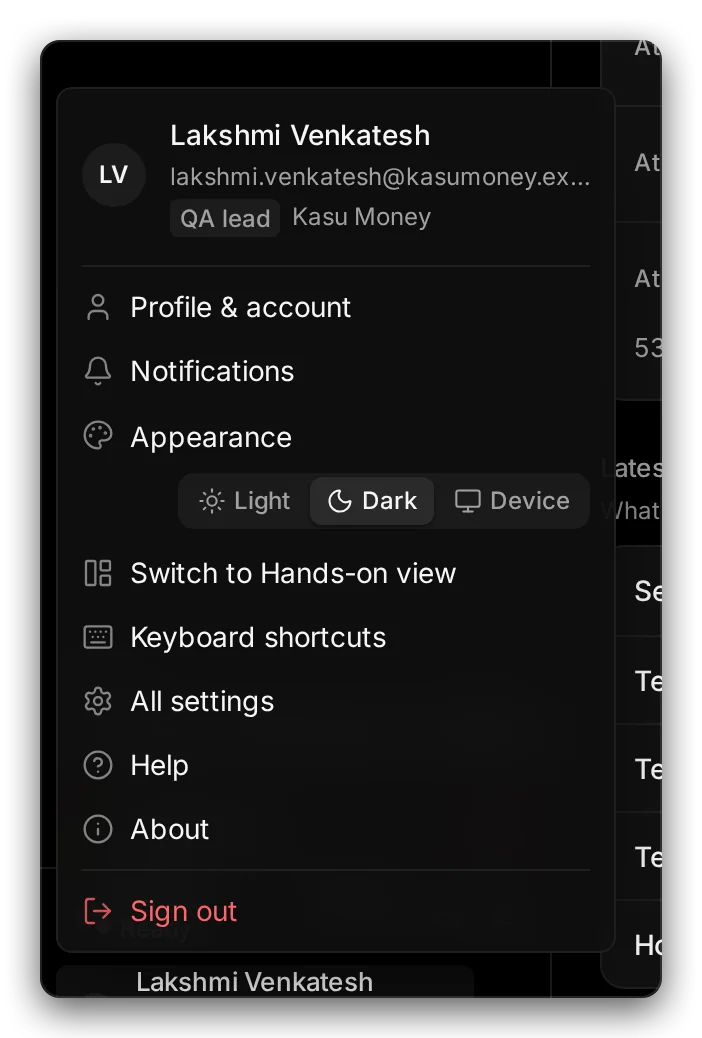
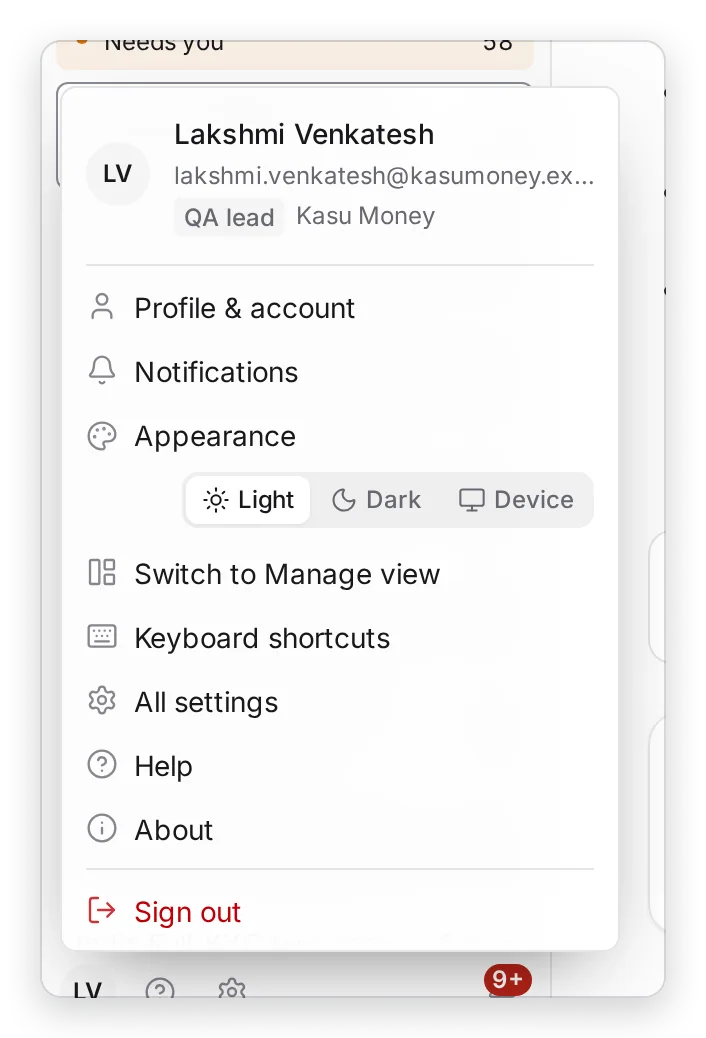
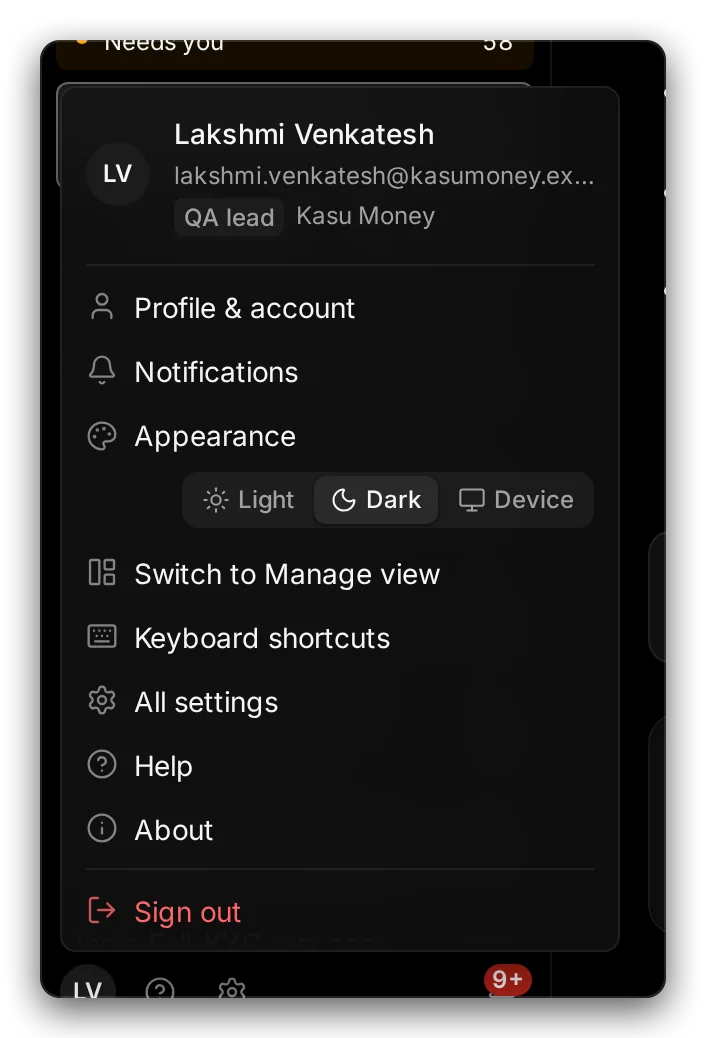
- 1 Light, Dark or Device (follows Windows or macOS).
- 2 Switch view: move between Manage and Hands-on. Your choice is remembered.
- 3 All settings: profile, notifications, keyboard and more.
Shortcuts
Section titled “Shortcuts”| Do this | Windows | Mac |
|---|---|---|
| Search everything | Ctrl K | ⌘ K |
| Open the agent | Ctrl J | ⌘ J |
| Hide or show the sidebar | Ctrl B | ⌘ B |
See all of them in Account menu › Keyboard shortcuts.