Add source assets
Your view
Assets are the source files you want translated. Add them once; KaDeep splits them into strings, drafts every language, and shows each file’s progress.
1. Open Assets
Section titled “1. Open Assets”Open Work Area › Files & Knowledge › Assets.
Under Pages, choose Assets, or All pages › Assets.
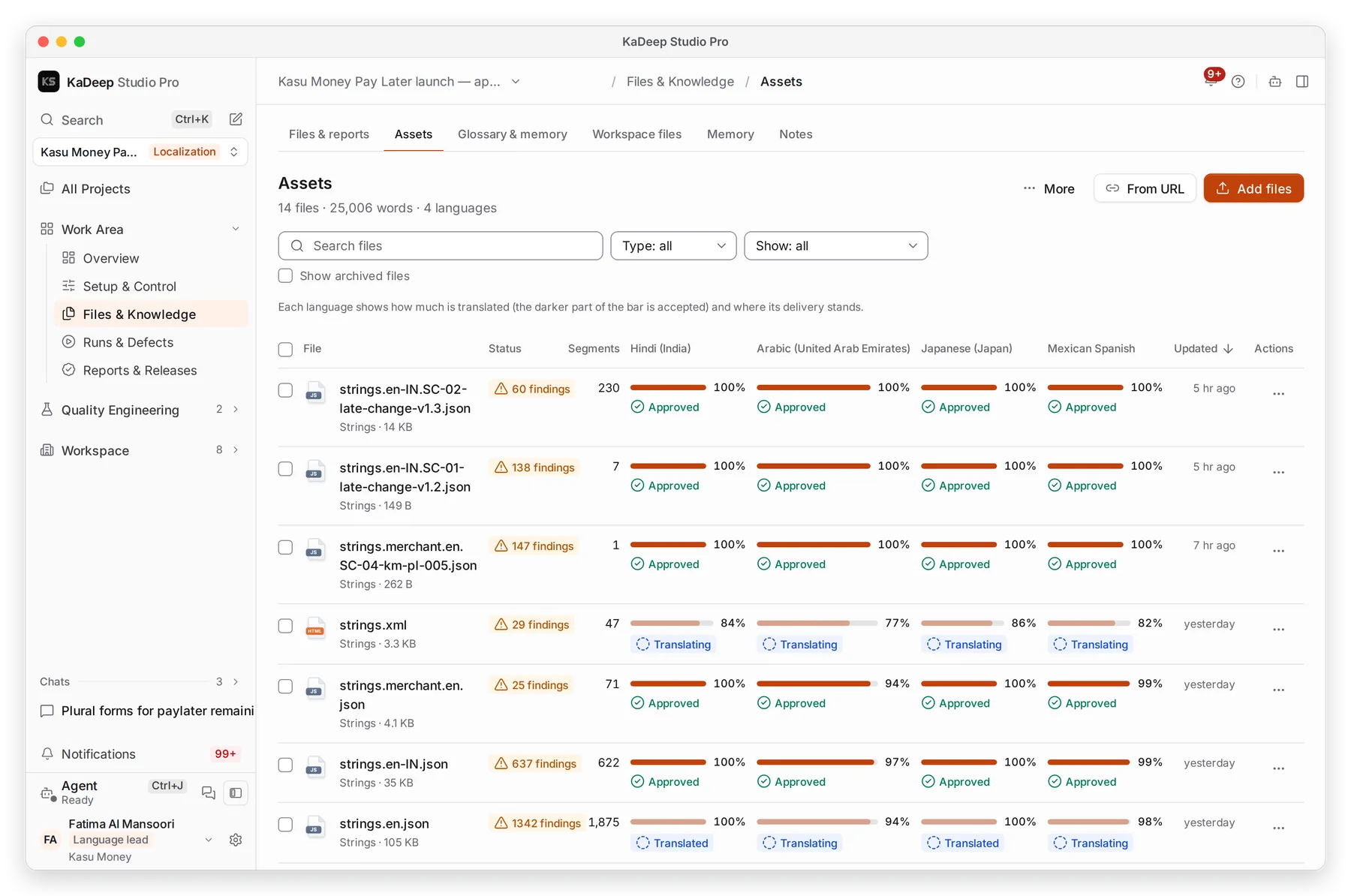
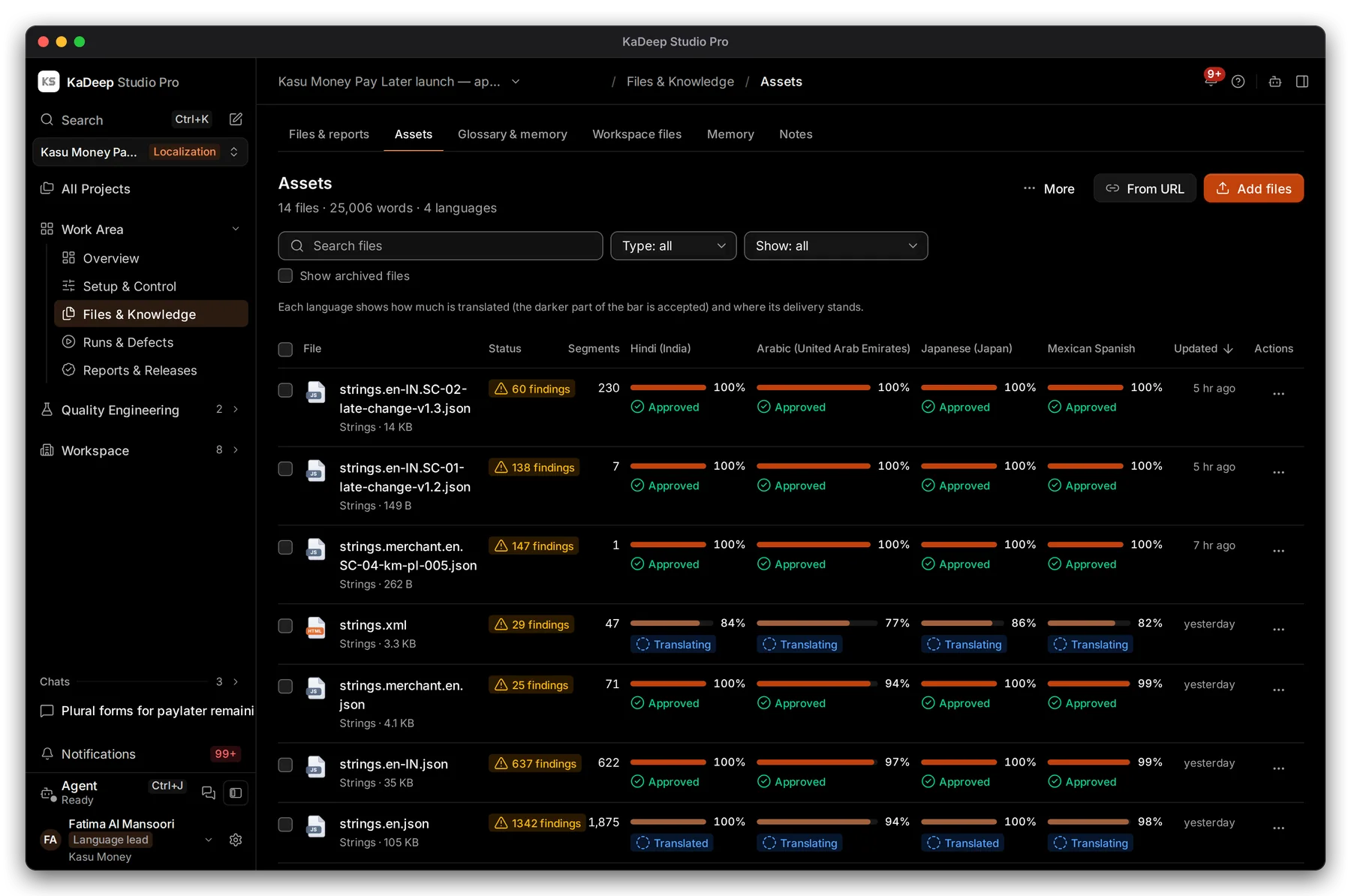
Manage view
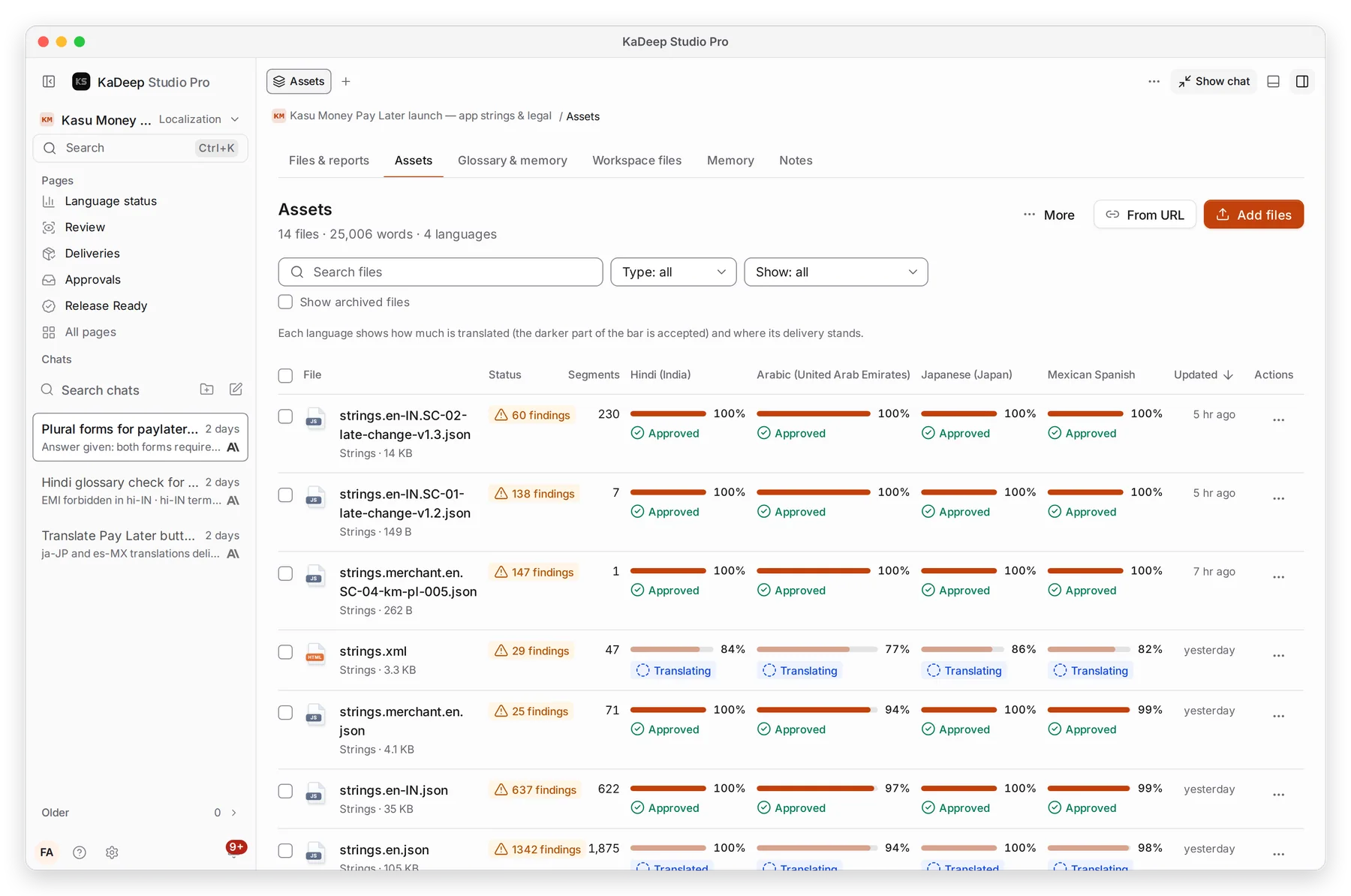
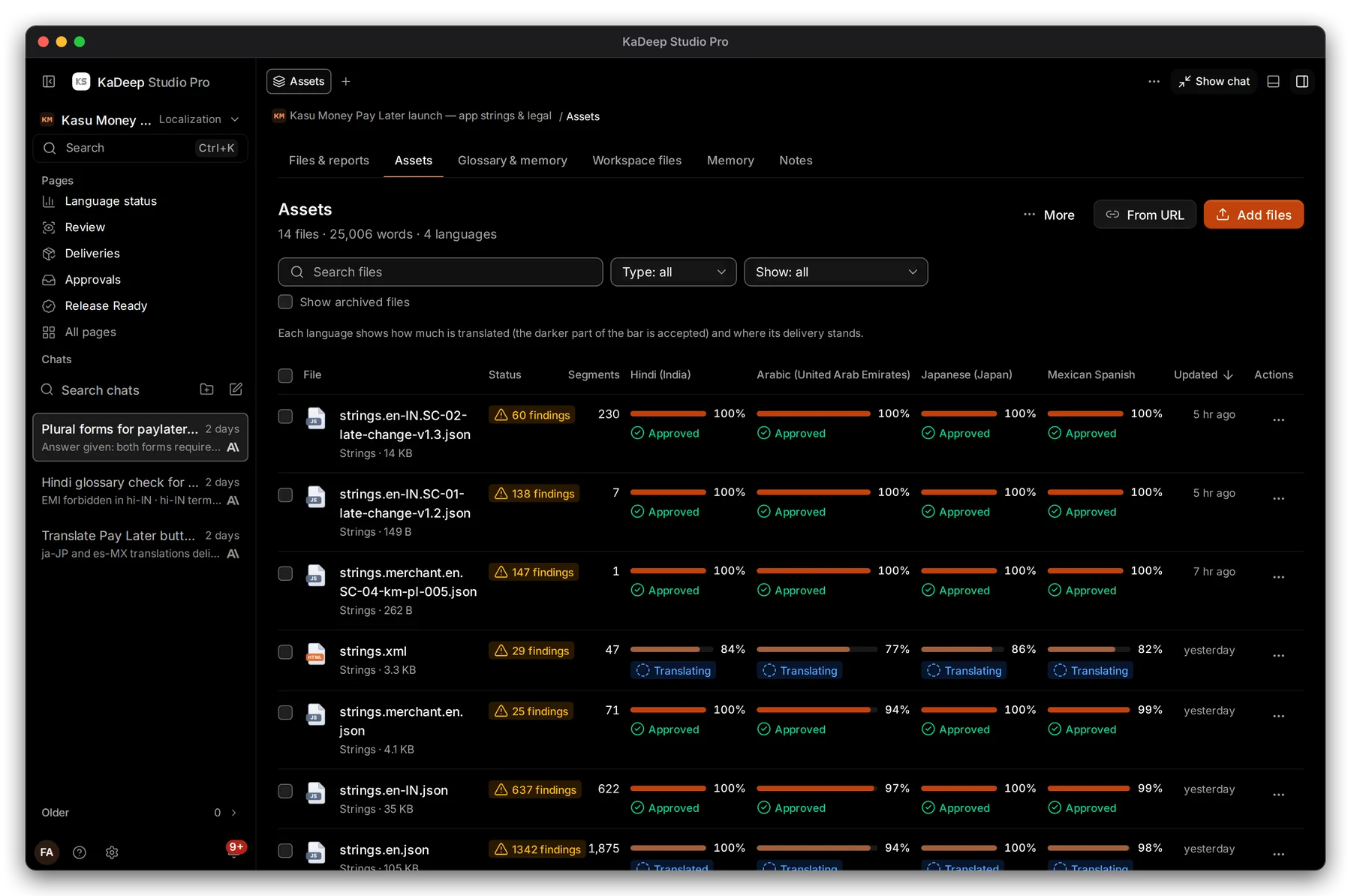
Hands-on view
Click a file’s name to open it, with its strings, findings and every language’s stage.
- 1 Add files uploads from your computer.
- 2 From URL adds a website, so the agent can translate its pages.
- 3 Filters: Needs attention, Not fully translated, Not fully validated and Working now.
- 4 Each language’s bar: the darker part is accepted. Below it, where the delivery stands, such as Approved.
- 5 More for one file: Open in Workbench, Translate…, Check quality…, Validate…, Download source, Rename or Archive.
2. Add files
Section titled “2. Add files”- Choose Add files and pick one or more files.
- Wait while KaDeep reads them. Each file shows its kind, size and segment count.
- To have the agent draft the translations, open the file’s More menu and choose Translate…. Pick the languages. Drafts show in the Workbench with the status Draft.
| Kind | Examples |
|---|---|
| Strings | JSON, ARB, Android XML, iOS strings, PO, RESX, YAML, XLIFF |
| Document | Word, PowerPoint, Excel, PDF, Markdown |
| Picture and design | PNG, JPG, SVG posters and social posts. Text is read from the picture. |
| Course | SCORM zips, with their pictures, videos and documents |
| Website | A URL, translated page by page |
| Subtitles | SRT, VTT |
What’s next
Section titled “What’s next”Language statusProgress for every language at a glance.
DeliveriesAssign people and dates to each file and language.
Glossary and translation memoryTerms the agent and linguists must follow.